Skip to content

(855) 870-9786   |  Log-In

Main Navigation

Help Center
  • Connect with us
    • Schedule a demo
    • Get support
  • Cars.com Hub
  • Log out
  • Cars.com
    • Inventory Listings
      • How to add or edit your legal disclaimer
      • How to change pricing
      • How to edit batch taglines
      • How to size your inventory photos for best results
      • How to upload your cars.com inventory
    • VDP Optimization
      • How to update dealership information
      • How to update a VDP
      • How to configure fees in Dealer Dash 
    • Lead Management
      • How to access your shopper alerts
      • How to navigate shopper details
      • How to best respond to a Cars.com lead
      • How to understand lead sourcing for Cars.com products in your CRM
    • Dealer App
      • How to manage your deal badges on the Cars.com Dealer app
      • How to manage and review vehicle listings on the Cars.com Dealer app
      • How to review leads and shopper details in the Cars.com Dealer App
    • Reputation Tools
      • How to use automated review solicitation to build your reputation
      • How to personally respond to reviews
      • How to set up and remove salesperson profiles
      • How to set up Smart Response
      • How to opt in to Salesperson Connect 
      • How to connect external review sources
      • How to set up ReviewBuilder
    • Shopper Experience Tools
      • How to set up and respond to chats
      • How to edit your dealer module
      • Understanding Cars.com financing lead types
      • How to customize financing settings on your listings
      • How to view and manage Cars.com financing leads
      • Troubleshooting financing lead delivery and access
      • How to enable or disable financing options on your VDPs
      • How financing prequalification works for shoppers and dealers
    • Reporting and Analytics
      • How to access your Cars.com reporting
      • How to access your VIN performance media report
      • How to access your cars social report
      • How to access your premier report
      • How to access your connections & contact details report
      • How to access your walk-in demand report
      • How to access your listings optimizer report
      • How to access your performance trends report
      • How to access your demand signals report
      • How to access your DMV market share report
      • How to access your reputation health report
      • How to access your sales attribution report
    • FAQs
      • How to use your ‘Best Of’ award assets
      • How to leverage Deal Badges
      • How to leverage the Consumer Satisfaction Awards
      • How to understand the American Made Index
      • How to earn Cars Commerce rewards
      • How to access the Dealer of the Year awards
      • How to understand Certified listings
      • Instant Financing FAQs
  • Dealer Inspire
    • Pages and Content Management
      • How to navigate your Dealer Inspire website 
      • How to create new pages
      • How to update your staff page
      • How to enable site notice
      • How to update dealership hours
      • How to create a blog post
      • How to manage your blog posts
      • How to leverage SEO keywords and tags in blog posts
    • Website Banners
      • How to create a slider with DI Slides
      • How to use DI Slides to add images to your website
      • How to use DI Slides to add videos to your website
      • How to add Banners to VRPs
      • How to embed videos on your website
      • How to create a new inline banner
      • How to use inline banner templates
      • How to add inline banners using HTML
      • How to personalize your slides by make and model
    • Inventory Management
      • How to create image carousels on the VRP
      • How to create special offers
      • How to embed special offers anywhere on your website
      • How to capture leads with Vehicle Build & Price
    • Personalization and Geofencing
      • How to set up Personalizer
      • How to leverage Personalizer usage rules
      • How to set up a geofence in Personalizer
    • Service and FixedOps
      • How to add service and parts and coupons
      • How to create coupons for digital wallets
    • Additional Tools
      • How to create a pop-up
    • Reporting
      • How to access and analyze your Website Health Report
      • How to access your website’s form leads
    • Conversations (Chat and Messaging)
      • How to set up and respond to chats
      • How to create a hotkey in Conversations
      • How to make the most of the AI Virtual Assistant in Conversations
      • How to leverage managed chat
      • How to customize the visitor experience in Conversations
      • How to navigate admin settings in Conversations
      • How to use Conversations reporting to improve performance
    • Digital Retailing (Automatic)
      • How to view and manage website financing leads
      • How to customize financing settings on your website
      • How Online Shopper works for shoppers and dealers
      • How Shop By Payment works for shoppers and dealers
      • Financing lead types on your Dealer Inspire website
    • Google Analytics 4
      • Setup & Configuration
      • Events & Conversions
      • Reports & Dashboards
      • Content Performance
    • FAQs
      • How can I ensure the best quality images on my website?
      • How the Dealer Inspire financing tools work
      • How to add shortcode to your website 
      • What shortcodes can I use for my website?
      • How do I update my price stack?
  • AccuTrade
    • Dealership Settings
      • How to add new users
      • How to update your location and language preferences
      • How to configure your Price Bar
      • How to add a VIP customer reward
      • How to connect your VHR credentials
      • How to manage user roles and settings
    • Appraisals
      • How to conduct driveway appraisals
      • How to connect your OBD scanner
      • How to turn prospects into appraisals
      • How to understand dealer acquisition appraisals
      • How to appraise vehicles in the service drive
      • How to conduct showroom appraisals
      • How to appraise with the mobile app
      • Elements of a complete appraisal
      • How to generate the Universal Condition Report
      • How to utilize historical pricing
    • Integrations and Workflows
      • How to set up Monroney Labels
      • How to manage your DealerClub integration
      • How to connect your DMS
      • How to add your CARFAX or AutoCheck Integrations
      • How to add third-party integrations
      • How to connect your CDK CRM integration
      • How to set up your Hunter integration
      • How to set up AccuTrade on your Dealer Inspire website
      • How to enable your Cars.com integration
      • How to appraise vehicles with VIN-dow
    • Merchandising and Syndication
      • How to manage inventory photos
      • How to add vehicle descriptions to inventory
      • How to syndicate vehicles online using AccuTrade
    • Pricing
      • What is Market Pricing in AccuTrade?
      • How to adjust your pack and fees
      • How to set retail list prices
      • How to leverage Price to Market
      • How to leverage Cost to Market
      • How to leverage Days on Market
      • How to understand pricing rules for new cars
      • How to leverage incentives
      • How to leverage Wholesale Outlook
      • How to optimize your wholesale strategy
      • How to analyze exit strategies and profit potential
      • How to utilize the competitive set
      • How to leverage repricing rules
    • Stocking
      • How to set blocklist rules 
      • How to create campaigns and generate QR codes
      • How to convert Cars.com leads into acquisitions
      • How to optimize your auction strategy
      • How to send a vehicle to inventory
      • How to set rules with automation
    • Reporting Dashboard
      • How to leverage the Inventory Intelligence Report
      • How to leverage the Profit Funnel & Trade Capture reports
      • How to leverage the Appraiser Efficiency Report
    • FAQs
      • How can I order more BlueDriver OBD devices?
      • How can I troubleshoot my OBD scanner?
      • How to communicate with prospects
      • How to utilize the Intelligence Score
      • How to read your Appraisal Scorecard
      • How to liquidate vehicles with AccuTrade
      • How Instant Offer lead distribution works on Cars.com
  • DealerClub
    • Account Setup
      • How to add/edit payment methods
      • How to add a photo to your DealerClub user profile
      • How to add a new user
      • How to add a profile description
    • Listing Vehicles
      • How to perform a vehicle inspection
      • How to add a clear description to your listing
      • How to add vehicle photos and descriptions
      • How to list a vehicle
      • How to fill out the condition report
      • How to relaunch a vehicle
      • How to schedule a launch
      • How to set your reserve using AccuTrade pricing insights 
    • Buying Vehicles
      • How to place a bid
      • How to make an offer
      • How to set up your auction search filters
      • How to use the transportation costs tool
      • How to place a proxy bid
    • Communication and Offers
      • How to accept/decline an offer
      • How to negotiate
      • How to comment on a listing
      • How to tag others with Mentions
    • Notifications and Alerts
      • How to configure notifications
    • Dealer Reputation and Ratings
      • How to block users on DealerClub
      • How to follow sellers on DealerClub
      • How to leave a rating for a seller
      • How to view a seller’s rating
      • How to build your reputation 
    • Transactions and Payments
      • How to locate buy fees
      • How to receive payment
      • How to send a title and understand the title process
    • Integrations
      • How to access your Cars.com inventory feed
    • Reporting and Analytics
      • How to leverage CrowdSource pricing insights
      • How to access your reports and activity
    • FAQ
      • How to play the pricing game
  • Cars Commerce Media Network
    • Ad Campaign Reqs
      • Client-provided display ad guidelines for CCMN campaigns
      • Client-provided video guidelines for In-Market Video campaigns
      • How to get started with Cars Social Onboarding
      • How to get started with IMD and Tentpole campaigns
      • How to get started with VPM Onboarding
      • How to get started with IMV Onboarding
    • AI Optimization
    • Compliance and Privacy
      • How to review the terms and conditions for Cars.com ads
      • How audience targeting works for IMD, IMV, VPM, and Cars Social
    • Creative Messaging Guidance
      • How to leverage video templates
      • How to use the IMD Tentpole Templates
    • Performance Reporting
      • How to add an attribution pixel
    • Reporting and Analytics
      • How to access CCMN referral traffic in Google Analytics
    • FAQs
      • How do I know my ads are live?
      • What are my targeting options for Cars Social?
      • How do I update my target address for VPM or Cars Social?
      • What vehicles are eligible to serve in Cars Social ads?
      • Where will my IMV campaigns appear?
      • Do my ad campaigns have UTMs attached? 
  • Schedule a demo
  • Get support
  • Cars.com Hub
  • Log out

How to send a title and understand the title process

DealerClub Transactions and Payments How to send a title and understand the title process

How to send a title and understand the title process

March 20, 2026

After a vehicle sells on DealerClub, the seller is responsible for sending the physical title to the DealerClub title processing office in Florida. DealerClub then reviews the title, confirms it is valid for the buyer’s state, and forwards it to the buyer. This article explains each phase of that process and what to expect at each stage.

To get started

Go to the Cars.com Hub and then click on DealerClub.

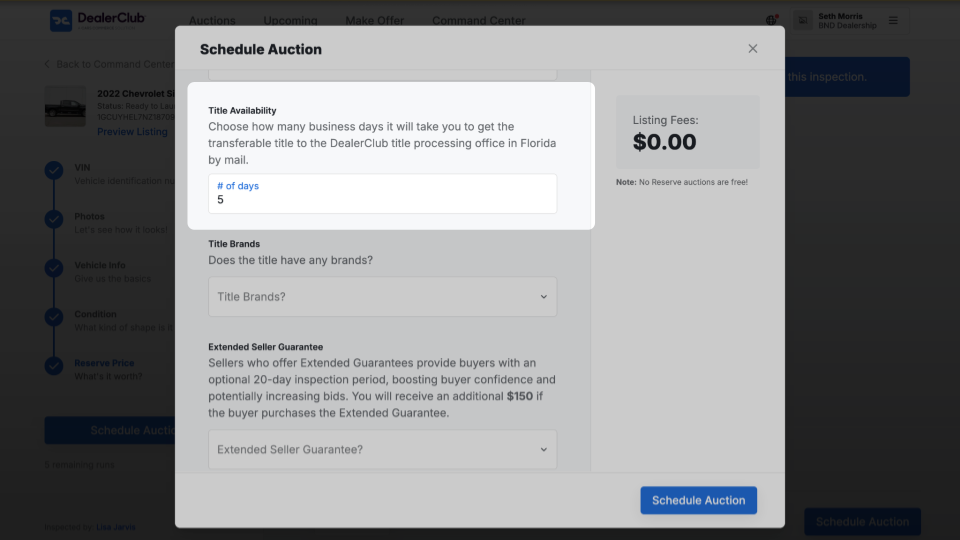
1 Specify your title delivery timeline

When scheduling an auction, specify the number of days it will take you to mail a transferable title to the DealerClub title processing office in Florida. Buyers can see this estimated timeline before they bid.
2 Send the title after your vehicle sells

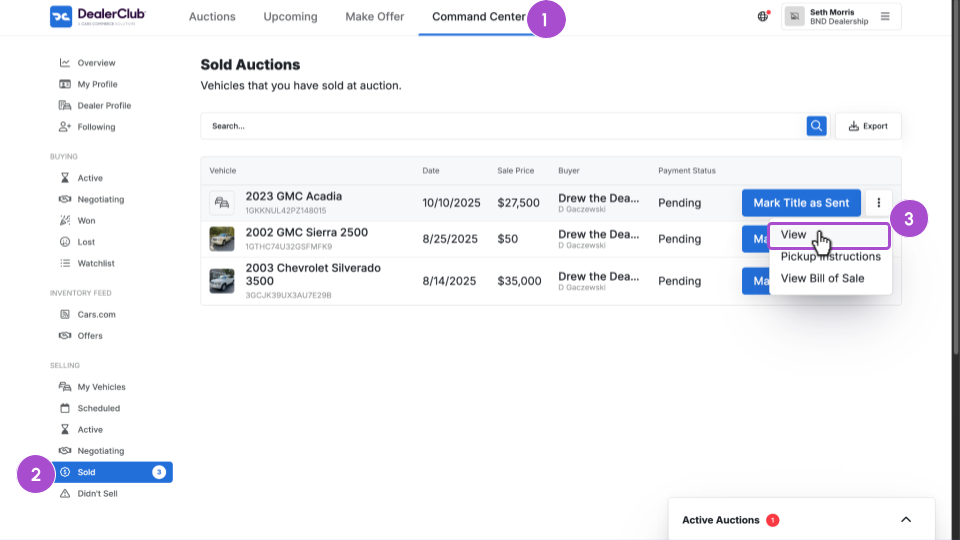
After your vehicle sells, navigate to the sold vehicle in Command Center and send the title.

  1. Click the Command Center tab. 
  2. Select Sold under the Selling menu. 
  3. Open the 3-dot menu for the vehicle and click View. 
4. Select Manage Title.
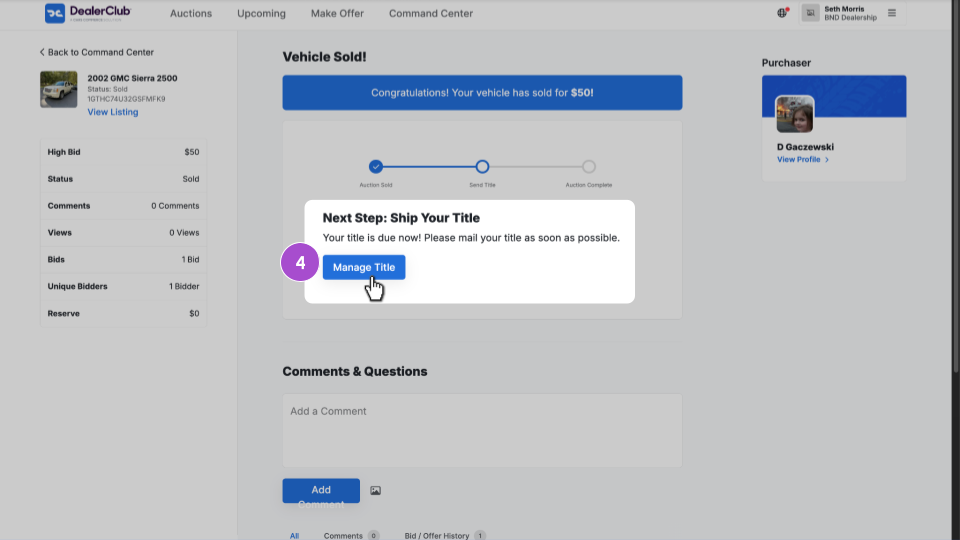
5. Select Manage Title.

6. Mail the reassigned title to DealerClub.

7. After the title is sent, click the Mark As Shipped button.
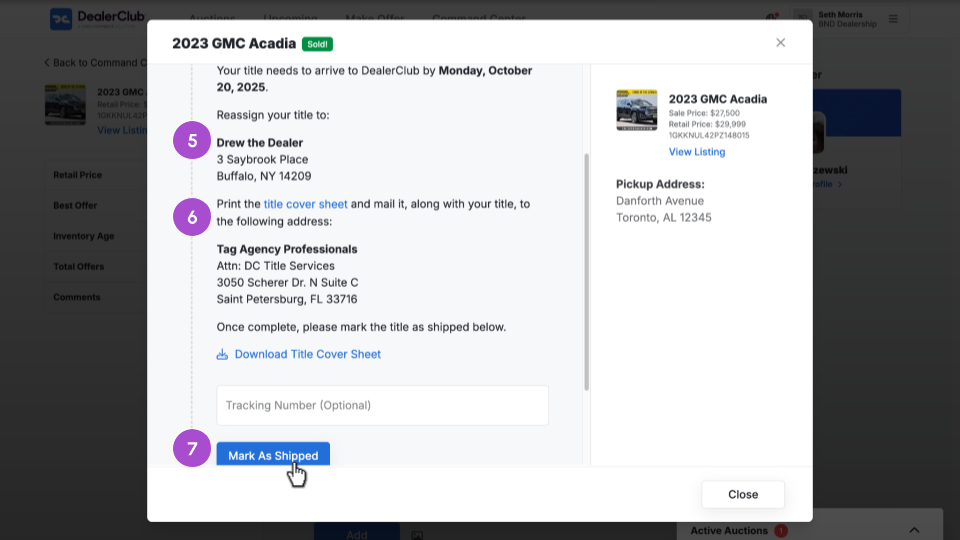
Important: Make sure the title is reassigned directly to the buyer. Any title not reassigned to the buyer will be returned for correction.

3 DealerClub confirms the title

After receiving your title, DealerClub reviews and processes it to confirm it will work in the buyer’s state.

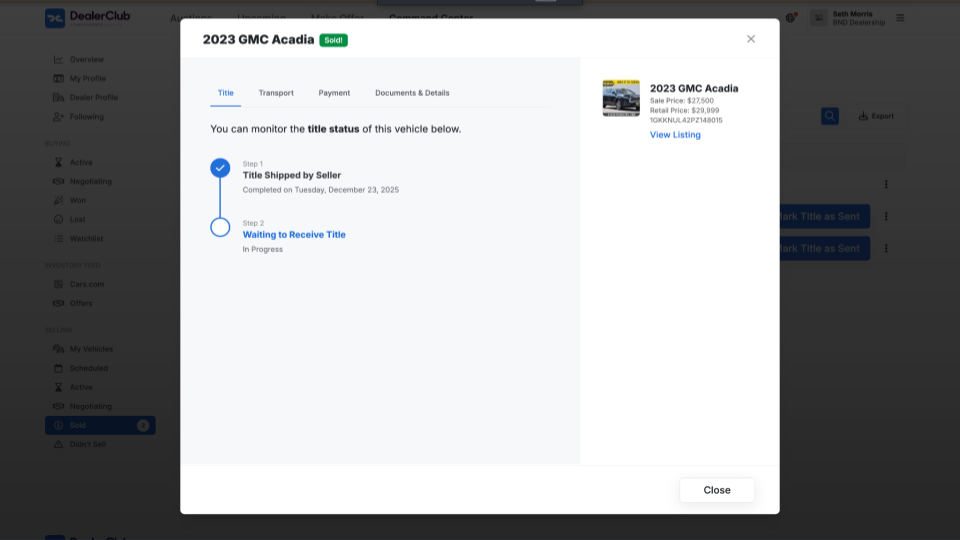
Once confirmed, the title status will update in the Title tab. If there’s an issue, our team will reach out directly to resolve it.
4 Buyer receives the title

DealerClub sends the confirmed title to the buyer. Delivery typically takes 2–3 business days. When the buyer confirms receipt, the status updates in the Title tab, completing the transaction.

FAQs

What is a negotiable title?
A negotiable title meets all requirements for transfer. This includes:

  • Properly executed and clear of all liens
  • Accompanied by all documents necessary to register the vehicle in the buyer’s state
  • VIN is correct and matches the vehicle
  • Accurate odometer reading
  • Proper reassignment to the buyer without gaps between owners
  • Notarized where required

If your title has a minor issue, DealerClub holds Power of Attorney (POA) to act as a title agent on your behalf and may be able to correct it without sending it back to you.

What happens if there is a title issue?
If DealerClub encounters an issue with your title:

  • The DealerClub team will reach out directly to resolve it.
  • If the title paperwork is not valid for the buyer’s state but is transferable in Florida, DealerClub offers a title transfer service for a $100 fee.

If a fully transferable title is not received within the specified deadline after a buyer places a Late Title Notice, the sale may be unwound and any incidental expenses may be charged to the seller.


Related Articles

  • How to add a profile description

  • How to add a new user

  • How to add a photo to your DealerClub user profile

  • How to add/edit payment methods

  • Video

    How to turn your Cars.com listings into wholesale opportunities

    DealerClub's Frontline Wholesale Lane surfaces your Cars.com listings to verified buyers without the auction fees. Watch the video to see how it works.

    February 14, 2026  |  2 min read

  • Platform Update

    Welcome to your new command center

    Access all your Cars Commerce solutions in one place. The redesigned Hub brings you actionable insights, streamlined reporting, and unified login for faster decisions.

    January 26, 2026  |  3 min read

  • Platform Update

    New integration speeds up wholesale listing workflow

    The new AccuTrade x DealerClub integration connects your appraisal and wholesale workflows to help you list vehicles more efficiently.

    October 16, 2025  |  3 min read

View all

Resource Request Form

Resource Request Form

  • This field is hidden when viewing the form


  • Provide website links or a direct link to the page or product you are having issues with.
  • Please explain your training request or question in detail.
  • Drop files here or

    Max. file size: 50 MB.

      Please submit any screenshots or examples of the resources you are requesting.
    • Once we’ve received your request we will reach out to you with resources and next steps!

    This site is protected by reCAPTCHA and the Google
    Privacy Policy and
    Terms of Service apply.


    Submit a Ticket

    General Support Request

    Please complete the form below to submit your support request.
     
    Need to schedule a training? You can do that here.

    • This field is for validation purposes and should be left unchanged.
    • Provide website links or a direct link to the page or product you are having issues with.
    • Please summarize your issue or request.
    • Please describe your issue or request in as much detail as you can.
    • Drop files here or

      Max. file size: 50 MB, Max. files: 4.

        Please upload screenshots of your issue if applicable.

      This site is protected by reCAPTCHA and the Google
      Privacy Policy and
      Terms of Service apply.


      • Your platform
        • Go to your solutions
        • Explore full platform
        • Platform Updates
      • Connect with us
        • Schedule a demo
        • Submit support ticket
      • Learn more
        • Strategy Guides
        • Expert Articles
        • Case Studies
      © 2026 Cars.com Inc. All rights reserved.
      • Terms & Conditions of Use
      • Privacy Notice
      • California Privacy Notice
      • My Privacy Choices
      • Ad Choices
