How to schedule a launch
Scheduling a launch is the final step before your vehicle goes live on DealerClub. This is where you set your reserve price, choose your launch type, and confirm your logistics.
In this article, you will learn how to set your reserve price, choose between launch types, select your auction duration and pickup location, and confirm title availability before scheduling your auction.
To get started
Go to the Cars.com Hub and click on DealerClub.
Before you begin
Complete your Condition Report before scheduling. See how to fill out the condition report for a full walkthrough.
1Set the Reserve Price
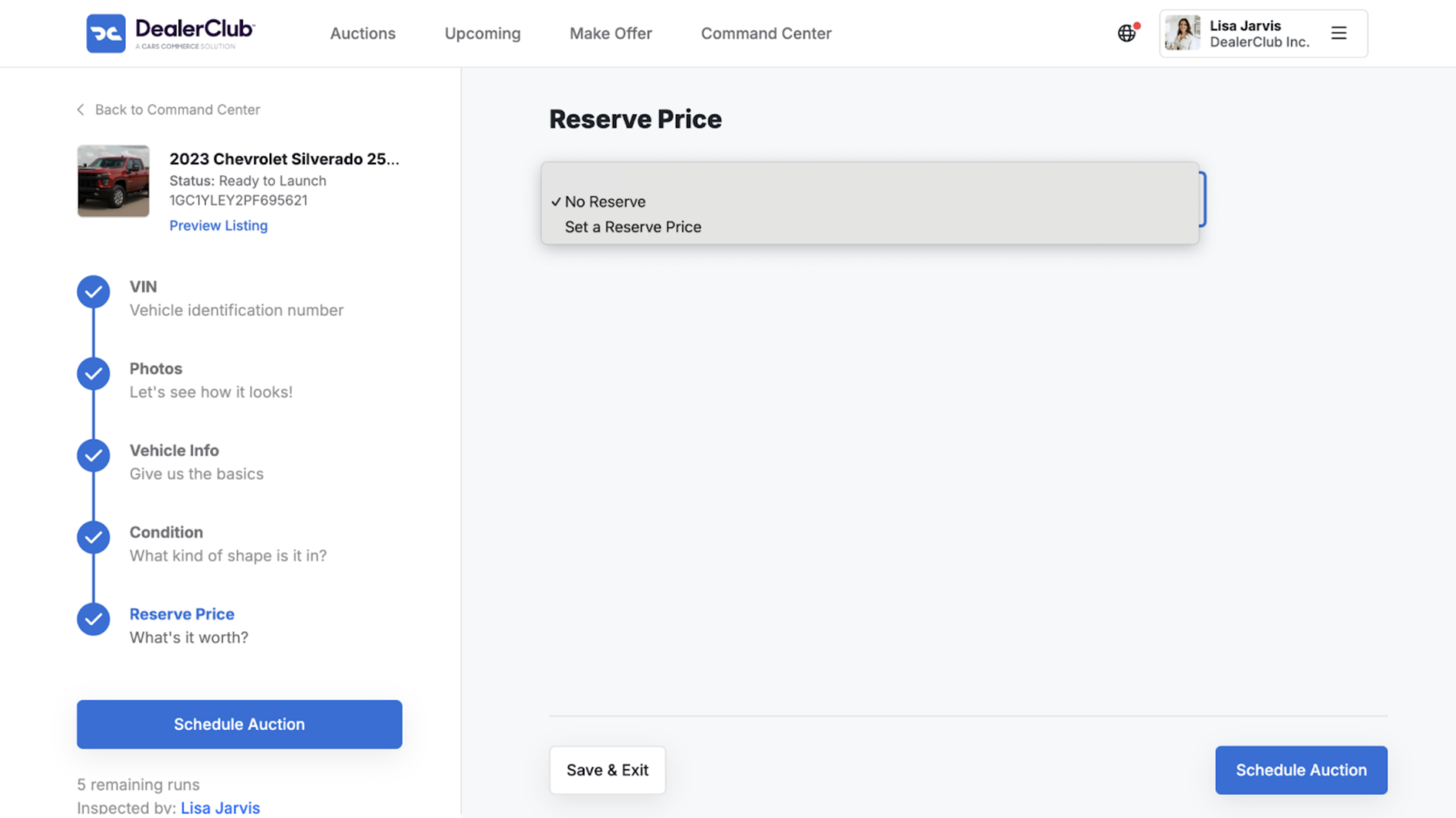
Select your Reserve Price type from the two options:
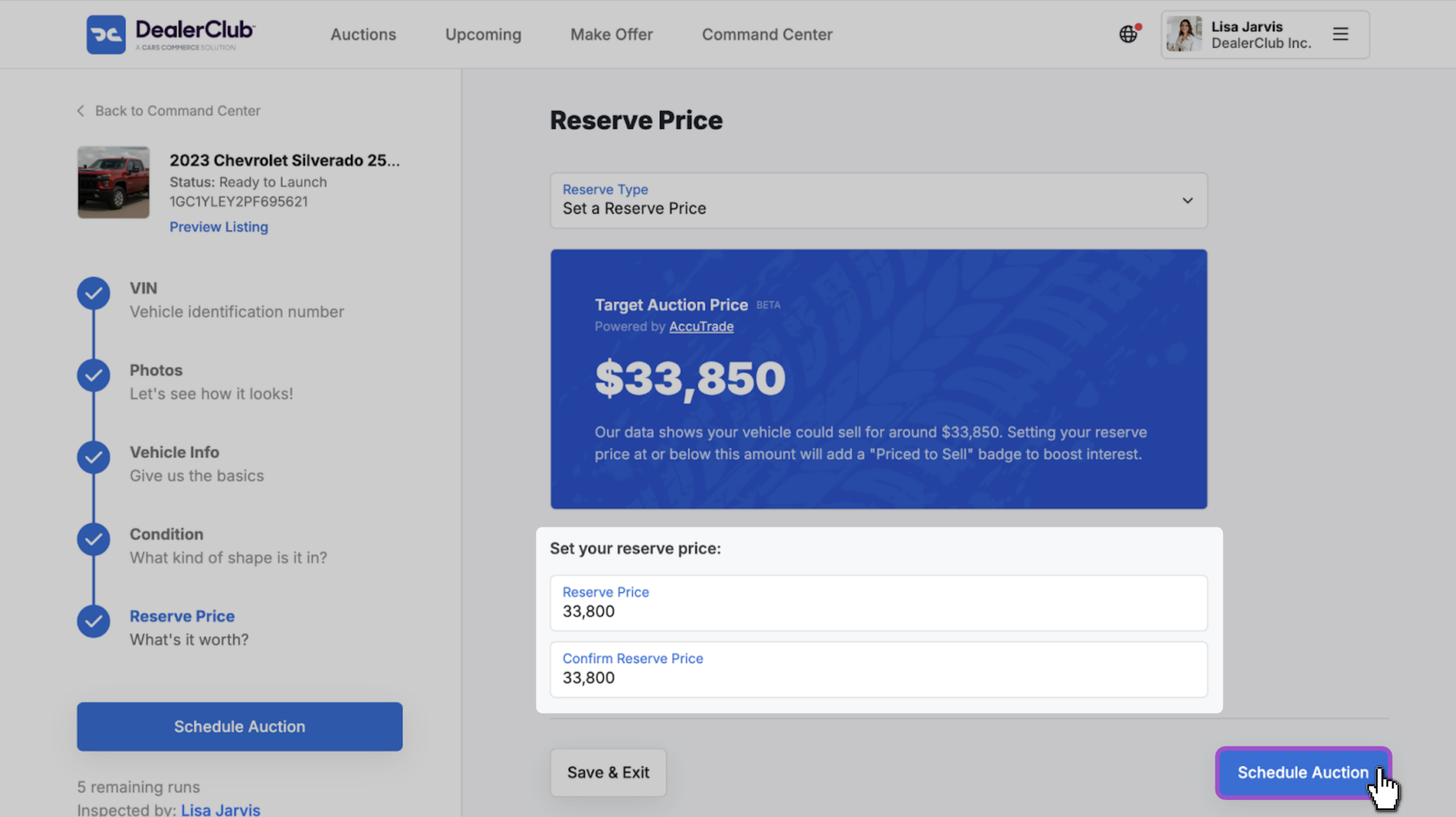
- Set a Reserve Price — a target auction price powered by AccuTrade populates automatically; setting your reserve at or below this amount adds a Priced to Sell badge to your listing
- No Reserve — no minimum price is set; listing a vehicle with no reserve commits you to a guaranteed sale at whatever the final bid is
If you select Set a Reserve Price:
- Click Schedule Auction
- Enter your amount in the Reserve Price field
- Confirm the amount in the Confirm Reserve Price field
2 Confirm auction details
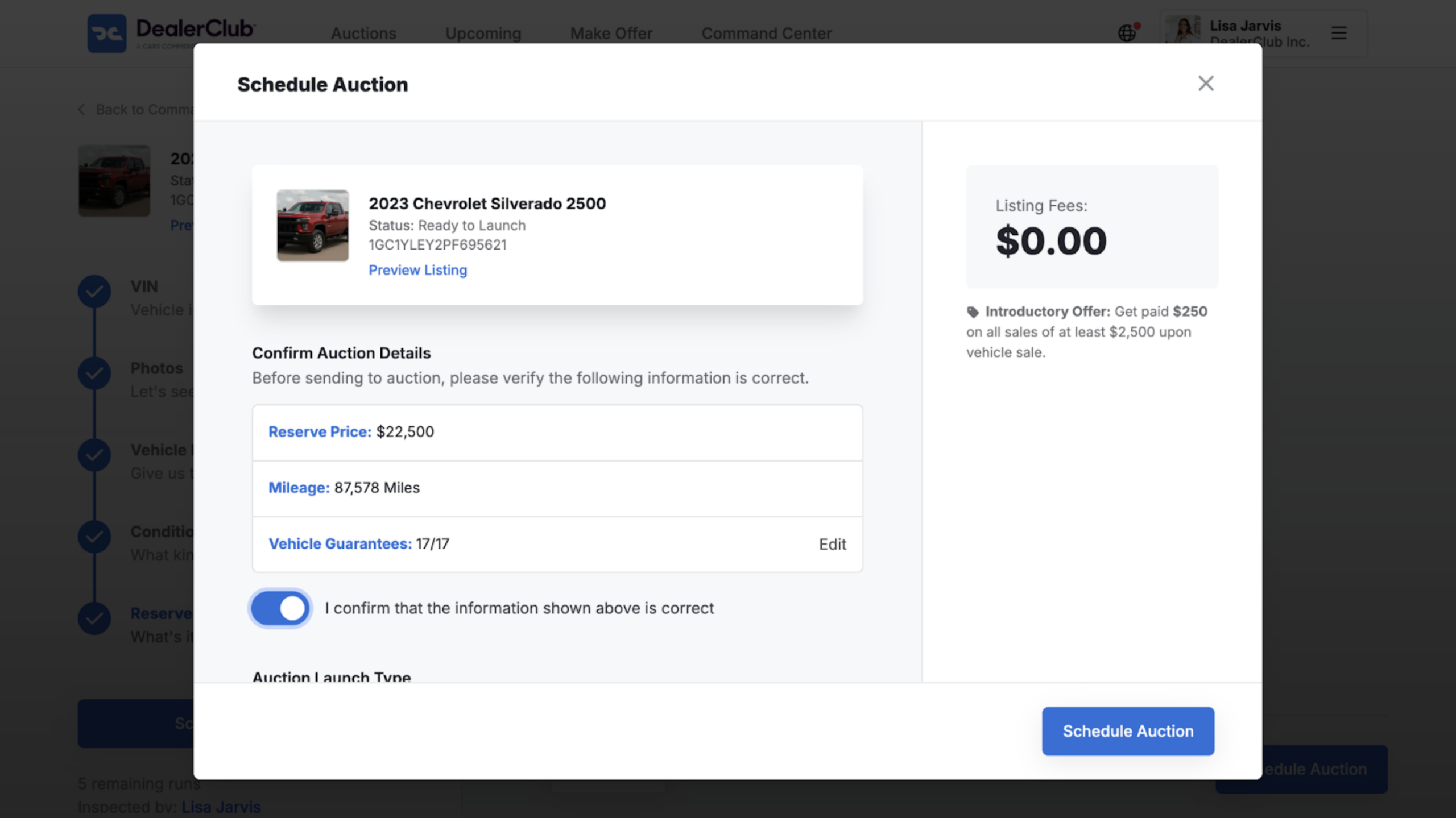
A pop-up window will appear with your listing details before you schedule.
- Review your reserve price, mileage, and guarantees
- Toggle to confirm the details are correct
3Select your auction launch type
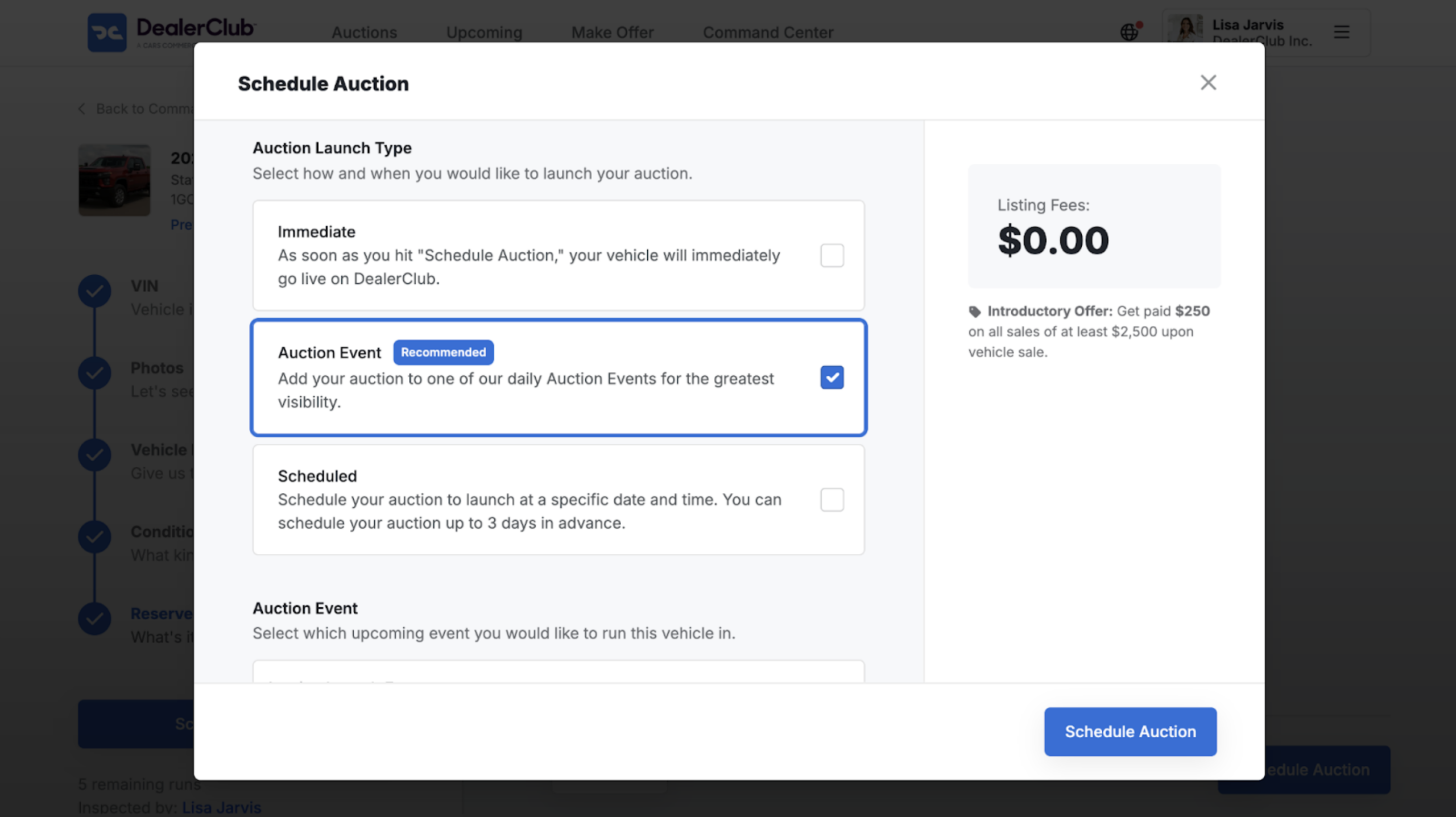
Choose how and when your vehicle goes live:
- Immediate — your vehicle goes live on DealerClub as soon as you click Schedule Auction
- Auction Event (recommended) — adds your vehicle to one of two daily auction events for maximum visibility:
- PrimeTime Auctions — Tuesdays and Thursdays, 4–7 PM ET; three-hour live events designed to concentrate bidder activity
- No Reserve Auctions — Wednesdays, 1–4 PM ET; dedicated to no-reserve listings; every vehicle is committed to a guaranteed sale to the highest bidder
- Scheduled — choose a specific launch date and time up to three days in advance
4Set duration, location, and title details
Scroll through the remaining fields and complete the following:
- Auction Duration — select 15 Minutes, 1 Hour, 3 Hours, or 24 Hours
- Pickup Location — confirm or update the pickup address and add any instructions
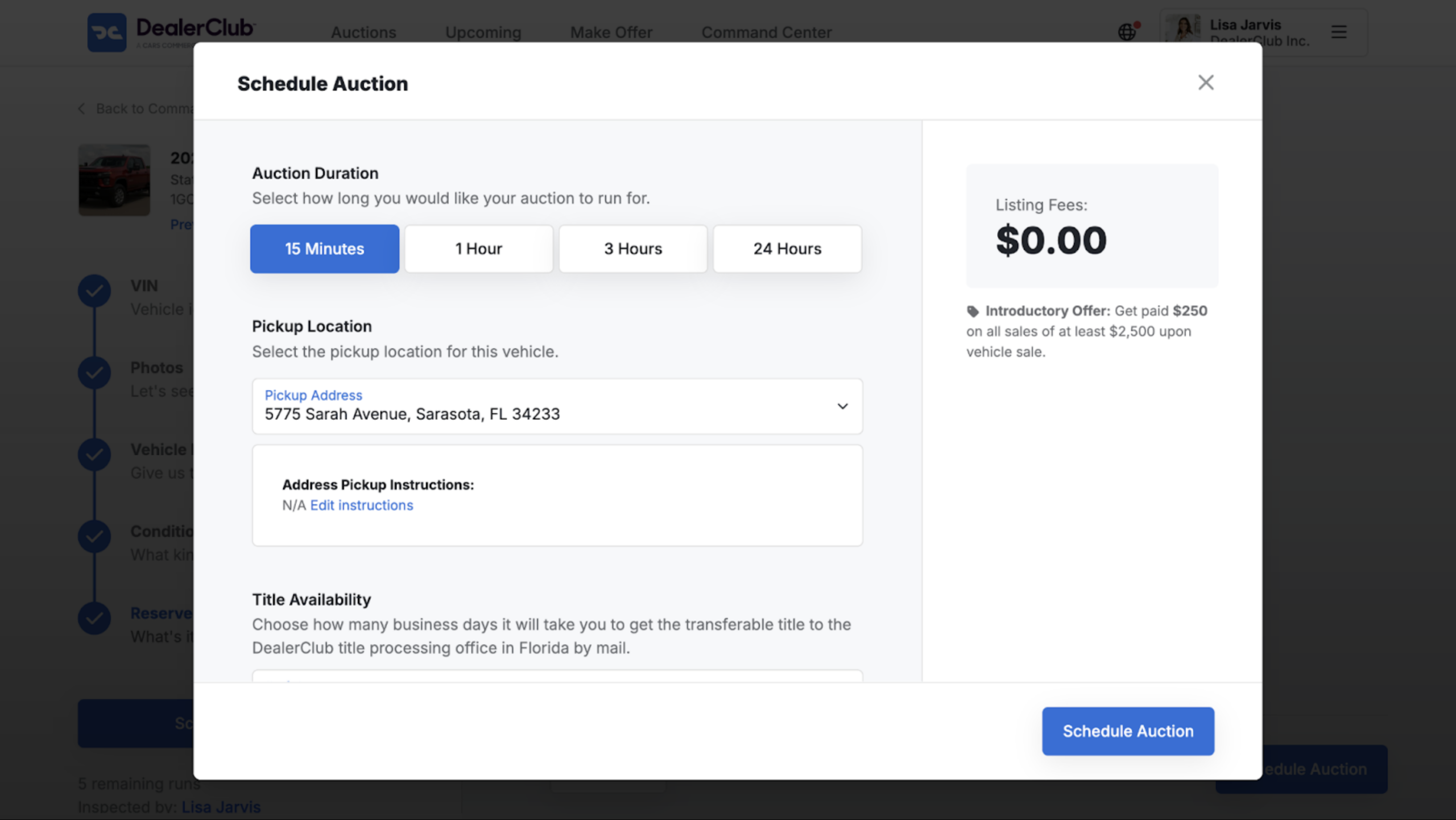
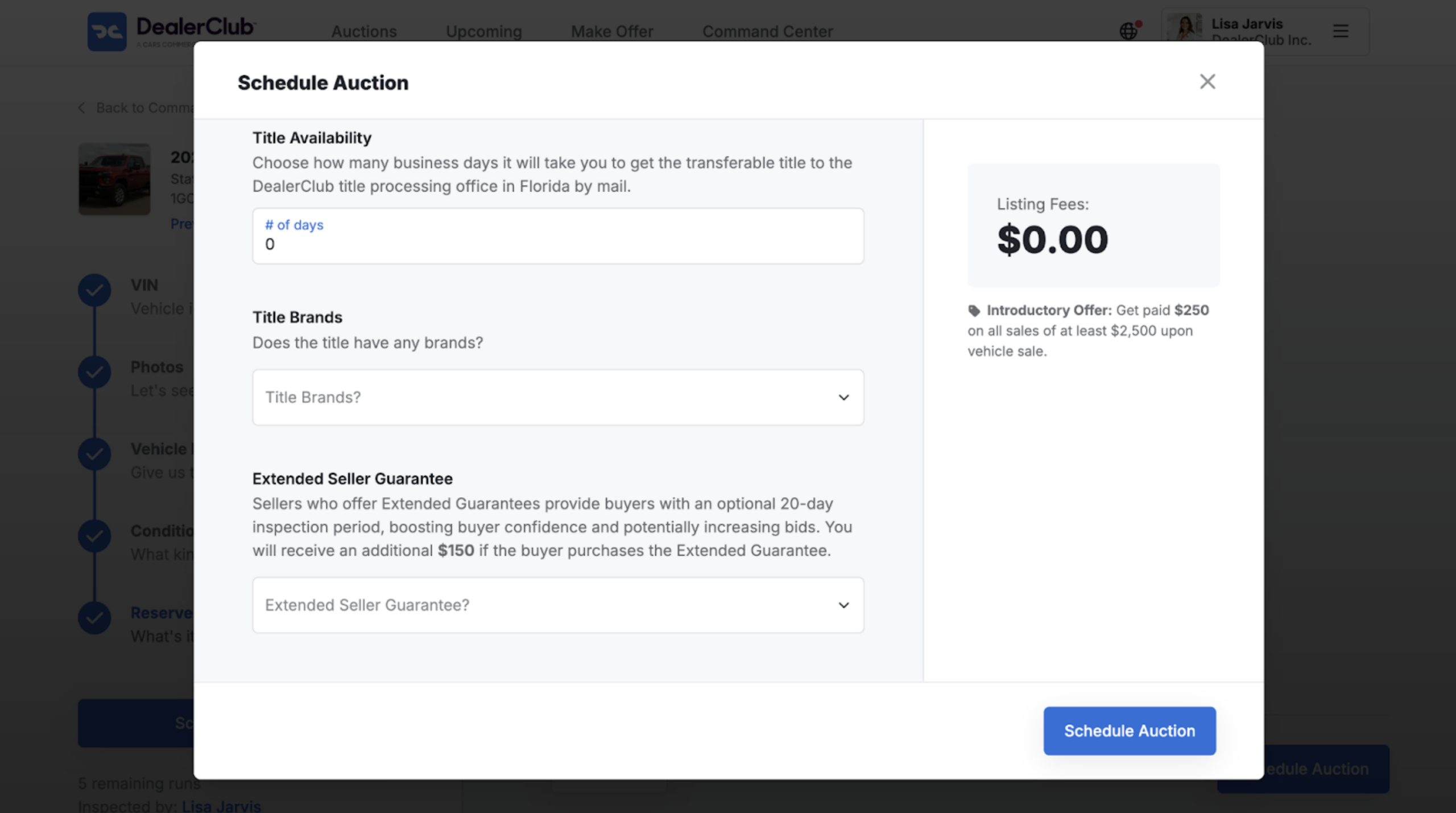
- Title Availability — enter the number of business days it will take to deliver the transferable title to DealerClub’s title processing office in Florida
- Title Brands — indicate whether the title has any brands
- Extended Seller Guarantee — optionally offer buyers a 20-day inspection period; you’ll receive an additional $150 if the buyer purchases the guarantee
5Schedule the auction
- Click Schedule Auction
- Your vehicle goes live according to your selected launch type


