How to embed videos on your website
Video content brings your dealership to life — showcasing vehicle walk-arounds, feature highlights, and promotional messages that engage shoppers and boost time on site.
In this article, you’ll learn how to embed YouTube videos across your Dealer Inspire website using three supported methods.
To get started
Go to the Cars.com Hub. Click Dealer Inspire, then Manage Website.
1 Add videos to Vehicle Detail Pages (VDPs)
You can connect your dealership’s YouTube channel to automatically show videos on your VDPs. Accurately titled videos will appear on matching vehicles.
Steps to set up:
- Hover over Inventory and select Third Party Settings.
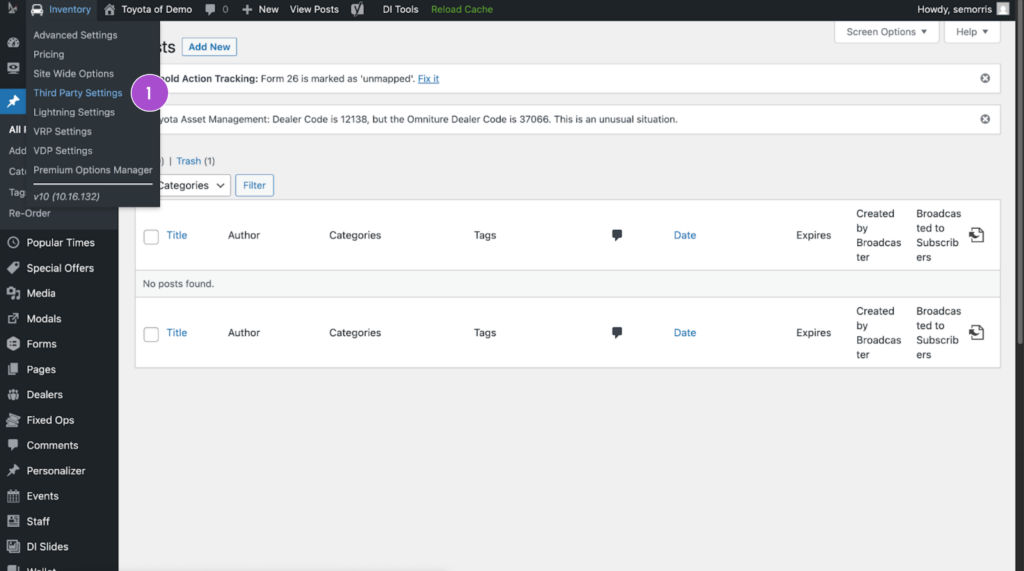
- Click the Videos tab.
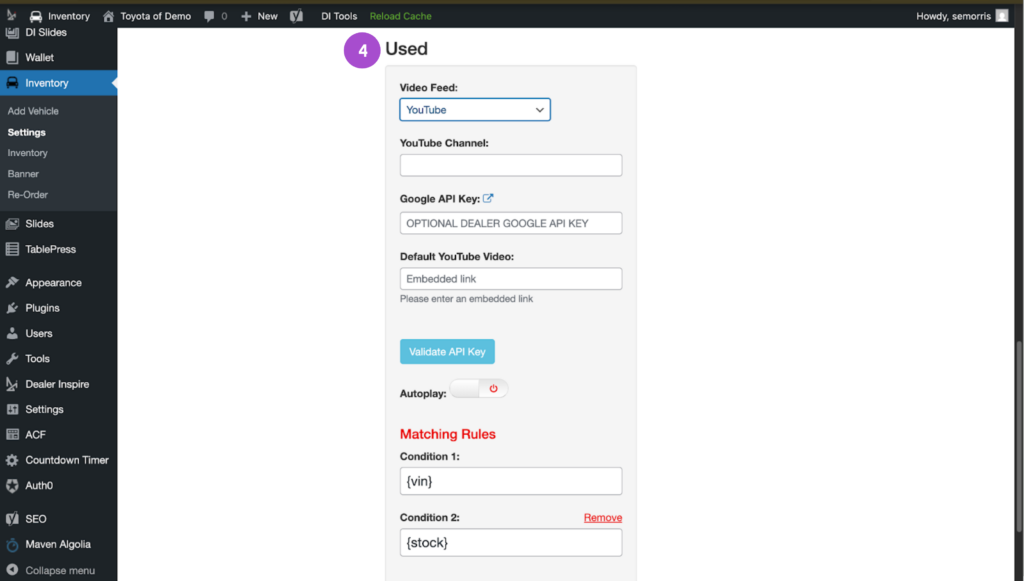
- Under the New section:
- Set the Video Feed to YouTube.
- Add your YouTube channel URL (format: https://www.youtube.com/user/dealership/).
- The system will match titles using this hierarchy:
VIN → Stock Number → Year, Make, Model
- Set the Video Feed to YouTube.

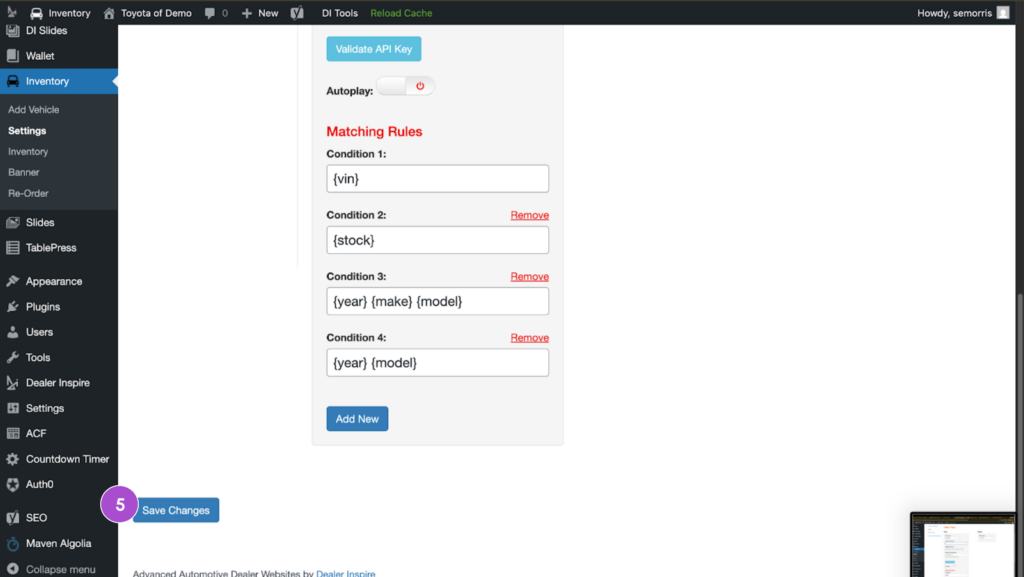
- Repeat steps for the Used section.
- Click Save Changes.
Note: Videos must be set to Public. If they don’t show after a few minutes, verify the title format against the hierarchy.
Other providers (optional):
If you use Unity Works (DealerVideos) or SiSTer, select the provider from the dropdown and input your API ID. Contact support@dealerinspire.com for help with setup.
2 Embed videos in page content
You can manually embed videos on any content page (e.g., blog posts, service pages) using a responsive YouTube embed code.
Steps:
- Paste the following HTML code where you want the video:
<div class="embed-responsive embed-responsive-16by9">

  <iframe class="embed-responsive-item" src="https://www.youtube.com/embed/VIDEO_ID" title="YouTube video player" frameborder="0" allow="accelerometer; autoplay; clipboard-write; encrypted-media; gyroscope; picture-in-picture" allowfullscreen>
  </iframe>

</div>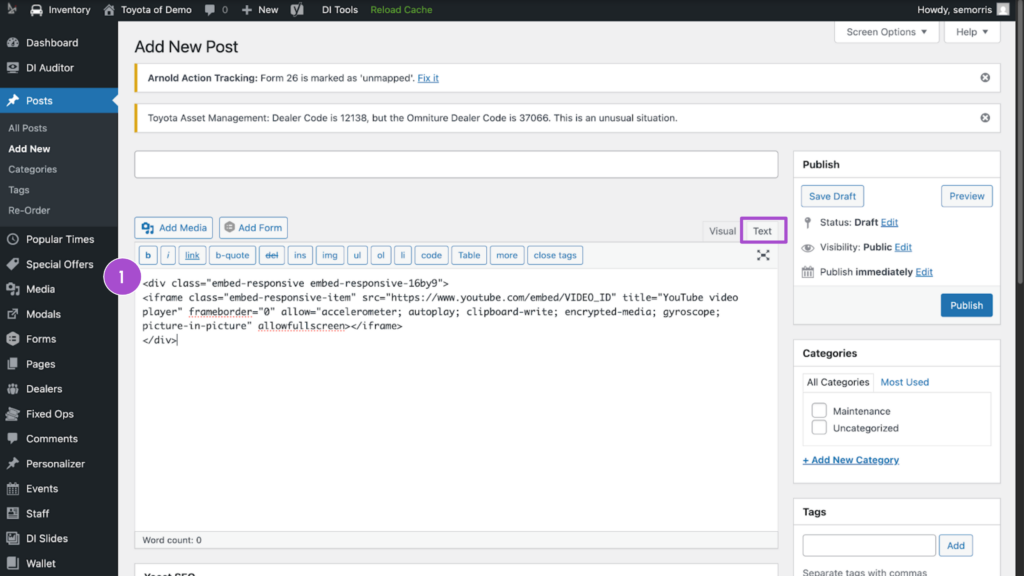
- Go to your video and click Share.
- Select Embed.
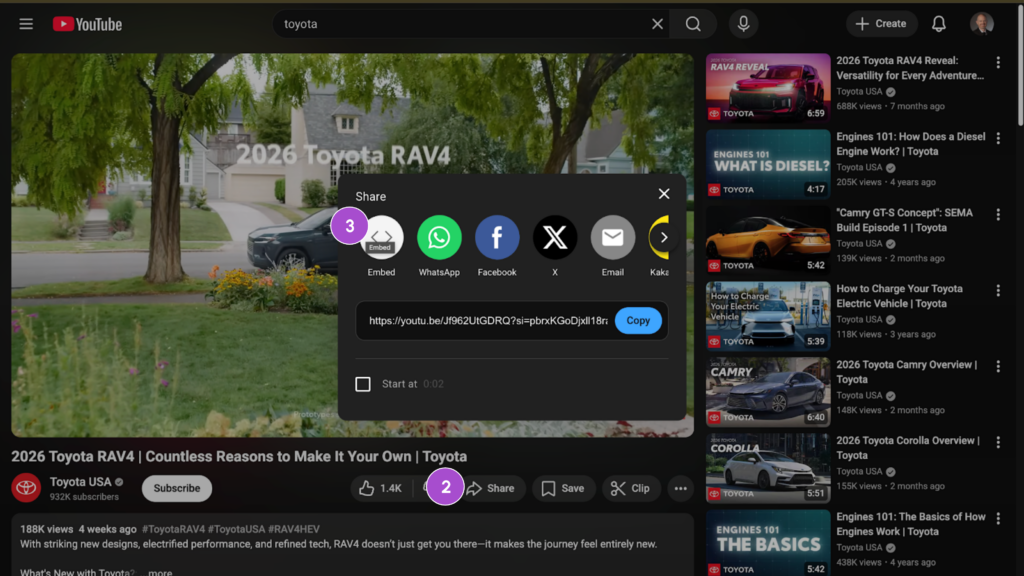
- Copy only the URL from within the iframe code (not the entire code).
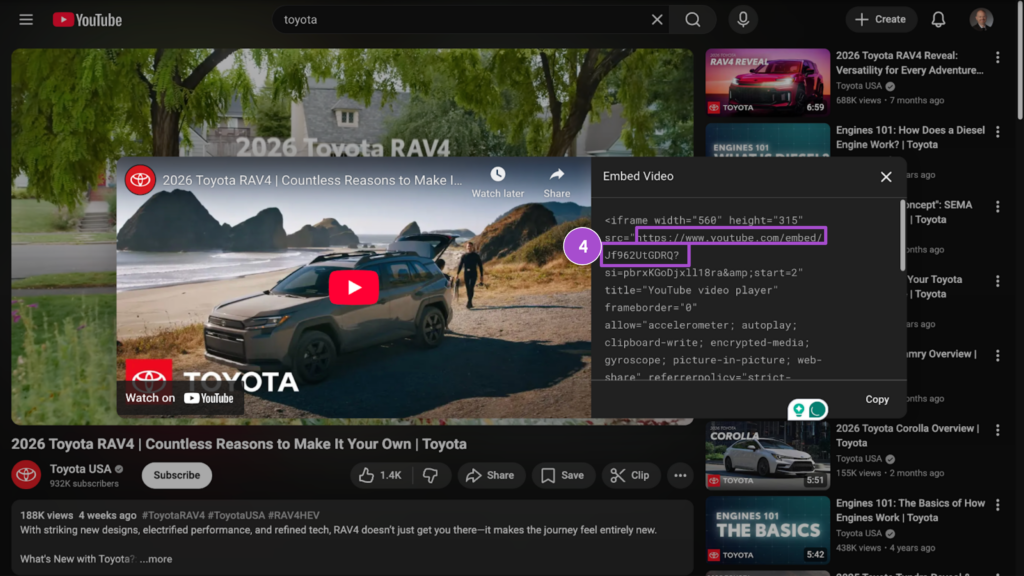
- Replace VIDEO_ID in the HTML above with your copied URL.
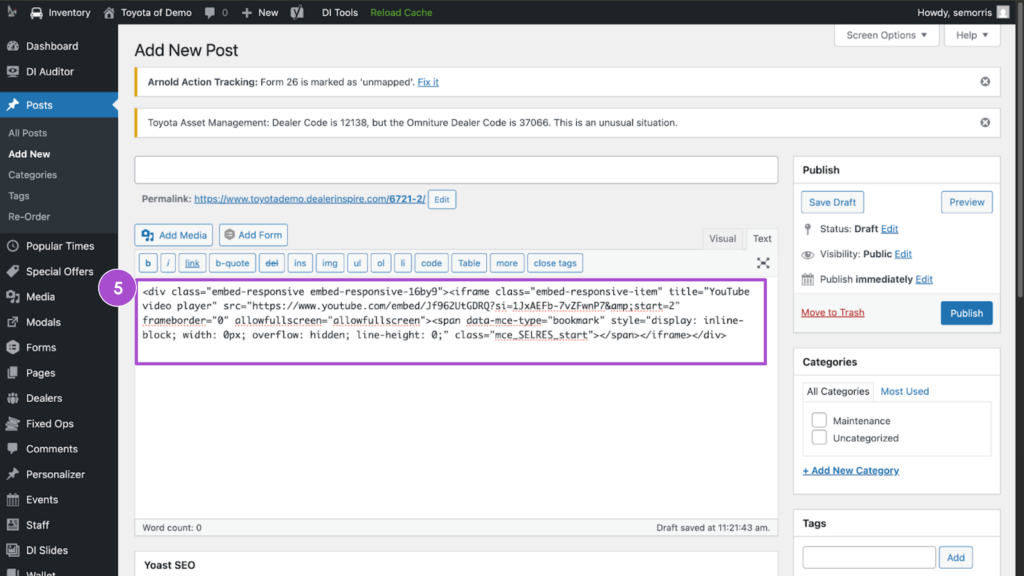
Note: Dealer Inspire websites use Bootstrap’s embed-responsive classes to automatically size videos for all screen sizes.
Tip: Add ?rel=0 to the end of your video URL to prevent YouTube from displaying recommended videos after playback