How to review leads and shopper details in the Cars.com Dealer app
The Cars.com Dealer App lets you review individual shopper details and check lead volume from your phone. Each profile shows a shopper’s price range, most-viewed models, listings they’ve submitted leads on, competitor activity and crucial context to help you gain the full picture of a shopper’s intent.
In this article, you will learn how to access your lead list, filter and search for specific shoppers, and leverage a shopper profile to prepare for a lead follow-up conversation.
To get started
Log in to the Cars.com Dealer app with your Cars.com credentials.
What you’ll need
- Download the Cars.com Dealer app from the App Store for Apple or Google Play Store for Android
1Open your leads list
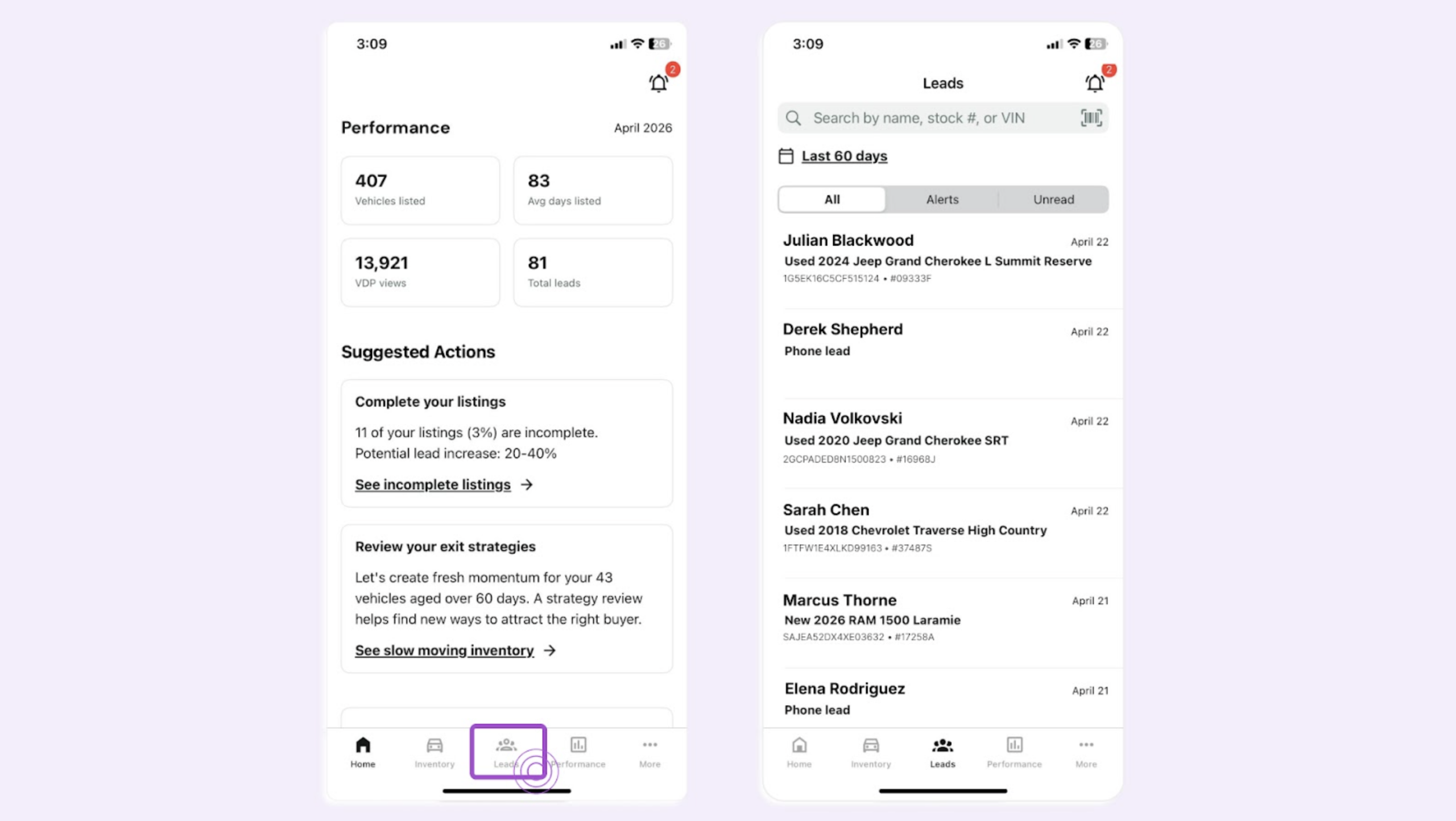
Tap Leads in the bottom menu to open your full lead list
Each lead shows the shopper’s name, the vehicle they submitted a lead on, and when it came in.
2Filter your leads
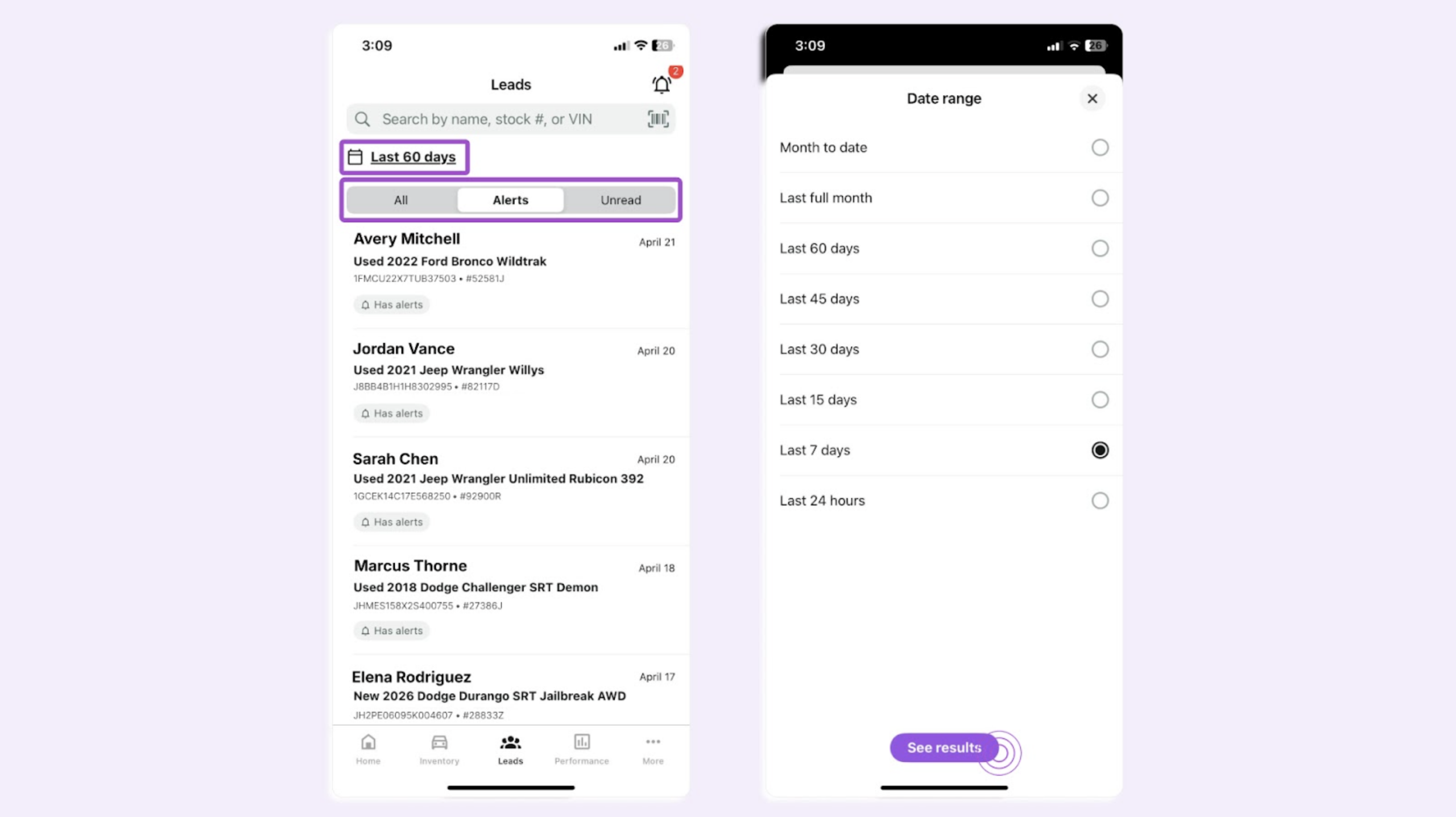
Narrow your list using the filters at the top of the screen.
Filter by type:
- All: every lead in your list
- Unread: leads you haven’t opened yet
- Alerts: existing leads who have recently taken high-intent actions on Cars.com, such as submitting a lead to another dealership
Note: Alerts are your hottest leads. A shopper in this list is actively in-market and may be talking to competitors right now.
Filter by date:
- Tap the date filter (default is Last 60 Days):
- Choose a range between last 24 hours and month to date
- Tap See results
3 Search for a specific shopper
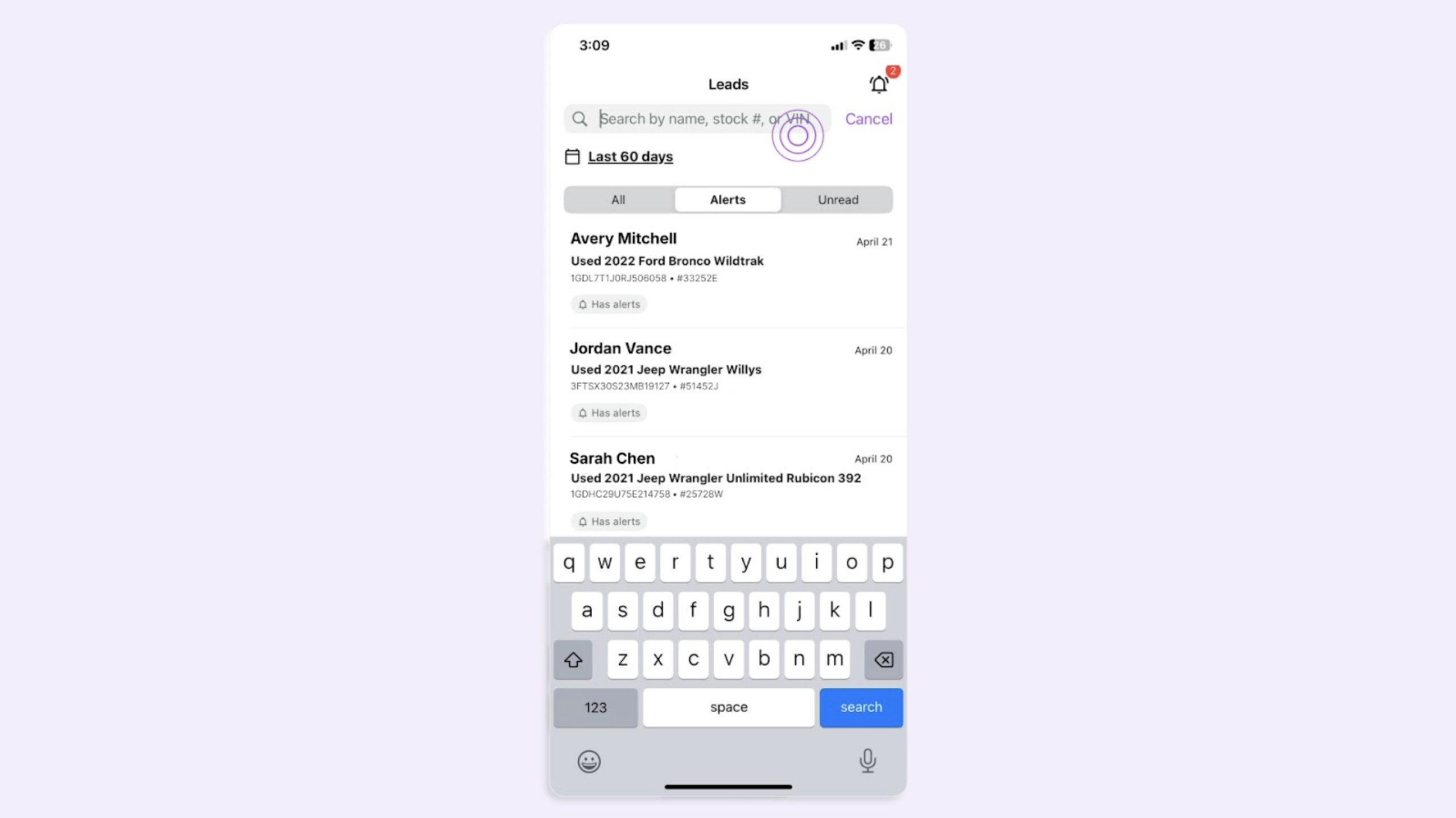
Use the search bar to find a lead by name, stock number, or VIN.
4Tap into a shopper’s profile
Tap any lead to open their shopper details page.
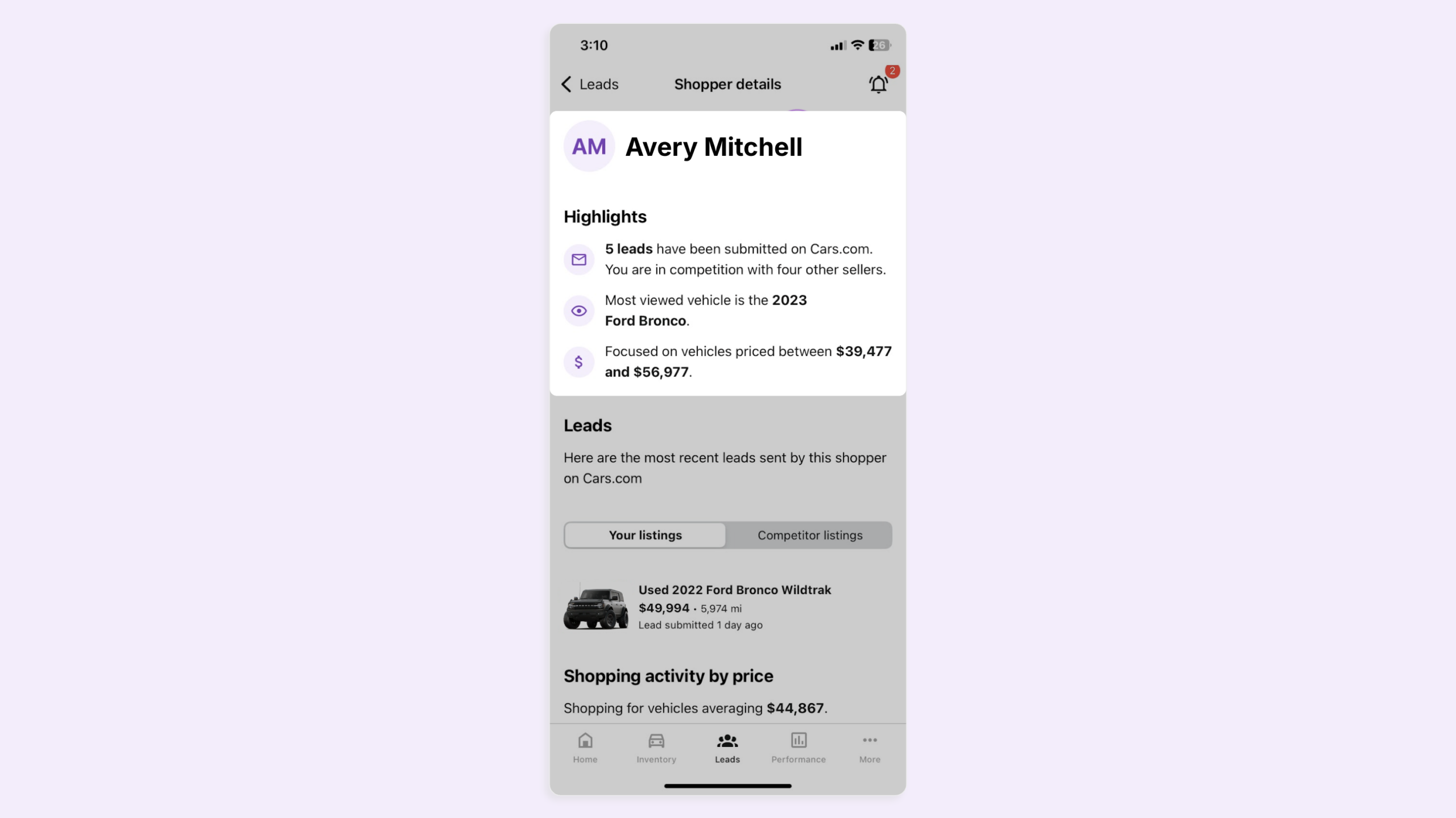
You’ll see Highlights at the top of the profile:
- How many leads they’ve submitted on Cars.com
- If they’ve submitted leads to competitors
- Their most-viewed vehicle
- Their price range based on activity
This tells you immediately whether you’re their only call or one of several, and what they’re actually shopping for.
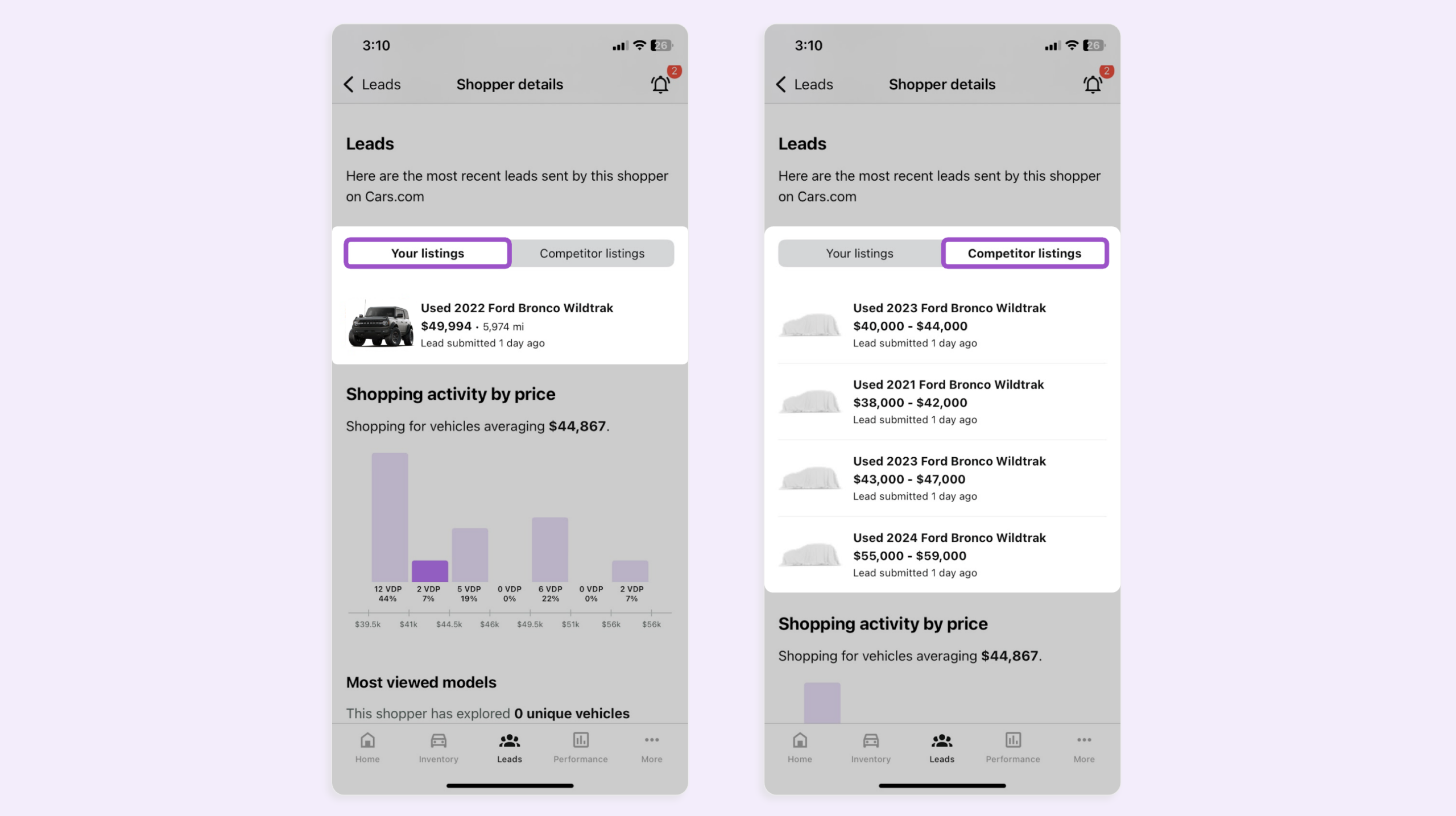
Your listings vs. Competitor listings
- Your listings shows every vehicle from your inventory the shopper has submitted a lead on
- Competitor listings shows you what vehicles this shopper submitted leads on at other dealerships (if applicable).
Shopping activity by price
A bar chart showing the price range this shopper has been browsing most. Use this to gauge their real budget, not just what they said in the lead form.
Most viewed models
A breakdown of which models the shopper has viewed, across how many VDPs and listings. If they submitted a lead on a truck but have been spending their time on SUVs, you’ll see that here.
Timeline on Cars.com
The timeline shows every action this shopper has taken and when each happened.
- Toggle between All, Leads, and Views to focus on what’s relevant.
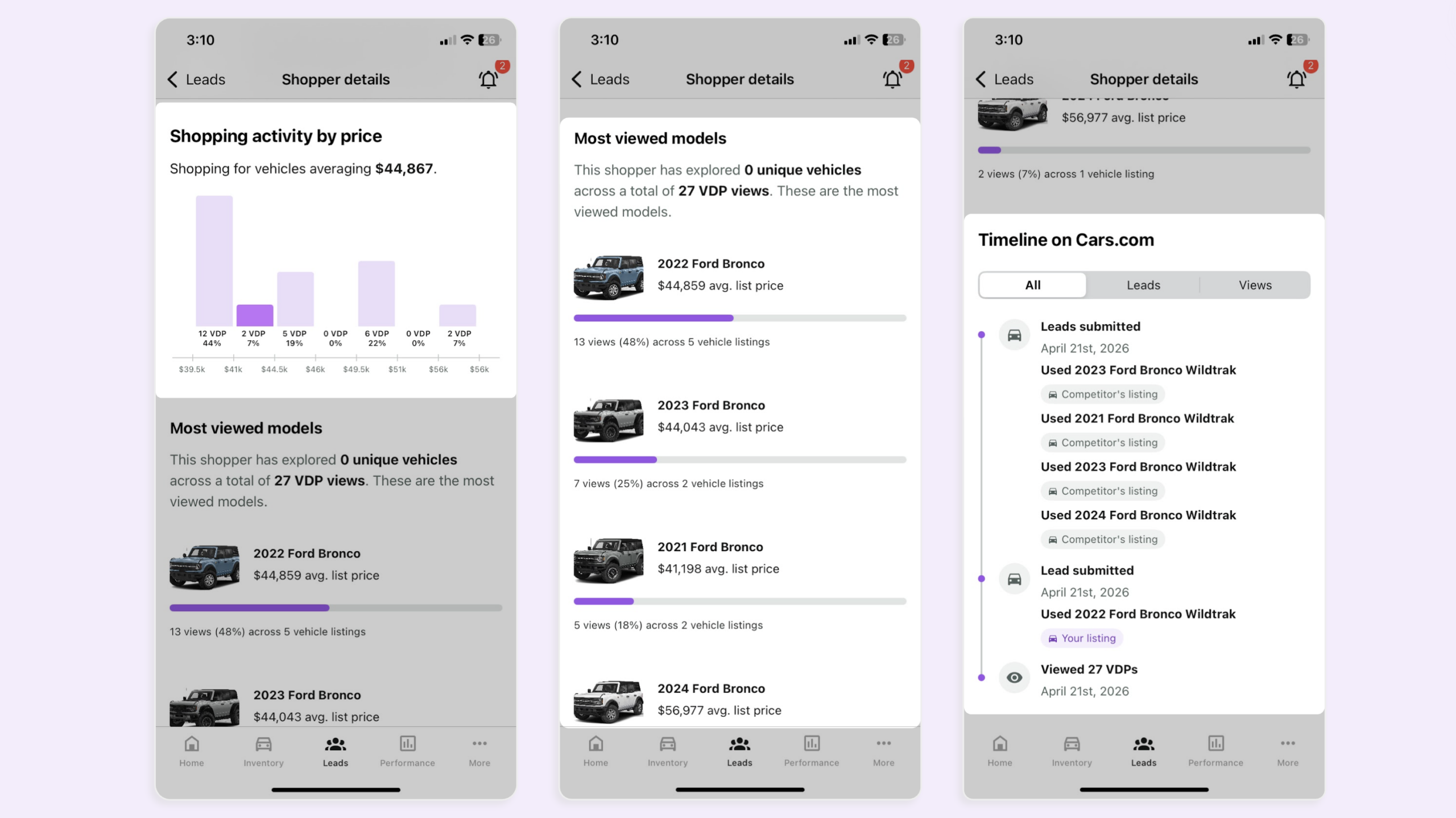
This is the context that changes the conversation. Instead of going in blind, you know what they’ve looked at, what they’ve acted on, and how long they’ve been in the market.
Tip: Pull up the shopper profile before you make the call. Two minutes of review tells you context that lets you lead the conversation instead of reacting to it or starting it cold.
5Take action on a lead
Use what you’ve learned in the shopper profile to drive the conversation forward.
- Call or text while the lead is fresh. Remember, shoppers in Alerts are actively in-market
- Reference their price range and most-viewed models to lead with the right inventory
- Check Competitor listings before you reach out so you know what else they’re considering
- Use the Timeline to gauge urgency