How to upload your cars.com inventory
Whether you manage listings independently or find yourself in an emergency that requires you to make quick updates, you can manually add, edit, and remove live Cars.com listings in Dealer Dash.
In this article, you will learn how to upload a new vehicle listing, edit an existing listing, and remove a listing from Cars.com in Dealer Dash.
Note: making manual adjustments causes inventory fields to lock, meaning they will not receive updates from your inventory feed unless manually unlocked. This article is primarily for dealers who manage their inventory on Cars.com directly or need to make an emergency update.
To get started
Go to the Cars.com Hub. Click Cars.com, then click on Dealer Dash.
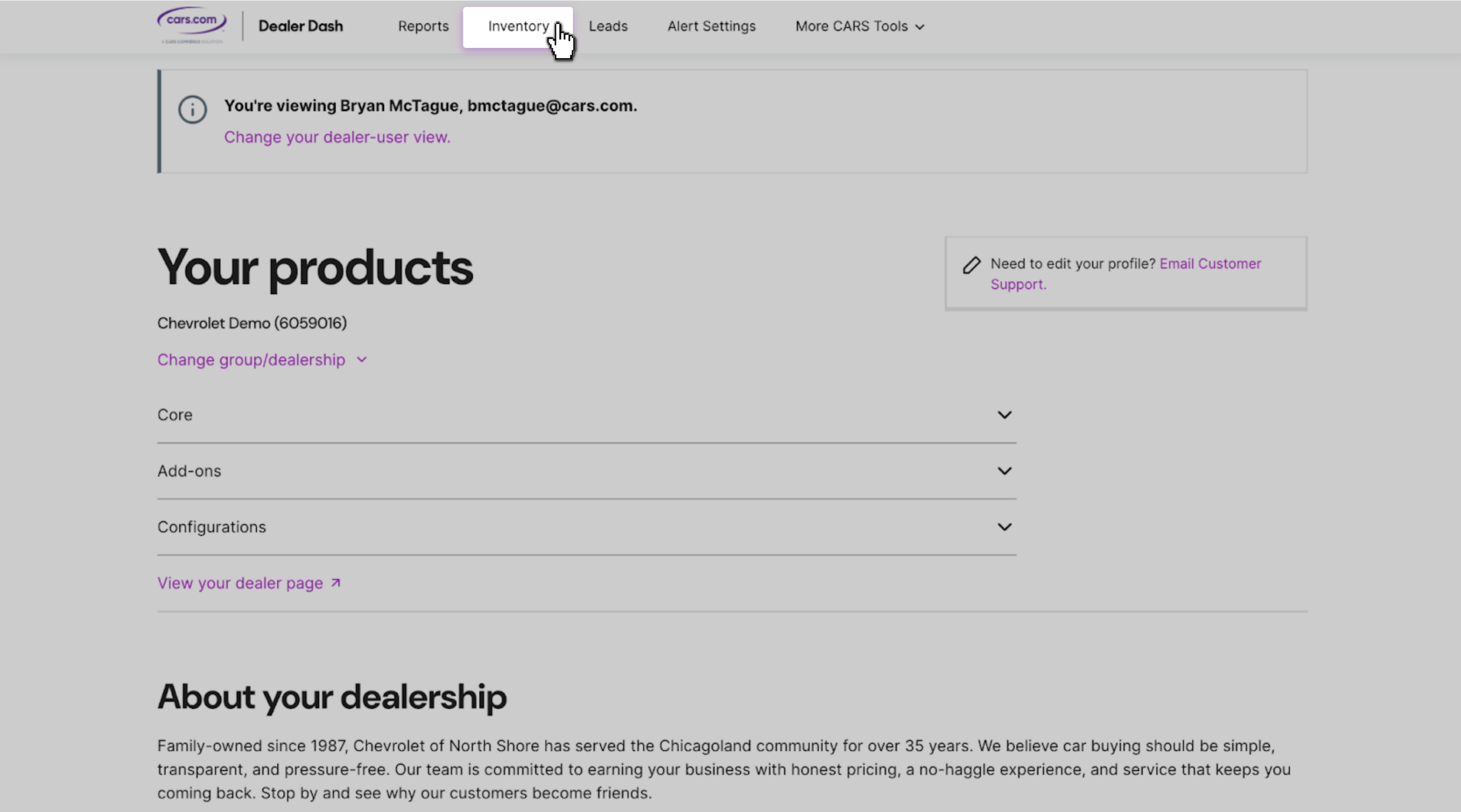
1Open the Inventory tab
- Click Inventory in the top menu
- You’ll see all of your live Cars.com listings
2Add a new vehicle
- Click Add Vehicle in the top right corner of the listings report
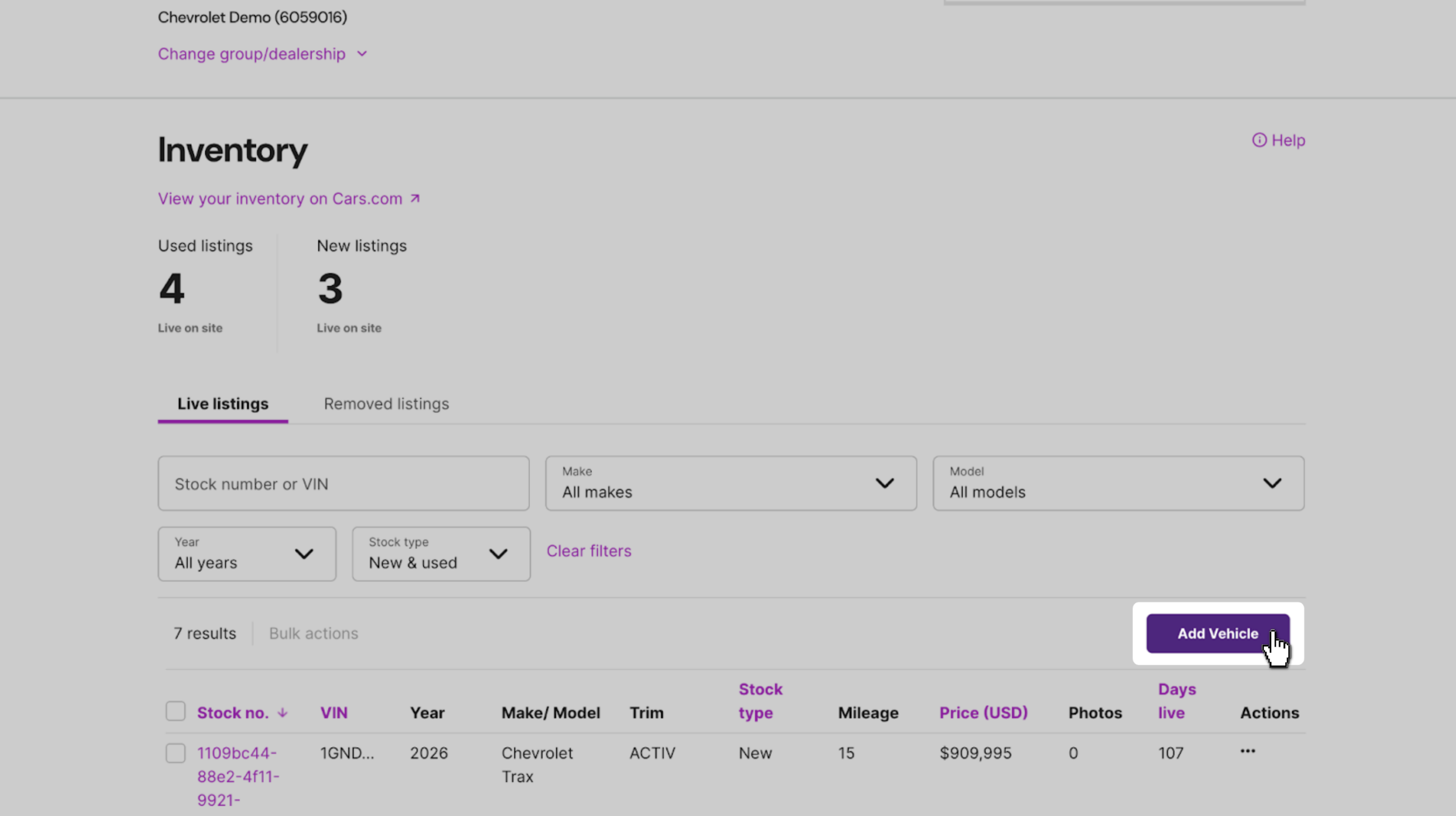
Note: If you don’t see the Add Vehicle button and don’t have a feed source connected, contact support@cars.com.
3 Fill out vehicle details
Complete the listing data fields. Required fields are:
- Stock number
- VIN
- Price
- Mileage
- Year, make, and model
Best practice: Fill out as many fields as possible, including Seller’s Notes. More complete listings perform better in the Best Match algorithm and get prioritized in search results.
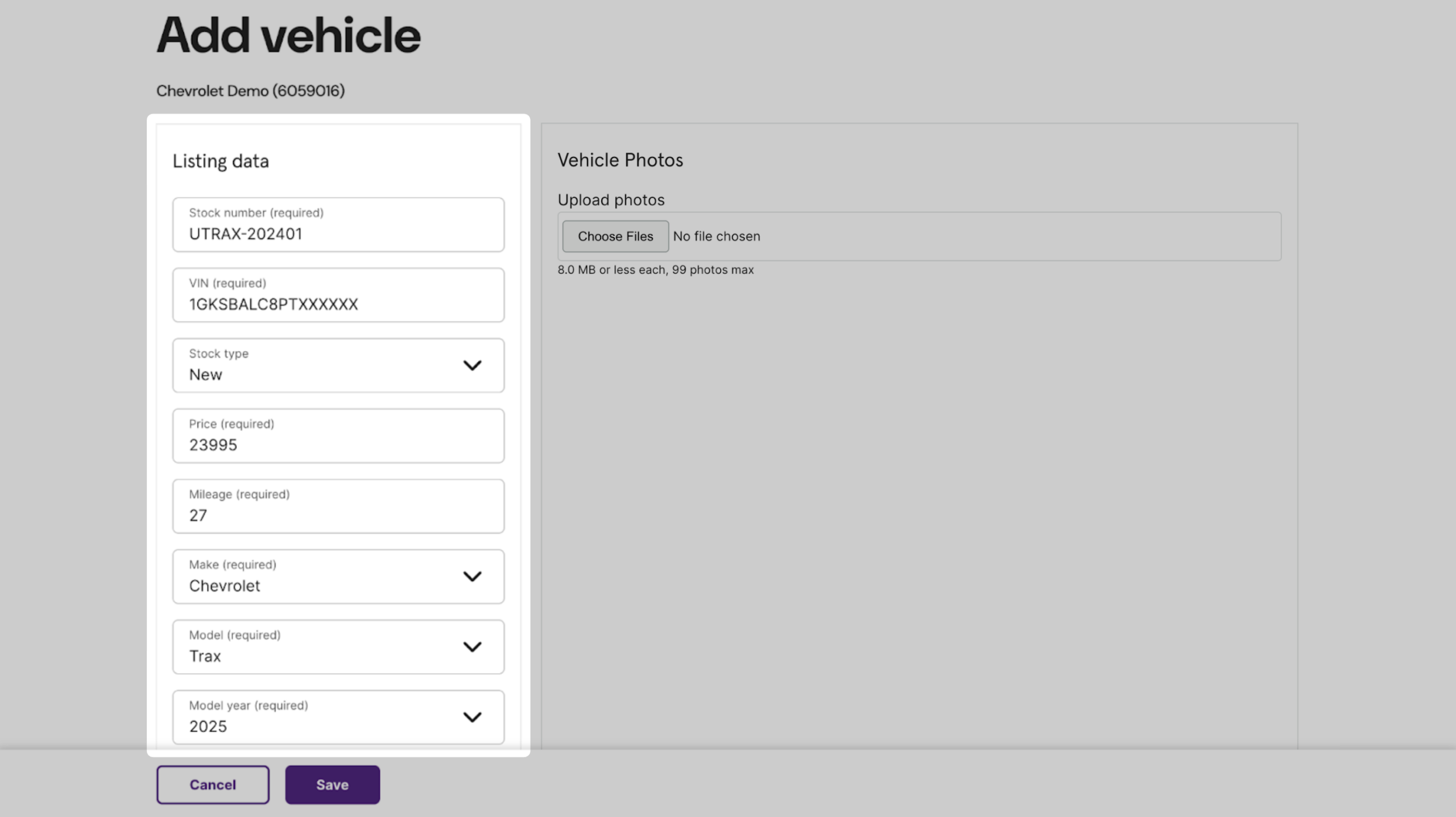
Some fields may auto-populate when you enter the VIN. Verify each one for accuracy before moving on.
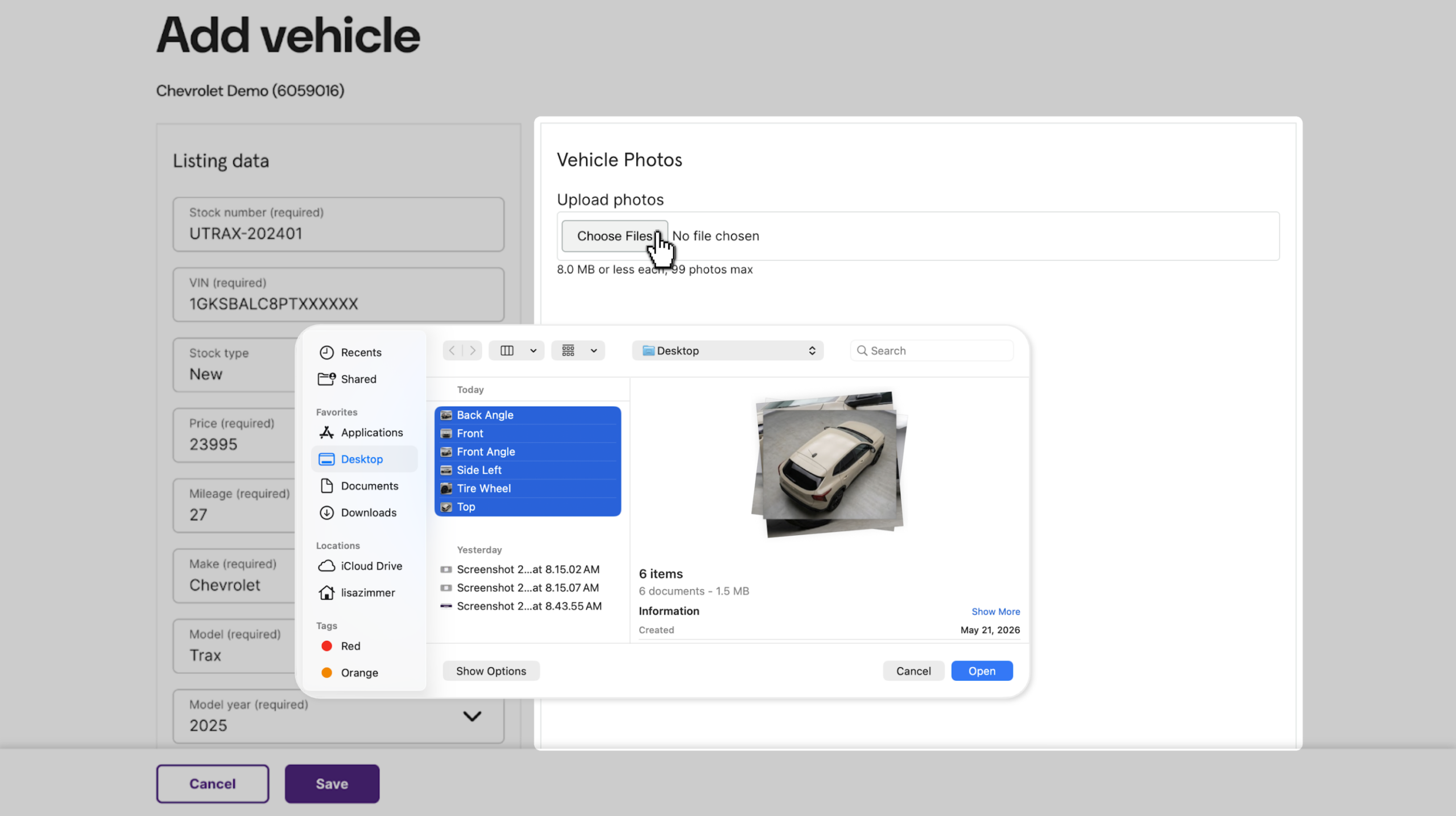
4Upload vehicle photos
- Click Choose Files
- Upload images from your computer and click Open
- Accepted file types: .png, .jpg, or .jpeg
- Maximum file size: 8MB per image
- Maximum images: 32
- Large or high-volume uploads may take additional time to process
5Save your listing
- Review all fields, then click Save
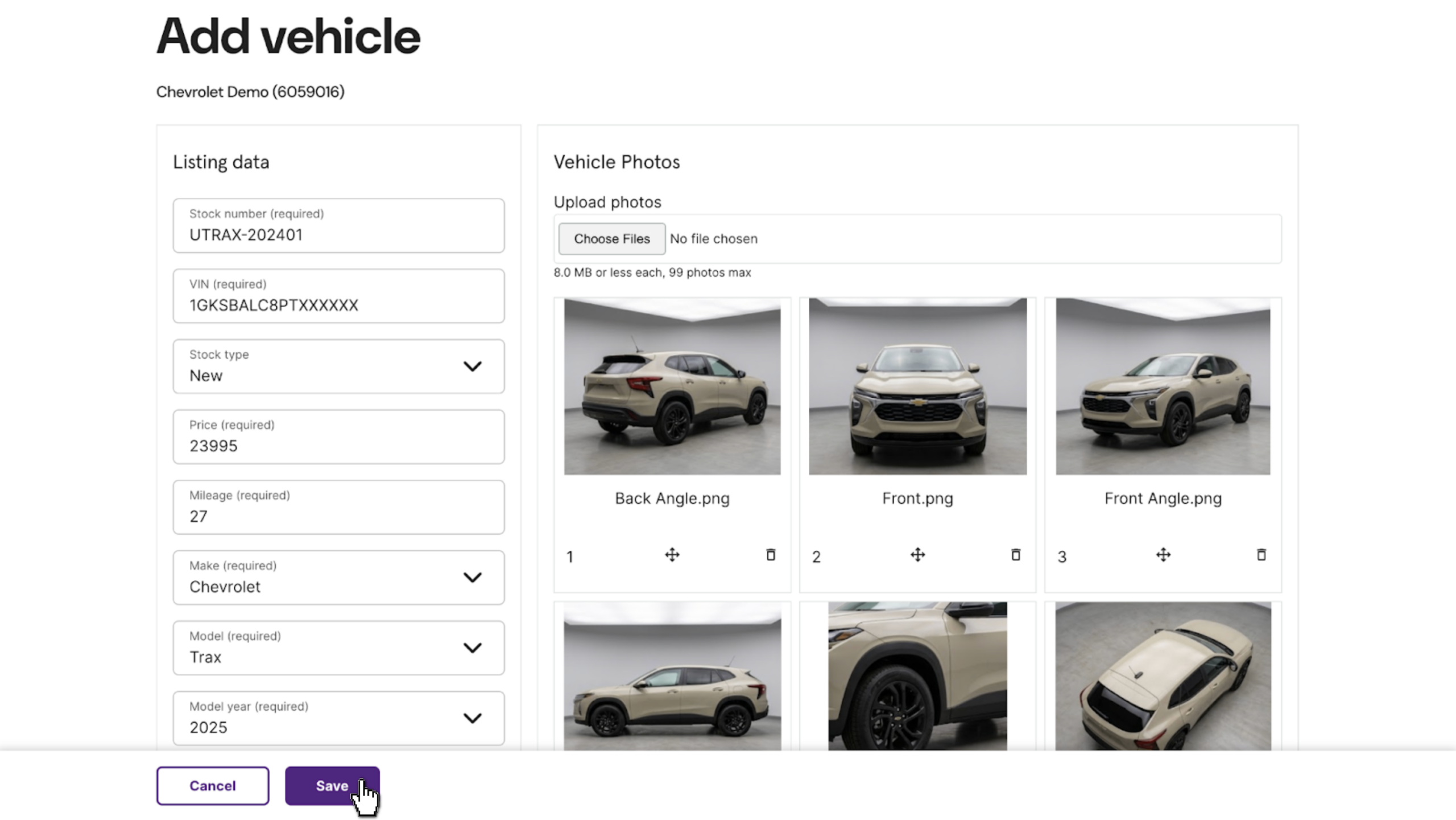
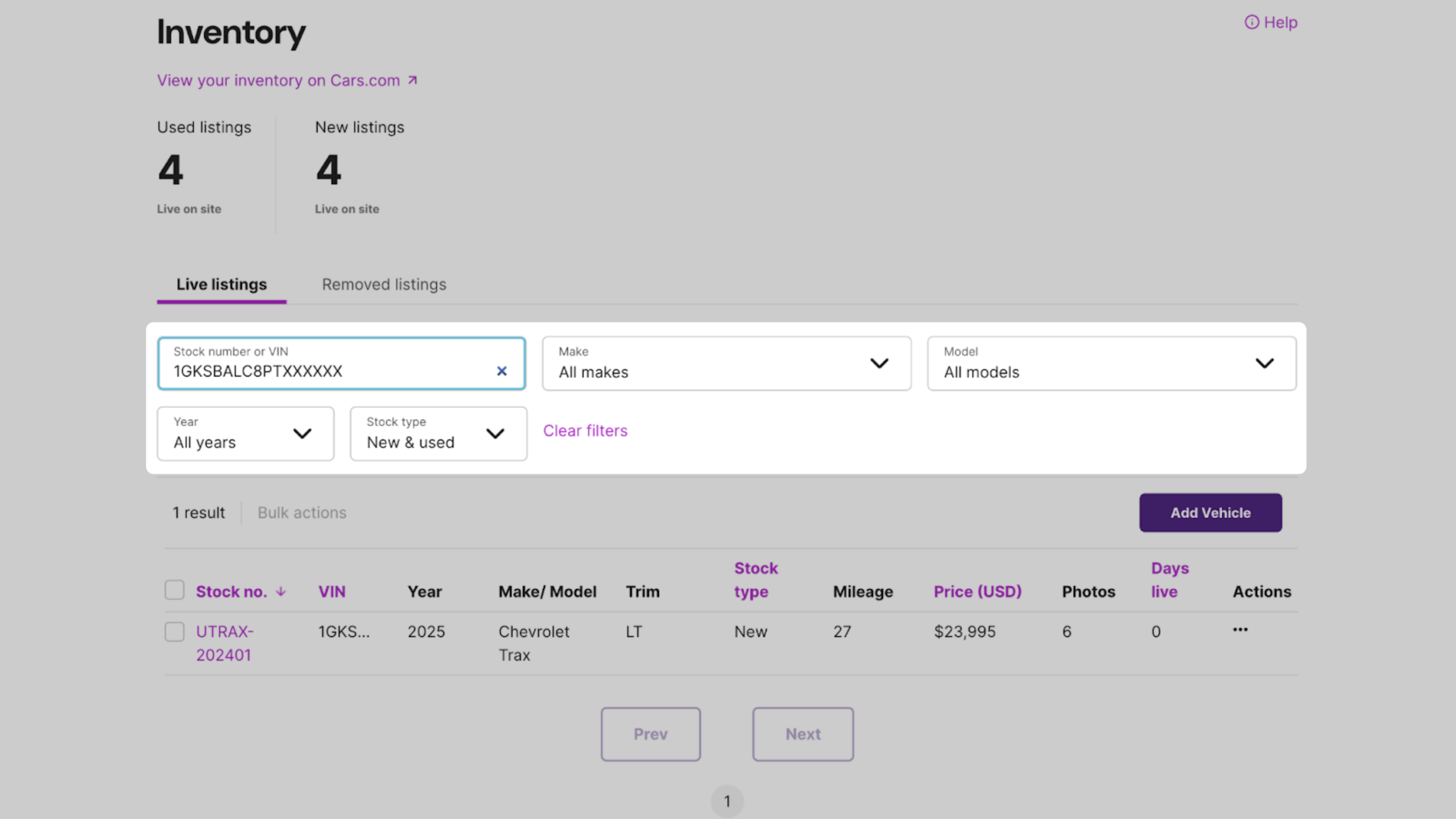
Listings take between 10 minutes and one hour to process and appear on Cars.com. Once live, they’re available to edit in Dealer Dash.
Note: Check your price before saving. Once posted, edits are available in real time from the Inventory tab.
How to edit or remove a listing
1Find the listing
- Use the search filters on the Inventory tab to locate the listing you want to update
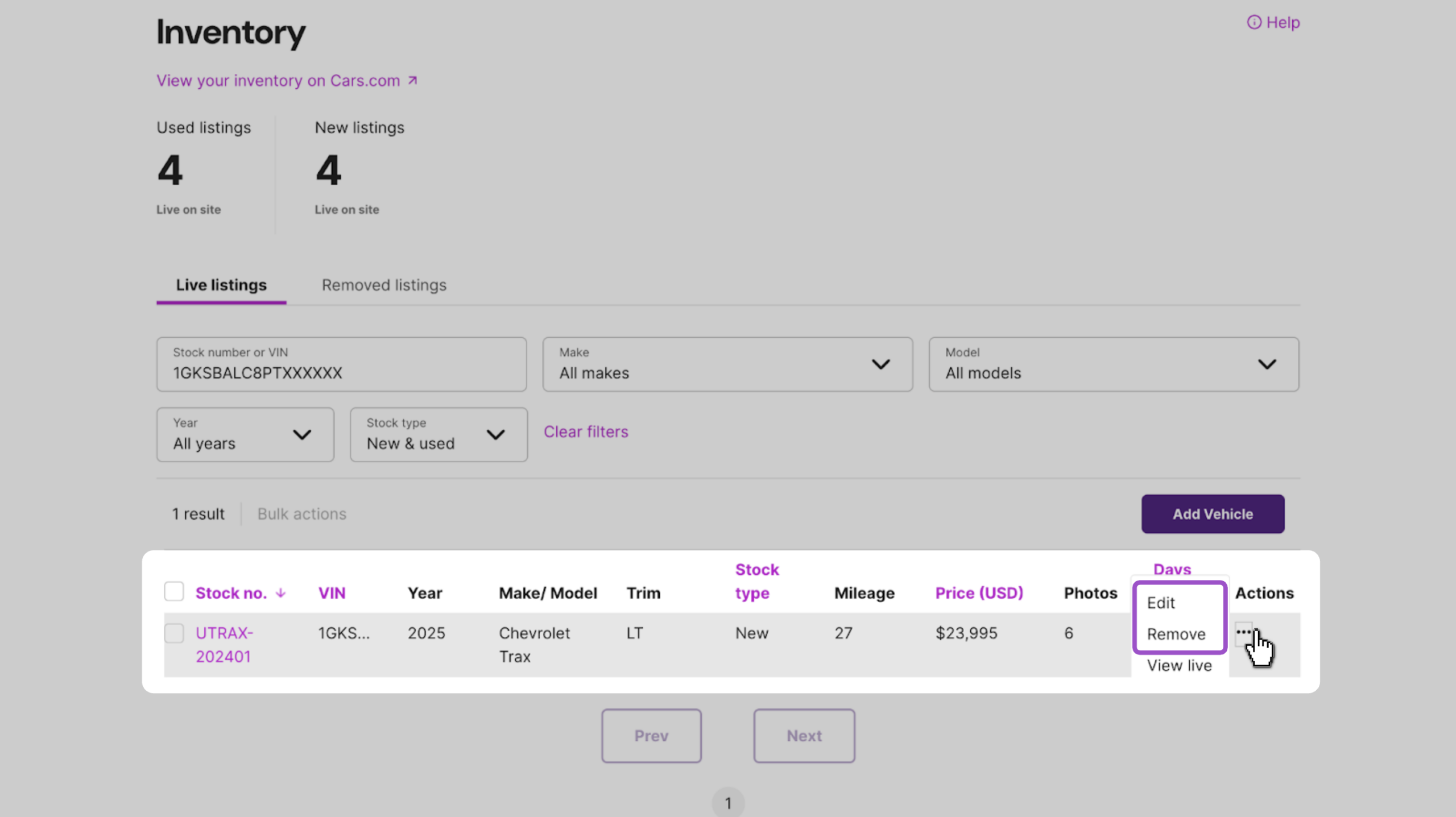
2Edit or remove
- Click the three-dot icon under the Actions column
- Select Edit to update price or merchandising details
- Select Remove to delete the listing from Cars.com
- Or, click into the vehicle to edit or remove the listing
FAQ
What happens if I manually edit a vehicle that’s on my feed? Manually editing a field locks that specific field automatically, meaning it won’t be updated by your feed until you unlock it.
How do I unlock a vehicle so it syncs with my feed again?
When you manually edit a field, it automatically locks. The toggle for that field will switch to locked. To unlock it:
- Go to Inventory
- Search for or click into the vehicle that was adjusted
- Scroll to the detail fields on the left side of the screen
- Any field you edited will show a locked toggle
- Click the toggle to unlock the field
Once you unlock a field, it will start updating from your feed again. Keep in mind this means your manual changes will be overwritten the next time the feed refreshes.
I don’t have a login for the Cars.com Hub. How do I get one? Reach out to support@cars.com to get access.
What fields are required? Stock number, VIN, price, mileage, and year/make/model. That said, fill out as much as possible — more complete listings rank better in Best Match.
How long until my listing appears on Cars.com? Typically within 10 minutes, but no longer than one hour.
What if I enter the wrong VIN? It may populate incorrect fields. Check each field for accuracy. But, once your listing is posted, you can edit it from the Inventory tab.
Can I upload photos from a mobile device? Yes. Dealer Dash is accessible on a mobile web browser, and you can upload photos directly from your phone. Learn how to size your inventory photos for best results.
Is bulk update available? Not at this time.
I’m experiencing a bug or issue. Who do I contact? Reach out to support@cars.com or call 1 (888) 252-7731.