How to add a photo to your DealerClub user profile
Your DealerClub profile includes a profile photo that’s visible to other dealers on the platform.
In this article, you’ll learn how to upload or update your profile photo in DealerClub and best practices to follow for an effective photo.
To get started
Go to the Cars.com Hub, and click DealerClub.
1 Access your settings
After you log in:
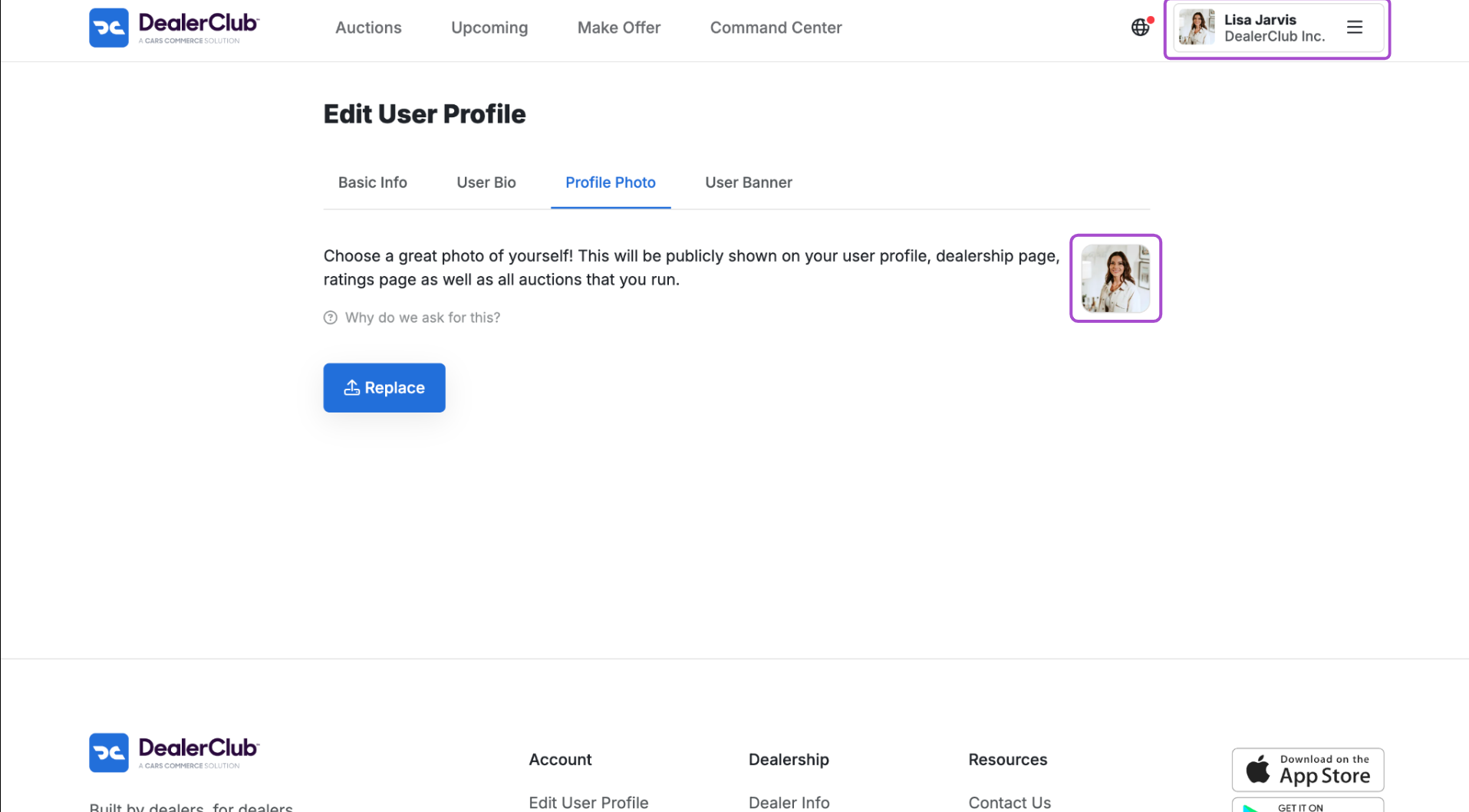
- Click your name in the top-right corner
- Select Edit User Profile
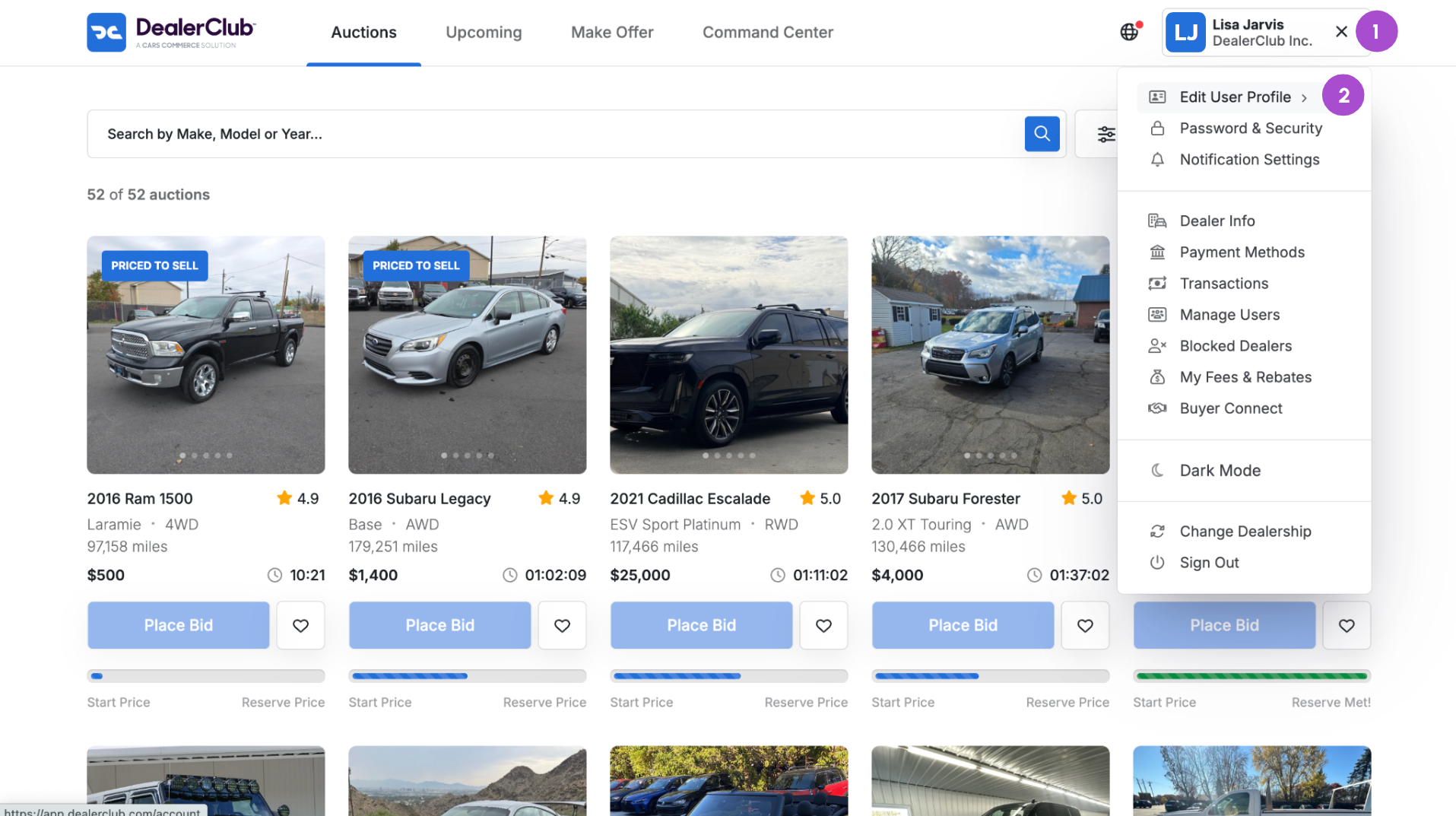
- On your profile screen, click the Profile Photo tab
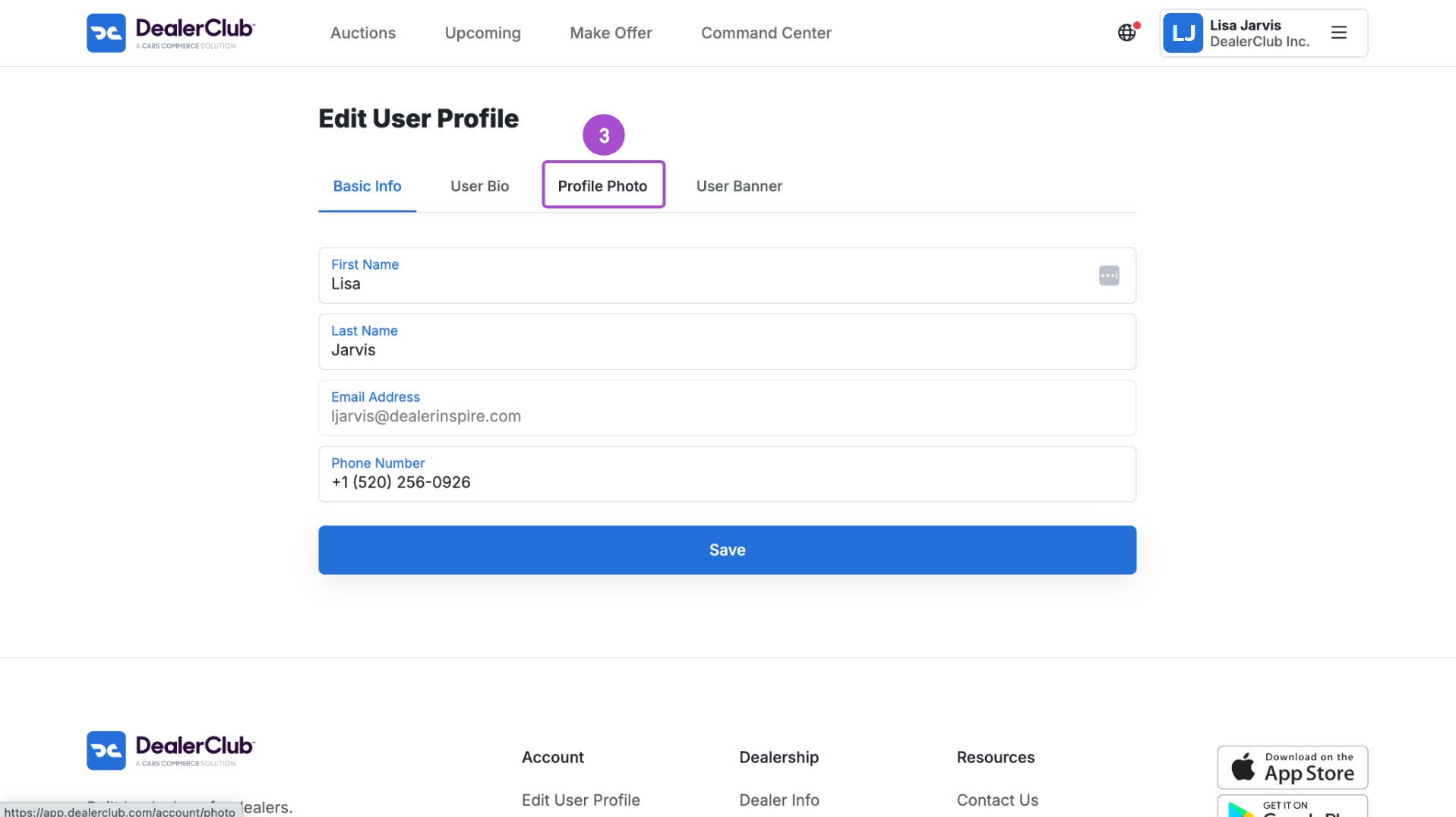
2Add your profile photo
- Click the Upload button to select a file from your computer
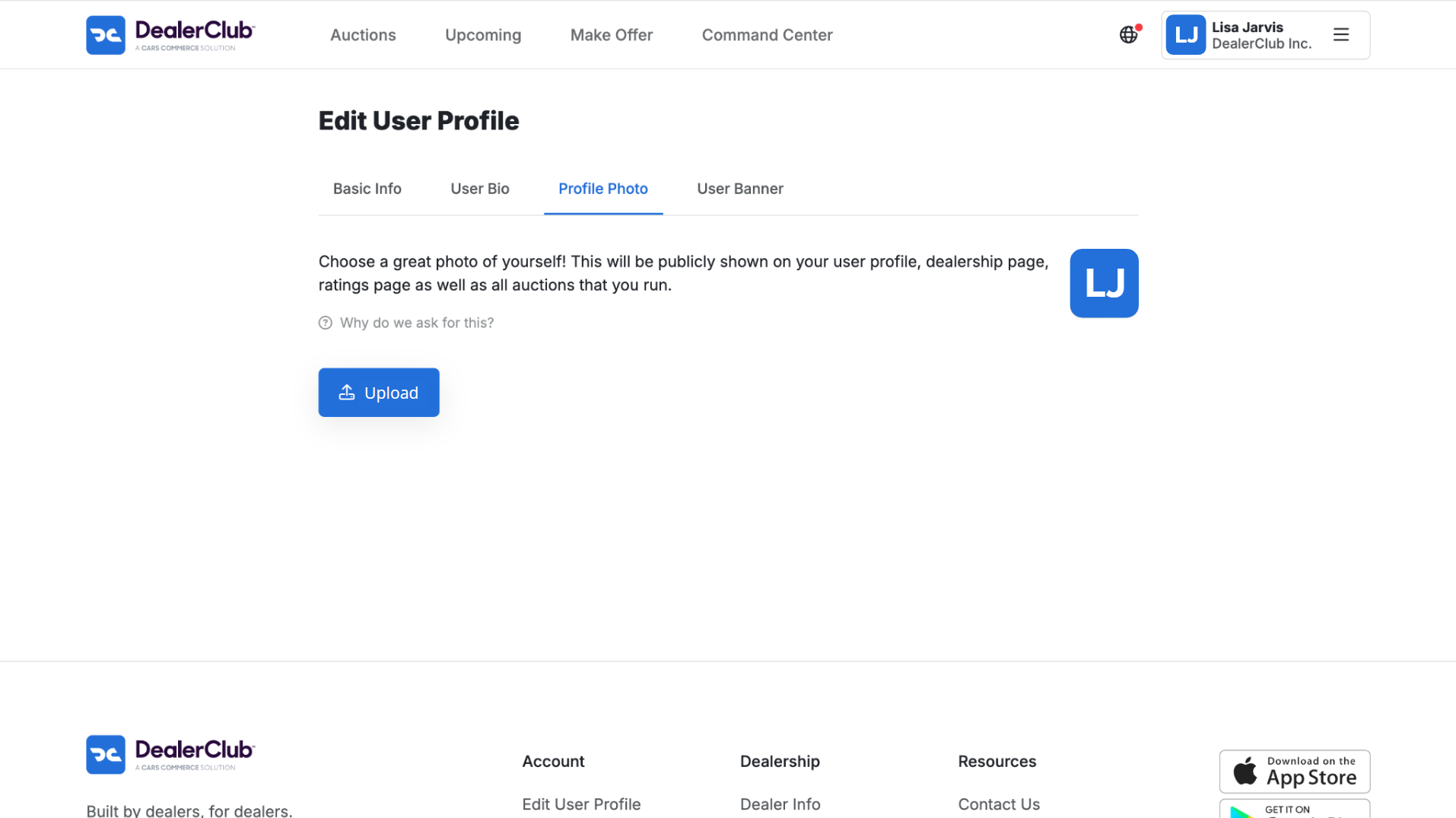
- Choose your image and click Open
Your photo will appear on your user profile and in the top-right corner of your screen next to your name. The Upload button will change to Replace, which you can use to update your photo at any time.
Best practices for dealer profile photos
- Use a clear, well-lit headshot
- Smile naturally — friendly expressions build trust
- Use natural lighting (like facing a window); avoid harsh shadows
- Choose a clean, uncluttered background
- Wear dealership-branded gear or business casual
- Keep it authentic, professional, and approachable


