How to get started with Cars Social onboarding
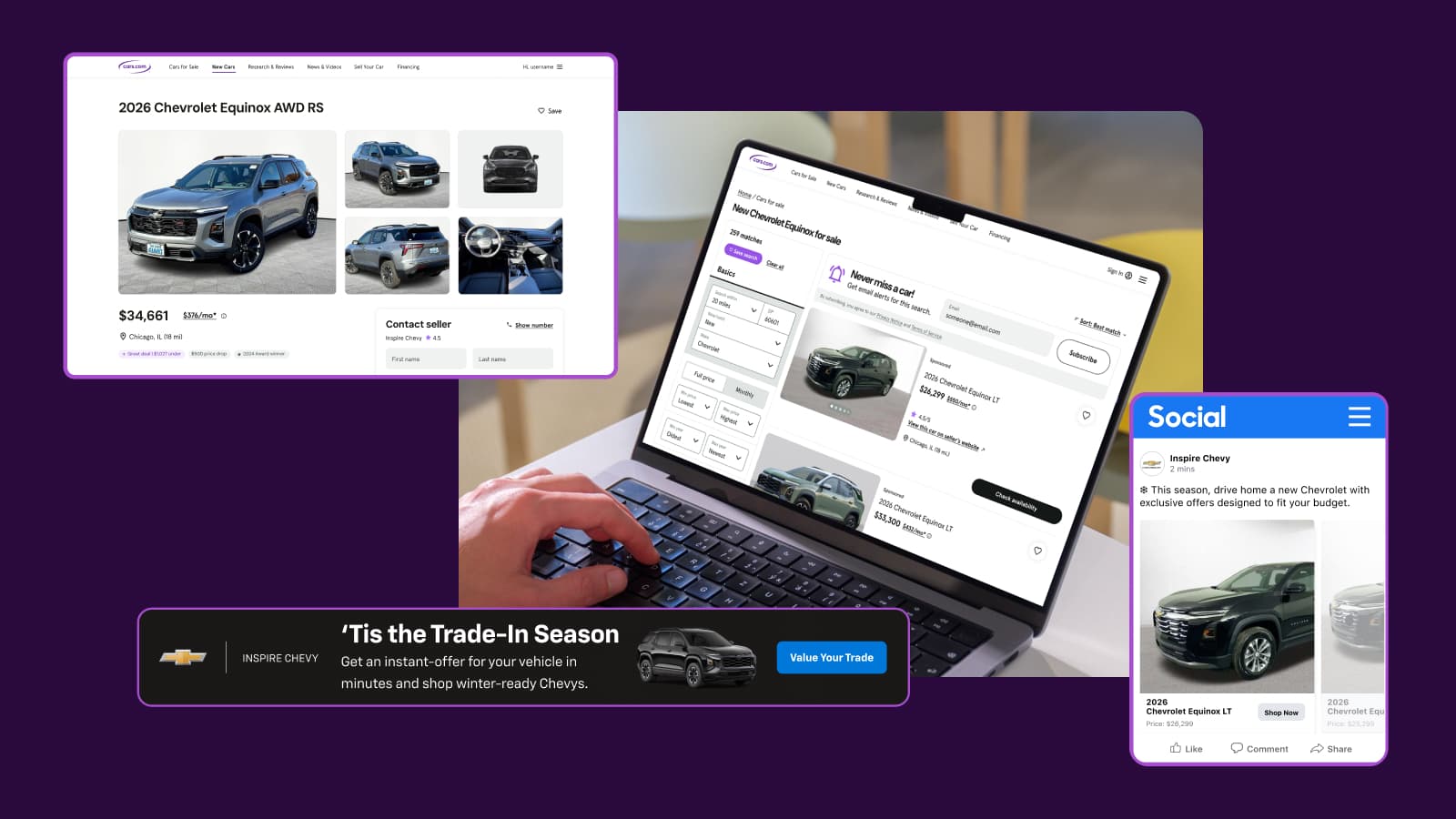
Cars Social enables your dealership to reach in-market shoppers on Facebook and Instagram using Cars.com audience data. Shoppers who have researched vehicles on Cars.com will see your inventory in their social feeds, with ads that match vehicles to their specific interests — all without requiring you to provide any creative assets.
This article walks you through the Cars Social onboarding process so your dealership can start reaching in-market shoppers across social channels.
1 Connect with your Onboarding Specialist
After your agreement is signed, your Customer Onboarding Specialist will proactively communicate with you to set your Cars Social unit live during the 15-day onboarding process. They’ll guide you through any required steps and answer questions along the way.
2 Grant Facebook page access
For your social ads to run from your dealership’s Facebook page, you’ll need to accept our permissions request or add Cars.com as a partner.
To accept the permission request:
If you have full control of the Page, you can approve the request. These steps only apply to someone who has full control of a business portfolio:
- Access your account on business.facebook.com.
- Go to Settings.
- Below Requests, click on Other requests to view businesses requesting access to your Page and details about the requester.
- Click Approve.
If you don’t see a permission request, you can add Cars.com as a partner manually.
- Go to business.facebook.com.
- Click on Users, then Partners.
- Select the Add button.
- Choose “Give a Partner Access to your Assets”.
- Enter our Facebook ID: 1498392513745693.
- Provide “Manage Page” access.
Note: To enable lead ads, you must grant “Manage Page” access. Partial access will not allow us to turn on leads for your campaign.
Important timeline note
You have 45 days from contract signing to accept Facebook permissions. If access isn’t granted within this window, the VIN Performance Media unit may be voided.
If access isn’t granted within 30 days, your Cars Social campaign will go live under a Cars.com-created local dealer Facebook page. Your inventory will still be promoted, deep links will still route to your vehicle listings, and your dealership name will appear in the ad copy — the only difference is where the ad serves from.
Once you grant access to your dealership’s Facebook page, we’ll seamlessly transition your campaign to serve from your page with no disruption to campaign delivery or performance.
Note: Lead ads can only be enabled when running from your dealership’s Facebook page, not from a generic page.
Disputed admin process
If your dealership faces a situation where the original Facebook page admin is no longer available, you may need to complete Facebook’s “Disputed Admin” process to regain access:
- Go to https://www.facebook.com/business/help/support and start a chat to submit your request along with your required documents.
- Select Page Admin Dispute as the issue you’re experiencing.
- Include a form of identification (passport, driver’s license, or government ID) and a statement letter (see below).
Statement letter details
- Must be on company letterhead or notarized
- Clear and readable signature (signed by hand or digitally confirmed)
- Description of requestor relationship to the Business/Page (and authority to request access to the Business/Page, as applicable) + Business ID/Page ID/Page URL
- Explanation of request, and whether there has been a termination of the employment and/or business relationship with the named person(s), Business Manager, or Page as applicable.
- Facebook account (URL/ID/associated email) needing to be added as an admin of Page/Business.
- Either:
- The name of the current person(s) who manage the Page/Business, as applicable the relationship of the above person(s) to the Page/Business
- Or a reasonable explanation of why the current persons who manage the Page/Business is/are not known to the requestor
- A declaration that the information you have provided is true and accurate (e.g., “I certify that the information provided is true and accurate”)
Statement letter template
To whom it may concern,
I, <Your Name>, am requesting admin access to our <Dealership Name> Facebook page (Page ID: <insert page ID>)
My relationship to the page is that I am the Marketing Director at <Dealership Name>, I oversee all digital marketing which includes Facebook management and I have the authority to make this request. I need to be added as an admin on this page as our previous admin, <Previous Admin Name>, no longer works at <Dealership Name> and cannot grant us Admin access to the page. Additionally, no other Page Admins can grant us this access.
My profile link is:
Facebook Email Address:
Page Link:
Please find the attached copy of my drivers license.
I certify that the information provided is true and accurate.
Signed, <Your Name>
3 Ensure your inventory is ready
For vehicles to appear in your Cars Social campaigns, ensure these fields are populated:
- Model: Vehicle model name
- Price: Current listing price
- Photos: At least 2 photos per vehicle
- Mileage: Required for used vehicles
- Seller’s Notes: Custom vehicle descriptions (batch taglines do not count)
Minimum inventory
We recommend that you have at least 50 vehicles in your inventory for optimal campaign delivery. Campaigns with fewer VINs may experience limited reach and inconsistent performance.
4 Campaign launch
Once Facebook access is confirmed and your inventory is properly merchandised, your Cars Social campaign will go live.
Updating campaign settings
Contact support to request changes to your tagline, targeting address, or radius.
Reporting
Cars Social reporting is available in your Dealer Dash and is updated daily. You’ll see reporting after the product has been live for 2-3 days.
Lead routing
Leads from Cars Social route directly into your CRM in ADF/XML format and are marked as “Cars.com Social Leads.”