How to conduct driveway appraisals
Driveway appraisals keep acquisition opportunities moving by letting customers appraise their vehicles remotely. Instead of letting your lead go cold, you can send them a personalized appraisal request right from AccuTrade to scale your acquisitions across every touchpoint.
To Get Started
Log in to the Cars.com Hub, and then click on AccuTrade.
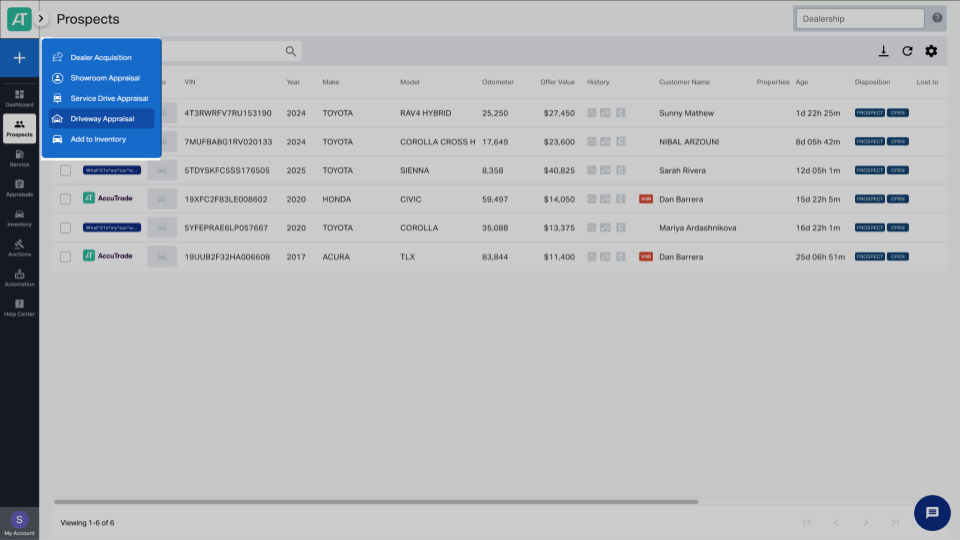
1 Start the appraisal
Select the blue plus (+) sign, then click Driveway Appraisal.
2 Enter customer information and send invite
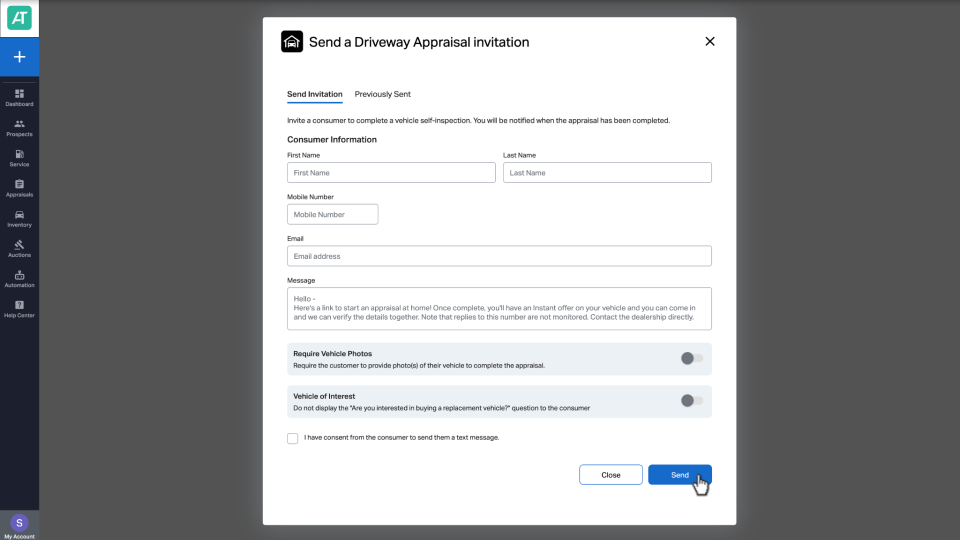
Enter the customer information: cell phone number (or email), and include a short message. Then click Send.
Optional settings:
- Require the customer to include photos in the vehicle appraisal
- Hide the “Are you interested in buying a replacement vehicle?” question
3 Customer completes the appraisal
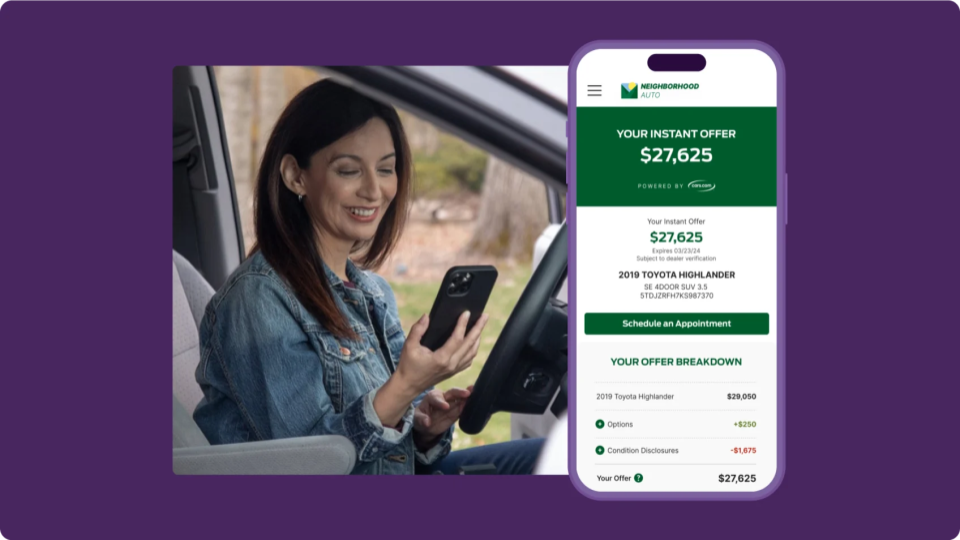
The customer receives an email with a link to their personalized driveway appraisal, which guides them through the entire process step by step and explains how each detail affects the appraisal value.
4 Find the completed appraisal
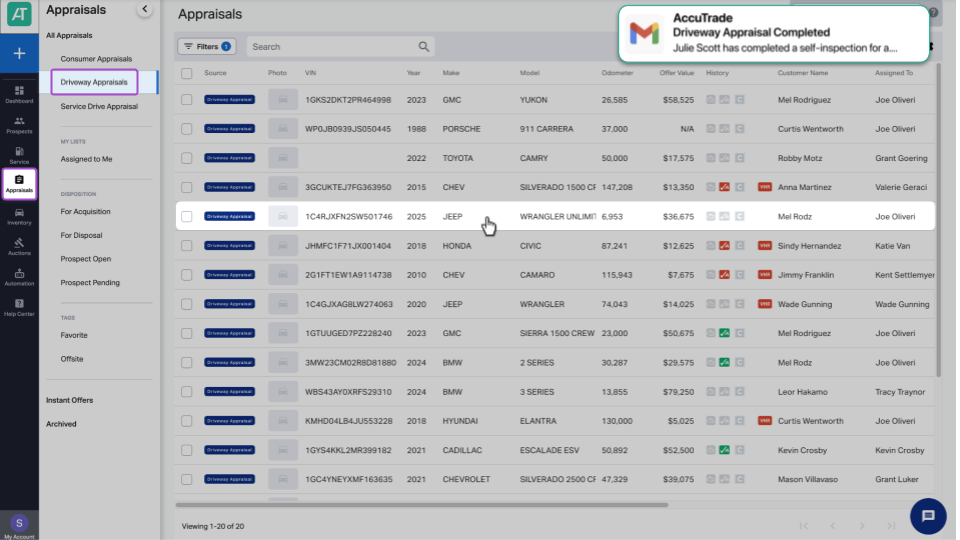
You are notified when the customer completes the appraisal. You can find the appraisal by selecting Appraisals, then Driveway Appraisals. A list will populate showing completed driveway appraisals from newest to oldest.
Find the customer’s appraisal in the list or enter their name in the search field and click Search. Click anywhere in the row to load the appraisal.
5 Review appraisal and schedule an appointment
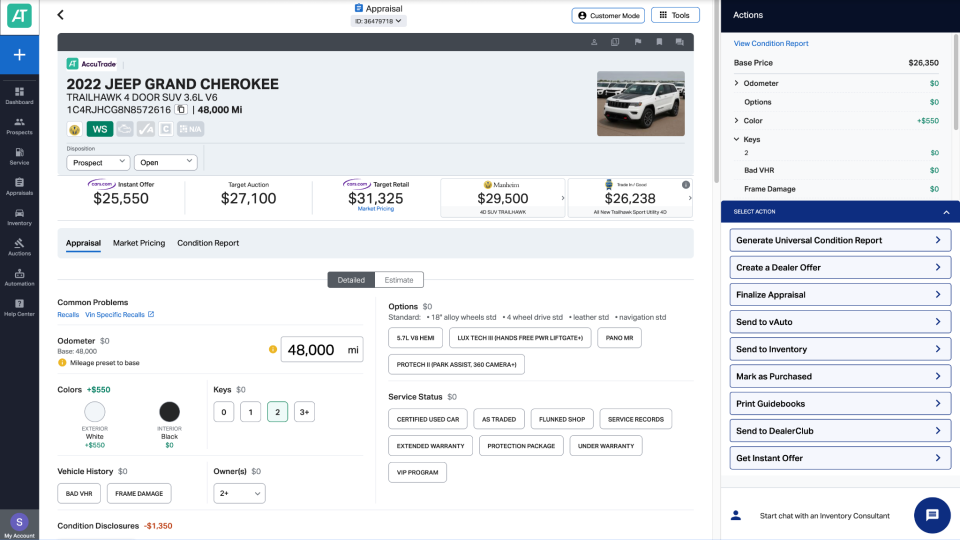
Review the appraisal and make any needed adjustments based on the customer’s condition disclosures or photo inspection. Then, follow up with the customer to schedule/confirm their appointment for final inspection. From there, you can verify condition details and make an offer.