How to send a vehicle to inventory
Once a prospect arrives and you’ve finished the vehicle appraisal, including using the OBD scanner and noting all disclosures, your next step is often to stock the vehicle in inventory. This move is key to getting a clear picture of the best retail price and overall exit strategy for that car.
In this article, you’ll learn two ways to get the vehicle into inventory so you can finalize its details, like adding photos and leveraging market pricing.
To get started
Go to the Cars.com Hub, and click on AccuTrade.
Option 1: Send to inventory manually from an appraisal
Use this option when the vehicle has already been appraised in AccuTrade.
1 Open the appraisal
- Open the vehicle’s appraisal from:
- The Prospects list, or
- The Appraisals screen
- The Prospects list, or
- Confirm the appraisal is complete and all disclosures are entered.

2 Send the vehicle to inventory
When you’re finished appraising the vehicle, or from the appraisals screen:
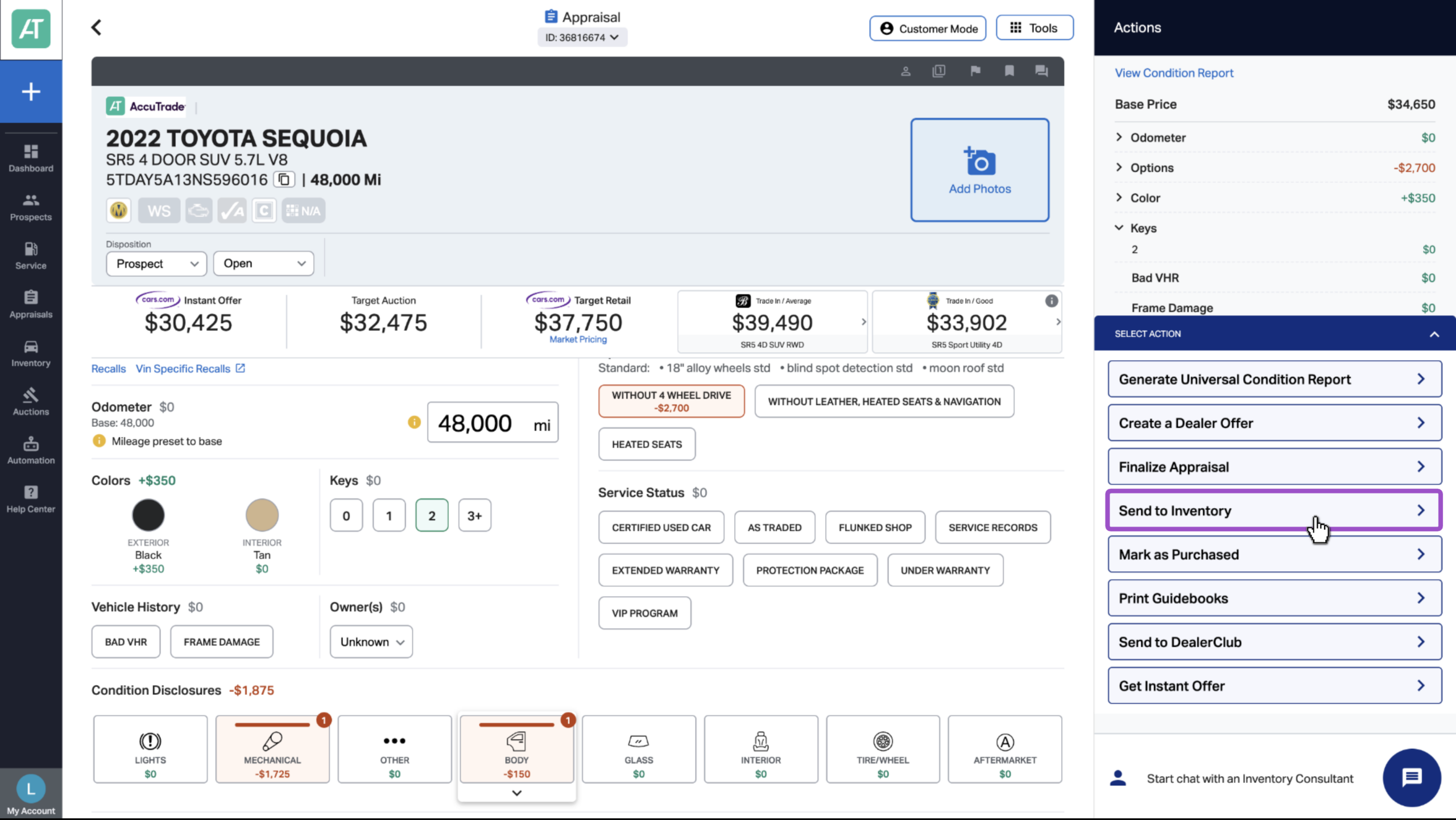
- Click the blue Action bar.
- Select Send to Inventory.
3 Finalize inventory details
A panel opens on the right side of the screen.
- Enter or confirm the following (as applicable):
- Retail list price
- Title status (for example, whether the title is in hand)
- Retail list price
- Scroll down to review the vehicle condition summary.
- (Optional) Check the box to syndicate the vehicle.
- Note: You can enable syndication later from the Inventory tab.
- Note: You can enable syndication later from the Inventory tab.
- Click Confirm & Send to Inventory.


4 View the vehicle in your inventory tab
- A confirmation message appears when the vehicle is successfully sent.
- Click View in the top bar of the appraisal screen to open the vehicle in the Inventory tab.
From here, complete inventory setup by:


Option 2: Send a vehicle directly to inventory
Use this option when you want to stock a vehicle without starting from an appraisal.
1 Add to inventory from the dashboard
- From the AccuTrade dashboard, click the blue “+” icon.
- Select Add to Inventory.

2 Enter vehicle information
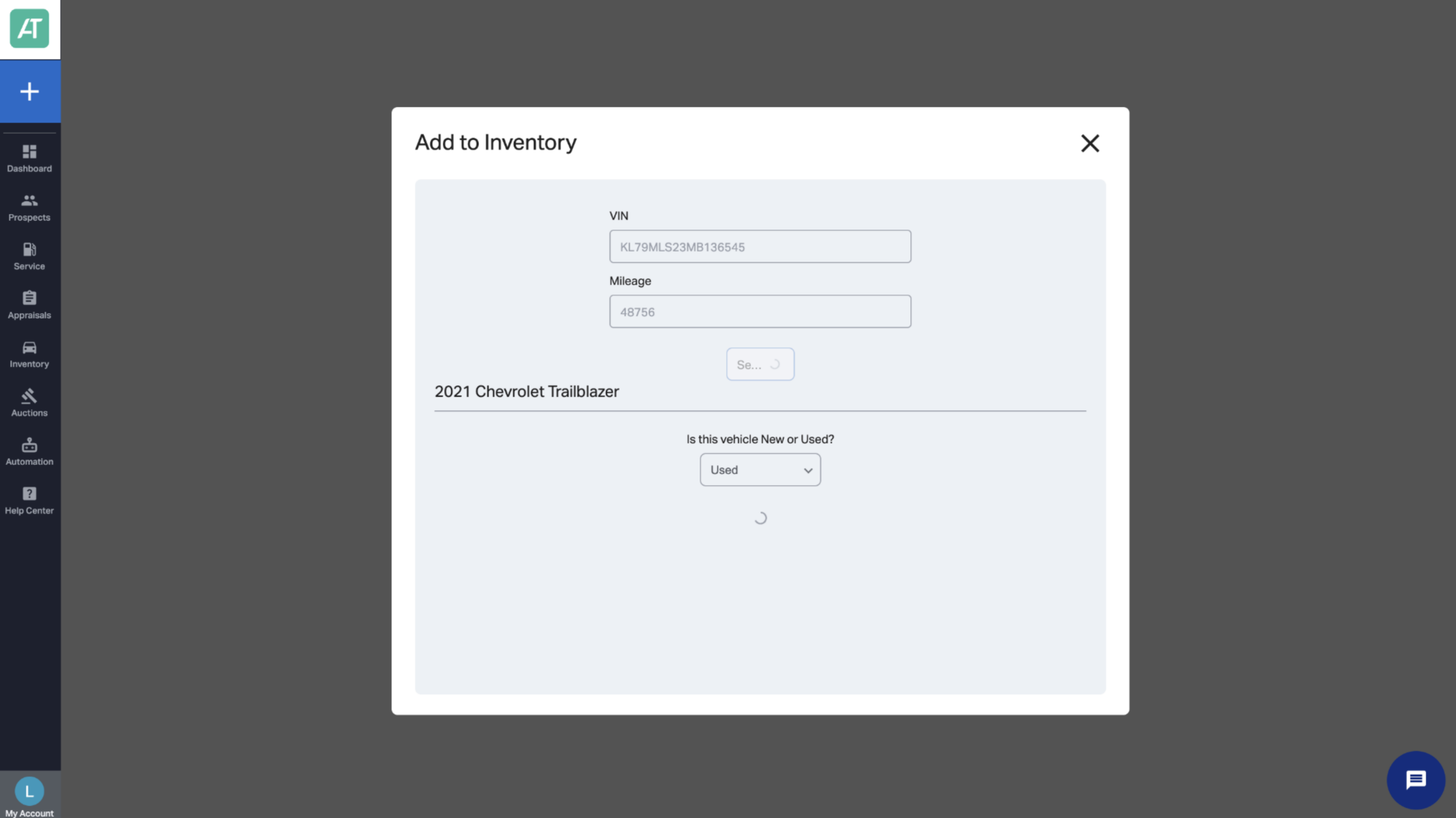
- Enter the VIN and mileage.
- Click Search.
- Confirm the year, make, and model.
- Select whether the vehicle is New or Used.

3 View the vehicle in inventory
- The vehicle is automatically added to the Inventory list.
- You are taken directly to the vehicle’s inventory page.
From here, complete inventory setup by: