How to size your inventory photos for best results
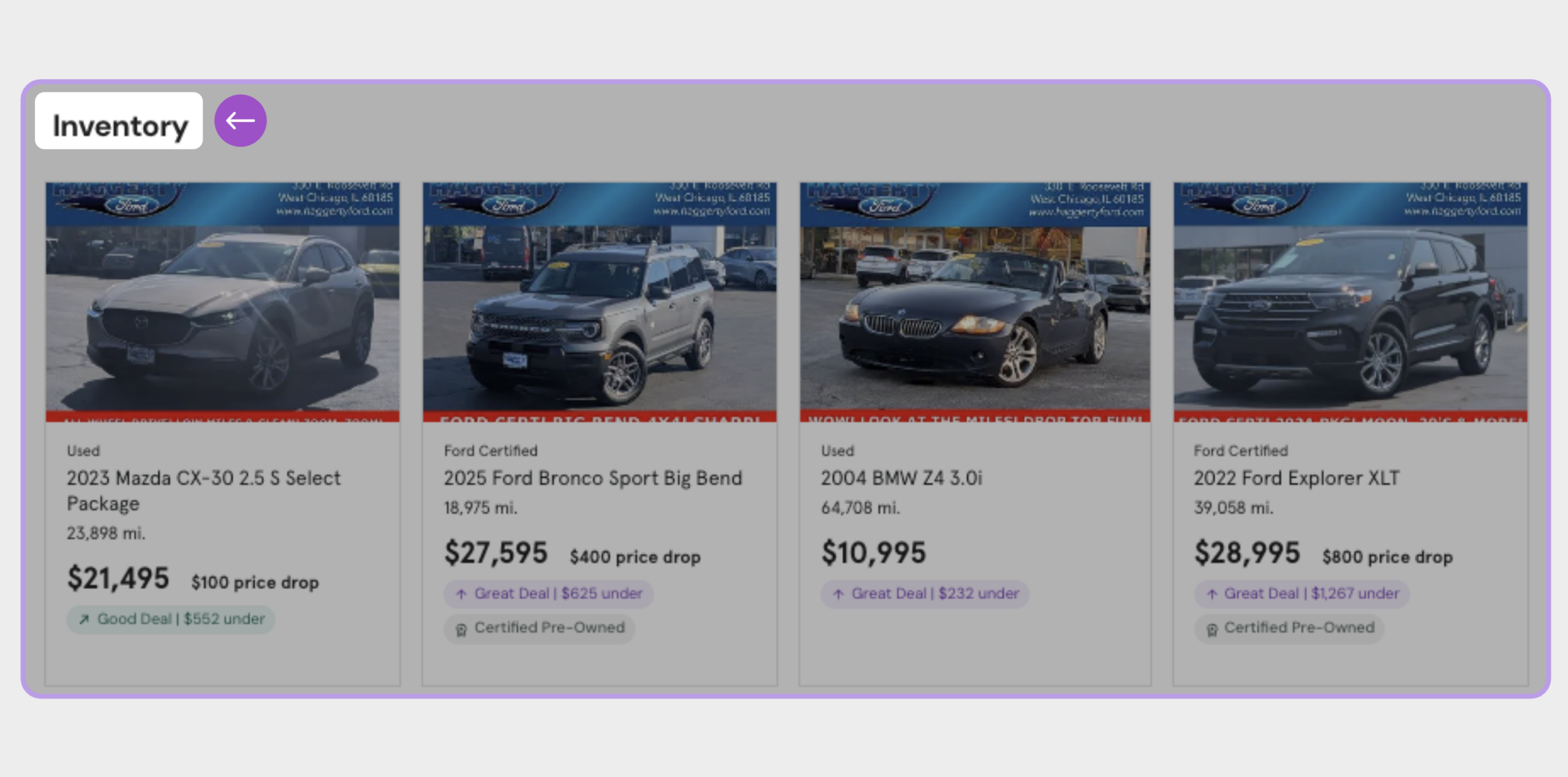
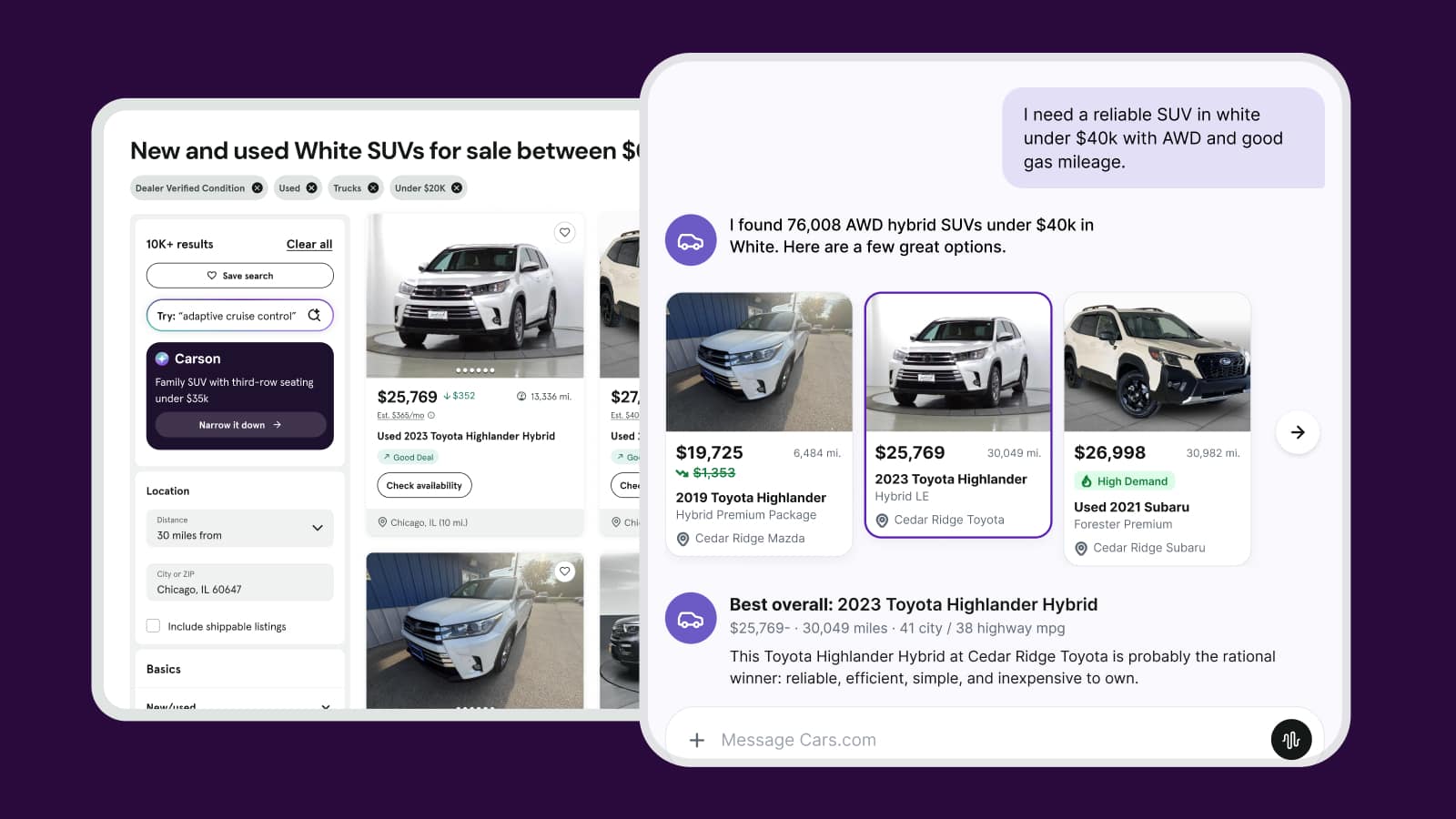
Properly sizing your inventory photos helps your vehicles display cleanly and load quickly across Cars.com — including Vehicle Detail Pages (VDPs) and your dealership profile. Following these best practices reduces cropping, distortion, and processing delays, ensuring a better shopper experience.
This article walks you through how to prepare your inventory photos before uploading.
To get started
Go to the Cars.com Hub. Click Cars.com, then Dealer Dash.
1 Use the correct aspect ratios
Start by confirming that your photos use the correct aspect ratio for where they’ll appear.
- Vehicle Detail Pages (VDP): 4:3 aspect ratio
- Dealer profile photos: Approximately 12:8 aspect ratio
Note: Avoid using Panorama mode (3:5), which can cause photos to appear cropped.
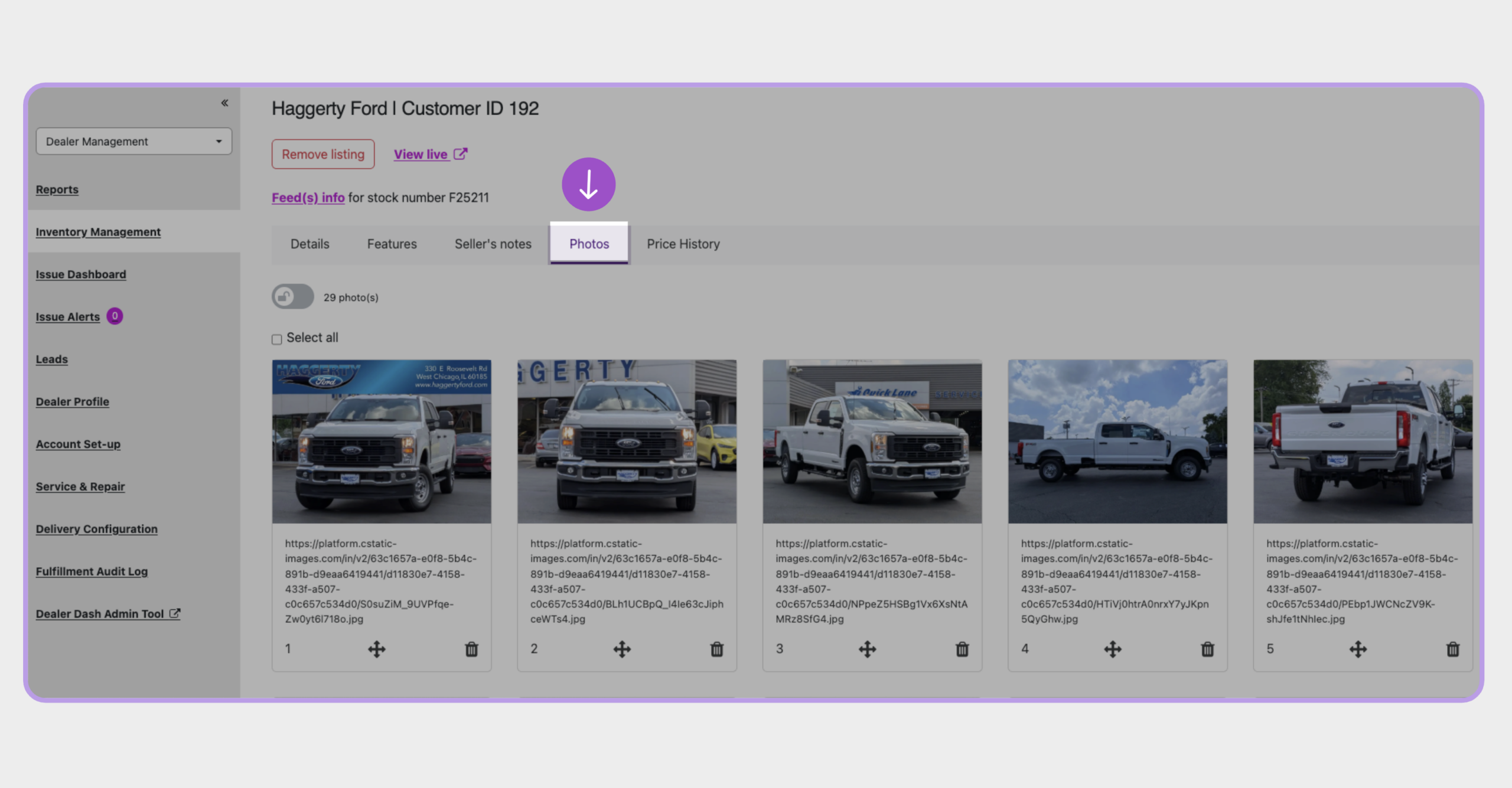
2 Resize photos to the recommended resolution
Use the recommended resolutions to ensure images display clearly and load efficiently.
- VDP listings: 640 × 480 recommended (maximum 1024 × 768)
- Dealer profile photos: 6240 × 4160 recommended
Note: Uploading oversized files may increase processing time. Stick close to recommended sizes for best performance.
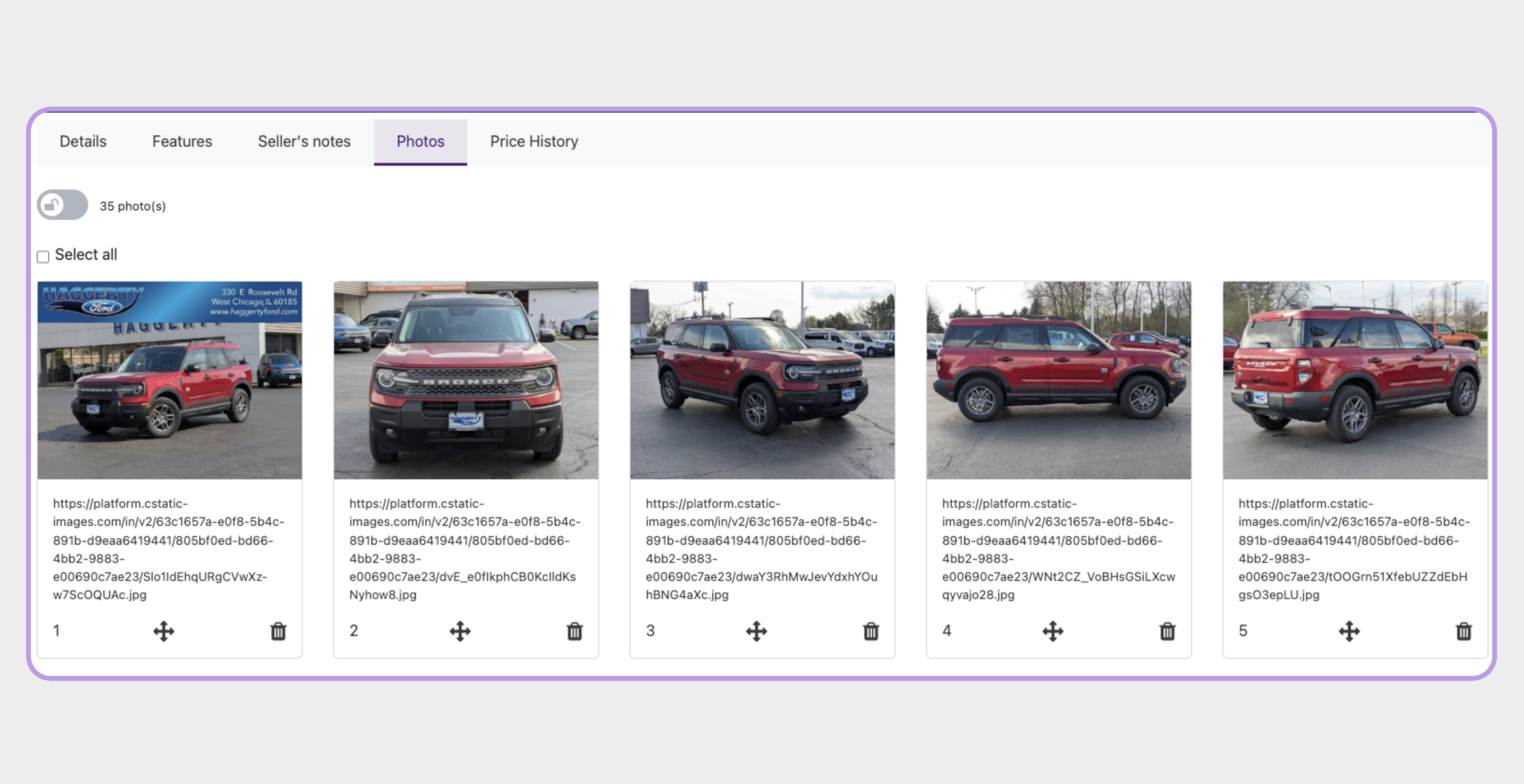
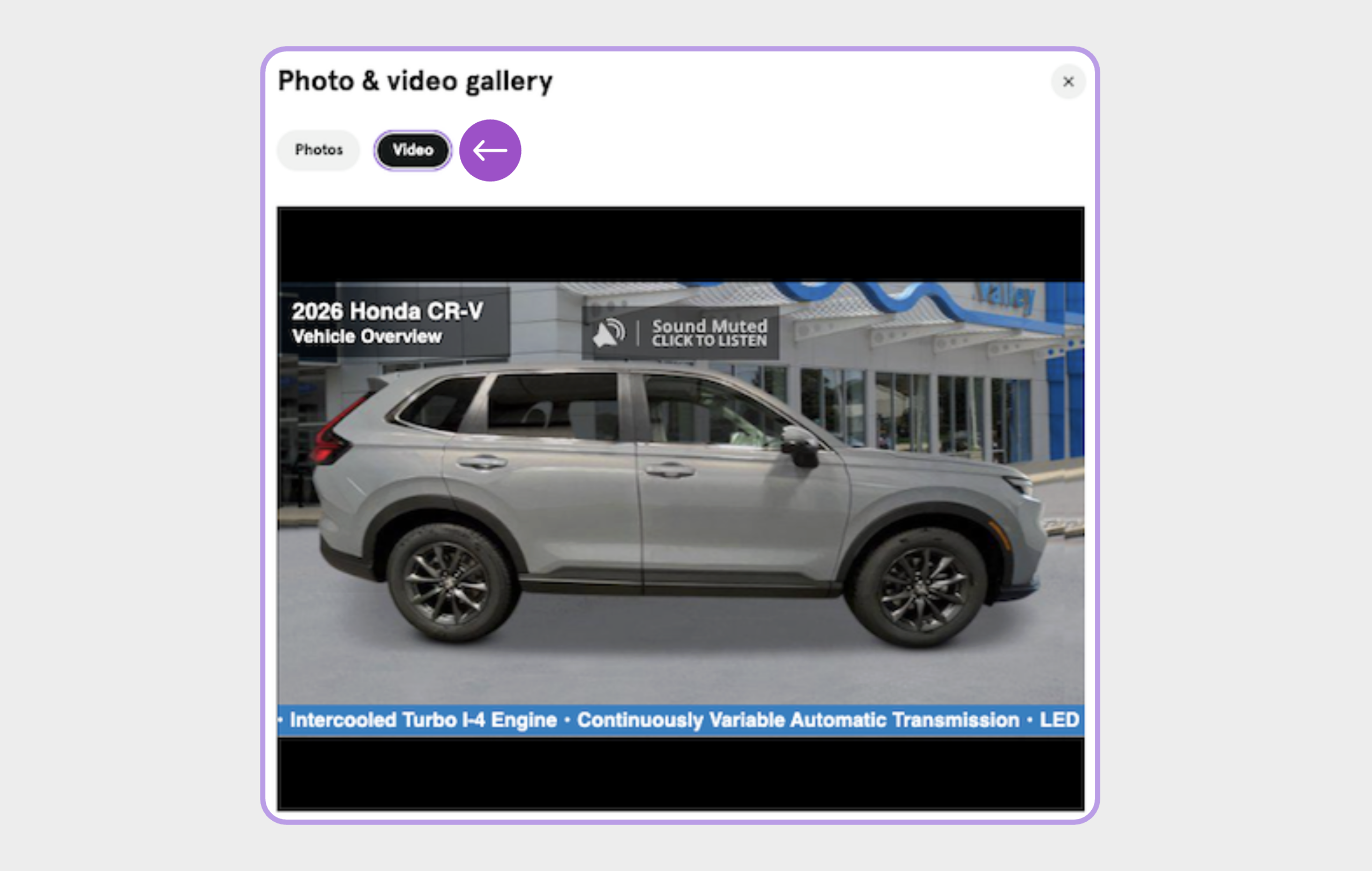
3 Account for photos used in videos
Some inventory photos may appear in video formats.
- Images used in videos are automatically reduced to 640 × 480
- Upload photos close to this size to avoid quality loss
4 Review images before uploading
Before uploading, review your photos to ensure they display as expected.
- Check for cropping or distortion
- Confirm photos match the recommended aspect ratios and resolutions
- Adjust camera or device settings if needed