How to add/edit payment methods
DealerClub processes fees and seller payments automatically for every transaction. To support this, you can add and manage payment methods — including bank accounts, credit cards, and floor plans — directly from your account settings.
In this article, you’ll learn how to access your payment settings, add or edit payment methods, view buyer credits, and select a payment method when finalizing a purchase.
To get started
Go to the Cars.com Hub, and click DealerClub.
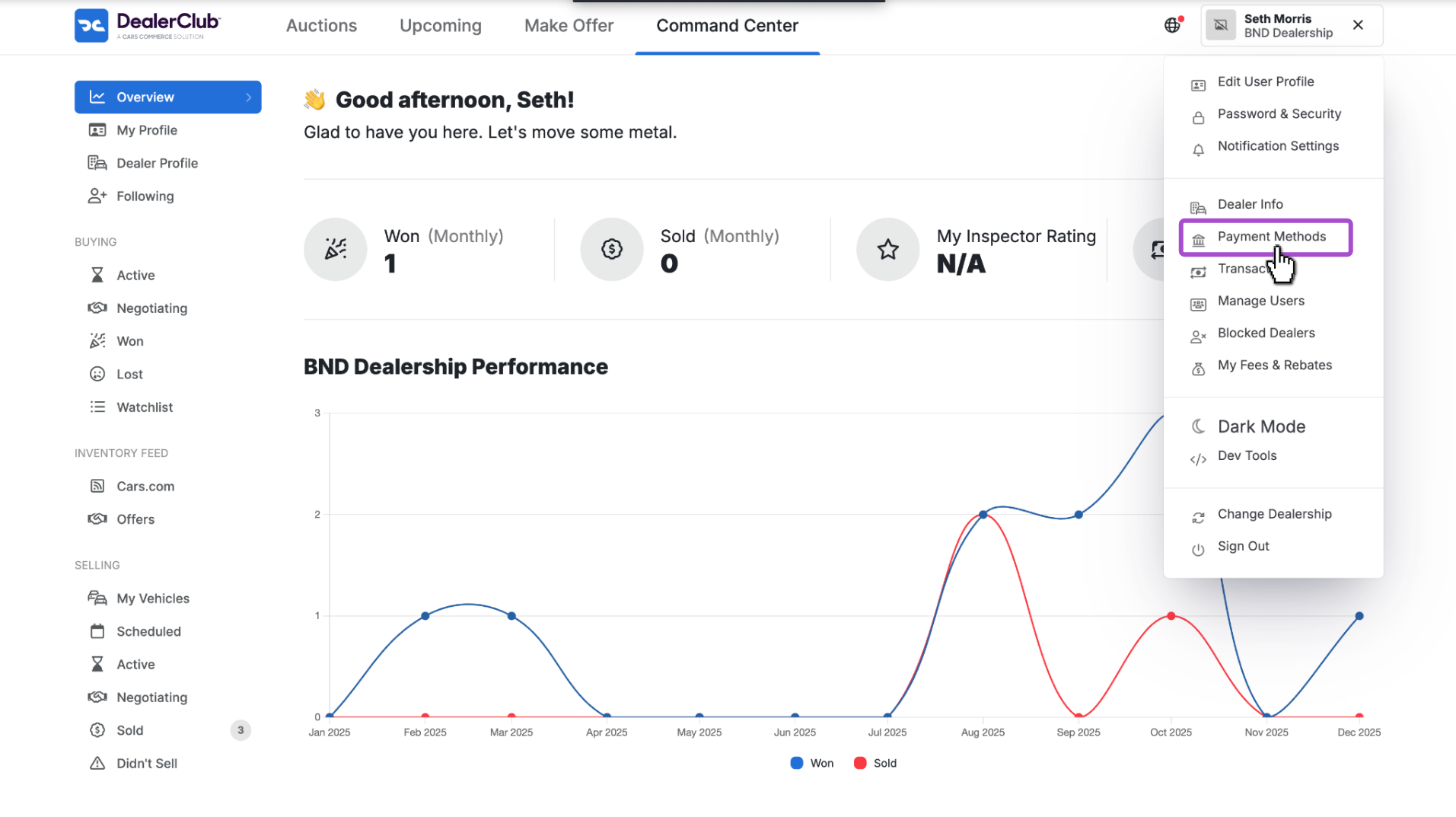
1 Access payment methods
- Click your name in the top-right corner of the screen
- Select Payment Methods
2 Add a bank account
You can connect a bank account using Plaid or by entering your details manually.
connect using Plaid:
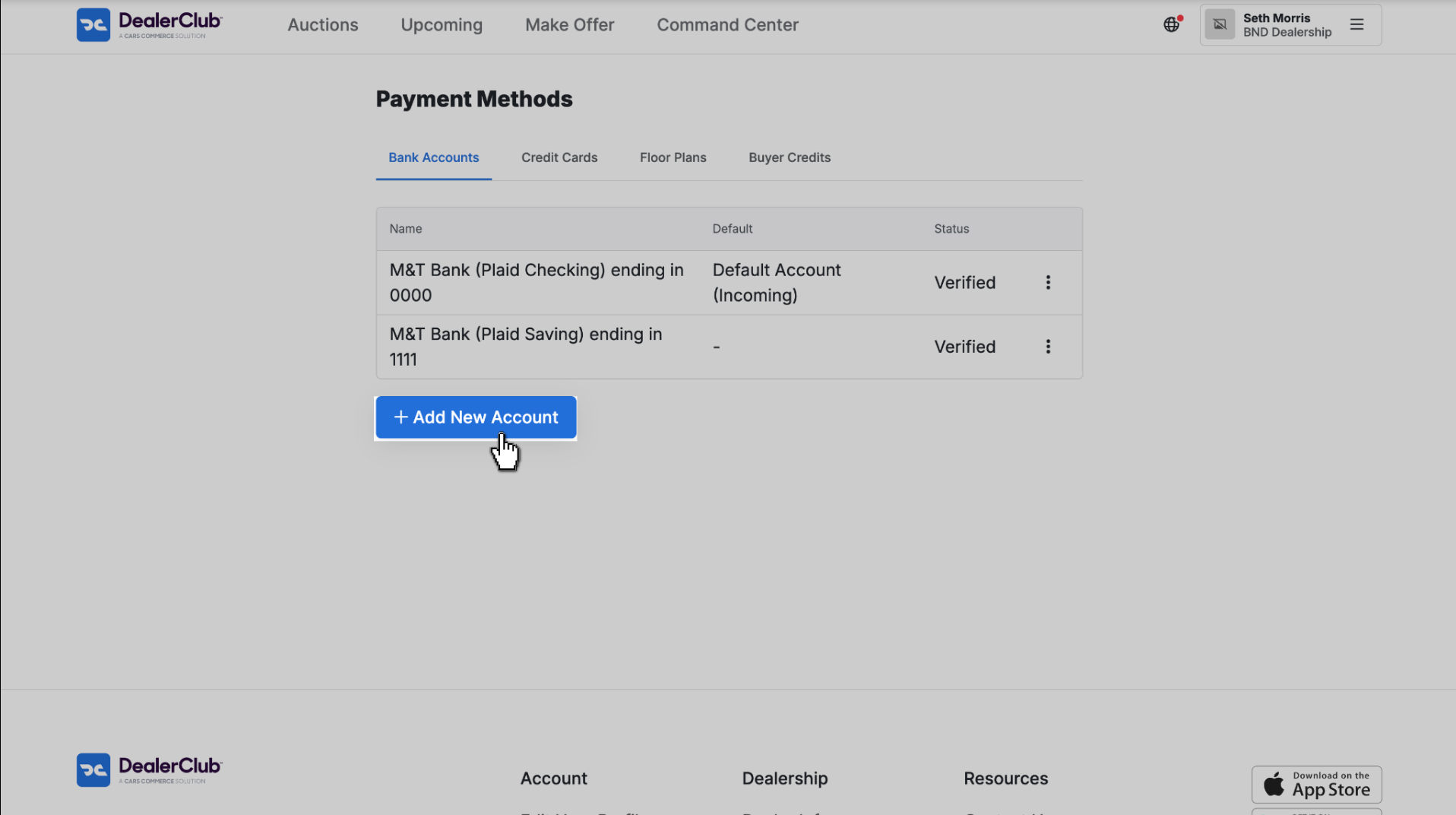
- In the Bank Accounts tab, click + Add New Account
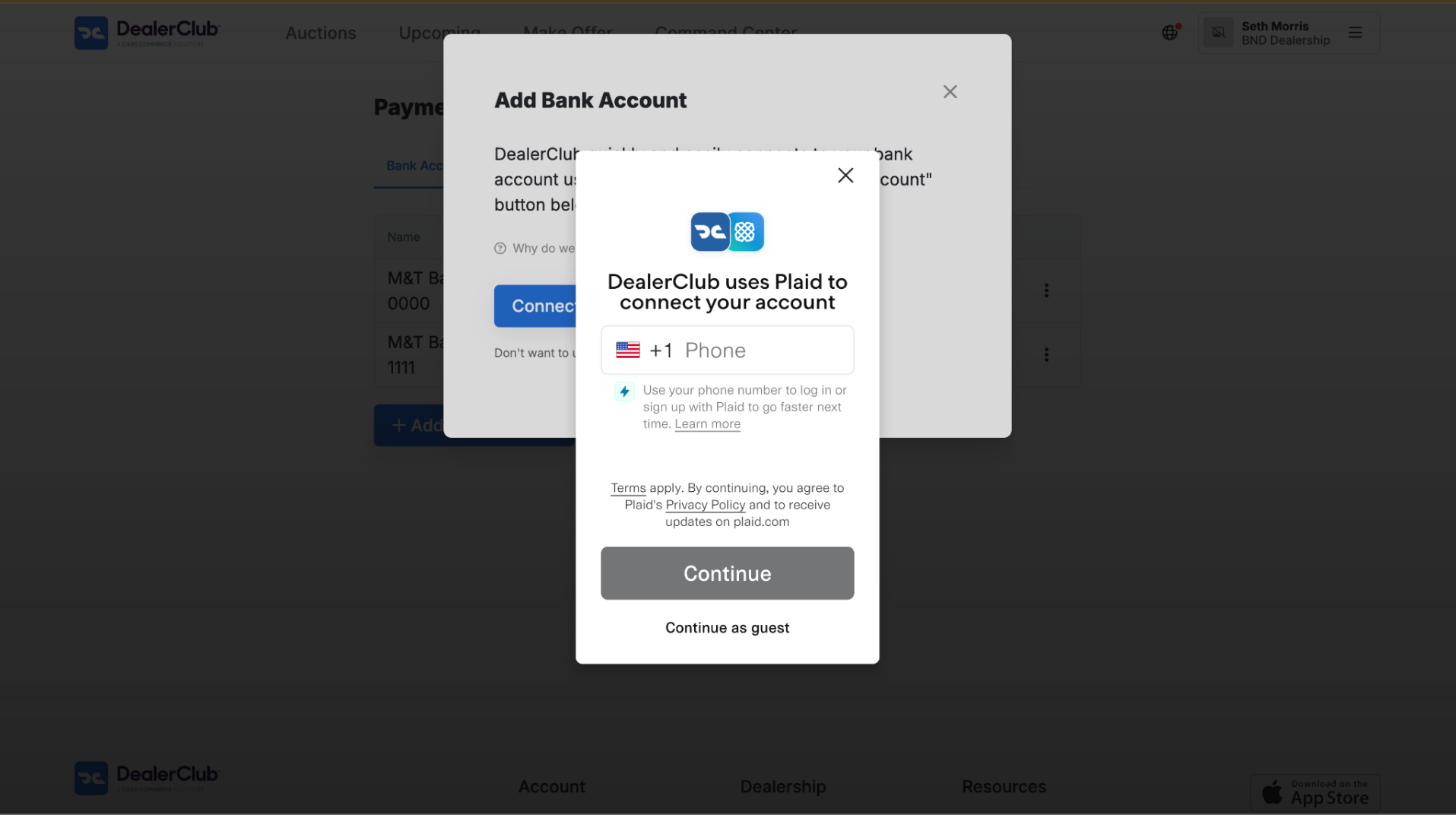
- Click Connect Bank Account

- Follow the prompts to link your bank account
CONNECT MANUALLY:
- In the Bank Accounts tab, click + Add New Account
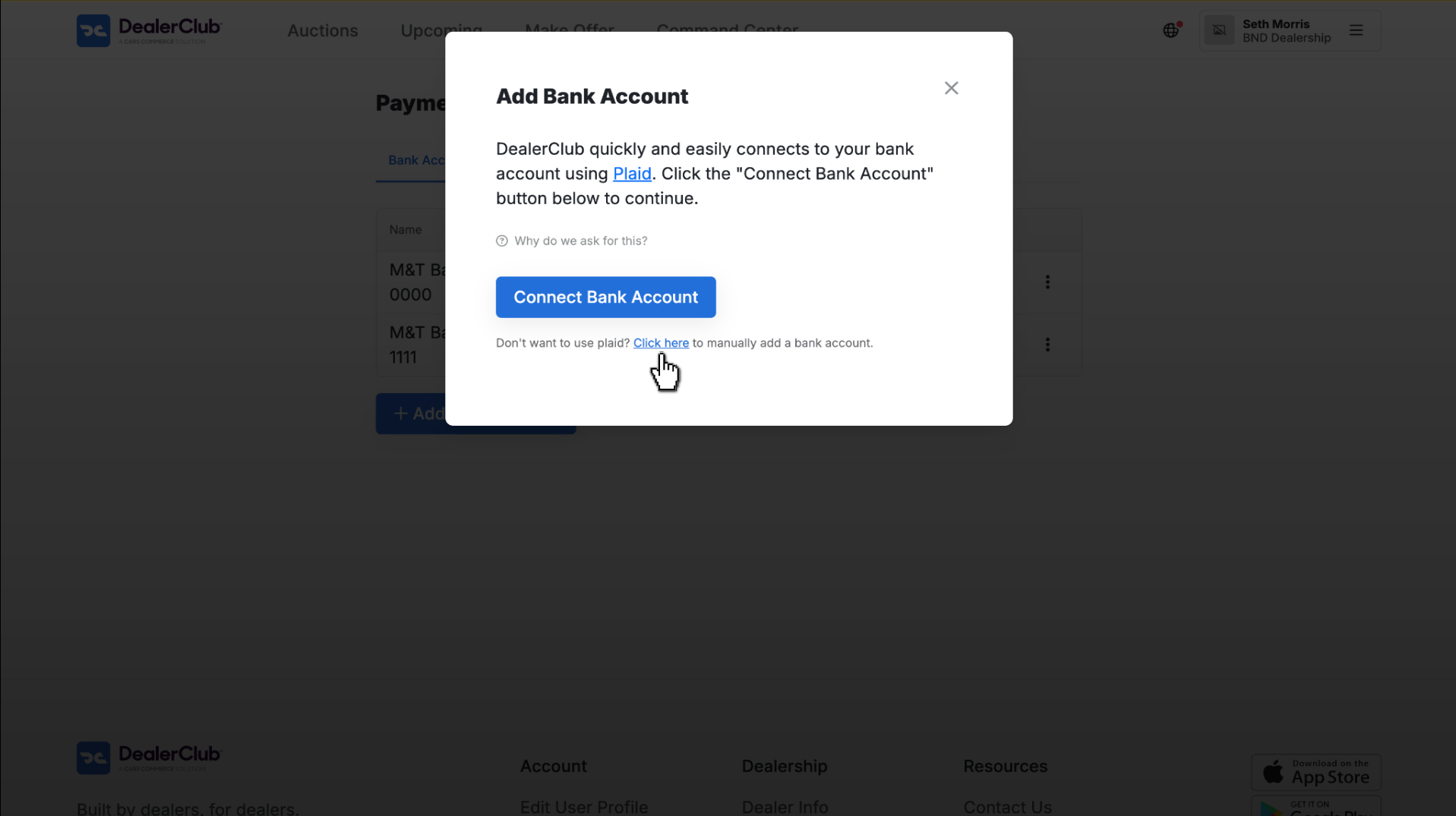
- Click the Click here link under the button
- Enter your bank information
- Click Save
Note: Manual verification typically takes 3–5 business days.

Once added, your account Name, Default status, and Verification Status will appear in the Bank Accounts tab.
To deactivate an account:
- Click the 3-dot menu
- Select Deactivate

3 Add credit card
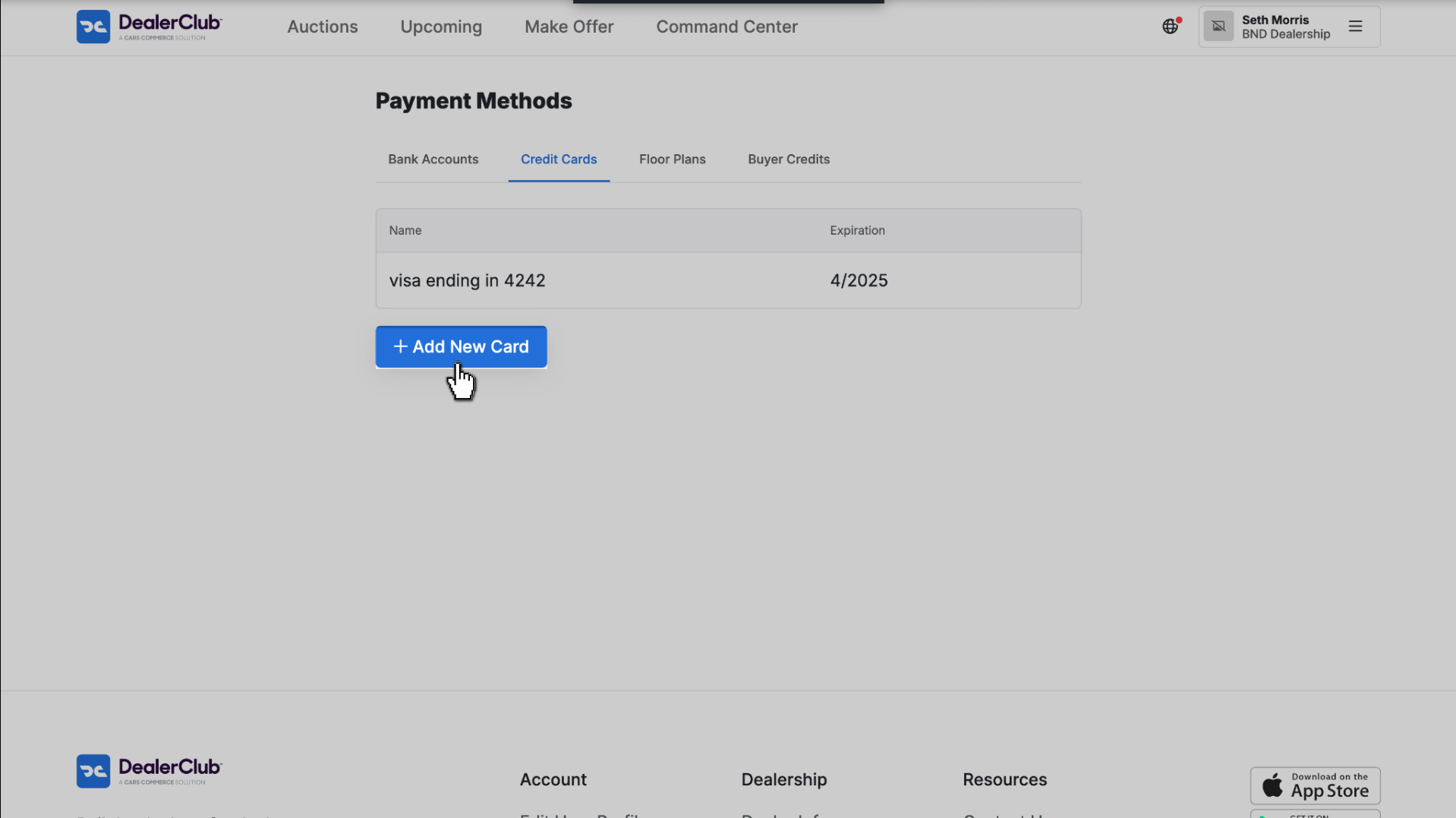
- Select the Credit Cards tab
- Click Add New Card
- Enter the credit card details
- Click Add Credit Card
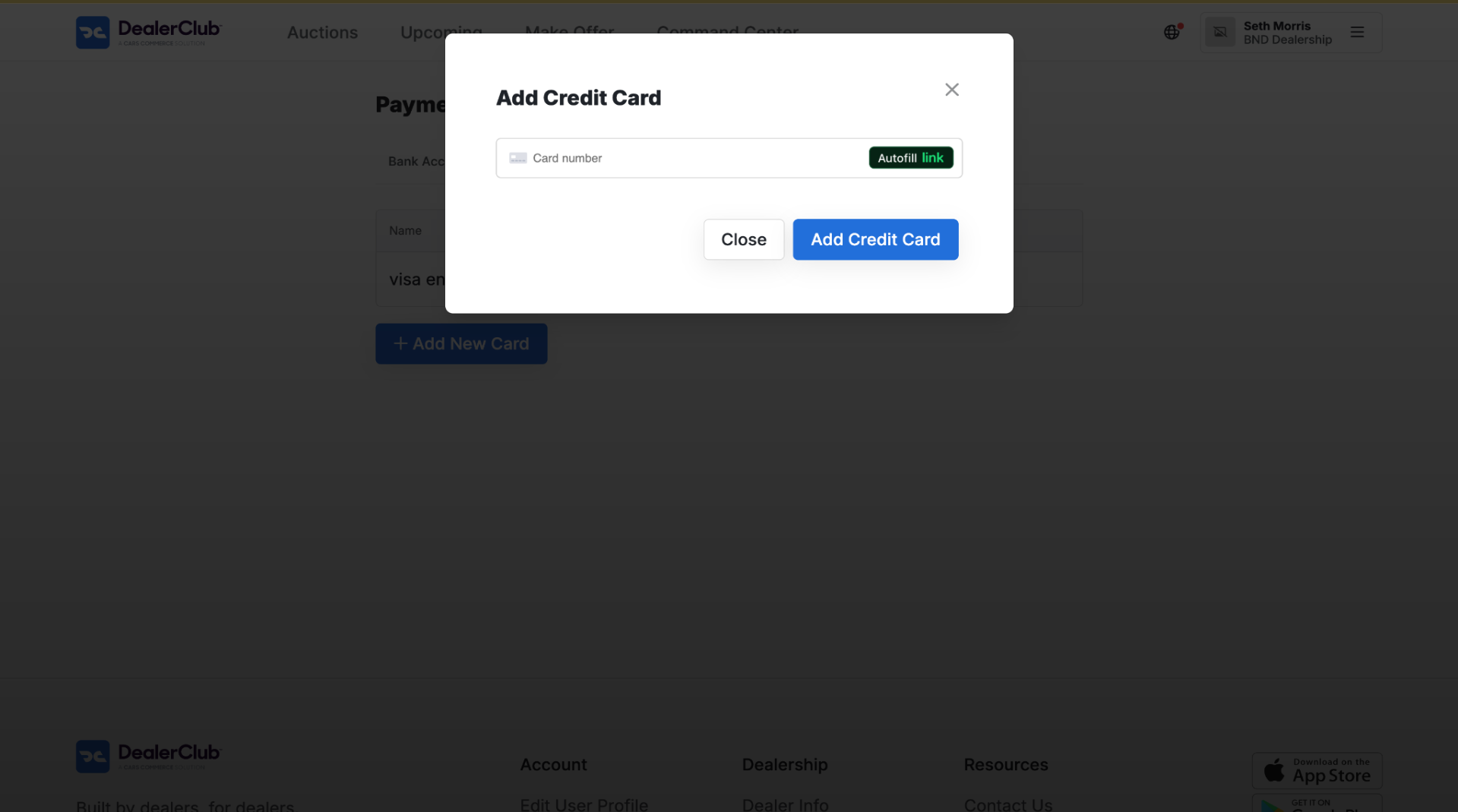
Once saved, the card’s Name and Expiration Date appear in the Credit Cards tab.
4 Add floor plan
DealerClub supports payment through floor plan financing providers.
- Go to the Floor Plans tab
- Click + Add New Floor Plan
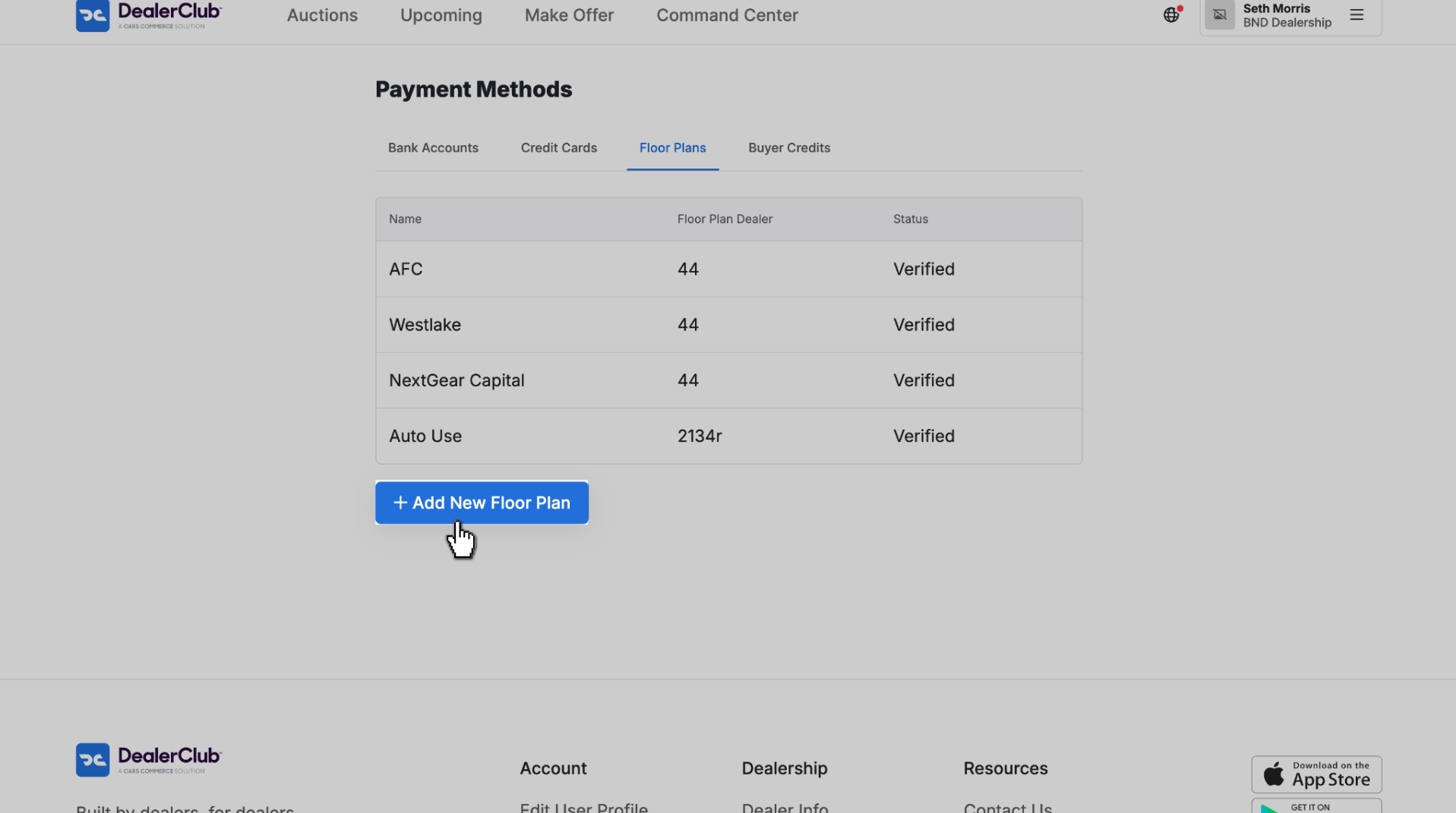
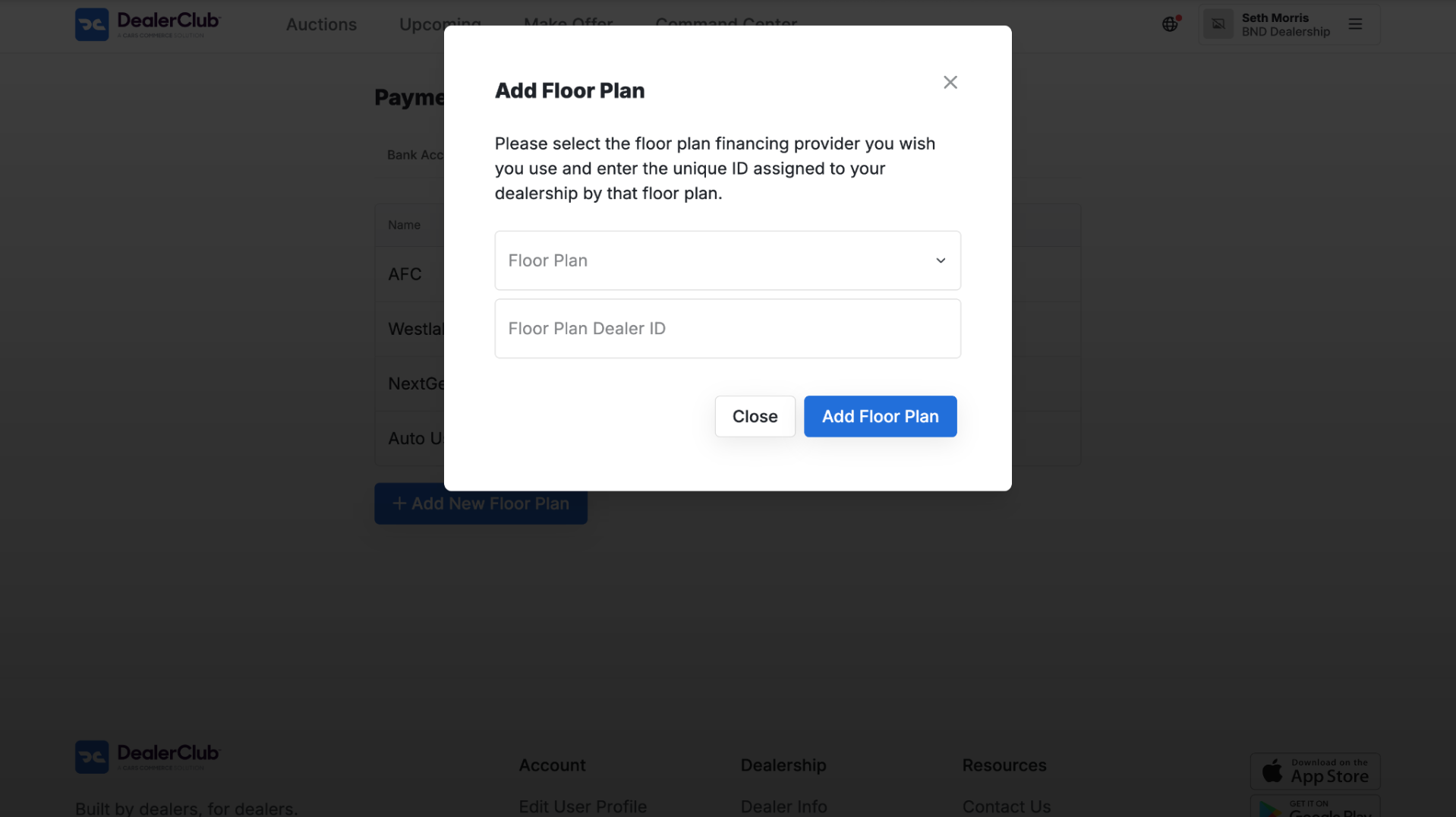
- Select your floor plan financing provider
- Enter your Floor Plan Dealer ID
- Click Add Floor Plan
Once added, the floor plan’s Name, Dealer ID, and Status appear in the Floor Plans tab.
5 View buyer credits
DealerClub runs monthly giveaways where you can earn buyer credits by guessing the selling price at the bottom of any auction. Earned credits can be applied to offset DealerClub fees on future purchases.
- Open the Buyer Credits tab
- View your Credit Balance and Credit History

6 Paying your fees
When you win an auction:
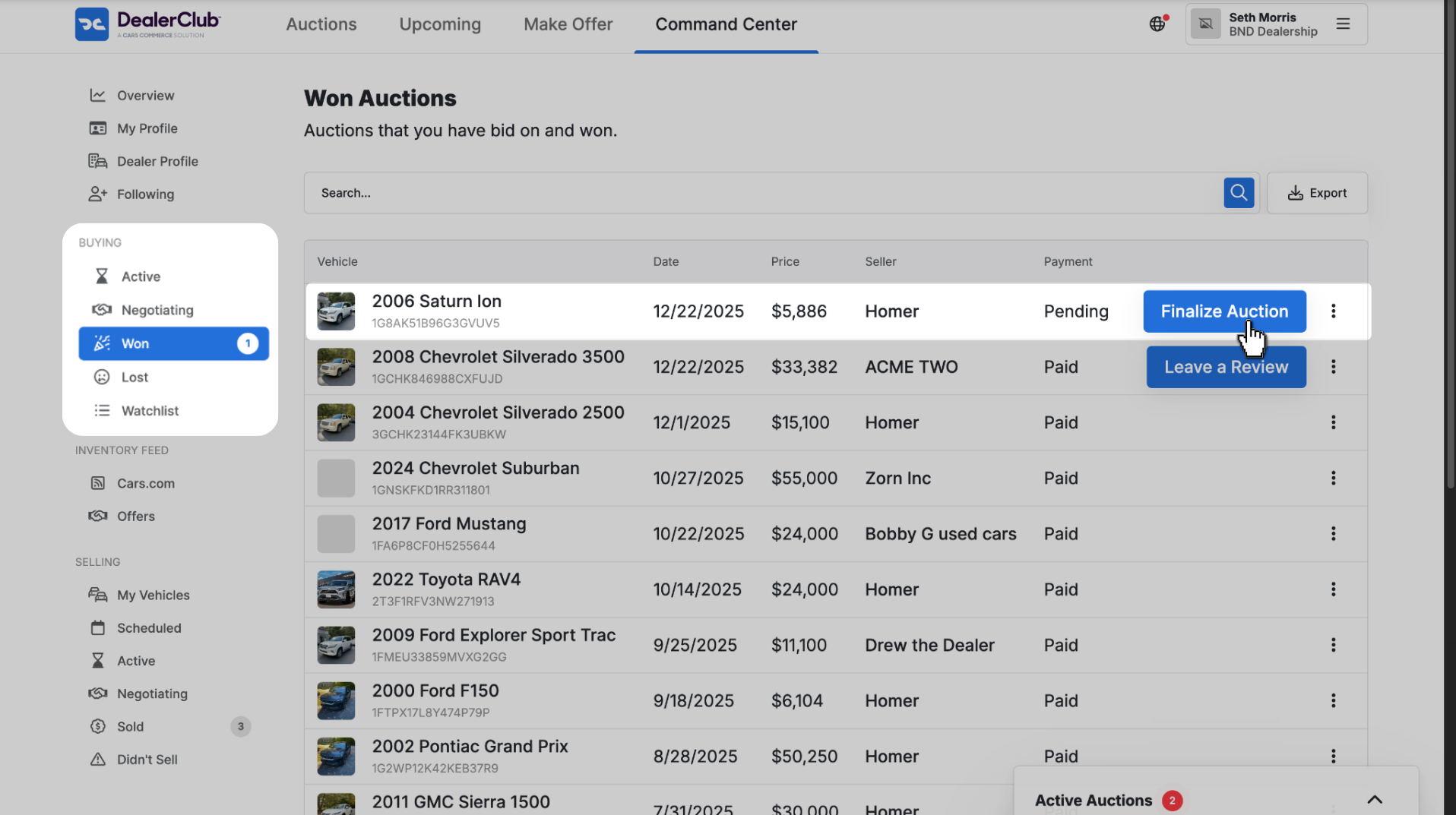
- Click the Command Center tab at the top of the screen
- Click Won under the buying tab
- Click Finalize Auction for the relevant vehicle
In the Finalize Auction screen:
- Use the Payment Method dropdown to choose how you’ll pay
- The final price will include the vehicle, DealerClub Fee, Transport Costs, and any Extended Guarantees selected
- Once reviewed, click Complete Purchase to finalize the transaction