How to manage your deal badges on the Cars.com Dealer app
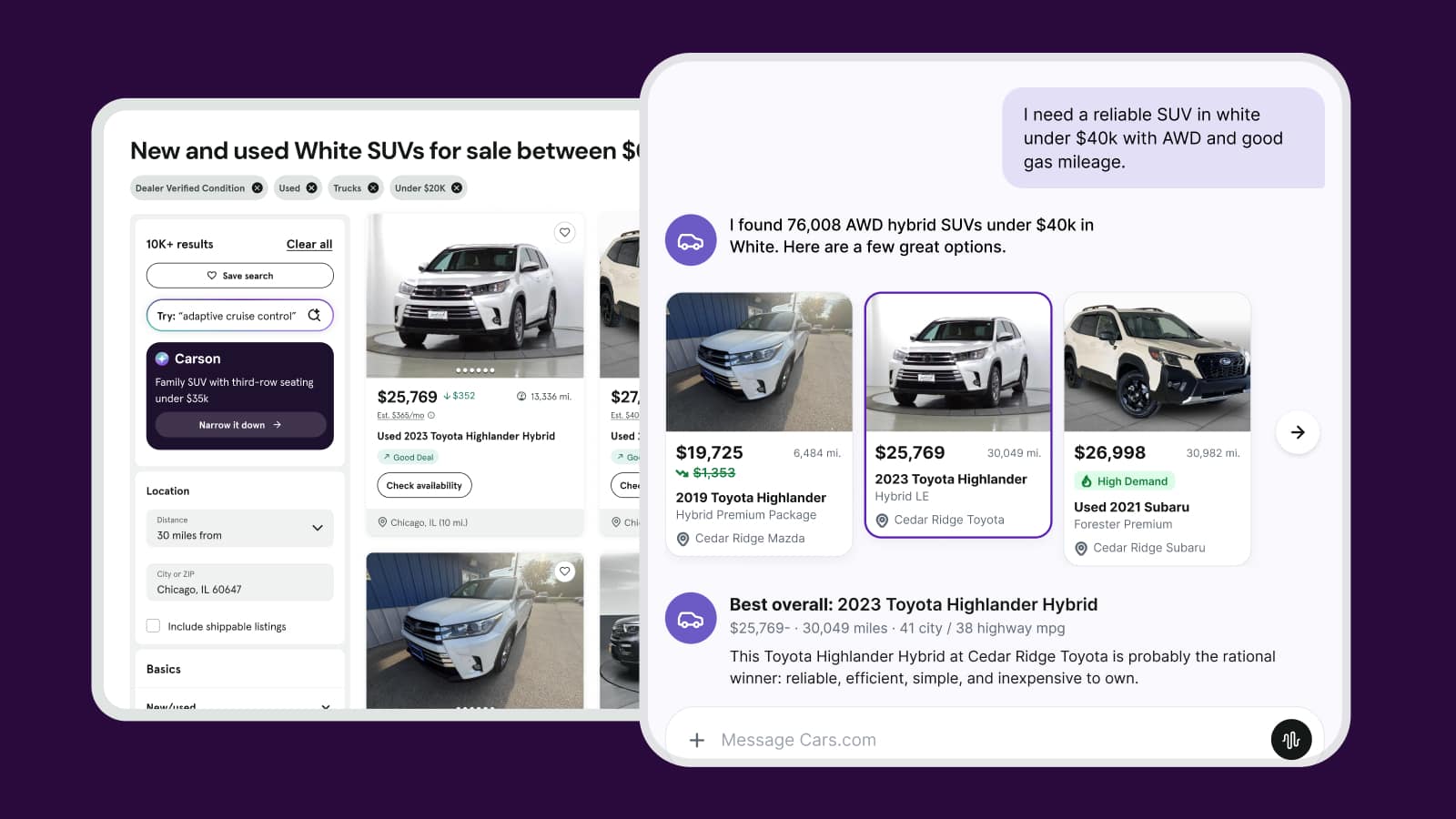
Deal badges on Cars.com — Great Deal, Good Deal, and Fair Deal — signal value to shoppers browsing your listings. Vehicles with stronger badges typically earn more VDP views and shopper engagement. The Cars.com Dealer app shows you which vehicles are within $500 of a better badge and exactly what price adjustment would get them there, backed by Cars.com market data.
In this article, you’ll learn how to find vehicles close to a badge upgrade, use the deal badge slider to simulate pricing adjustments and see your price rank within 60 miles, and share that target price with your team to update in your IMS.
To get started
Log in to the Cars.com Dealer app with your Cars.com credentials.
What you’ll need
- Download the Cars.com Dealer app from the App Store for Apple or Google Play Store for Android
- Used inventory listings on Cars.com
1 Navigate to vehicle deal badging
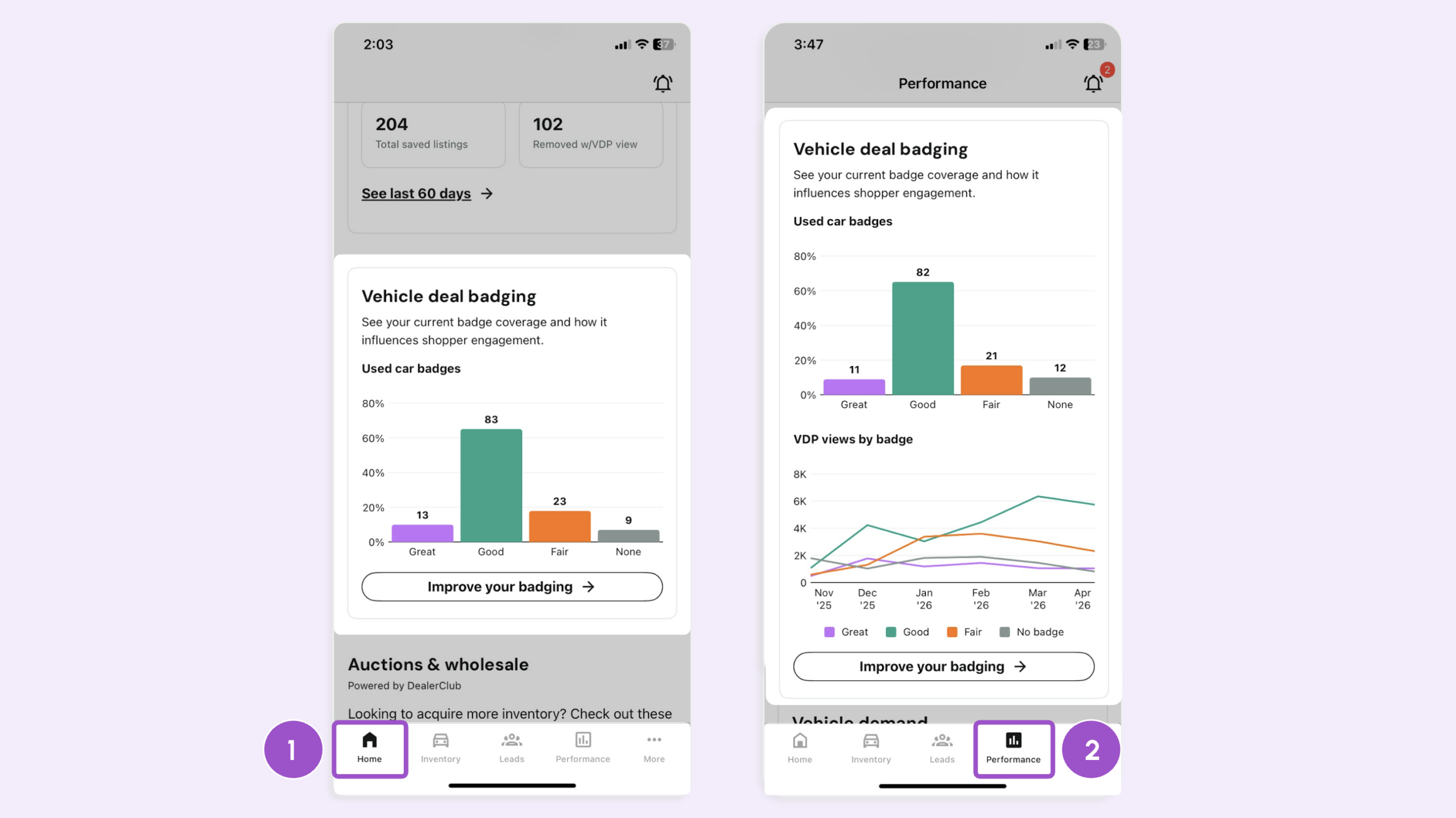
Find the Vehicle deal badging section one of two ways:
- Scroll on the Home screen until you see the Vehicle deal badging section
- Or, tap Performance and find Vehicle deal badging
This gives you a live count of your used vehicle deal badges by tier.
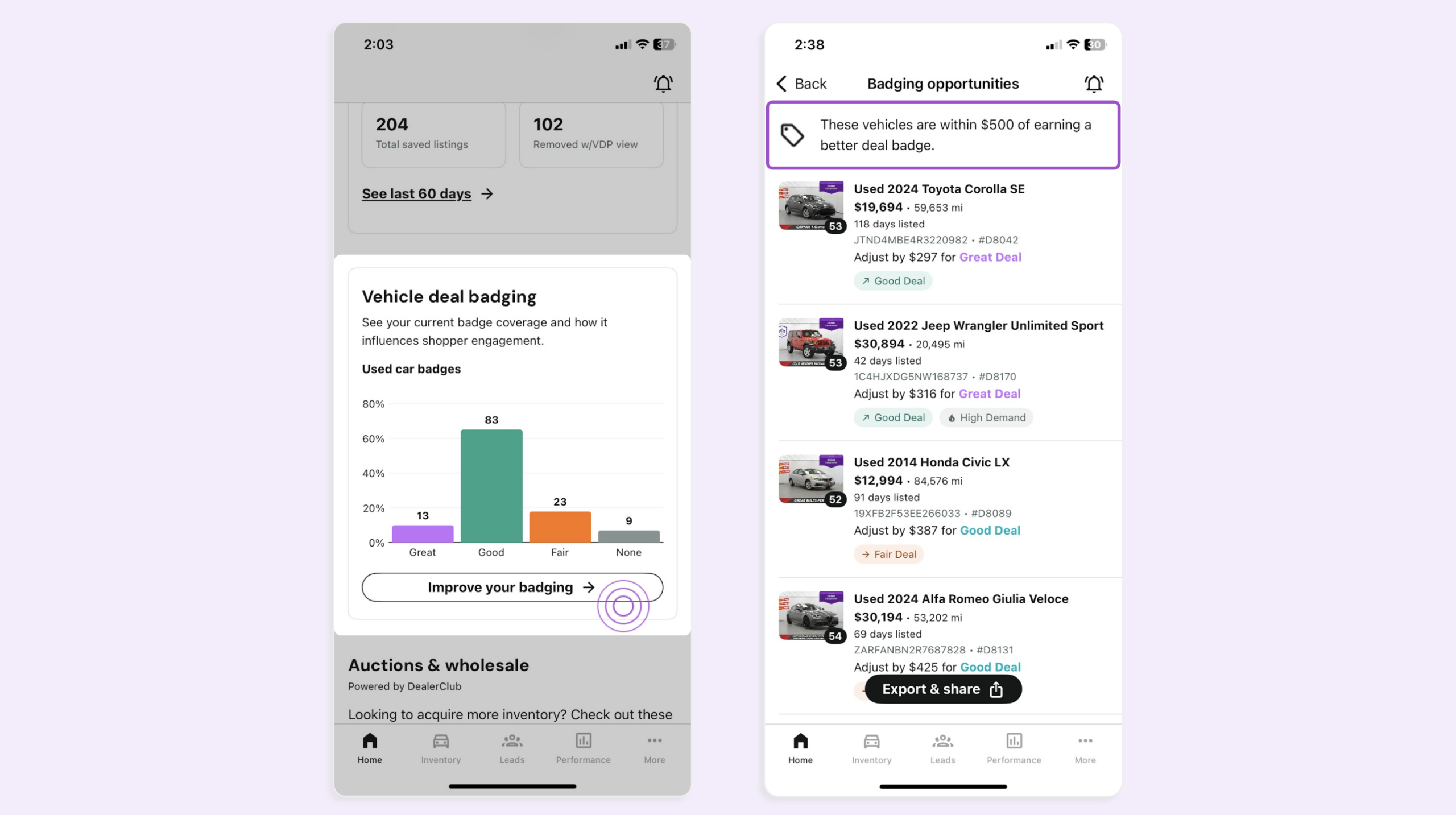
- Tap Improve your badging to open your badging opportunities
- This screen displays all currently listed used vehicles within $500 of a better deal badge
- Vehicles are ranked by how close they are to the next badge tier
2Select a vehicle
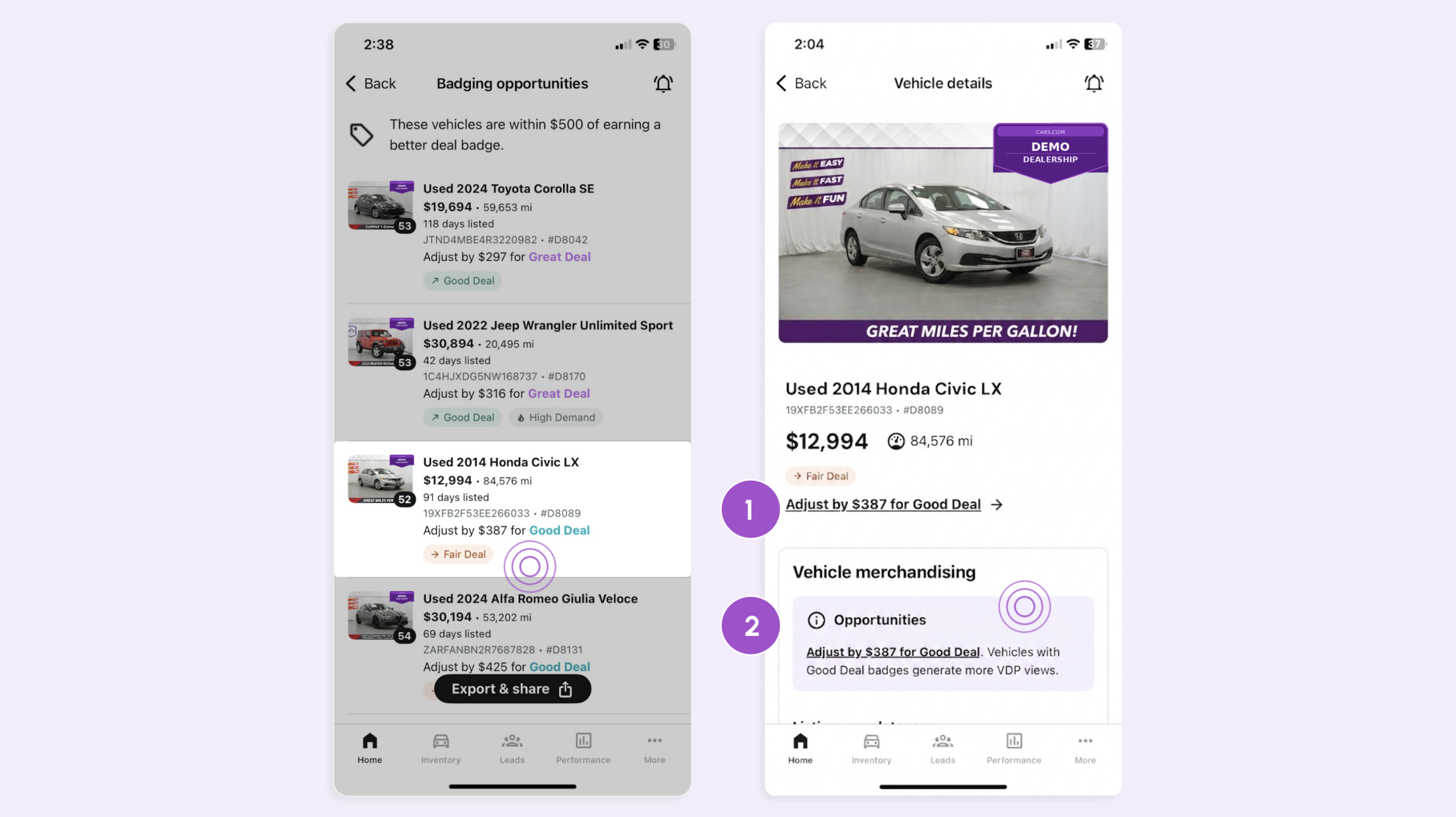
- Click into a vehicle to open its VDP (Vehicle Detail Page)
- Tap Adjust by under the deal badge to open the slider
- Or, select directly from the Opportunities notice
3 Find your target price
Use the slider to simulate the price point that earns a better deal badge. See the impact in real time before applying pricing adjustments in your system.
- Drag the slider left to reduce the price; the badge indicator updates in real time
- This will tell you when it earns a Good Deal or Great Deal badge
- The price rank within 60 miles updates as you drag, showing how your adjusted price compares to similar vehicles nearby
- Note the target price shown at the slider position where the badge improves
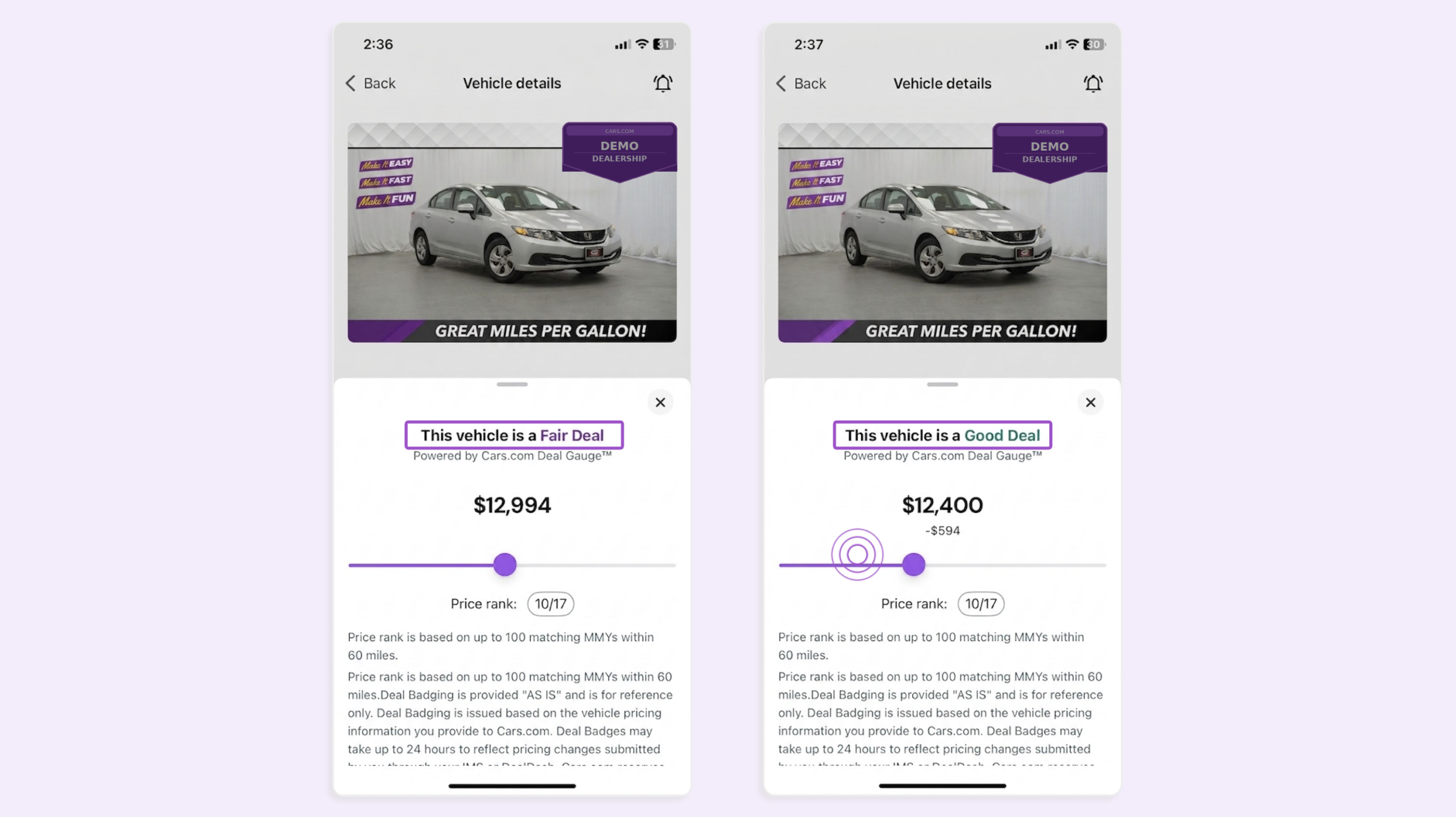
Note: The Dealer App is for reference only. Adjusting the slider does not change your actual listing price.
4Act on your pricing opportunities
Cars.com market data powers every recommendation — so you know exactly which vehicles are close to a badge upgrade and the precise dollar adjustment needed to get there. From here, you can take action however works best for your store.
- Tap Export & share at the bottom of the Badging Opportunities screen
- This will generate a CSV that includes:
- Vehicle details and current price
- The exact dollar amount to reduce
- The target price that earns a better badge
- Use these insights to make informed pricing decisions
Changes reflect on your Cars.com listings at the next inventory sync.
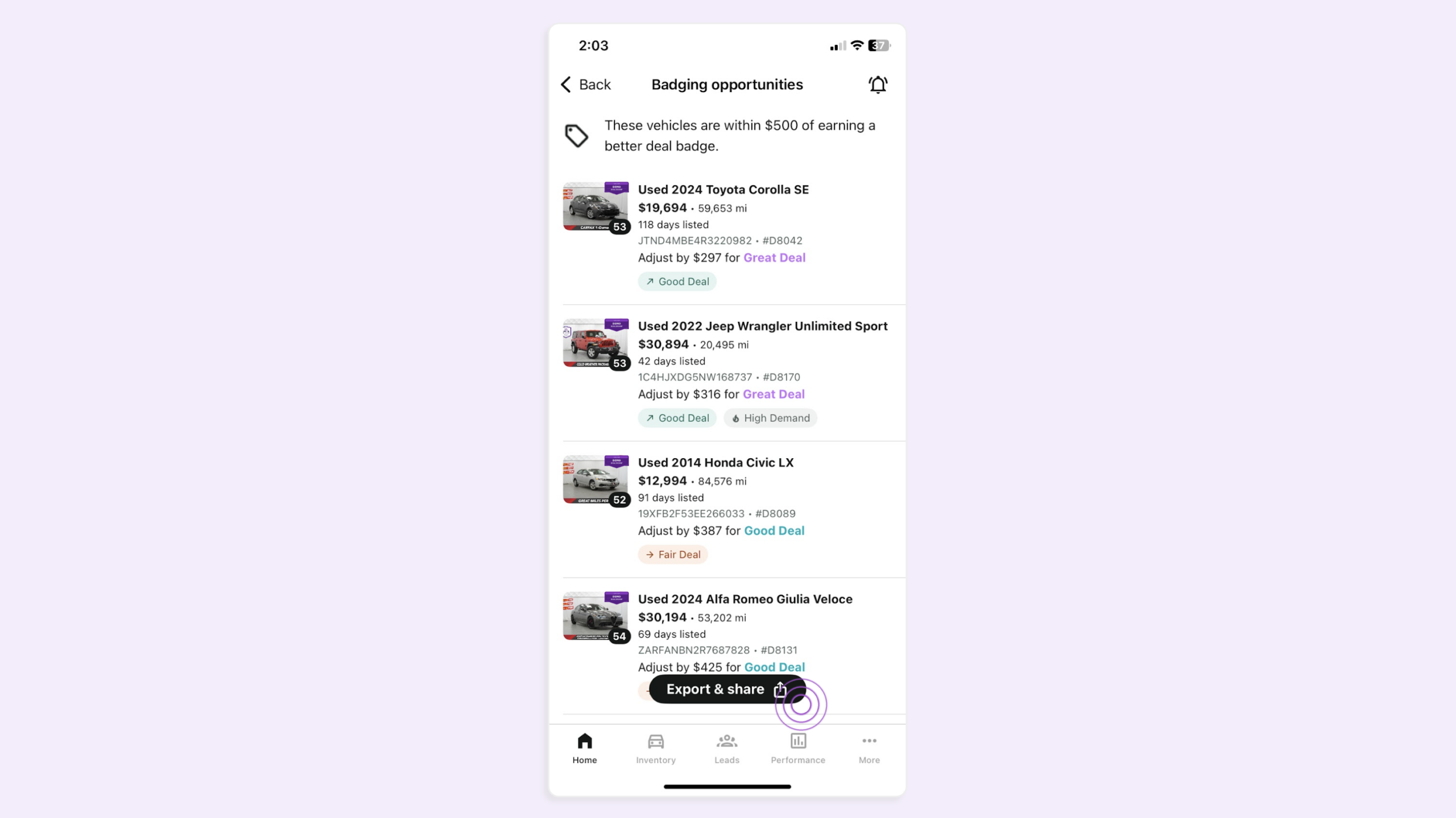
Best practice: Focus first on vehicles closest to a Great Deal badge — these have the strongest potential impact on shopper engagement and VDP views. Work through your Badging Opportunities list from the top down.