How to make an offer
With the Make Offer feature on DealerClub, you can browse vehicles that didn’t sell during the live auction and submit your best price. It’s the perfect way to unlock more inventory, capitalizing on missed opportunities and negotiating directly with sellers for the best possible deal. In this article, we’ll walk through how to make an offer on a vehicle after the live auction has ended.
To get started
Go to the Cars.com Hub and click on DealerClub.
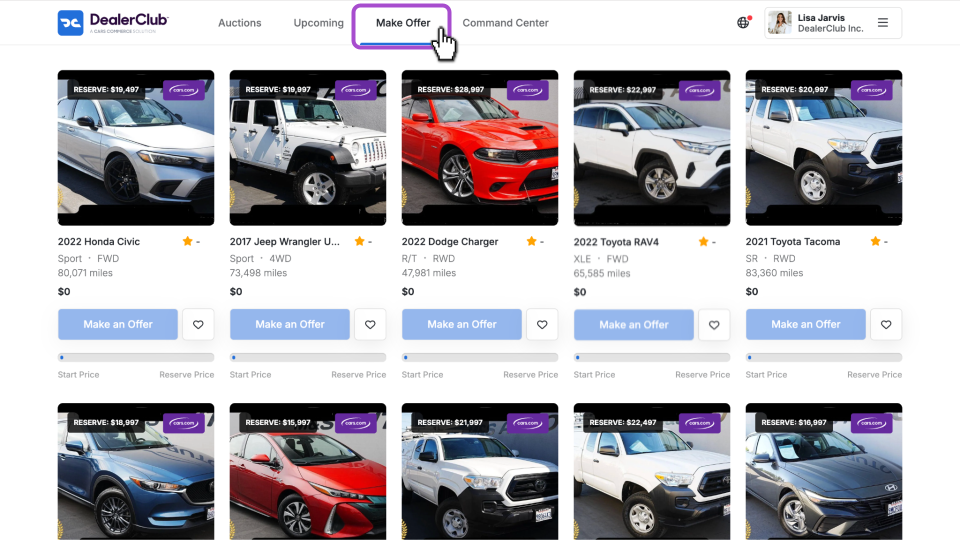
1 Click Make Offer
From the DealerClub homepage:
- You are routed to the Auctions tab by default.
- Click the Make Offer tab at the top of the page.
This view shows vehicles that have already run in auction but were not sold.
2 Select a vehicle
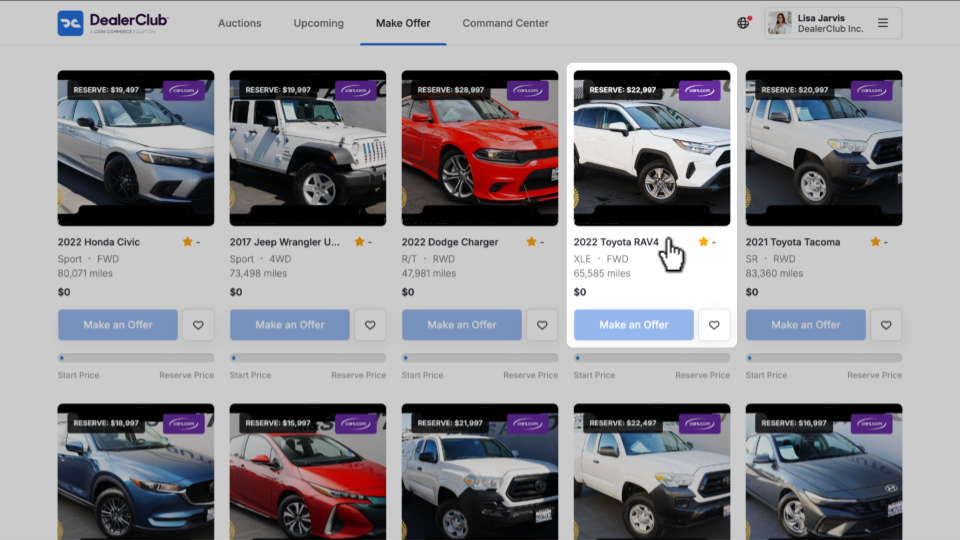
Browse the list of available vehicles and click a vehicle to view its details.
While you may see a Make an Offer button directly from the list view, opening the vehicle first allows you to review all available information before submitting an offer.
3 Review vehicle details
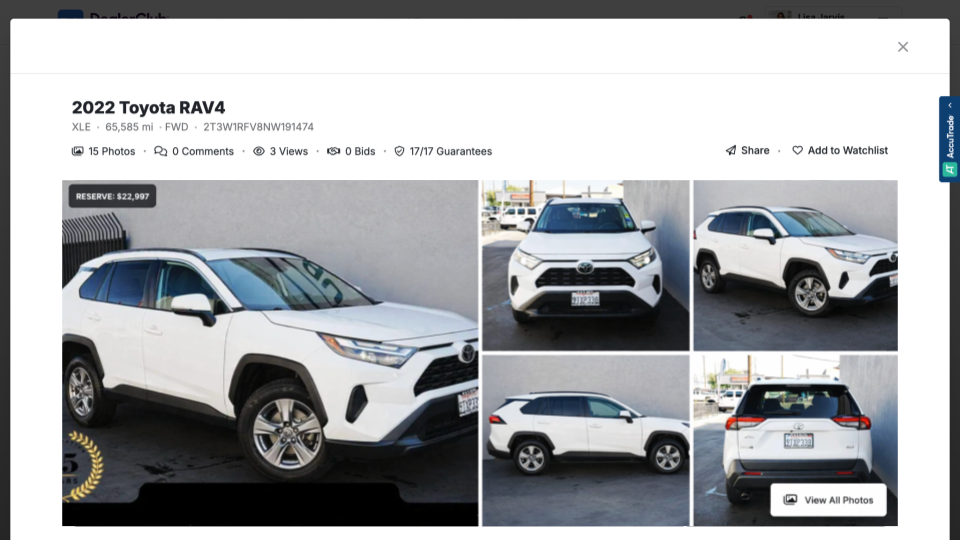
When you click into a vehicle, a pop-up window opens showing:
- Vehicle images
- Condition Report (CR)
- Disclosures
- Descriptions
- Guarantees (if applicable)
Review this information carefully to determine whether you want to proceed with an offer.
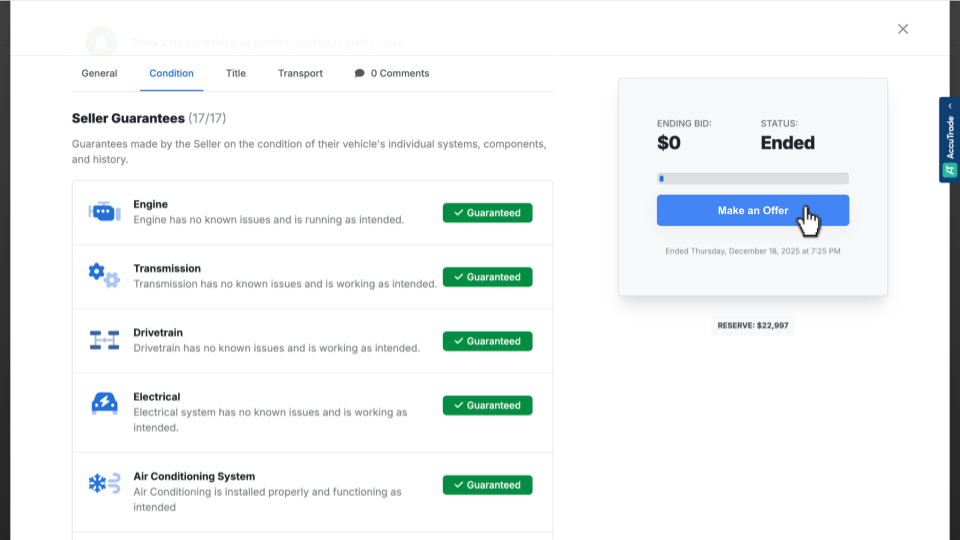
4 Submit an offer
From the vehicle details view:
- Click Make an Offer.
- Enter the offer amount you wish to submit.
If a reserve price is shown, use it as a reference point when entering your offer.
Once submitted:
- The seller may accept, reject, or counter your offer.
- All follow-up communication occurs within DealerClub.