How to add vehicle descriptions to inventory
AccuTrade allows you to go from appraisal to a fully merchandised listing using one platform. Once you stock a vehicle in the Inventory tab, you can price it, upload images, and write compelling descriptions to prepare for marketplace syndication.
In this article, you’ll learn how to add a header, footer, and AI-generated vehicle description — plus how to manage and highlight key features — to get your listings ready for syndication.
To get started
Go to the Cars.com Hub, then click on AccuTrade.
1 Open the Equipment tab
The Equipment tab is where you’ll add descriptions and feature highlights to optimize your listing:
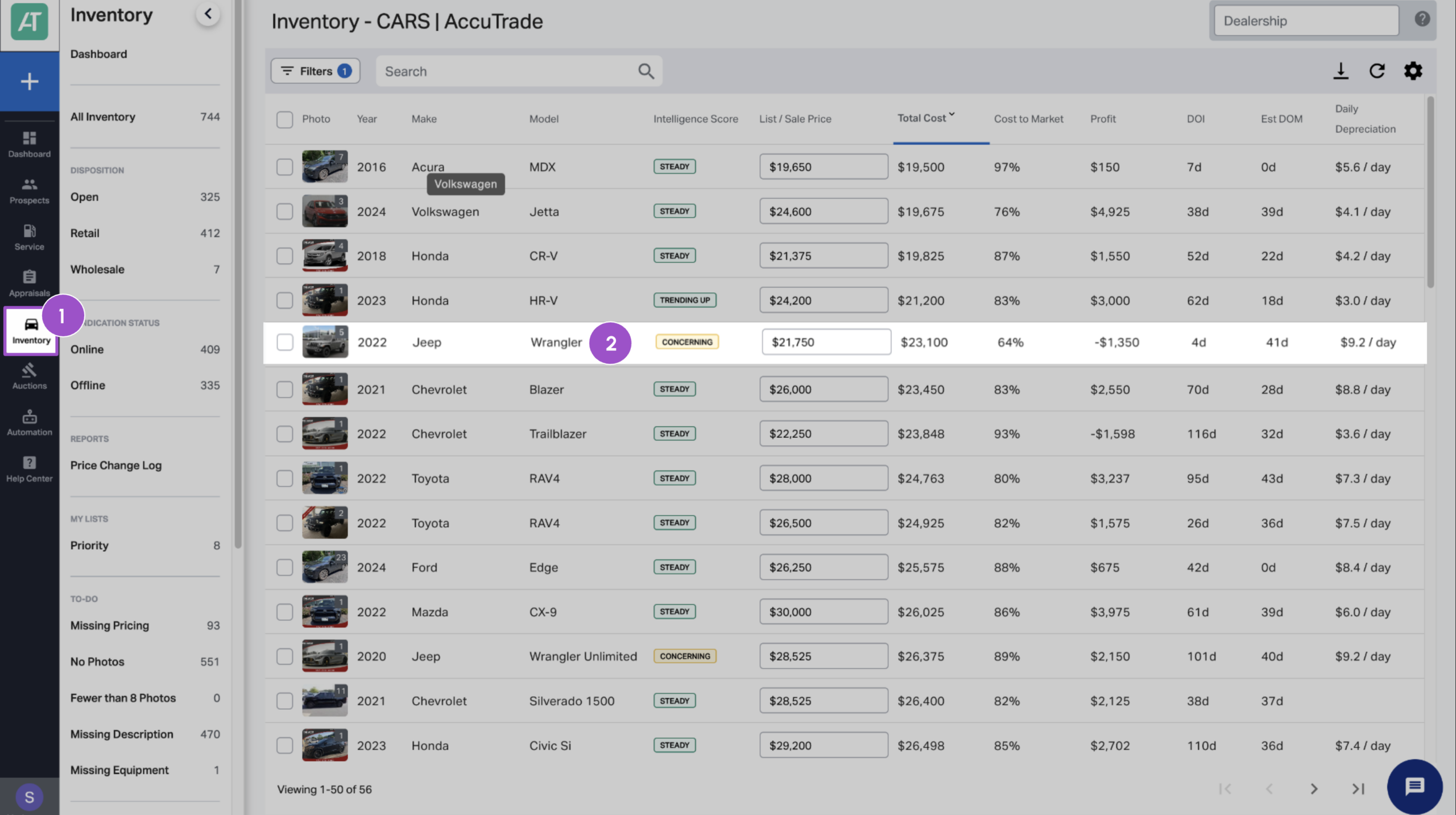
- Click the Inventory tab.
- Click anywhere on a vehicle row to open its details.
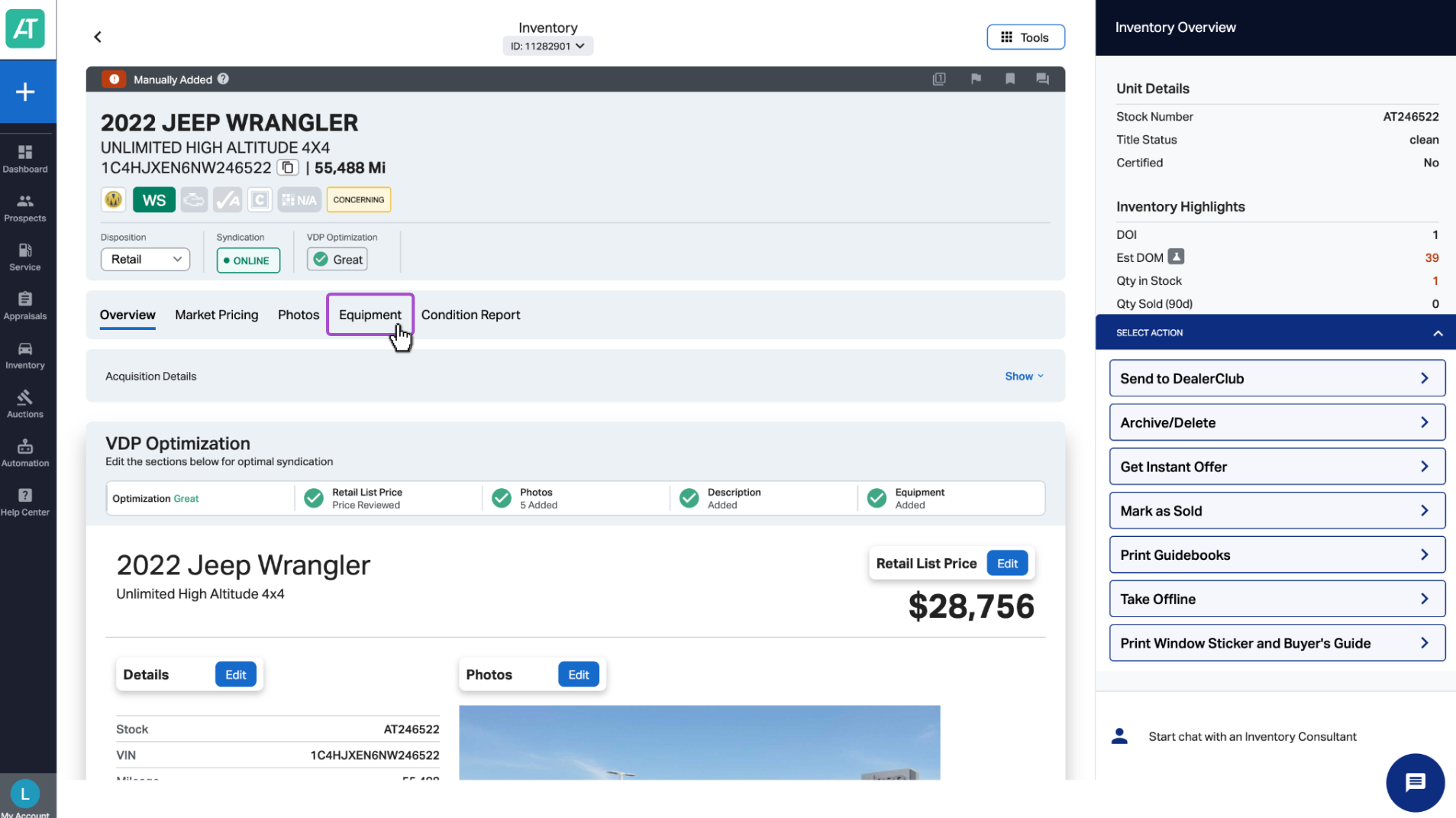
- Click the Equipment tab.
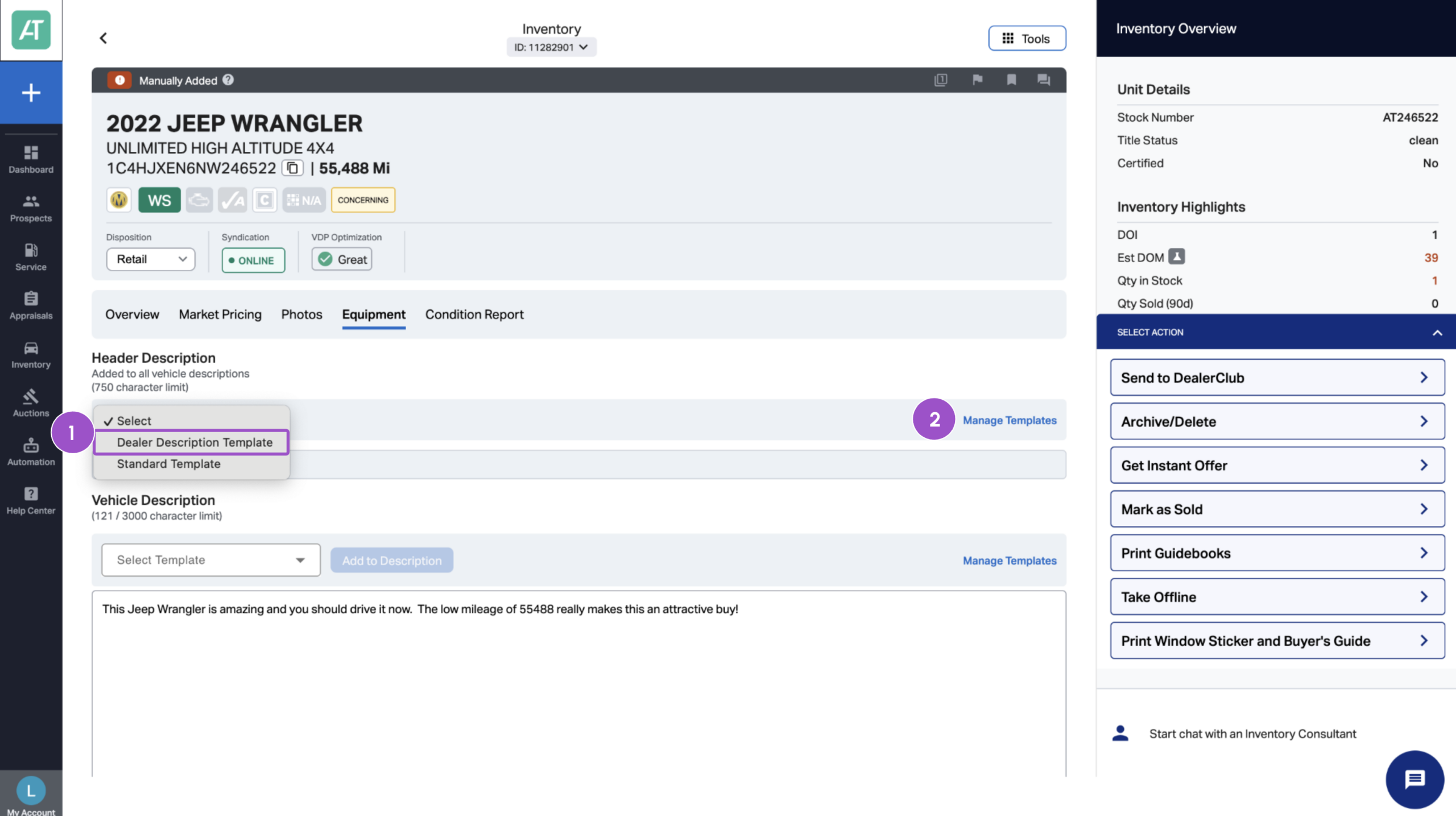
2 Add a header description
Think of the header description as your dealership’s welcome message — a warm, brand-aligned intro for the shopper:
- Under Header Description, click the dropdown to choose a saved template.
- To create or edit templates, click Manage Templates.
3 Add a vehicle description
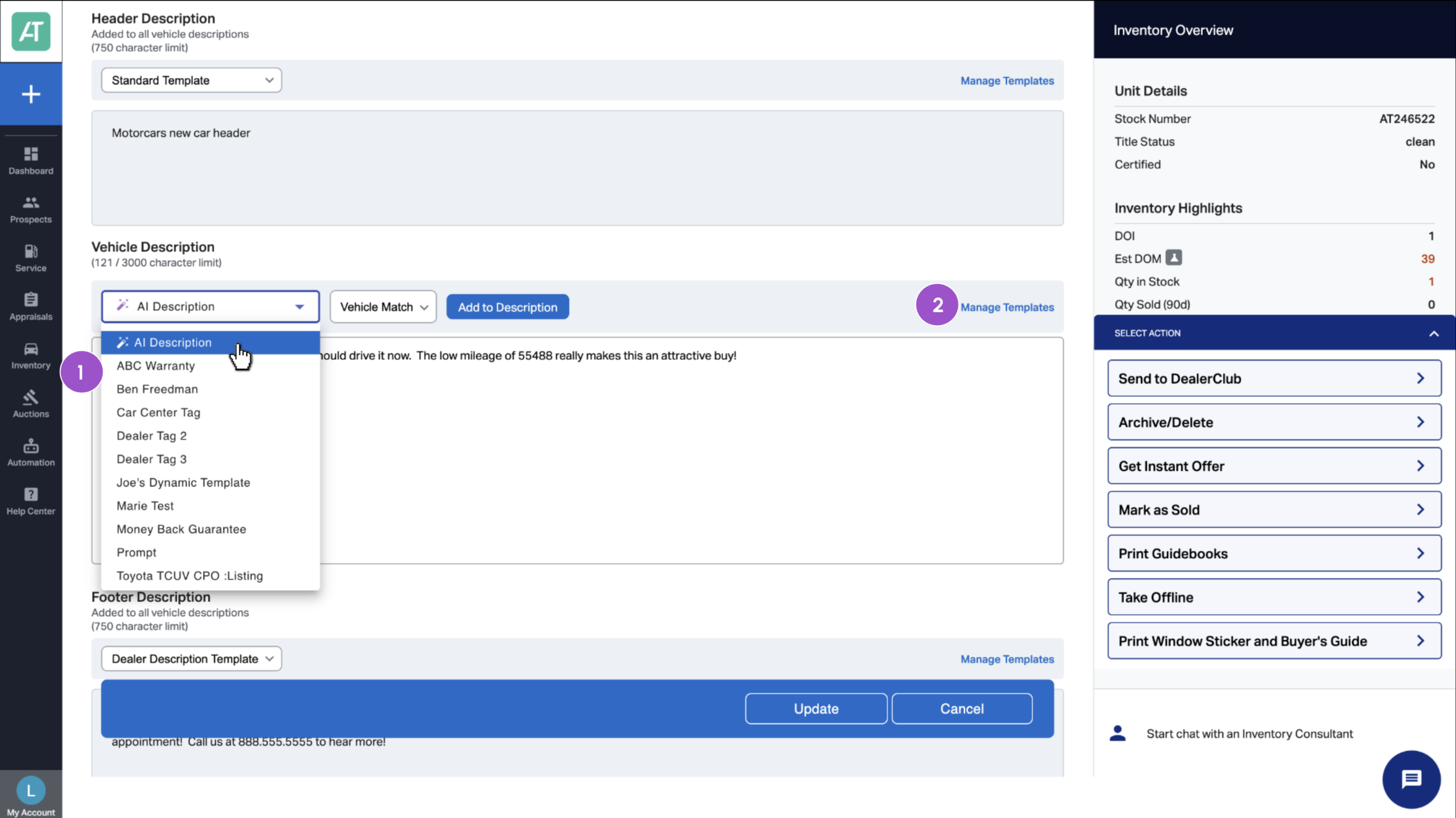
Under Vehicle Description, you have two options:
- Choose a saved template from your dropdown.
- Or use an AI Description to generate a custom, VIN-specific write-up.
Choosing a saved template:
- Select the saved template from the drop-down menu.
- To create or edit templates, click Manage Templates.
Using an AI Description:
- Click AI Description.
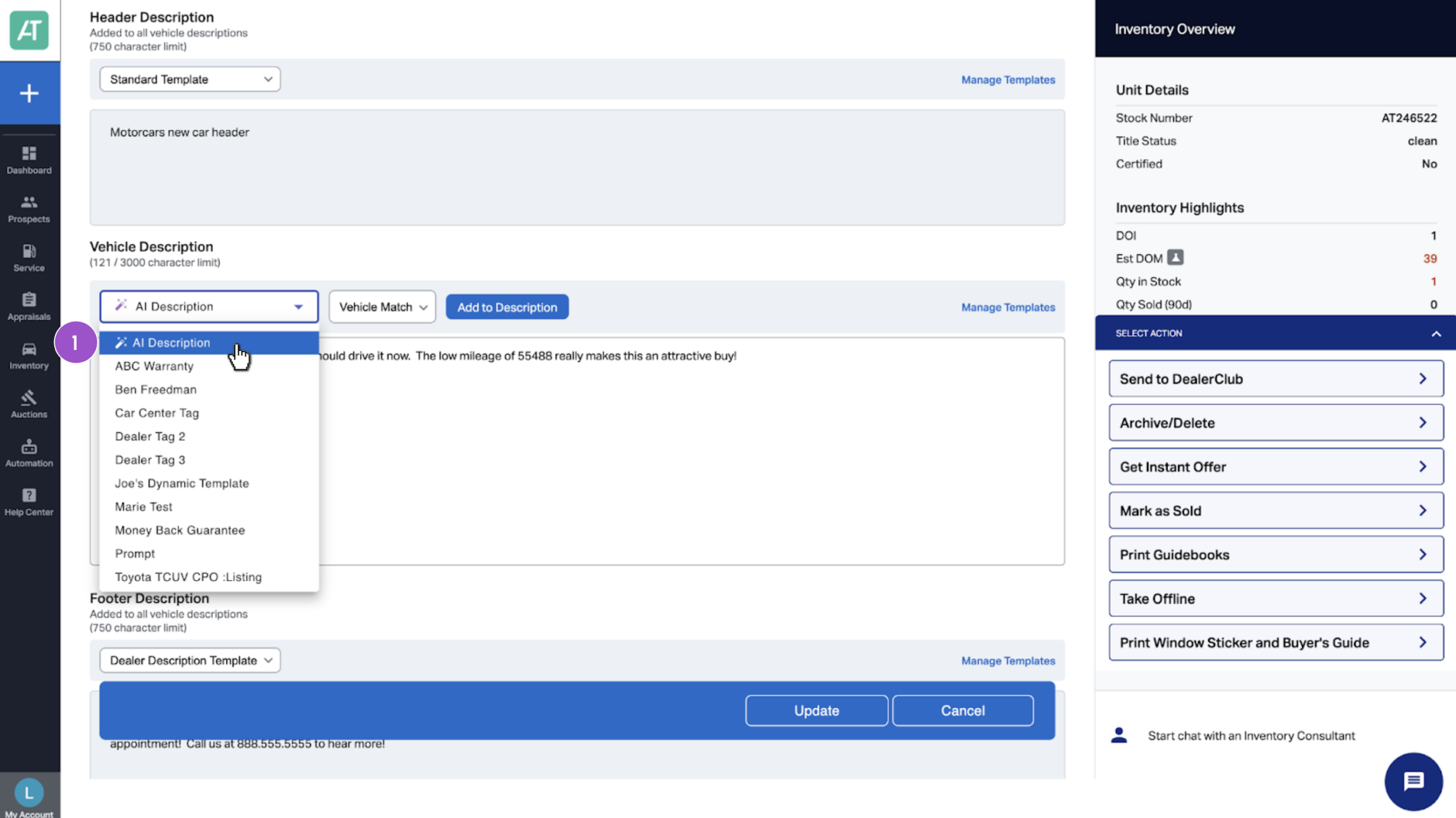
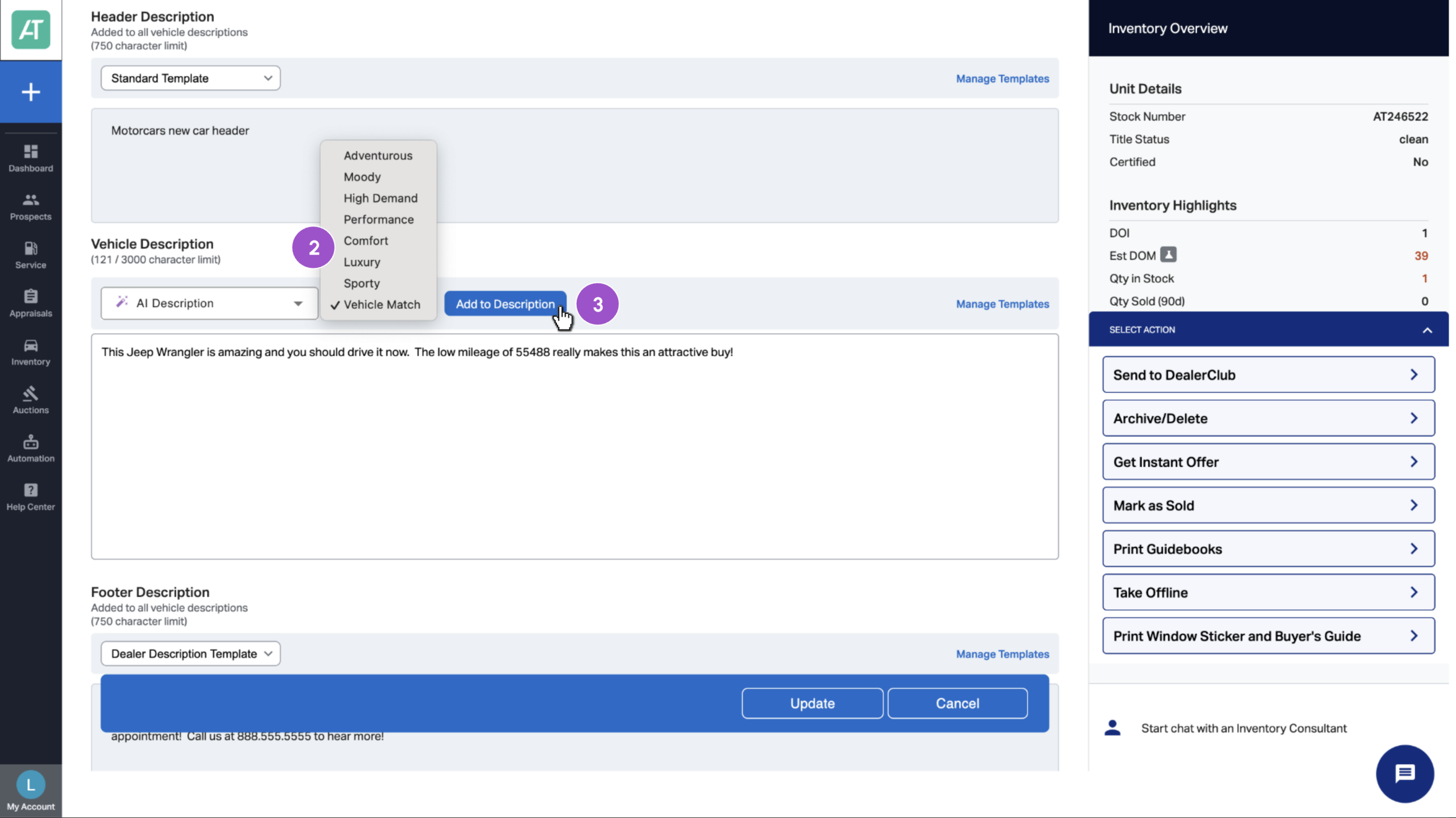
- In the dropdown, choose a theme that matches the vehicle or shopper type:
- Adventurous: Highlights features suited for outdoor or off-road driving
- High Demand: Emphasizes urgency, scarcity, and buyer interest
- Vehicle Match: Balanced, all-purpose description with broad appeal
- Moody: Adds bold, edgy language for drivers who want to stand out
- Performance: Focuses on speed, power, and driving dynamics
- Comfort: Highlights smooth ride quality, quiet cabin, and everyday convenience
- Luxury: Emphasizes premium materials, design, and upscale features
- Sporty: Appeals to buyers looking for sharp handling and aggressive styling
- Adventurous: Highlights features suited for outdoor or off-road driving
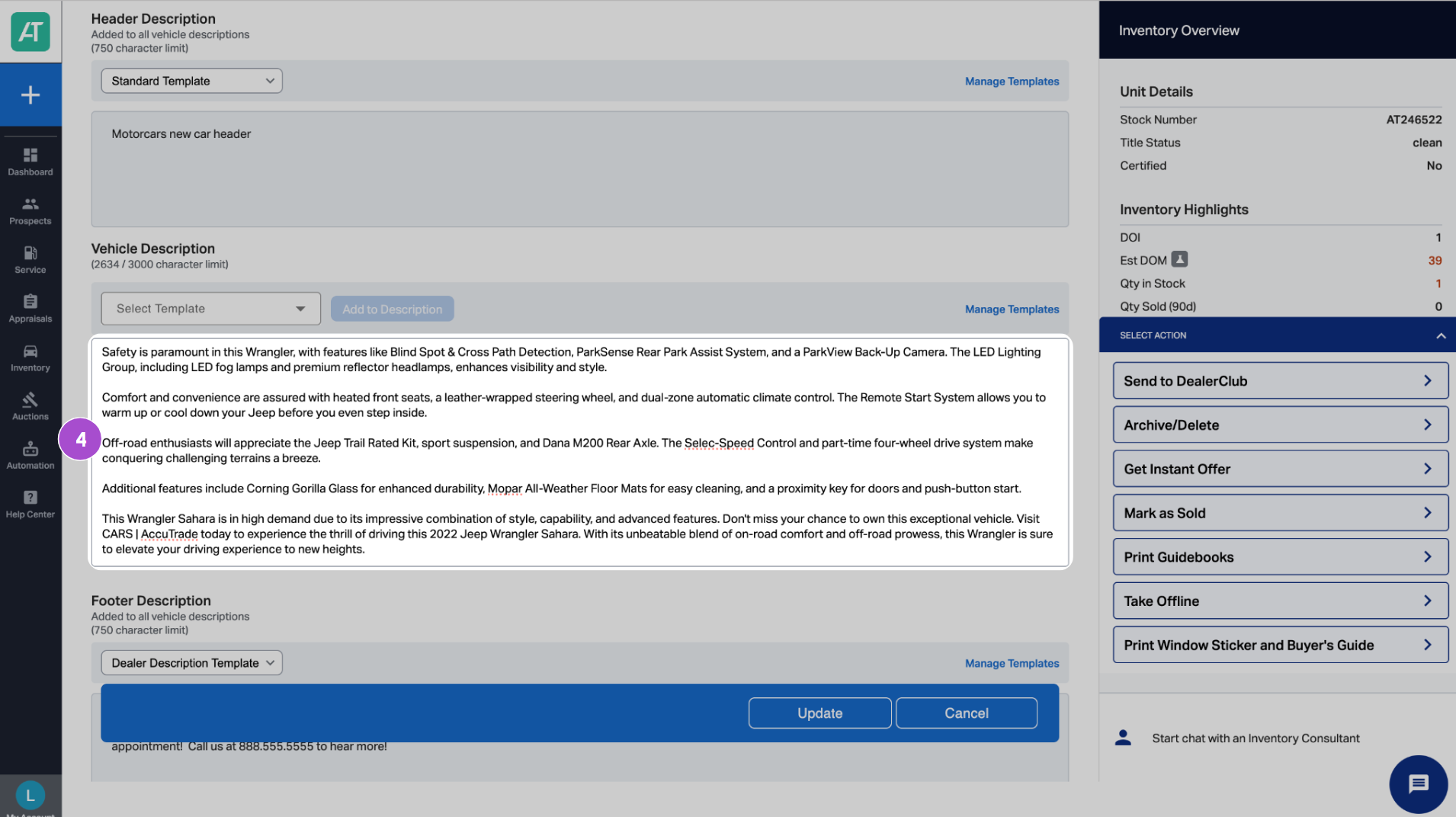
- Click Add to Description.
AccuTrade will generate a detailed, VIN-based description in seconds.
4. Do a quick read-through to ensure accuracy and tone alignment before publishing.
4 Add a footer description
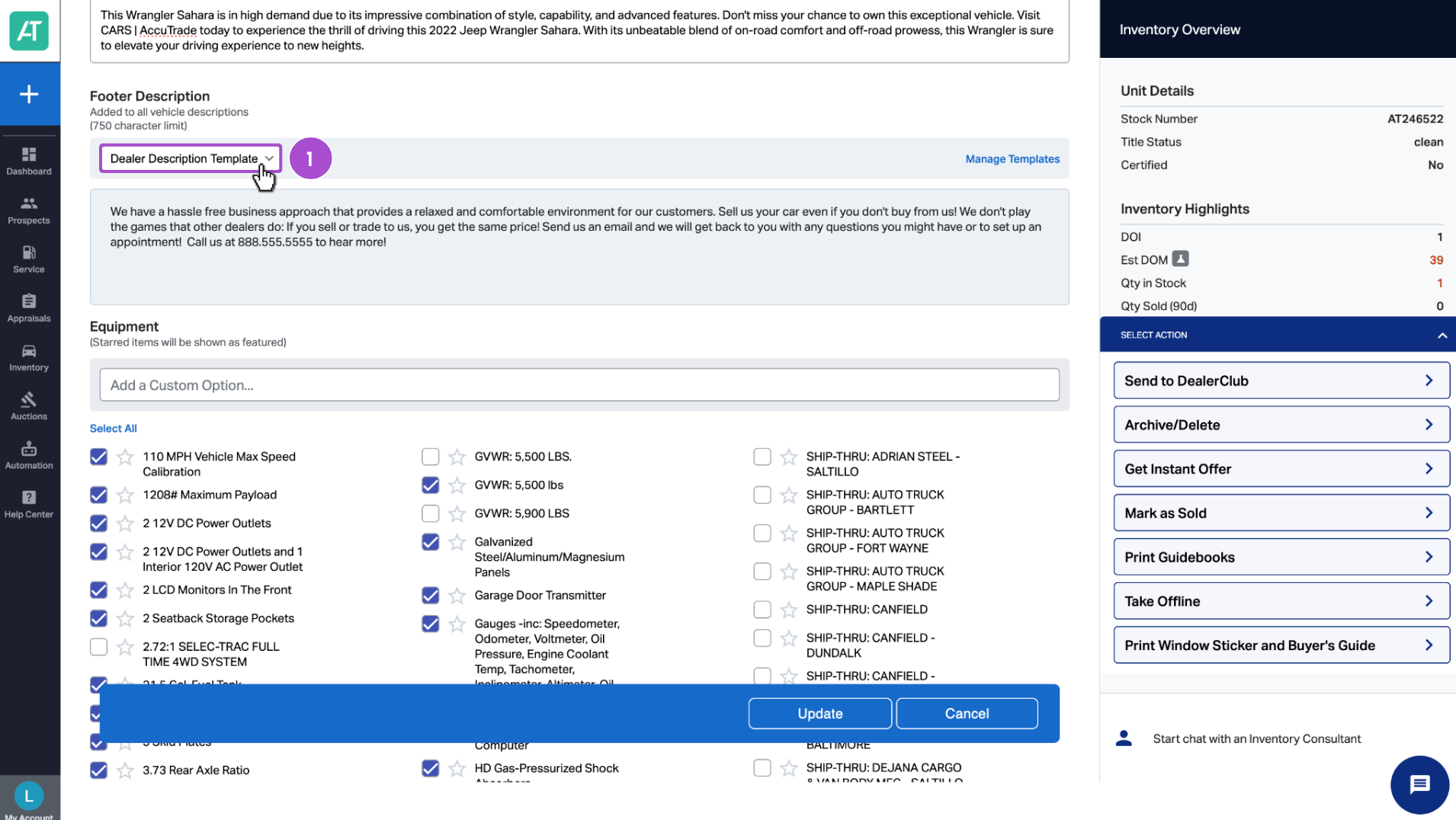
Footer descriptions act as a CTA or dealership summary — ideal for highlighting your store’s differentiators or contact details:
- Click the Footer Description dropdown.
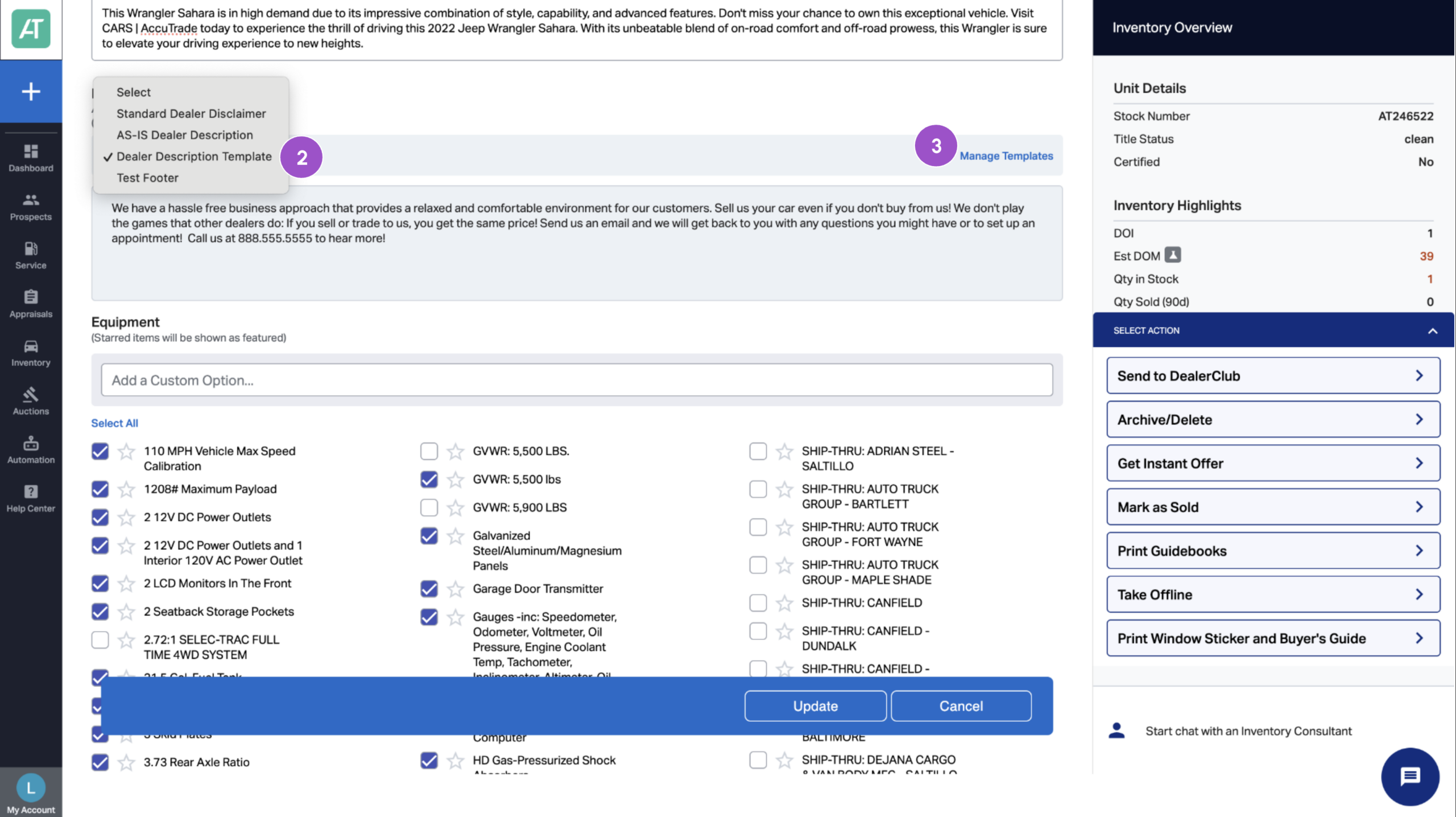
- Select a saved template.
- Click Manage Templates to add new or edit existing messages.
5 Confirm and customize vehicle details
Below the description sections, you’ll see VIN-decoded specs and features:
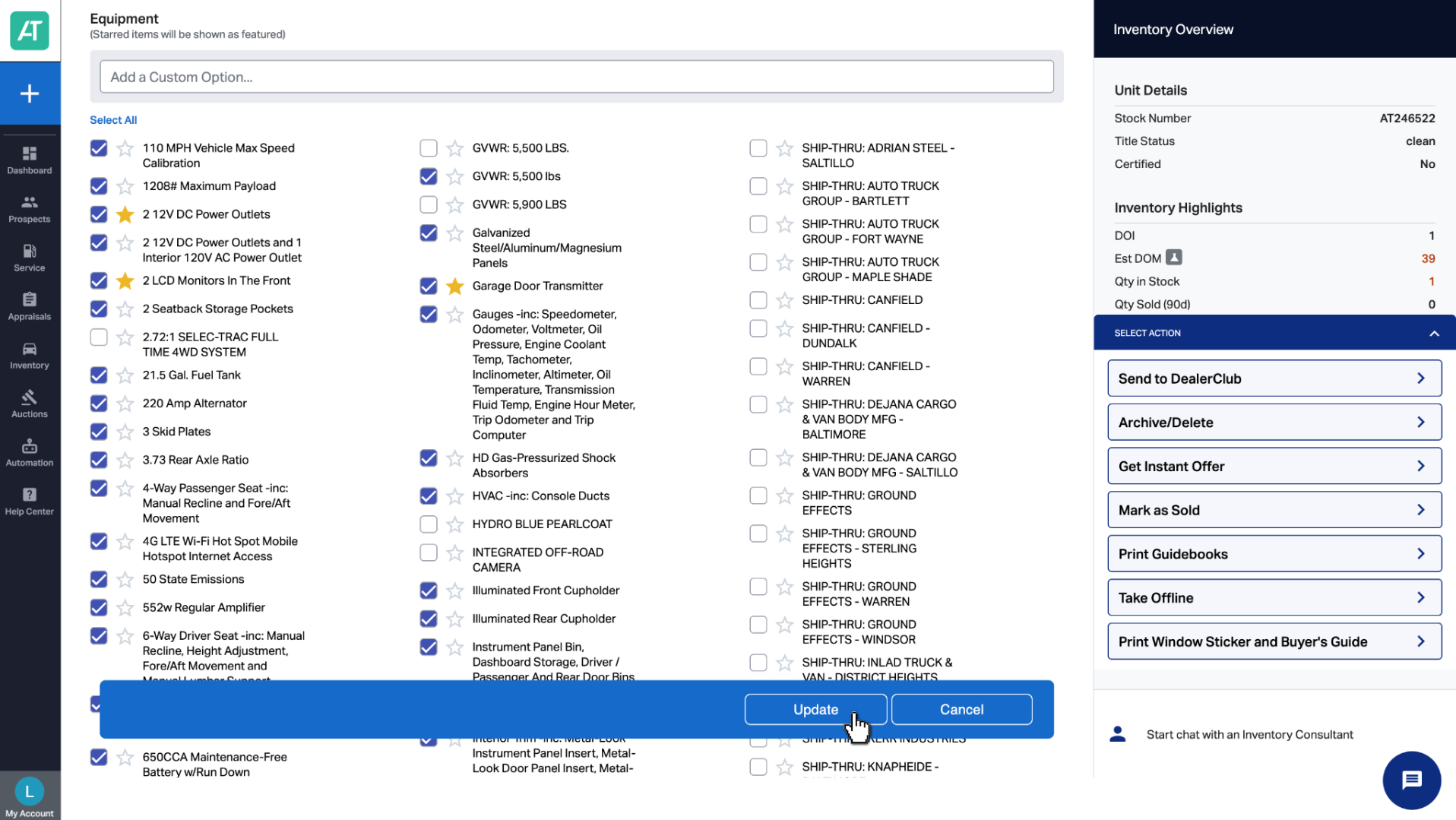
- Select/deselect checkboxes to confirm what’s included.
- Click the star icon next to standout features you want to highlight in the listing.
- Once your header, description, footer, and features are set, click Update to save and finalize your merchandising edits.
Your vehicle is now fully merchandised and ready for listing — with detailed, accurate descriptions that support faster, more transparent sales.