How to open AccuTrade & DealerClub from the Cars.com Dealer app
The Cars.com Dealer app puts AccuTrade and DealerClub within reach of your inventory data. Log in from the app to start appraising vehicles or to buy and sell at wholesale.
In this article, you will learn how to log in to AccuTrade and DealerClub from the More menu in the Dealer app.
To get started
Log in to the Cars.com Dealer app with your Cars.com credentials.
What you’ll need
- Download the Cars.com Dealer app from the App Store or Google Play
- A DealerClub account (Free to join)
- An AccuTrade subscription
Know what each solution does
DealerClub: list vehicles for wholesale auction and bid on vehicles from other dealers
AccuTrade: appraise a vehicle and review its instant offer, target auction, and target retail values
1 Open AccuTrade from the menu
- Tap More in the bottom menu
- Tap AccuTrade
- Click AccuTrade Log-in ➔ at the top of the page
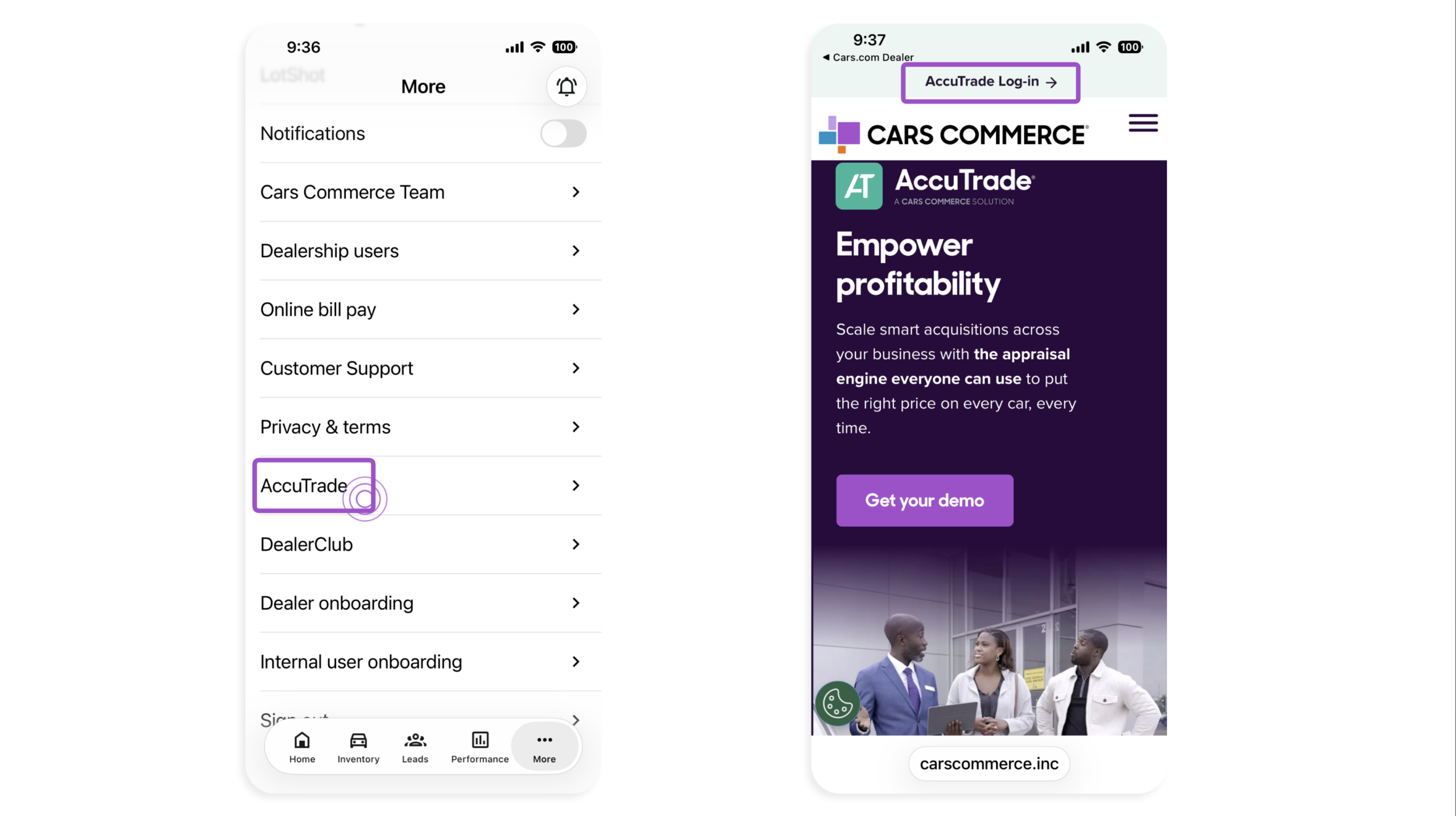
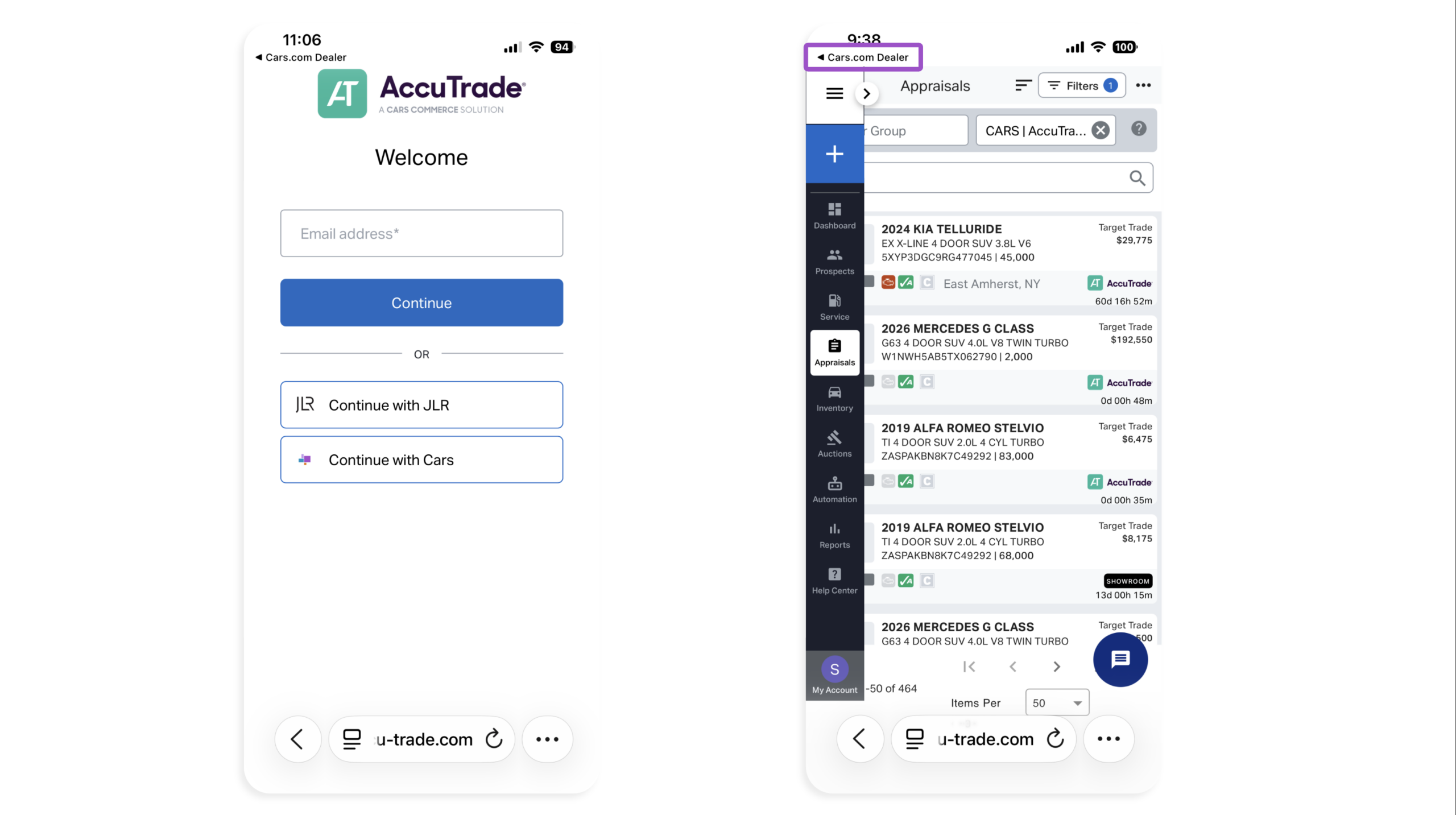
- Log in with your Cars.com credentials
- Tap Cars.com Dealer in the top-left corner to return to the Cars.com Dealer app at any time
To learn how to appraise vehicles, see How to appraise with the mobile app.
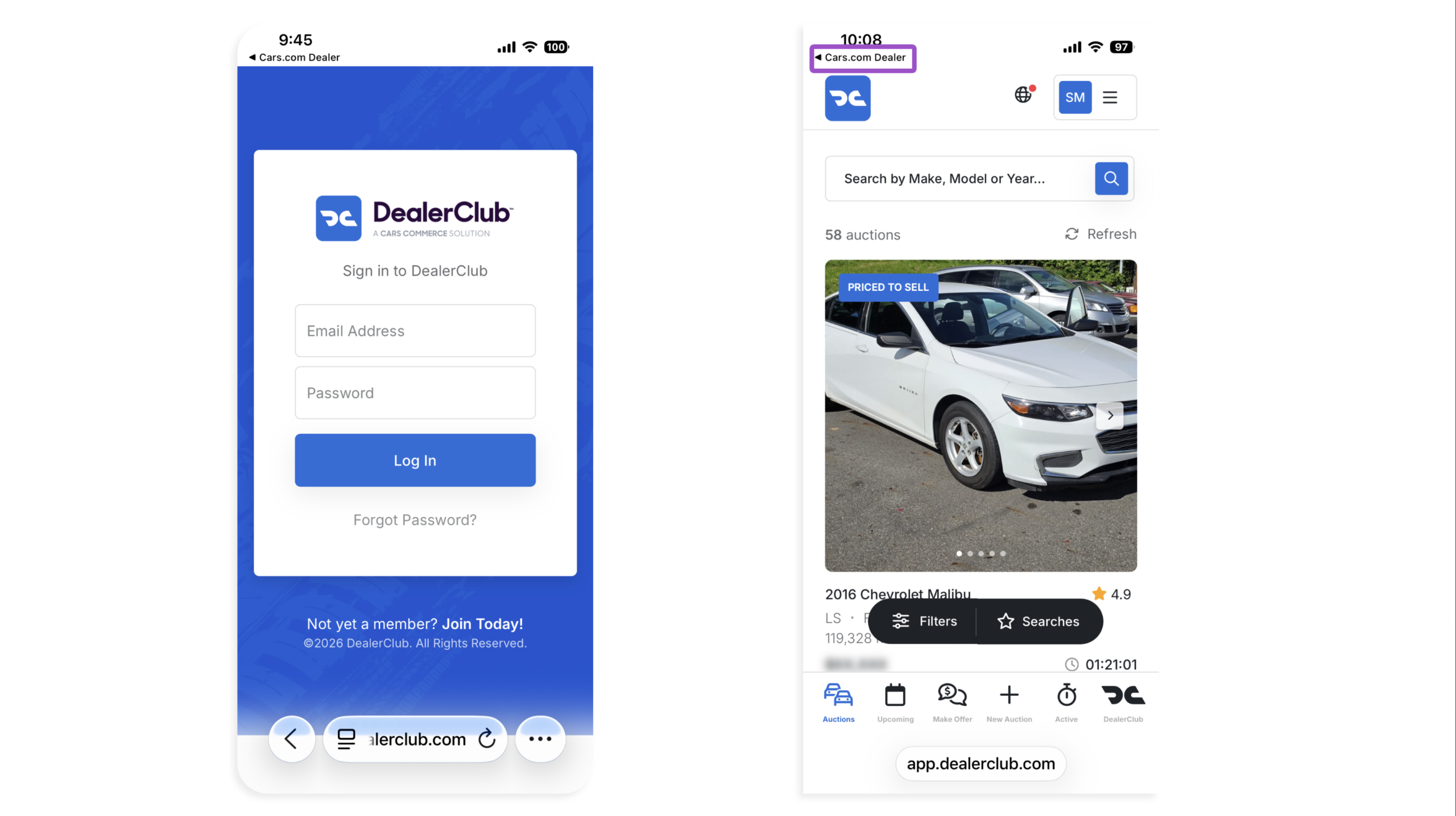
2 Open DealerClub from the menu
- Tap More in the bottom menu
- Tap DealerClub
- Tap Join the Club
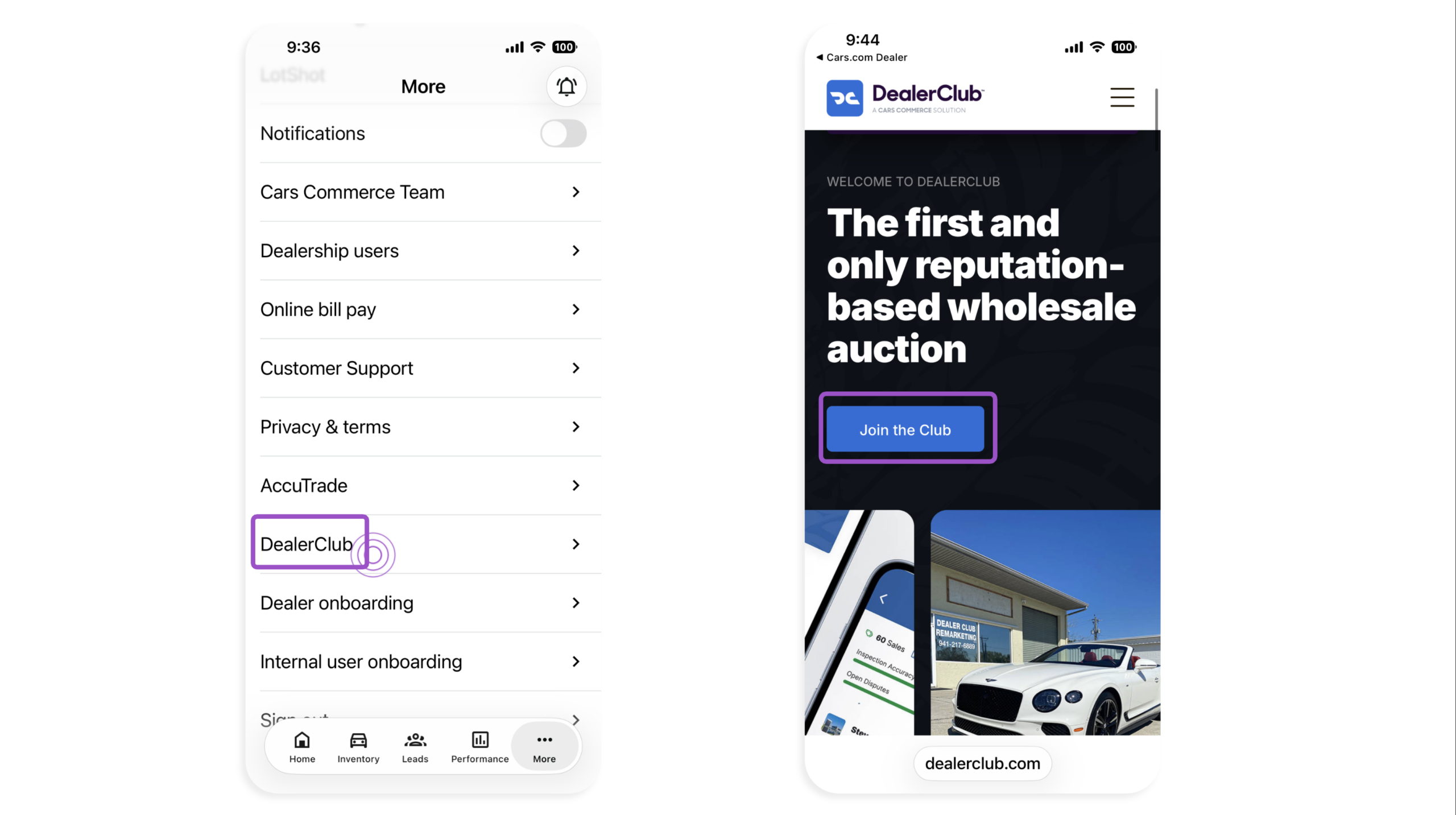
- Log in with your Cars.com credentials or create your account
- Tap Cars.com Dealer in the top-left corner to return to the Cars.com Dealer app at any time
To learn how to list a vehicle for auction, see How to list a vehicle.
To learn how to bid on a vehicle, see How to place a bid.