How to connect your CRM to customize shopper alerts
Connect your CRM using the self-guided workflow. You’ll receive shopper details directly in your CRM without duplicate leads, plus alerts for competing leads, dealership walk-ins, and AI-recommended selling strategies. Once connected, customize your alert types, delivery methods, and frequency settings from the Alert Settings page.
In this article, you’ll learn how to connect your CRM so you can customize your shopper alerts.
To get started
Go to the Cars.com Hub. Click Cars.com, then Dealer Dash.
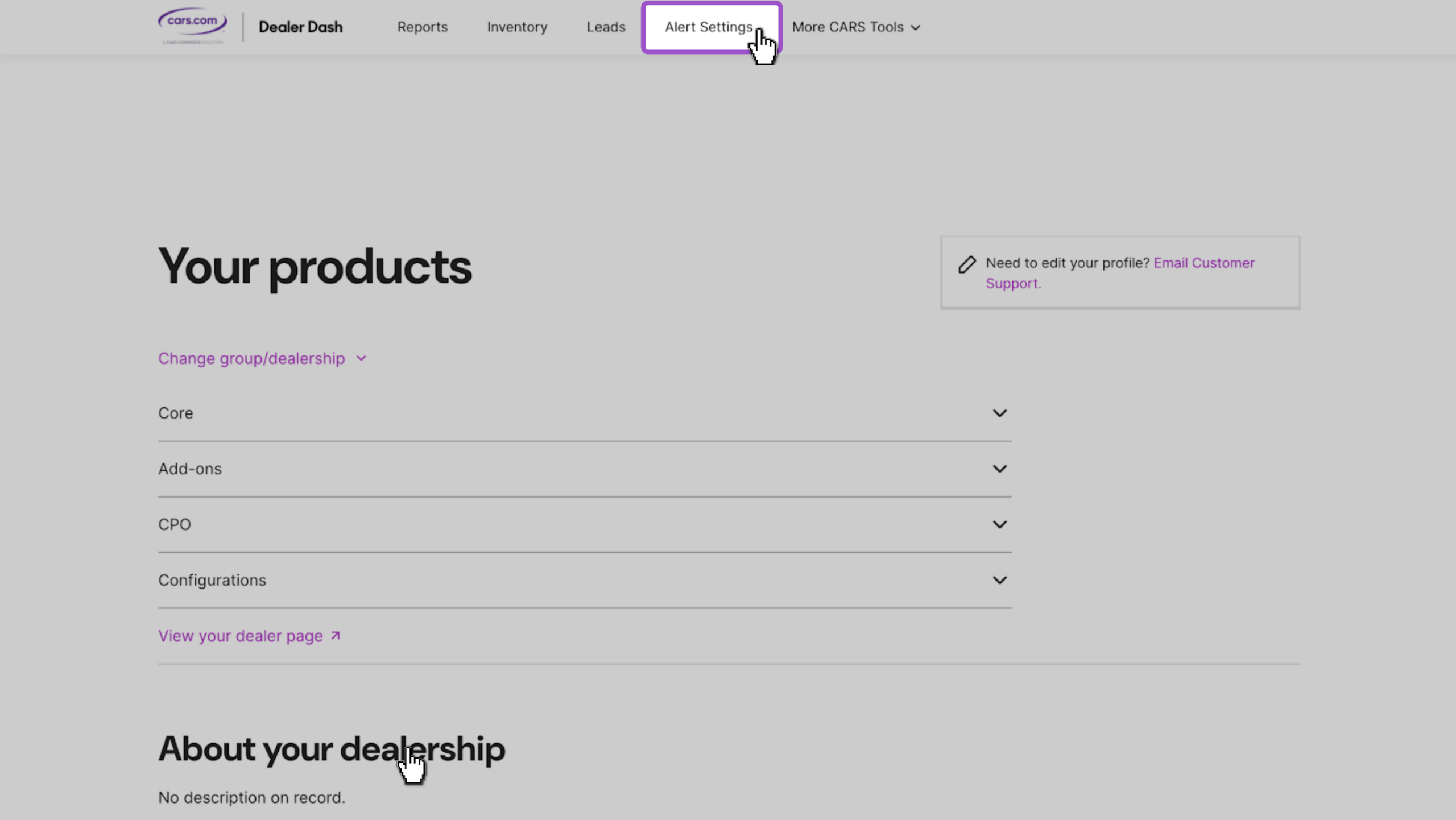
1Find your Alert Settings
- Click the Alert Settings tab at the top of Dealer Dash
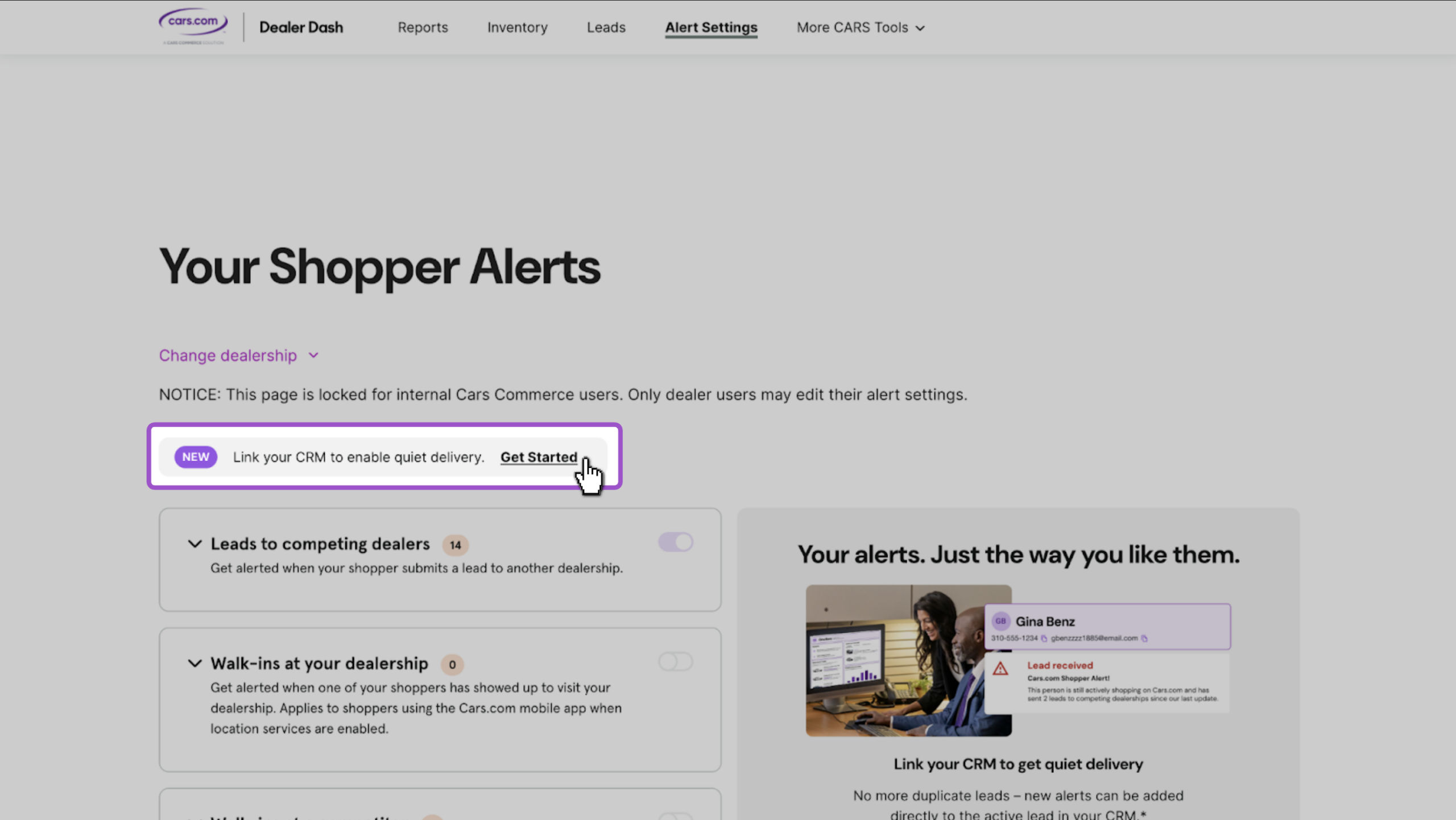
2 Begin the workflow
- Click Get Started next to the Link your CRM to enable quiet delivery note
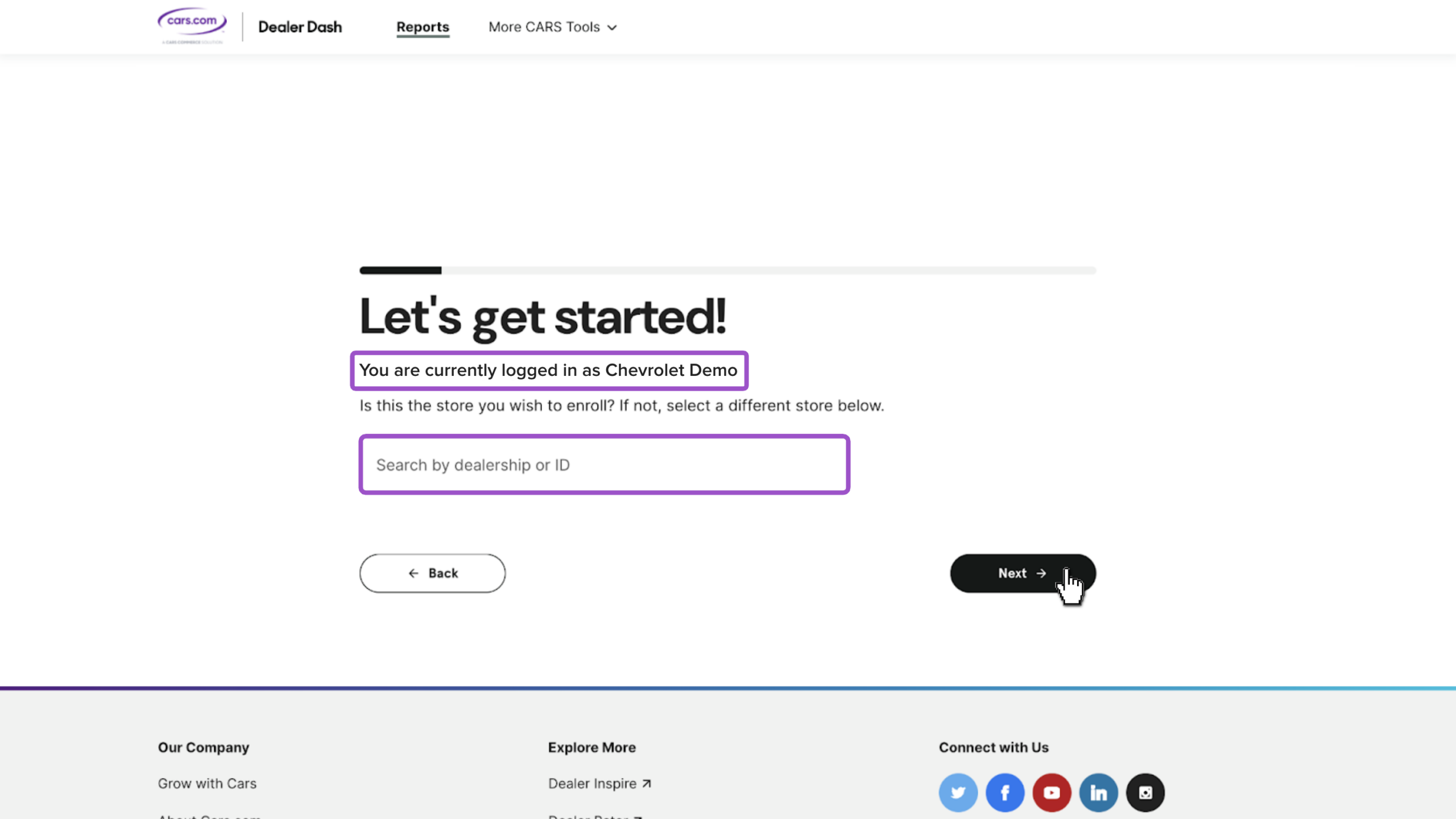
3Select your dealership
- Click Next if the correct dealership is selected
- Or, search by Dealership or ID to select the appropriate dealership
4Choose your CRM
- Select your CRM from the dropdown
- Follow the on-screen prompts to complete setup
Note: If you receive a Shopper Alerts requires a different package alert someone will reach out to discuss options, or you can call the number on the screen for more information.
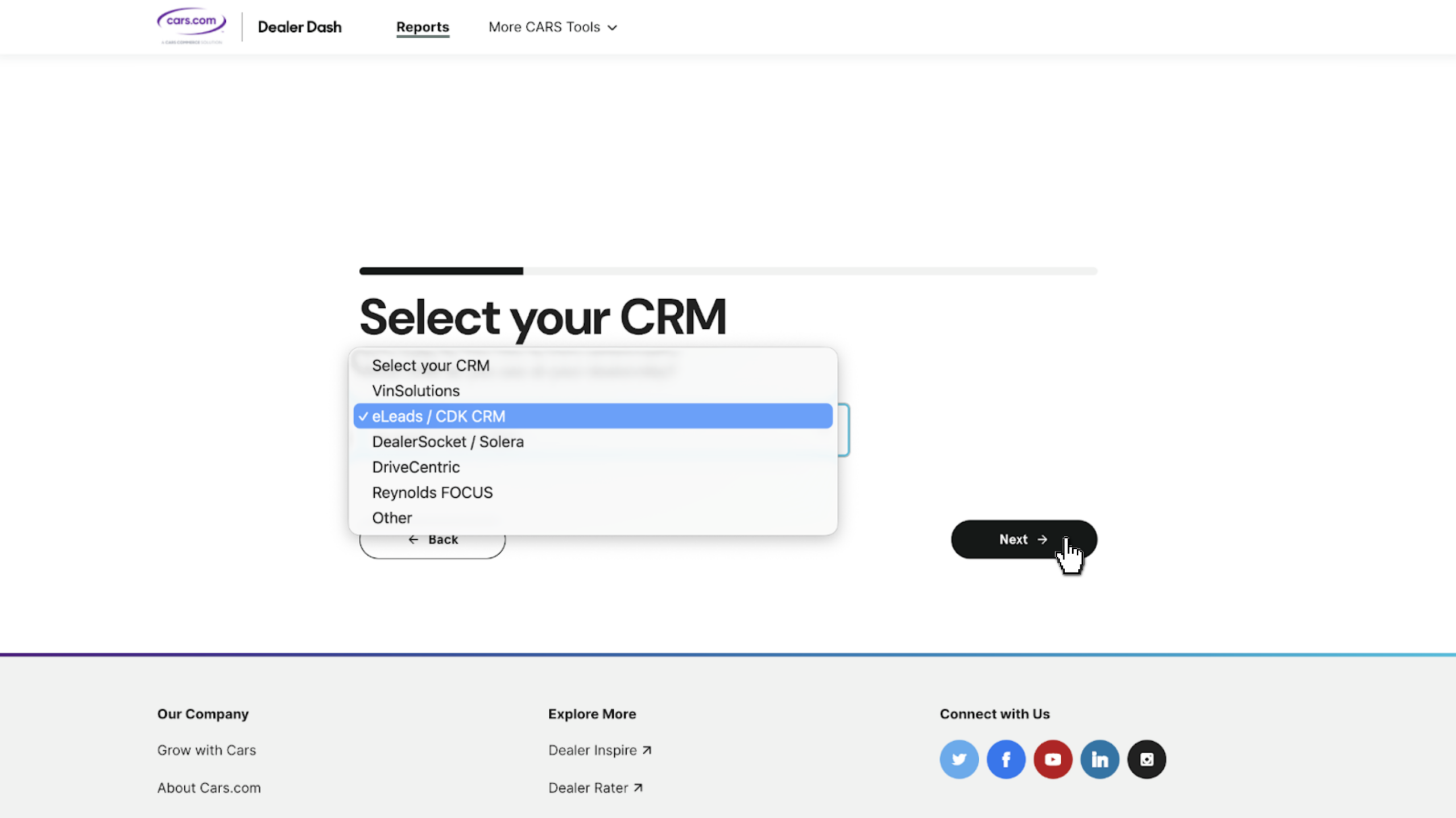
Best practice: Follow the prompts in the order they appear. Each CRM has its own setup path, so complete each field as you’re prompted.
- For example, if you select eLeads / CDK CRM, you’ll be prompted to activate the integration
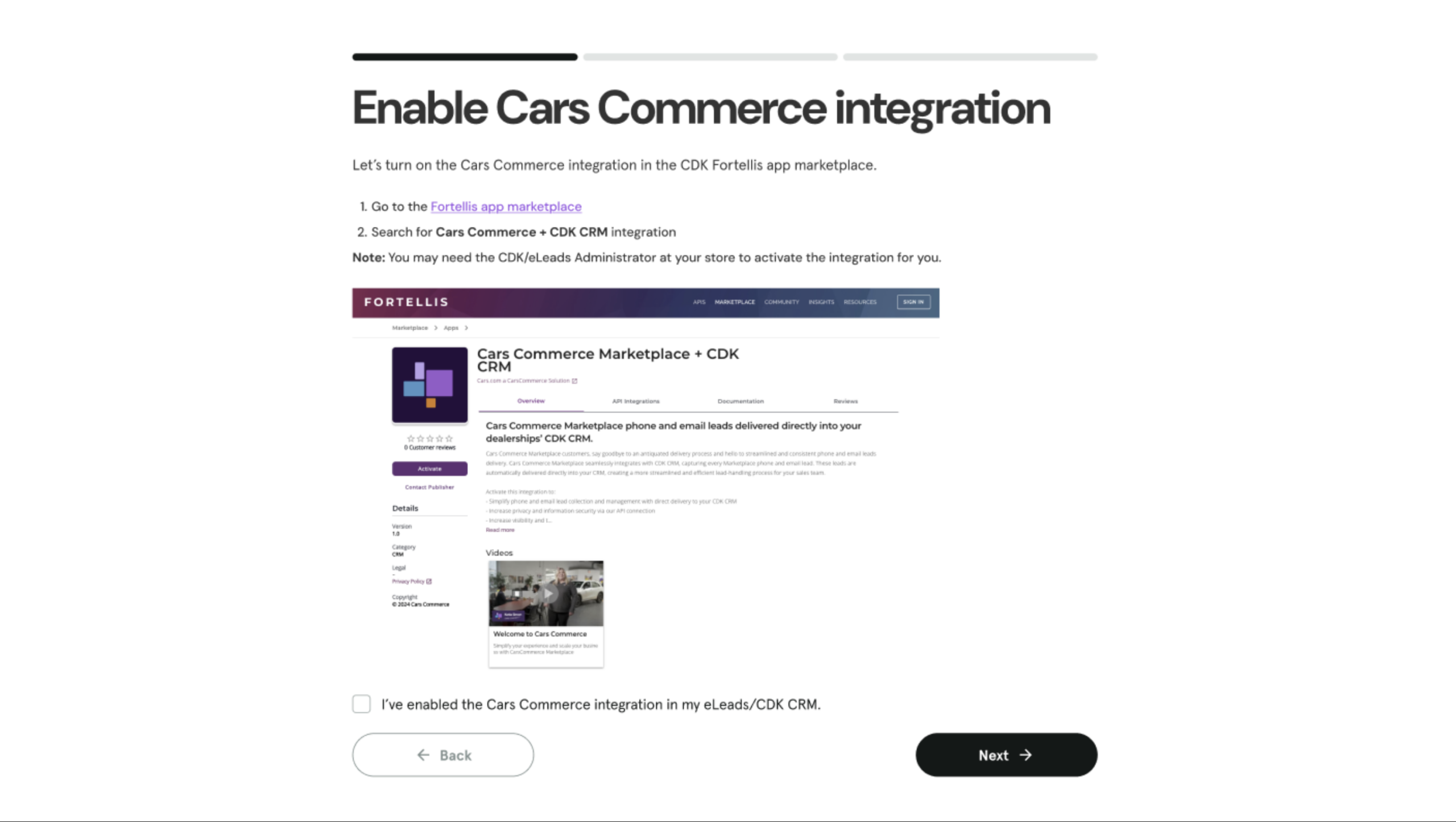
Check out our article on how to connect your CDK CRM integration.
5Follow the prompts
- Complete the steps as they appear for your selected CRM
Each CRM walks you through a different setup path. Follow the prompts in front of you, step by step, and you’ll land on the confirmation screen when you’re done.
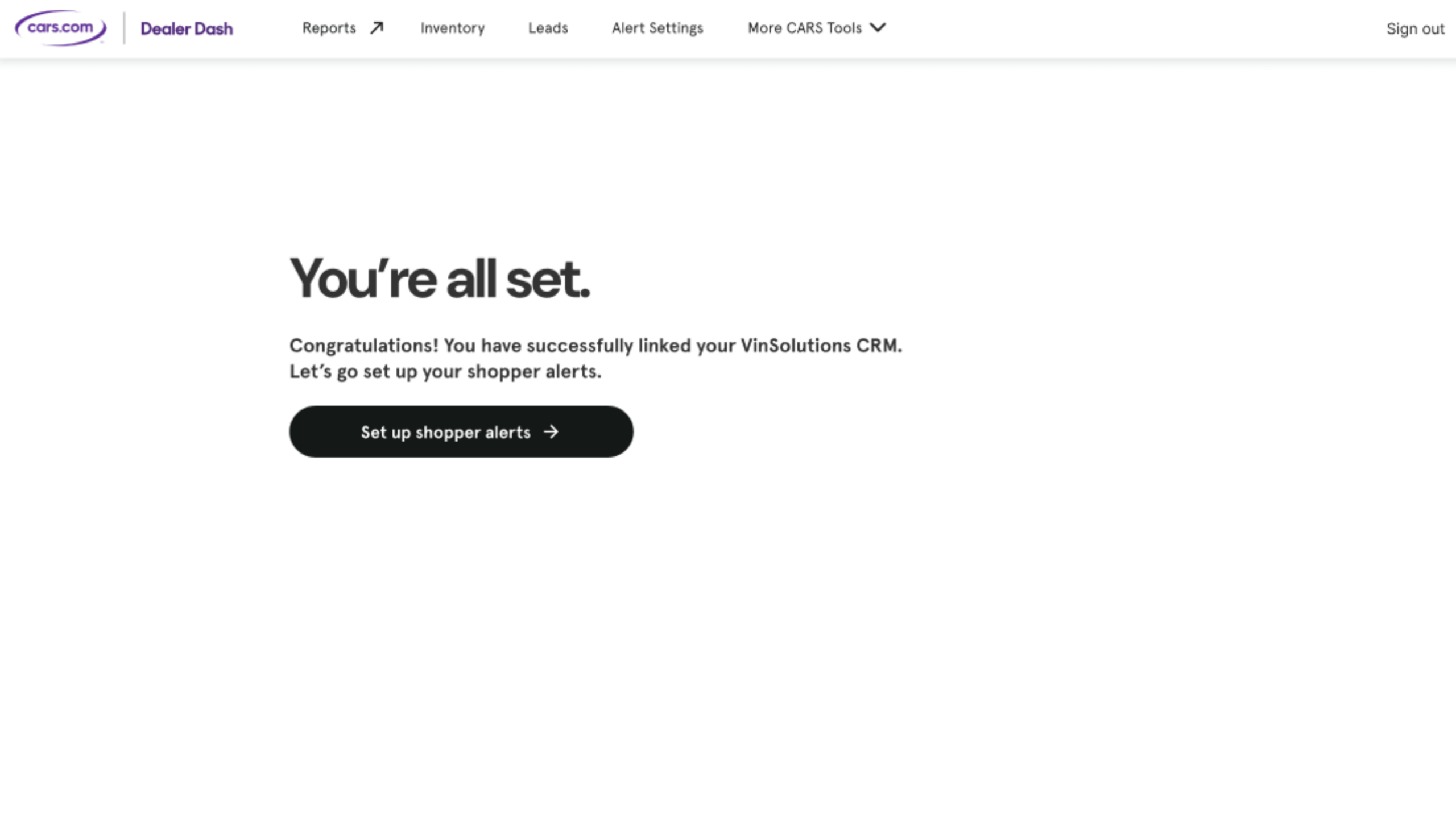
- Click Set up shopper alerts to toggle your alerts on or off and choose either a quiet or loud delivery.
Troubleshooting
I see a message that Shopper Alerts requires a different package.
This means your current package doesn’t include CRM integration yet. A member of the team will reach out to discuss your options. You can also call (888) 252-7731 directly.
My CRM isn’t supported yet. What should I do?
Fill out the short form you’ll land on. We’ll connect with you as soon as your CRM is supported.
I’m seeing error messages that keep me from completing the flow.
- Confirm your permission levels are sufficient
- Check that spelling and Subscription ID are correct
If you are still having trouble, contact support@cars.com for help.
Frequently Asked Questions
Which CRMs are supported?
VinSolutions and eLeads are supported today. More CRMs will be supported in the future.
What if my CRM isn’t supported yet?
Fill out the “hand-raiser” form and we’ll connect with you as soon as your CRM is supported.
What if I’m not on an eligible package?
Premium and Premium+ dealers are eligible. You can discuss package options with your Account Executive.