How to access your Cars.com reporting
To leverage your Cars.com Marketplace and Reputation data, start by accessing your reports. This guide will walk you through logging into the Cars.com Hub and navigating to the granular reports that will help you gain powerful insights into your dealership’s engagement and performance.
To get started
Go to the Cars.com Hub.
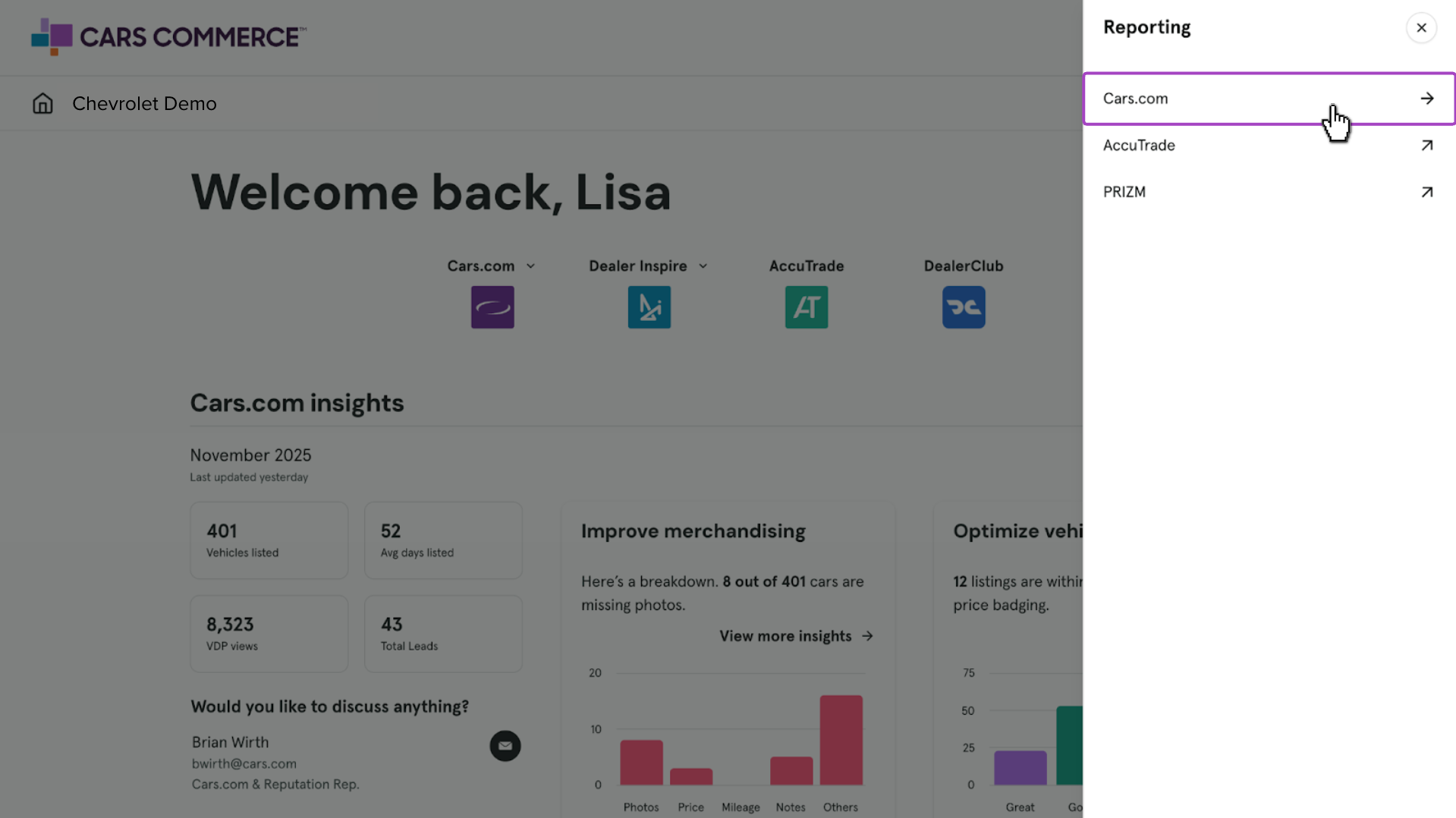
1 Click “Reporting“
Upon logging in to your Cars.com Hub, you’ll notice a dashboard summary of quick insights and metrics. To get more granular reporting details, click Reporting.

2Click into Cars.com
Click into Cars.com to expand a list of consolidated reports for your Marketplace and Reputation metrics.
3 Select from the categories
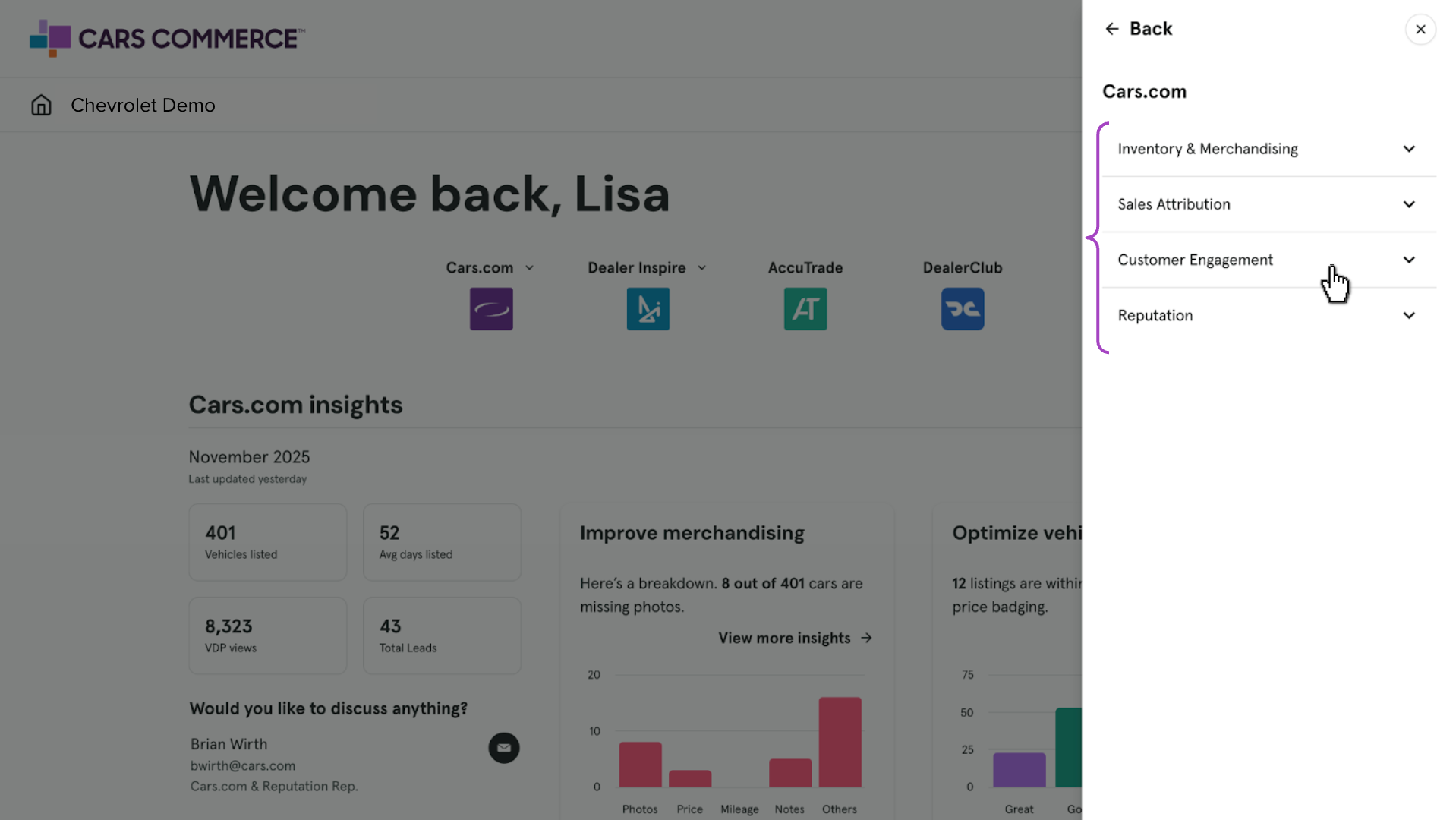
Select one of the reporting topics. Whether you’re looking for reporting on your vehicle inventory, leads from your CRM, or your review score, click into the correlating category:
- Inventory & Merchandising
- Sales Attribution
- Customer Engagement
- Reputation
4Choose your report
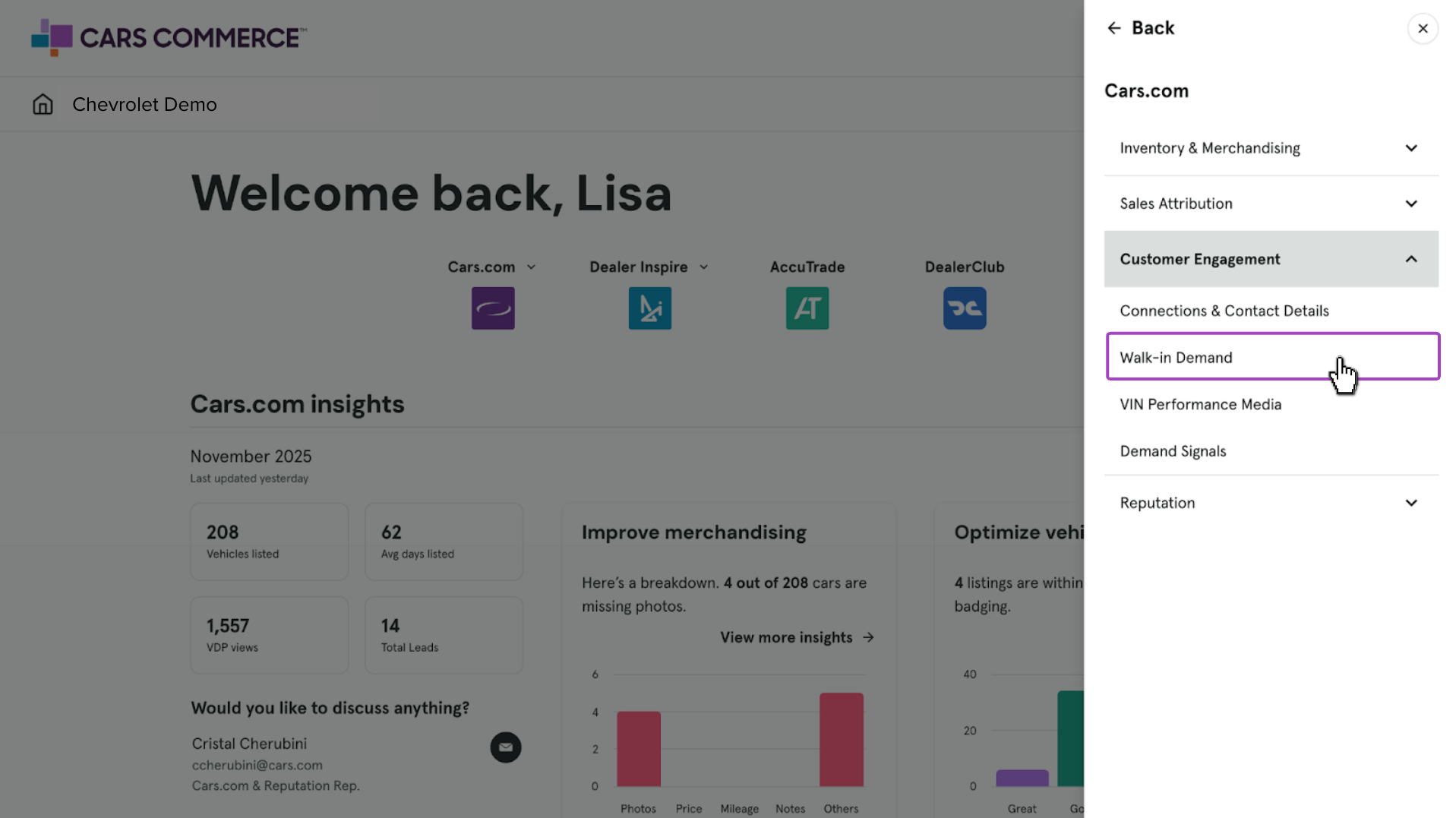
When you click into the category, a dropdown of all corresponding reports will appear below.
Click into the report you’d like to view.
5Leverage the data
Filter your results, assess snapshot summaries of trends and use charts and graphs to gain powerful insights into your Marketplace and Reputation engagement.