How to optimize your wholesale strategy
Not every vehicle belongs on your retail lot. When underperforming inventory is identified early and priced using market data, you can move it through wholesale before depreciation affects your margins.
In this article, you’ll learn how to identify vehicles ready for wholesale using AccuTrade’s Inventory Intelligence Report, set a data-backed floor price, create a DealerClub listing from AccuTrade, set a reserve price using AccuTrade’s Target Auction Price, monitor active auctions, and close the transaction.
To get started
Go to the Cars.com Hub, and click on AccuTrade.
Prerequisites
You must have a DealerClub account connected to AccuTrade before completing the steps below. If you have not yet connected the two products, sign up for DealerClub and complete the integration so vehicles can be sent directly from AccuTrade to DealerClub for listing.
1 Identify vehicles ready for wholesale
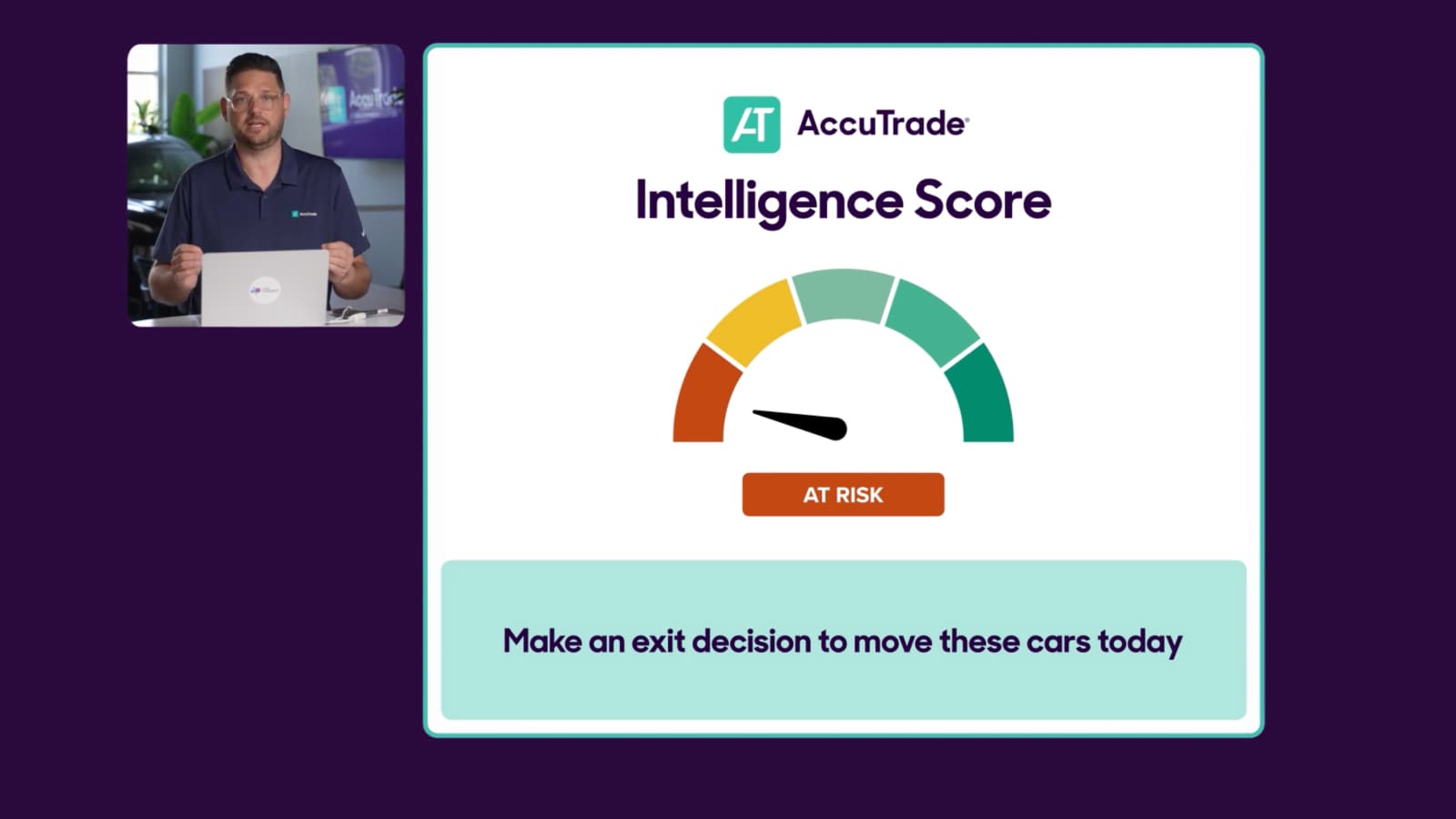
Use AccuTrade’s Inventory Intelligence Report to spot vehicles that may be better suited for wholesale. This report categorizes your inventory based on:
- Dealer Fit: alignment with your selling profile
- Market Fit: current demand in your market
- Vehicle Pedigree: condition and vehicle history
Vehicles flagged as At Risk or Concerning are candidates for wholesale.
To access the report:
- Click Inventory.
- Select Dashboard.
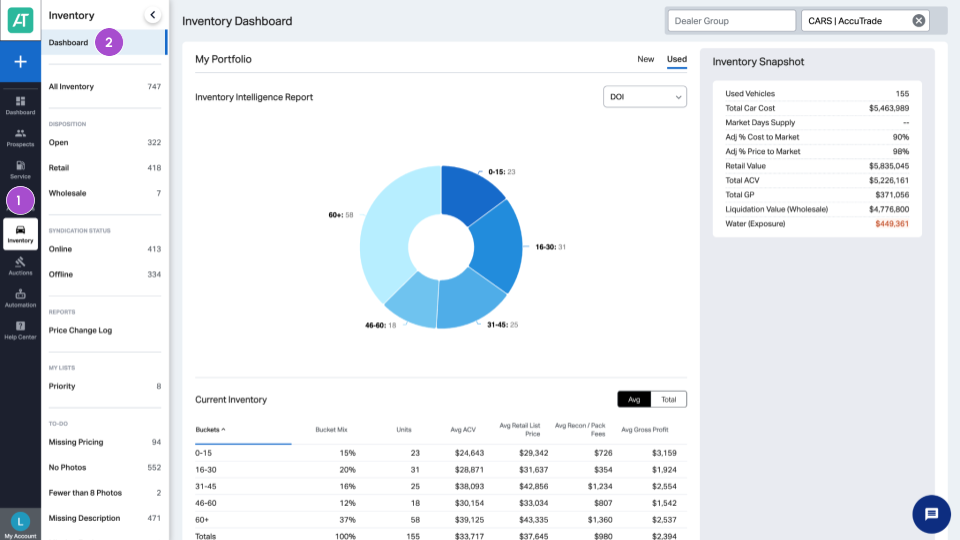
- Select Inventory Intelligence from the drop-down menu.
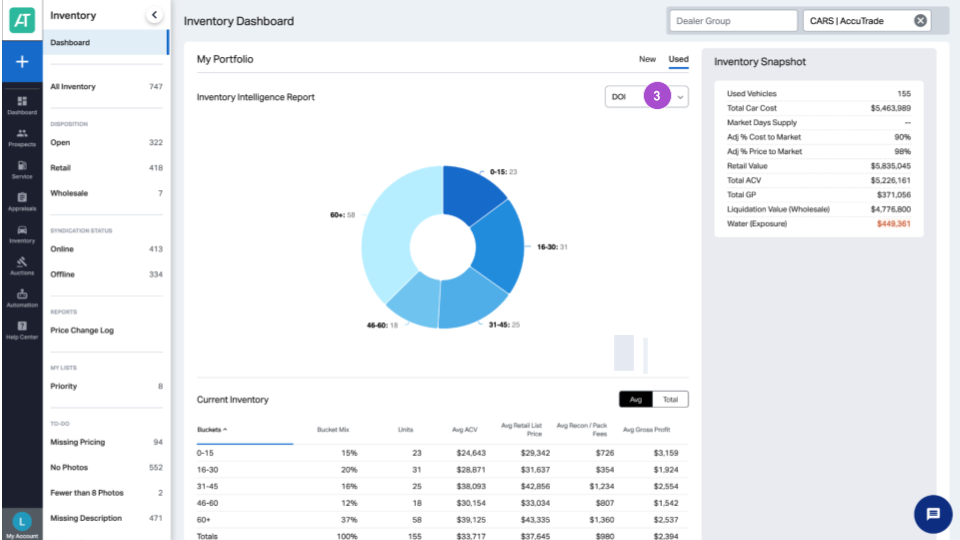
- Review vehicles in the lower-performing buckets
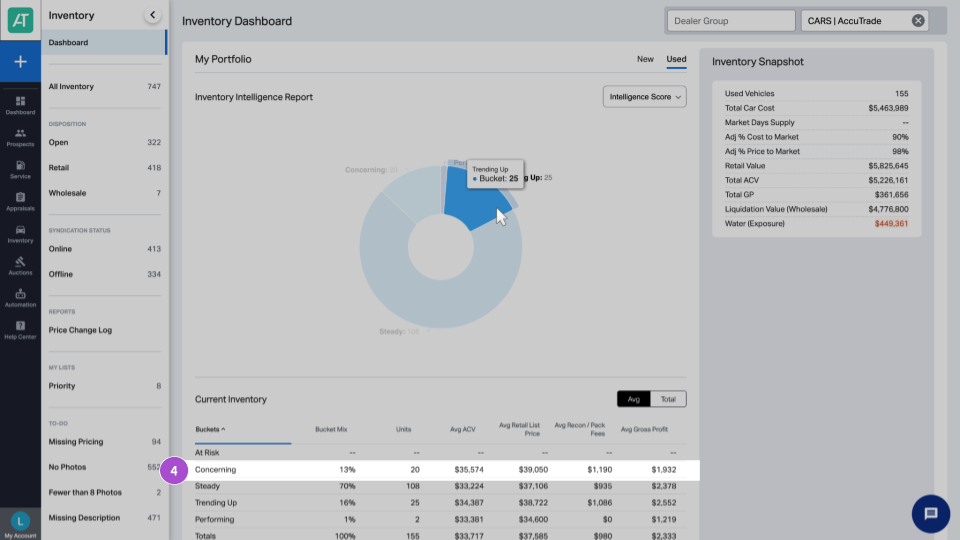
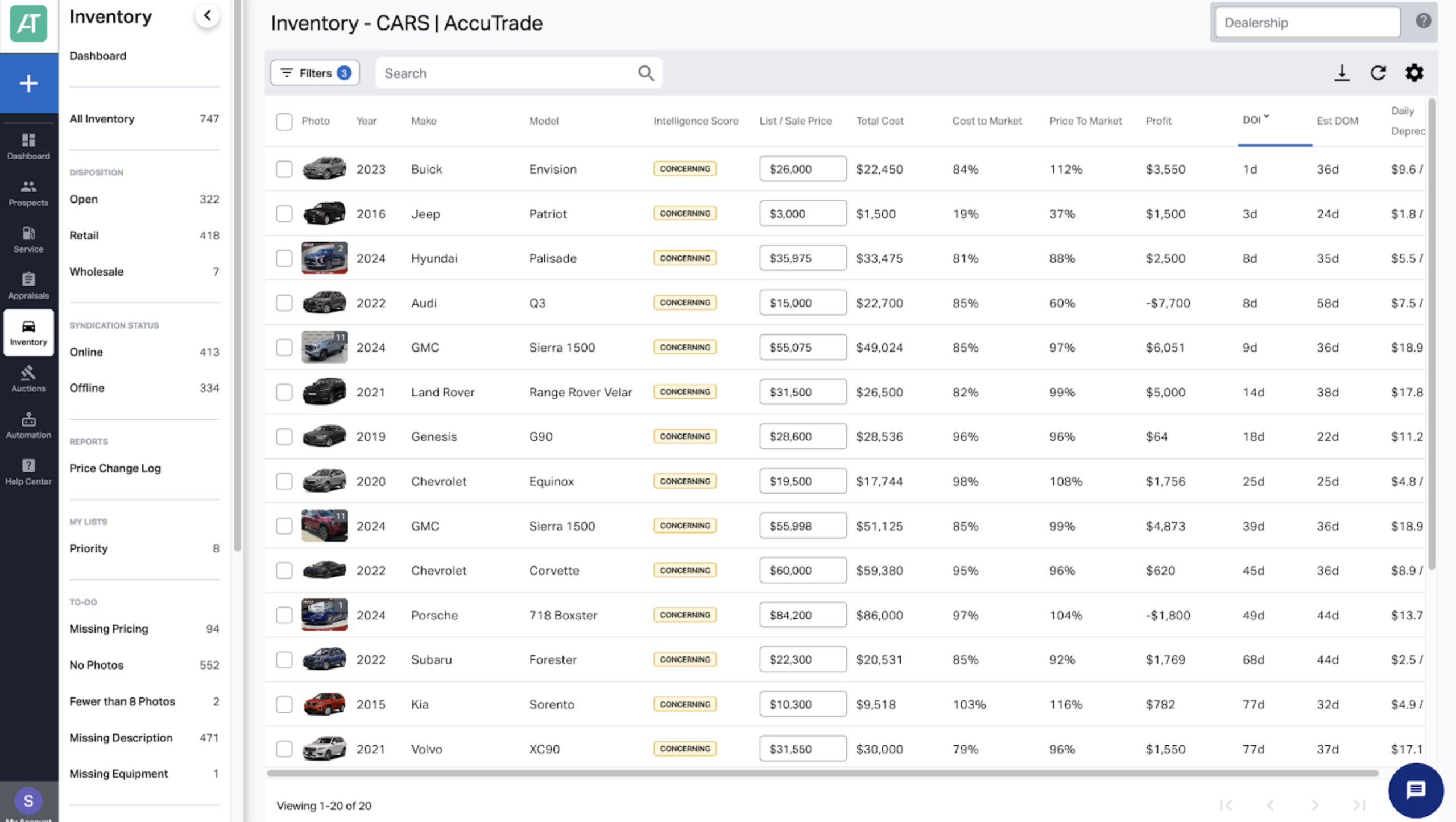
2 Set a wholesale floor price
Before listing a vehicle on DealerClub, use AccuTrade’s market data to establish your minimum acceptable price.
AccuTrade provides real-time pricing that accounts for:
- Regional market conditions
- Vehicle condition
- Diagnostic findings
Compare the AccuTrade valuation against your acquisition cost and Days on Inventory. If the expected wholesale proceeds still protect your margin, the vehicle is ready to move.
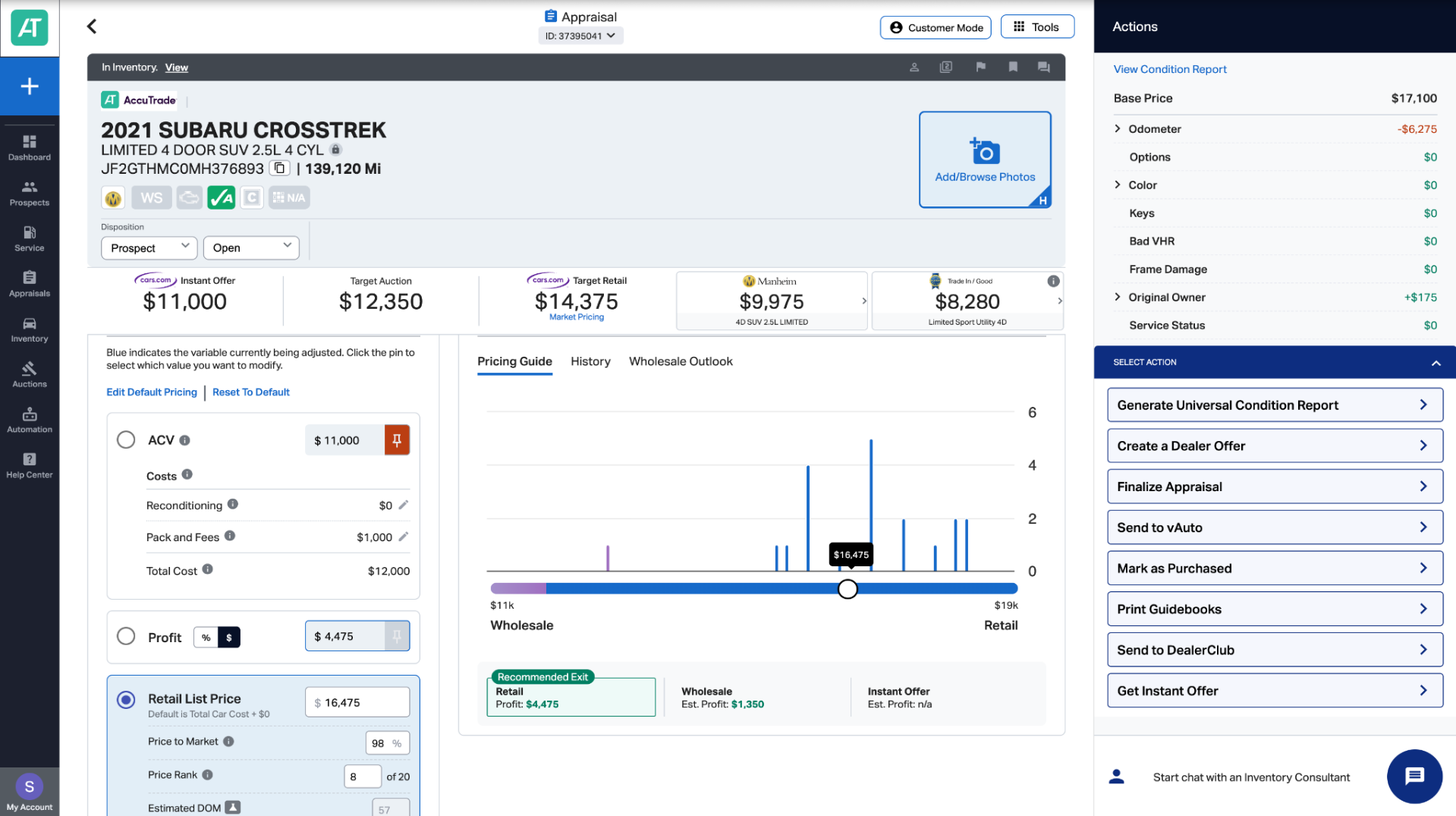
3 Create a DealerClub listing
With AccuTrade connected to DealerClub, vehicle details can be transferred quickly.
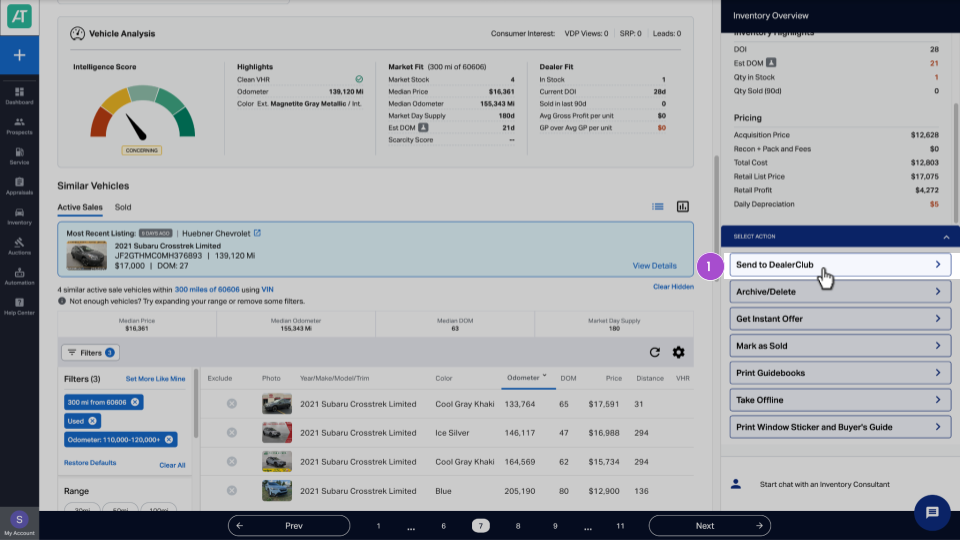
- From the vehicle screen in AccuTrade, select Send to DealerClub.
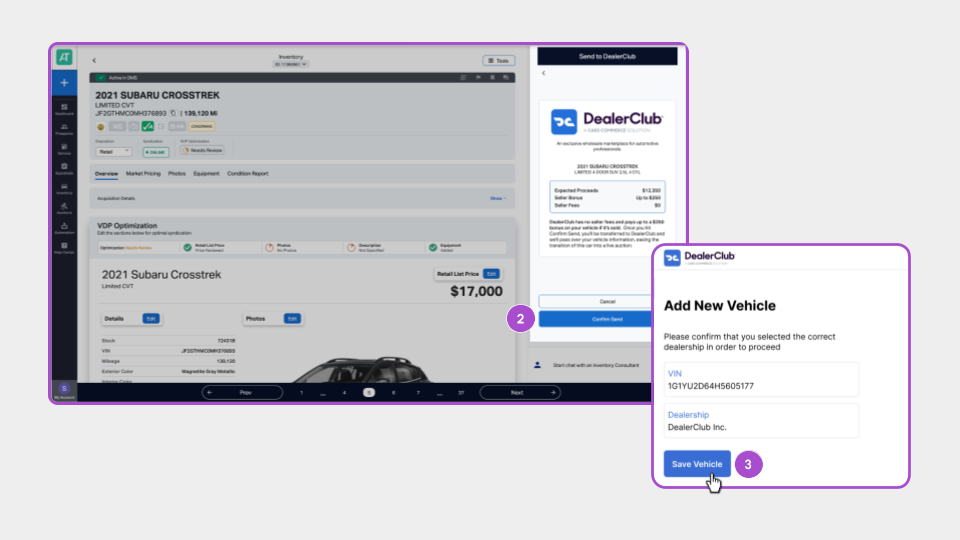
- Review the information and click Confirm Send.
- On the DealerClub screen, click Save Vehicle.
- Select the vehicle images you want to use for the auction.
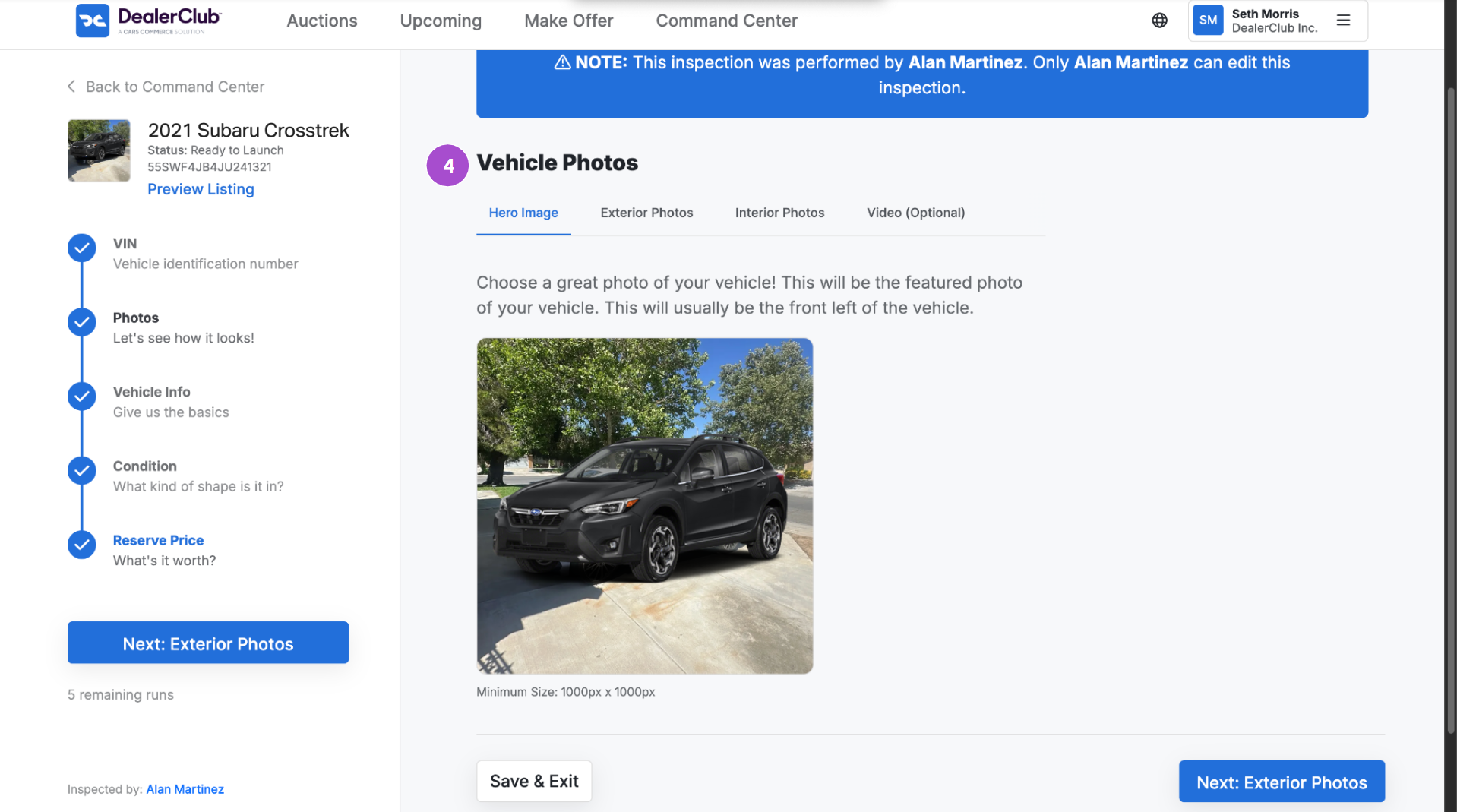
During auction creation, known vehicle issues from your AccuTrade appraisal are surfaced. This allows you to confirm accuracy, adjust pricing if needed, and create transparent listings that build buyer trust.
4 Set your reserve price
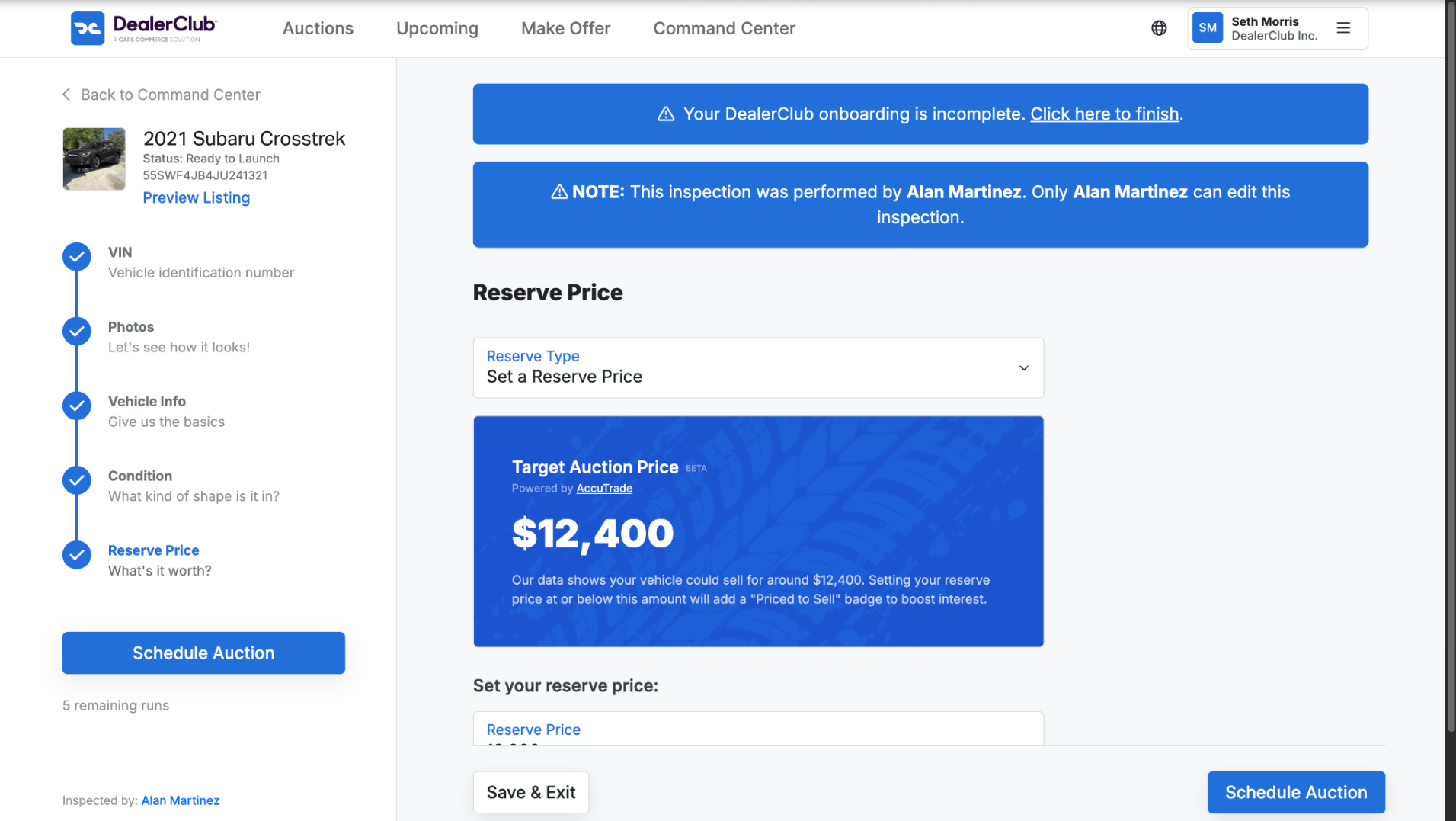
AccuTrade’s Target Auction Price provides a data-backed starting point for setting your reserve price. Your reserve price is the lowest offer you are willing to accept. If bidding does not meet the reserve, you are not obligated to sell.
If a vehicle is priced at or below the Target Auction Price, DealerClub applies a Priced to Sell badge, which increases buyer visibility.
Review recent comparable sales on DealerClub alongside AccuTrade valuation data when determining your reserve.
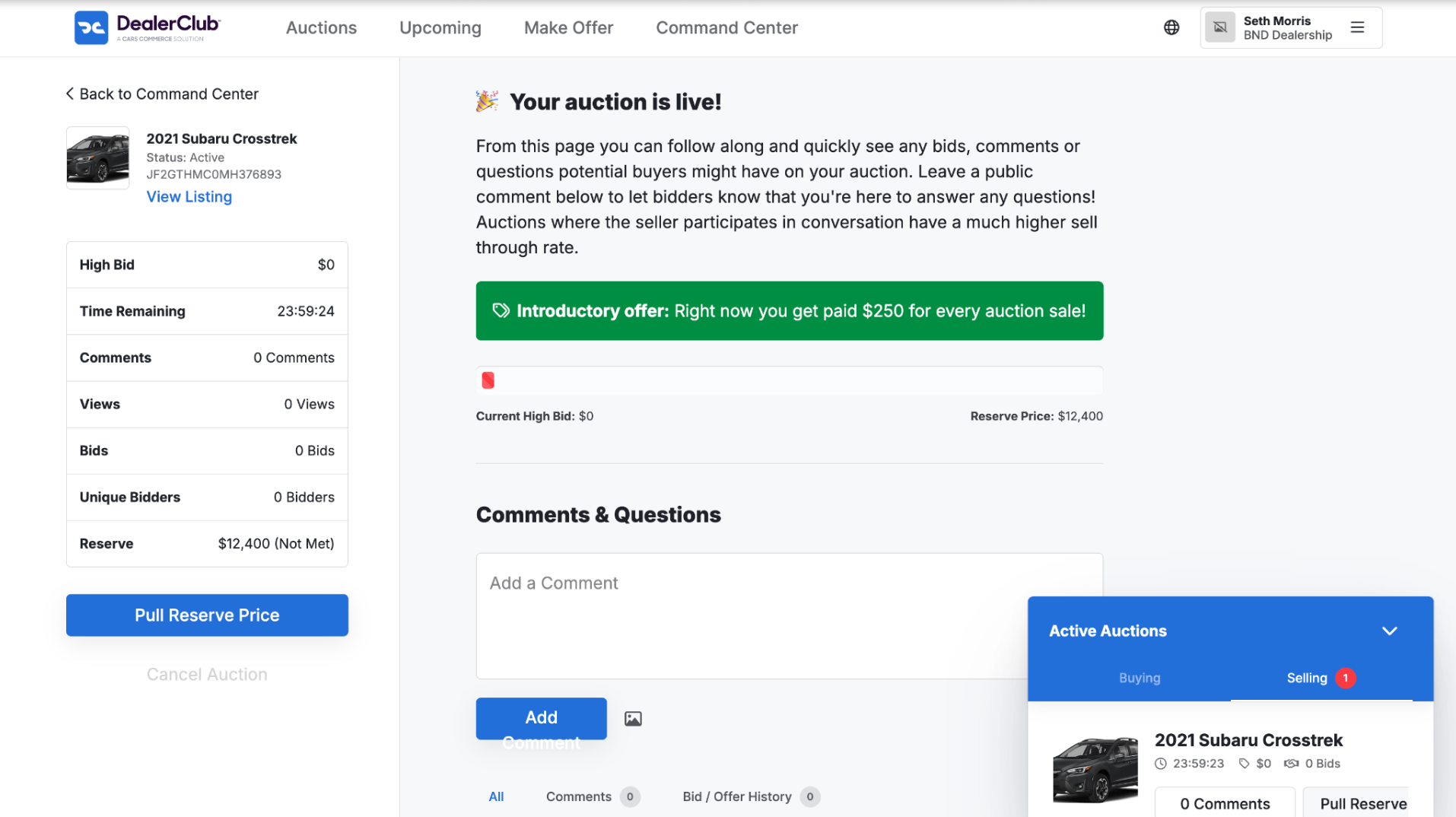
5 Monitor the active auction
Once a listing is live, stay engaged throughout the auction process:
- Monitor bidding activity regularly.
- Respond promptly to buyer questions about vehicle condition or history.
- Watch for lack of interest and revisit pricing or photo selection if needed.
DealerClub enables direct dealer-to-dealer communication, which helps build confidence and increase bidding activity.
6 Close the transaction
After a successful sale:
- Send the title to DealerClub and schedule vehicle pickup with the buyer.
- Maintain clear communication to protect your seller rating.
Accurate listings and responsive follow-up help keep transactions running smoothly.