How to add vehicle photos and descriptions
When creating a new auction listing on DealerClub, you are required to upload specific vehicle images and complete detailed condition information before scheduling the auction. Accurate photos and descriptions help buyers assess value and condition and ensure your listing meets platform requirements.
In this article, you’ll learn how to create a new auction listing, upload the required VIN and vehicle images, complete vehicle details and condition fields, and add a clear, accurate description before scheduling your auction.
To get started
Go to the Cars.com Hub and click on DealerClub.
1 Create a new auction listing
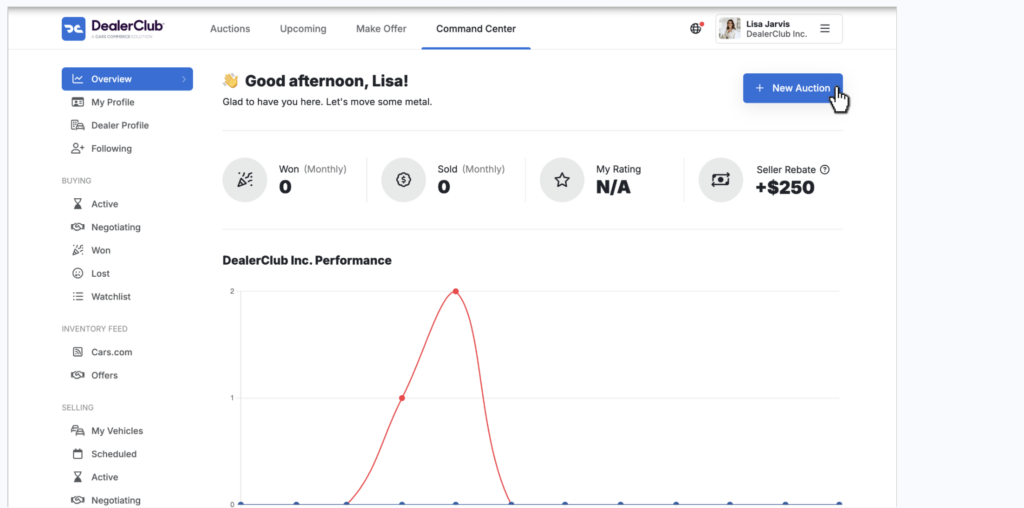
- Click + New Auction to begin.
- Enter the vehicle’s VIN.
- Click Save Vehicle.
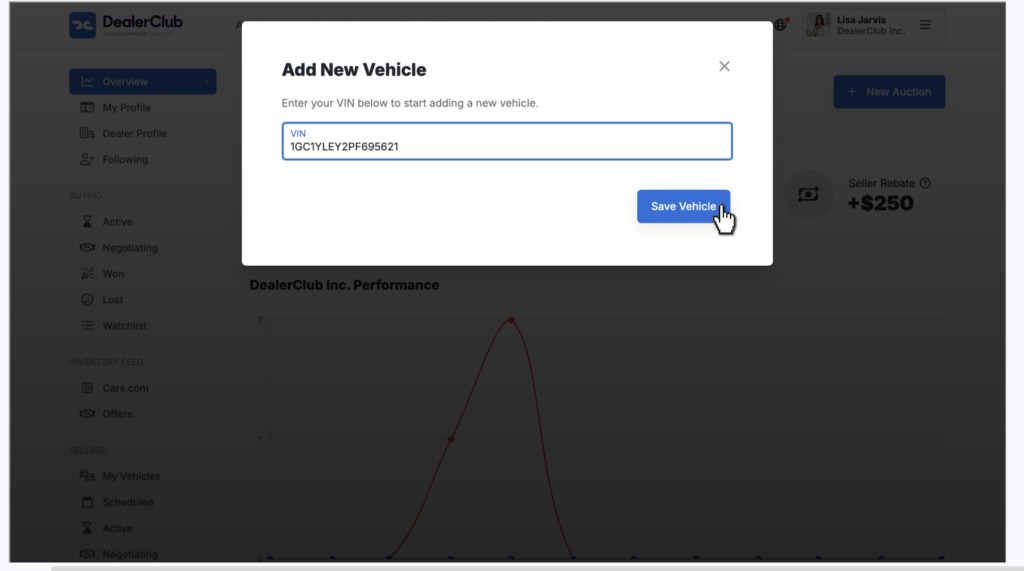
After saving, DealerClub may automatically populate basic vehicle information based on the VIN. Review all auto-filled details carefully for accuracy before continuing.
You will then be taken to the listing workflow screen.
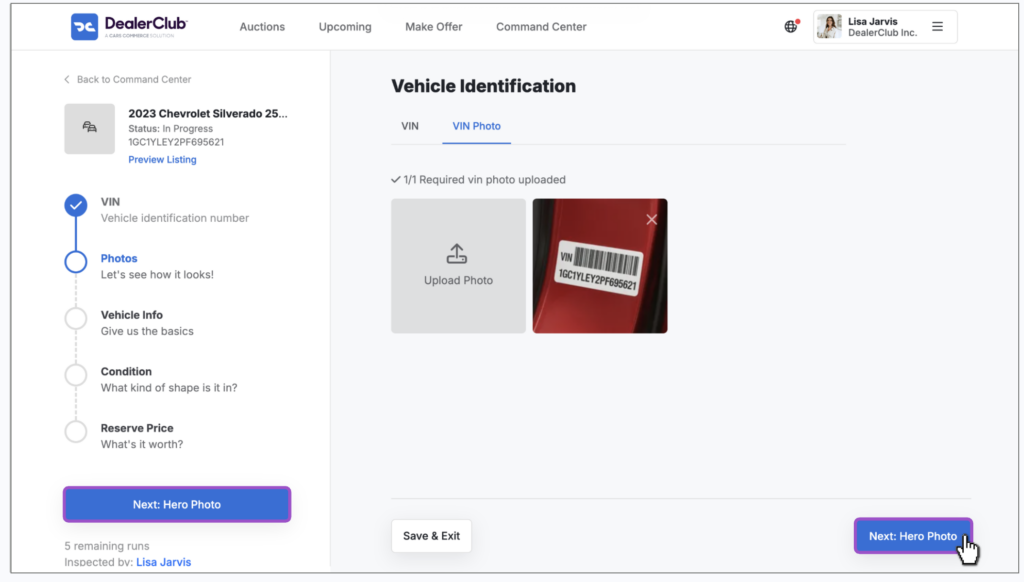
2 Upload a photo of the VIN (required)
A photo of the vehicle’s VIN is required before proceeding.
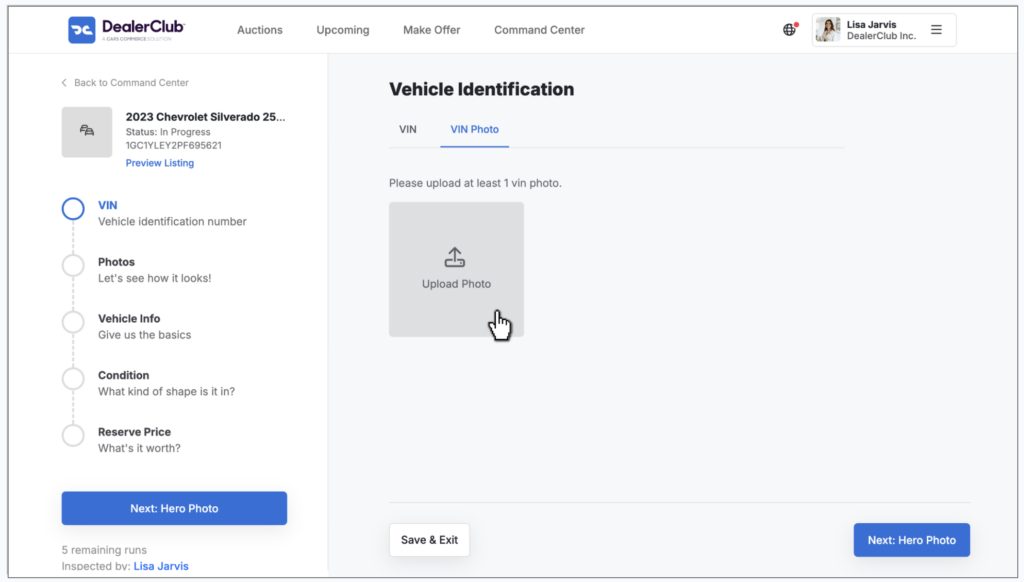
- On the checklist panel, locate the VIN Photo section.
- Click Upload Photo.
- Ensure the VIN photo is clear, well-lit, and taken from the inside door jamb.
- Select the image file from your computer.
- Click Open.
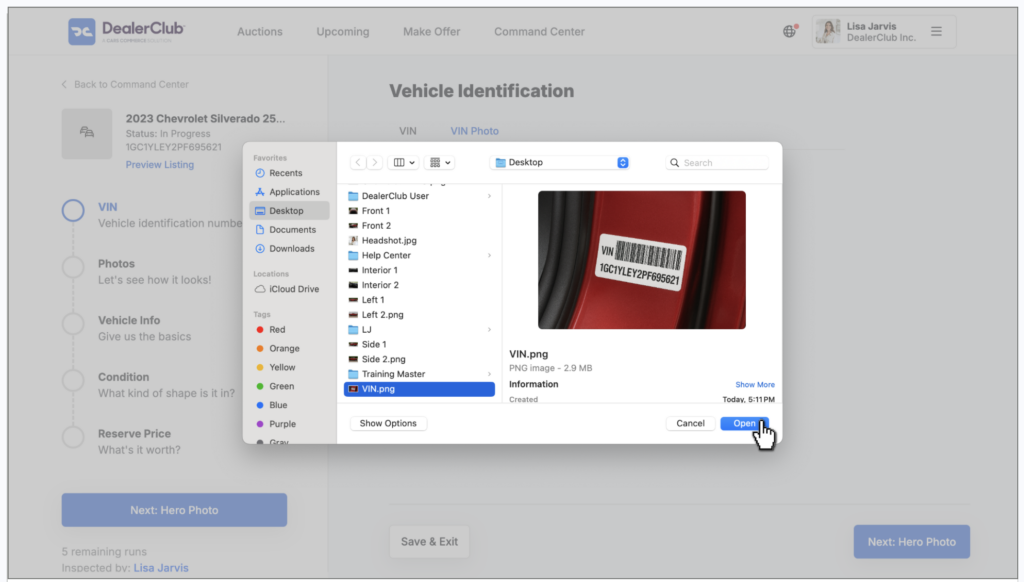
If the upload is successful, the image will appear on the screen.
Once complete, click the blue Next button to proceed to the Hero Photo section.
3 Upload vehicle images
DealerClub requires the following minimum images before you can complete your listing:
- 1 Hero Image
- 10 Exterior Photos
- 10 Interior Photos
You may upload additional photos beyond the minimum.
Upload the Hero Image (Required)
The first required image is the Hero Image.
- Click Upload in the Hero Image section.
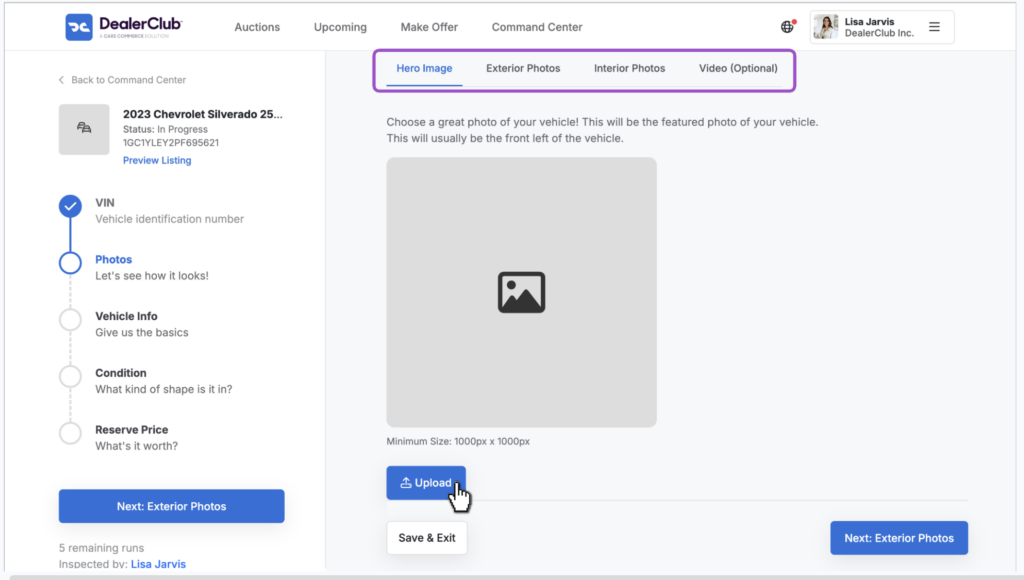
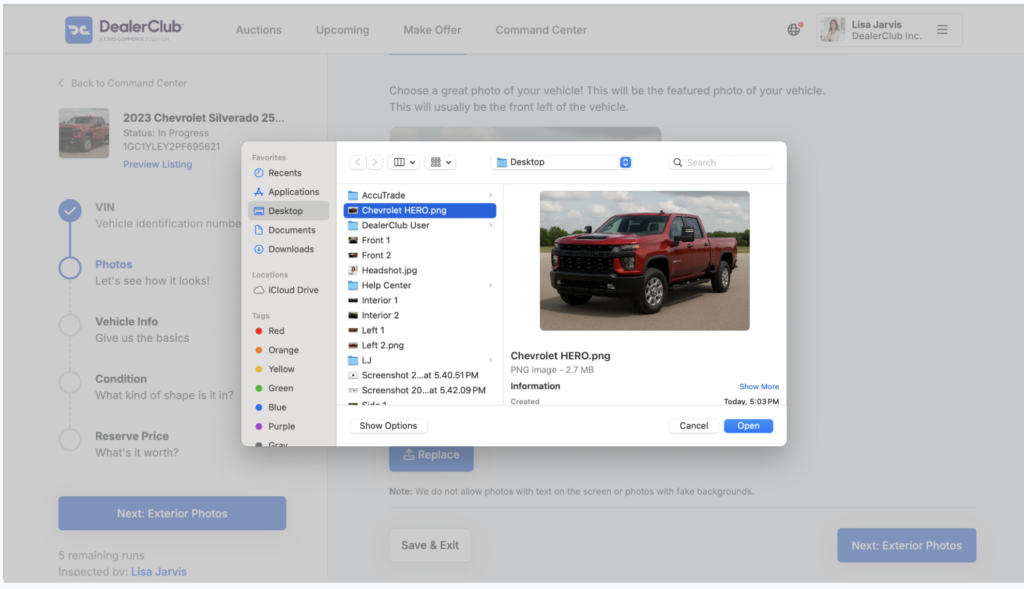
- Select your image file.
- Click Open.
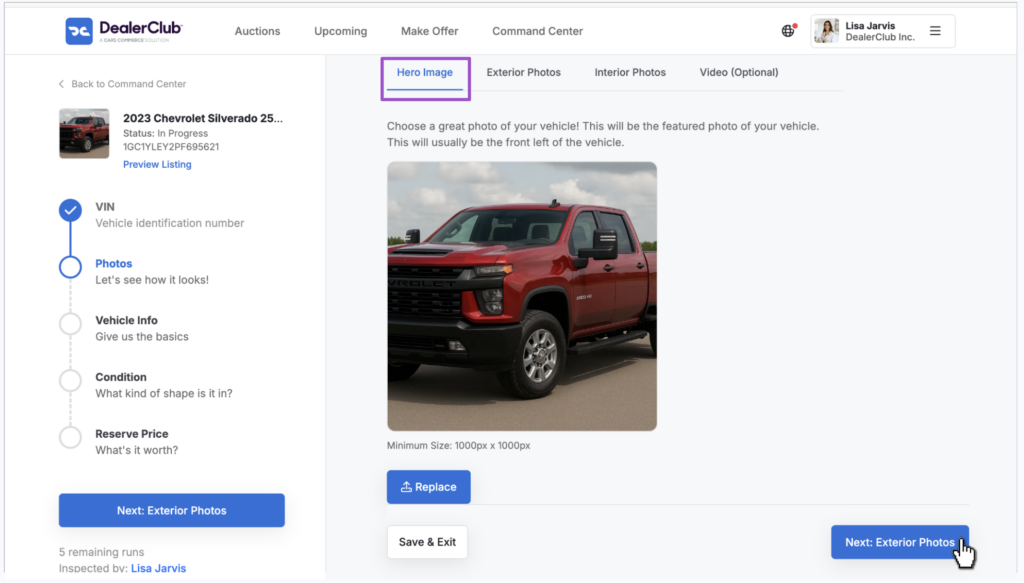
After uploading, you may replace the image if needed.
Click Next: Exterior Photos to continue.
Recommended: Use a high-resolution, well-lit three-quarter front or rear driver-side view.
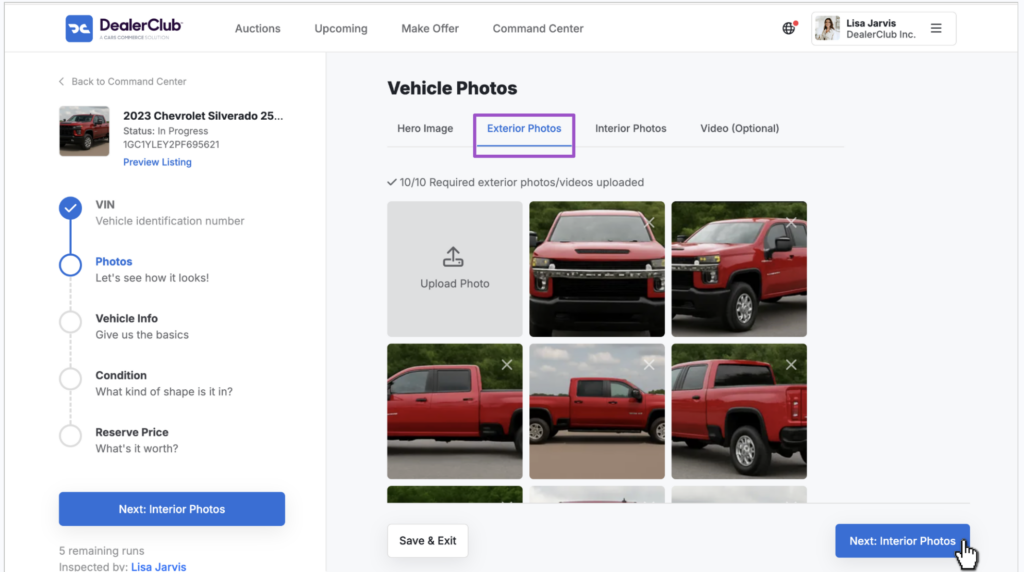
Upload Exterior Photos (Minimum: 10 Required)
- Click Upload in the Exterior Photos section.
- Select images from your computer.
- Repeat until at least 10 exterior images are added.
The system may prevent you from moving forward if the minimum image requirement is not met.
Note: Be sure to point out any damage to the vehicle or appealing features to create an honest and transparent listing.
Click Next: Interior Photos once complete.
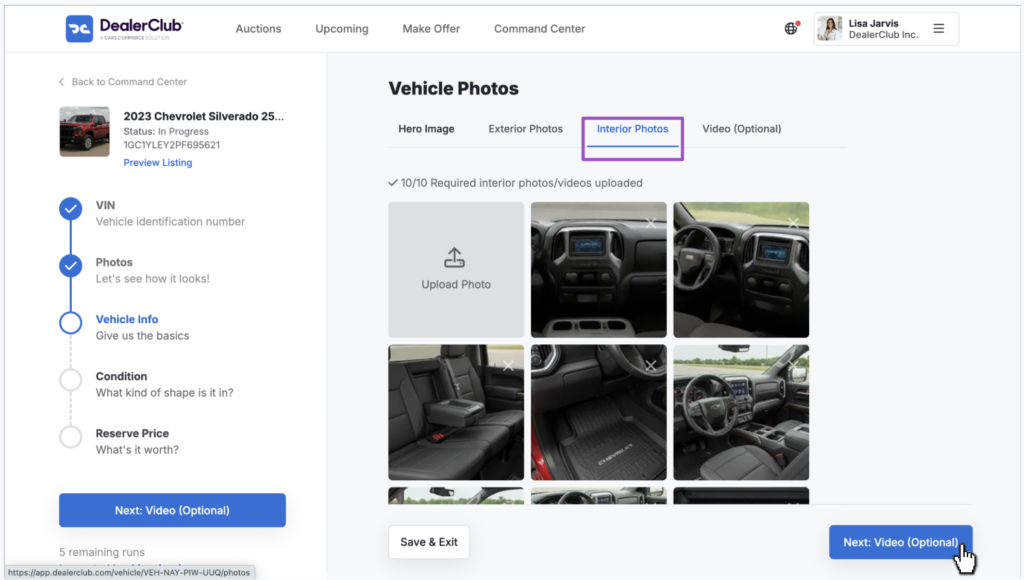
Upload Interior Photos (Minimum: 10 Required)
- Click Upload in the Interior Photos section.
- Add at least 10 interior images.
Include clear photos of:
- Dashboard
- Front seats
- Rear seats
- Gauges and odometer
- Infotainment screen
Click Next once the minimum is met.
Upload a Vehicle Video (Optional)
You may upload a walk-around video of the vehicle.
This step is optional. If you choose not to upload a video, click Next to continue.
4 Complete vehicle information
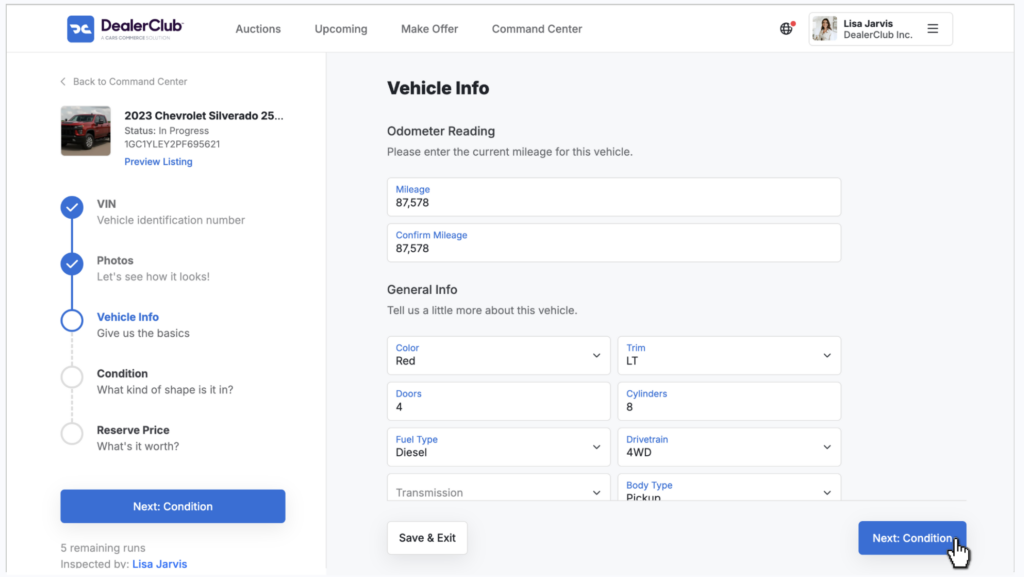
On the Vehicle Info page:
- Confirm or edit auto-populated vehicle details.
- Enter the mileage (odometer reading).
- Complete any required fields.
Required fields must be completed before proceeding. Review all information carefully for accuracy.
Click Next: Condition to continue.
5 Complete vehicle condition sections
You will be prompted to complete multiple condition-related sections. Some fields may be required before you can schedule the auction.
Sections may include:
- Description
- Guarantees
- Grade
- Options
- Badges (Optional)
Complete all required fields before proceeding. The system may prevent scheduling if required sections are incomplete.
Click Next to move through each section.
6 Add a Vehicle Description
In the Description section, enter a clear and accurate summary of the vehicle.
Your description should:
- Match the photos and condition report exactly
- Disclose all known imperfections
- Highlight key specifications and features
- Include title status and accident history (if applicable)
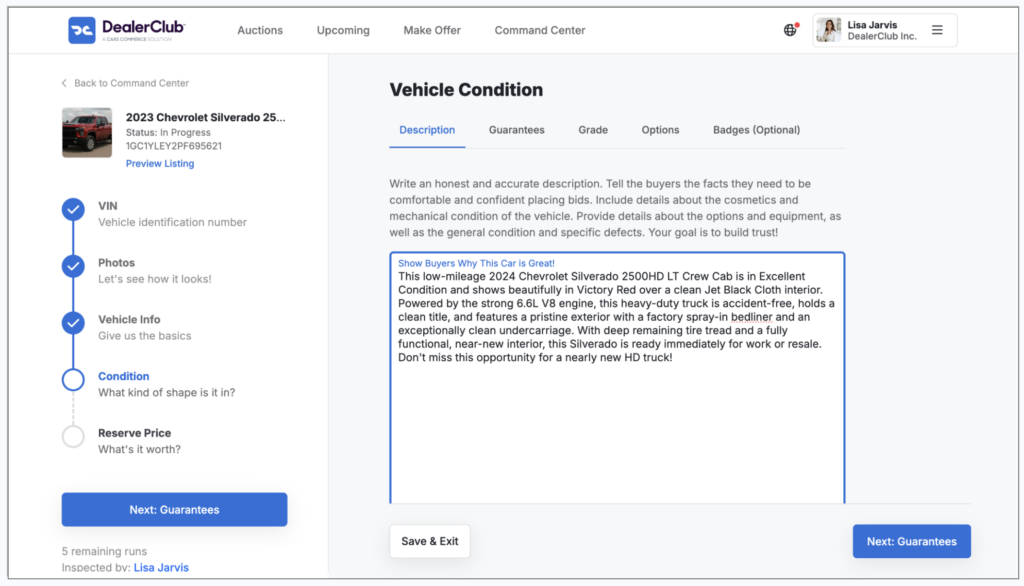
Accuracy is critical. Inconsistent or incomplete information may impact buyer confidence and seller ratings.
7 Review and Schedule the Auction
After completing all required sections:
- Review the listing for accuracy.
- Confirm all required images and condition fields are complete.
- Proceed to schedule the auction according to platform prompts.
If any required fields or image minimums are missing, the system will prompt you to complete them before allowing scheduling.
Best Practices
The following guidelines are recommended to improve listing clarity and buyer confidence. These are best practices unless otherwise noted as required.
Vehicle Images
Minimum Requirements (Required to Publish)
- 1 Hero image
- 10 Exterior images
- 10 Interior images
Recommended Guidelines
Quantity and Variety
- Upload 20+ total images when possible.
- Capture all angles of the vehicle.
Exterior Must-Have Shots
- Driver-side front three-quarter (Hero)
- All four side profiles
- Straight-on front and rear
Interior Must-Have Shots
- Dashboard
- Front and rear seating
- Gauges and odometer
- Infotainment screen
Mechanical & Detail Shots
- VIN plate
- Engine bay
- Tires and tread depth
Photo Quality
- Use high-resolution images.
- Avoid harsh shadows and glare.
- Use a neutral background.
- Ensure the vehicle is clean before photographing.
Document All Imperfections
Photograph any visible damage, including:
- Paint chips
- Dents
- Interior wear
- Wheel damage
Transparency helps buyers assess risk accurately.
Vehicle Descriptions
Your description should be structured and easy to scan.
Include Essential Information
- Year, Make, Model, Trim
- Exterior and Interior Color
- Mileage
- Engine, Transmission, Drivetrain
- Title status
- Accident or damage history (if applicable)
Condition Details
Clearly list:
- Overall condition summary
- Mechanical notes
- Known imperfections
Ensure the written description matches:
- Photos
- Condition Report
- Guarantee selections
Inaccurate or incomplete listings may impact seller ratings on a reputation-based platform.
By following these steps and meeting all required fields, you can successfully create and publish a complete auction listing with accurate photos and descriptions on DealerClub.


