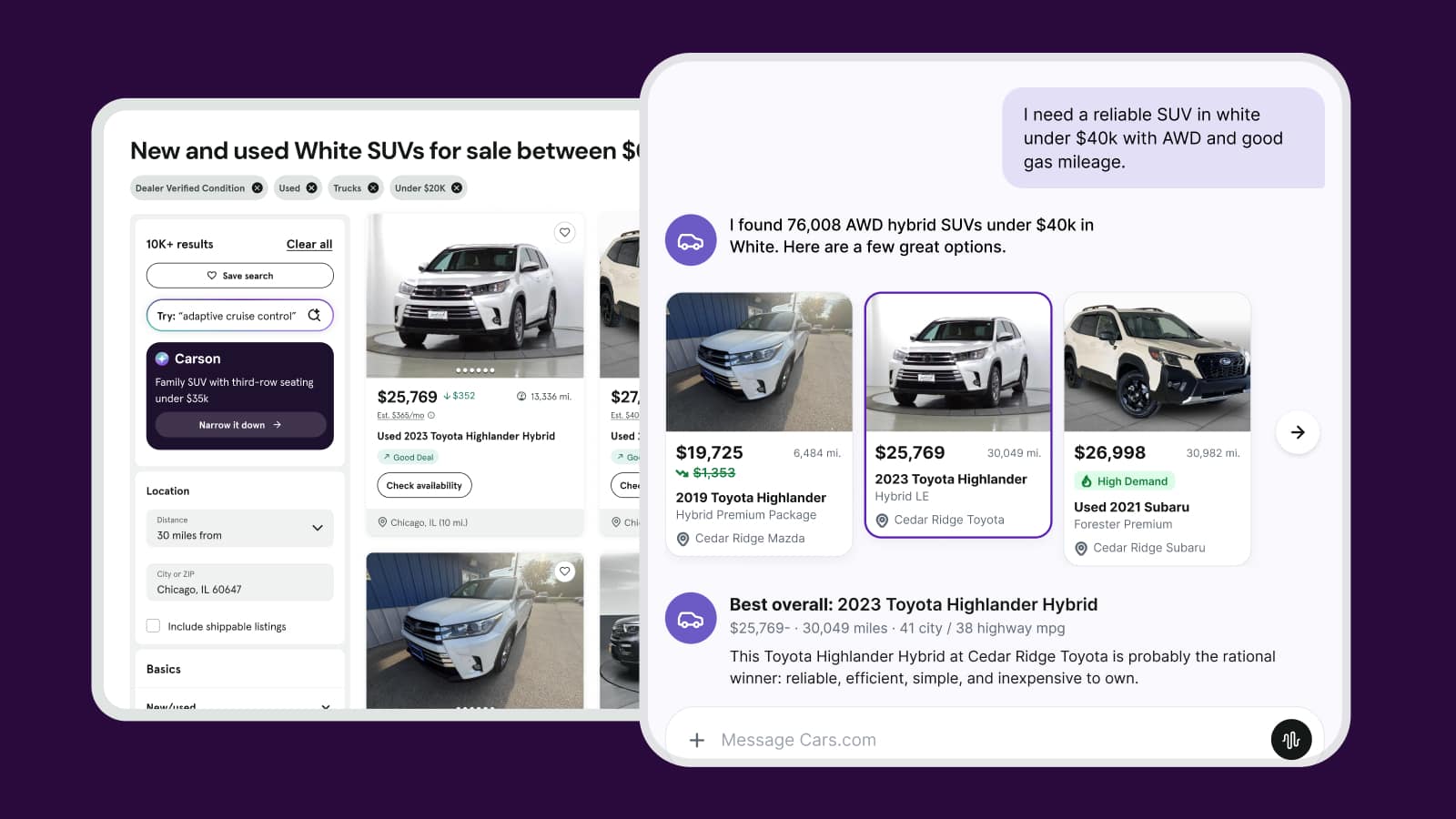
How to best respond to a Cars.com lead
Cars.com leads are high-intent opportunities — but converting them into appointments depends on speed, personalization, and making the most of available shopper insights.
In this article, you’ll learn how to prioritize and respond to new leads using Shopper Details, and how to re-engage existing leads using Shopper Alerts.
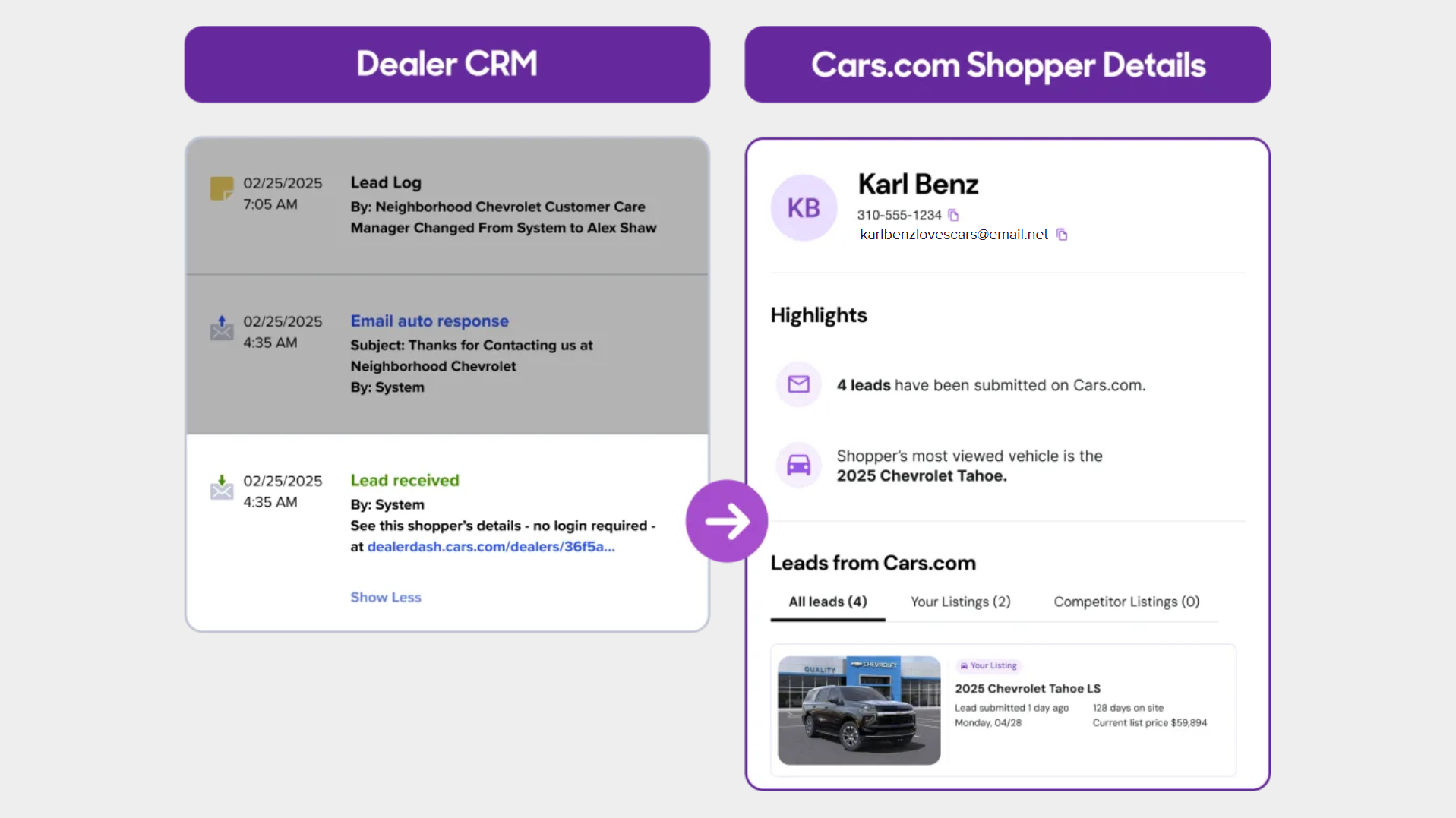
All leads with Shopper Details flow directly into your CRM, giving your team immediate access to each shopper’s activity snapshot with one click. Shopper Alerts are also delivered to your CRM to flag new activity from existing leads so you can re-engage before they close elsewhere.
1 Identify high-priority leads
Responding quickly is key — ideally within 5–15 minutes of receiving a lead. When prioritizing your outreach, follow this order:
- Top Priority:
- New Cars.com leads with Shopper Details
- Leads with Shopper Alerts showing new activity
- New Cars.com leads with Shopper Details
- Next:
- New leads from other sources during business hours
- New leads from other sources during business hours
- Then:
- Older leads, overnight submissions, or contacts without new activity
Tip: Keep the Shopper Details view open during calls. Referencing what the shopper has viewed or saved builds trust and improves conversion.
2 Use Shopper Details to personalize your outreach
Every Cars.com lead includes Shopper Details, accessible directly through your CRM. These insights may include shopper activity across both your inventory and your competitors’, such as:
- AI-powered selling strategies that summarize the shopper’s activity and recommend an approach
- Leads sent to your store or to competing dealerships
- Recently viewed vehicles
- Saved models
- Price range and engagement history
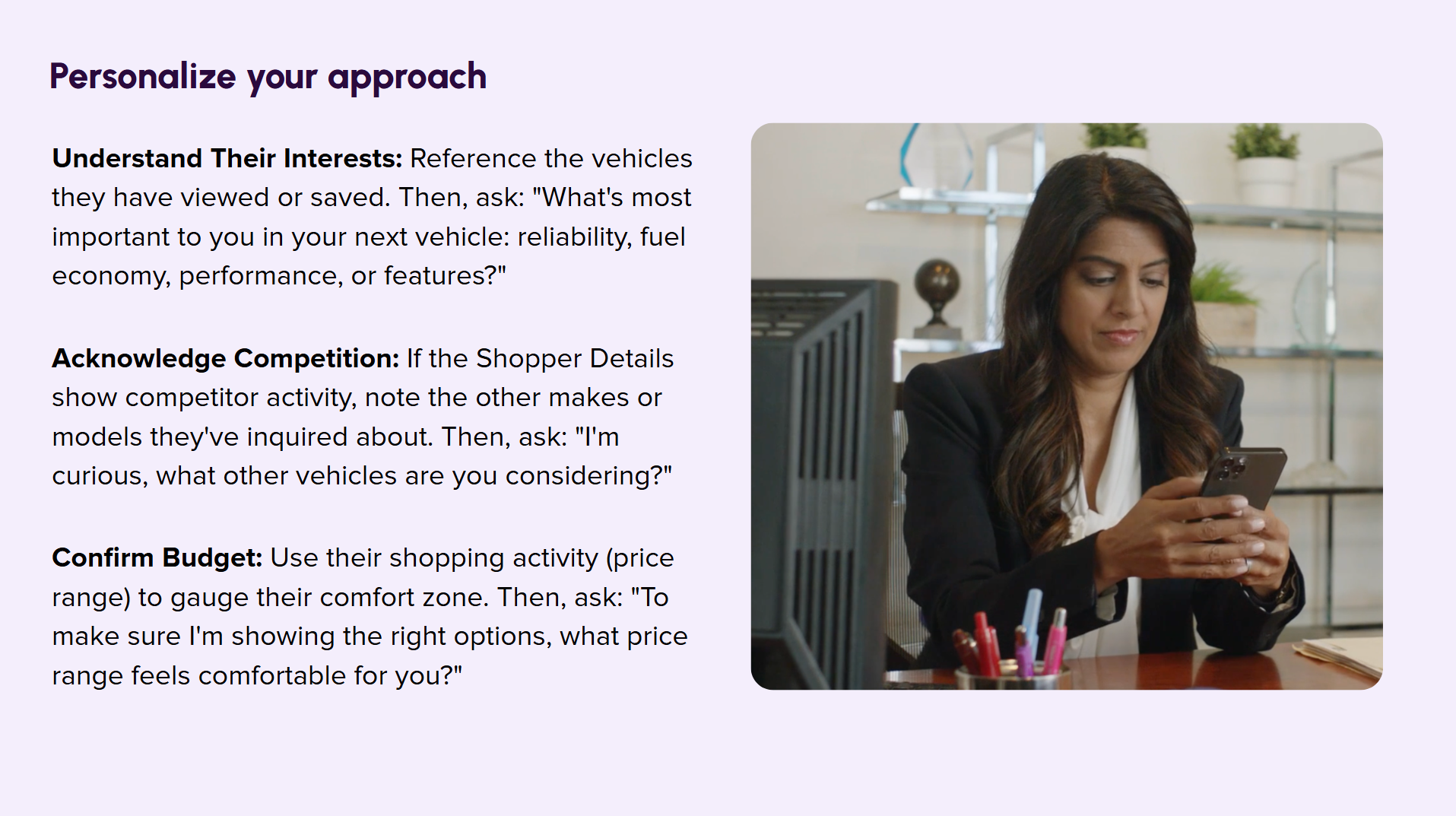
Use this context to personalize your first message and demonstrate that you understand what the shopper is looking for.
3 Re-Engage leads using Shopper Alerts
Shopper Alerts notify you when a previous lead becomes active again on Cars.com — often indicating they are still in the market or considering other dealerships. These alerts are delivered directly to your CRM.
Responding to an active Lead Alert
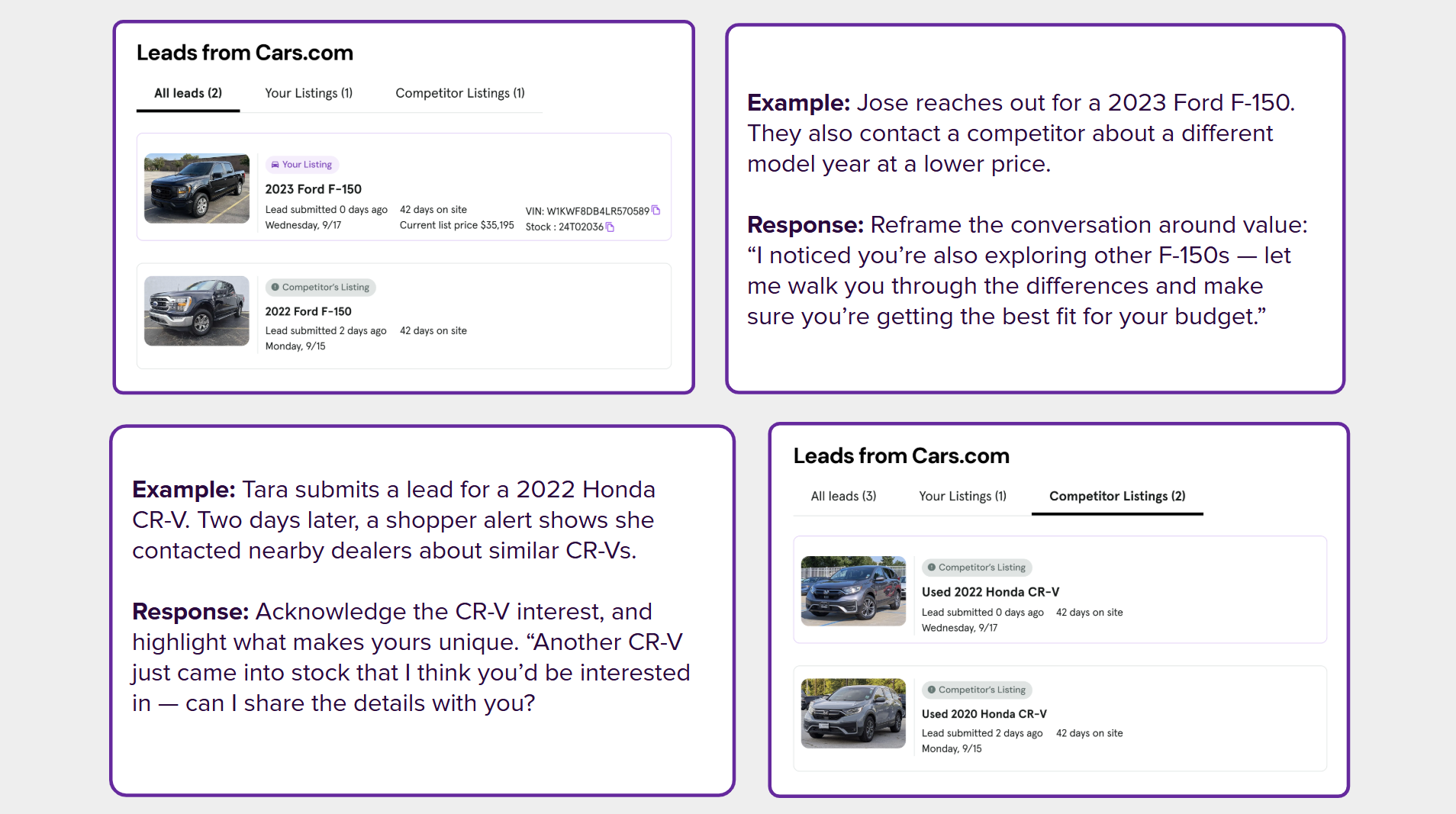
This alert is triggered when a shopper who previously contacted you sends a lead to a competing dealer and is still in the market on Cars.com.
- Review: Quickly review their updated Shopper Details to see the latest vehicles they are considering and their current price range.
- Action: Follow up immediately with relevant options. If they are cross-shopping similar vehicles at a lower price point, reframe the conversation around value.
Sample Response: “I noticed you’re also exploring other models (e.g., F-150s) —let me walk you through the differences and make sure you’re getting the best fit for your budget.”
Responding to a Cold Lead Alert
This alert is triggered when a lead that had gone cold becomes active again on the site.
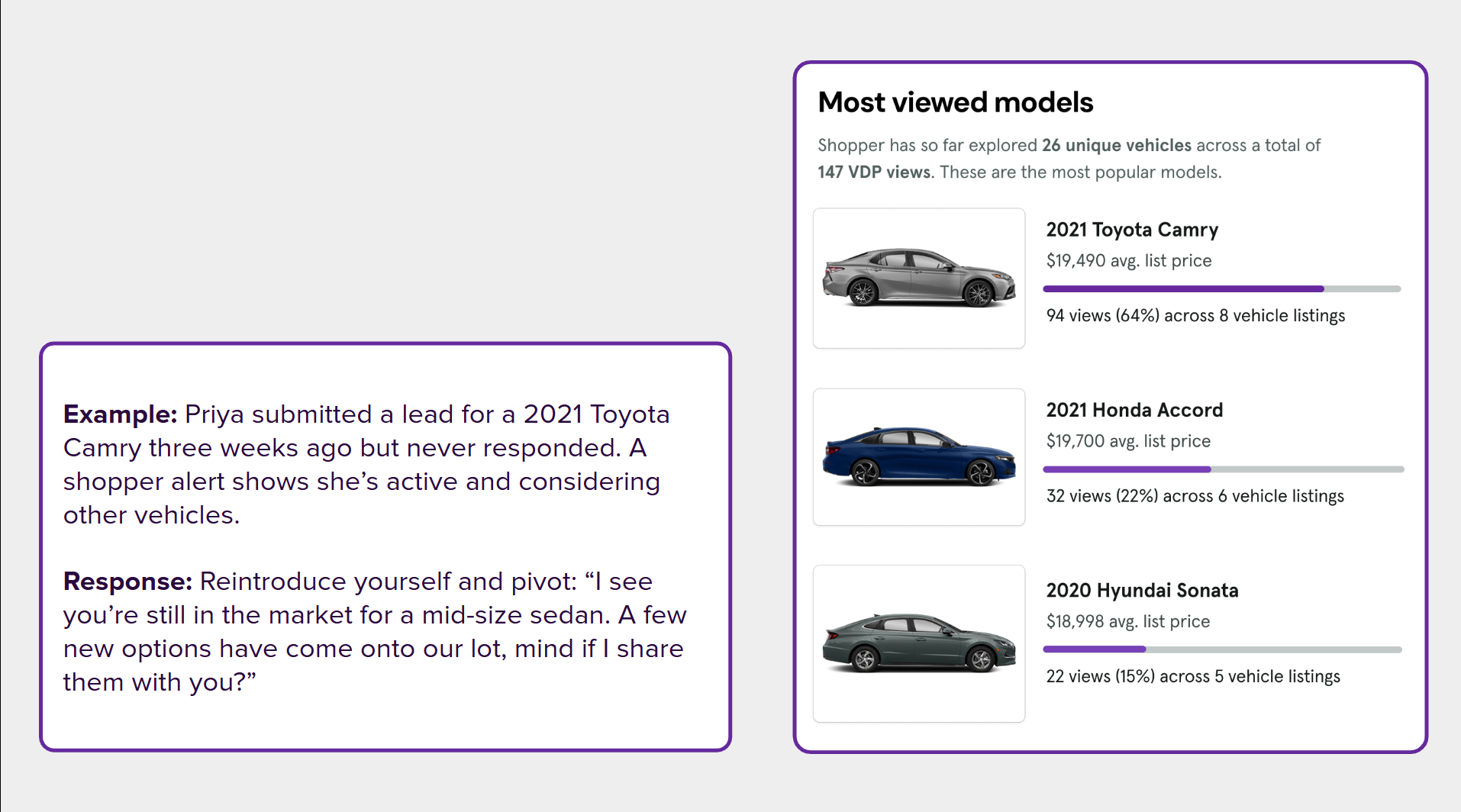
- Review: Review the updated Shopper Details since their initial lead was submitted. Check their Most Viewed Models to see what their interests have shifted to.
- Action: Reintroduce yourself, acknowledge their continued shopping, and pivot the conversation to new information and options.
Sample Response: “I see you’re still in the market for a mid-size sedan. A few new options have come onto our lot, mind if I share them with you?”
4 Follow re-engagement best practices
Always follow these two simple rules when re-engaging with an alert:
- Reference Past Conversations: Acknowledge previous conversations, mention specific needs or preferences discussed, and show that you remember their situation and priorities.
- Provide New Value: Do not repeat the previous pitch. Offer fresh information, new options, or discuss current market conditions to go beyond just “checking in”.