How to understand dealer acquisition appraisals
The Dealer Acquisition appraisal type is your most flexible option in AccuTrade. It allows you to start an appraisal from anywhere — ideal for off-lot or unstructured situations that don’t fall under the Showroom, Driveway, or Service Drive workflows.
Use this appraisal type when:
- A customer casually mentions they may want to trade in
- You spot a vehicle at an event or offsite location
- A walk-in visitor wants to sell their vehicle without buying
- You encounter any acquisition opportunity outside a typical flow
In this article, you’ll learn how to complete a Dealer Acquisition appraisal from start to finish, including how to scan, disclose, price, and present the vehicle offer.
To get started
Open the AccuTrade Appraiser app on your mobile device and log in.
Note: The AccuTrade Appraiser app requires an existing DMS connection. If you don’t have this set up, contact accutradesupport@carscommerce.inc to get started.
1 Start a Dealer Acquisition appraisal
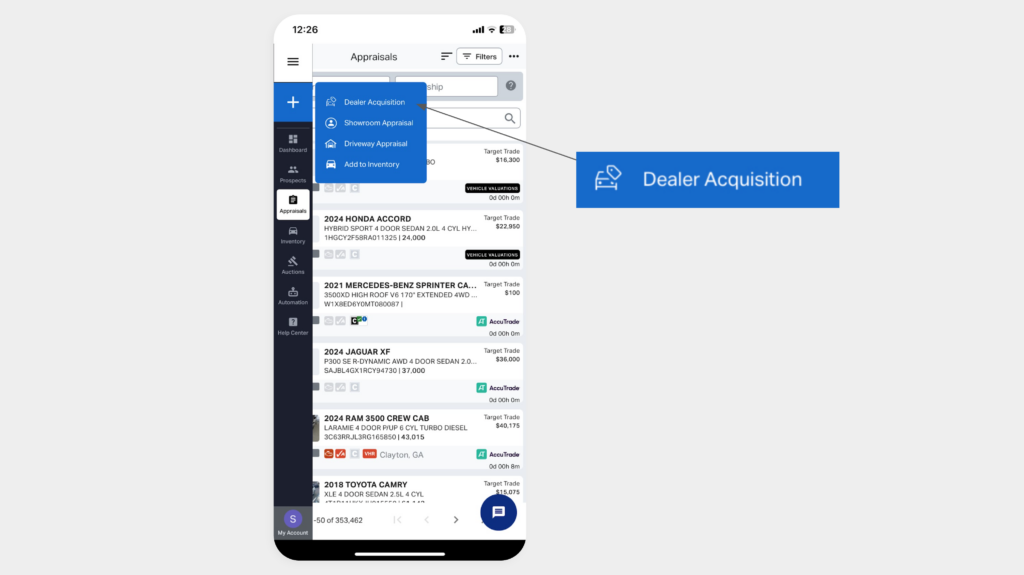
- Open the AccuTrade Appraiser app.
- Tap the three-line menu in the top-left corner.
- Tap the “+” icon and select Dealer Acquisition.
2 Enter the vehicle details
You have three options:
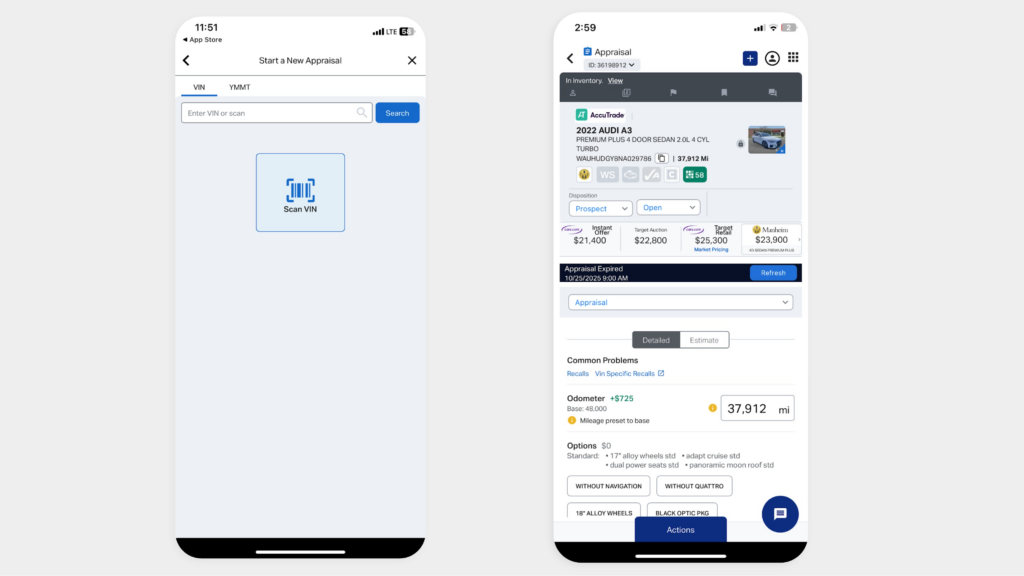
- Scan VIN: Tap “Scan VIN” to capture the VIN with your camera.
- Enter VIN: Type the VIN into the search bar and tap Search.
- Use YMMT: If VIN is unavailable, select Year / Make / Model / Trim (YMMT) to begin.
Once entered, AccuTrade will populate a vehicle profile and begin generating the appraisal.
3 Run the OBD scan
Running an OBD scan helps uncover any unseen mechanical issues.
To run a scan:
- Start the vehicle and plug the OBD device into the port under the steering wheel.
Note: You’ll need to have your Bluetooth on. For original BlueDriver devices, you’ll pair via Bluetooth first. For new LE devices, you’ll allow Bluetooth connection in the app. (See How to connect your OBD scanner for more details.) - In the app, tap Actions > Action > Start BlueDriver Scan.

After the scan:
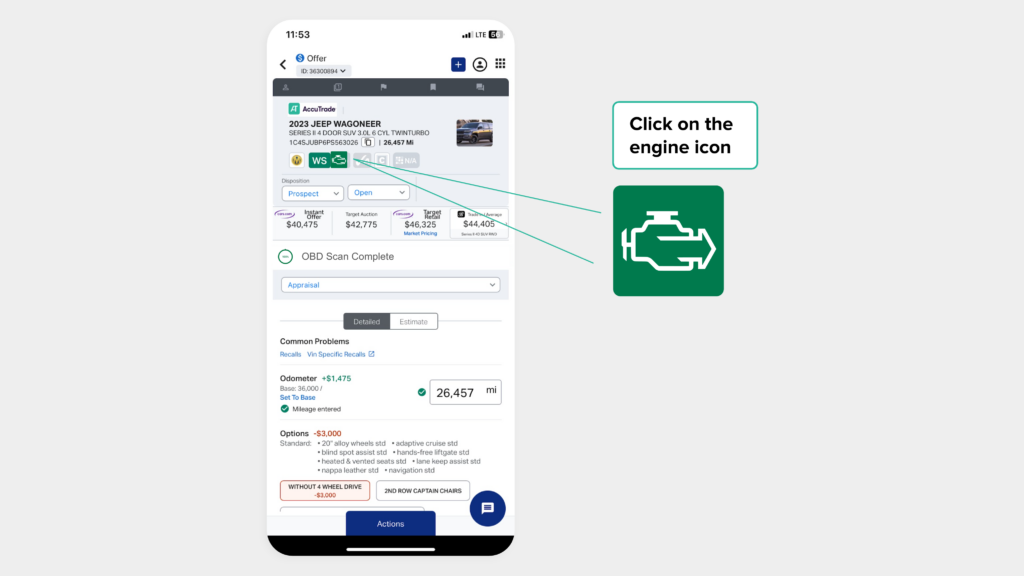
- Tap the Engine icon to view codes and disclosures.
- Any issues will be deducted from the Instant Offer value.
4 Complete the appraisal
Walk around the vehicle and manually disclose any additional conditions.
To log disclosures:
- Tap icons like Body, Tires, or Interior, and mark any damage or wear.
- These manual entries will adjust the Instant Offer accordingly.
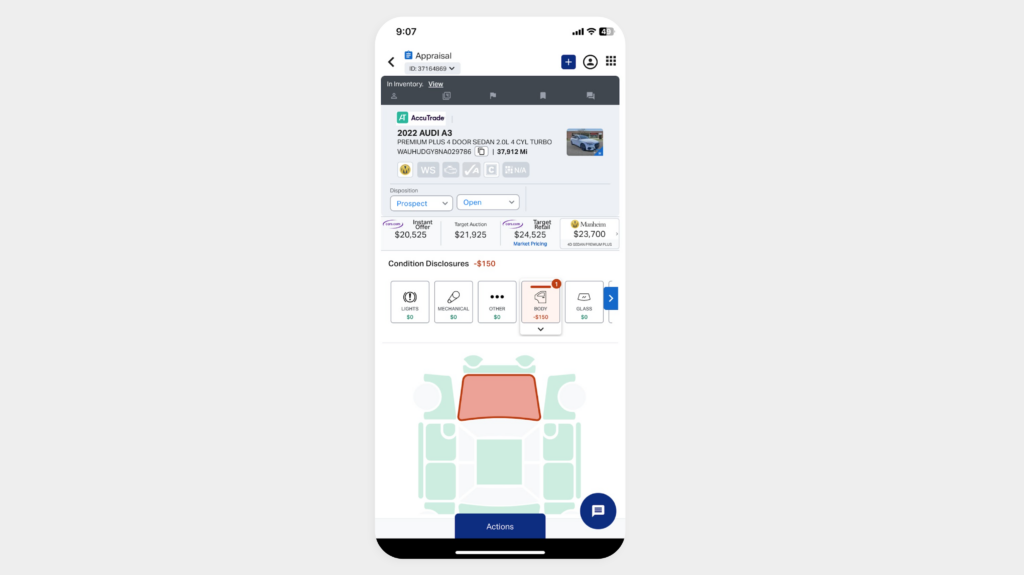
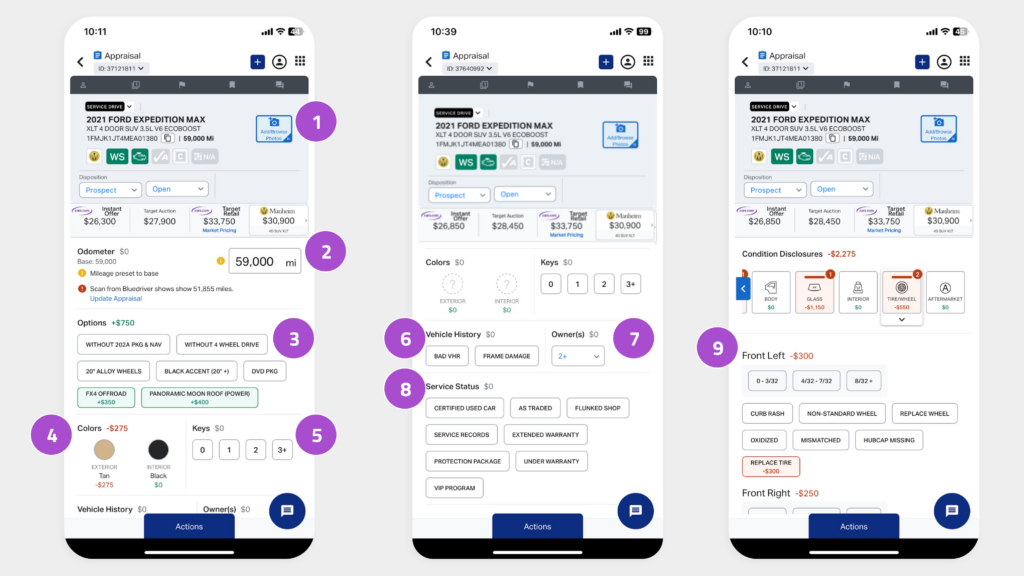
A complete appraisal should include:
- 11+ clear vehicle photos
- Exact odometer mileage
- Factory options
- Exterior and interior color
- Number of keys
- Vehicle history report (CARFAX/AutoCheck)
- Number of previous owners
- Service status
- Tire tread depth
Tip: Confirm and update each section to ensure appraisal accuracy and trustworthiness.
5 Modify the Instant Offer
(optional)
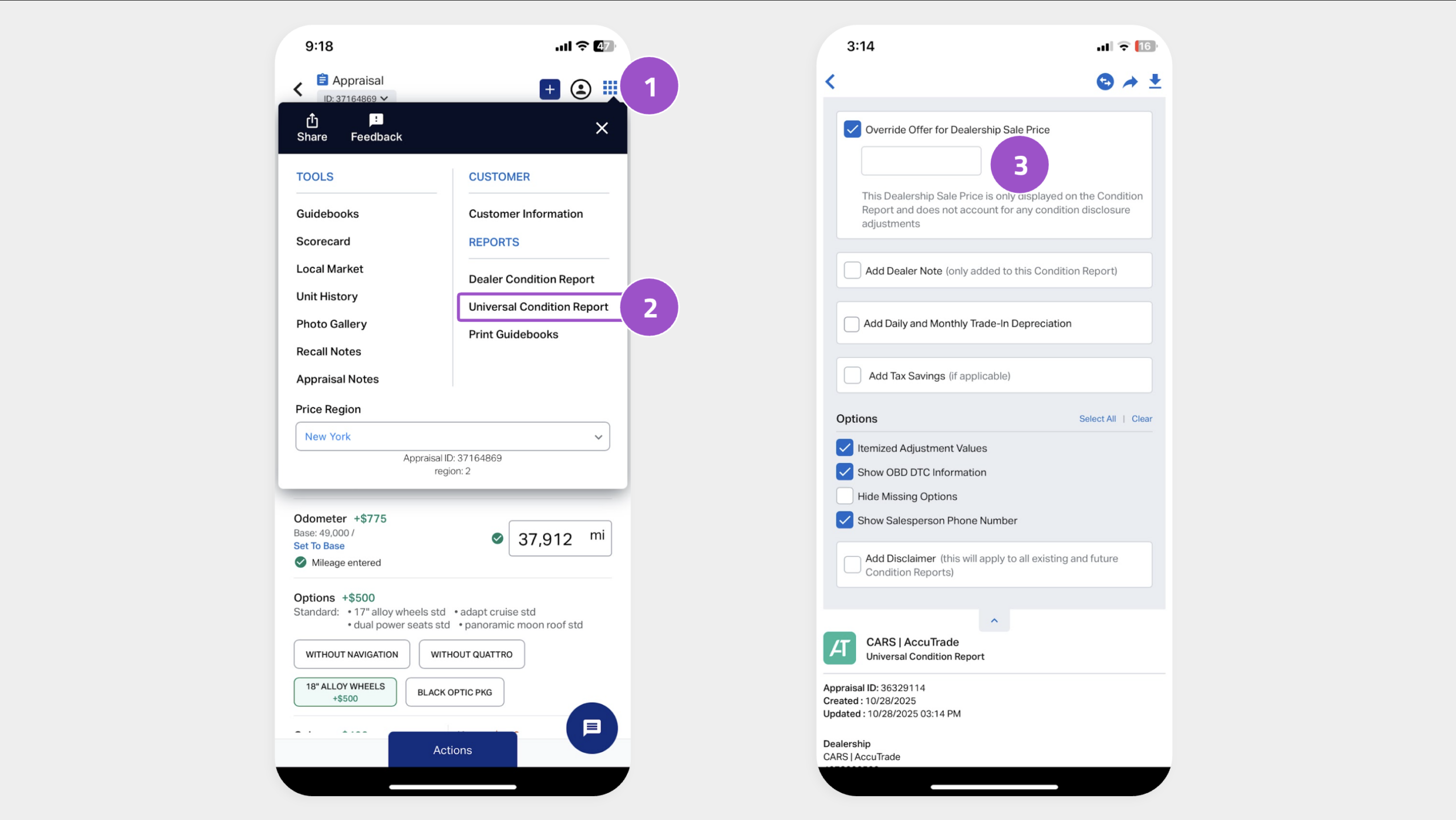
You can manually adjust the offer to present a more competitive price. However, only the original Instant Offer is backed by AccuTrade’s guarantee.
To override the offer:
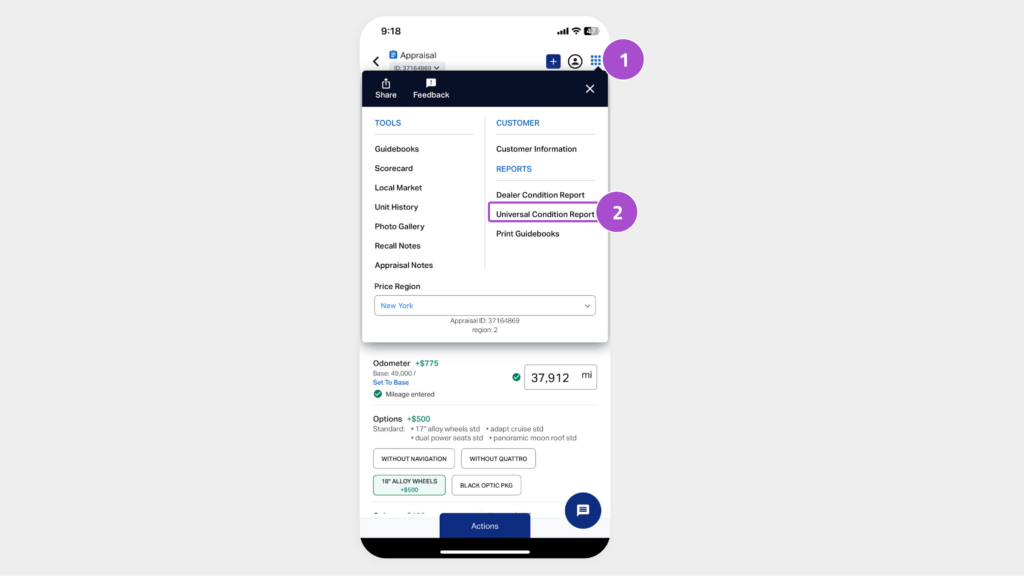
- Tap the square of dots in the top-right corner.
- Select Universal Condition Report.
- Tap Override Value and enter your adjusted offer.
Note: The modified value will appear in the Condition Report only.
6 Present the offer to the customer
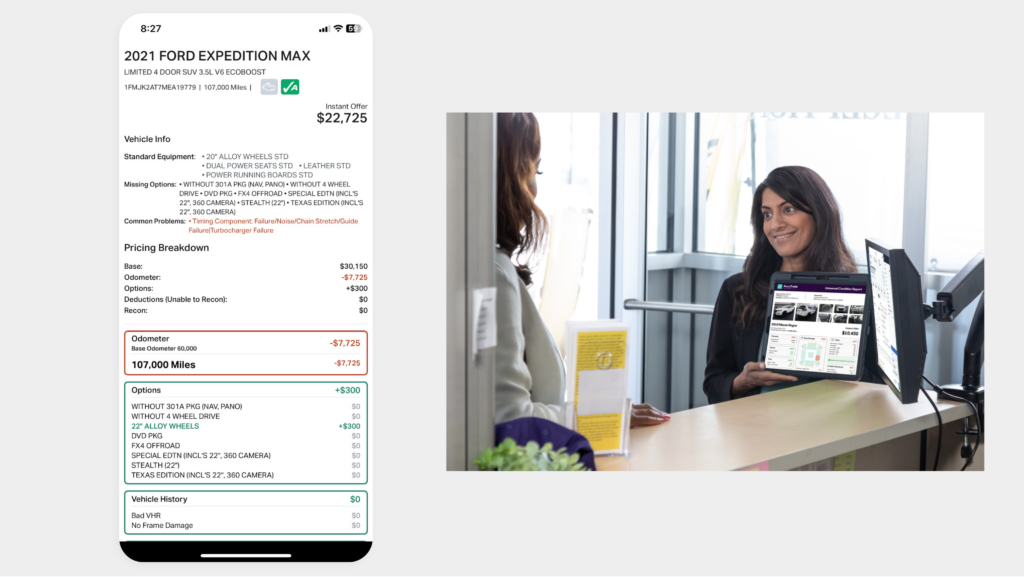
To build trust and transparency, walk the customer through the Universal Condition Report.
To access the report:
- Tap the square of dots in the top-right corner.
- Select Universal Condition Report.
This report shows how each condition affects the offer and makes the pricing rationale clear — helping reduce confusion and increase your close rate.