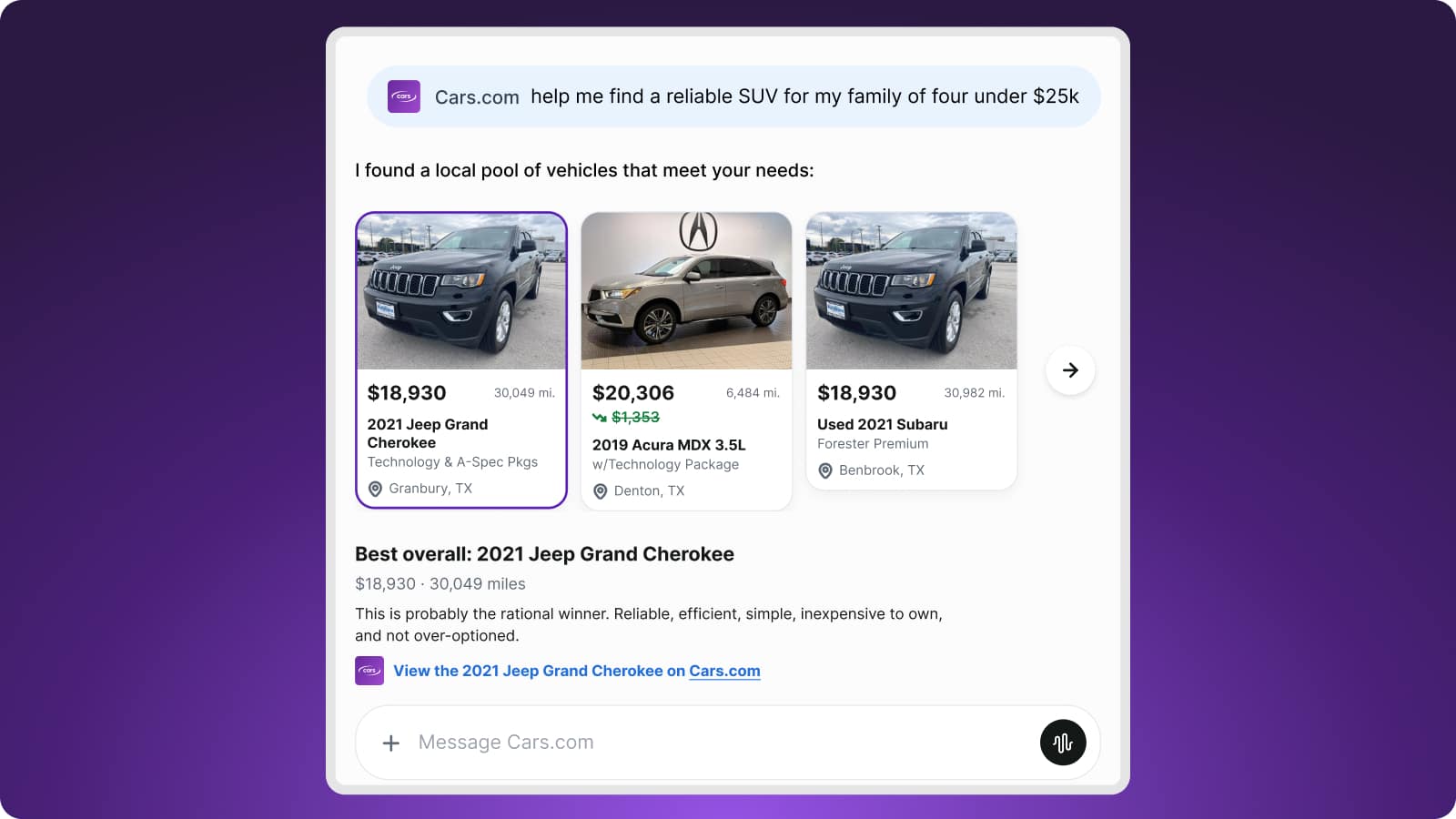
How to review vehicle demand and wholesale auctions in the Dealer app
The Cars.com Dealer app shows your inventory insights, local vehicle demand, and live wholesale auctions in one place. Use them to decide what to acquire and what to move off your lot, then open AccuTrade or DealerClub from the data to take the next step.
In this article, you will learn how to:
- Review the Inventory Intelligence Report
- Access AccuTrade from the report data
- Check vehicle demand in your local market
- Browse wholesale auctions
- Access DealerClub from the auctions
To get started
Log in to the Cars.com Dealer app with your Cars.com credentials.
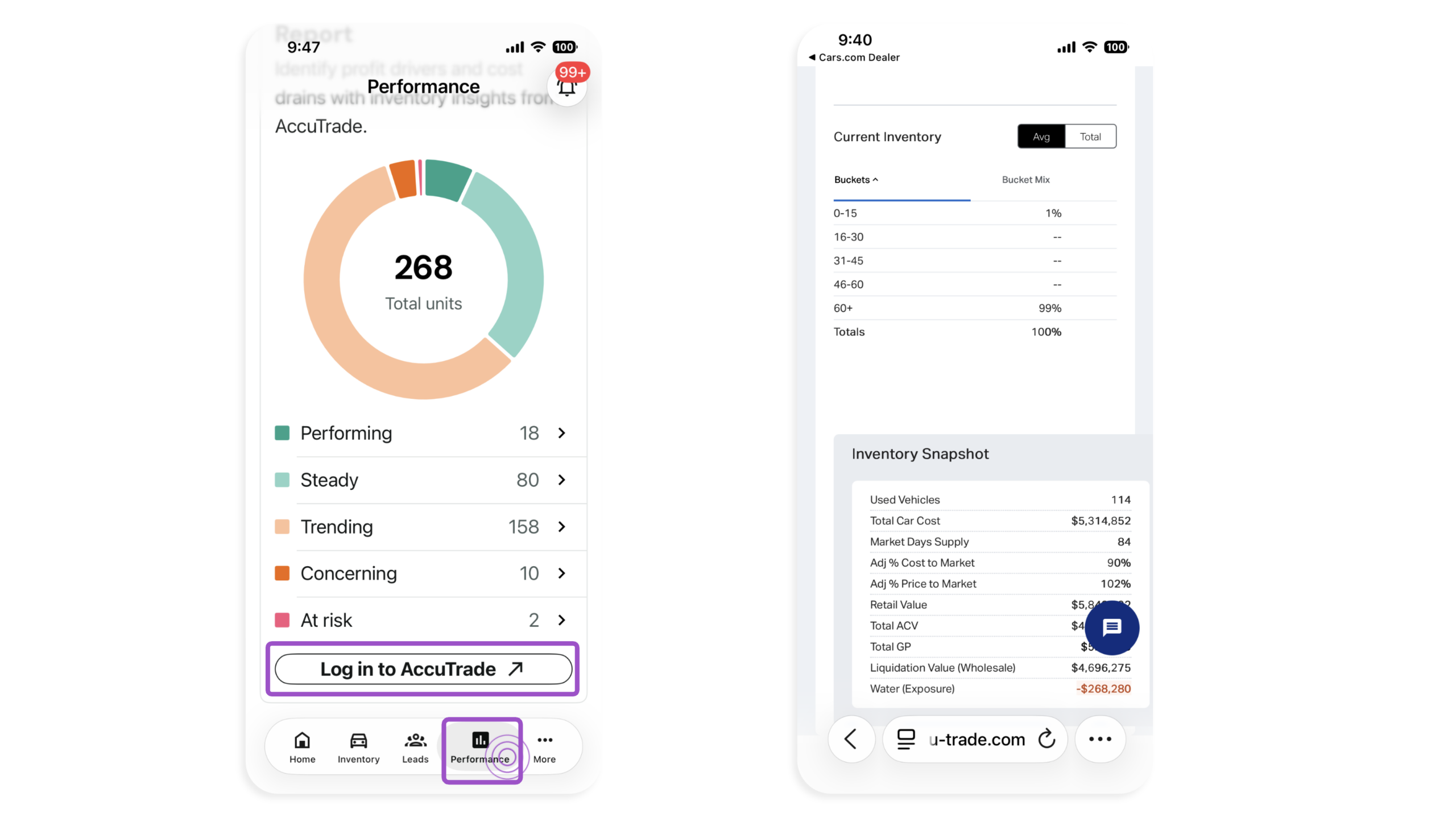
1 Review the Inventory Intelligence Report
- Tap Performance in the bottom menu
- Scroll to Inventory Intelligence Report
- Review the report before you decide what to acquire or move to wholesale
- Tap the button below to log in to AccuTrade for additional inventory data
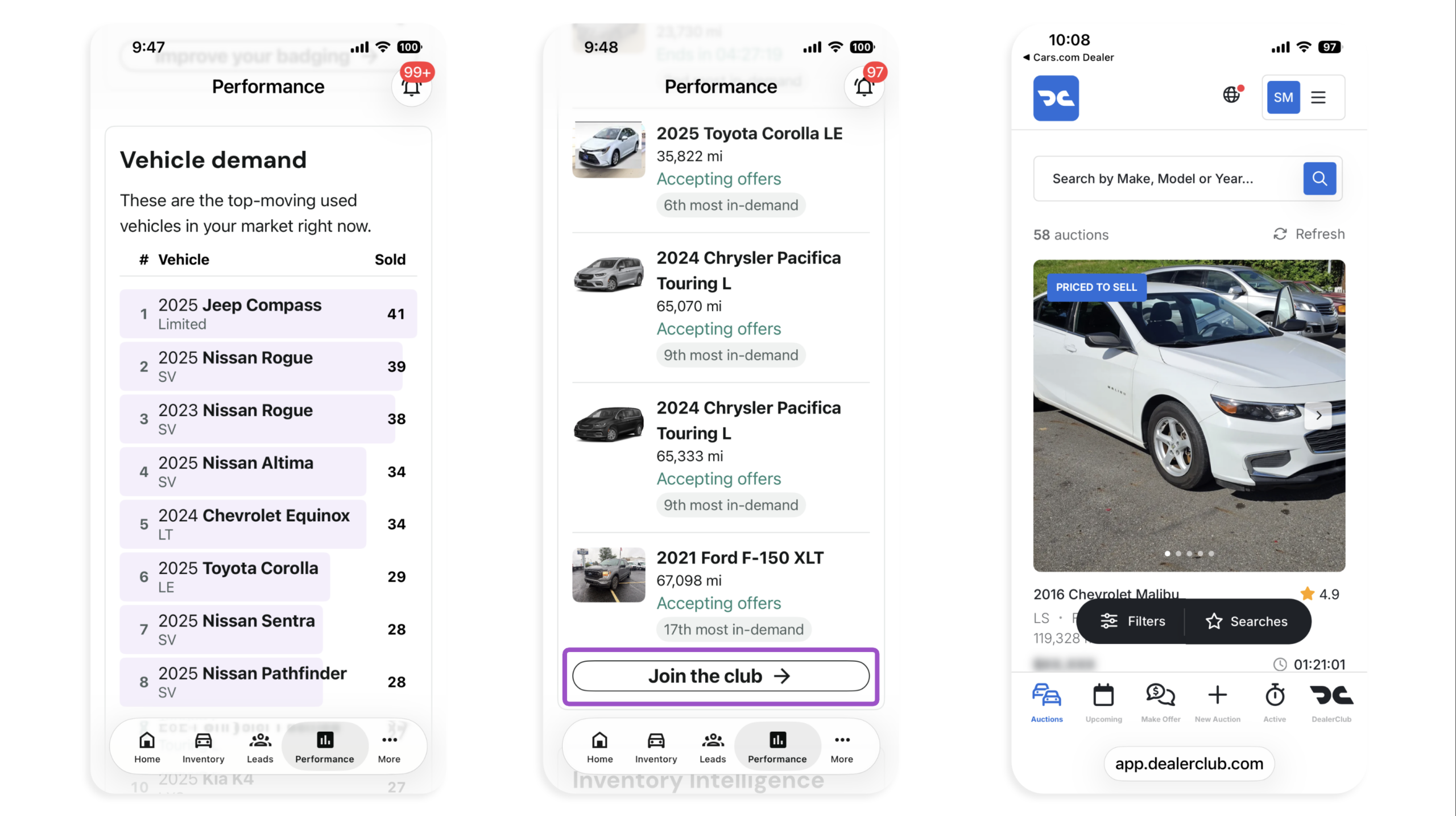
2 Review Vehicle demand and wholesale auctions
- Scroll to Vehicle demand to see the top 20 make, model, and year combinations in your local market
- Scroll to Auctions & Wholesale
- Review active and upcoming DealerClub auctions and the time left on each
- Tap the button below to log in to DealerClub and bid on vehicles
Best practice: Compare Auctions & Wholesale with Vehicle demand before you buy. Vehicles that shoppers in your market search for most are more likely to sell quickly once they’re on your lot.
Note: The Auctions & Wholesale card also appears on the Home screen.