How to update a VDP
Keeping your Vehicle Detail Pages (VDPs) accurate helps ensure shoppers see the correct pricing, photos, and vehicle details before contacting your dealership. Dealers typically update a VDP when correcting vehicle information, refreshing photos, adjusting features, or updating listing notes.
This article explains how to access your inventory in Dealer Dash and update a vehicle’s details, features, photos, and messaging.
To get started
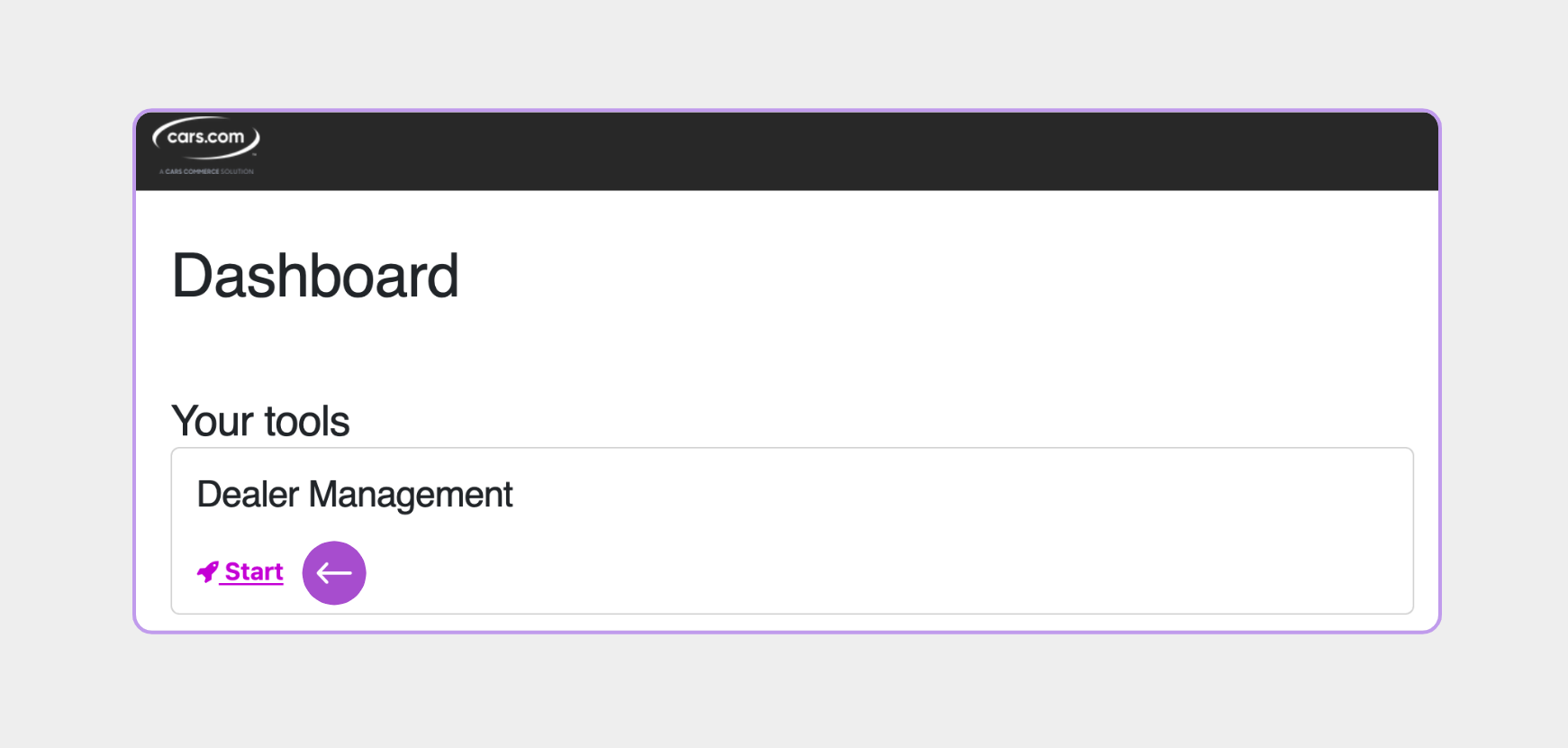
Go to the Cars.com Hub. Click Cars.com, then Dealer Dash.
1Click Start on Dealer Management
From the main Dealer Dash navigation, click Start, then select Dealer Management to access your dealership tools.
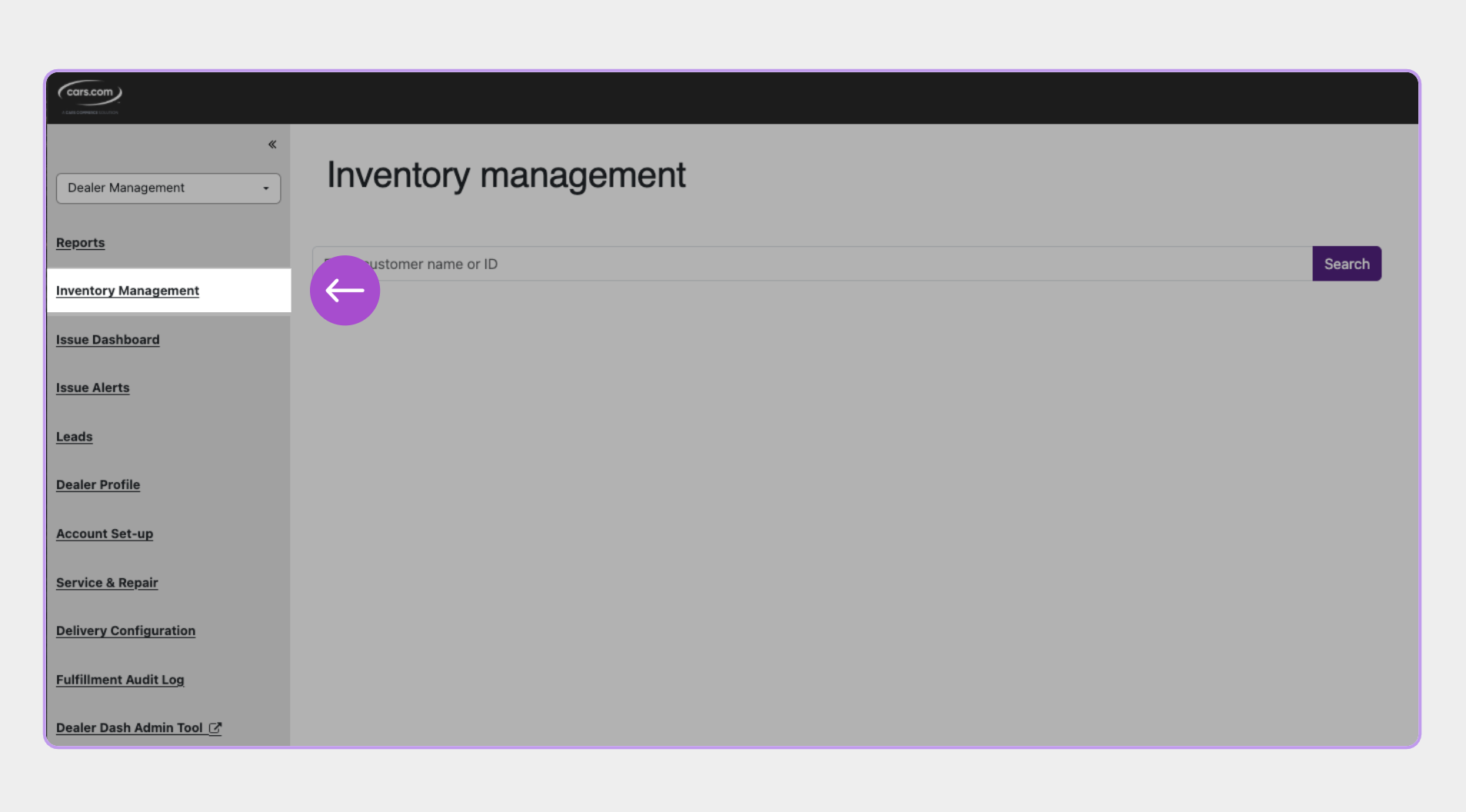
2 Click on Inventory Management
From the Dealer Management menu, select Inventory Management to view your active inventory list.
3 Find your vehicle
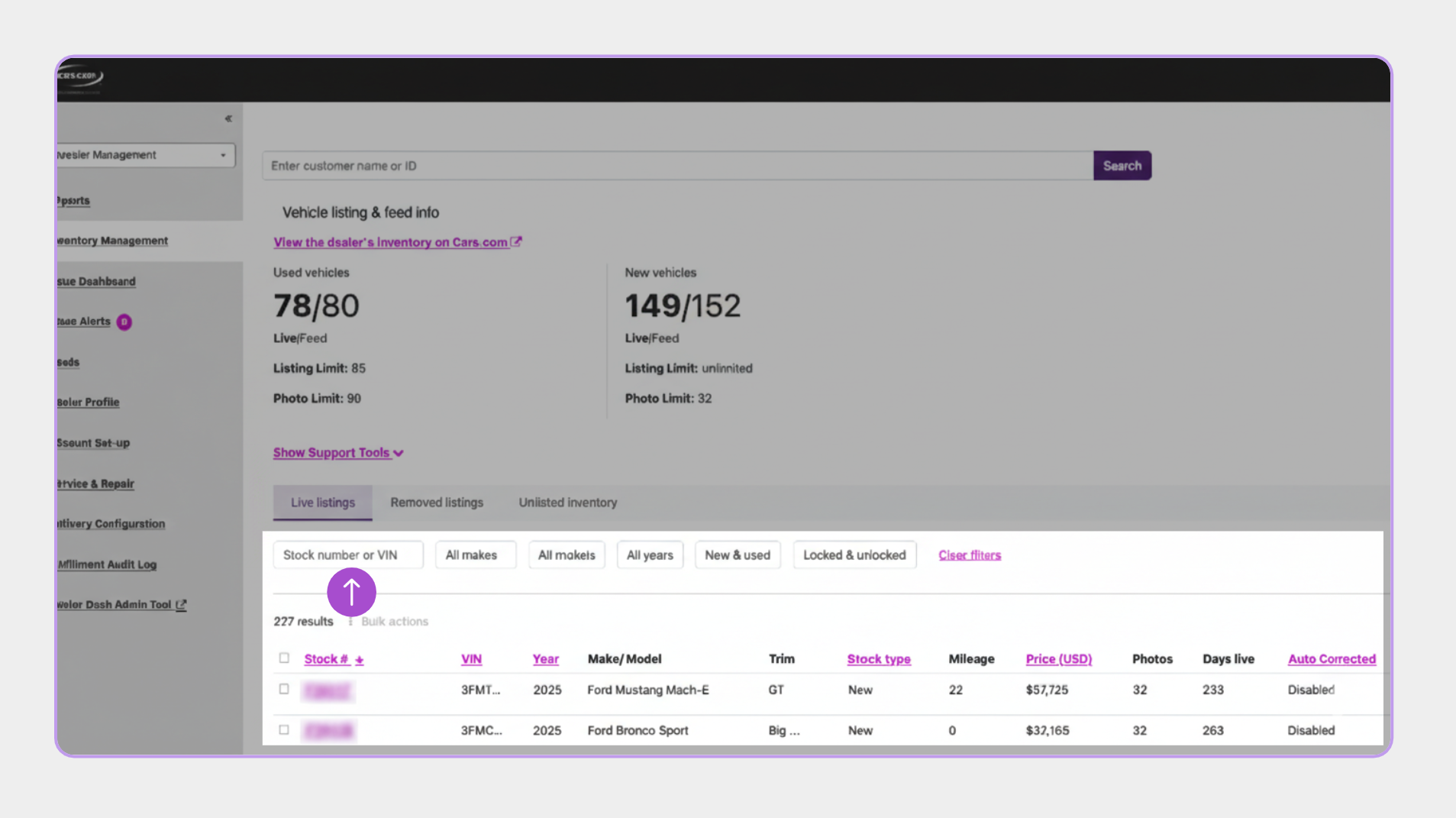
Locate the vehicle you want to edit using one of the following methods:
- Search by VIN or stock number
- Use filters to browse your inventory list
Click the vehicle to open its Vehicle Detail Page settings.
4 Review listing details
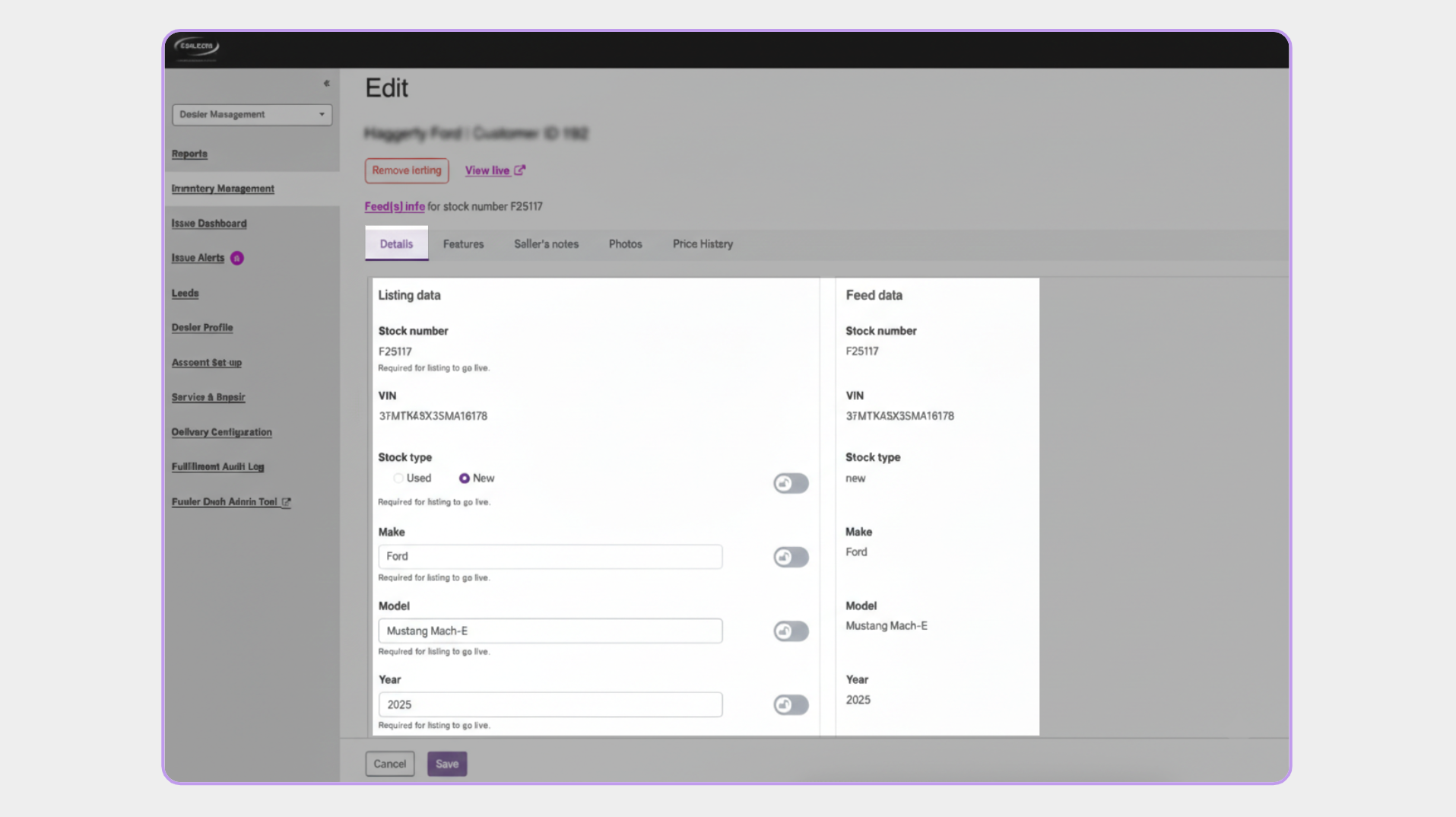
After opening the vehicle, review and update the following editable listing details as needed:
Vehicle information
- Stock type (new or used)
- Make
- Model
- Year
- Trim
- Body style
Pricing and mileage
- Price
- Mileage
Specifications
- Exterior color
- Interior color
- Transmission
- Engine
- Cylinder count
- Drivetrain
- Fuel type
- Door count
Media
- Video URL
Note: In most cases, pricing should be managed through your Inventory Management System (IMS). Price changes made directly in Dealer Dash may be overwritten during the next inventory feed refresh, which can result in pricing reverting unexpectedly.
5Check off vehicle features
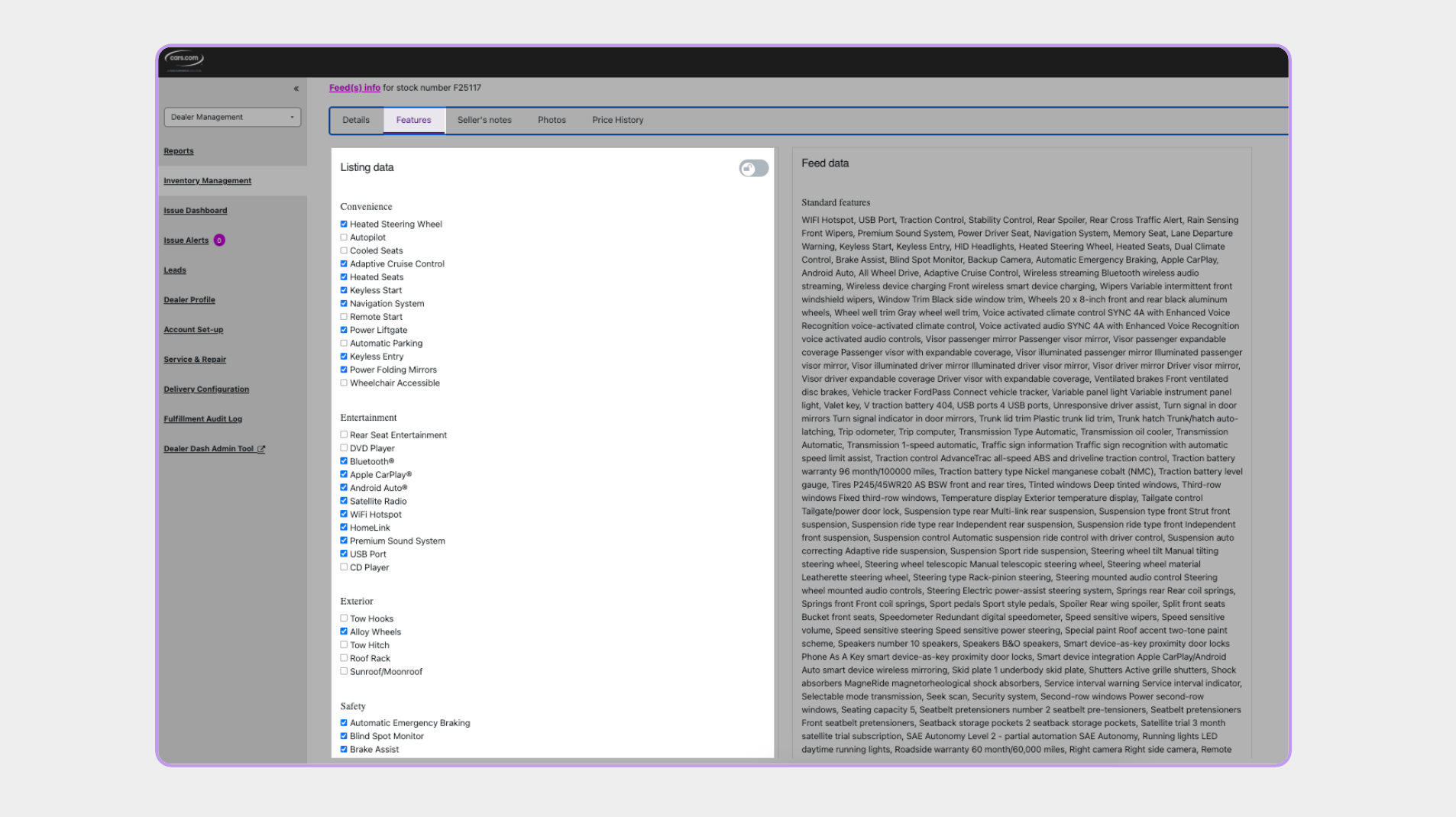
Review and update the vehicle’s feature list by checking or unchecking options in the following categories:
- Convenience
- Entertainment
- Exterior
- Safety
- Seating
Accurate feature selections help ensure shoppers can correctly filter and compare vehicles during search and research.
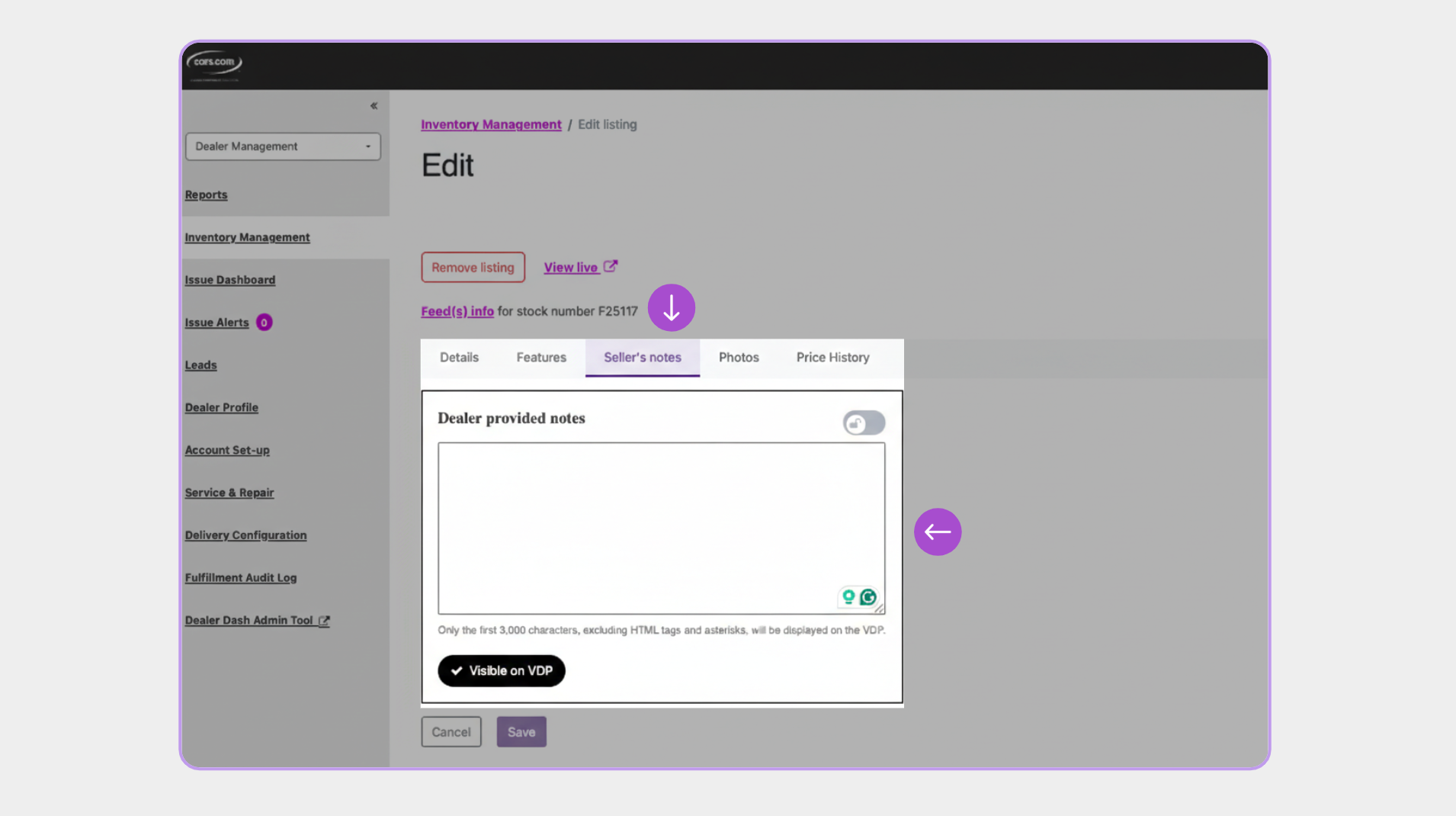
6 Add seller’s notes
Use seller’s notes to add vehicle-specific context that appears publicly on the Vehicle Detail Page.
- Add or update notes in the text box
- Confirm that all messaging is accurate, current, and specific to the vehicle
Seller’s notes can help clarify condition details, highlight unique attributes, or address common shopper questions
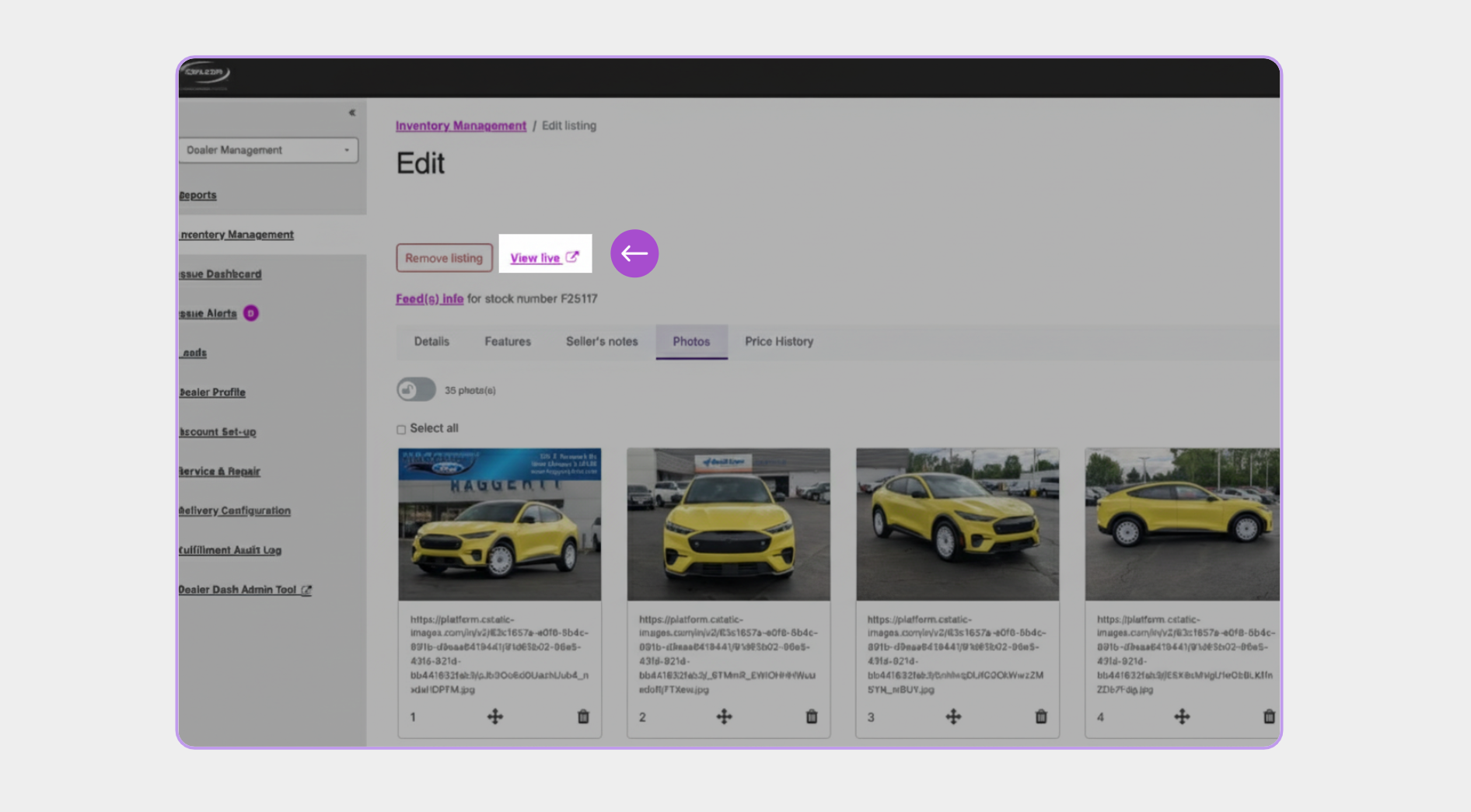
7 Review vehicle photos
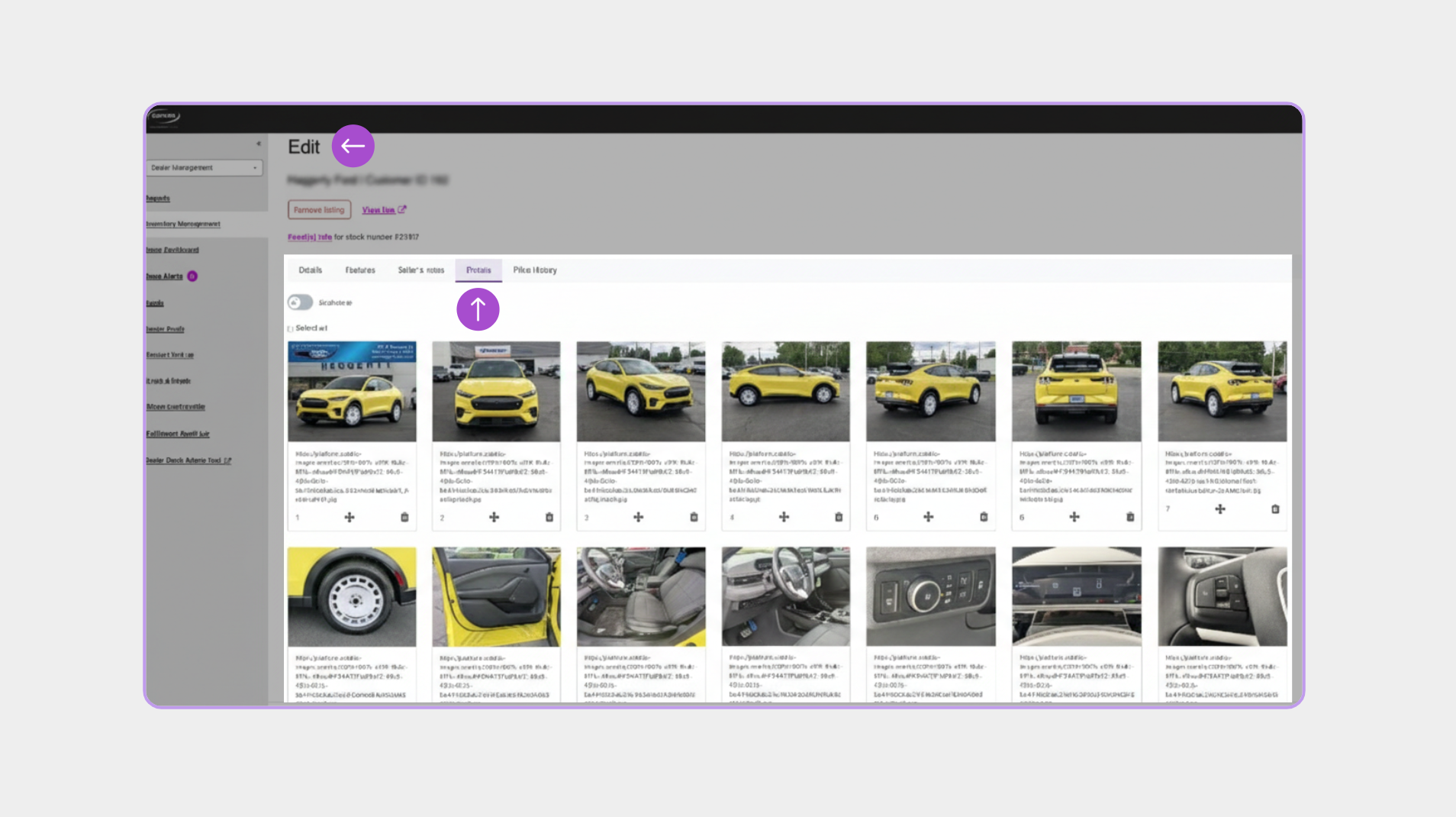
Update vehicle photos as needed to reflect the current condition and presentation of the vehicle.
- Upload new photos or replace existing images
- Reorder images to control which photo appears first
- Drag and reposition photos as needed
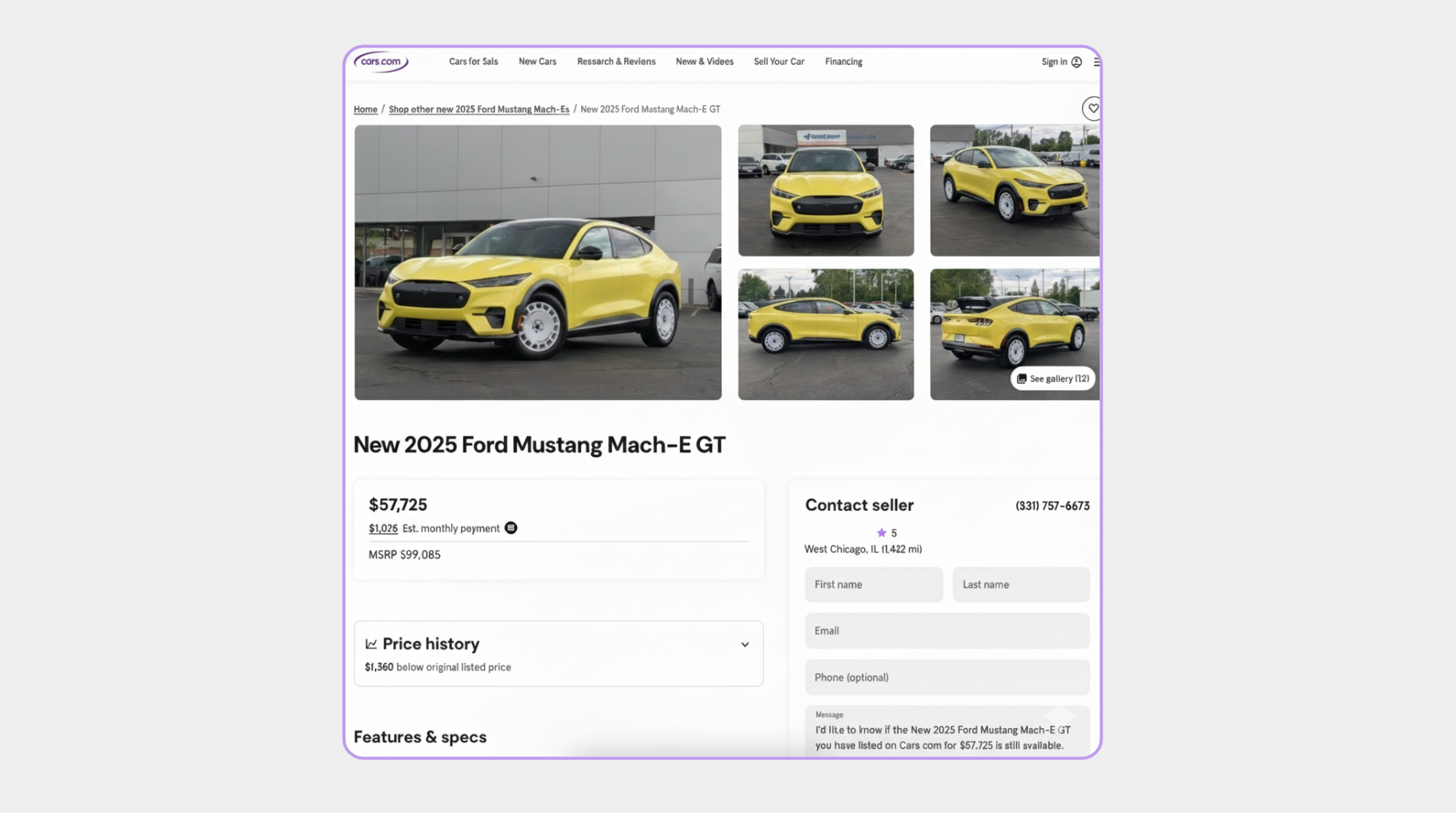
The photo order shown here matches how images appear on the live Vehicle Detail Page preview.
8 Save and review your changes
Click Save after making updates to each section to apply your changes. Once processed, updates will be published to Cars.com.
After saving:
- Click View live link to review the updated Vehicle Detail Page
- Confirm all updates appear as expected before sharing the listing with shoppers