How to create a hotkey in Conversations
Hotkeys are templated responses for common phrases you will use while chatting with a shopper on your website. This guide will help you find and create new hotkeys that your team can utilize.
To Get Started
Go to the Cars.com Hub, and click on Dealer Inspire → Conversations.
1 Navigate to hotkeys
- From the Conversations chat screen, click your name in the top-right corner
- Select Account Admin from the dropdown
- In the left-hand menu, click Hotkeys

2 Create a new hotkey
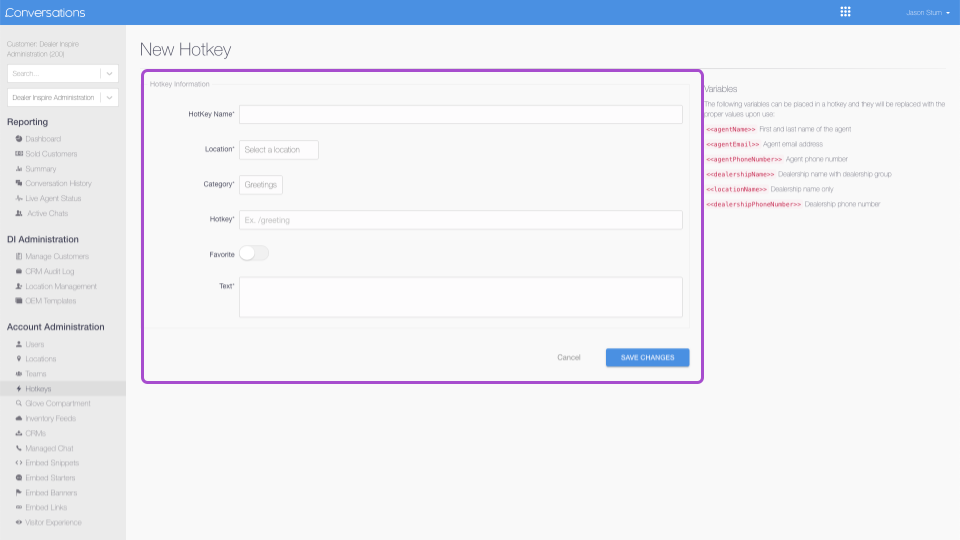
- Click Add New Hotkey
- Fill in the following fields:
- Name – internal label for the hotkey
- Location – the site or store location (if applicable)
- Category – to help organize hotkeys for easy access
- Hotkey — example /greeting
- Toggle Favorite to pin it to the top of the Hotkey list for agents
- Enter your message text
- Click Save to finish

3 Edit or Remove a Hotkey
- Click Update to edit an existing Hotkey
- Click Deactivate to remove a Hotkey from use
4 Using Hotkeys in Conversations
Agents can use Hotkeys while chatting with customers by:
- Clicking Hotkeys in their chat toolbar
- Typing / in the message box to search and insert a Hotkey