How to conduct showroom appraisals
Anyone in your showroom can quickly appraise a vehicle using the AccuTrade mobile app. AccuTrade’s precise appraisals protect your profit margins, while the transparent process builds trust with customers by allowing them to:
- See exactly what’s being entered (vehicle details, condition, etc.) without feeling like information is being hidden from them
- Only see the relevant information to their transaction, not what you may pay or target for resale later
To get started
Open the AccuTrade Appraiser app on your mobile device and log in.
1 Start the appraisal
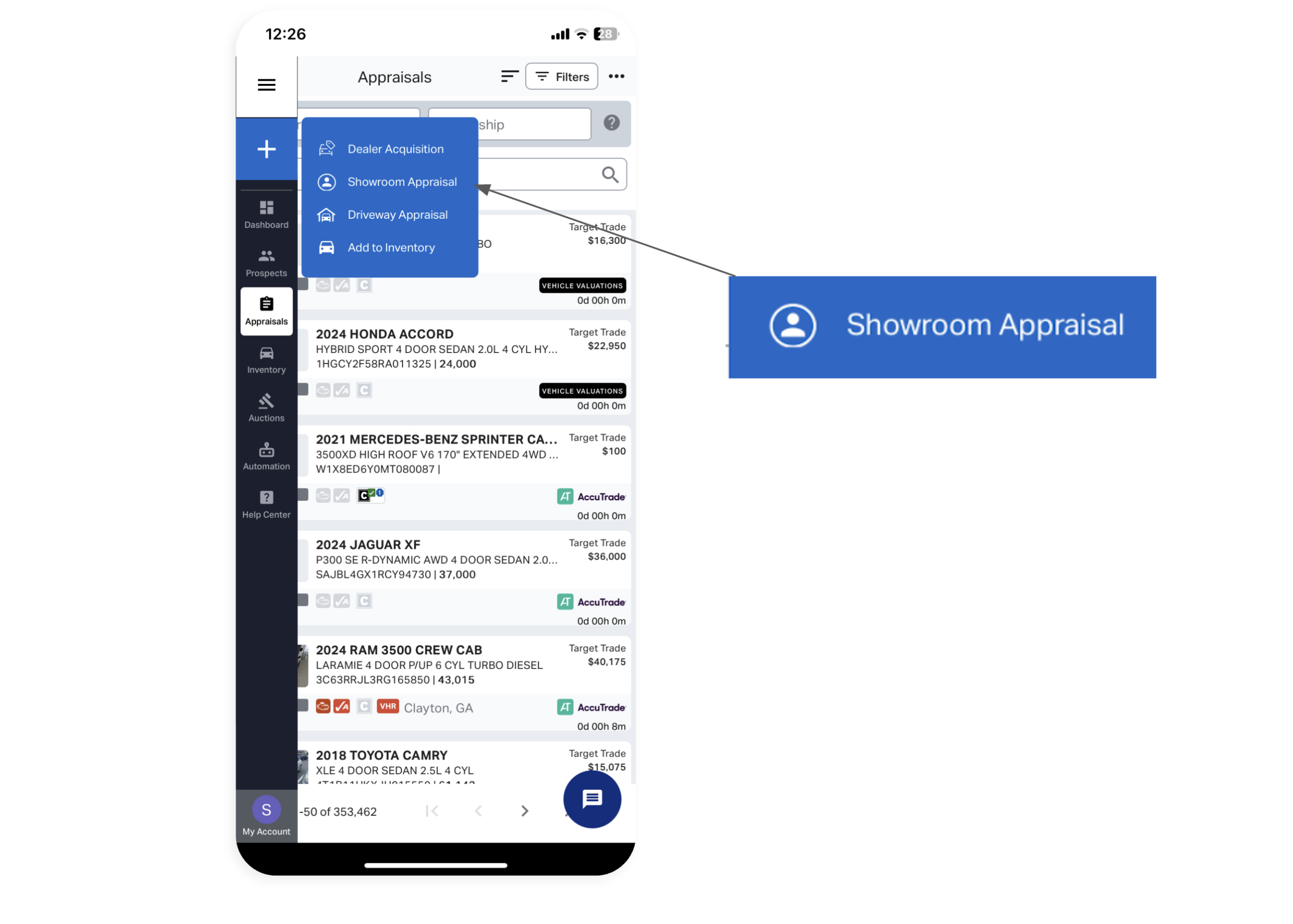
Tap the 3 lines in the top left corner to open the menu options, then tap the plus (+) sign in the top-left and select Showroom Appraisal to begin your appraisal. This view automatically hides the Price Bar, keeping the numbers concealed from the customer.
2 Enter the VIN
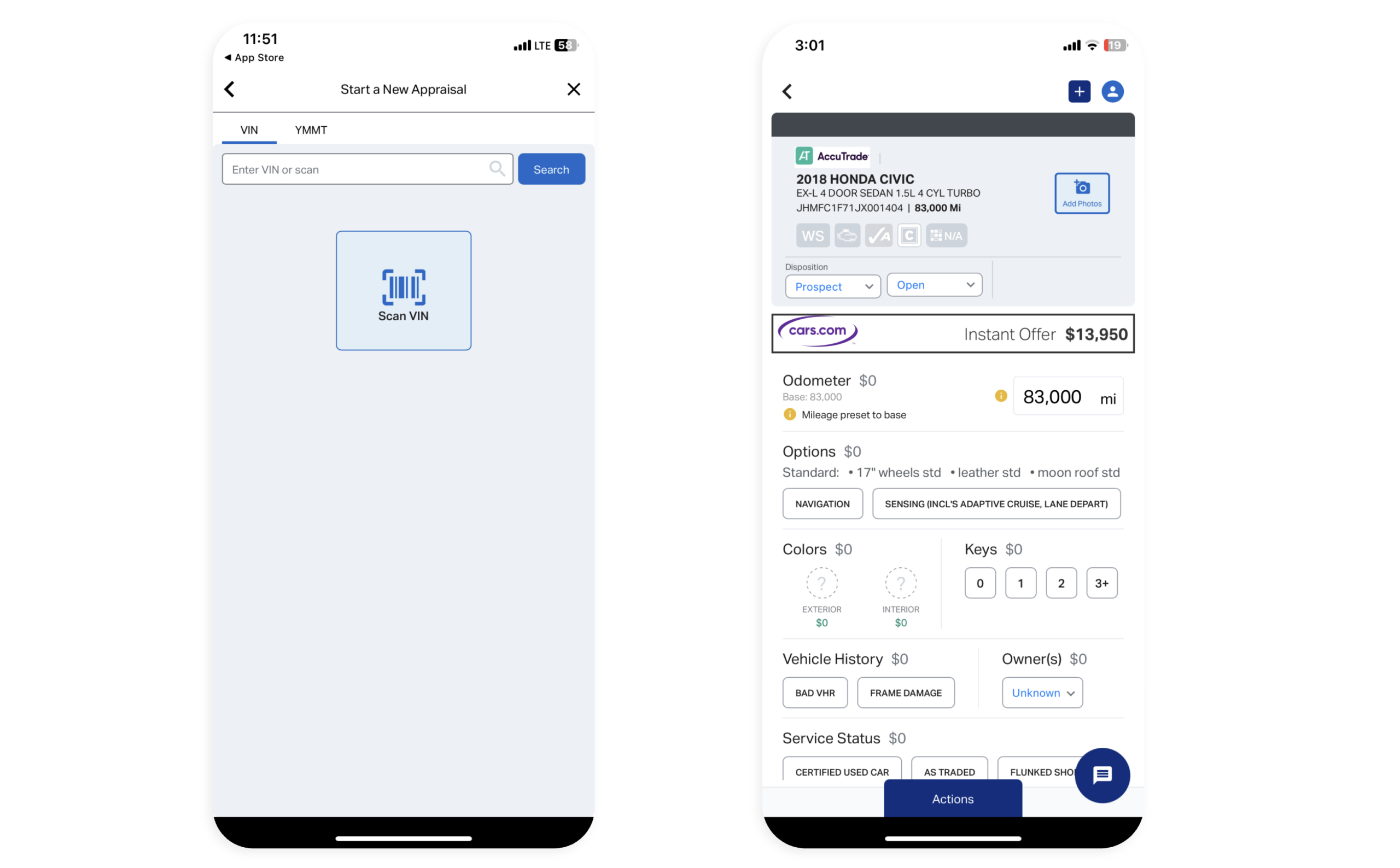
To begin the appraisal, tap Scan VIN or enter the VIN number in the search bar and select Search. Alternatively, you can select the YMMT option to run a less precise appraisal based on the vehicle’s year, make, model, and trim.
After the VIN or vehicle trim is selected, the appraisal report will populate on the screen.
3 Run the OBD scan
Run the OBD scan to uncover any diagnostic issues:
- With the vehicle running, plug the OBD device into the port under the steering wheel.
Note: You’ll need to have your Bluetooth on. For original BlueDriver devices, you’ll pair via Bluetooth first. For new LE devices, you’ll allow Bluetooth connection in the app. (See How to connect your OBD scanner for more details.) - In the app, Select Actions at the bottom of the screen, then select Start BlueDriver Scan.
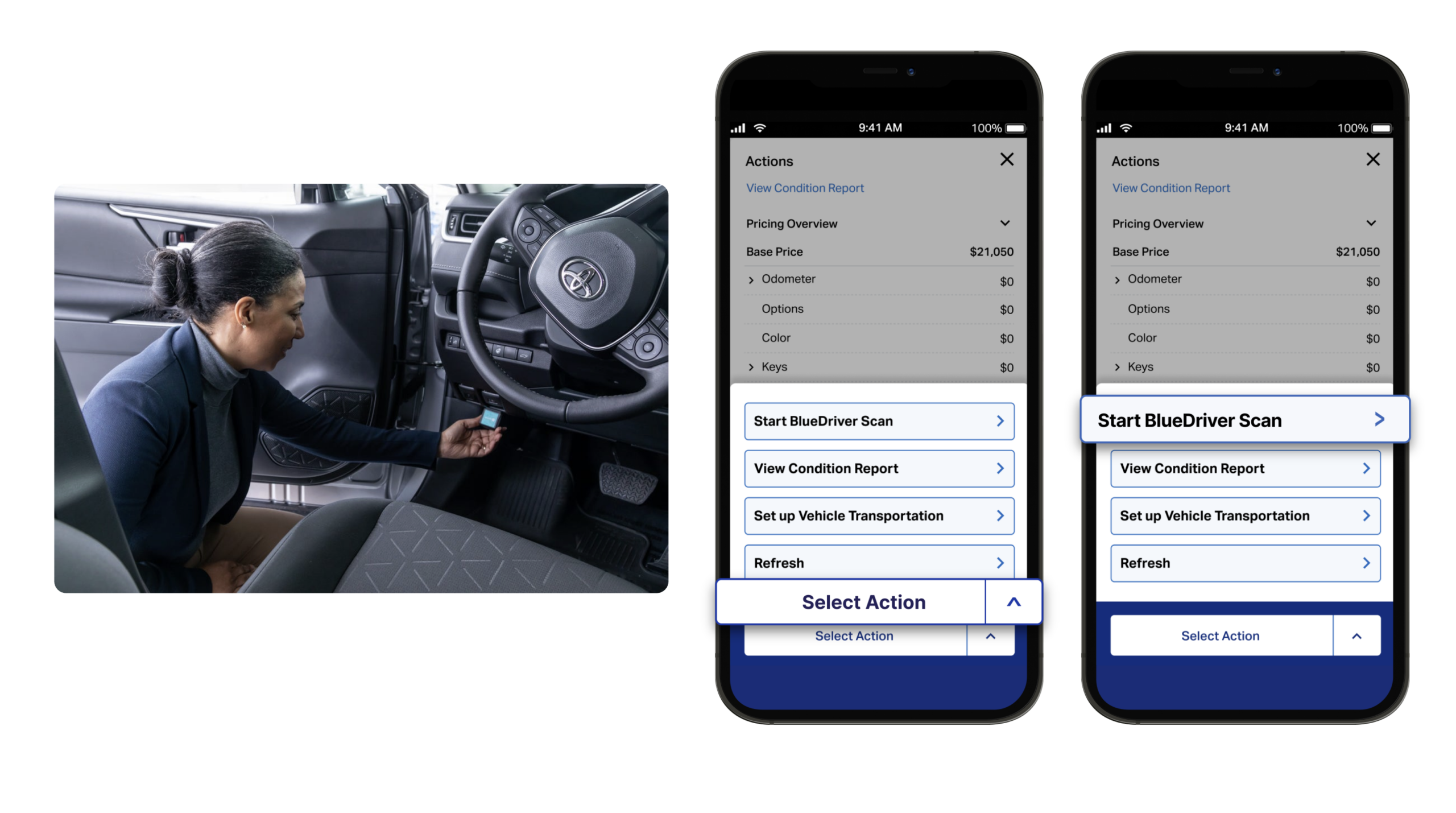
Any disclosures from the OBD scan are automatically deducted from the Instant Offer value. You can reveal the detected codes by selecting the Engine icon after the scan is complete.

4Complete the appraisal
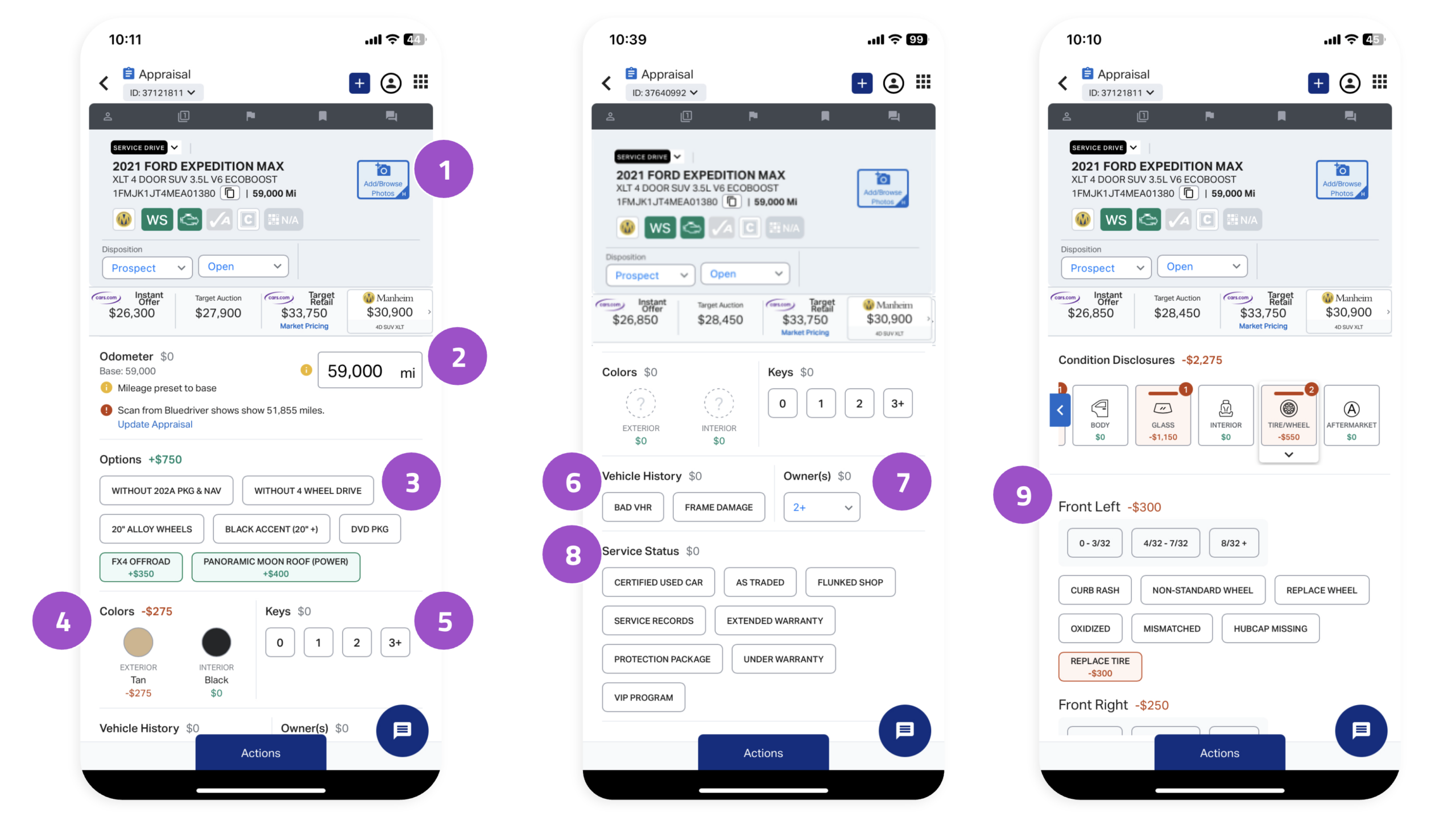
Walk around the vehicle to find any additional value-impacting disclosures to hone in on the right price. For example, if there is body damage, select the Body icon and select the damaged area(s). Any manual adjustments made will update the Instant Offer accordingly.

A complete appraisal should also include:
- 11+ vehicle photos
- Exact mileage on the odometer
- Options
- Exterior and interior colors
- Number of keys
- Vehicle history report (CARFAX/AutoCheck)
- Number of owners
- Service status
- Tire tread depth measurement
Review each section and confirm, add details, or adjust to ensure maximum appraisal accuracy.
5 (Optional) Modify the Instant Offer
You can modify the Instant Offer price to make a more competitive offer to the customer. Note, however, that AccuTrade will only honor the Instant Offer price before any dealer adjustments.
To modify the Instant Offer:
- Tap the square of dots in the top-right corner.
- Select Universal Condition Report.
- Select Override Value, then enter the modified price.
(Note that the modified value is only displayed in the Condition Report.)

6 Walk the customer through the Universal Condition Report and offer
Present the Universal Condition Report to the customer and walk them through the details.
To pull up the Universal Condition Report:
- Tap the square of dots in the top-right corner.
- Select Universal Condition Report.

Showing the customer the “why” behind the price reduces confusion and builds trust, making you more likely to close the deal.

You can also email/text the report or generate a print-ready PDF copy for the customer by selecting Email.