How to use the transportation costs tool
DealerClub offers integrated transport services through Preowned Auto Logistics, a third-party automotive logistics provider. Transportation costs are calculated automatically based on your dealership’s location. When finalizing a purchase after winning an auction, you can choose to use this service or arrange your own transport.
In this article, you’ll learn how to view transport costs before placing a bid, add a vehicle pickup address to your dealer profile, select a transport option when finalizing an auction, and view the transport status of a won vehicle.
To get started
Go to the Cars.com Hub and click on DealerClub.
1 View transport costs
Before placing a bid, you can view the estimated transport cost for a vehicle directly from the auction listing:
1. Go to the Auctions tab and select the vehicle you’re interested in.
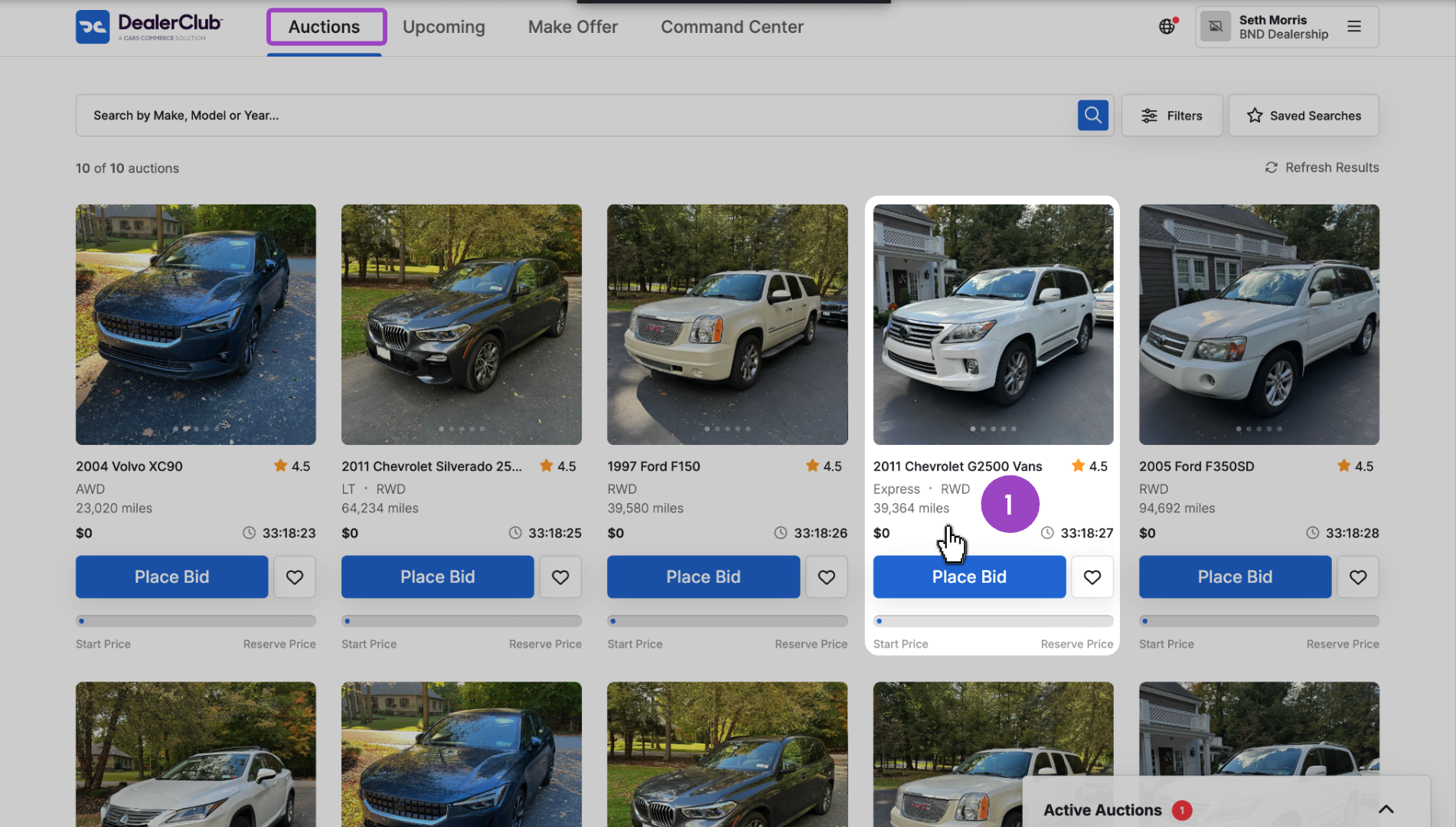
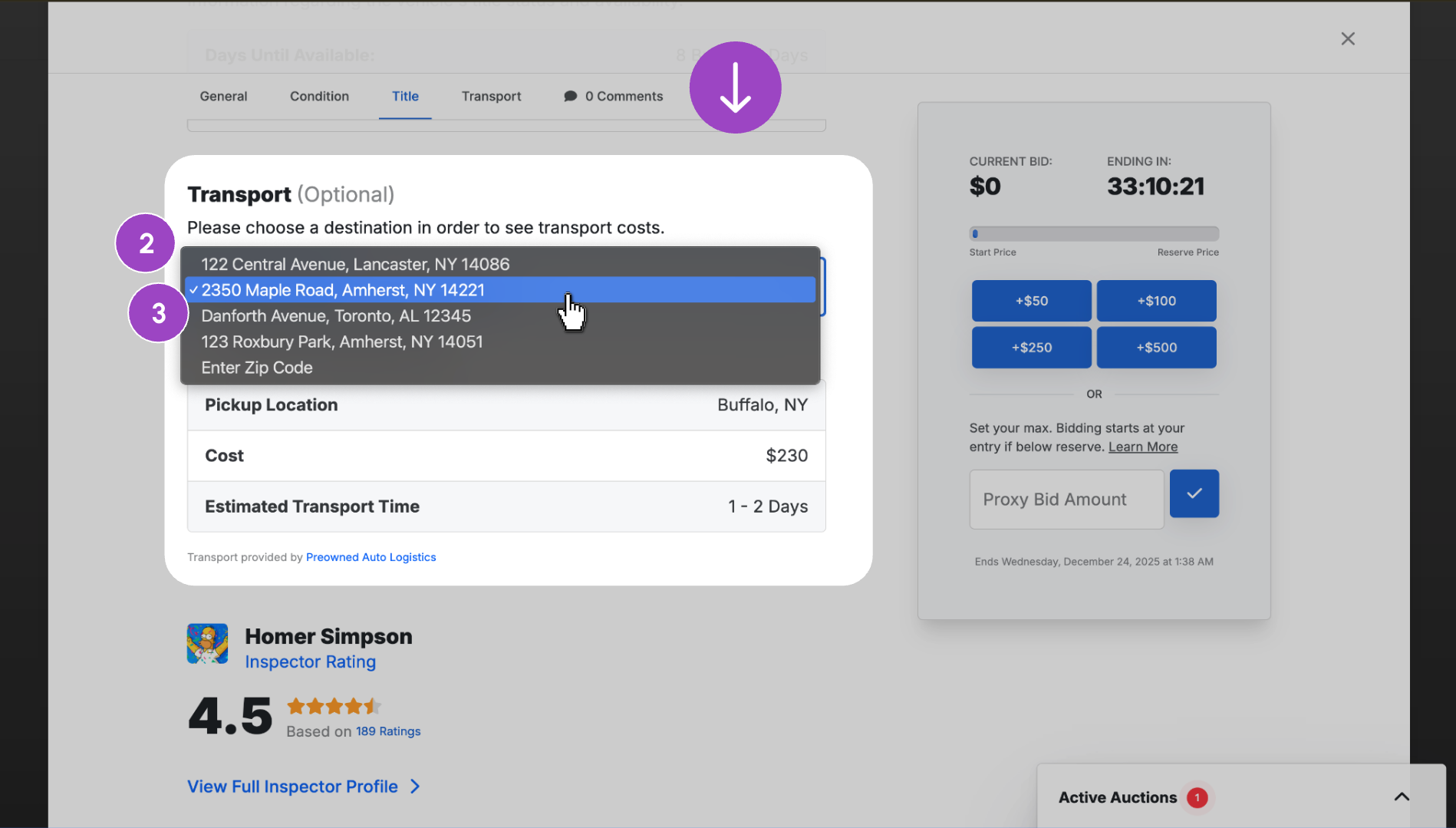
2. Scroll down to the Transport section and click the Transport Destination drop-down menu.
3. Select an address from the list, which is populated from your Dealer Info, or select Enter Zip Code to enter a zip code manually.
4. The cost and estimated transport time will automatically update based on the selected location.
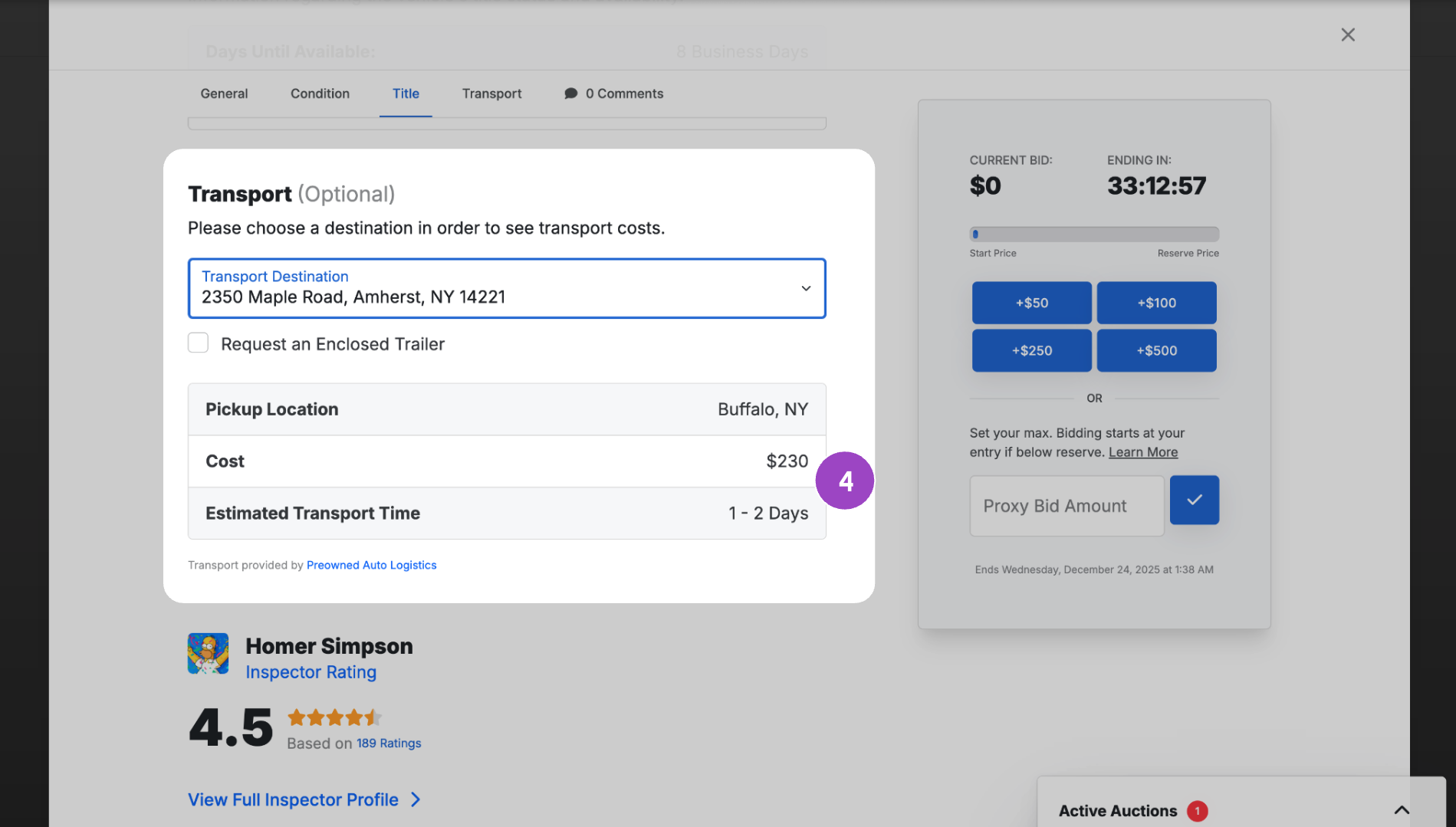
Note: Before placing a bid, consider factoring in transport costs, the DealerClub buy fee, and any extended guarantees you plan to select, in addition to the vehicle price.
2 (Optional) Add a vehicle pickup location
If your vehicle pickup location differs from your registered dealership address, you can add it to your dealer profile. Once added, the address will appear in the Transport Destination drop-down menu on auction pages.
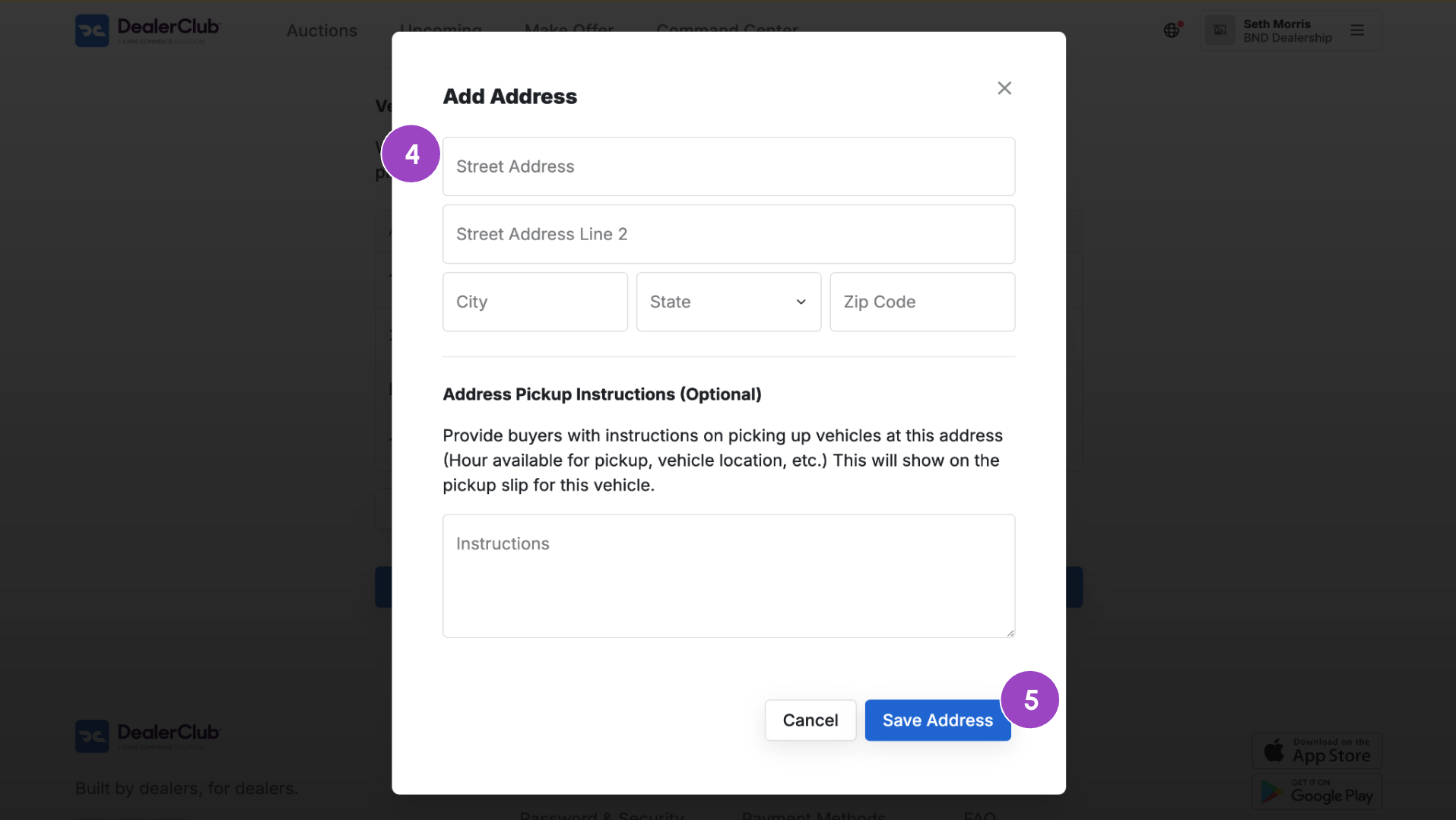
To add a new vehicle pickup location:
1. Click Dealer Info in your profile menu.
2. Scroll down to the Vehicle Pickup Address section.
3. Click + Add Additional Address.
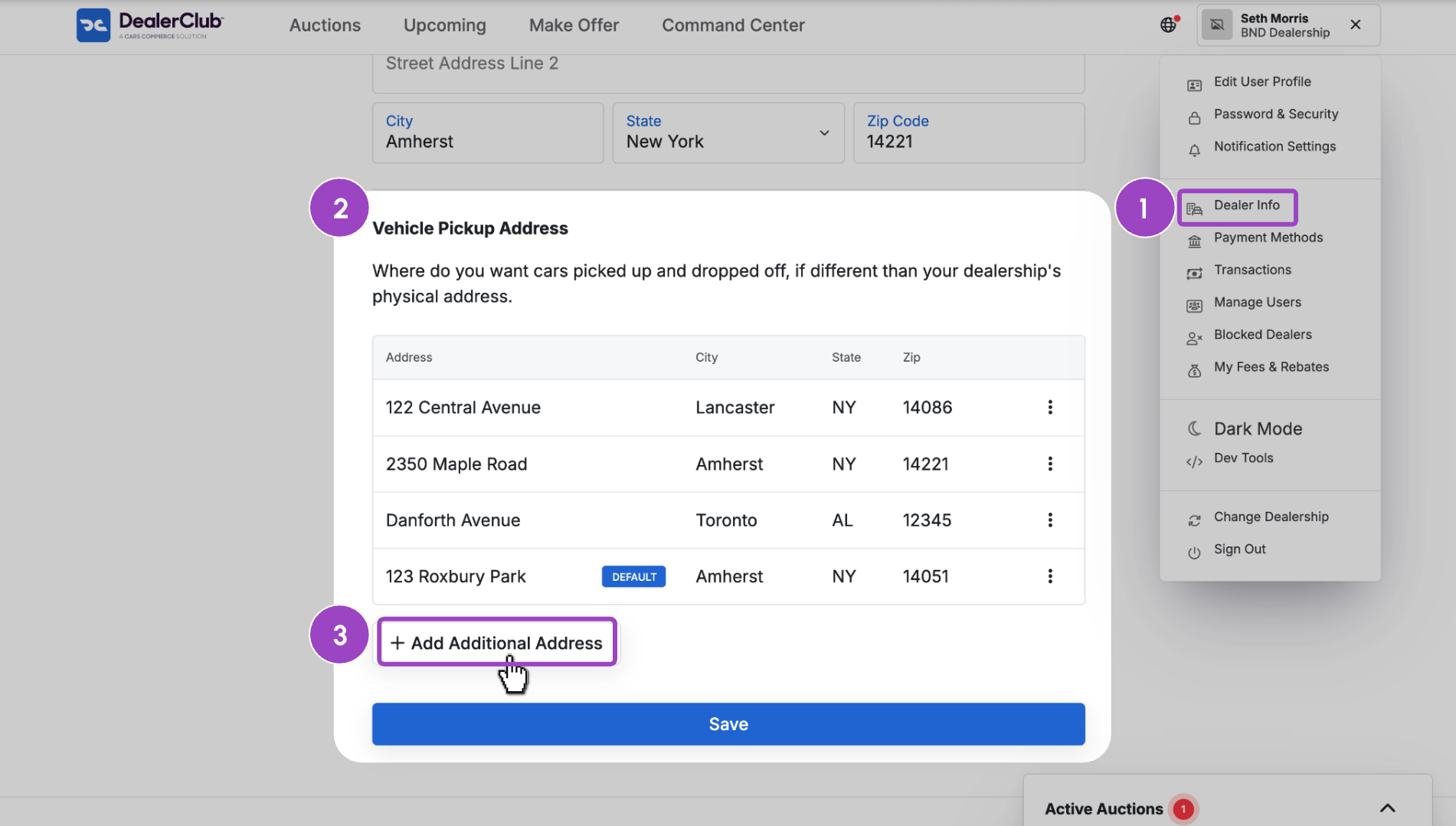
4. Enter the address
5. Click Save Address.
3Select a transport option when finalizing an auction
After winning an auction, you can select your transport preference when finalizing your payment:
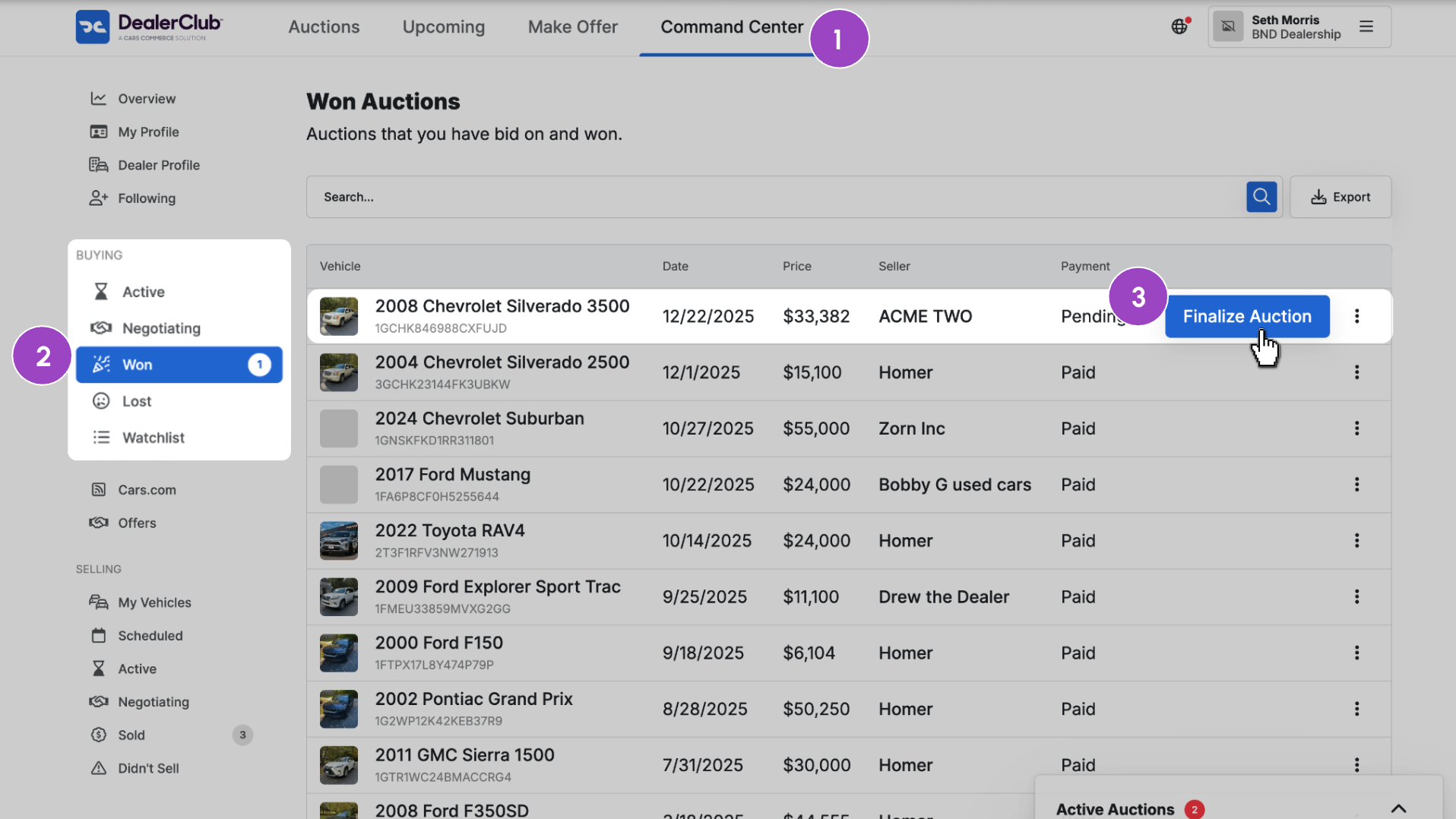
1. Click the Command Center tab.
2. Select Won under Buying.
3. Click the Finalize Auction button for the vehicle.
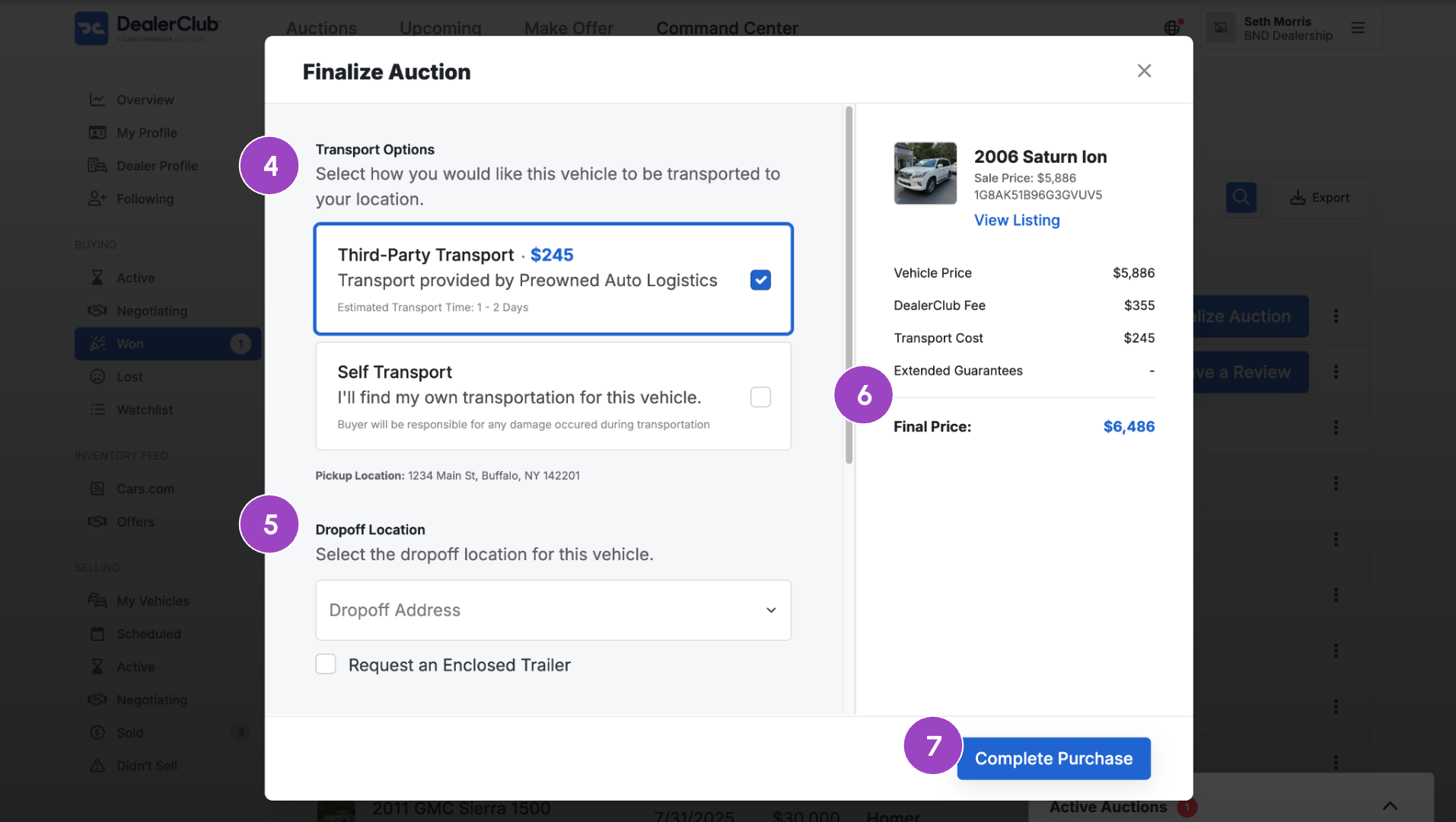
4. Select Third-Party Transport or Self Transport.
5. Review and select other options (Dropoff Location, Payment Method, and Extended Guarantees).
6. Review costs and Final Price.
7. Click Complete Purchase.
4View transport status
After completing your purchase, you can check the vehicle’s transport status and download a pickup slip from the auction listing:
- Click the three-dot menu for the vehicle.
- Select Post Auction Status.
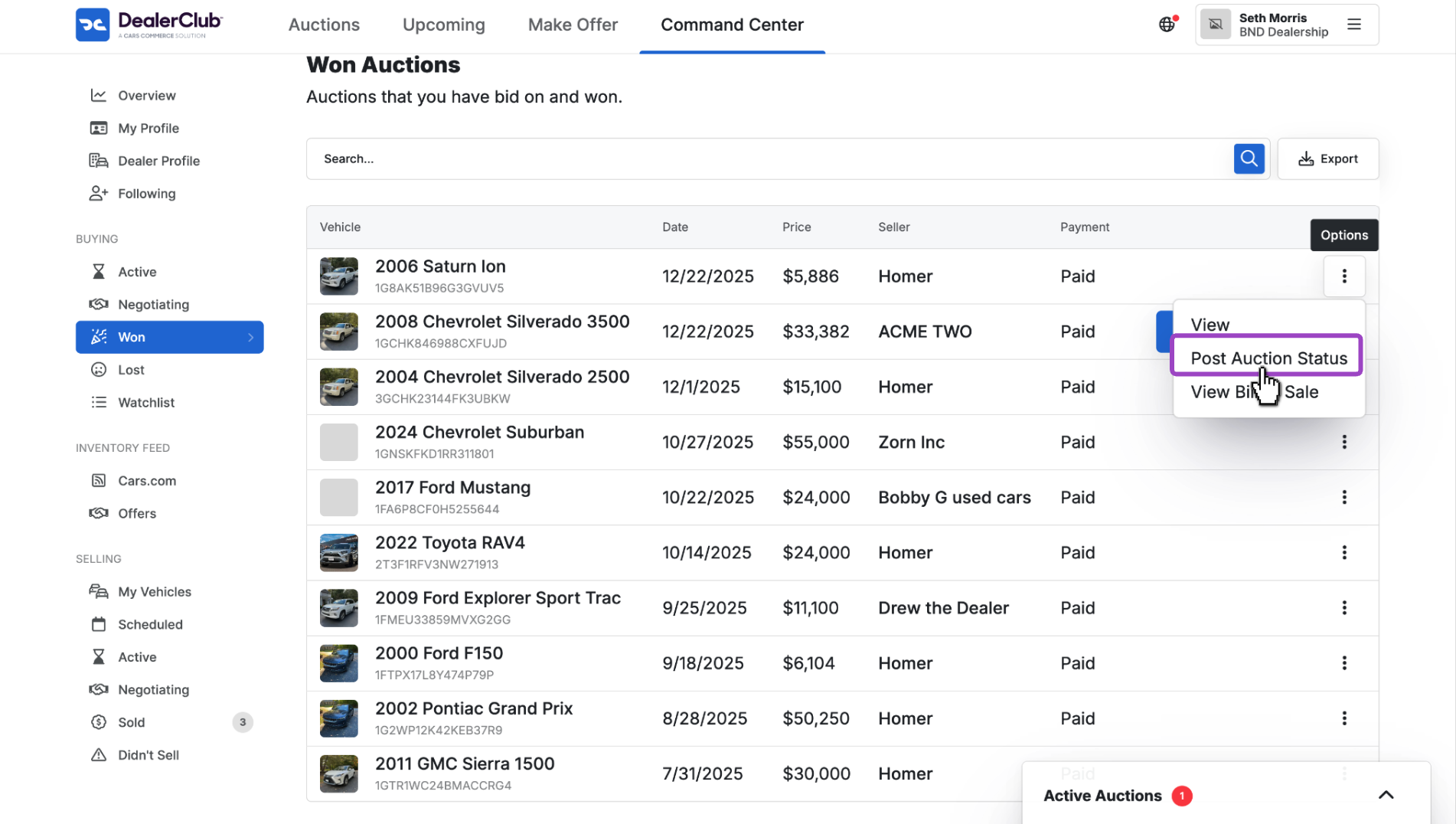
- Select the Transport tab.
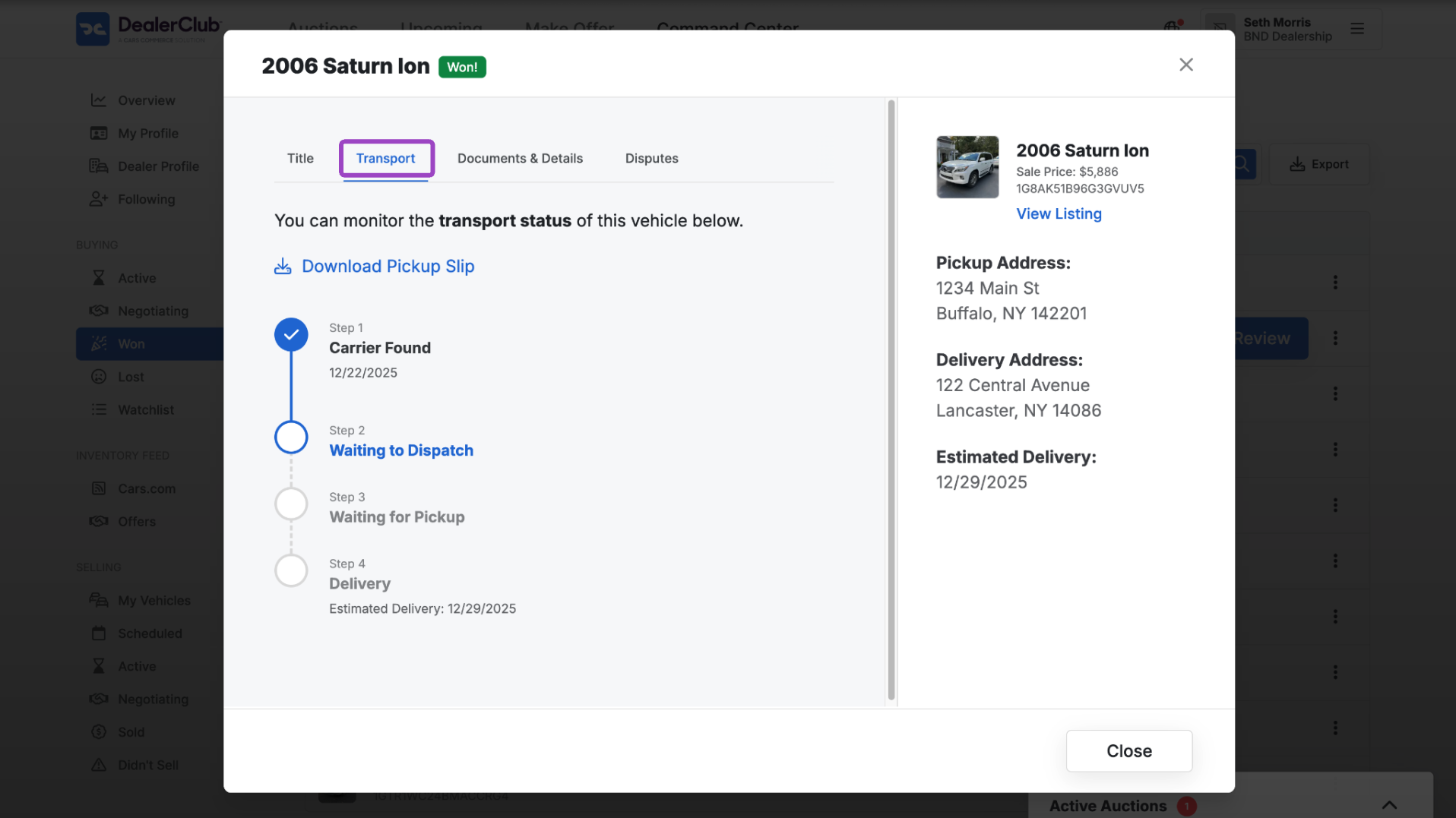
From the Transport tab, you can download Pickup Slip. If you selected the Third-Party Transport option, the vehicle’s current transport status will also be displayed here.


