How to access your Connections & Contact Details report
The Connections report provides a 13-month view of how shoppers are interacting with your inventory — including a detailed breakdown of leads sent to your CRM from Cars.com. Use this data to compare activity with your internal CRM reporting, improve lead quality assurance, and support accurate sales attribution.
A Connection is any action a shopper takes on your inventory, like website transfers, printing the VDP, viewing driving directions, and more. A Lead is a subset of Connections that includes shopper contact information and routes directly to your CRM, like a chat, email, or phone call.
To get started
Go to the Cars.com Hub.
1 Find your reporting in the Hub
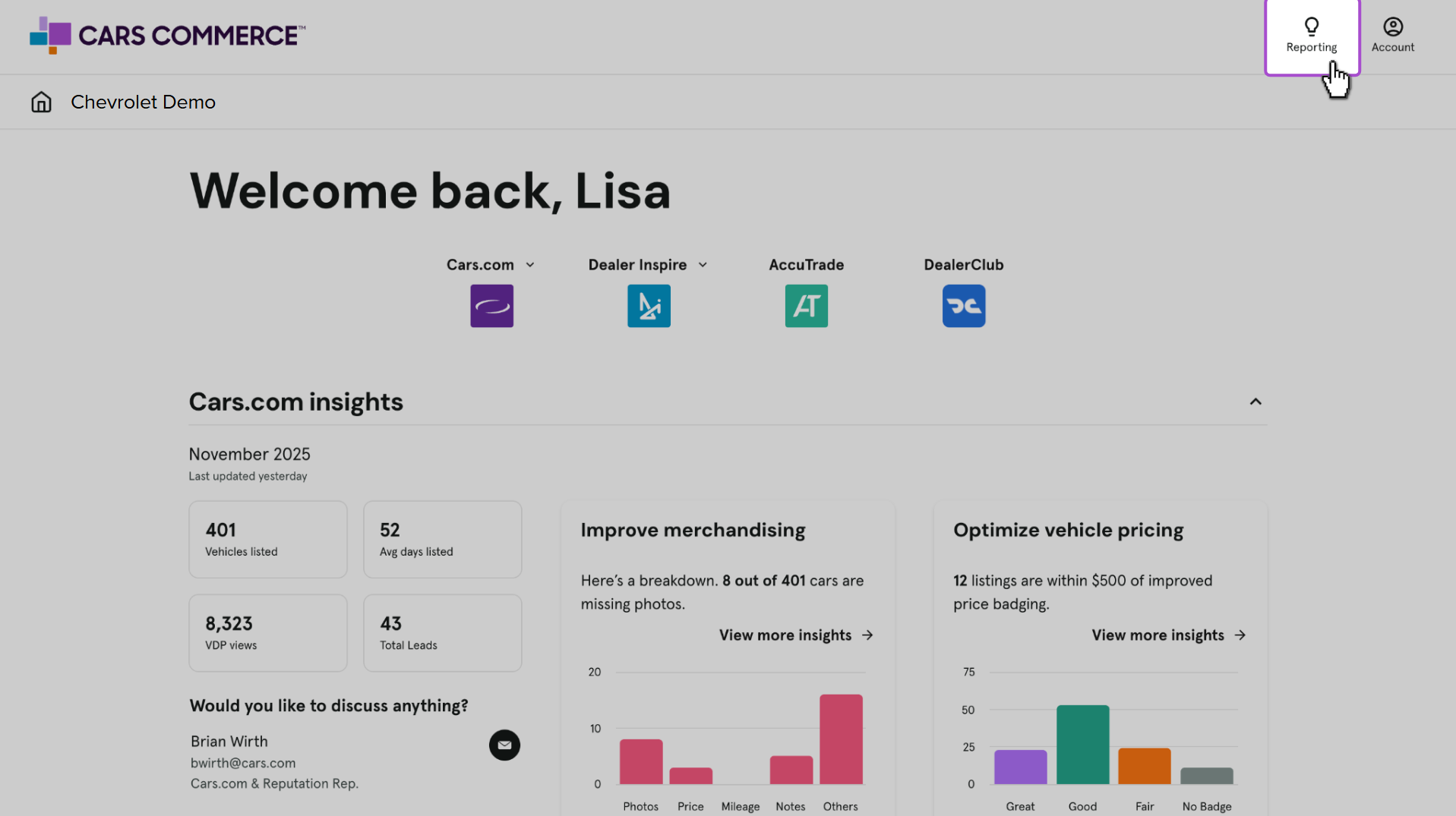
Once logged into the Hub, click Reporting, then Cars.com.
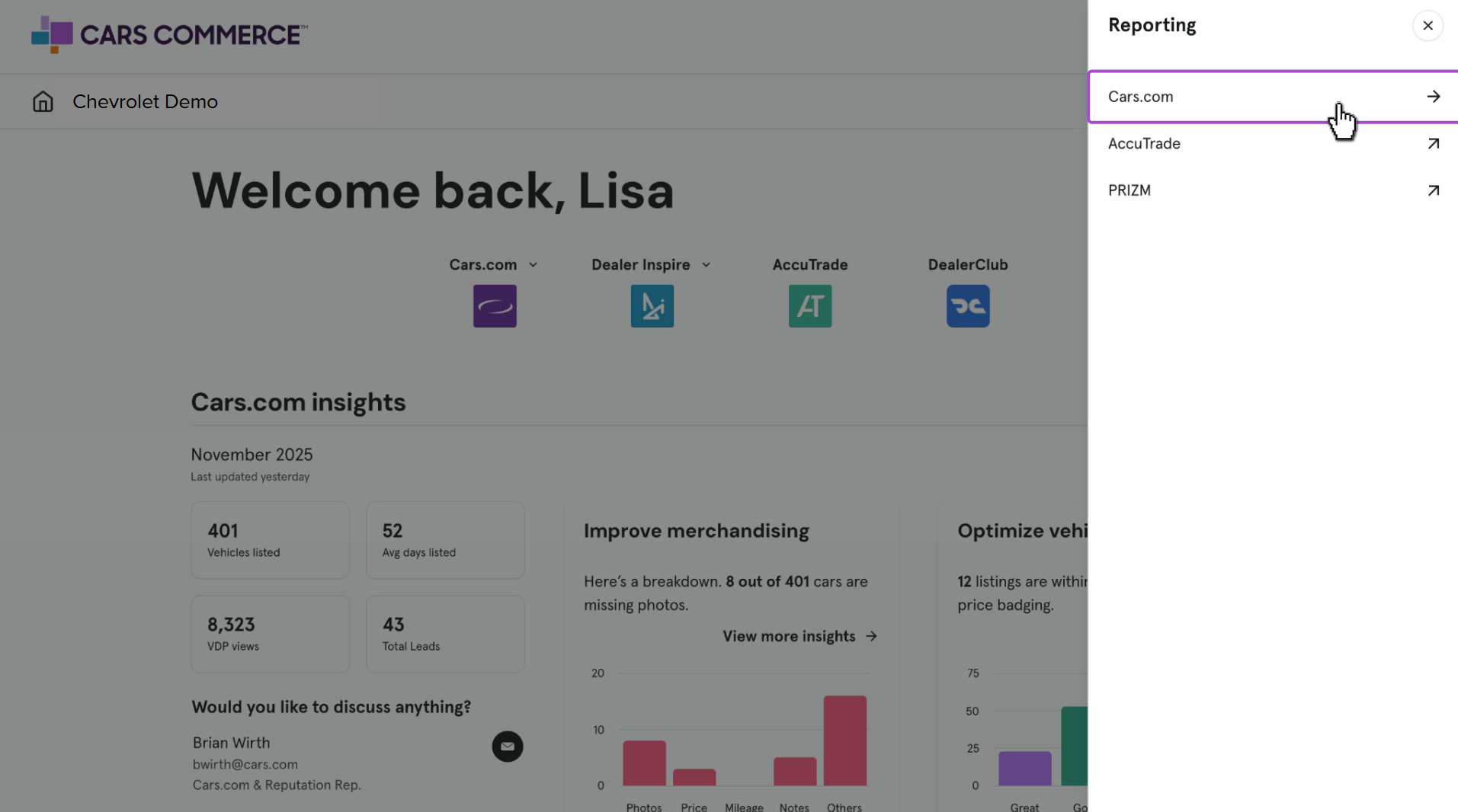
2Open the Connections Report
Click Customer Engagement, then Connections and Contact Details.

3 Using the filters and view option
In the Connections tab, you can filter and analyze your lead activity:
Filter Options:
- Date Range: Select 4, 7, or 13-month views.
- Connection Type
- Stock Type
- DMA
Metrics Displayed:
- Total Connections: Sum of all shopper connections in the selected period.
- Mobile Connections: Percent of connections that came from mobile devices.
- Connections – Previous Month: Total in the last full calendar month.
- Connections – MTD: Total in the current Month-to-Date.
- Connections – Last 7 Days: Shopper connections from the last 7 days.
The stacked bar chart displays connection types by color per month. Hover over each section to view a breakdown of individual connection types.

4 Toggle between view modes
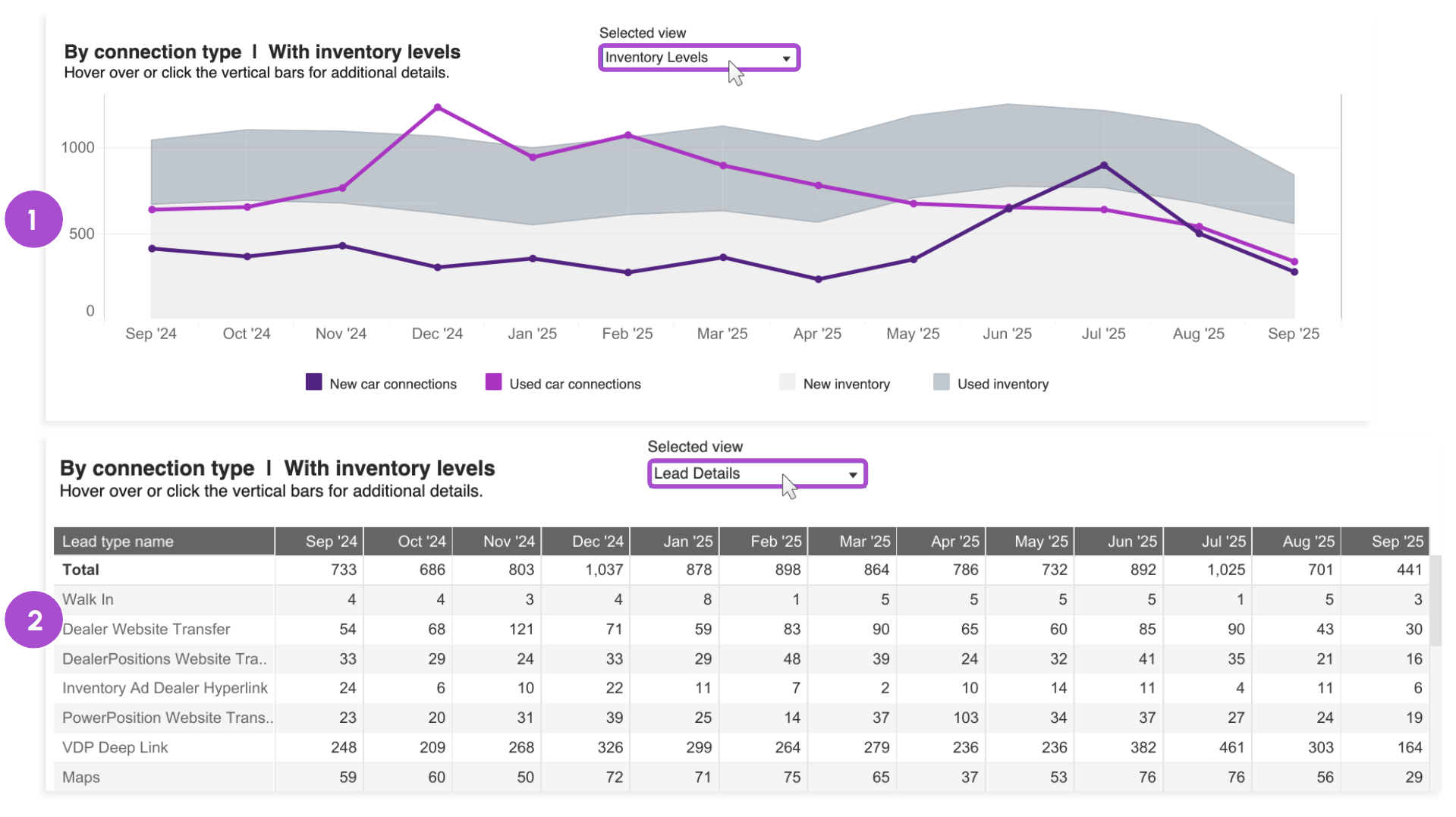
Use the Selected View dropdown to switch between:
- Inventory Levels: Displays monthly new and used inventory levels, overlaid with a trend line of new/used connections. Use this to evaluate whether changes in inventory affected shopper activity.
Lead Details: A tabular view showing all connection types received each month.
5 View Contact Details
Switch to the Contact Details tab for lead-level data. You can filter by:
- Date (From/To): Maximum 4-month range
- Connection Type: Note — “Web Transfer” and “Other” connections do not include shopper contact info. These are tied only to the vehicle of interest.
- Stock Type: Filter by New, Used, or CPO. The “Dealer” category tracks profile views not tied to a specific vehicle.
- Source: Breaks down connection types like “Used Car Email Lead.”
- Export: Download the full table as a .csv or .xlsx file.

6 Review lead interactions
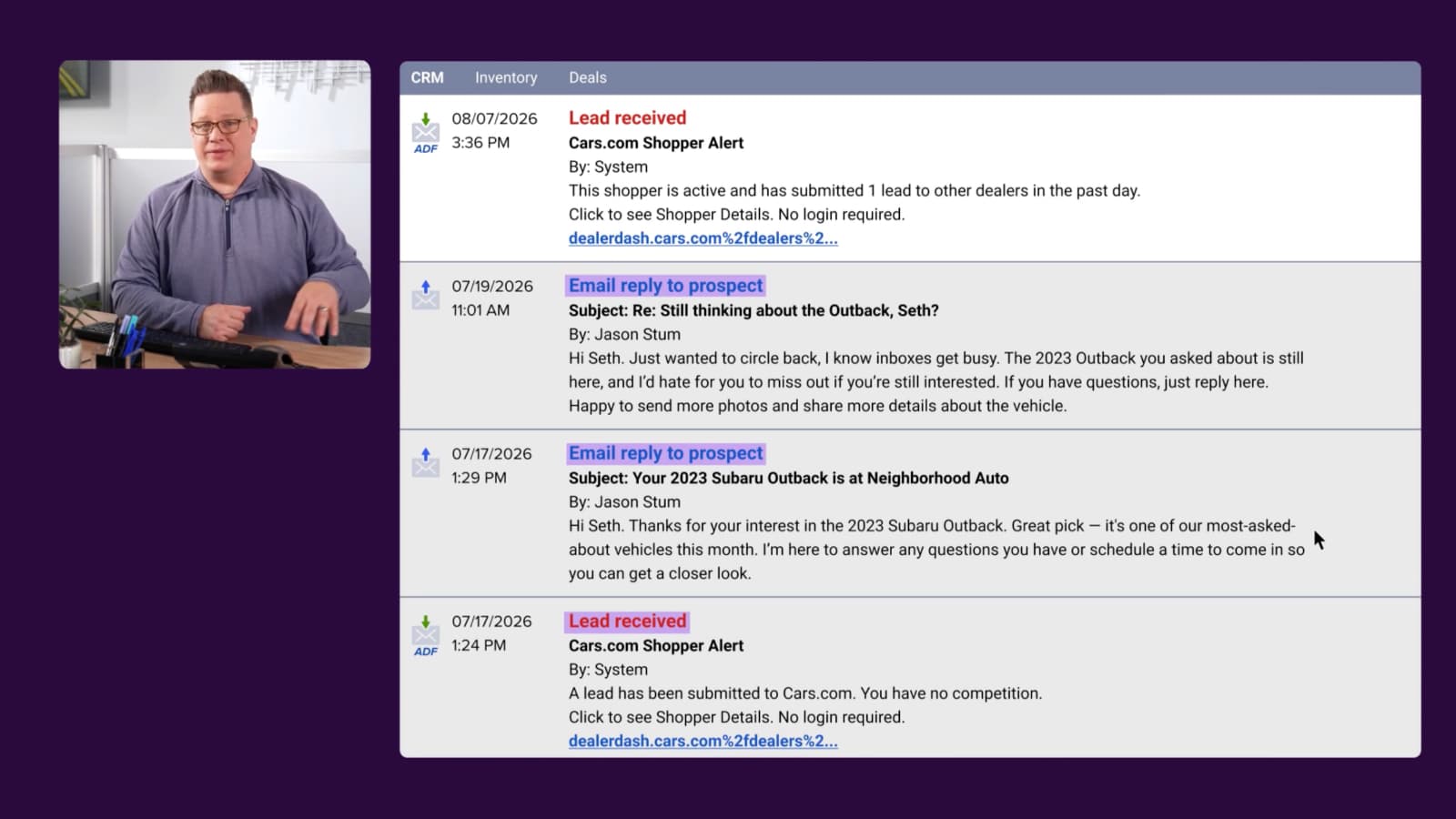
Each connection in the table links to CRM-delivered lead details, including:
- Email Leads: Hover over the email icon to read the shopper’s full message.
- Phone Leads: If call recording is enabled, click the play icon to listen to the recording.
- Chats: Hover over the chat icon to read the entire transcript, including bot and human responses.
Note: Personally identifiable information (e.g., name, email, stock number, VIN) is redacted in screenshots for privacy.