How to connect your OBD scanner
Using the BlueDriver OBD Scanner paired with the AccuTrade App allows anyone at the store the flexibility to conduct appraisals around your dealership, uncovering mechanical issues that you can’t see so you can conduct accurate appraisals and produce instant cash offers for your sellers.
This article explains how to connect a BlueDriver OBD scanner to the AccuTrade mobile app and verify that it is working correctly before starting appraisals.
IMPORTANT NOTE
BlueDriver released a new LE version of their OBD scanner. This article outlines the steps to take for both devices. You’ll guided toward the path that works for you.
How do I know which version I have?
The new LE Scanners were released in January 2026. If you received your BlueDriver OBD device prior to this date, it is the original version. If you received a new scanner following this date, yours is the new LE version.
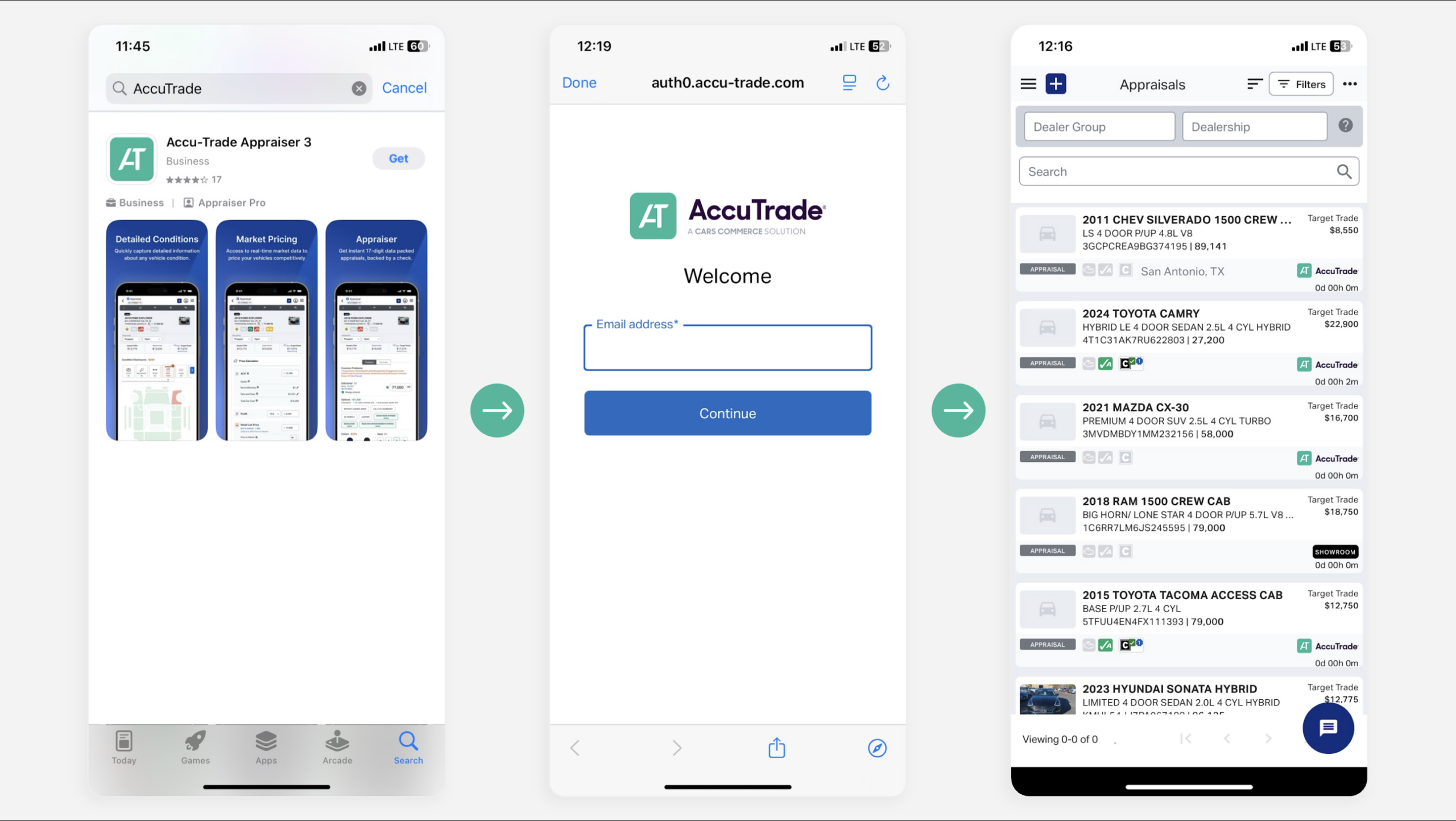
1 Download the AccuTrade app
Open the Apple App Store or Google Play Store, download the AccuTrade app, and log in to your account with your dealership email address and password.
2Plug in the OBD device
Walk out to a vehicle on your lot and start it. With the vehicle running, locate the OBD port (typically under the steering wheel) and plug the BlueDriver OBD scanner into the port.
IMPORTANT NOTE
For dealers who have the original version, continue reading. For dealers who have the new version, skip to step four.
ORIGINAL SCANNER
3Pair to Bluetooth
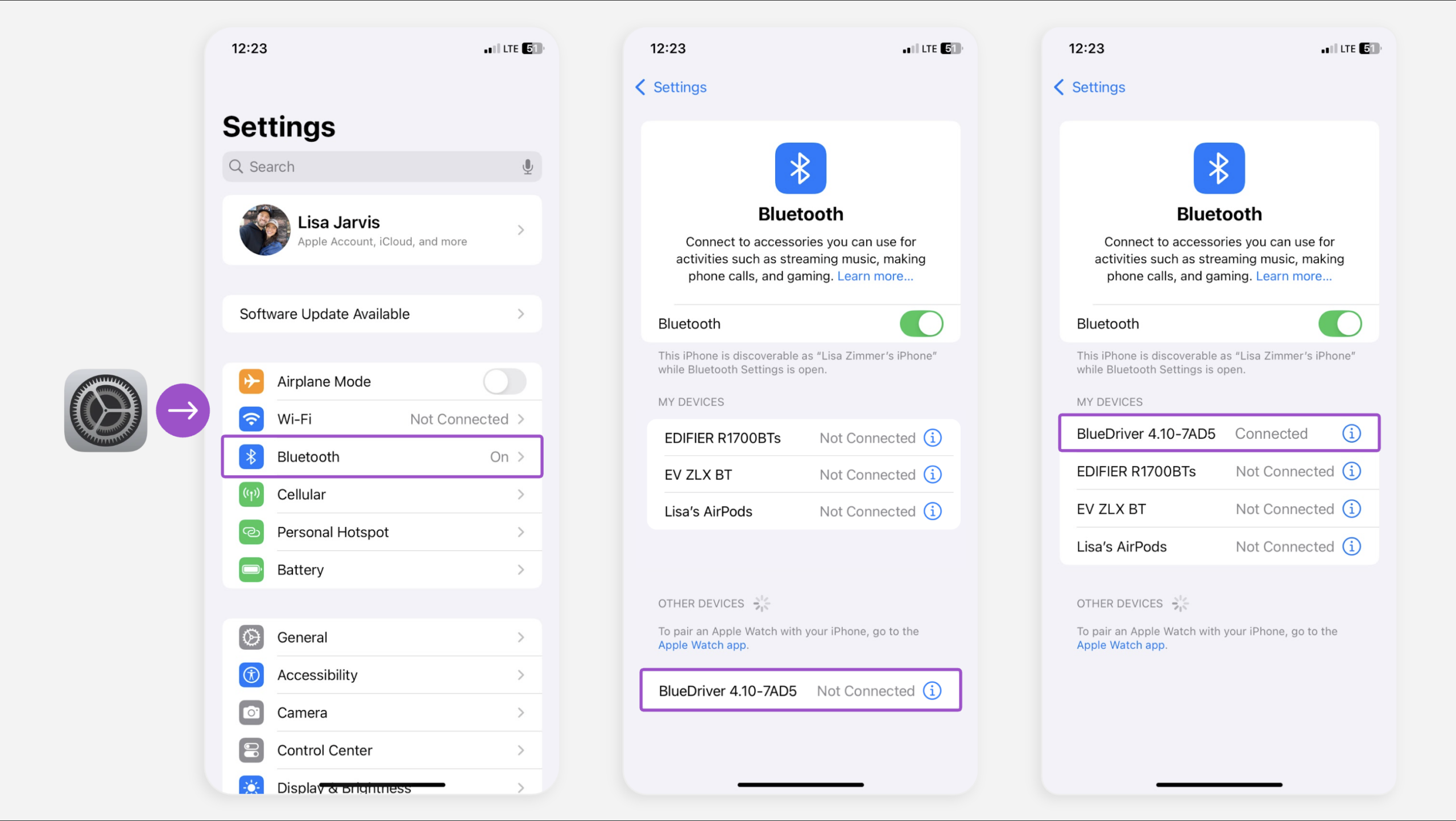
The OBD device connects to your AccuTrade app via Bluetooth to make the appraisal process seamless. To set this up:
- Click Settings, then Bluetooth.
- Select BlueDriver from the discoverable devices.
When the device is successfully paired, it will be added under My Devices.
LE SCANNER
The connection method between the original BlueDriver device and the new LE version is different. For the LE scanner, you will sync directly in the AccuTrade app, not pair via Bluetooth. Move on to step four.
4 Run the OBD scanner
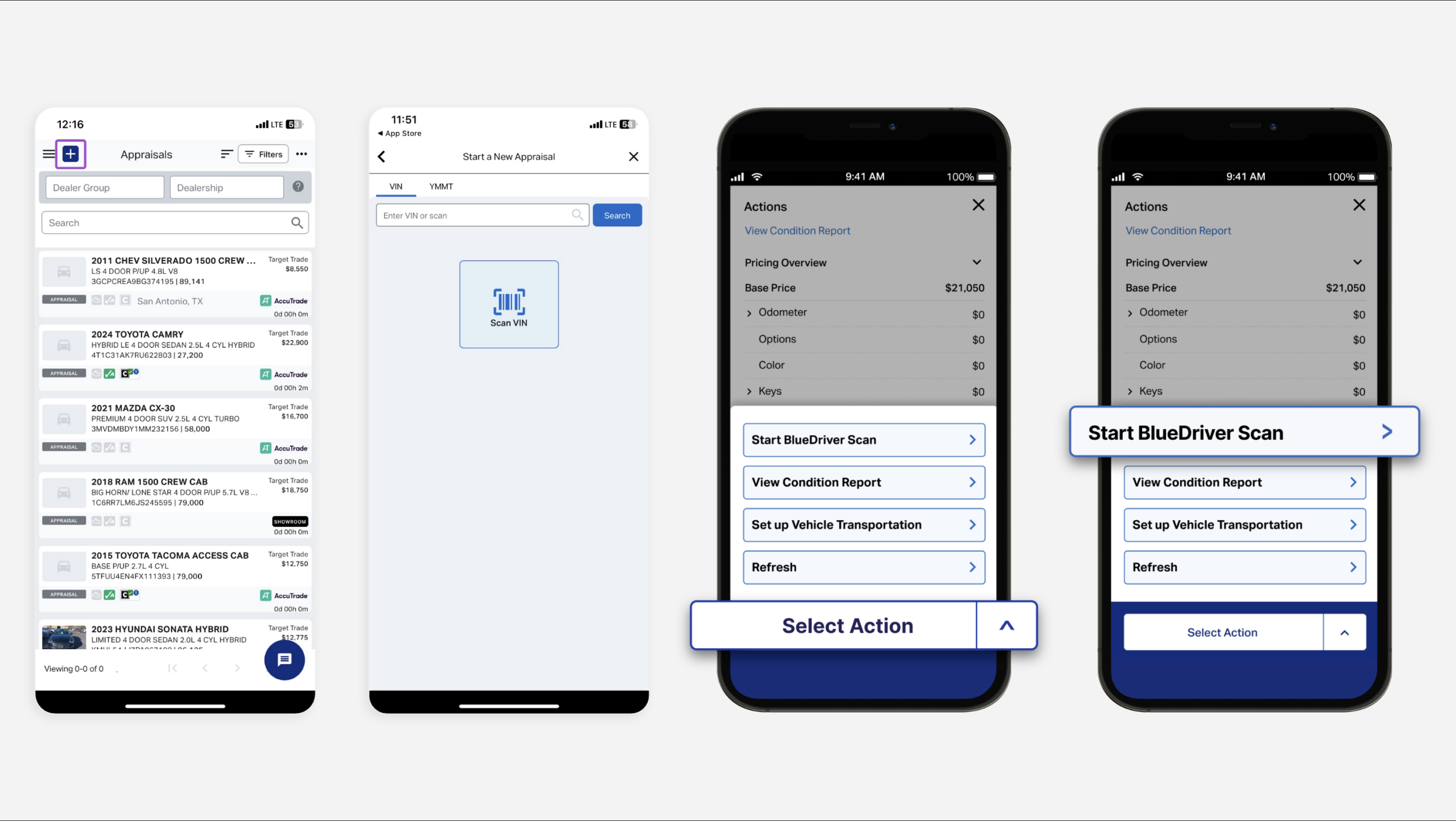
After pairing, test the scanner by starting an appraisal.
- Confirm the scanner is still plugged into the running vehicle.
- Open the AccuTrade app.
- Tap the blue “+” icon to start a new appraisal.
- Select Scan VIN.
- If prompted, allow camera access.
- If prompted, allow camera access.
- Capture the VIN.
- Tap Select Action.
- Choose Start BlueDriver Scan.
- LE Scanners Only: You’ll be prompted to “Allow Bluetooth Connection.”
- Select allow and the scan will begin.
5Generate the results
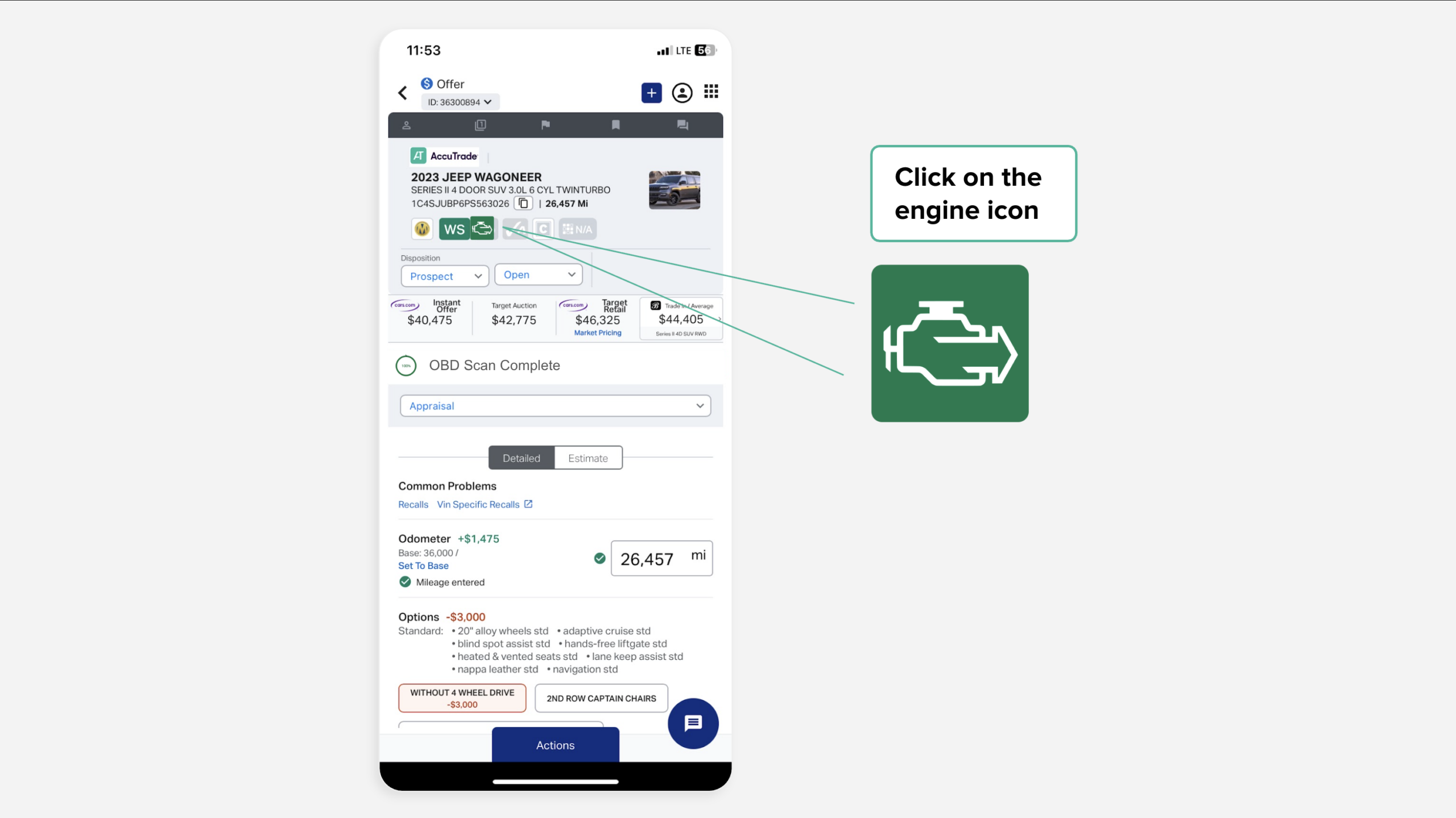
You’ll notice a progress bar on the appraisal screen. When the scan is complete, click on the engine icon to review your diagnostic report, complete with mechanical deducts.
Troubleshooting Tips
- If the scanner will not connect:
- Confirm the vehicle is running.
- Ensure Bluetooth is enabled.
- Unplug and reinsert the OBD scanner.
- Restart the AccuTrade app.
- Confirm the vehicle is running.
- If the scan does not start:
- Verify that BlueDriver appears under My Devices in Bluetooth settings.
- Verify that BlueDriver appears under My Devices in Bluetooth settings.
FAQ
What’s different about the new BlueDriver scanners?
The new scanners (called “LE scanners”) connect differently to phones/tablets, particularly for iOS devices. Previously, you would go to device settings first, pair using Bluetooth, then go to AccuTrade to scan. Now the pairing happens within the AccuTrade app through BlueDriver’s SDK.
I’m having trouble with my new LE scanner on my iOS device. What should I do?
If you need to use an older device on iOS after using a new LE scanner, you’ll need to “forget” the new LE device in your iOS settings
- Go to Settings > Bluetooth.
- Find the new LE device.
- Tap the (i) icon > select Forget This Device.
After forgetting the new device, your old BlueDriver scanner should connect properly. Label your devices clearly (old vs. new) to help track which one you’re using.
What should I do if my scan won’t finish processing?
- Close AccuTrade.
- Unplug the BlueDriver device and plug it back in.
- Go to Bluetooth settings and make sure the device says it is connected.
- Start the scan again.
Why isn’t my scanner discoverable?
BlueDriver devices are only discoverable for pairing during the first 60 seconds after being plugged into a running vehicle. After that, they switch to a non-discoverable mode. Initiate the scan as quickly as you can after plugging in the device.
Need Help?
If you continue to experience issues connecting or scanning, contact AccuTrade Support: