How to navigate shopper details
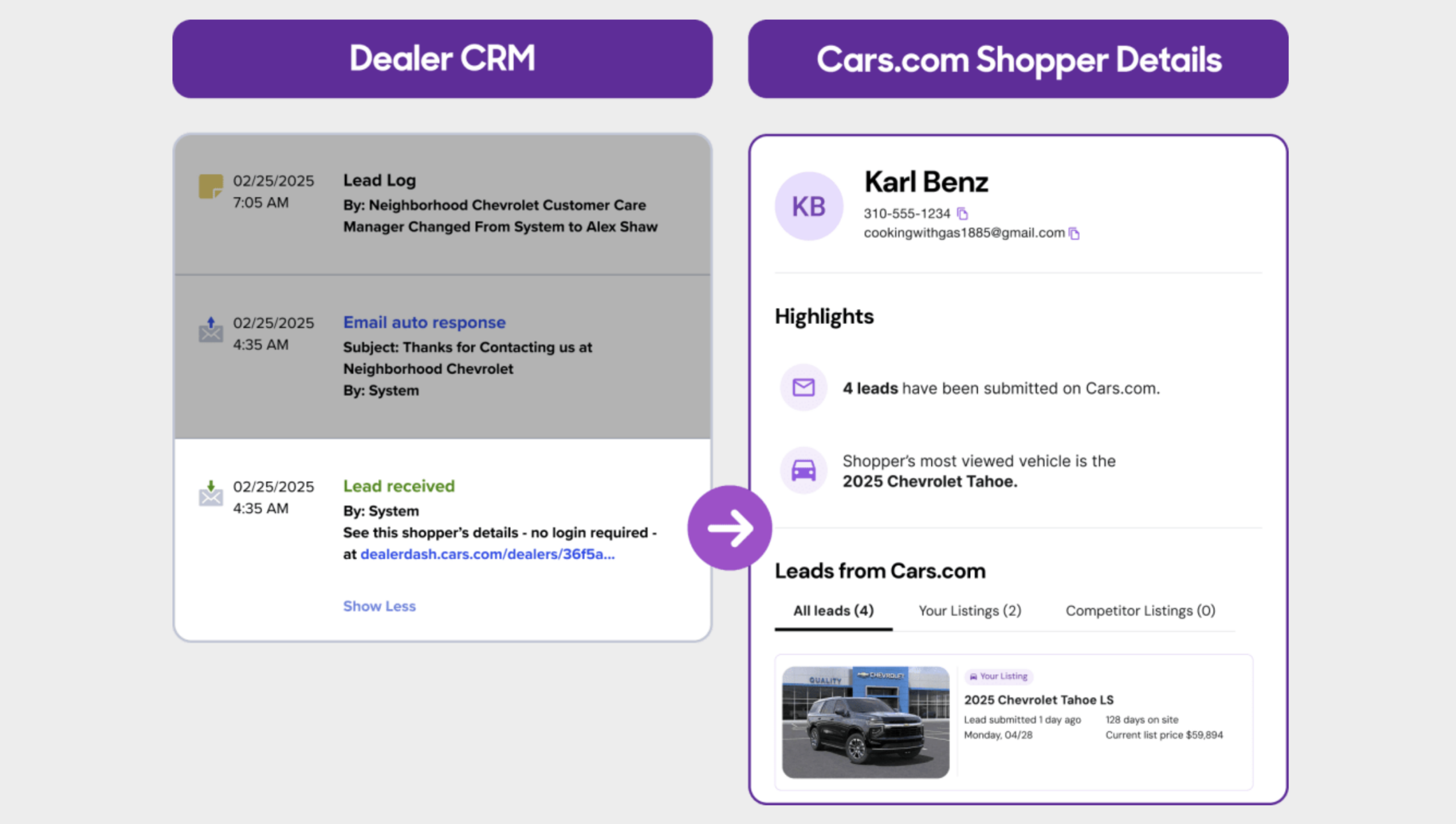
Shopper details provide a real-time view of a buyer’s activity on Cars.com, available directly from your CRM. You can see vehicles that a shopper viewed, saved, and submitted leads on, including anonymized competitor listings.
To get started
Go to the Cars.com Hub. Click Cars.com, then Dealer Dash.
1 Open shopper details
You can open shopper details from either a Cars.com lead or Dealer Dash.
From a Cars.com lead:
- Open the lead.
- Click the shopper profile link within the lead comments.
From Dealer Dash:
- Go to the Leads tab.
- Click View next to a lead.
This opens the shopper details page.
2 Review shopper highlights
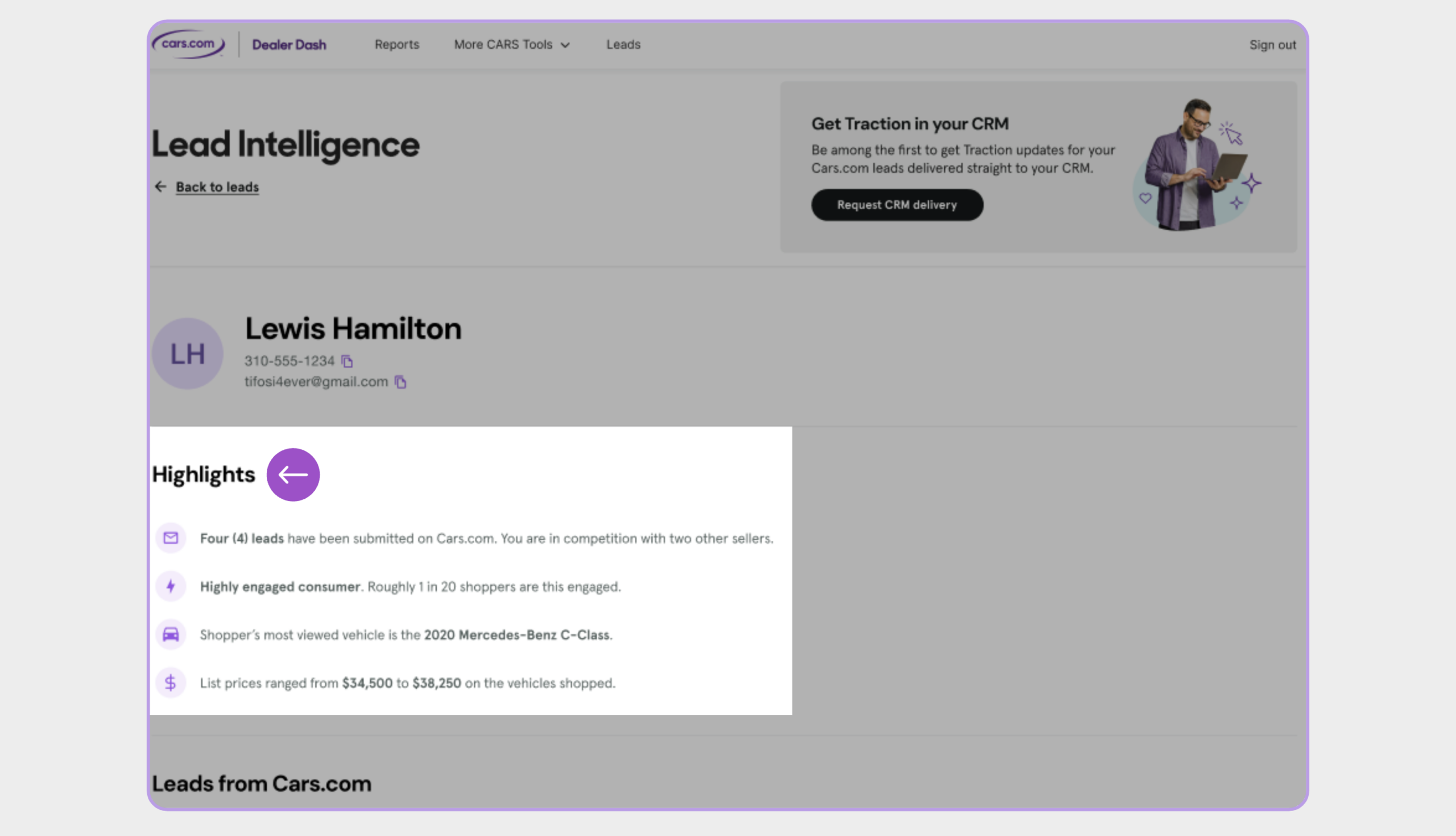
At the top of the page, the Shopper Highlights section provides a summary of recent activity, including:
- Total number of leads submitted
- Number of dealers contacted
- Most-viewed vehicle
- Price range browsed
Use this snapshot to quickly understand how actively the shopper is comparing vehicles and dealerships.
3 Review submitted leads
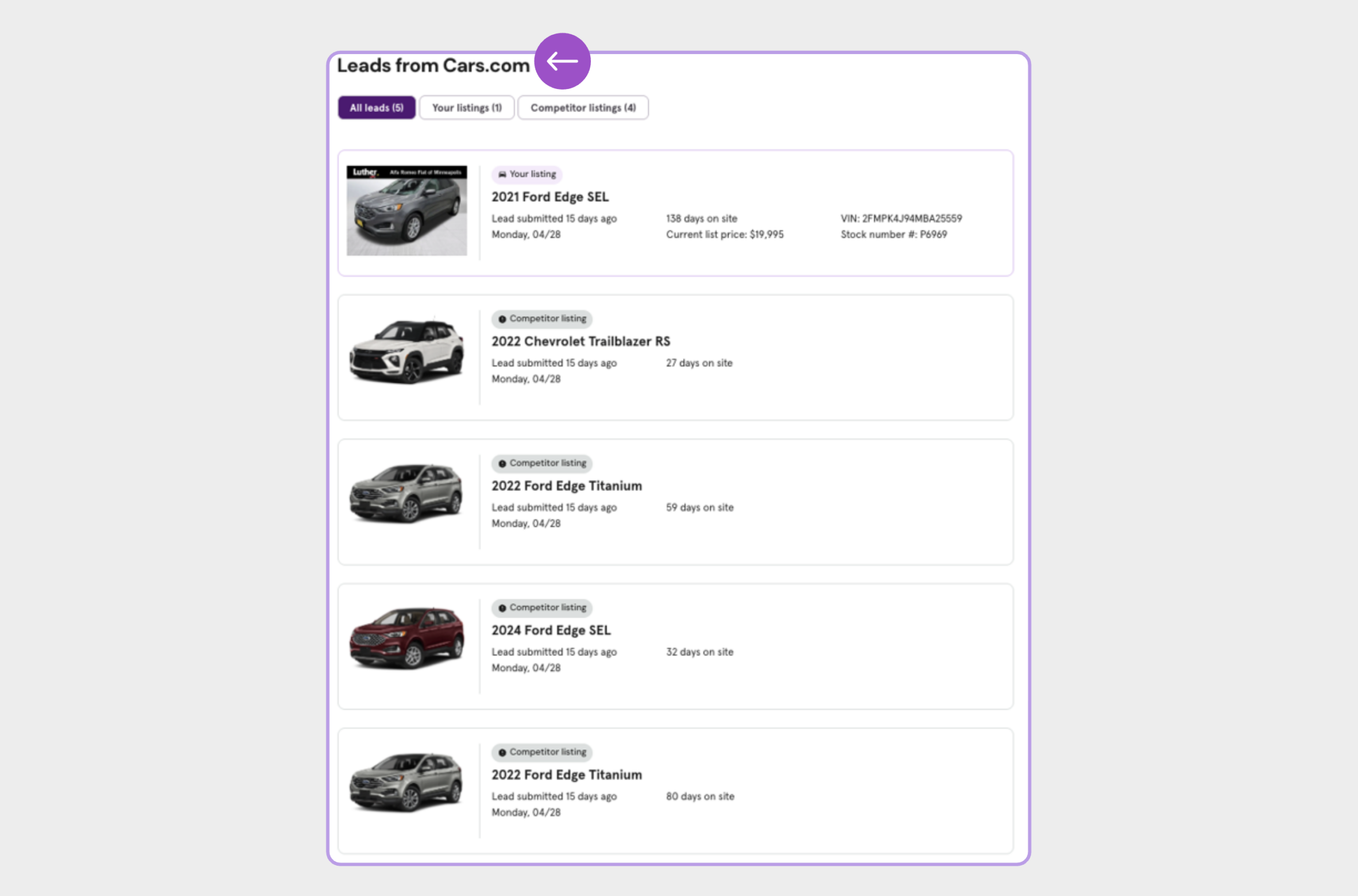
Scroll to Leads from Cars.com to view all vehicles the shopper has submitted leads on.
This list may include:
- Vehicles from your inventory
- Anonymized competitor listings
Vehicles that are no longer live appear grayed out and are labeled No Longer Listed.
4 Review price activity
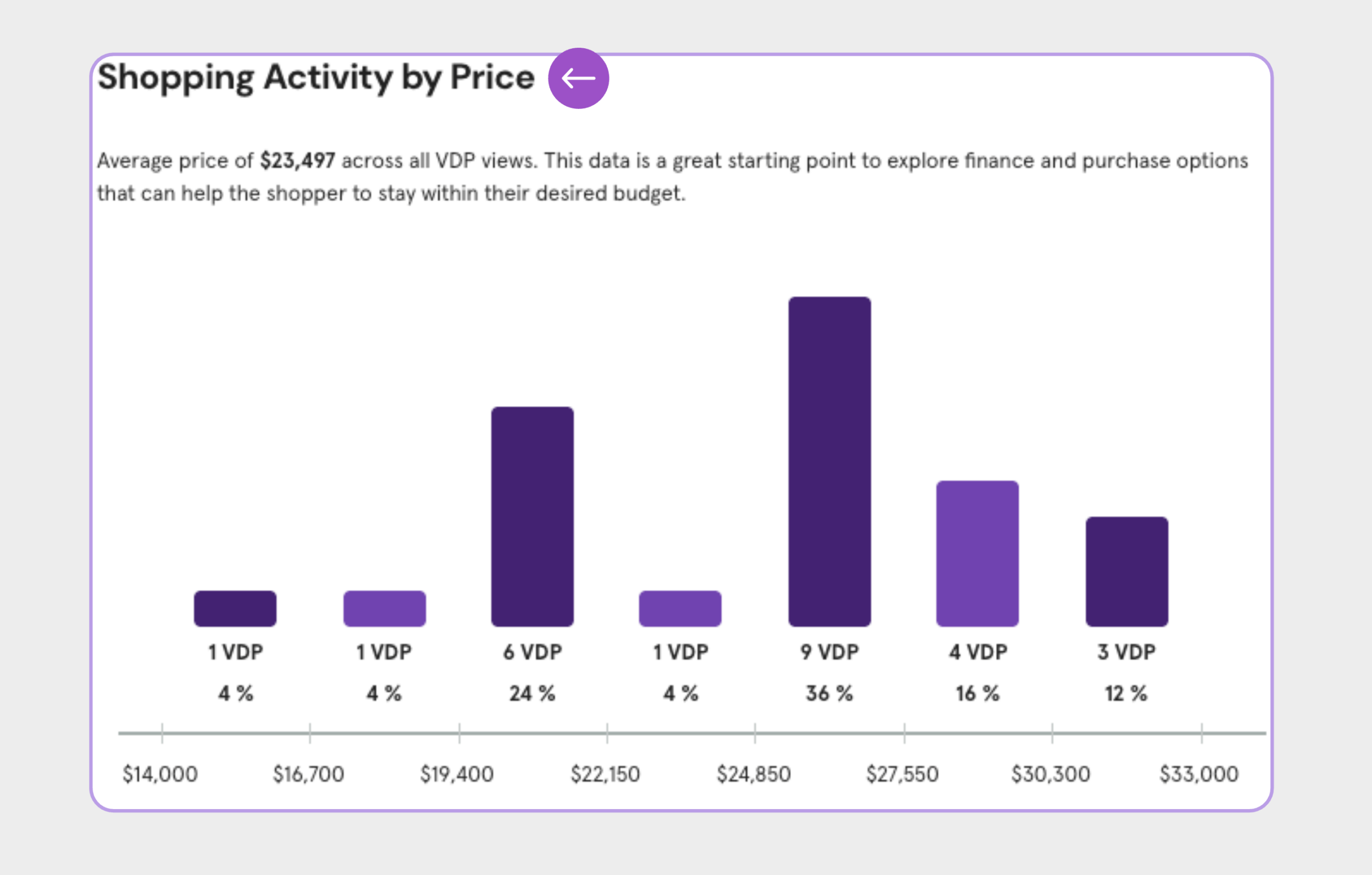
Review Shopping activity by price to see where the shopper spends the most time browsing.
Use this insight to align pricing, payments, or financing options.
5 Review most-viewed models and saved vehicles
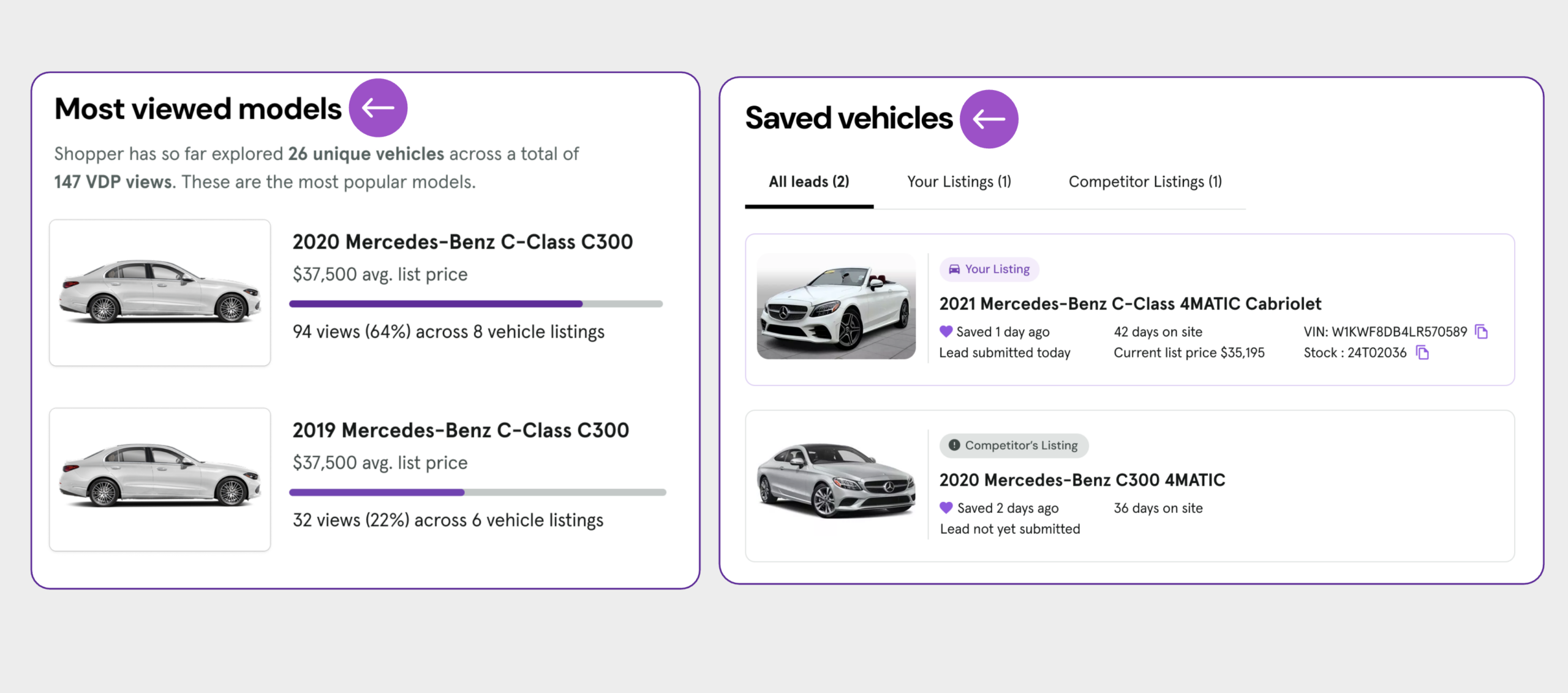
Review Most viewed models and Saved vehicles to see which models matter most and which listings indicate strong purchase intent.
Use this insight to prepare relevant options and create urgency where appropriate.
6 Use the timeline to guide follow-up
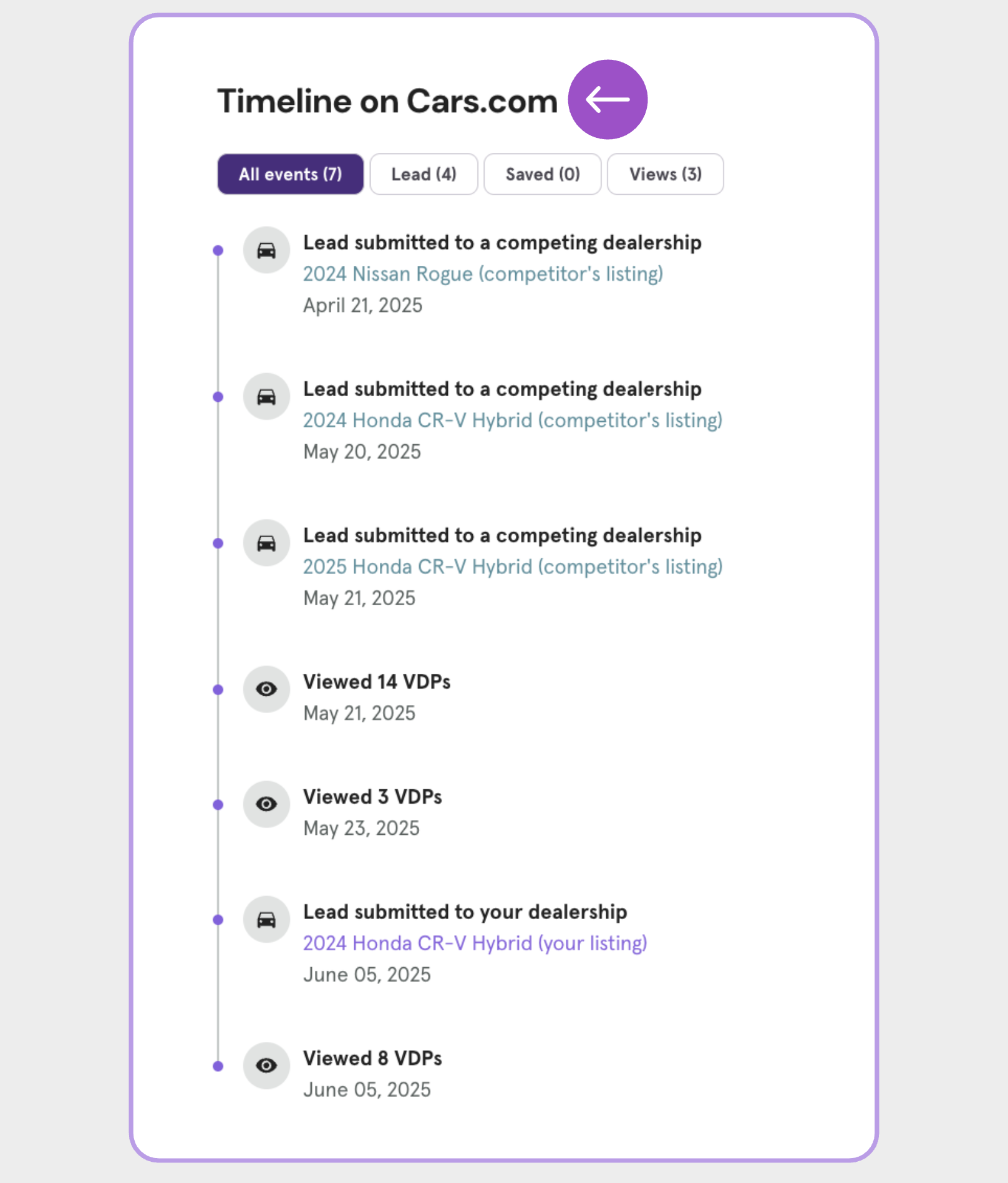
At the bottom of the page, review the Timeline on Cars.com.
The timeline shows:
- Vehicle views
- Saved vehicles
- Lead submissions
Activity is displayed for the past 60 days. Use recent interactions to understand the shopper’s current interests and engagement level.