How to access your reports and activity
DealerClub’s Command Center allows you to monitor your buying and selling performance in one place. From the Overview dashboard, you can view summaries of auctions you’ve won, vehicles you’ve sold, performance metrics, and export detailed activity lists for recordkeeping or analysis.
In this article, you’ll learn how to navigate to your Command Center, understand the Overview dashboard and activity categories such as Won and Sold, and export your activity data to a CSV file.
To get started
Go to the Cars.com Hub and then click on DealerClub.
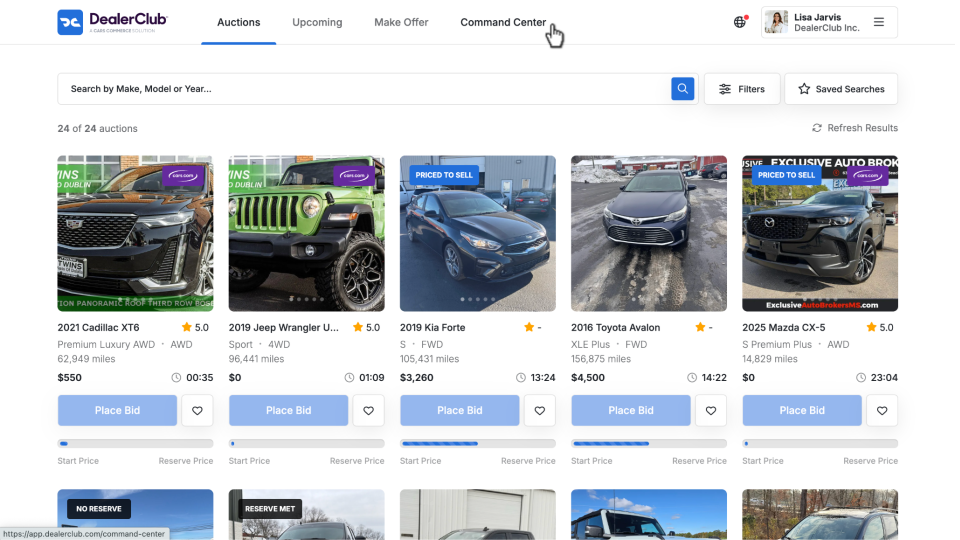
1 Go to your Command Center
After logging in to DealerClub:
- Click the Command Center tab in the main navigation bar.
2Click through activity dashboards
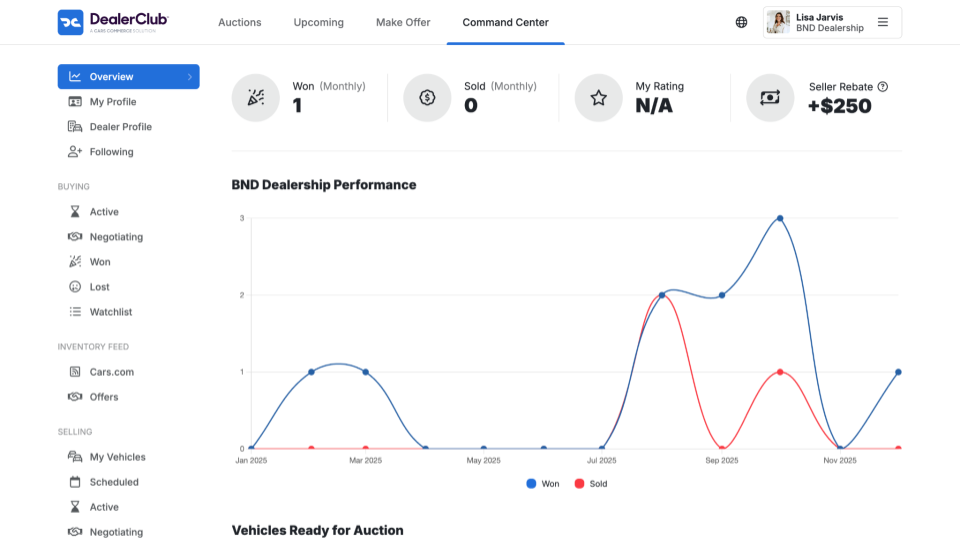
The Overview dashboard provides a summary of your performance. Here, you will see:
- A snapshot of your monthly Won and Sold metrics
- Your Rating
- Your Seller Rebate
- A line graph showing performance trends based on Won and Sold activity
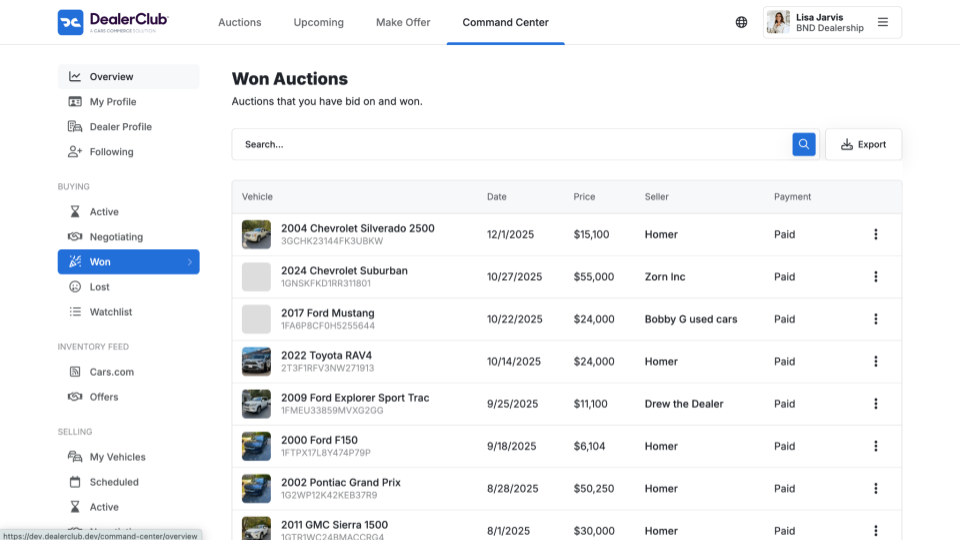
To view detailed activity, use the navigation menu on the left-hand side of the screen.
- Click Won to see a list of all auctions you have successfully bid on and won.
- Click Sold to see a list of vehicles you have sold, including the buyer and payment status.
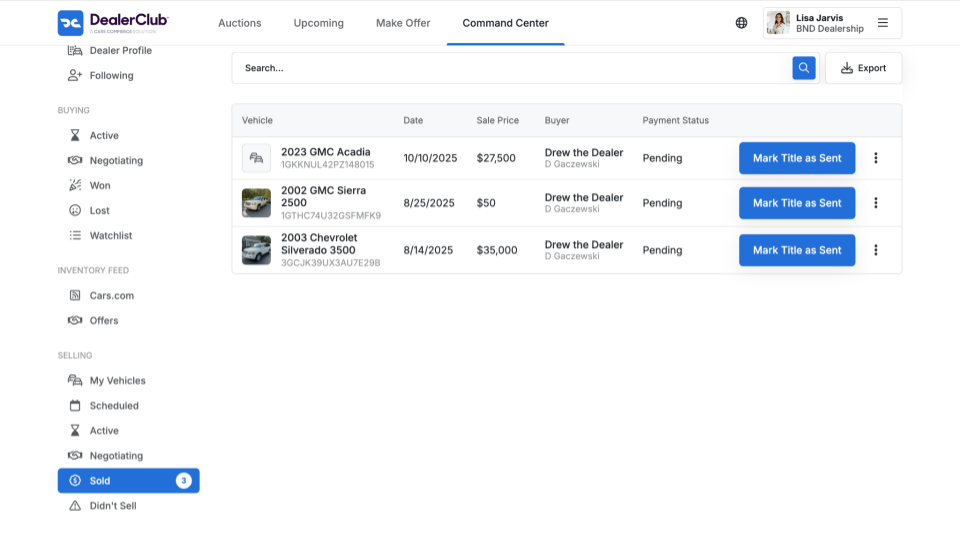
- Click into each category to get granular insights into your performance and activity on DealerClub.
3 Export reports and activity
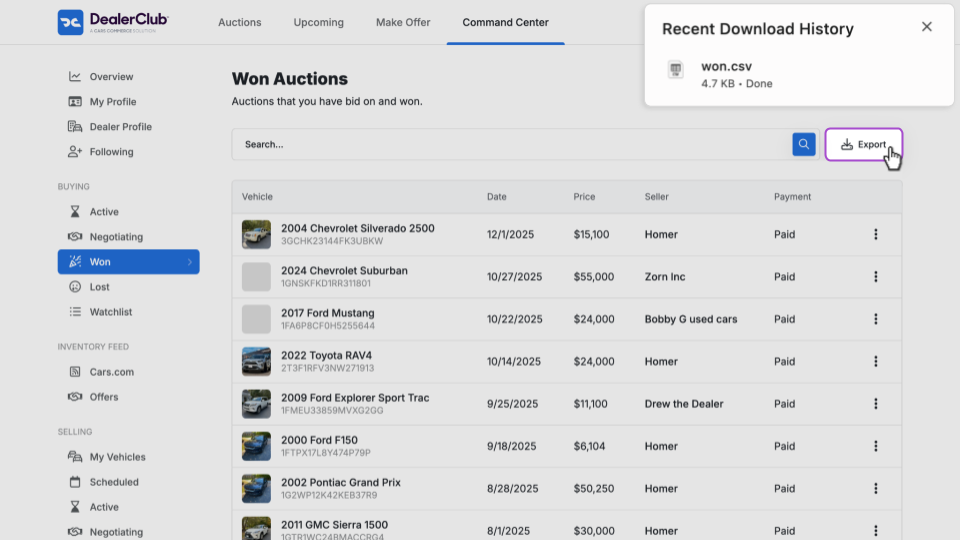
You can export data from any activity list to a CSV file.
- Navigate to the activity list you want to export (for example, Won).
- Click Export in the top-right corner of the data table.
- A notification will appear confirming the export. Open the downloaded file to view or analyze your data.