How to improve merchandising performance with the Dealer app
The Performance tab shows how your merchandising stacks up and where to act first. It pulls incomplete listings, deal badges, local demand, and wholesale options into one view.
In this article, you will learn how to:
- Review your merchandising overview
- Check your deal badges and find vehicles close to a better badge
- Compare local demand with your inventory
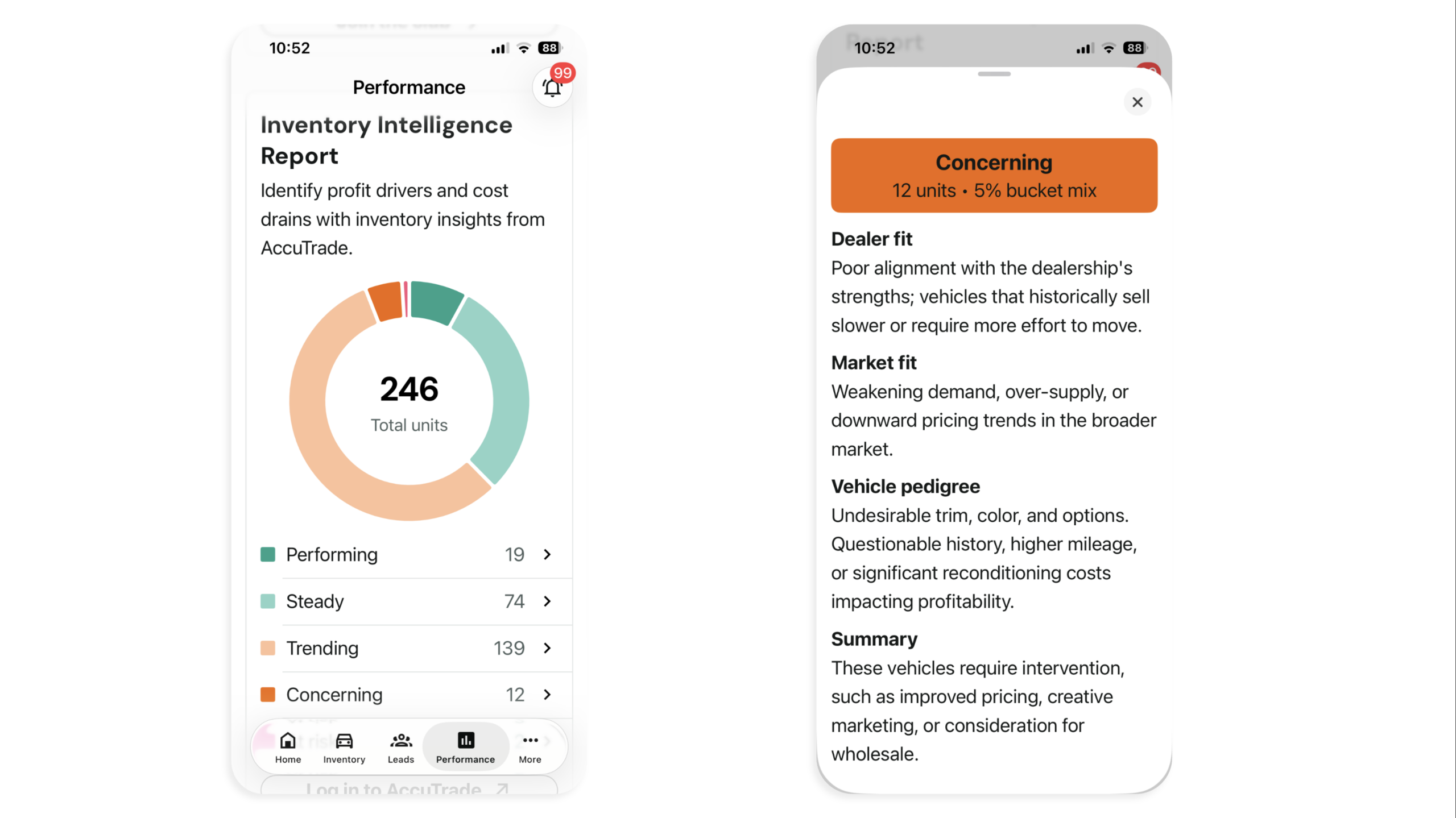
- See which vehicles are at risk and what to do about them
To get started
Log in to the Cars.com Dealer app with your Cars.com credentials.
1Review your merchandising overview
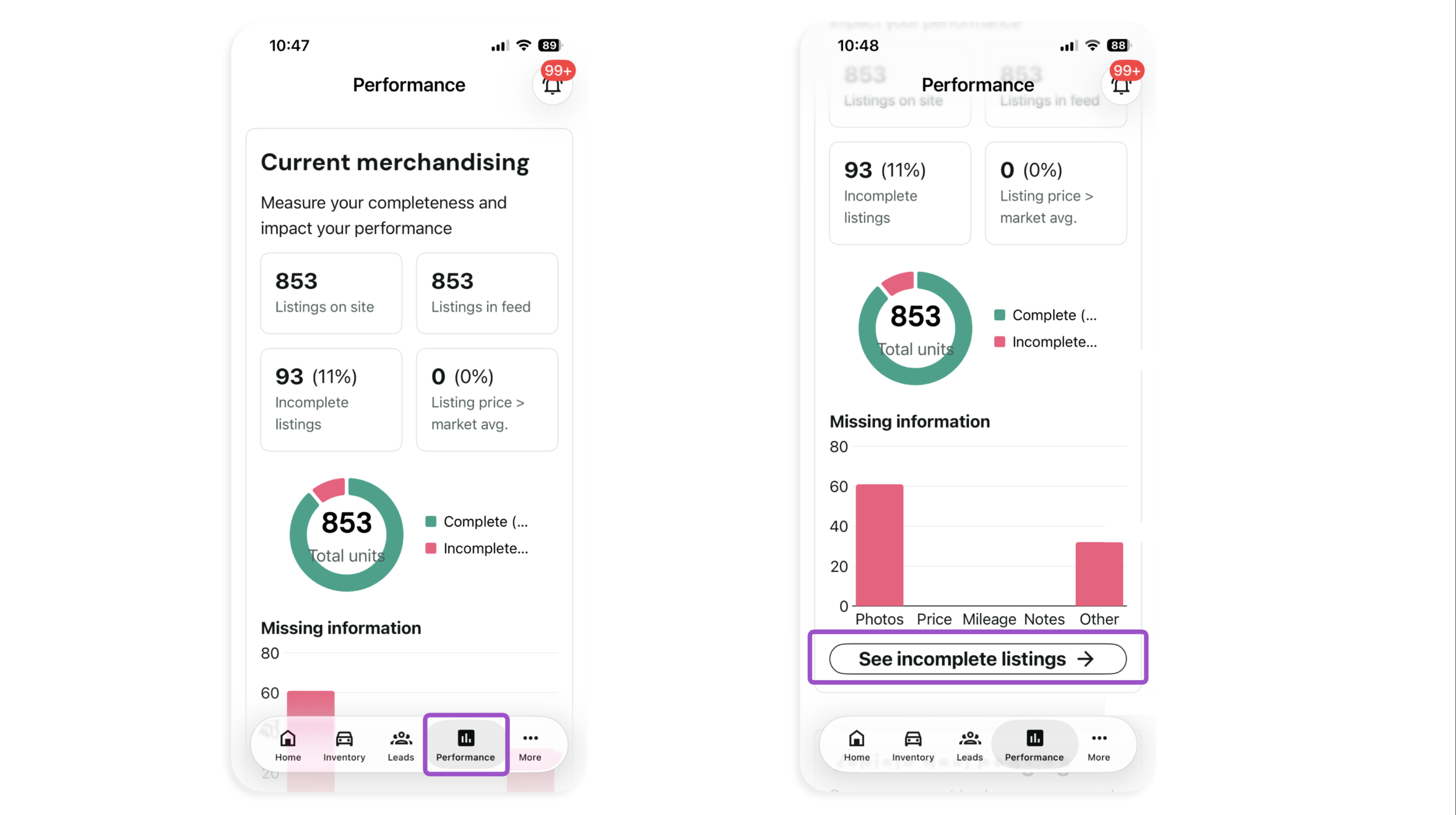
- Tap Performance
- Compare Listings on site with Listings in feed
Note: A lower Listings on site number means some vehicles in your feed aren’t live on Cars.com.
- Check Incomplete listings for the number of vehicles with missing details
- Check Listing price > market avg. for vehicles priced above your local market average
- Review the Complete versus Incomplete Total units
- Review Missing information to see how many vehicles lack photos, price, mileage, notes, or other details
- Tap See incomplete listings to open an inventory view filtered to those vehicles.
Follow How to find and fix incomplete listings in the Dealer app to update each one.
2Check your deal badges
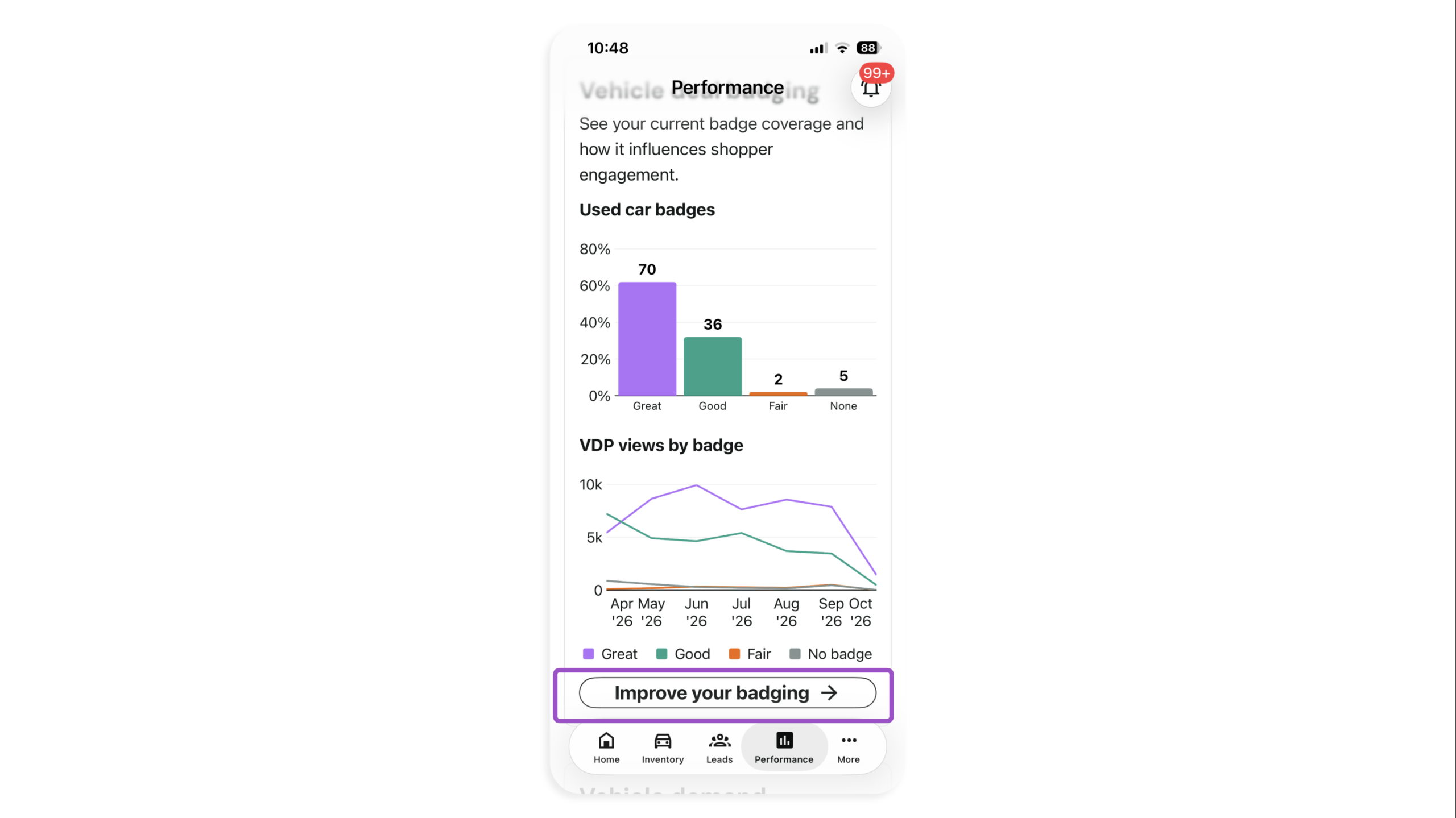
- Scroll down to Vehicle deal badging
- Review your used vehicles by badge
- Review VDP views by badge over recent months to see how your badges are trending
- Tap Improve your badging to see vehicles within $500 of a better badge
Follow How to manage your deal badges on the Cars.com Dealer app to test price changes and share target prices with your team.
Note: Update price through your IMS or inventory provider. Changes reflect on your listings at the next inventory sync.
Note: Vehicles aren’t eligible for deal badges until you confirm your fees. Follow How to configure fees to itemize your fees or confirm you charge none.
3Compare demand with your inventory
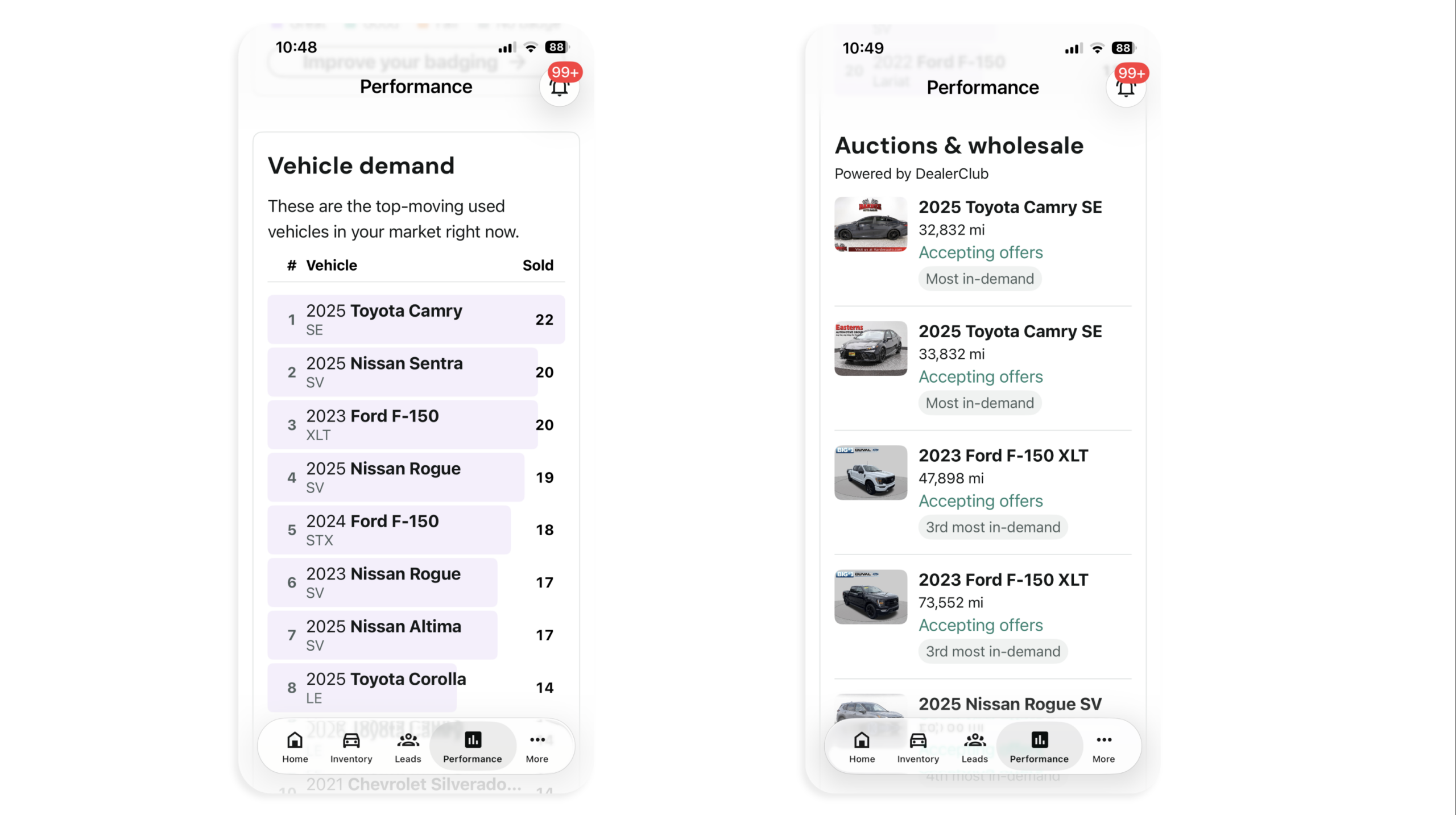
- Scroll down to Vehicle demand
- Review the top 20 makes, models, and years in demand in your local market
- Compare the list with your current inventory
- Check Auctions & wholesale for active and upcoming DealerClub auctions that match what shoppers want
Tip: Tap Home and scroll to Recommended for auction to see which vehicles have been on your lot for more than 60 days, then wholesale them through DealerClub.
4Review your inventory by risk
- Review your vehicles by score: Performing, Trending Up, Steady, Concerning, and At-Risk
- Start with Concerning and At-Risk vehicles
- Tap a category to see additional details
- Improve photos and descriptions on concerning vehicles
Read How to leverage the Inventory Intelligence Report to learn how each score is calculated and how to act on it.