How to configure fees
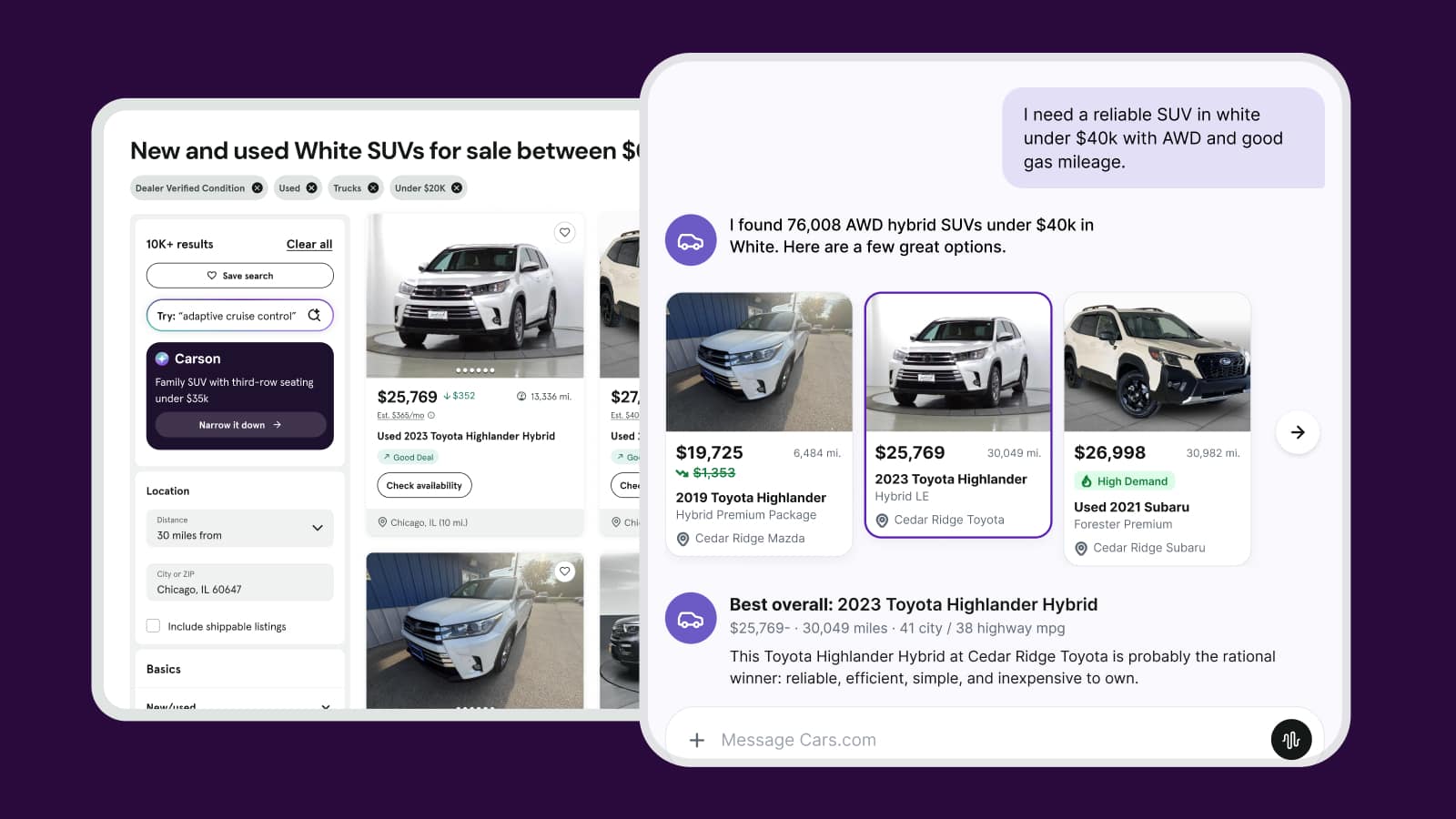
Entering your fees in Dealer Dash lets you display a total price on your listings that includes list price, required fees, and a clear itemized breakdown — so shoppers know exactly what they’re paying before they contact you. This builds trust with serious buyers and may help you meet state price transparency requirements.
In this article you will learn how to access the fee configuration section in Dealer Dash, enter your fee details by stock type, and publish your fees so they’re reflected in the total price shoppers see on your listings.
To get started
Log in to Dealer Dash.
1 Navigate to fee configuration
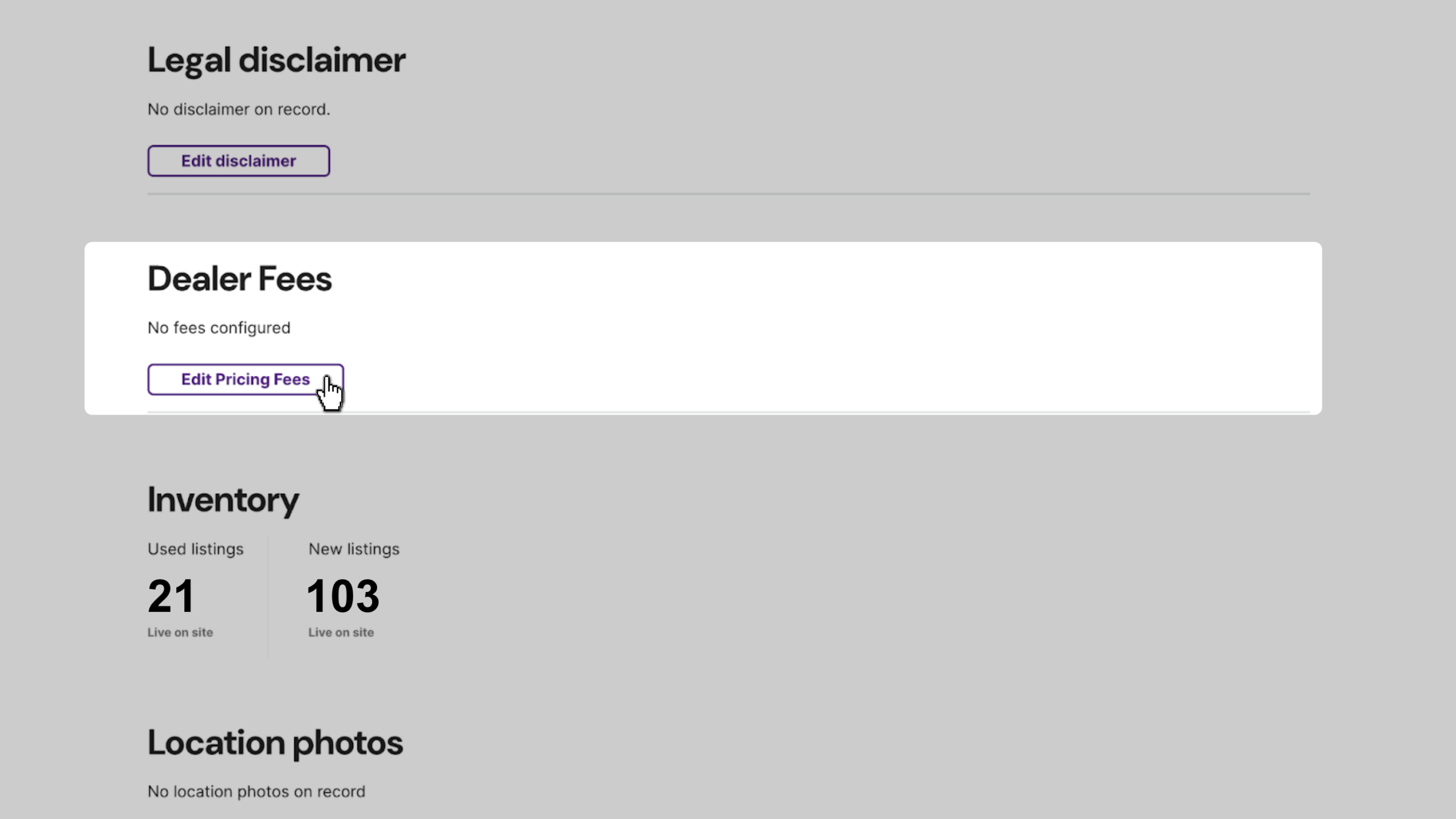
- Scroll down the main page until you find the Dealer Fees section
- Click Edit Pricing Fees
2Select your price setup
Fee settings are now organized by stock type. You’ll configure New and Used inventory independently. For each stock type, select the option that reflects how your IMS feed sends pricing:
- No Dealer Fees: check the No dealer fees box if your dealership does not charge any dealer fees. This confirms your listed price is your total price with no additional fees.
- Total Price: the price from your feed will display throughout Cars.com. Enter your fees so we can provide a transparent breakdown to shoppers.
- Base Price: the price from your feed will display throughout Cars.com. You’ll still need to itemize your fees below so shoppers can see a full price breakdown.
Not sure which to choose? Check your current listings to confirm whether the price you’re sending already includes fees or not.
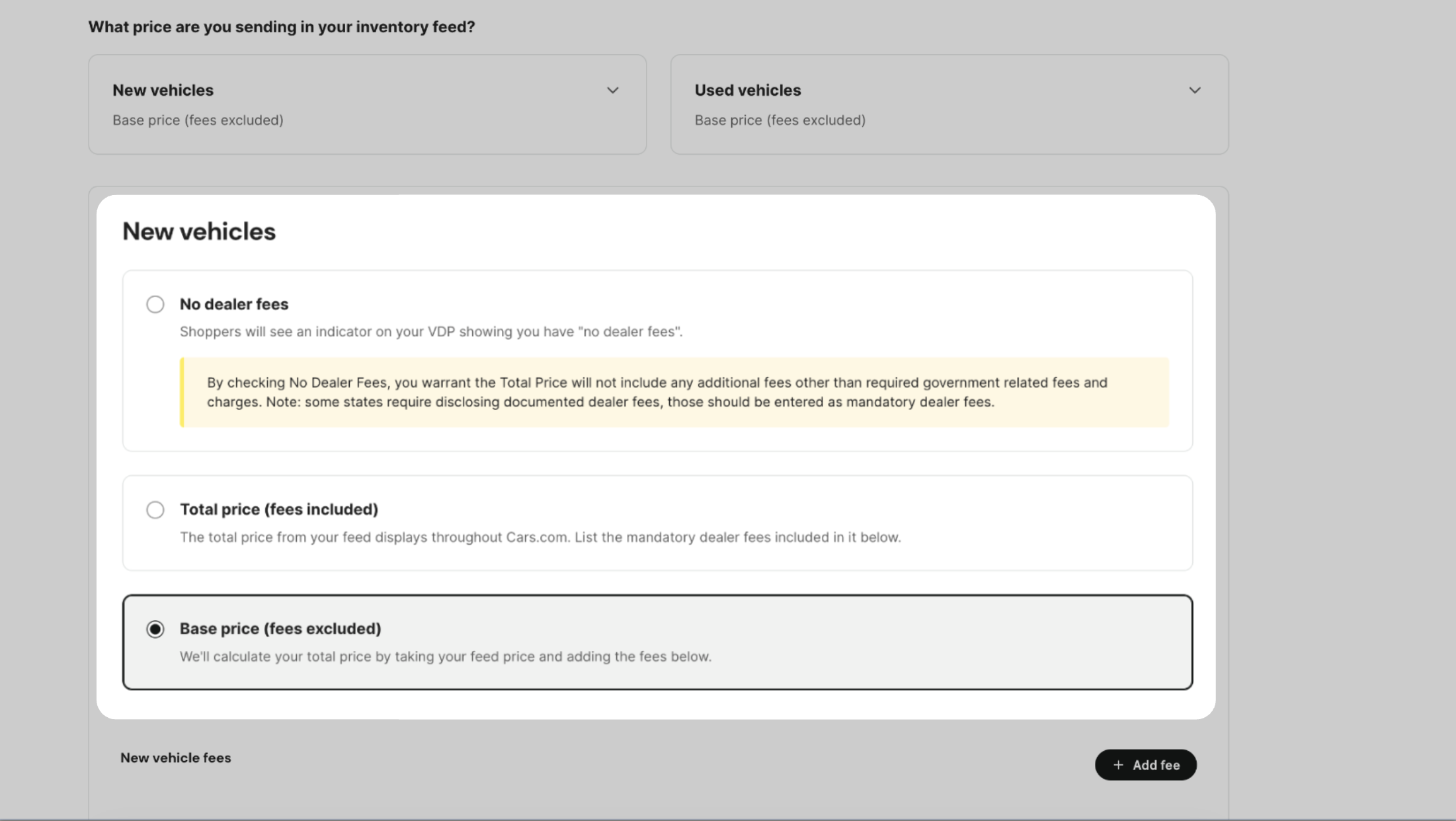
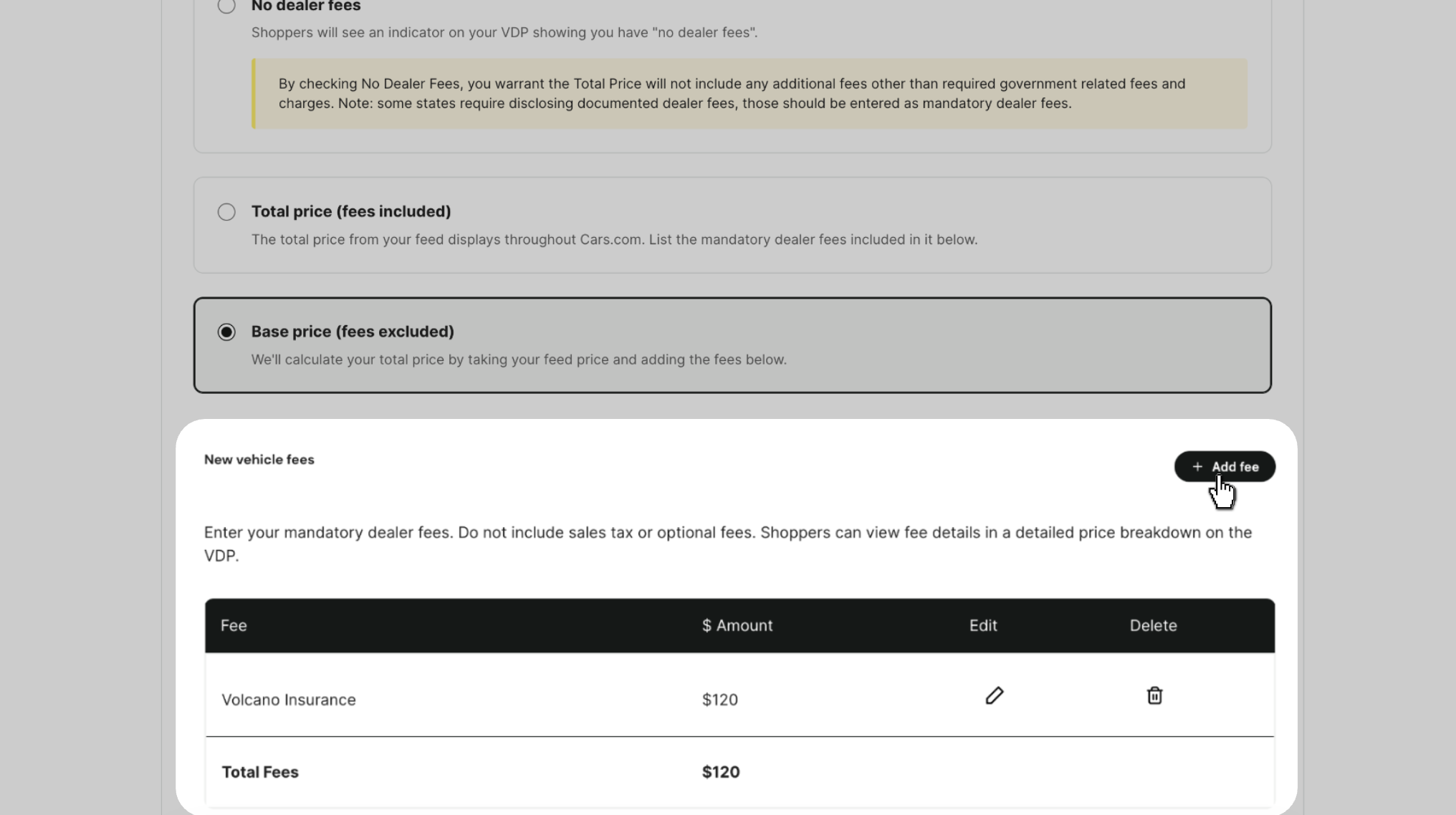
- Click +Add fee to add a new fee
- As you add fees, they will display in an ongoing list here
3Complete the fields
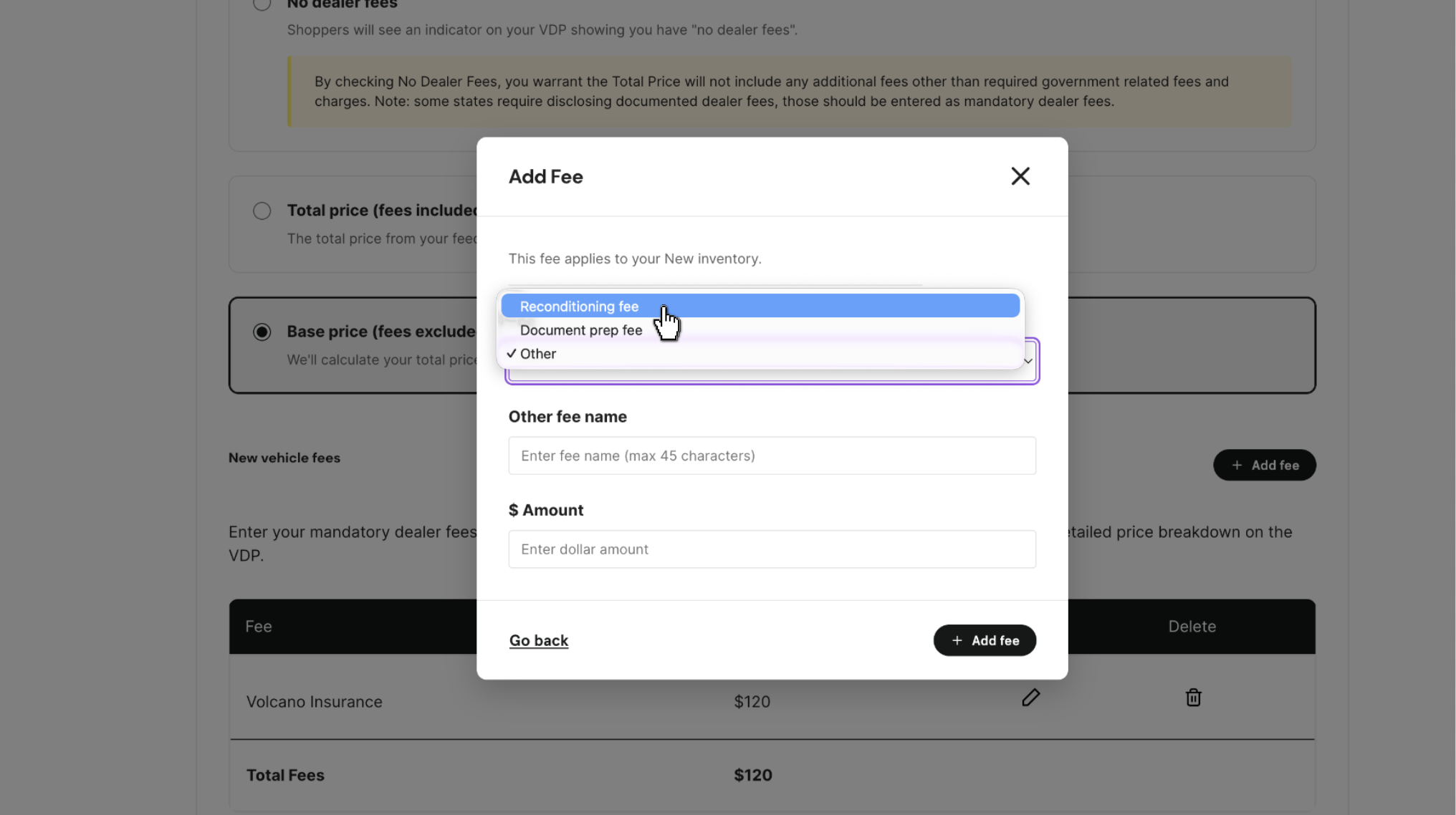
- Select the fee type:
- Reconditioning fee
- Document Prep Fee
- Other: include a title of the fee name field (required)
- Enter in a dollar amount for the fee
- Repeat the steps above for your other stock type
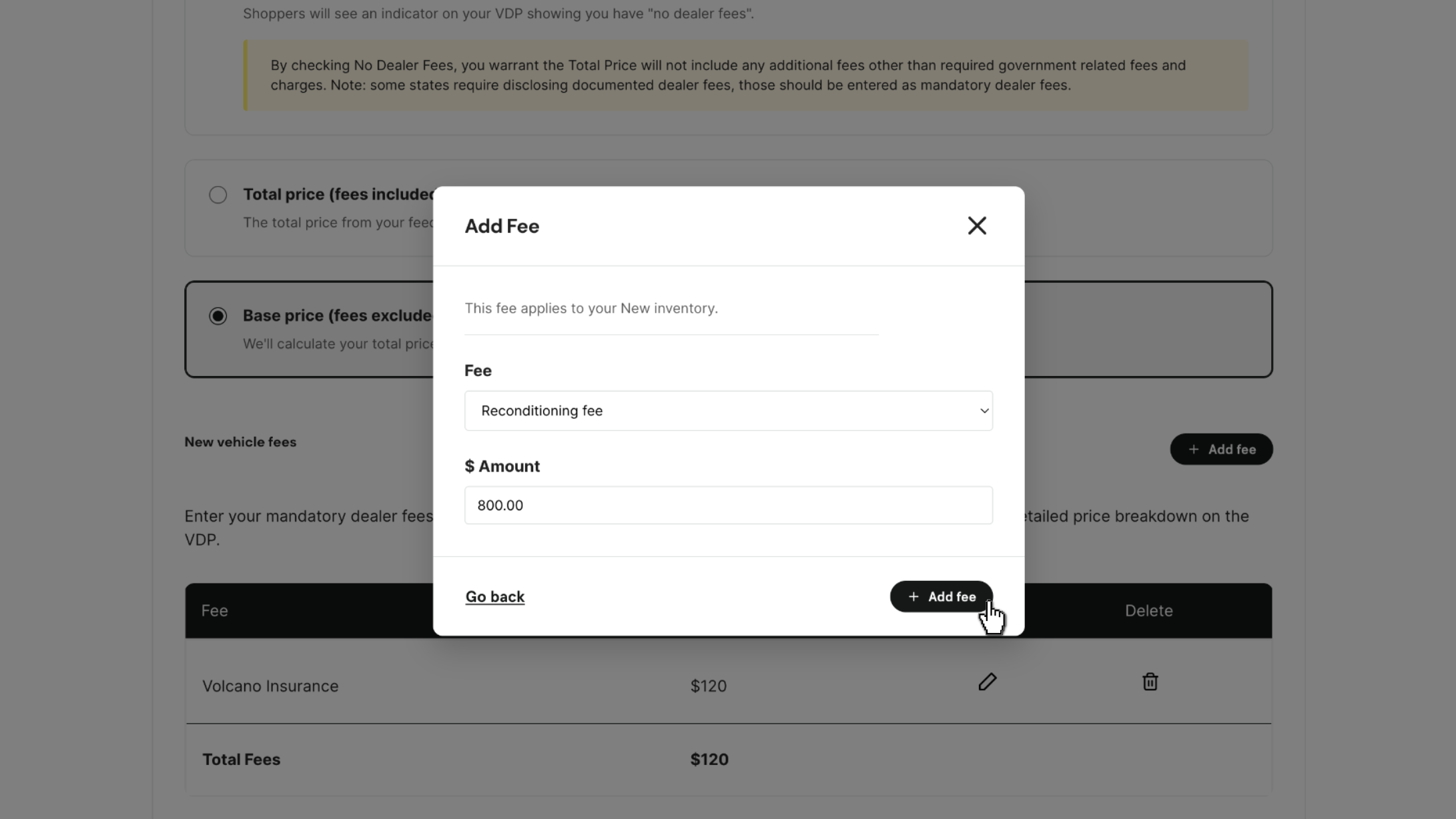
Note: You’ll need to configure fees separately for New and Used inventory if you want different fee sets for each.
4Save your breakdown
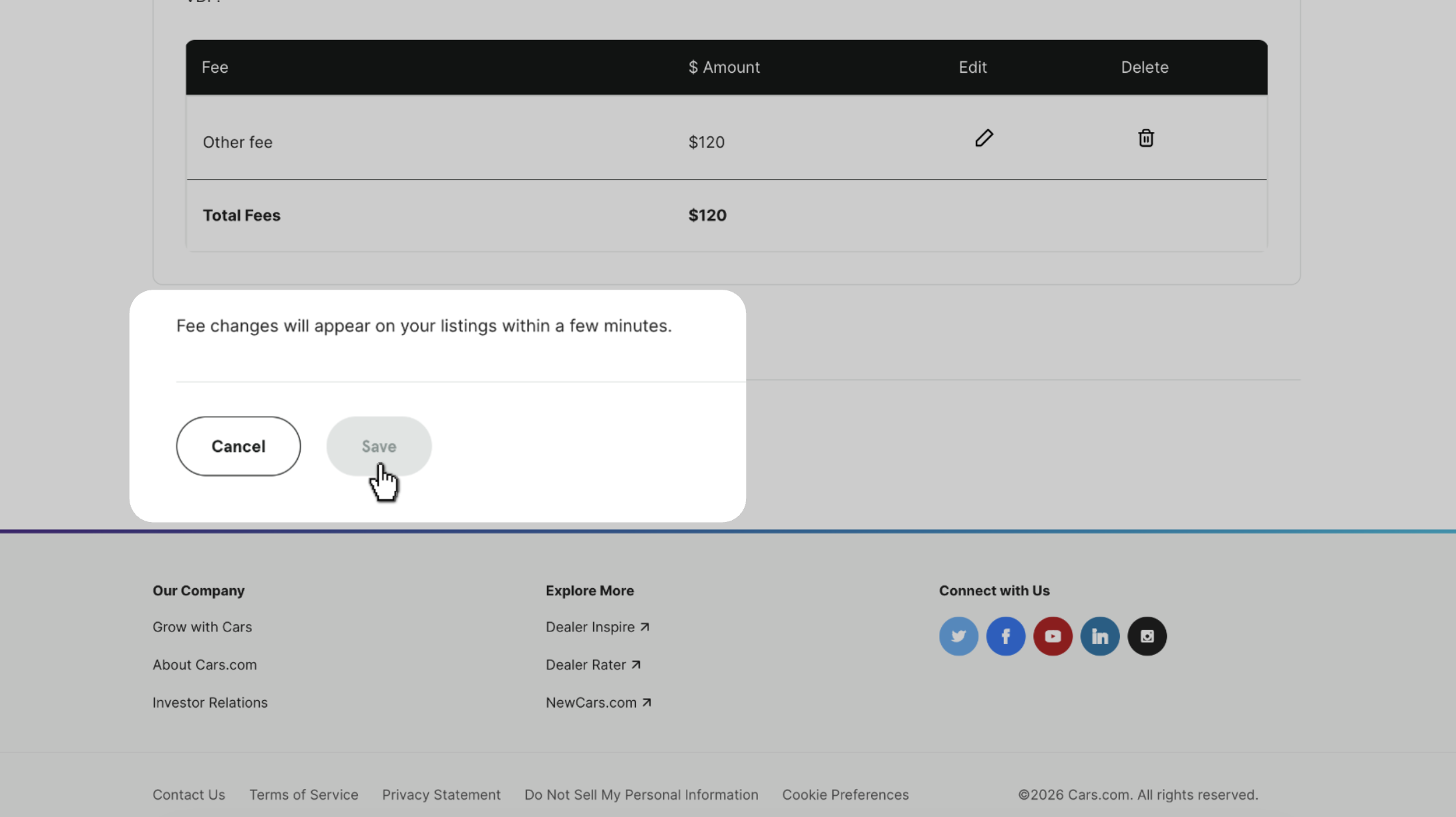
- Click Save at the bottom of the screen to save your updates
- Repeat as needed to add your required fees
Your fee configuration goes live within a few minutes — no inventory feed changes or support ticket required.
See it live on your VDP
- Open any vehicle listing on your VDP
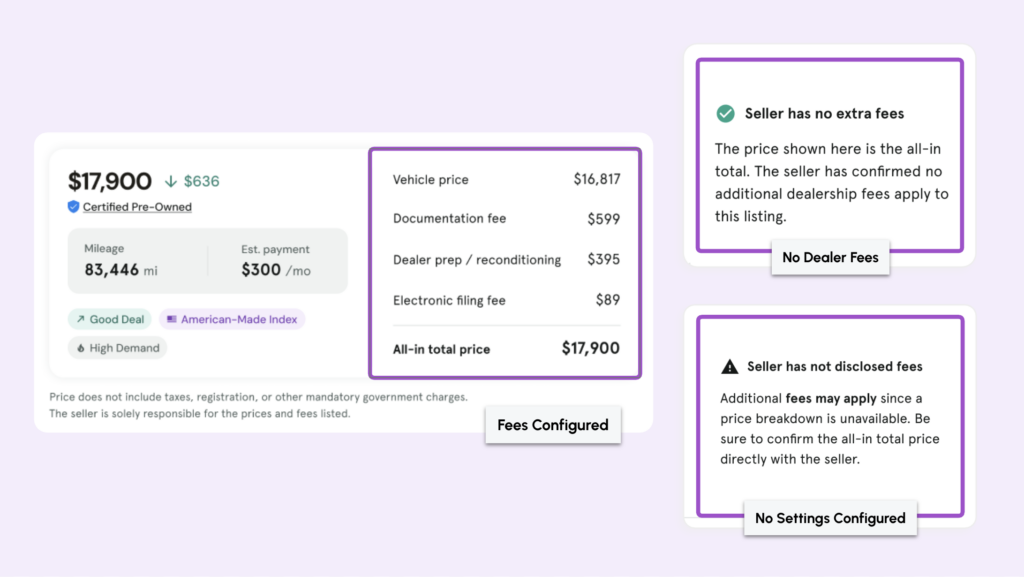
- Confirm your fees appear correctly to the right of your list price
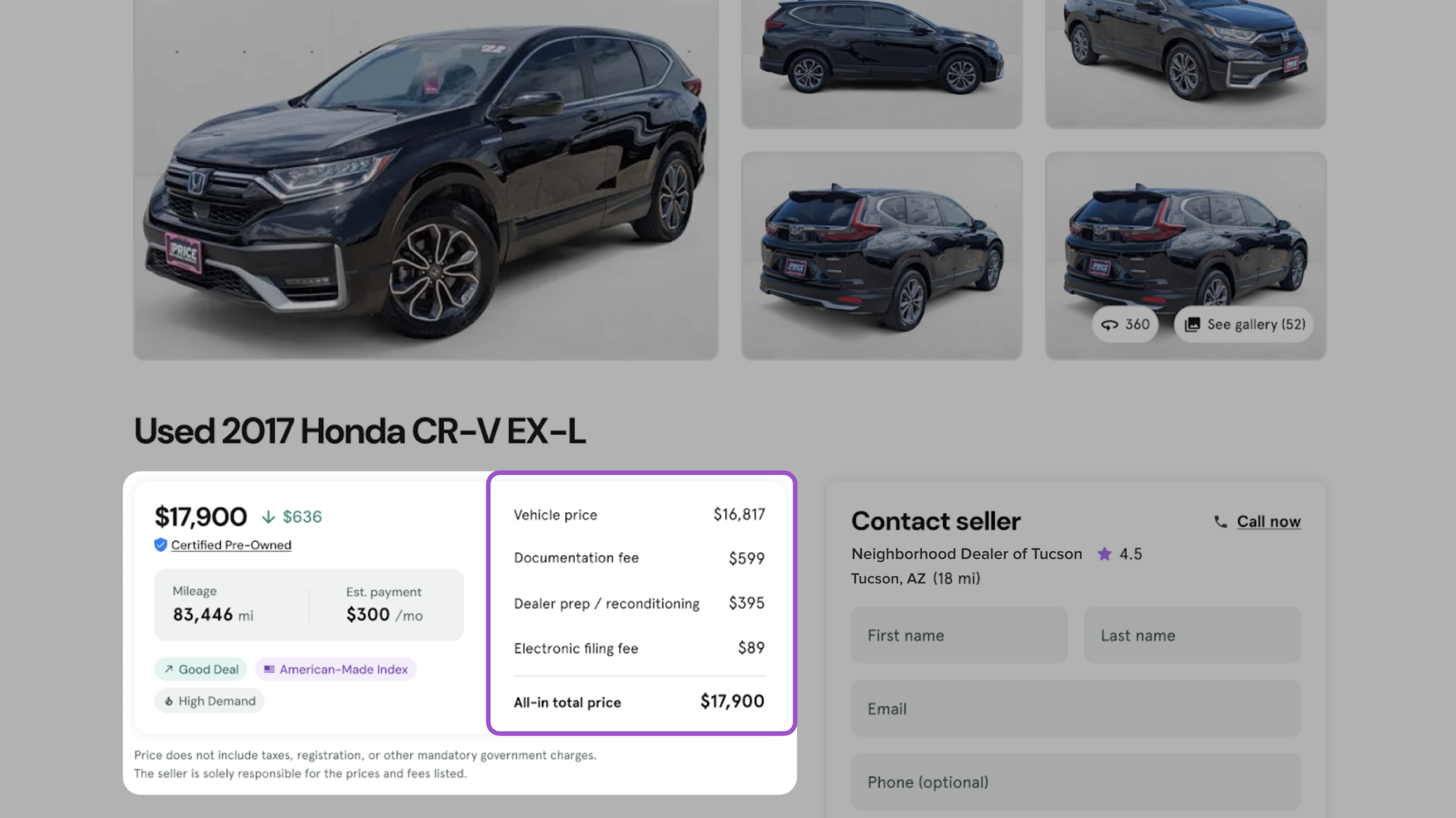
What shoppers see depends on the settings you’ve configured for that vehicle’s stock type:
| Fees Configured (Base price or total Price) | Price breakdown with fees added to total |
| Dealer does not have fees | “Seller has no extra fees” label and disclaimer will appear |
| No settings configured | “Seller has not disclosed fees” label with fees may apply disclaimer |
Note: The price displayed on the SRP, VDP, and ads is determined by what price you send through your IMS feed. Ensure your Price Setup selection matches how your feed price is configured.
FAQ
What’s the difference between Total Price and Base Price? It depends on how your feed is configured. If your feed sends an all-in price with fees already included, select Total Price. If your feed sends just the vehicle price without fees, select Base Price and Cars.com will add your configured fees to calculate the total. When in doubt, check your current listings to confirm whether the price you’re sending already includes fees or not.
Is entering fees required? Yes. All dealers must either itemize their fees in Dealer Dash or confirm they charge no fees by selecting “No dealer fees.” Your listings will still go live either way, but if you don’t confirm your fees, your vehicles won’t be eligible for deal badges and your VDP will show shoppers a label stating that the “Seller has not disclosed fees.”
Dealers are responsible for ensuring their pricing practices meet all applicable legal requirements and should consult with legal counsel to determine the best approach for their compliance needs.
What happens if I don’t confirm my fees? Your listings will still appear on Cars.com, but your vehicles won’t be eligible for deal badges and a “Seller has not disclosed fees” label will appear on the VDP.
Will this affect my deal badges or Best Match ranking? Yes. Deal badge eligibility requires fee confirmation, so if you haven’t itemized your fees or selected ‘No fees’ in Dealer Dash, your vehicles will not be eligible for deal badges until you do. Fee information also affects Best Match. Listings without confirmed fees rank lower than they would with fees confirmed. Deal badges and Best Match both use your total price, so confirming your fee information ensures your pricing is accurately reflected across Cars.com.
Can I set different fees for different vehicles? Fees apply at the stock type level (New or Used), so all vehicles within a stock type share the same fees. You can’t set vehicle-specific fees.
What price do shoppers see on the SRP? Shoppers will see total price as the most prominently displayed price on their VDP, SRP, and ads.
How quickly do fee updates go live? Changes sync near-instantly after you save.