How to navigate admin settings in Conversations
As an admin in Conversations, you have full visibility and control over your dealership’s chat operations. From monitoring team performance to customizing the visitor experience, the admin settings allow you to manage user access, create standardized responses, and ensure every customer interaction reflects your brand’s professionalism.
In this article, you’ll learn how to access admin tools, monitor performance, manage users and resources, configure Managed Chat, and customize your chat widget for a consistent and responsive experience.
To get started
Go to the Cars.com Hub Click Dealer Inspire, then Conversations.
1 Access admin settings
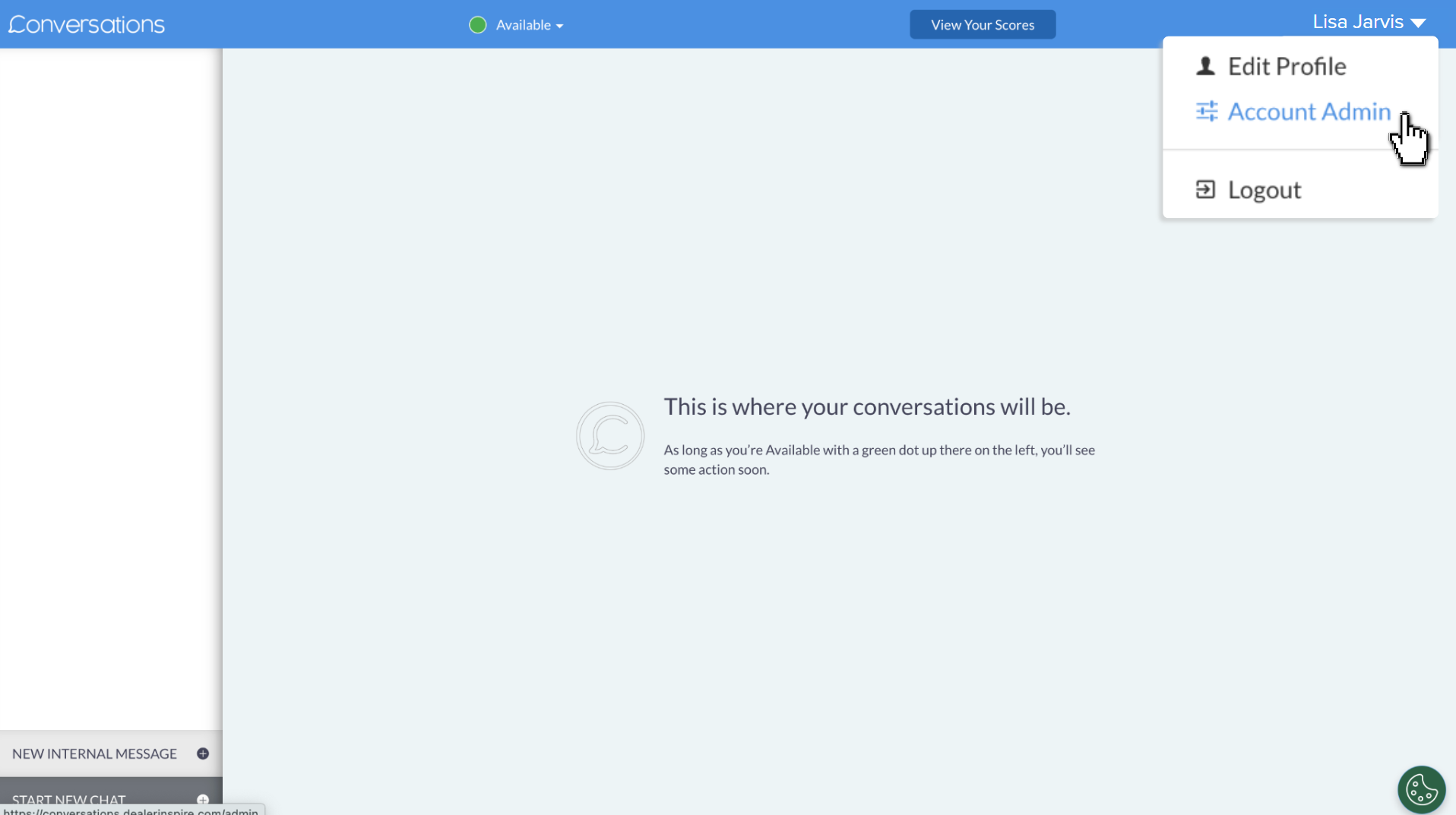
To access the backend of Conversations for admins:
- From the main chat screen, click your name in the top right corner.
- Select Account Admin.
2 Monitor reporting and performance
Use reporting dashboards and chat history to evaluate team responsiveness and optimize strategy.
Reporting Dashboards
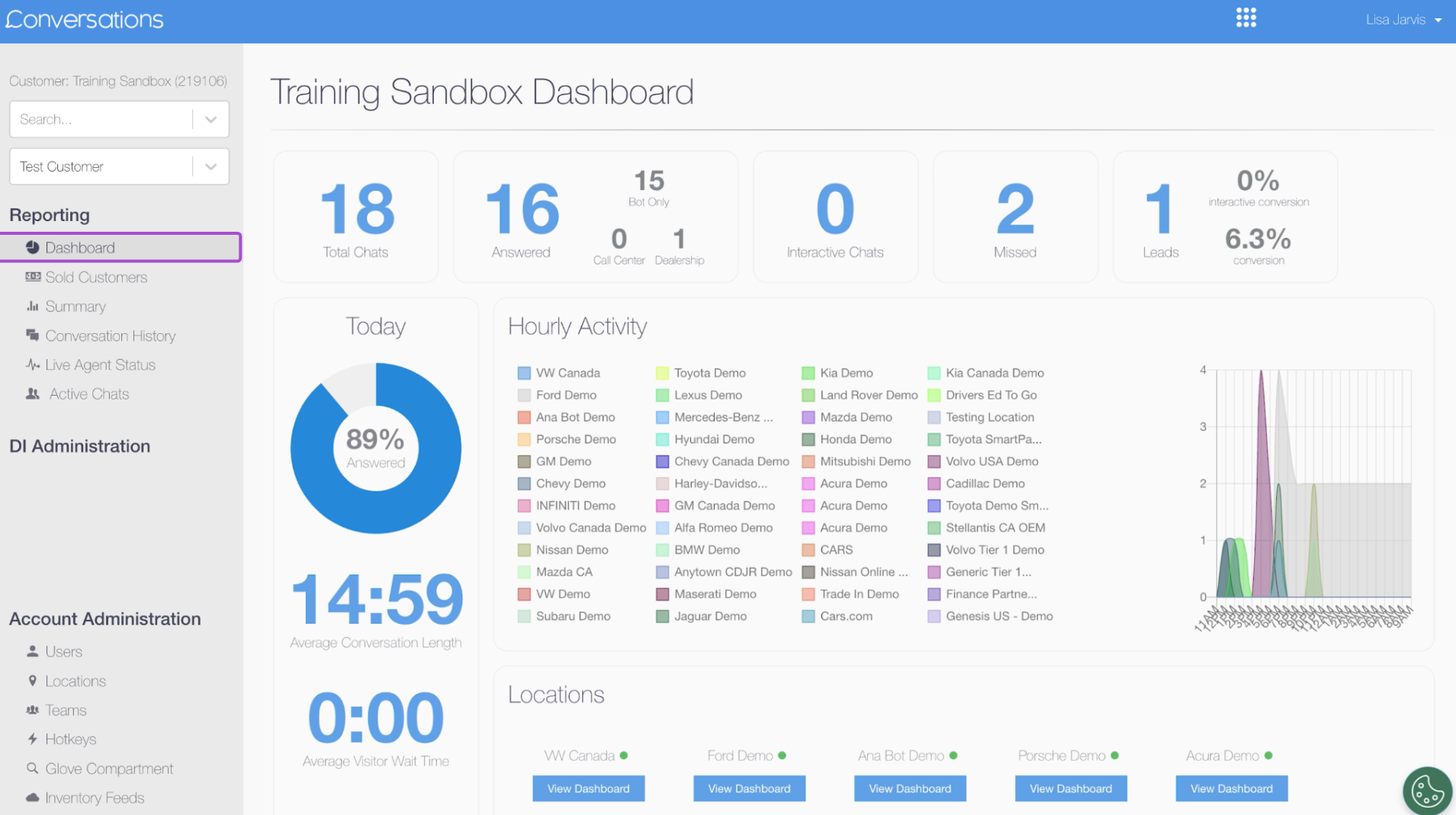
- Dashboard: A “health check” summary showing total chats, answered/missed chats, and leads created
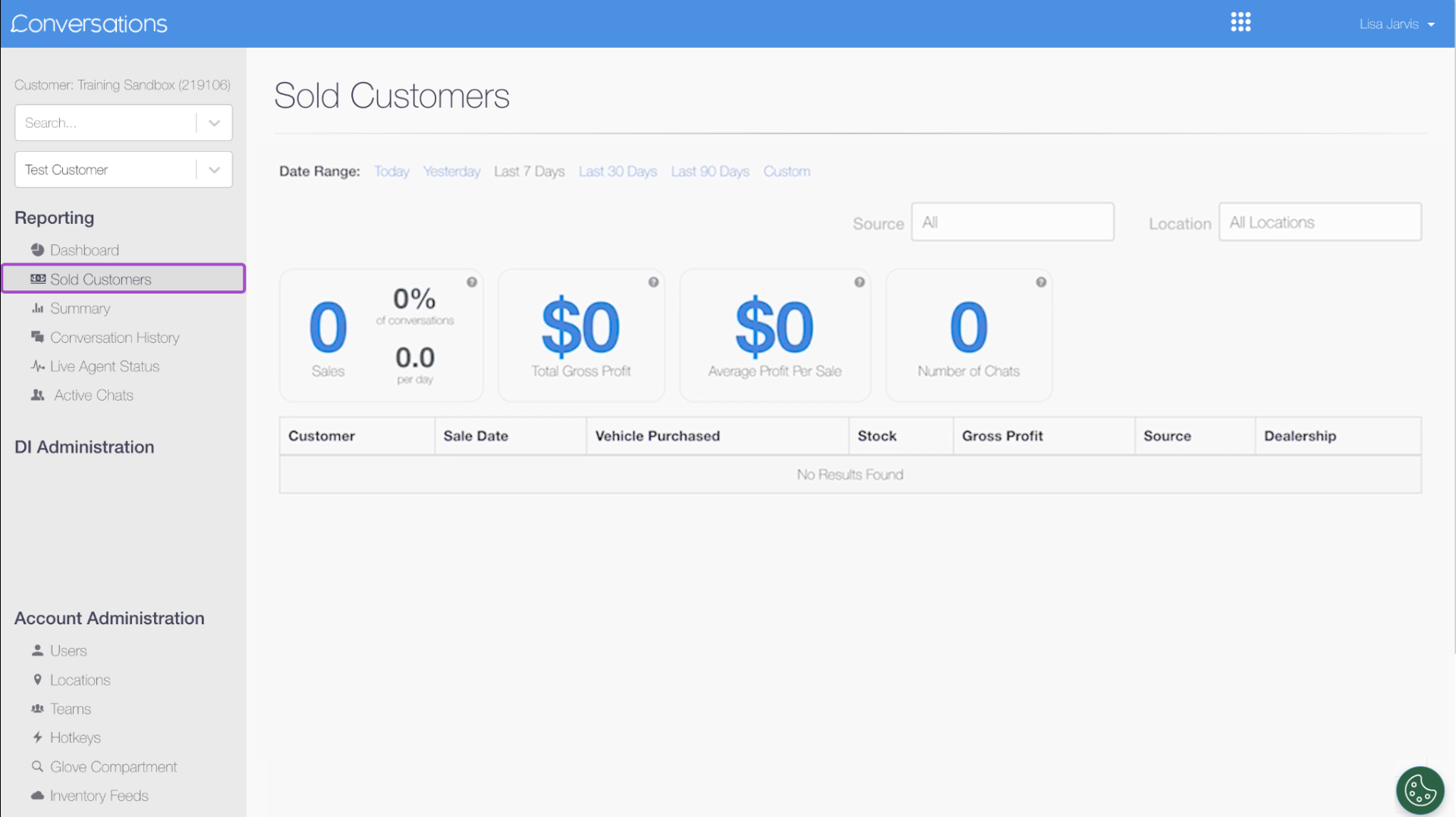
- Sold Customers: Tracks sales linked to chats, including vehicle value and ROI
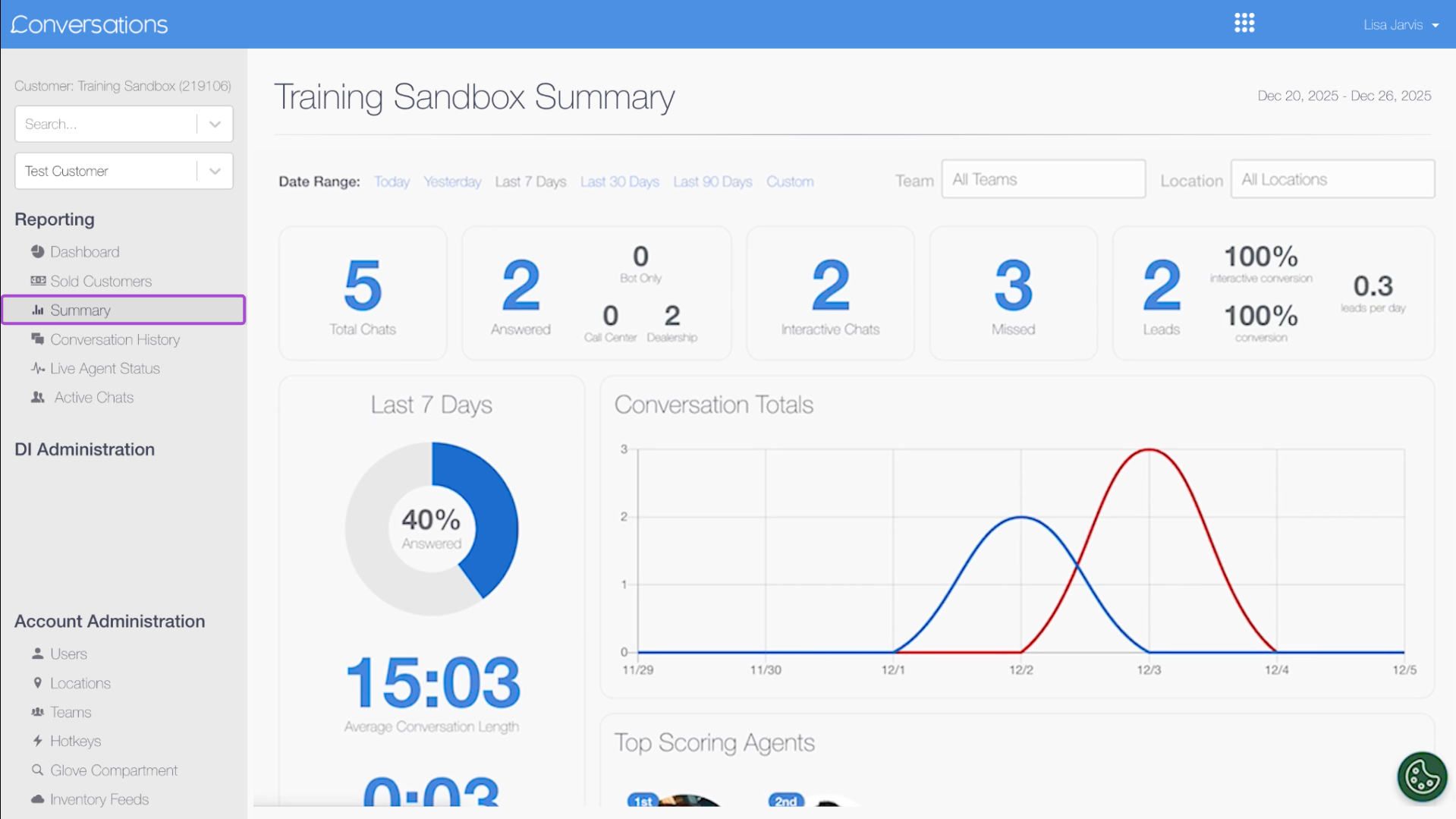
- Summary Tab: High-level metrics for chat volume and lead generation
Tip: Use the Date Range filter to measure performance trends and view Top Scoring Agents to encourage team competition.
History and Activity
- Conversation History: Find past chats by date and click View Details to refresh your memory on a conversation or lead, or find missing information.
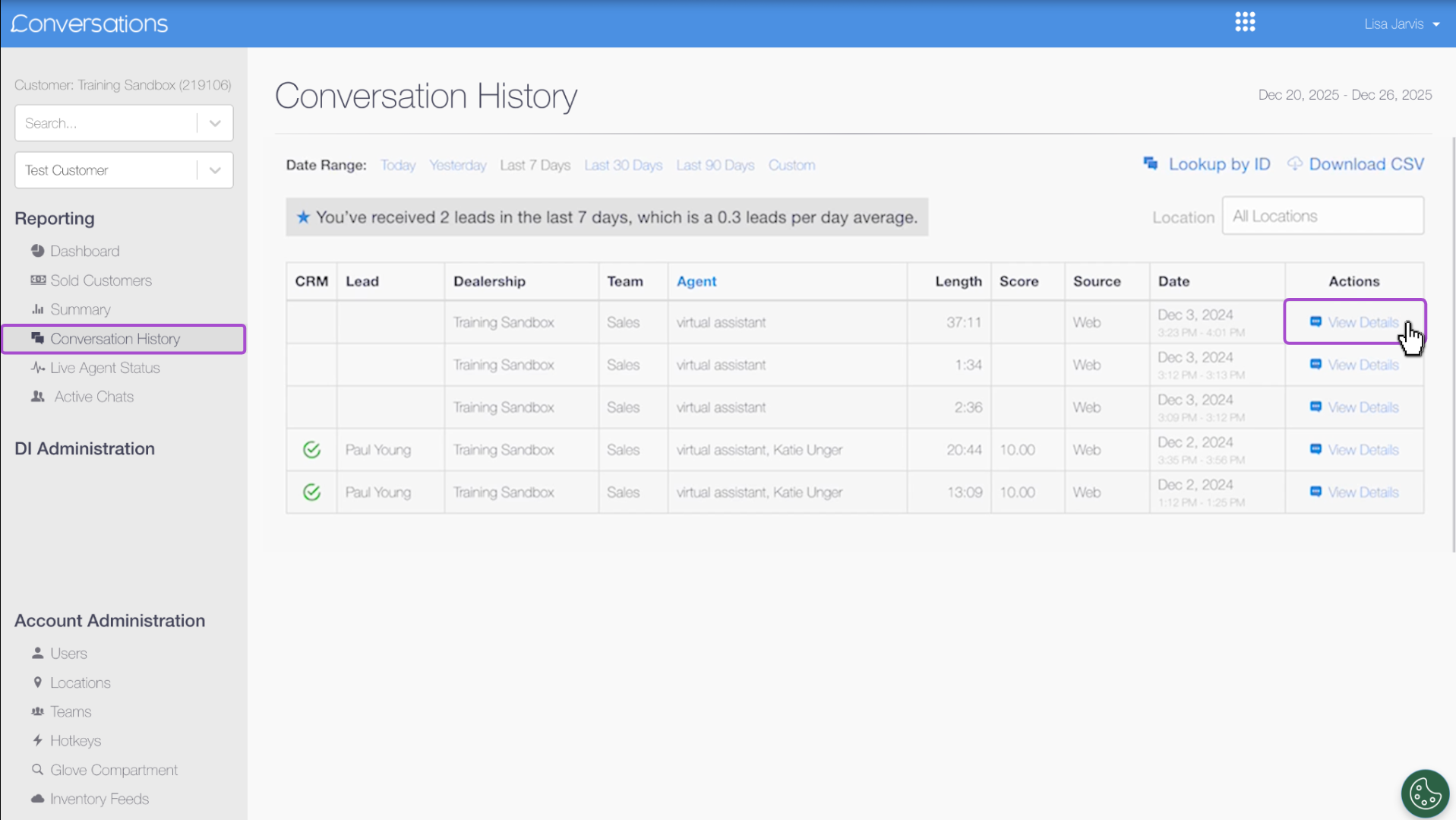
Tip: If a user is being abusive, click Blacklist Visitor from the conversation details to prevent them from messaging again.
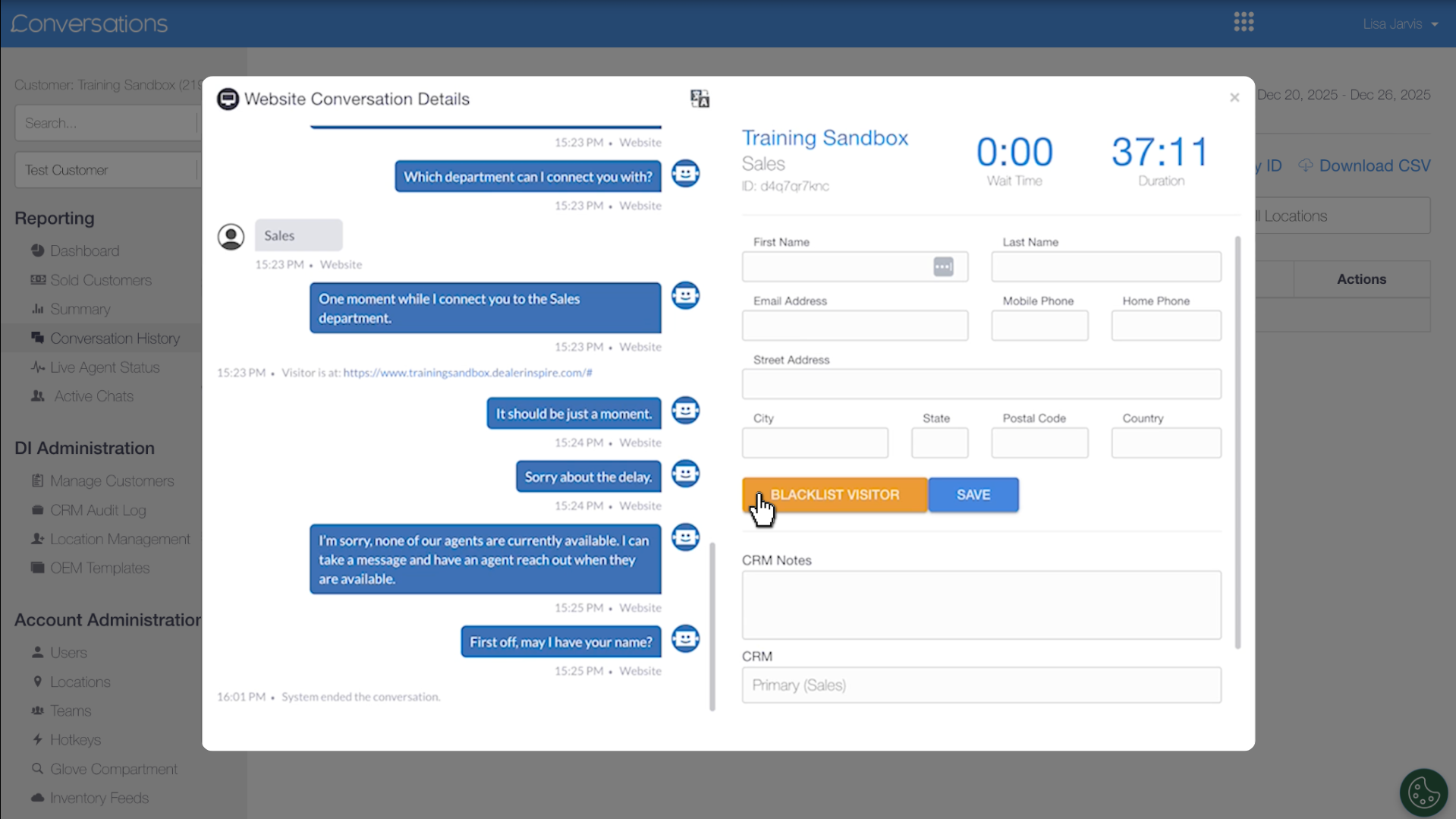
- Live Agent Status: A list showing which team members are currently online or offline.
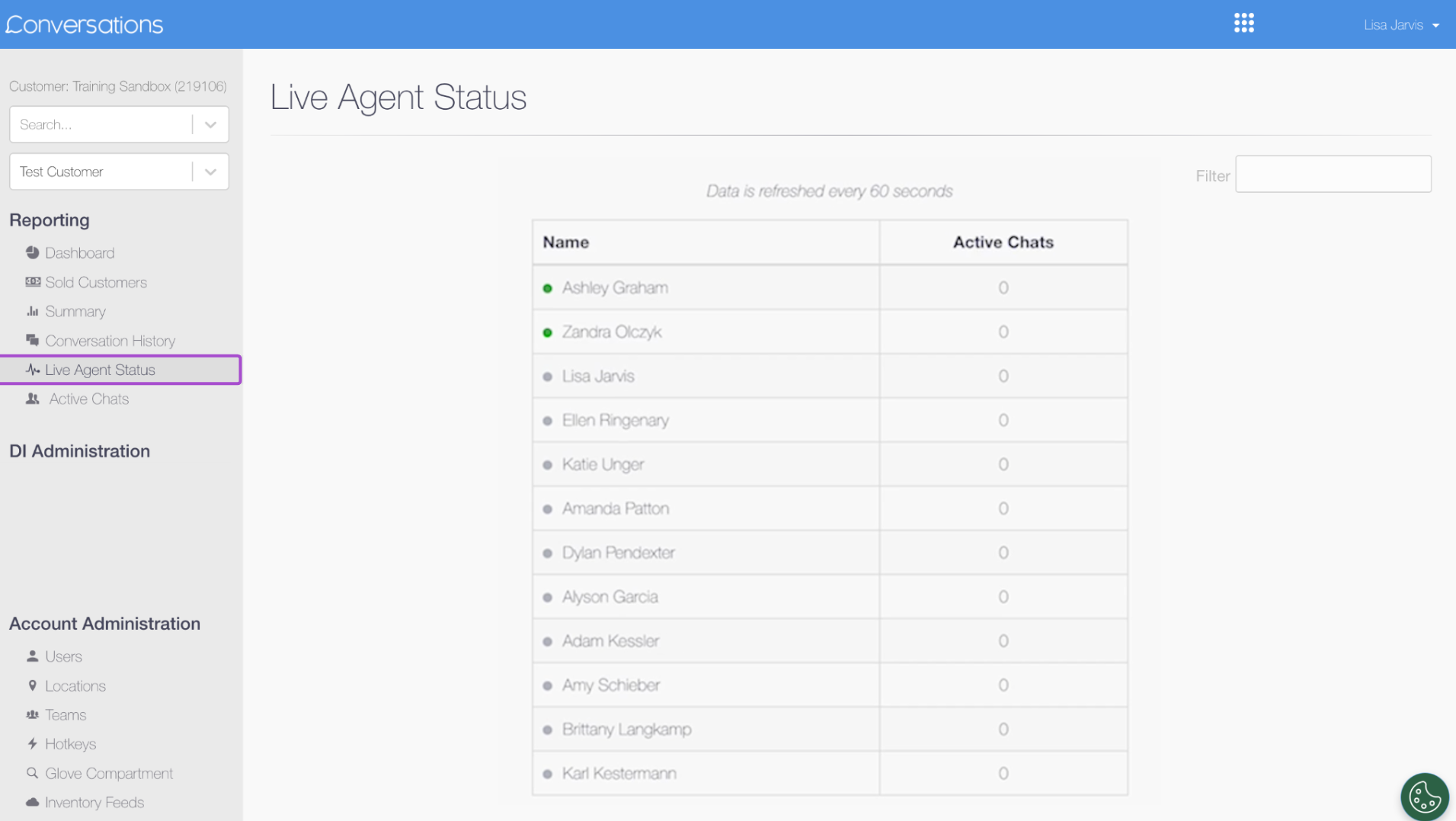
- Active Chats: View a list of ongoing conversations.
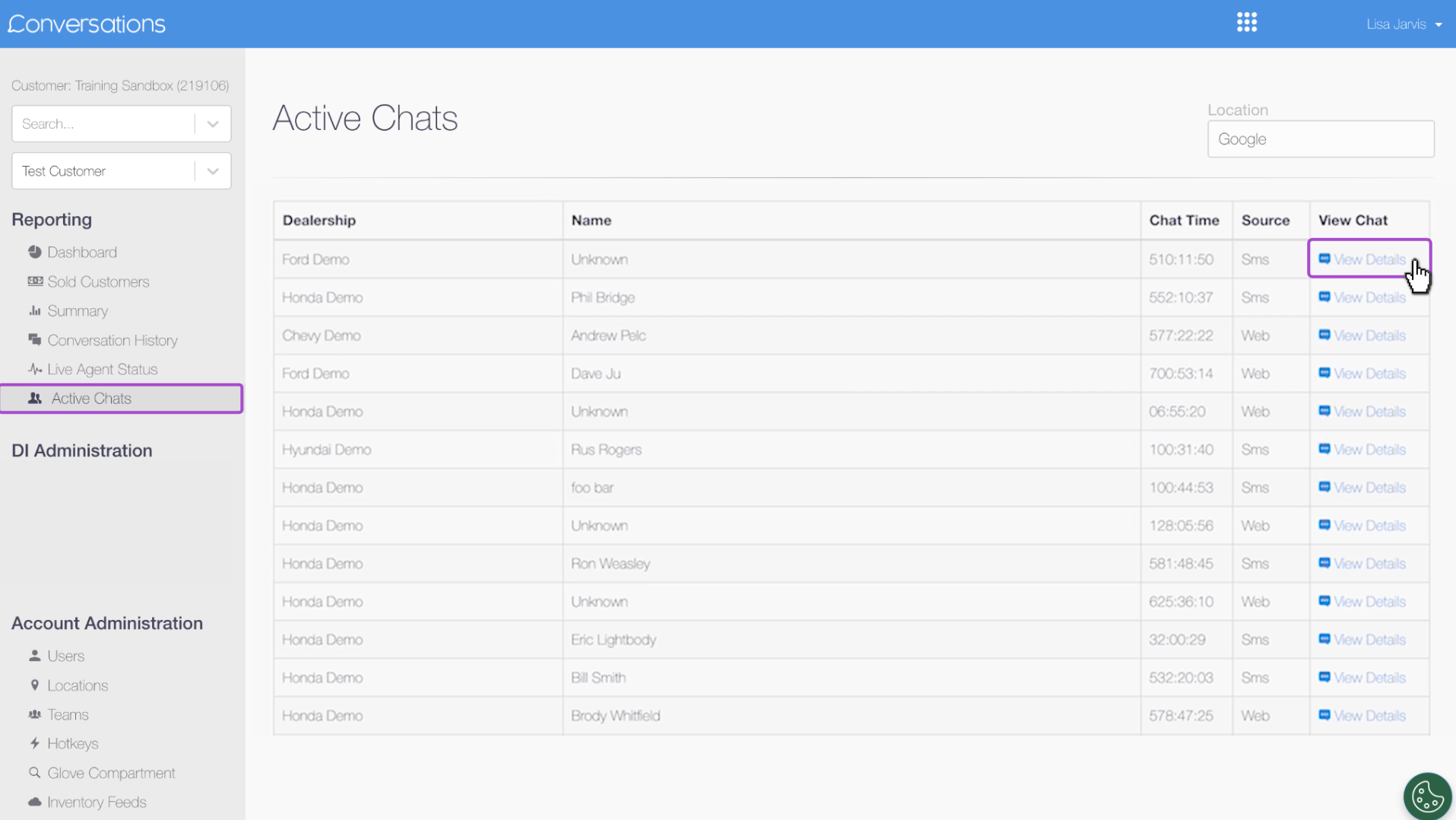
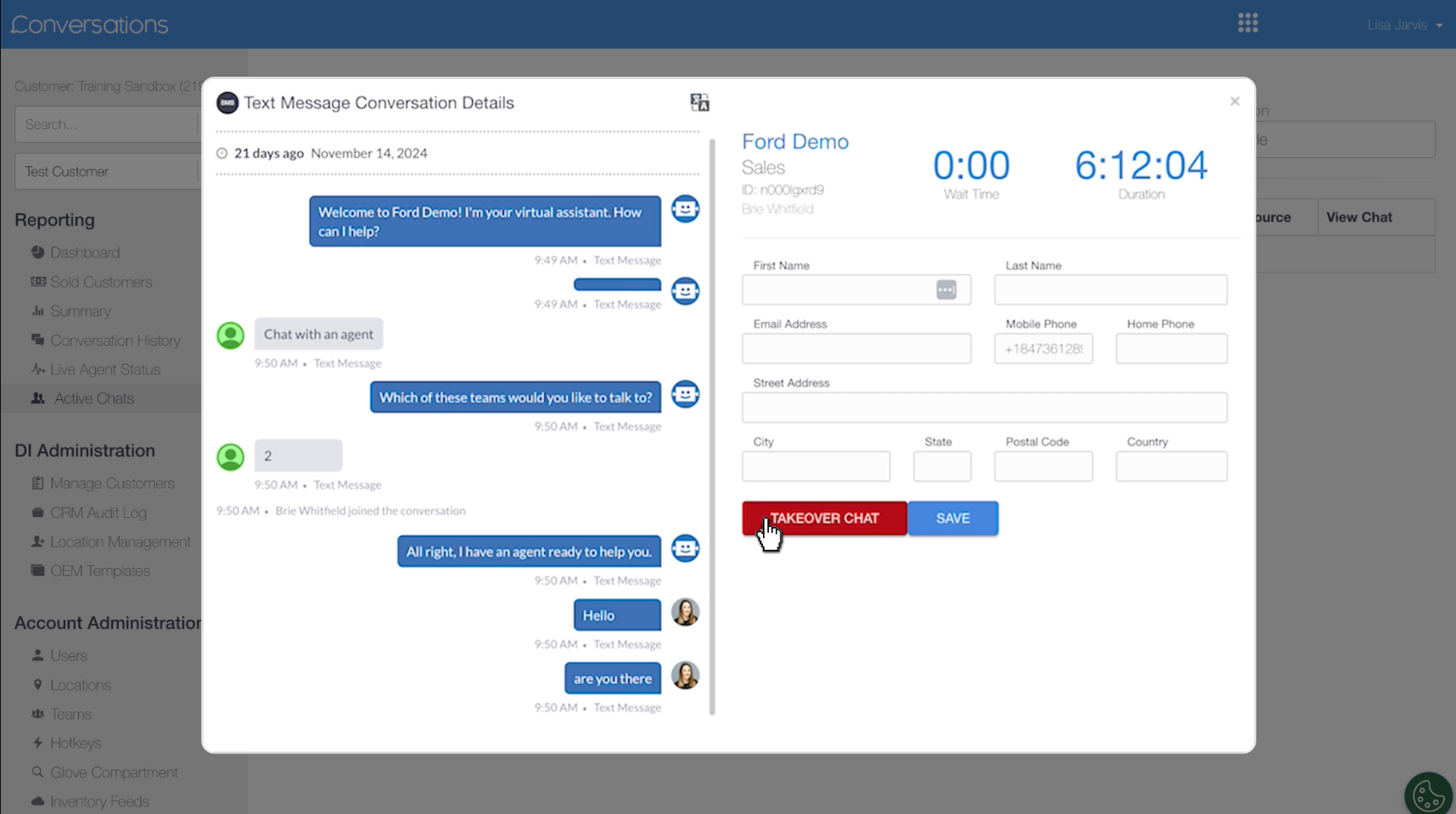
- Chat Takeover: If an agent needs help, click View Details and then Takeover Chat. You will become the primary agent, and the original agent will be removed.
3 Manage users and teams
Control who has access and when your dealership is available for chat in the Account Administration section.
Add New Users
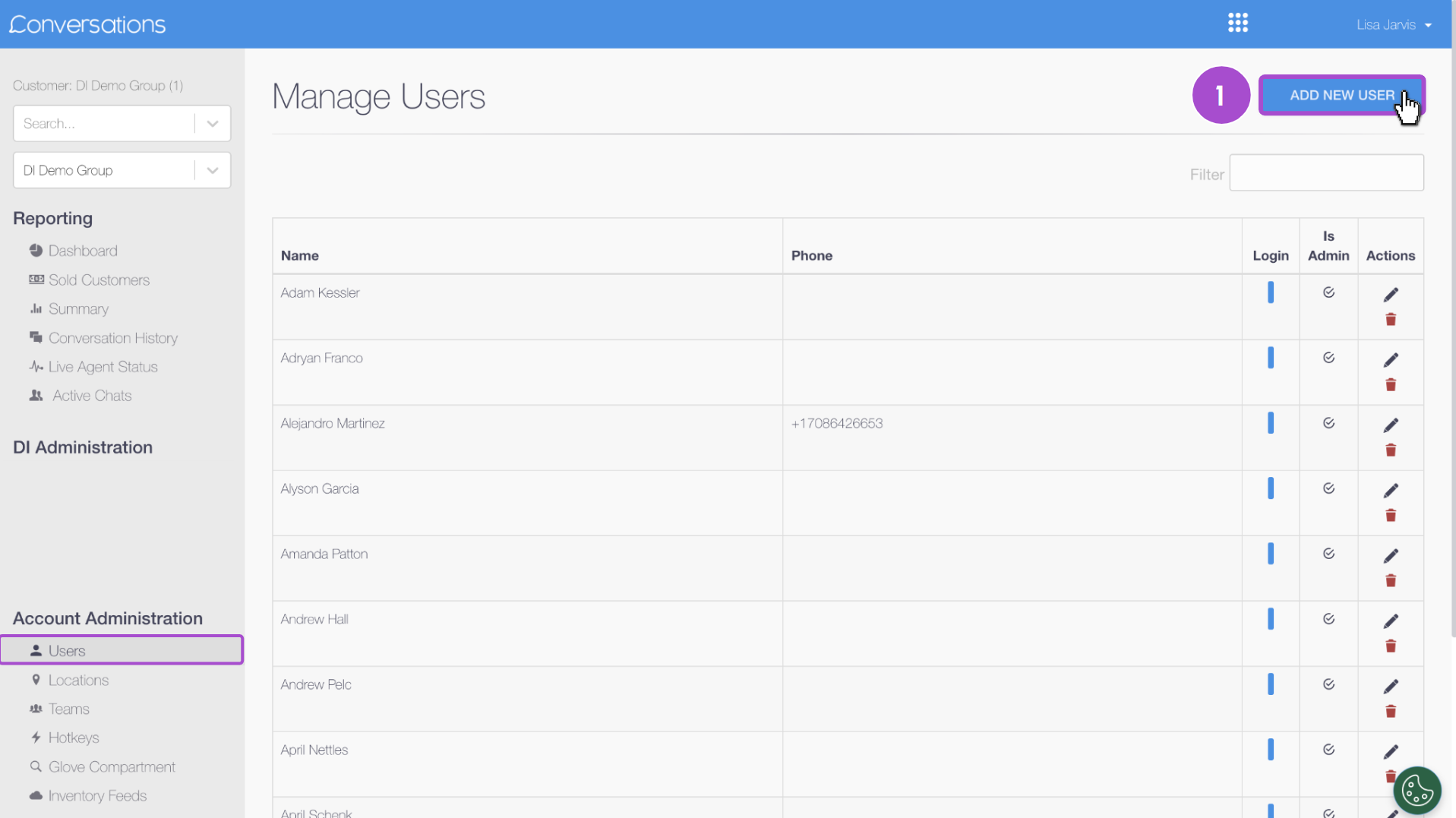
- Click Add New User and enter their contact details.
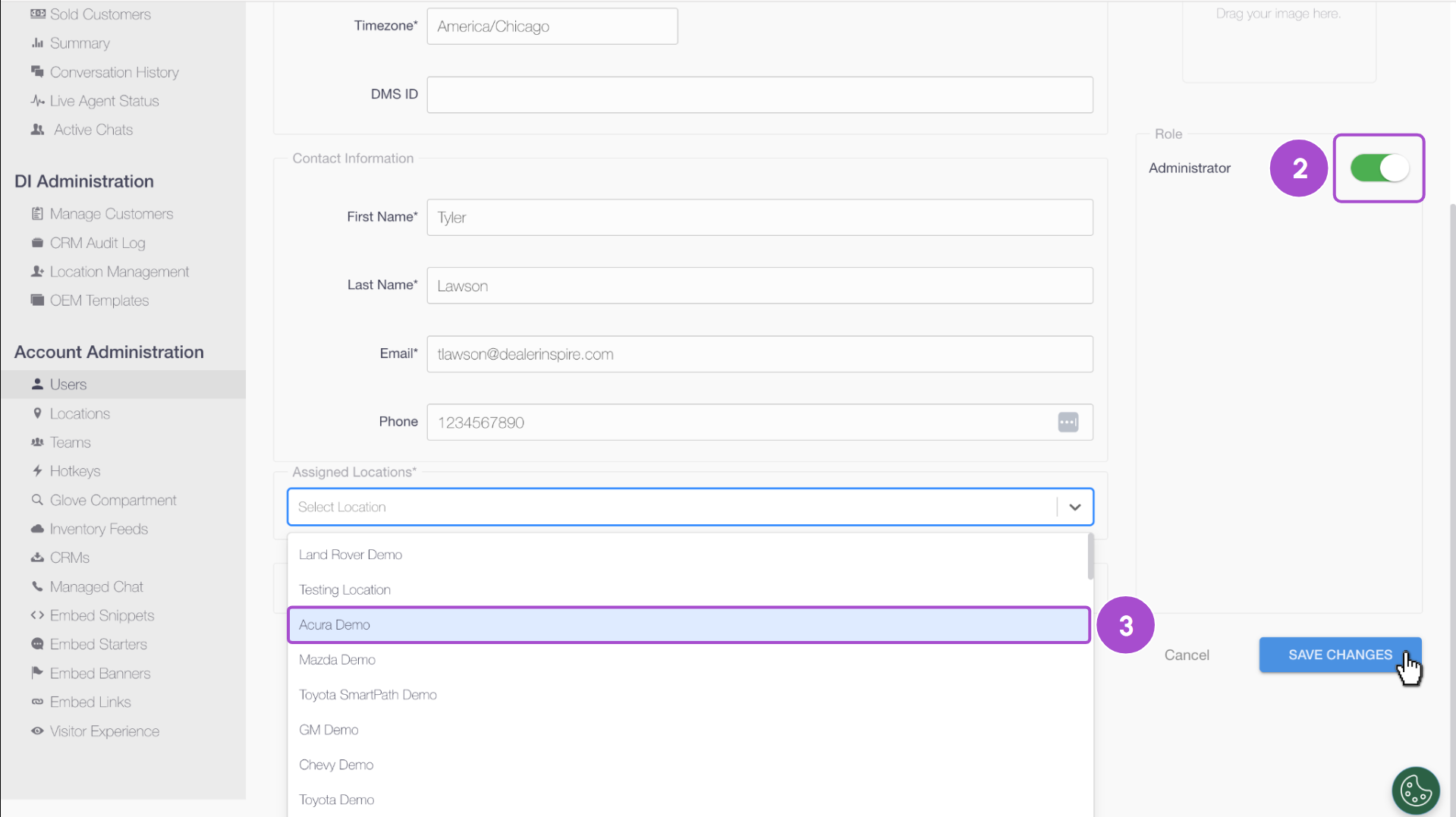
- Toggle Administrator on if you’d like them to have admin access. Keeping this toggled off gives them Agent permissions, meaning they can receive and respond to chats only.
- Assign a Location (your dealership) and a Team (like, Sales or Service). Only agents on the assigned team will receive notifications for new chats from that department.
Adjust Team Settings
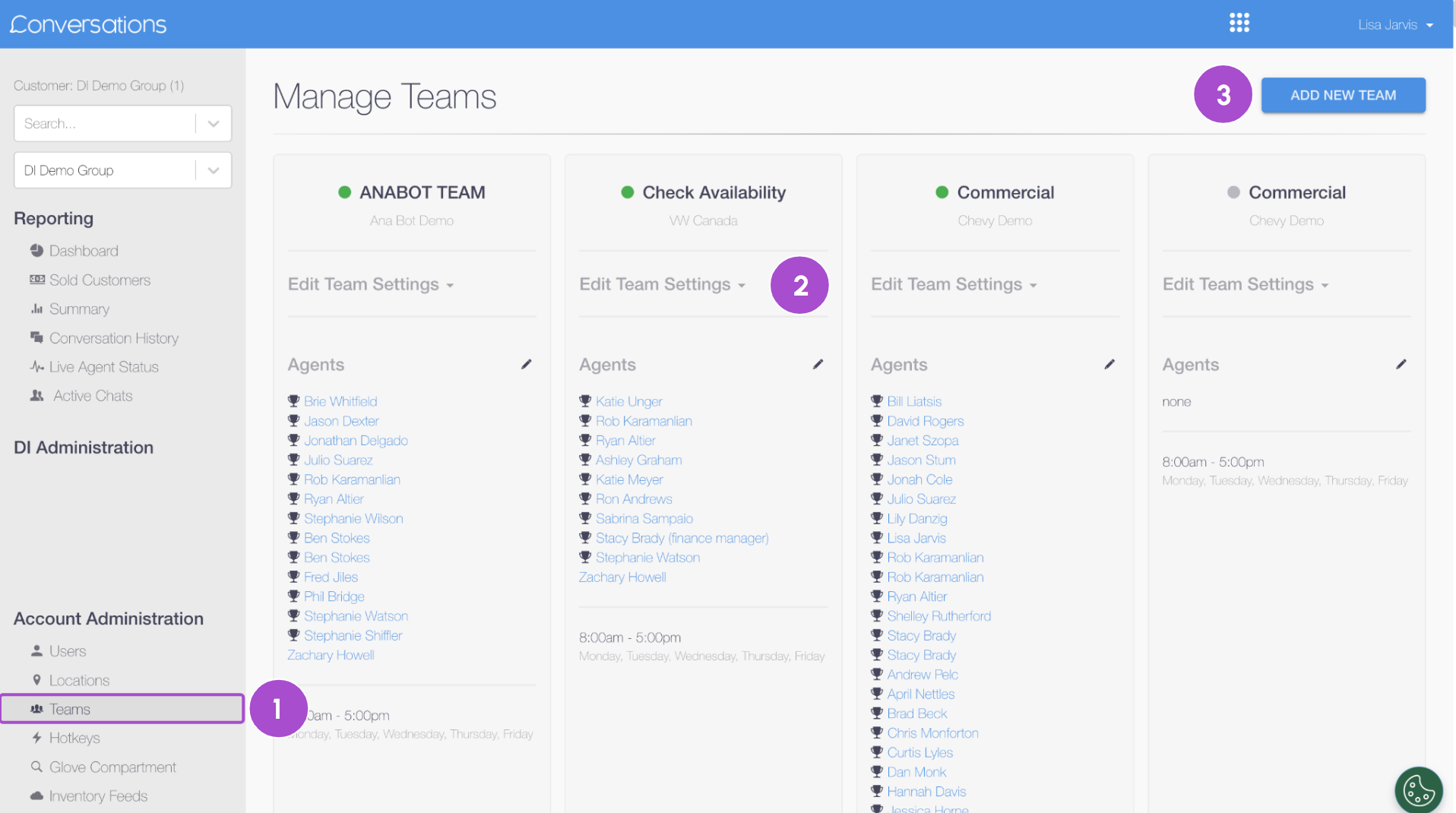
- Click Teams and find the team you wish to modify.
- Click Edit Team Settings to change the team name, set business hours, add close dates (holidays), or update your Offline Message.
- Click Add New Team to add a new department.
4 Create and manage operational resources
Hotkeys (Message Templates)
Prewritten messages help standardize communication and speed up replies.
- Click Add New Hotkey
- Enter a Name, Location, and Category
- Toggle Favorite to pin to the top of the list
- Add the message text, then click Save
Agents can insert hotkeys by selecting them from the toolbar or typing / followed by the hotkey name.
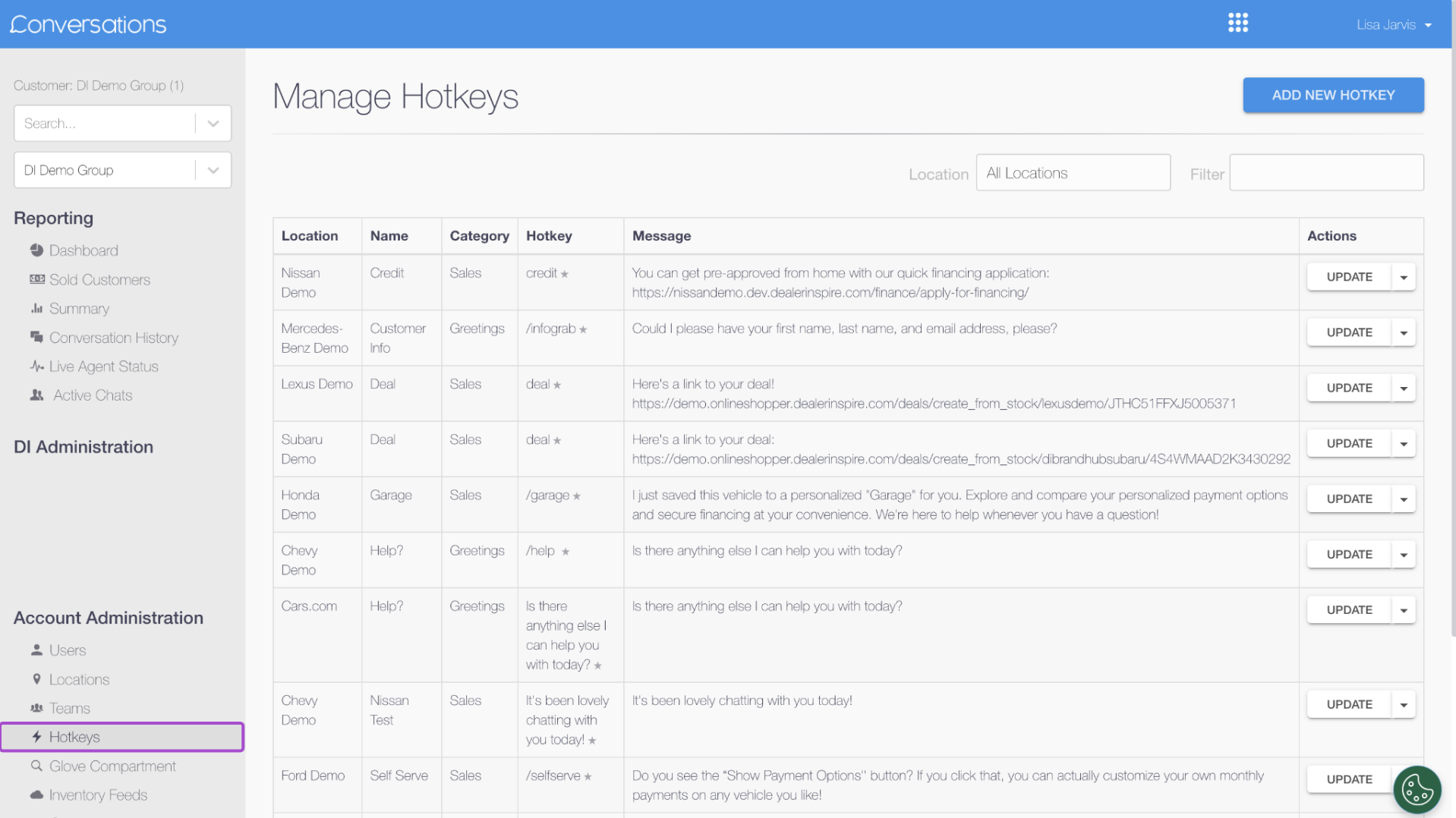
Check out our other help articles for more information on Hotkeys.
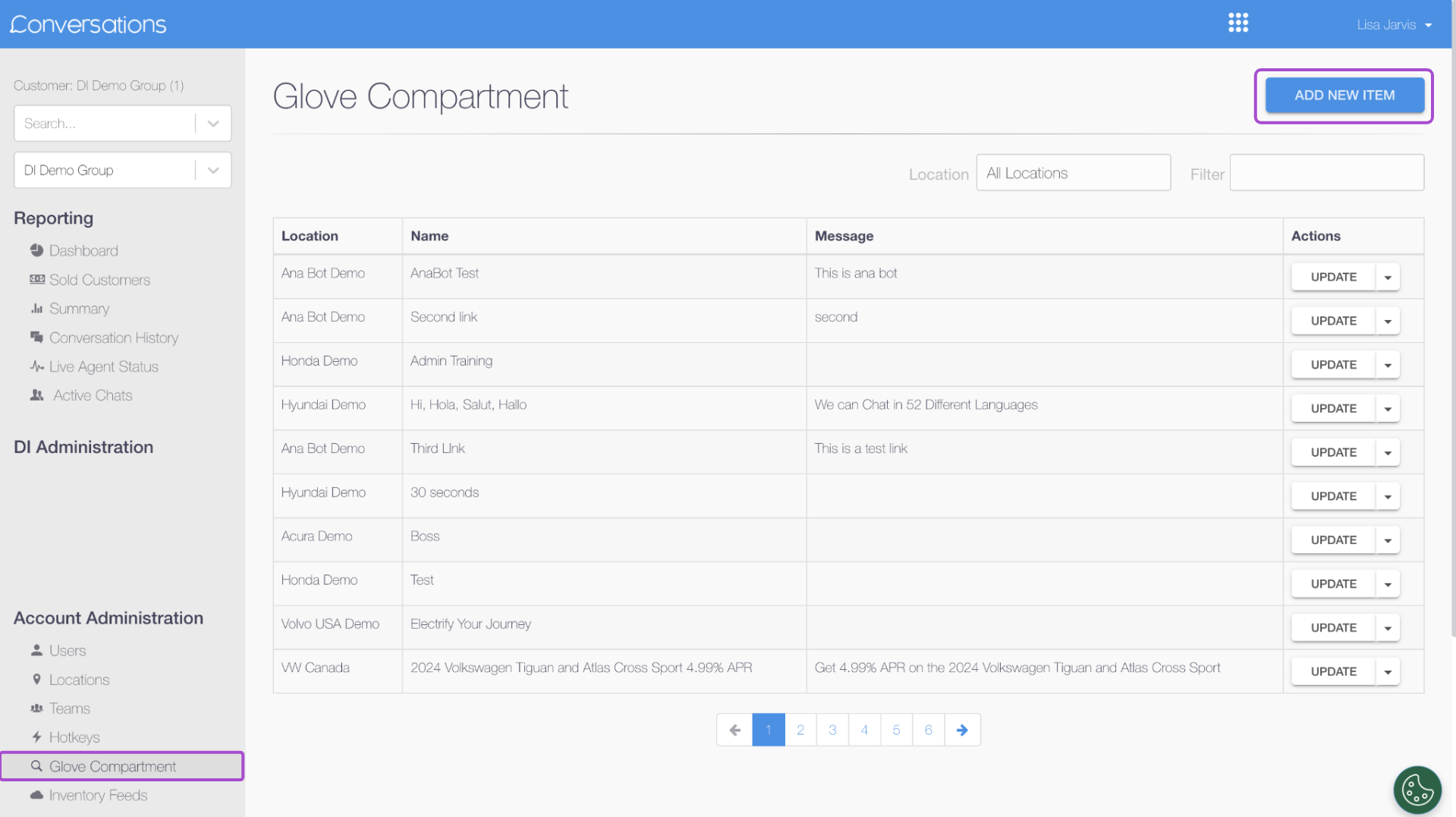
The Glove Compartment
A shared library of links and files agents can easily send to shoppers.
- Click Add New Item
- Add a Name and assign a Location
- Add a Link (e.g., VDP, specials page) or upload a File
- Saved items are instantly accessible in the agent chat view
5 Utilize Managed Chat
Managed Chat acts as a 24/7 extension of your dealership from a call center, ensuring every customer interaction is handled professionally even when your team is offline or busy.
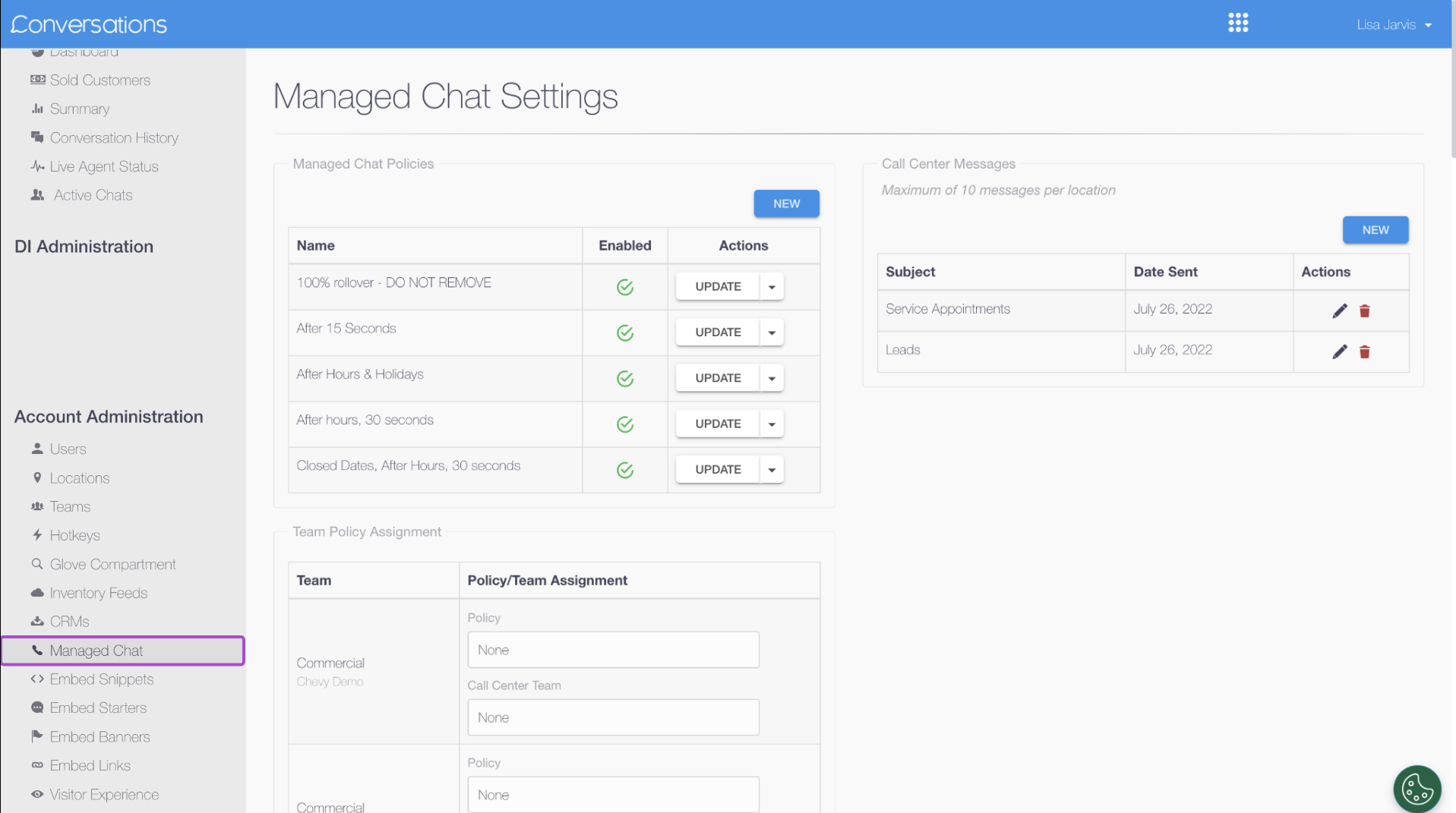
Managed Chat Settings
- 24/7 Call Center Coverage: With Managed Chat set up, all chats will be expertly answered and added to your CRM by a Conversations call center.
- Automatic Roll-Over: You can configure chats to automatically “roll over” to the Managed Chat team if a customer is left waiting for a response from your internal team for a set number of seconds (adjust these settings to: 10, 15, 20, 25, 30, 45, or 60 seconds).
- Hybrid Strategy: This approach allows your team to handle chats during business hours while the call center acts as a backup after hours, on holidays, or during high-volume periods when your staff is too busy to respond.
- Lead Capture & CRM Integration: The call center team is trained to capture high-intent leads and push that data directly into your CRM for your sales team to follow up on.
- Escalated Opportunities: Call center agents can identify high-intent shoppers and escalate those opportunities to your live team immediately.
Click New or Update to adjust Managed Chat messages and settings.
6 Customize the visitor experience
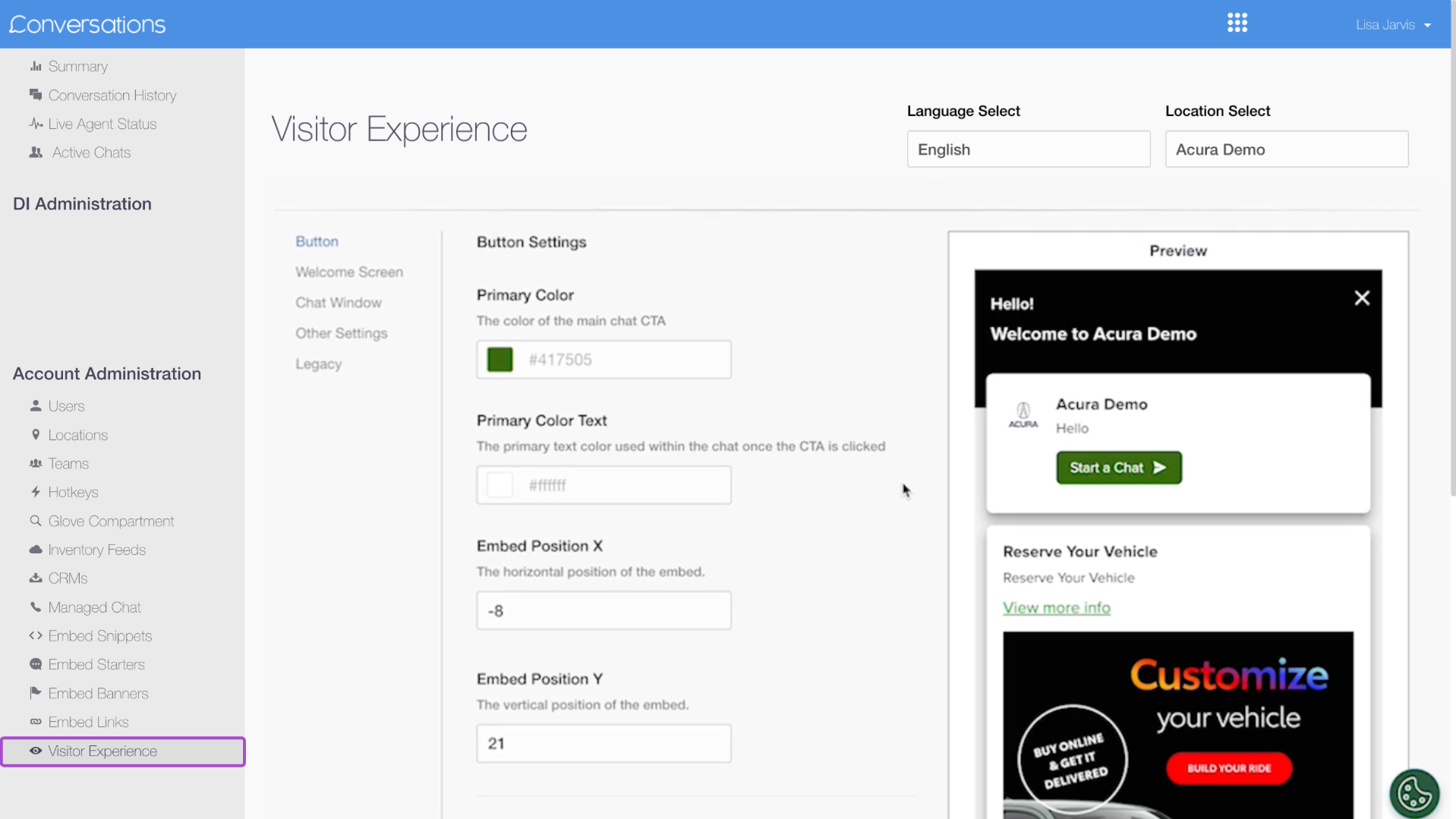
Adjust the look and feel of the chat window on your website.
- Navigate to Visitor Experience
- Adjust sections like:
- Button (Start Chat CTA color/position)
- Welcome Screen
- Chat Window
- Other Settings
- Button (Start Chat CTA color/position)
You’ll see a live preview on the right side of the screen. You can also:
- Add welcome messages, videos, or promos
- Enable a dealership location map
- Ensure brand consistency by aligning with your OEM’s guidelines