How to create campaigns and generate QR codes
AccuTrade’s campaigns feature makes it easy for consumers to get instant offers on their trade. The more easy opportunities you provide, the more opportunities you will generate.
Generate custom QR codes and campaign links that instantly take customers to your online appraisal experience. Measure the effectiveness of every acquisition campaign by tracking scans, prospects, and acquisitions.
To get started
Go to the Cars.com Hub, and click on AccuTrade.
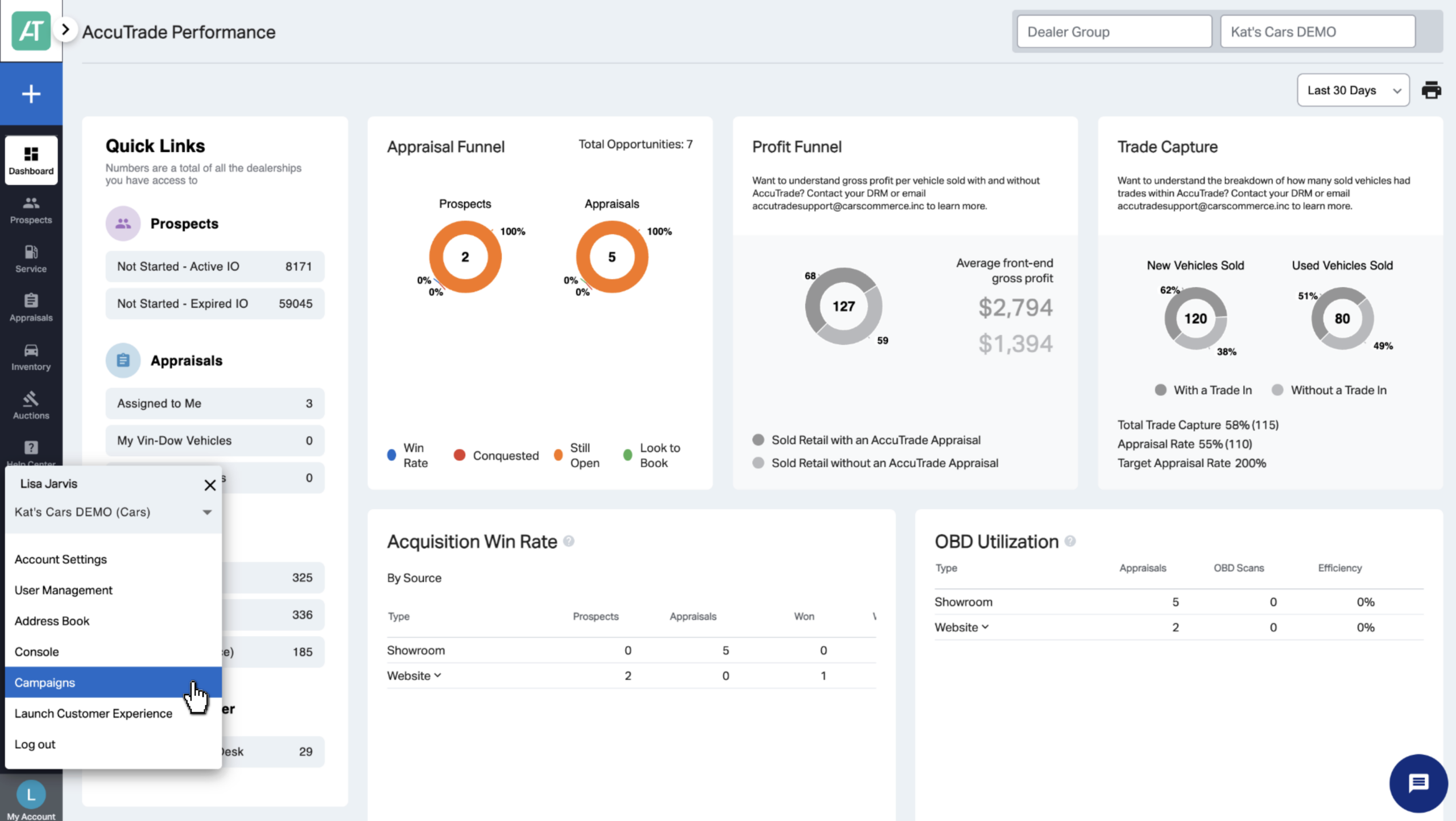
1 Go to account settings
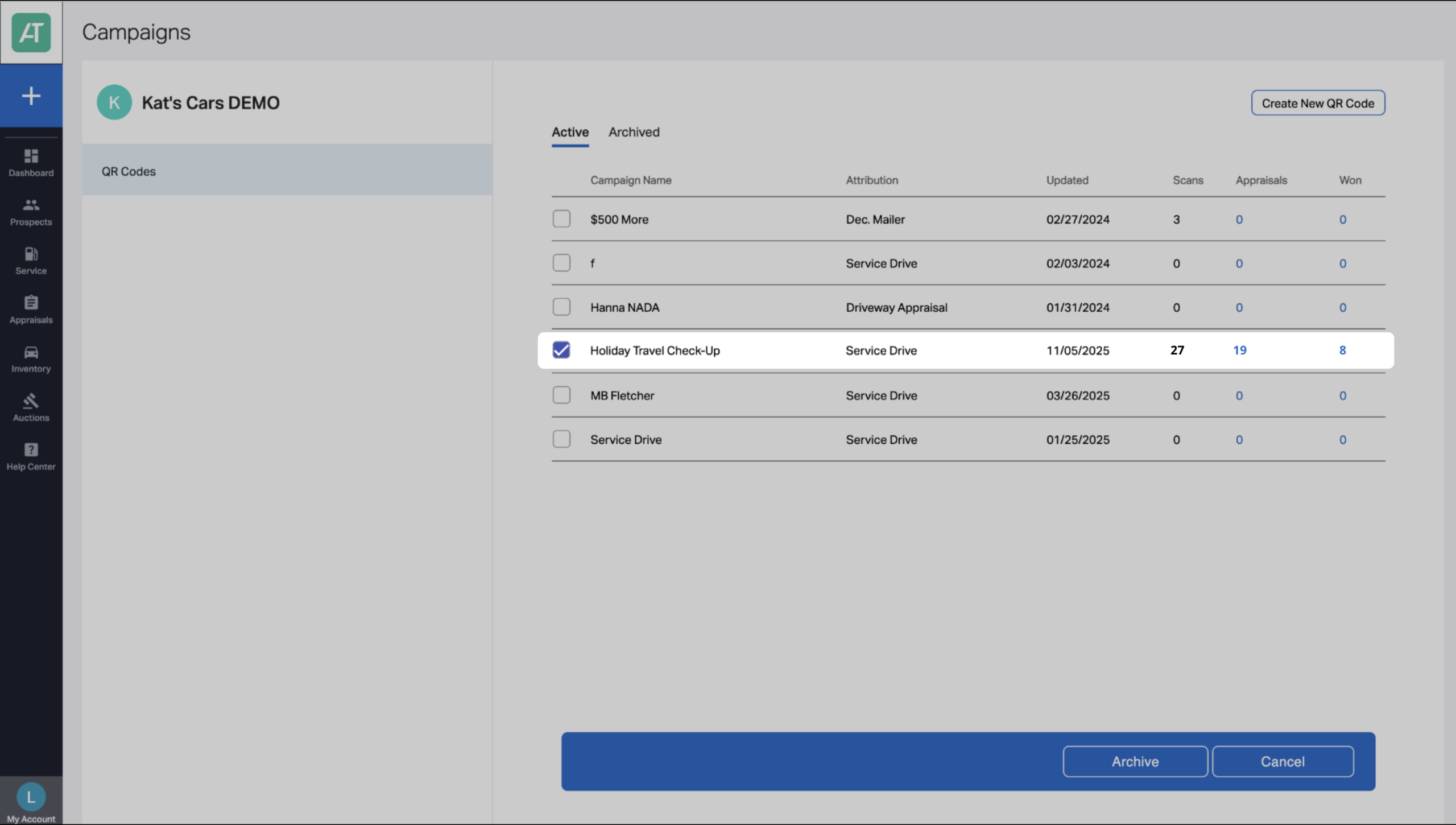
Click on My Account in the left corner, then Campaigns.
2 Create your QR code
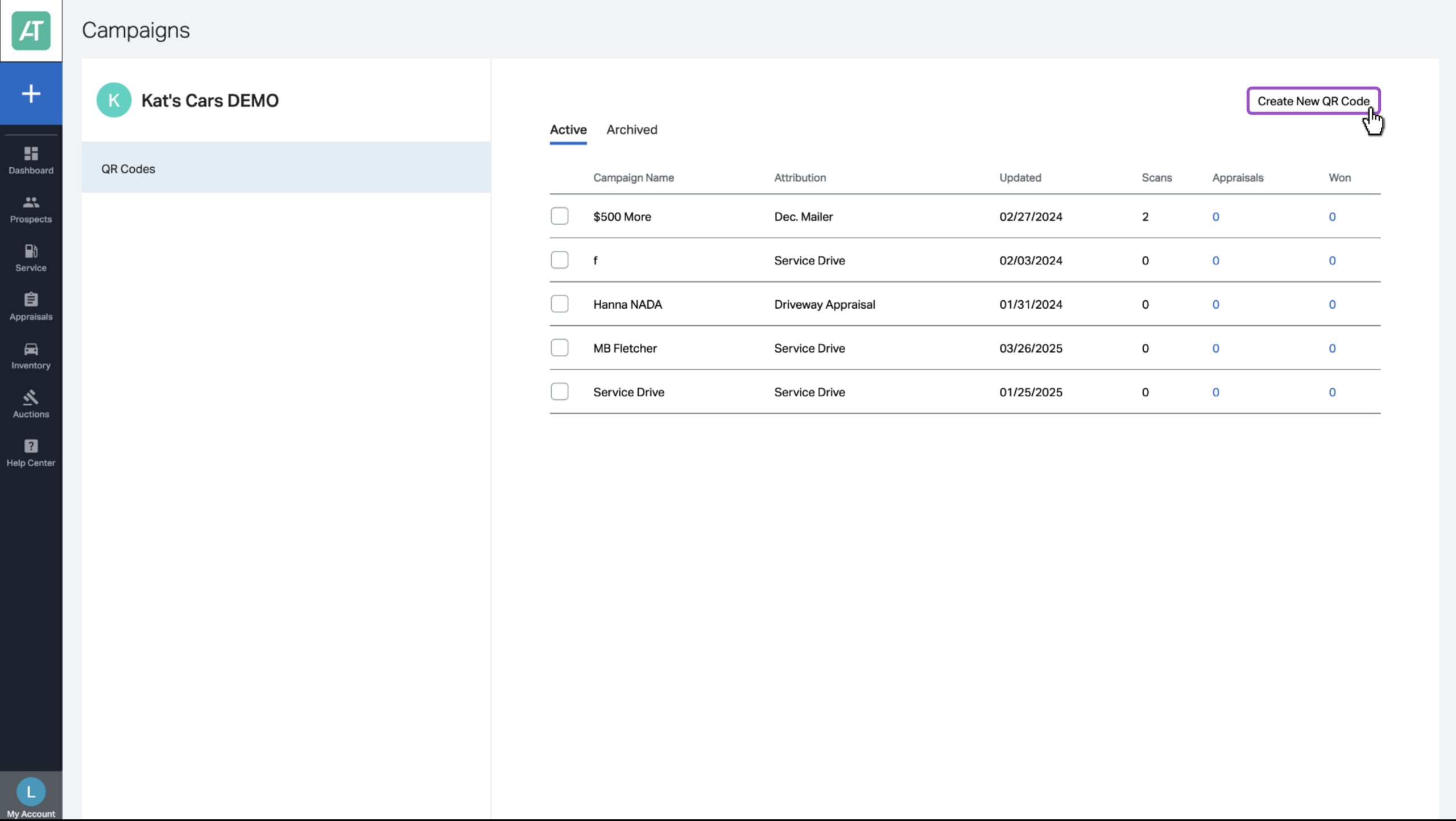
Click Create New QR Code in the top right corner.
3 Set up your campaign
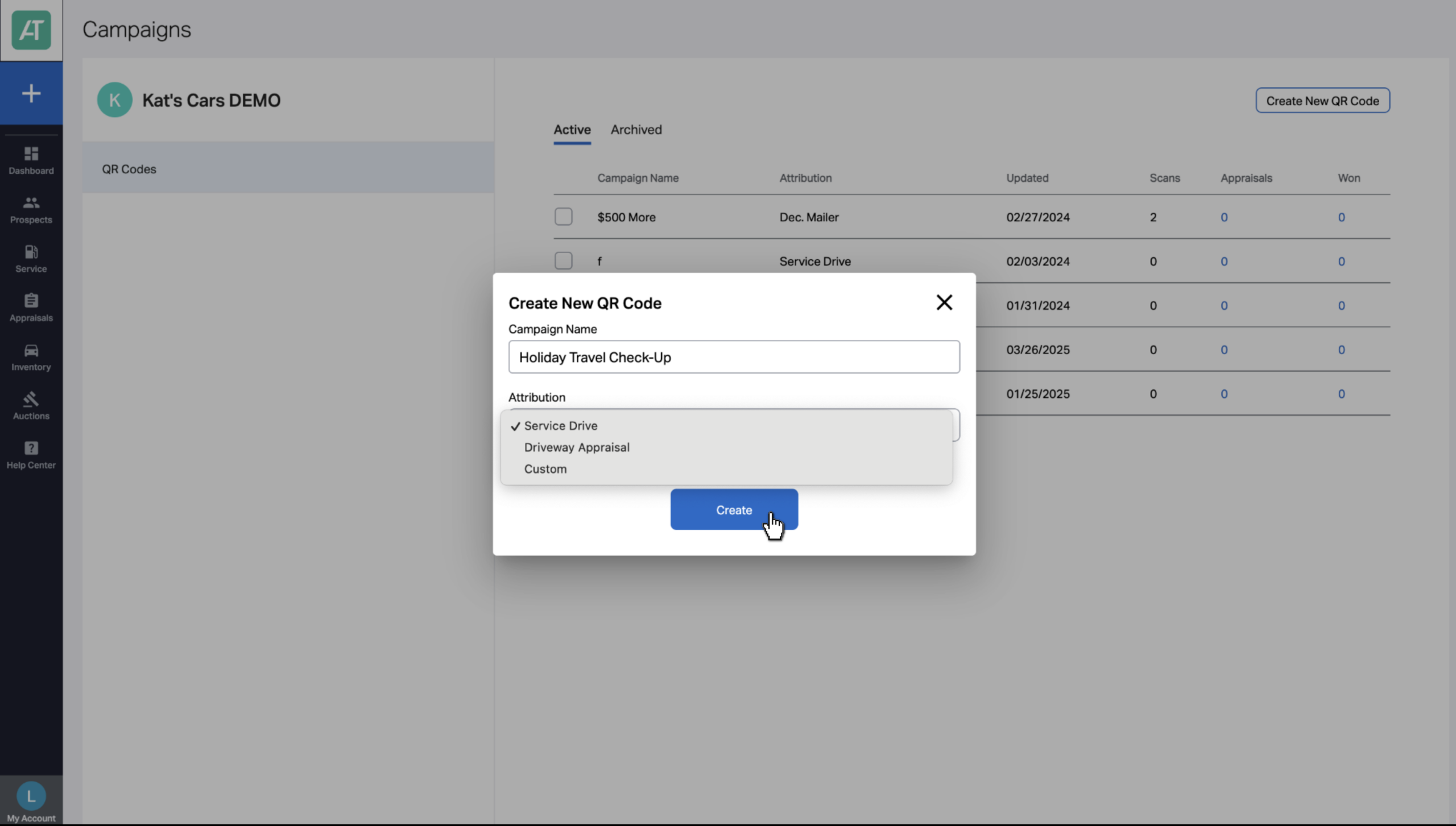
- Enter a Campaign Name:
- Use a name that clearly identifies where or how the campaign will be used
- Use a name that clearly identifies where or how the campaign will be used
- Choose an Attribution Type:
- Service Drive: for campaigns used in service lanes or service waiting areas
- Driveway Appraisal: for campaigns used outside the dealership or sent digitally
- Custom: for campaigns that do not fit either category
- If selected, enter a Custom Attribution Name.
- If selected, enter a Custom Attribution Name.
- Service Drive: for campaigns used in service lanes or service waiting areas
- Click Create.
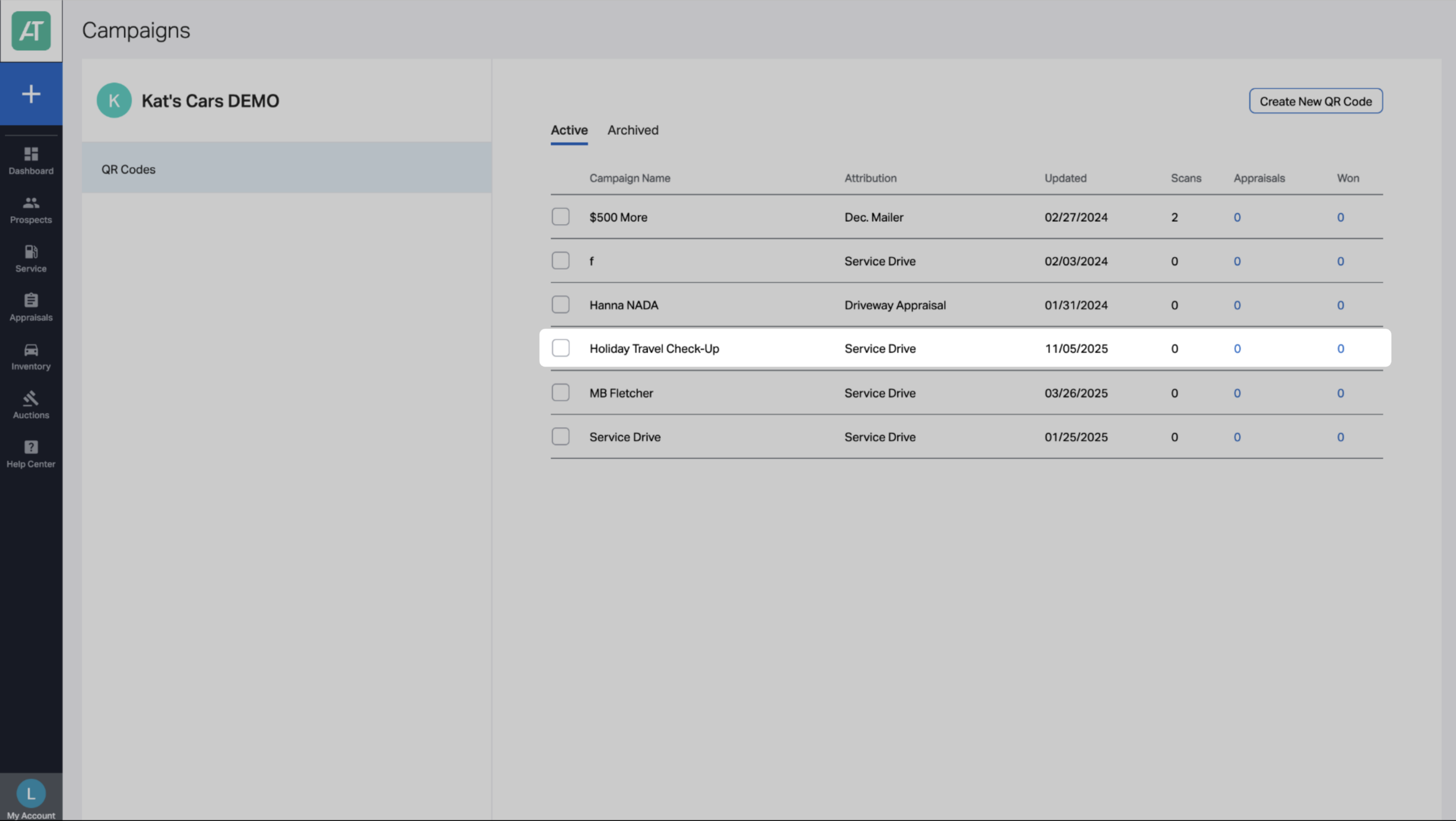
The campaign will appear at the top of the campaign list. Click the campaign to open its details.
4 Access and use campaign assets
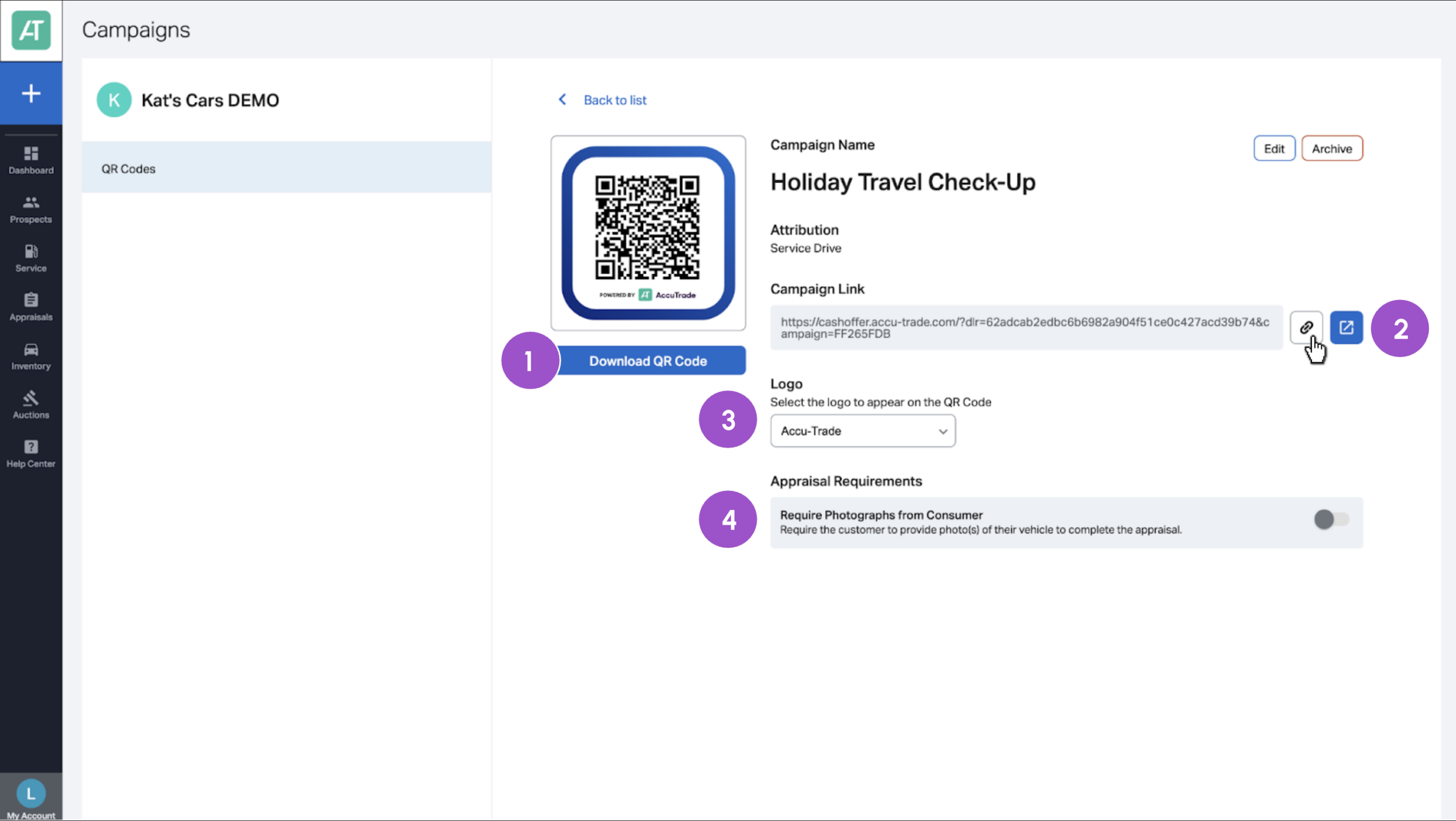
Inside the campaign details, you can:
- Download the QR code image.
- Use this for printed materials, signage, or in-store displays.
- Use this for printed materials, signage, or in-store displays.
- Copy the campaign link.
- Use this for digital placements where a QR code is not supported.
3. Update the logo displayed on the QR code.
4. Enable or disable photo requirements for customer submissions.
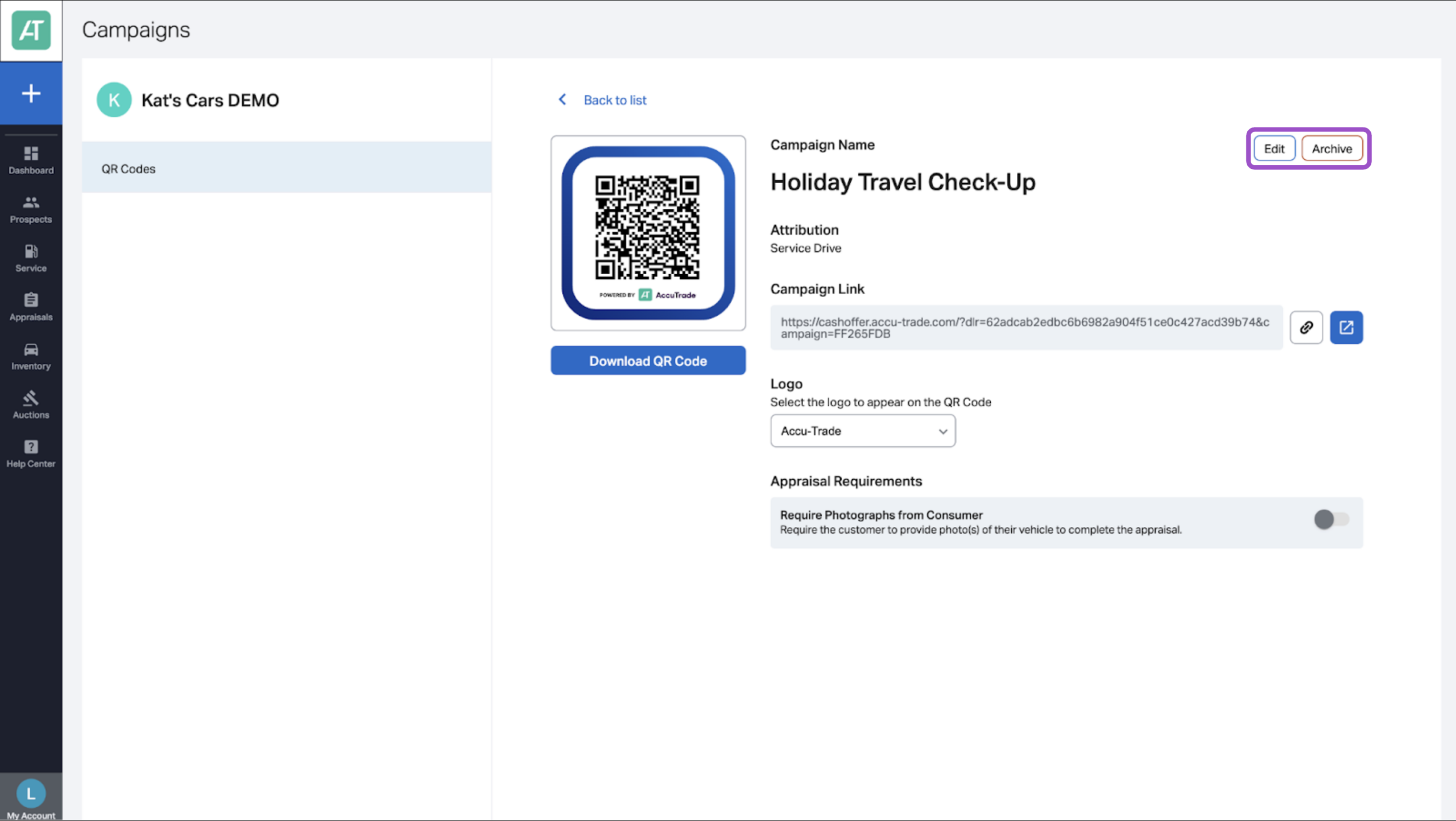
5 Edit or archive a campaign
You can edit a campaign or archive the campaign when it is no longer in use. Archived campaigns stop collecting new activity but remain available for reporting.
6 View campaign insights
To review performance:
- Return to the Campaigns screen.
- Locate the campaign you want to review.
You can view:
- Number of QR code scans
- Number of prospects generated
- Acquisition results tied to the campaign