How to manage user roles and settings
In this article, you’ll learn how to manage users and permissions in AccuTrade. This includes adding new users, editing or archiving existing users, cloning user settings for faster onboarding, and adjusting product and account settings to maintain a consistent appraisal workflow.
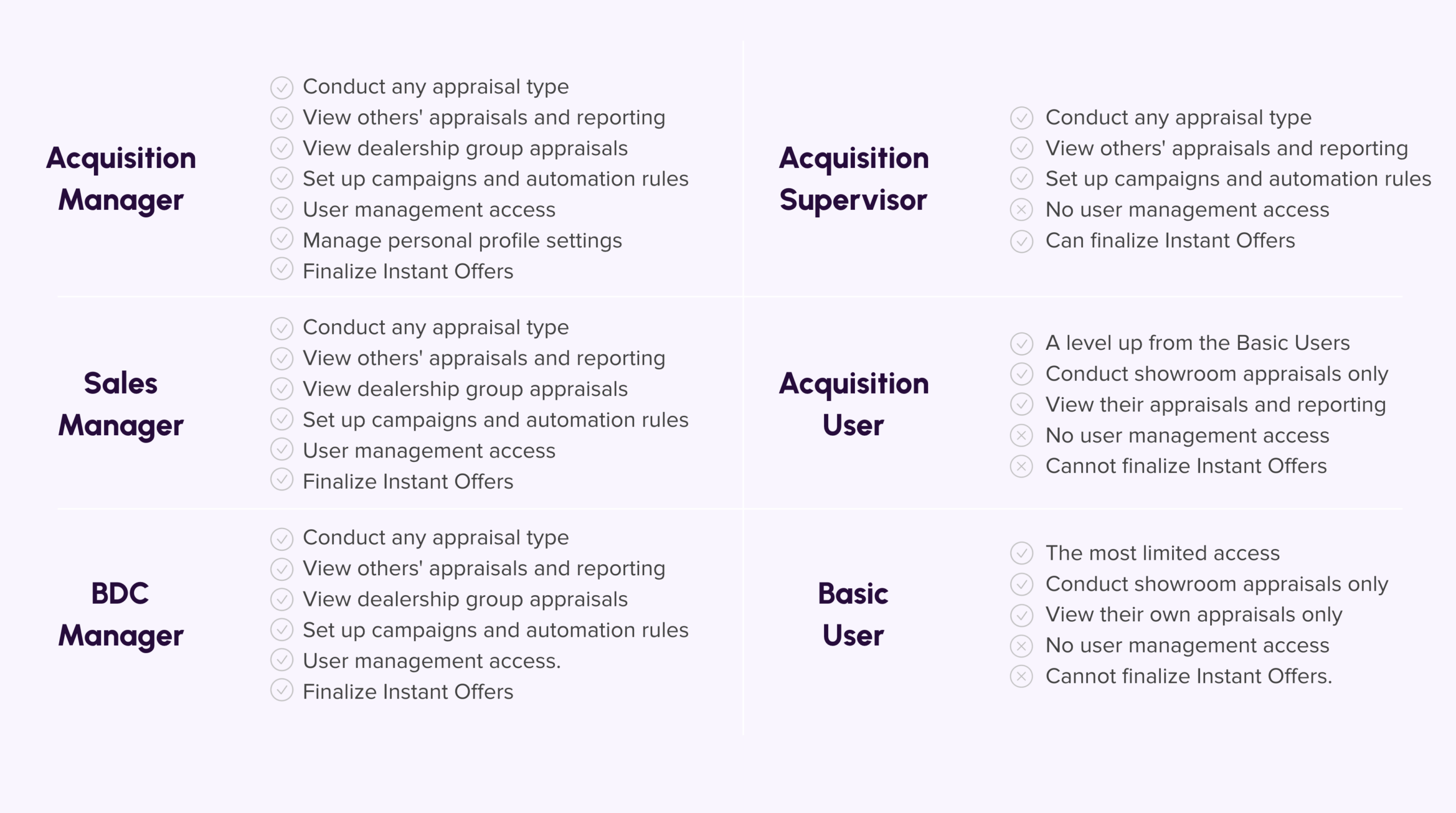
Only Acquisition Managers, BDC Managers, and Sales Managers have access to User Management settings.
To get started
Go to the Cars.com Hub, and click on AccuTrade.
1 Access user management
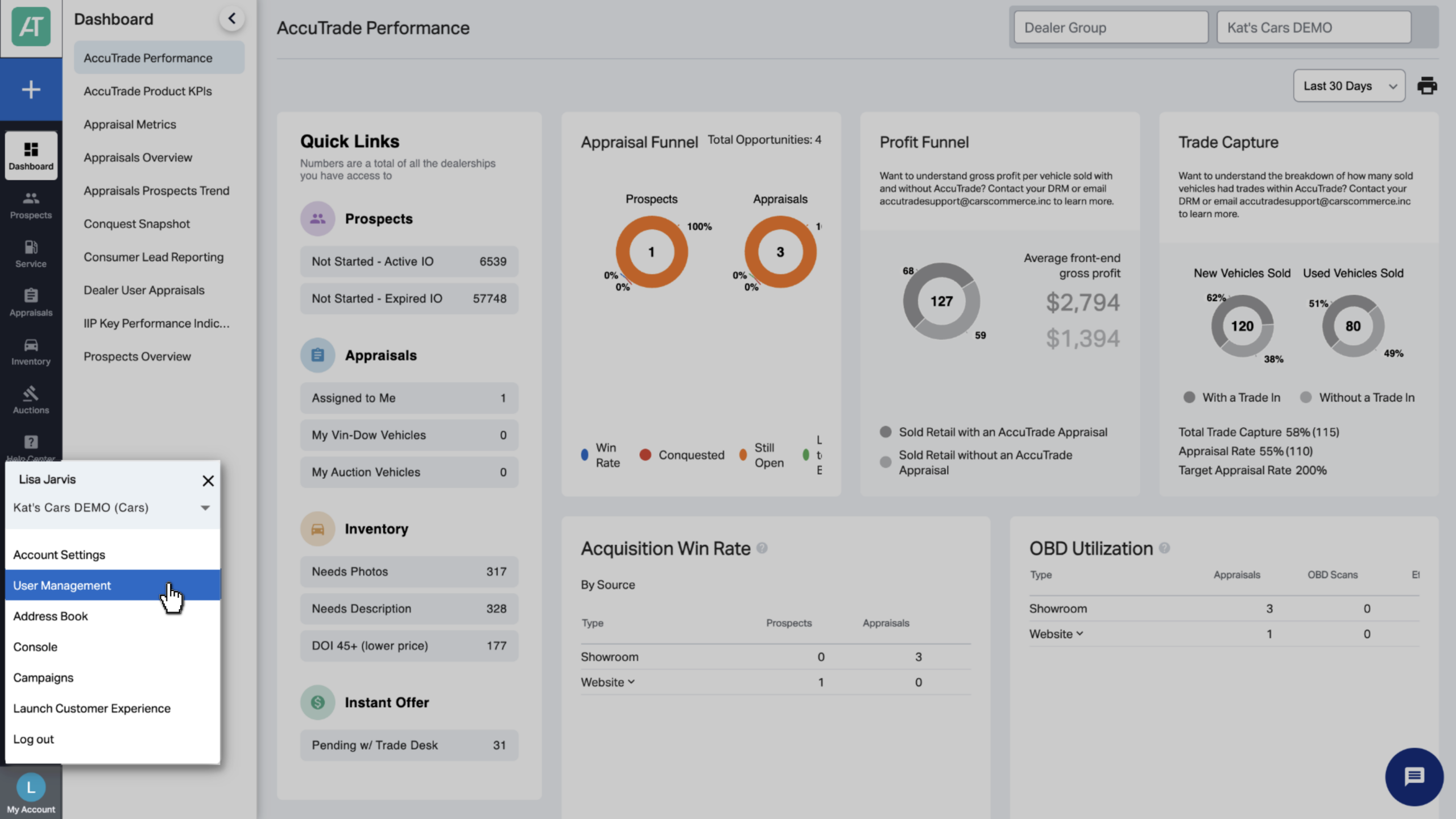
To begin managing users and settings, navigate to User Management in AccuTrade.
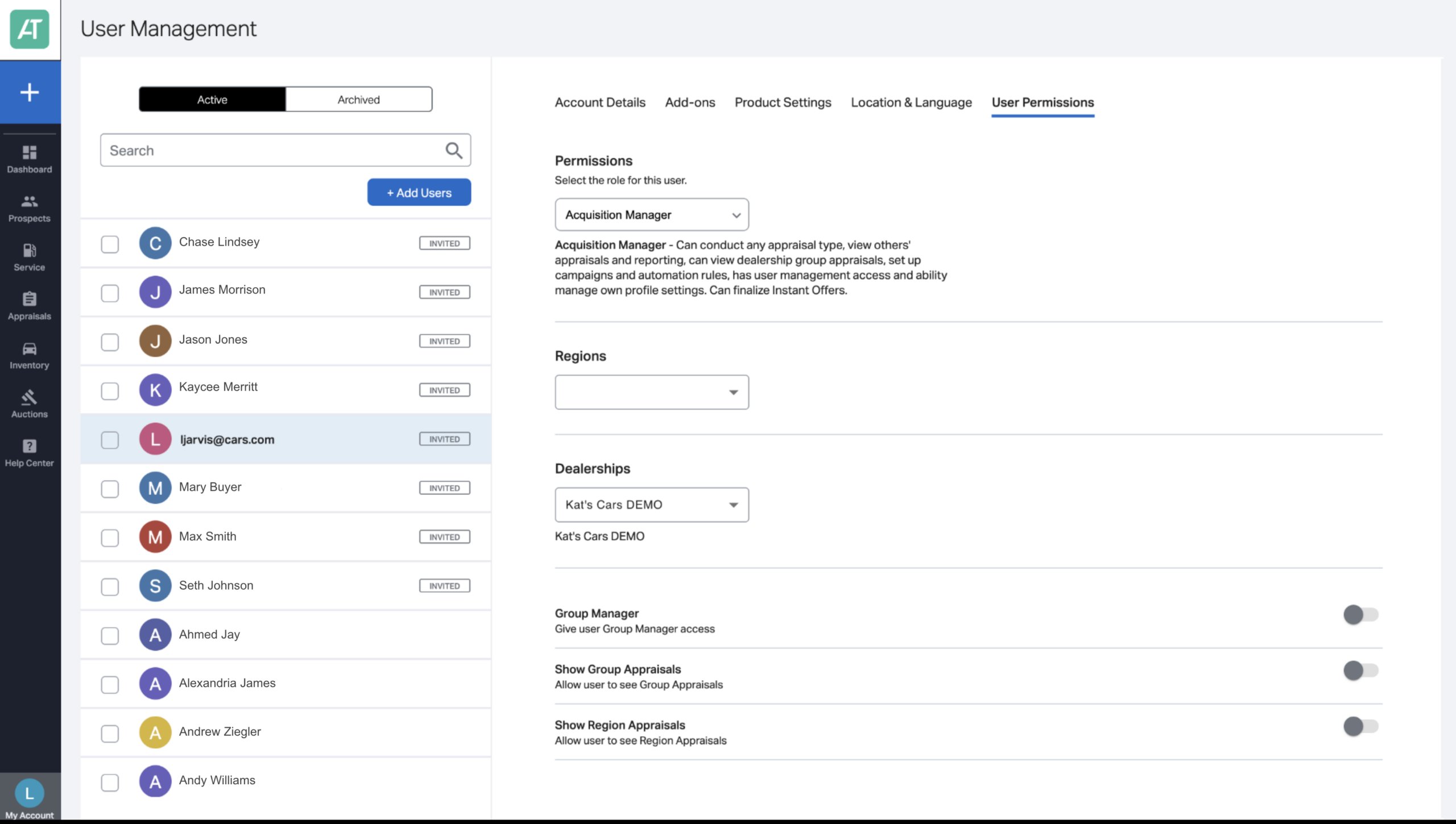
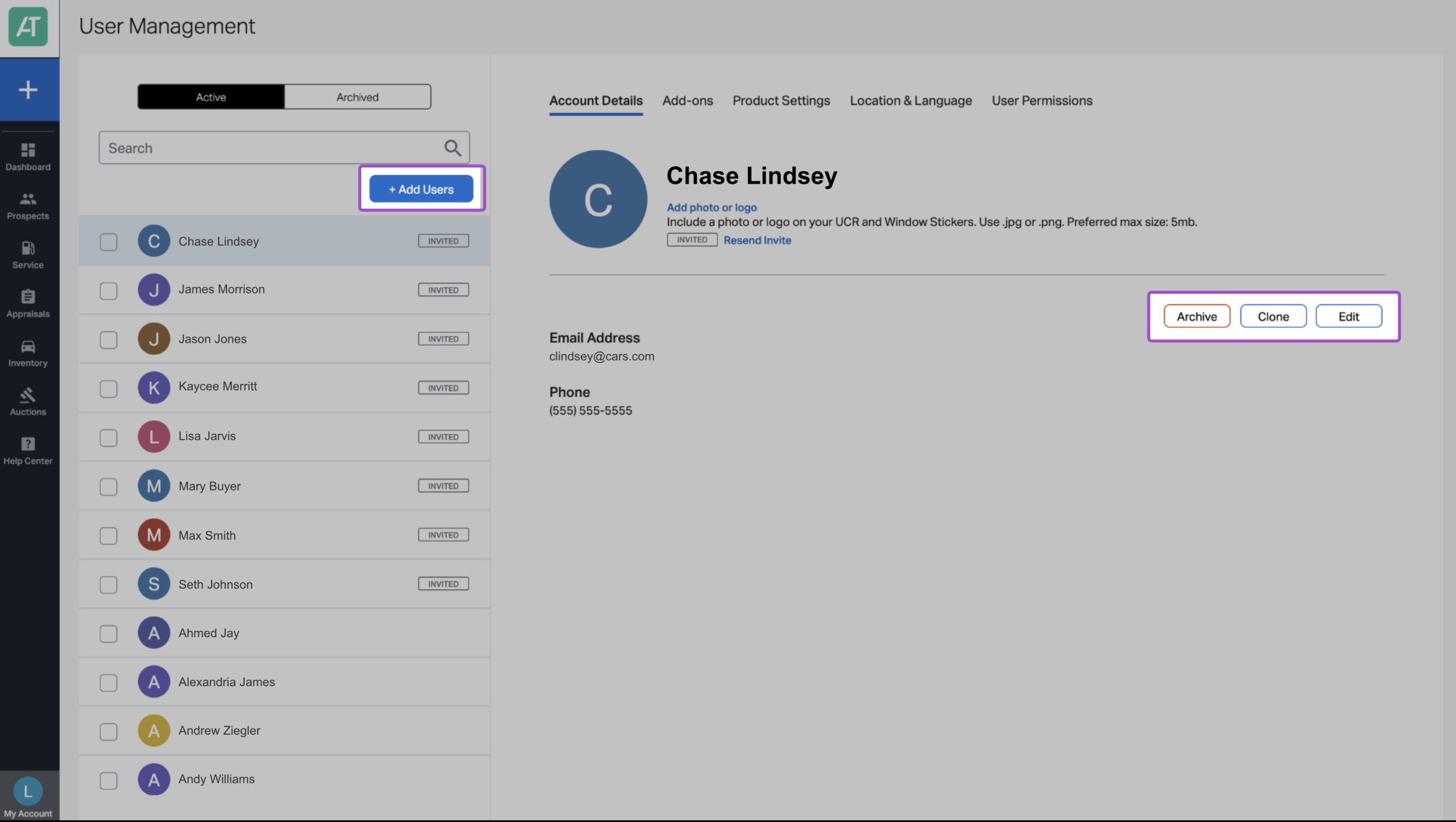
From the User Management area, you’ll land on the Account Details view for your dealership. This is where you can:
- Add new users
- Edit or archive existing users
- Clone settings from one user to another
User-specific settings are organized across the following tabs:
- Account Details
- Add-ons
- Product Settings
- Location & Language
- User Permissions
Each tab controls different aspects of user access and configuration.
2 Managing users
Before making changes, it’s important to understand that user roles determine what actions a team member can perform within AccuTrade. Adjusting roles and permissions helps ensure consistent appraisals and prevents unauthorized changes.
Add new users
From the Account Details tab:
- Click Add Users.
- Enter one or more email addresses.
- Multiple email addresses can be added at once, separated by commas.
- Multiple email addresses can be added at once, separated by commas.
- Select an access level from the dropdown.
- A brief description appears to explain what access that role provides.
- A brief description appears to explain what access that role provides.
- Click Invite.
Each invited user will receive an email with instructions to complete account setup and log in to AccuTrade based on the assigned permissions.
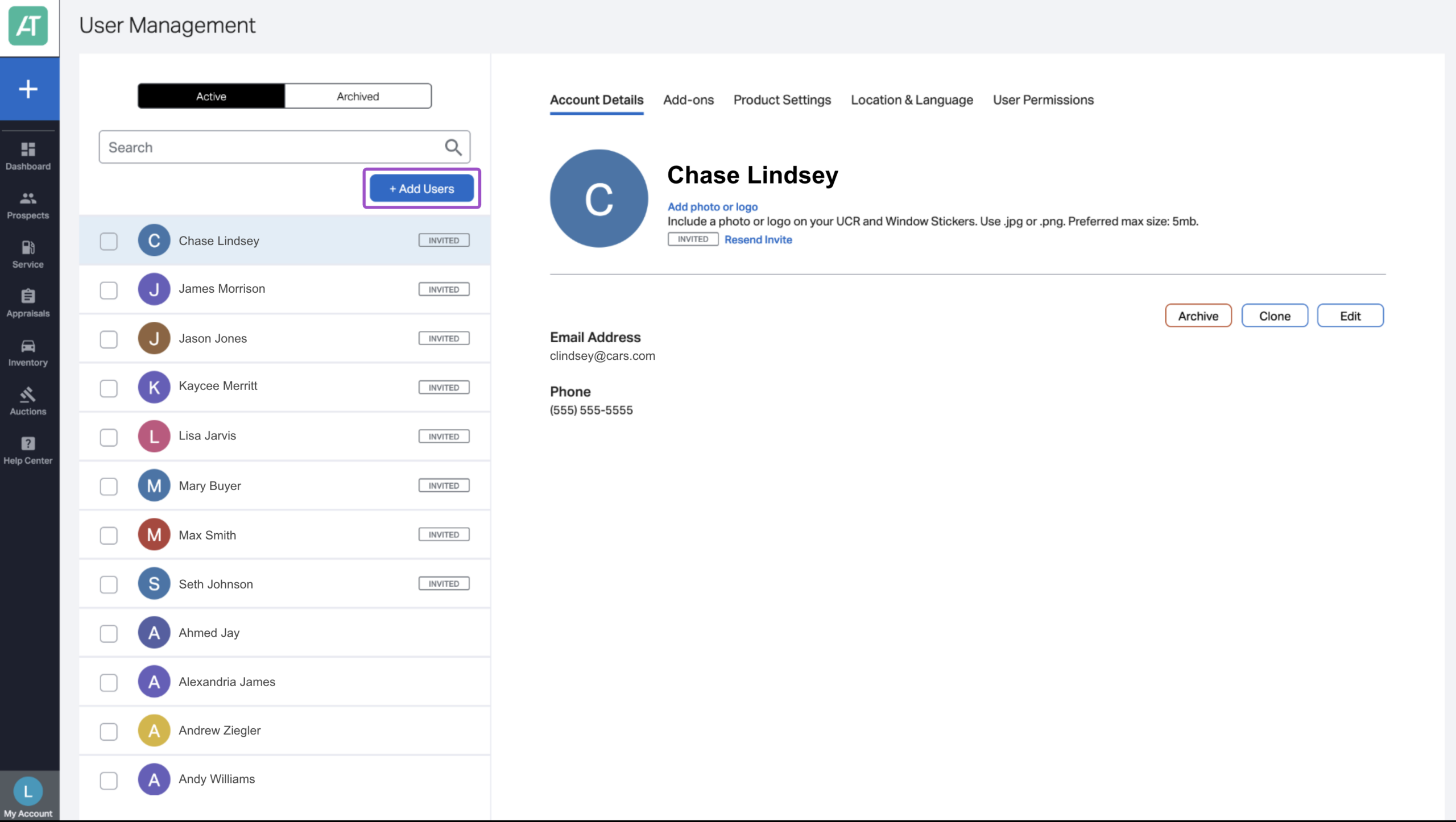
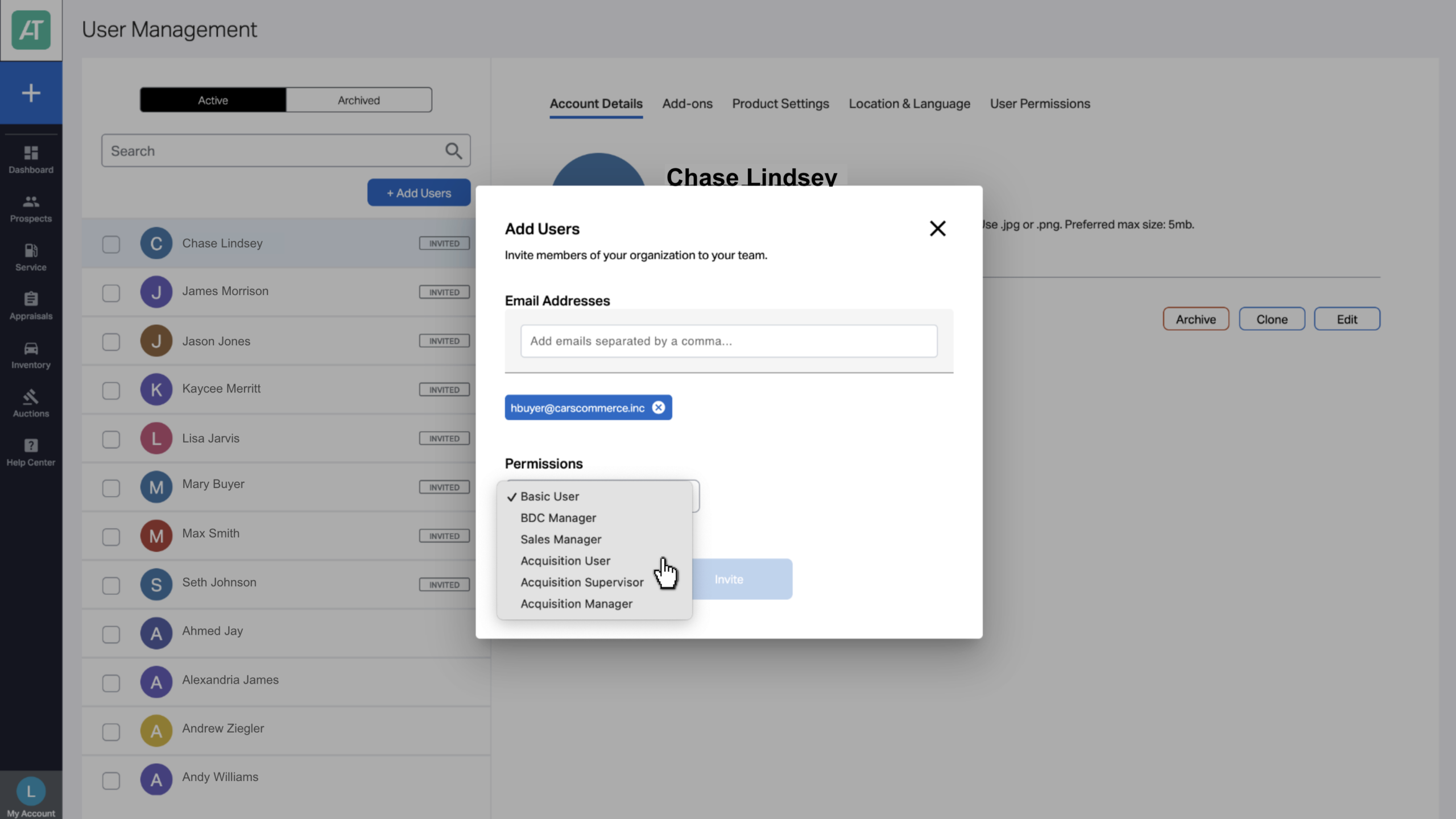
When you’re ready, click Invite. Your team member will receive an email. By accepting the invitation and following the prompts, they can login to AccuTrade and access the platform according to their permissions.
Edit or update users
To update an existing user:
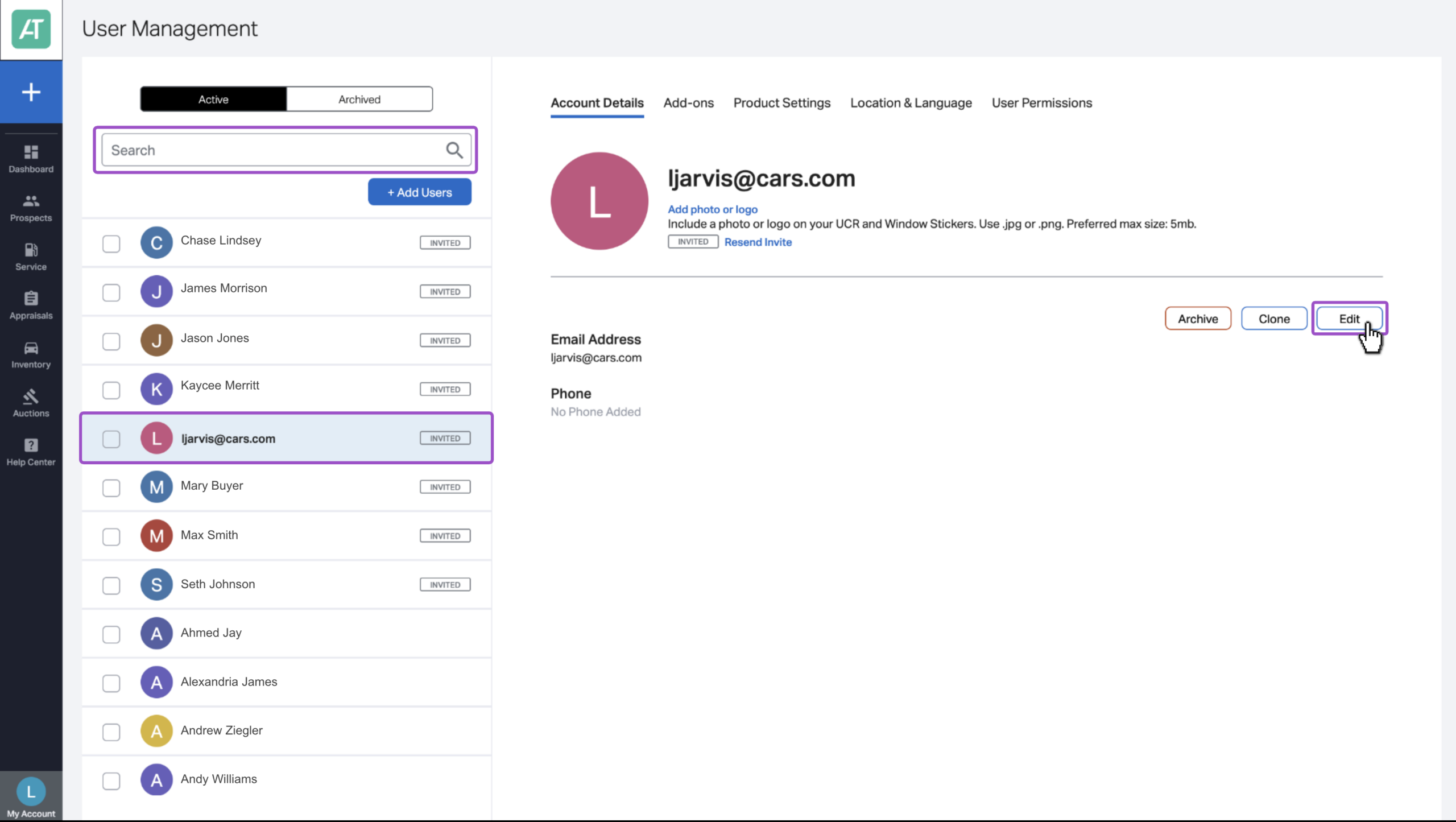
- Search for the user and click their name.
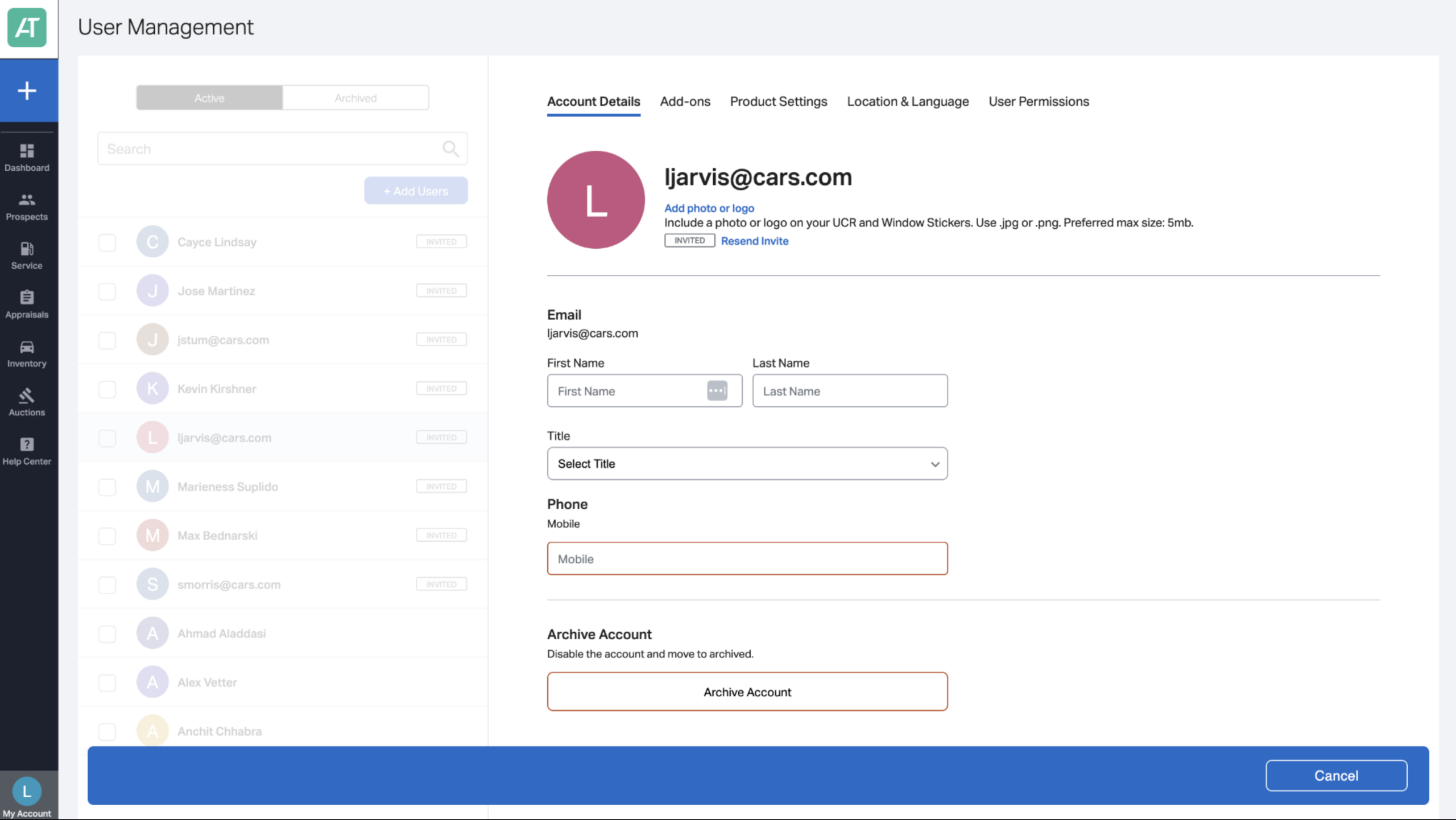
- Click Edit.
From here, you can:
- Add or update first and last name.
- Add a dealership title.
- Add a required phone number.
- Archive the user account.
If a user did not receive or lost their invitation email, click Resend Invite near the top of the screen so they can complete account confirmation.
After making updates, click Update from the blue bar at the bottom of the screen to save your changes.
Archive users
When an employee leaves the dealership, archiving their account prevents access without permanently deleting their history.
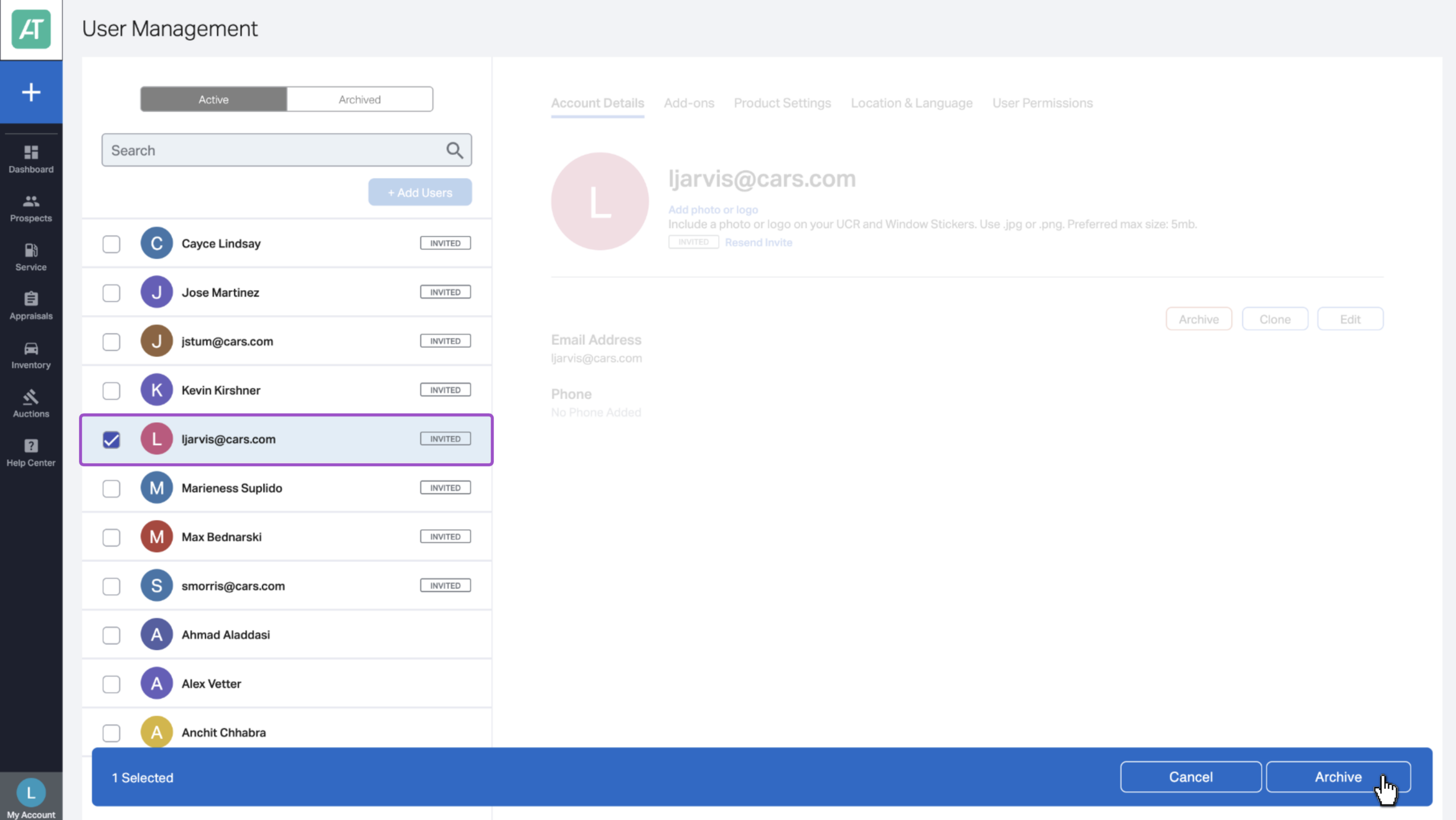
You can archive a user in either of the following ways:
- Click into the user’s profile and select Archive Account.
- Select the user from the list and click Archive from the blue bar at the bottom of the screen.
Archived users appear in the Archived tab located above the search bar in User Management.
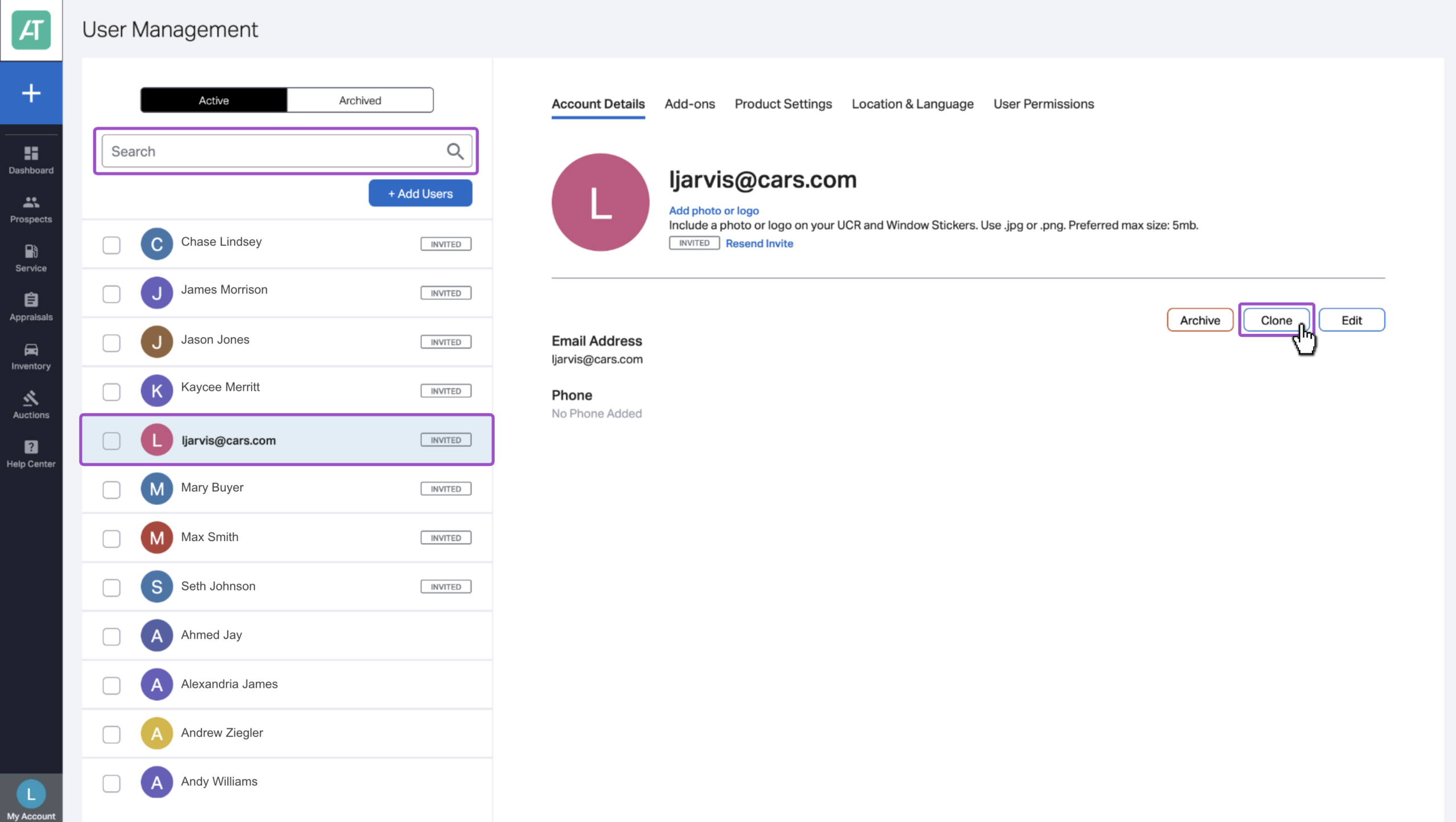
Clone user settings
Cloning allows you to copy permissions and configurations from an existing user to a new one, reducing manual setup and ensuring consistency.
To clone a user:
- Search for and select the user you want to clone.
- Click Clone.
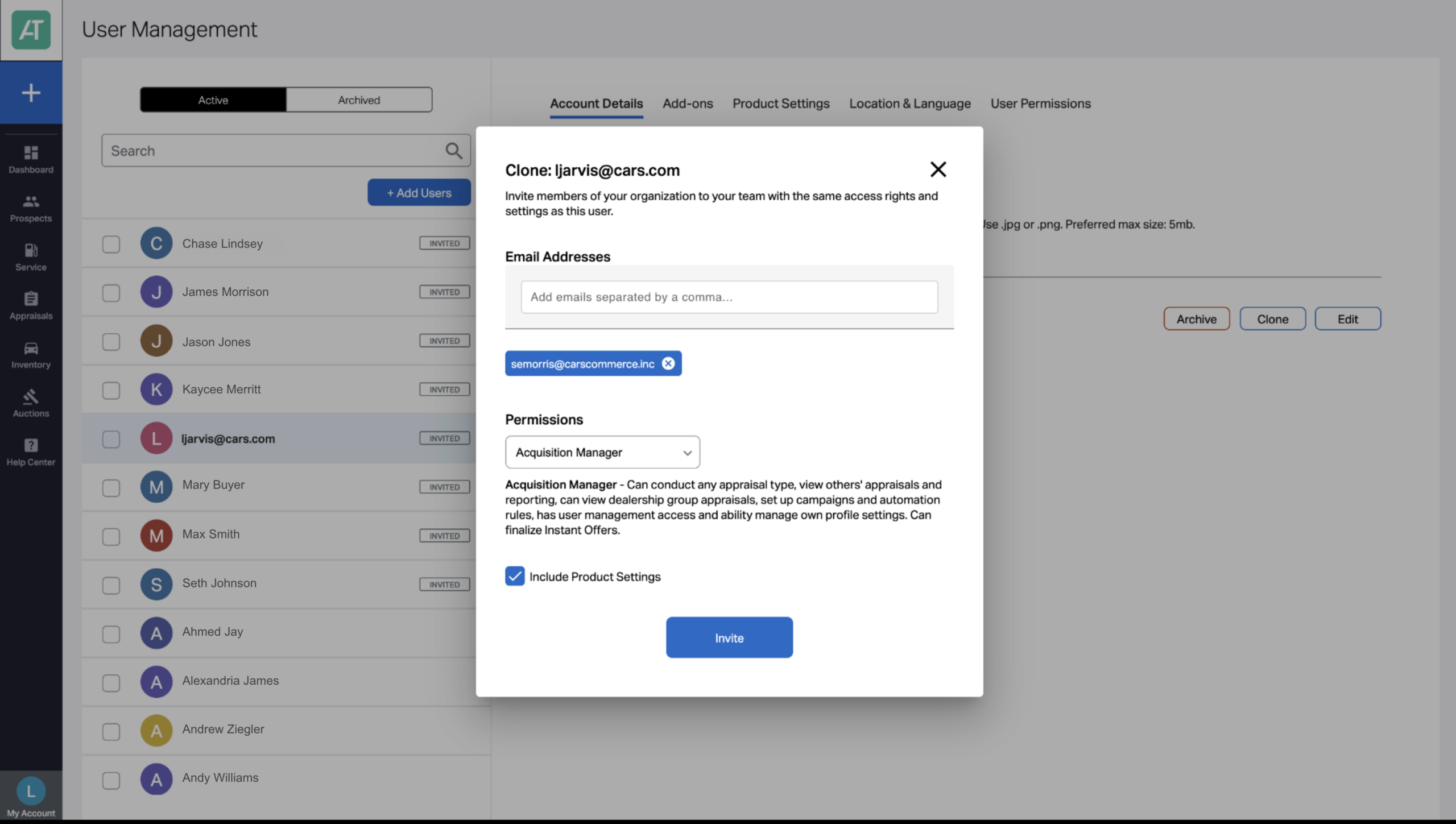
In the pop-up window:
- Enter one or more email addresses for the new users.
- Select Include Product Settings if you want to copy configuration settings such as widget editing or vAuto access.
This process assigns the same access level and selected settings to the new users.
Click Invite to send the email invitations. New users can follow the email prompts to access AccuTrade.
3 Adjust user and account settings
Once users are added, you can adjust additional settings that affect how AccuTrade functions for your team by role.
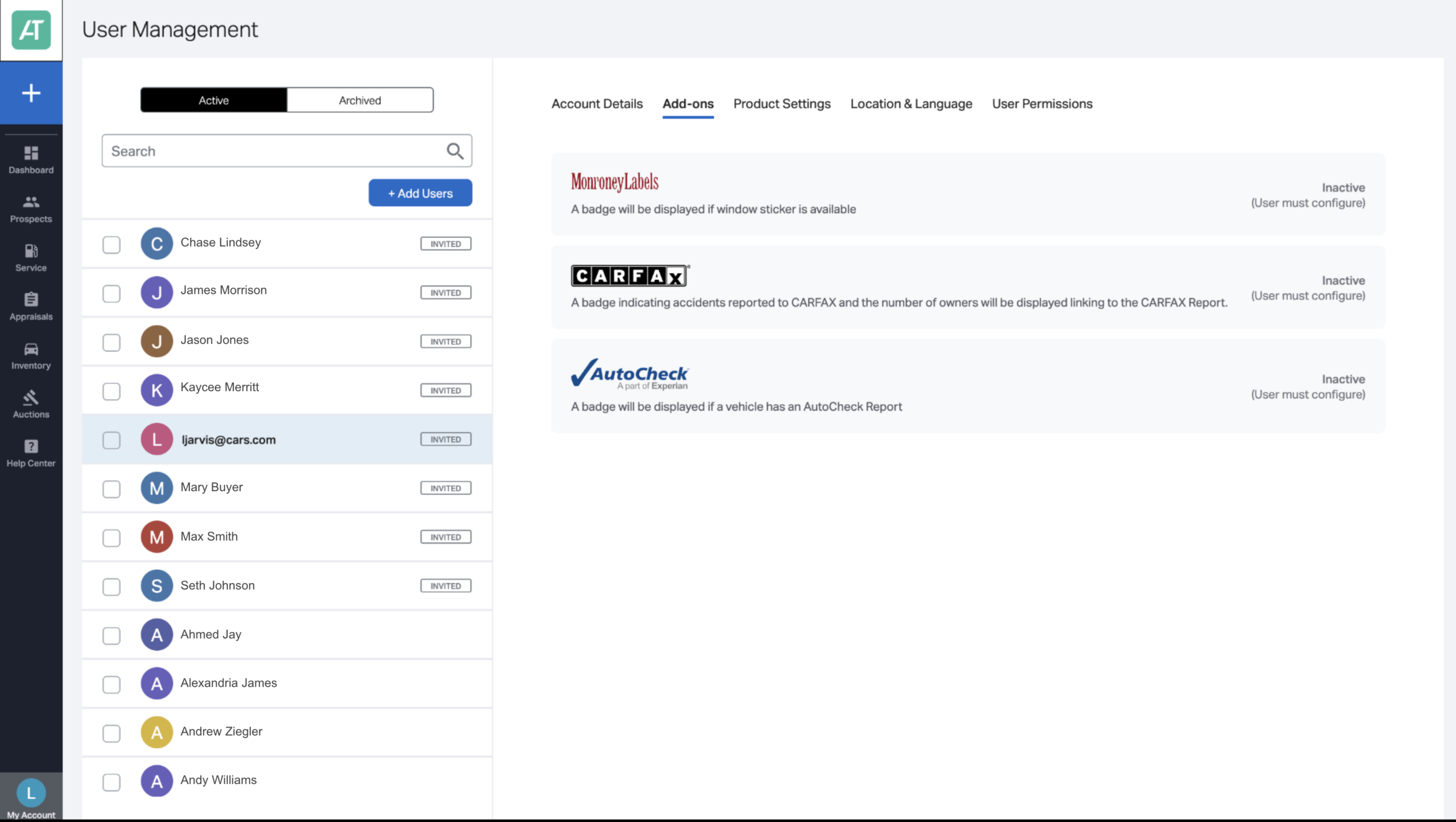
Add-ons:
Review whether add-ons such as Monroney Labels, CARFAX, or AutoCheck are active.
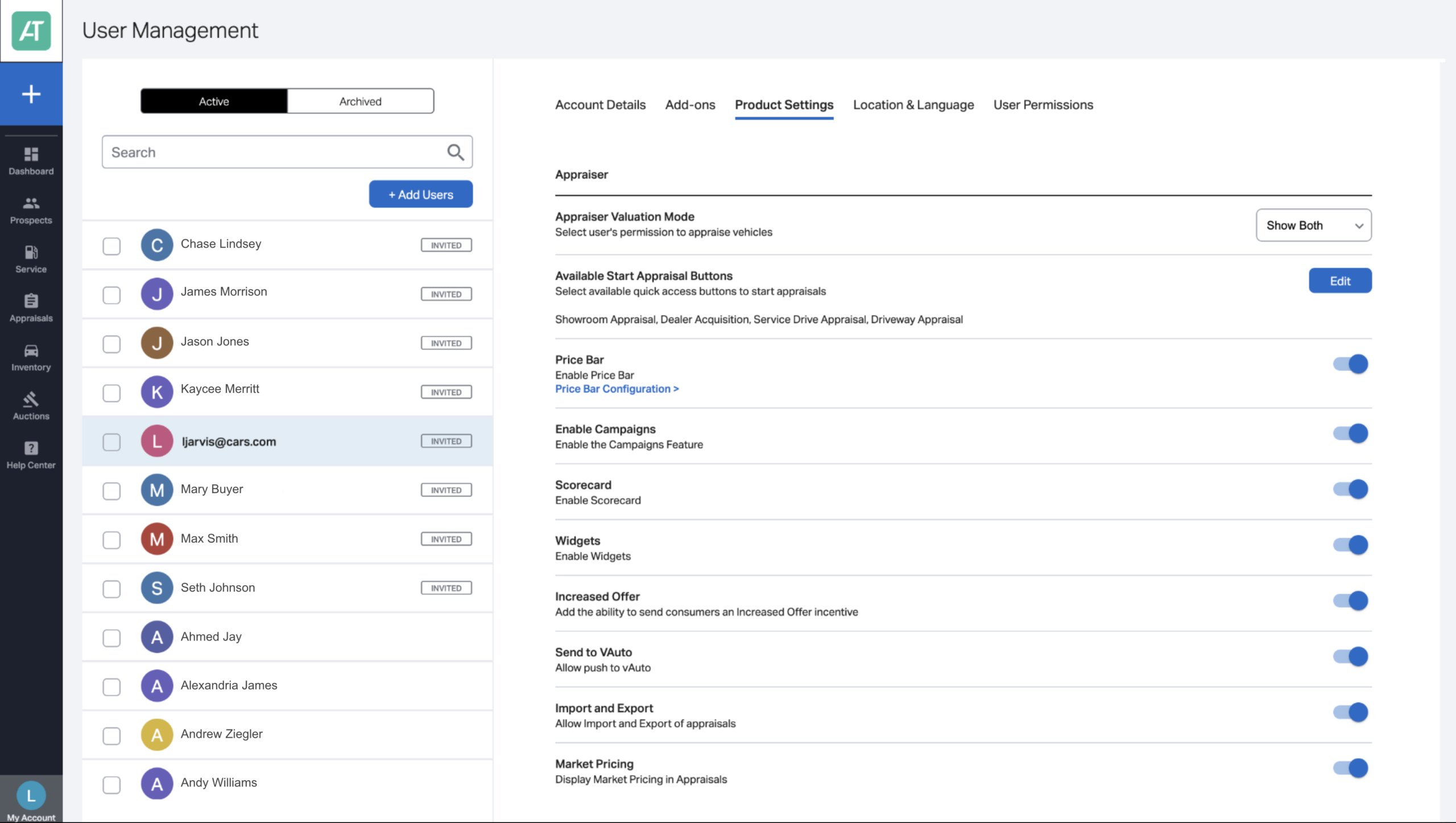
Product Settings:
Toggle specific AccuTrade configurations on or off based on dealership workflow needs.
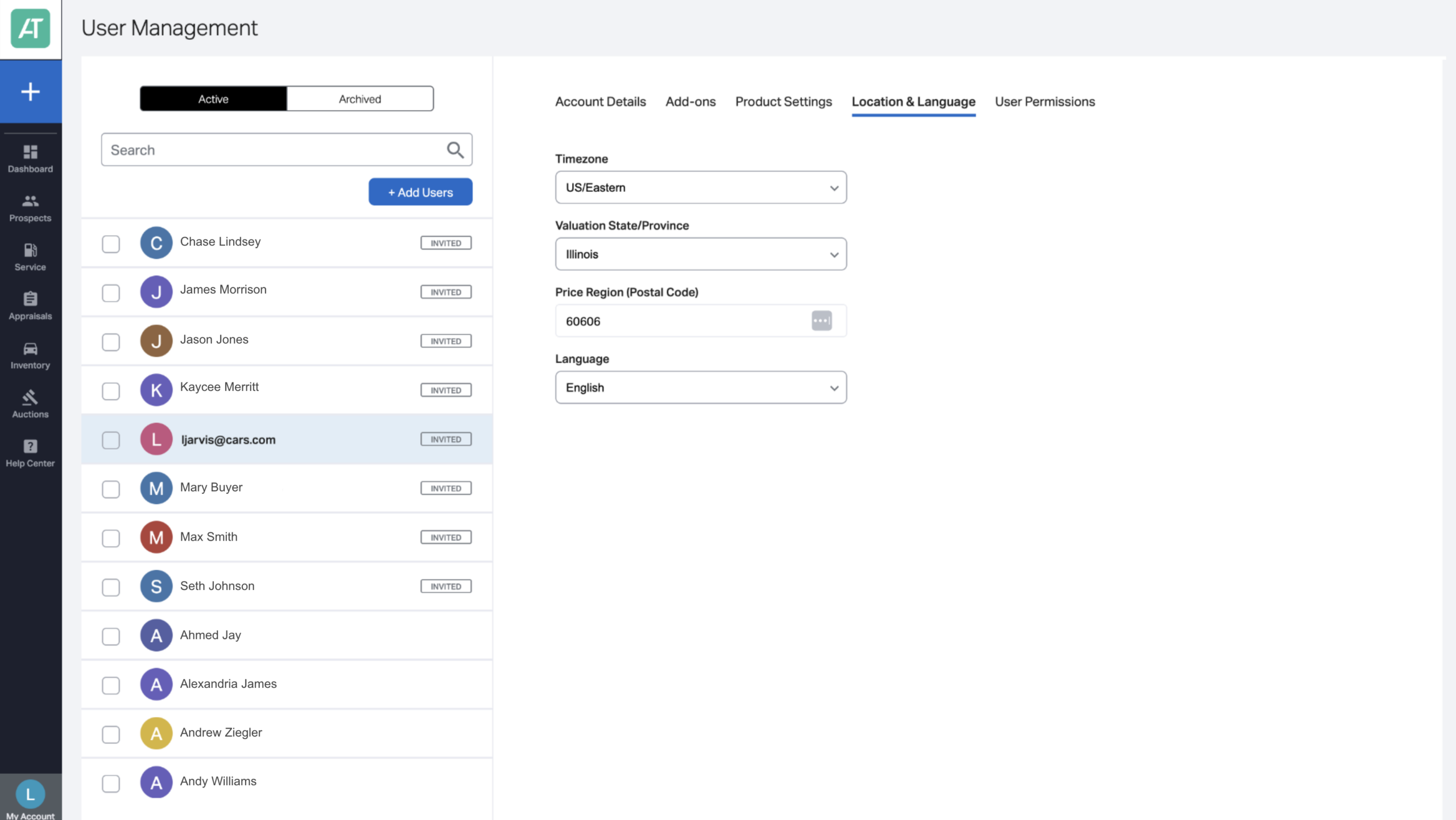
Location & Language:
Update time zone, state, ZIP code, and preferred language settings.
User Permissions:
Modify access levels, assign dealerships to users, or grant specific permissions as needed.