How to update your location and language preferences
Accurate location and language settings are critical to getting the most precise vehicle valuations from AccuTrade. Your location determines the regional market data that powers the valuation engine — impacting how local supply, demand, and pricing trends are factored into your trade-in offers.
If these settings are incorrect, you may quote inaccurate offers that don’t reflect your local market — potentially hurting your profit margin.
In this article, you’ll learn how to access and update your Location and Language preferences for yourself or other users.
To get started
Go to the Cars.com Hub, and click AccuTrade.
Option 1: Update your own preferences via Account Settings
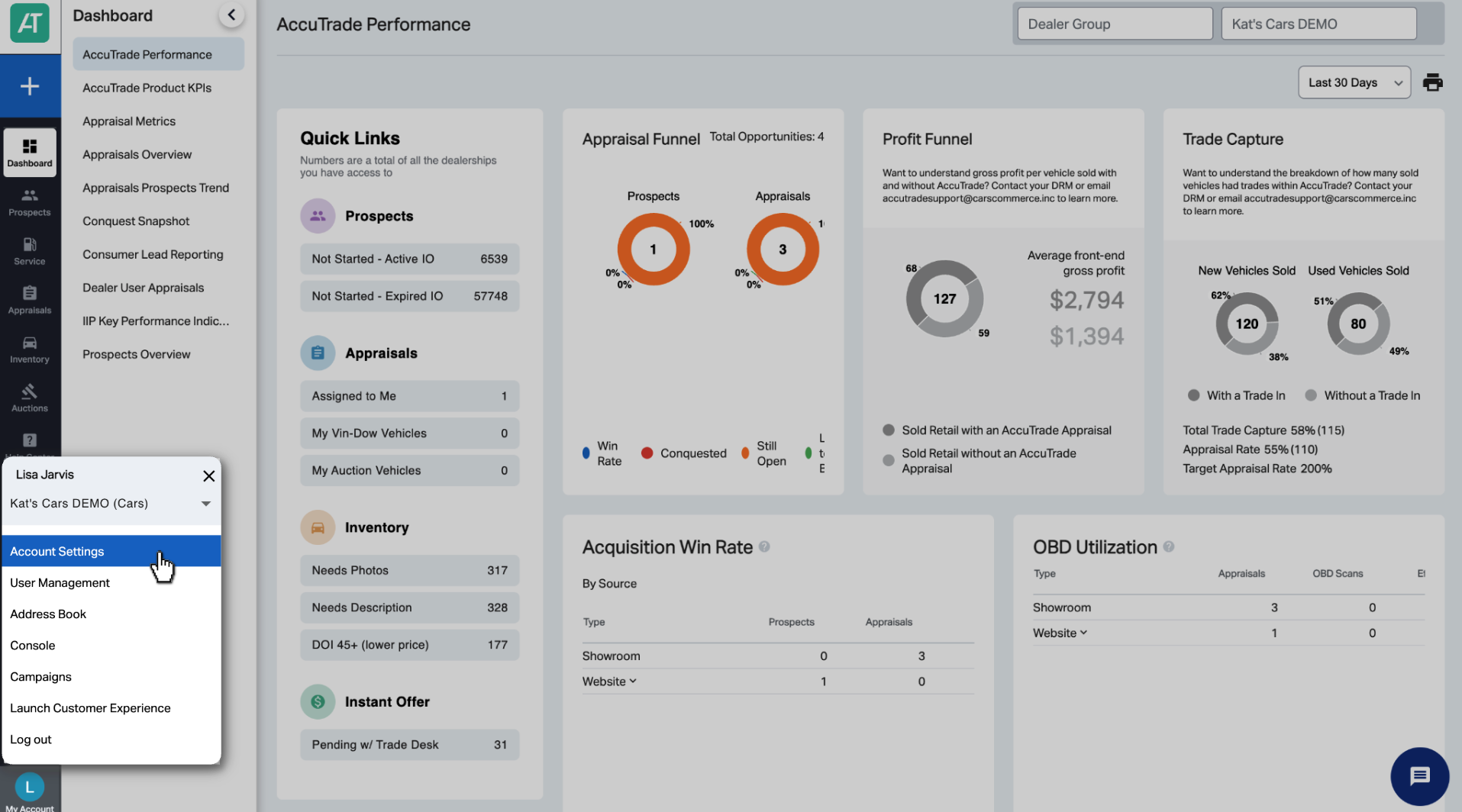
1 Access Account Settings
- Click My Account in the bottom-left corner
- Select Account Settings
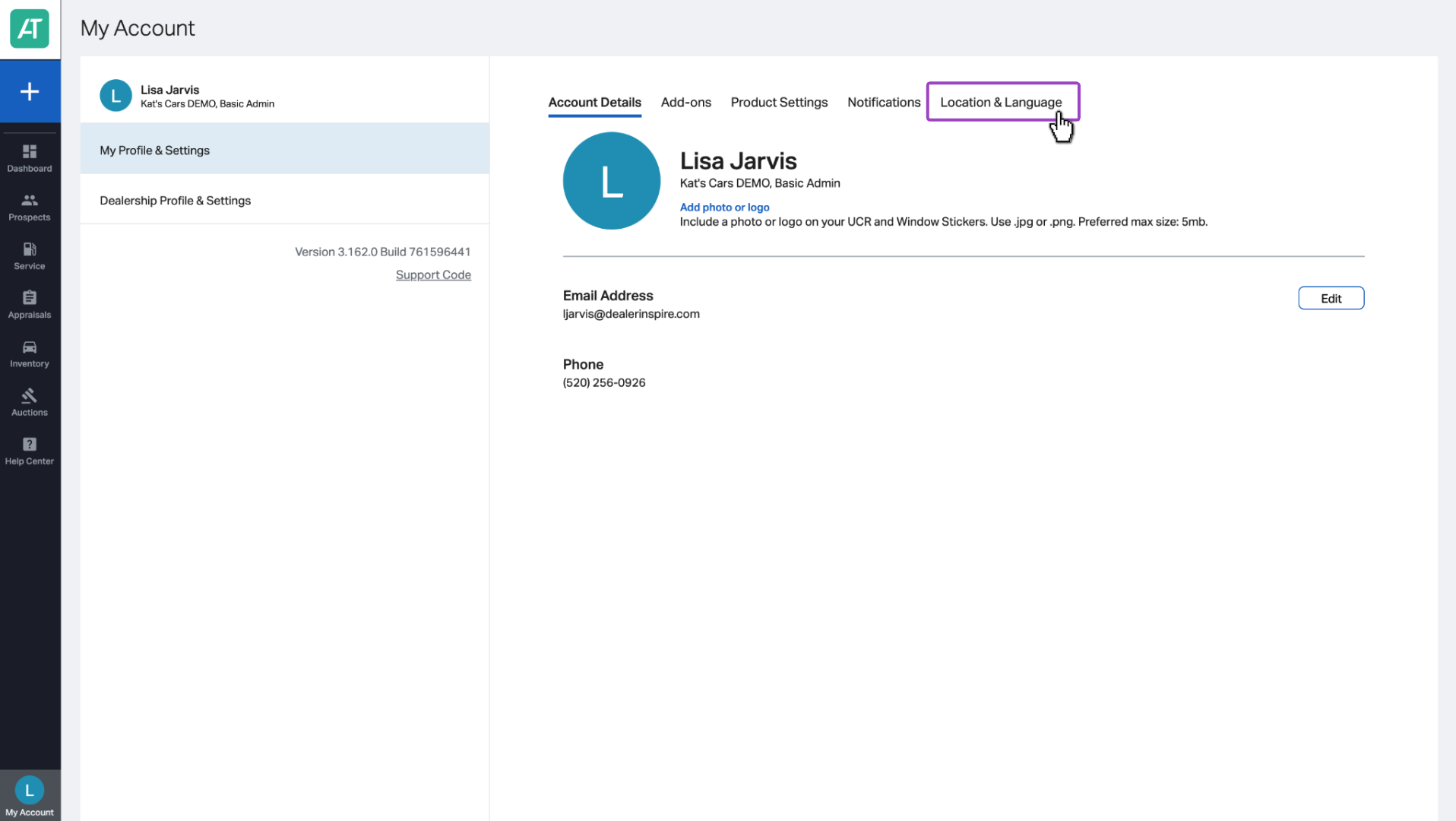
2Select Location & Language
- Select the Location & Language tab in the My Profile and Settings screen
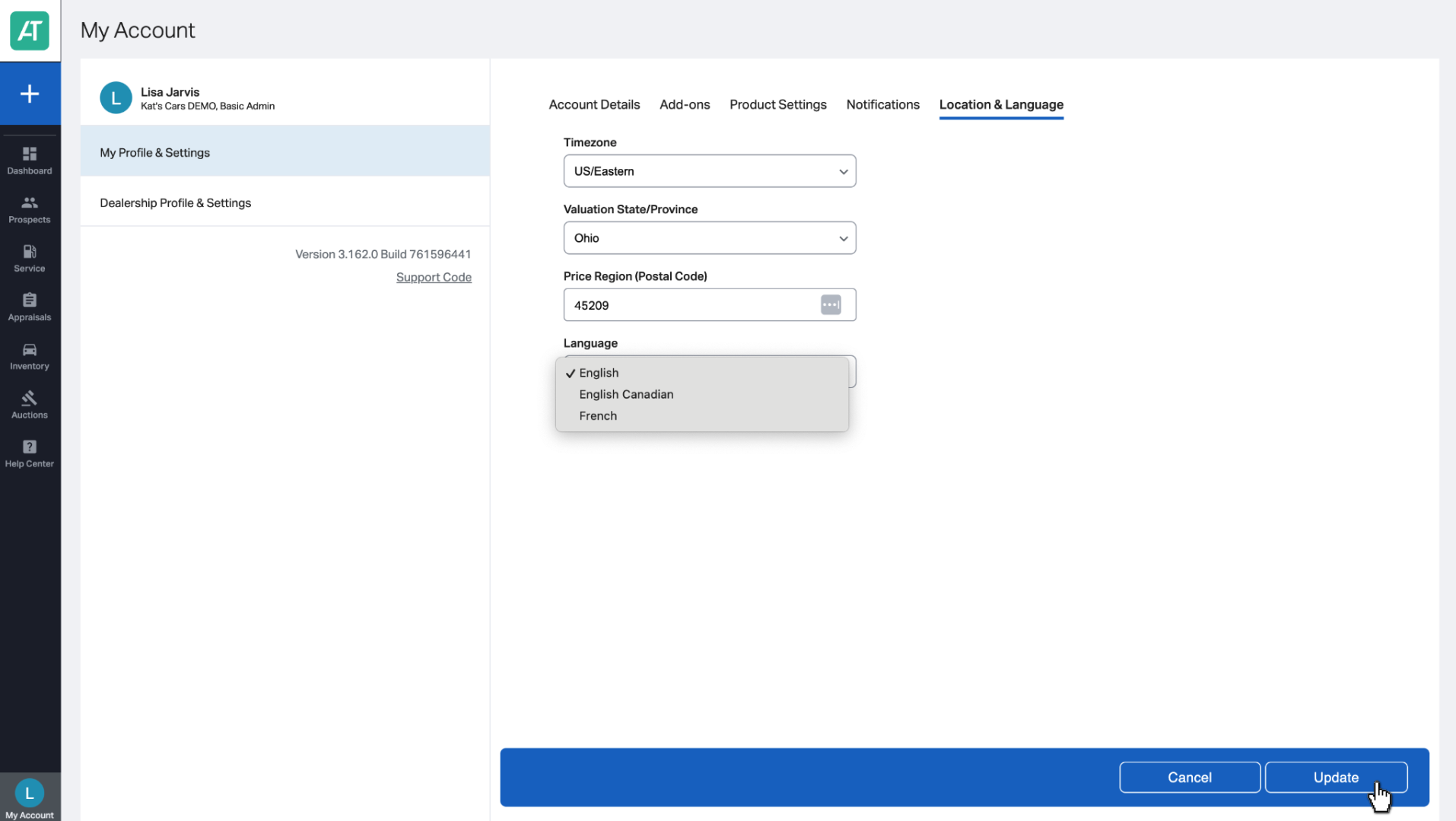
3 Update your preferences
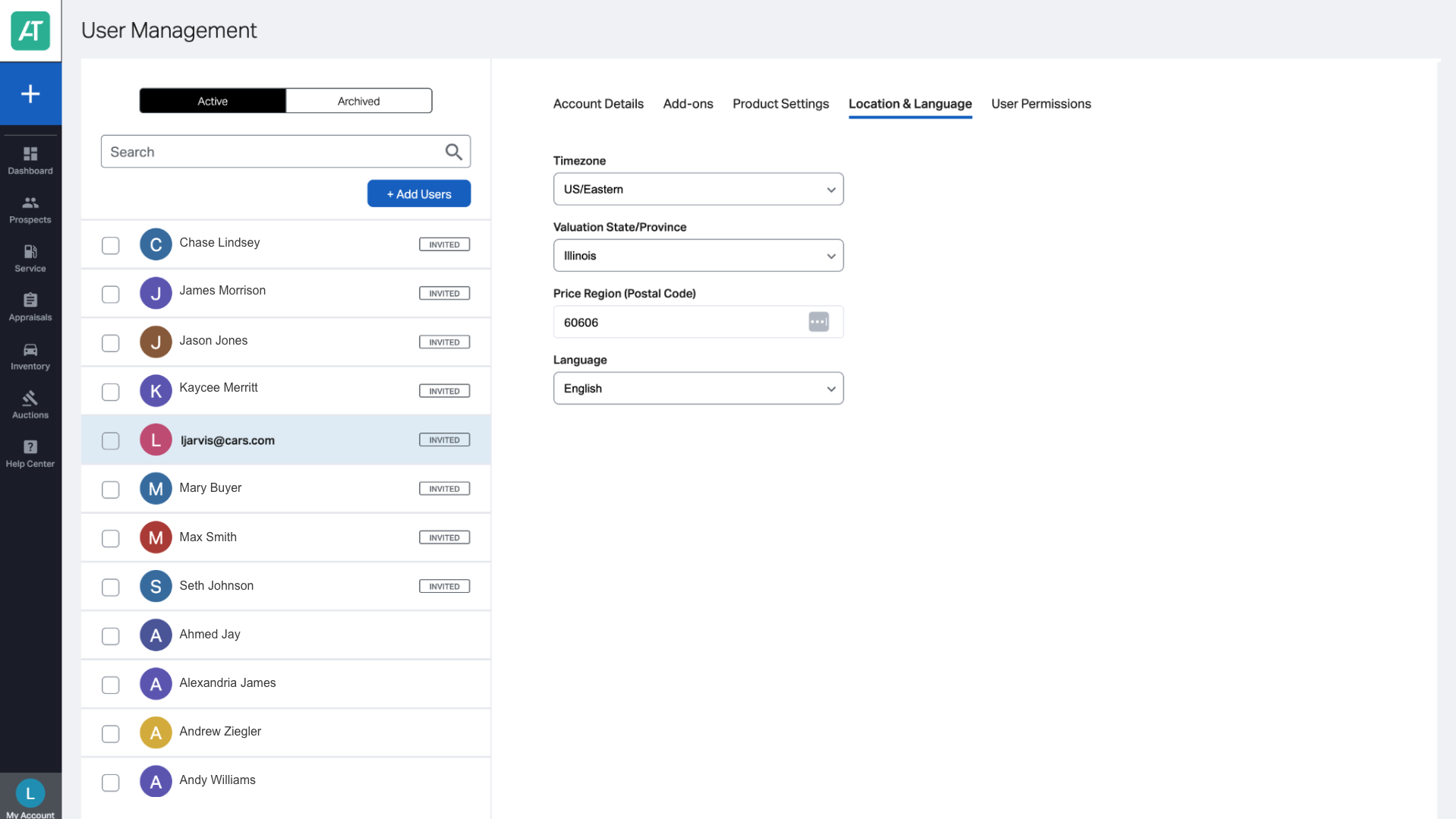
- Make any necessary changes to the Timezone, State or Province, Zip Code, and Language fields
- Click Update
Option 2: Update preferences for users via User Management
If you’re an admin or manager, you can update location and language settings for individual users.
1 Go to User Management
- From the dashboard, click My Account > User Management
- Find and select the user whose settings you want to update
2 Open Location & Language for that user
- In the user’s profile, select the Location & Language tab
3 Edit and save
- Update the timezone, state, zip code, and preferred language as needed
- Click Update