How to accept/decline an offer
When buyers are interested in your vehicles, DealerClub makes it easy to review and respond to their offers directly from your Command Center. You can receive offers on two types of listings:
- Auction offers: Buyers can make offers on auctions that ended without selling (offers are available for a limited time after the auction closes).
- Frontline Wholesale Lane (FWL) offers: If you’ve synced your Cars.com inventory and enabled offers, buyers can submit offers on your retail listings.
You’ll receive a notification when a new offer comes in. All current offers can be reviewed and managed from the Command Center.
To Get Started
Log in to the Cars.com Hub, and click on DealerClub.
1 Reviewing auction offers
When an auction ends without a sale, interested buyers may still submit offers on your vehicle for up to 14 days. Here’s how to review and respond to them:
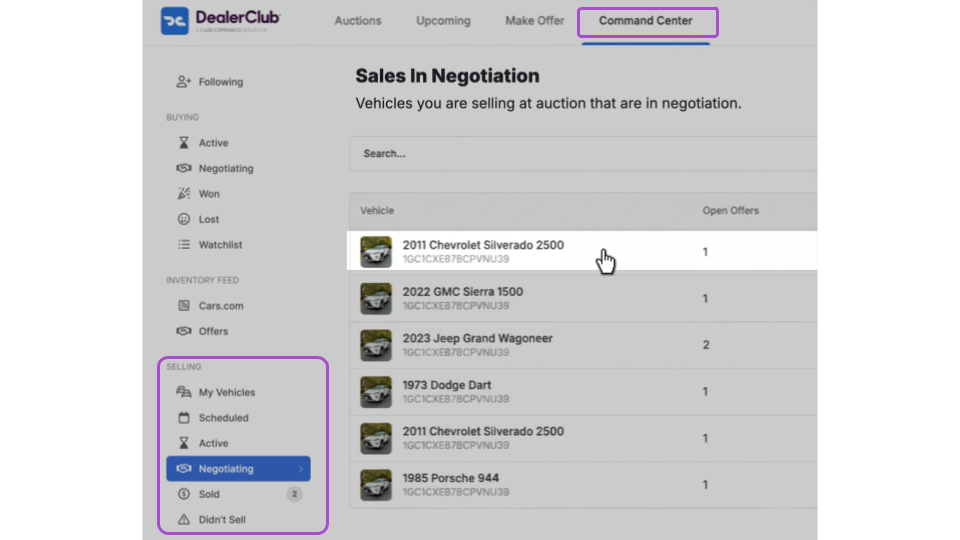
- Click the Command Center tab and select Negotiating from the Selling menu.
- Select the offer you want to review.
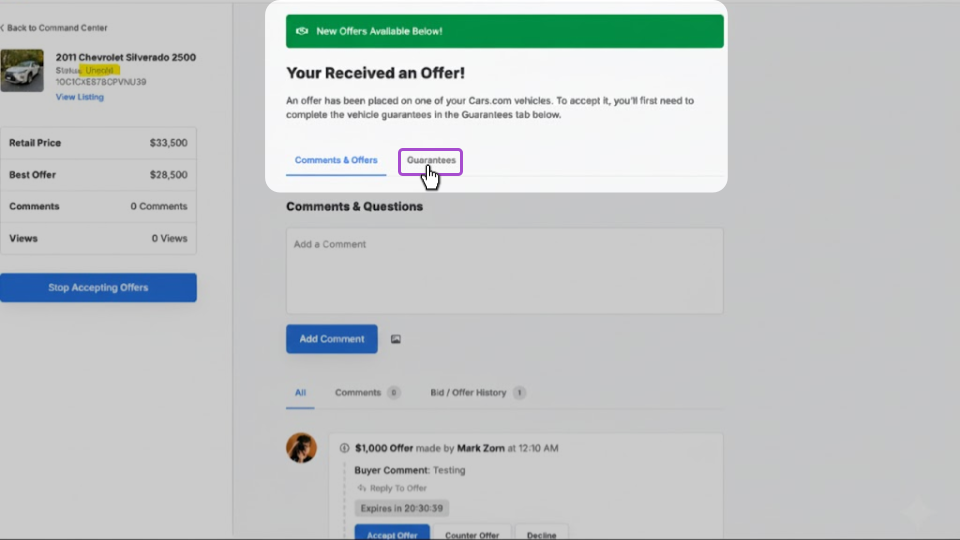
Before accepting any offer, you’ll need to complete the Guarantees tab. This confirms key details about your vehicle, including:
- Title status and availability
- Vehicle condition accuracy
- Any disclosures required for the transaction
Once guarantees are complete, you’ll have three options:
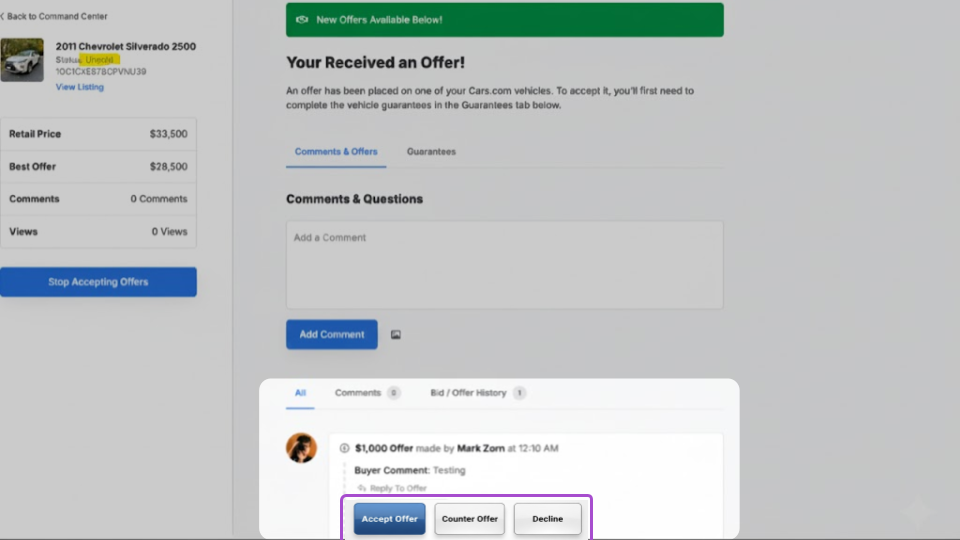
- Accept Offer: Agree to the buyer’s price and move forward with the sale
- Counter Offer: Propose a different price to the buyer
- Decline: Remove this offer from consideration
You can also communicate directly with the buyer by typing a message in the comment field and selecting Comment. This is useful for answering questions or negotiating terms before making a decision.
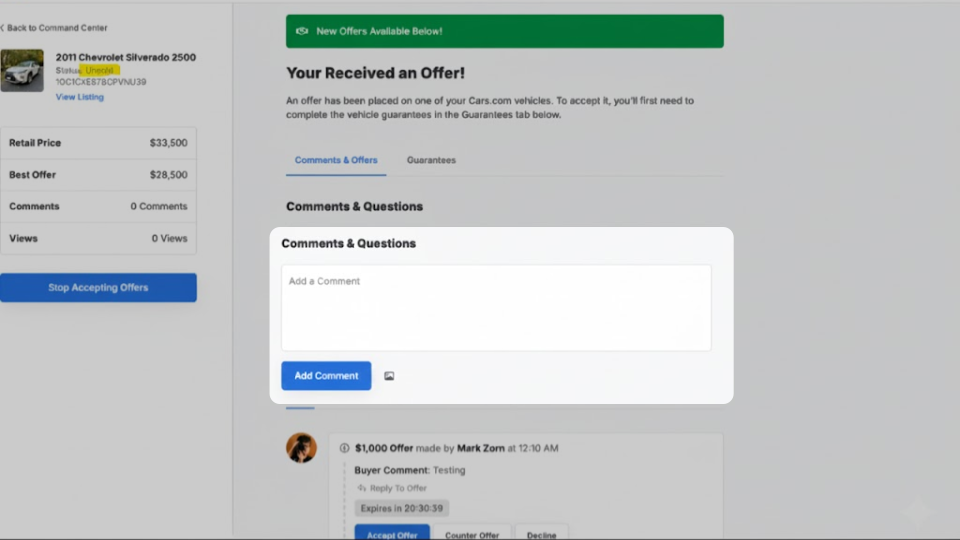
Note: Offers expire 24 hours after submission. Respond promptly to avoid missing opportunities.
2 Enabling offers on your Cars.com inventory
DealerClub’s Frontline Wholesale Lane (FWL) allows you to receive wholesale offers on your synced Cars.com retail inventory — no separate listing required. Before you can receive these offers, you’ll need to enable the feature:
- Click the Command Center tab and select Offers under the Inventory Feed menu.
- Toggle the switch next to “Accept offers on my Cars.com inventory” to the ON position. (The switch will turn green when active).
Once enabled, DealerClub members will be able to view your synced inventory and submit offers directly.
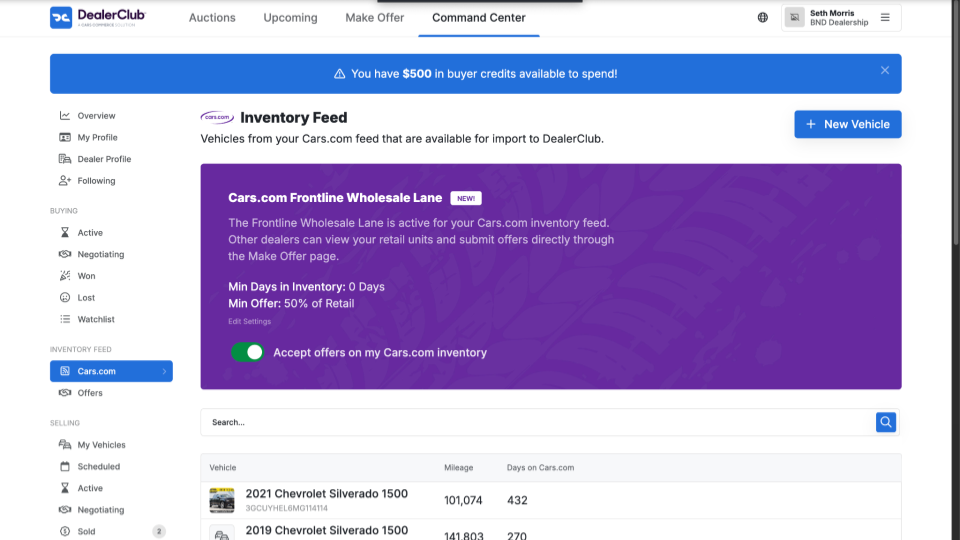
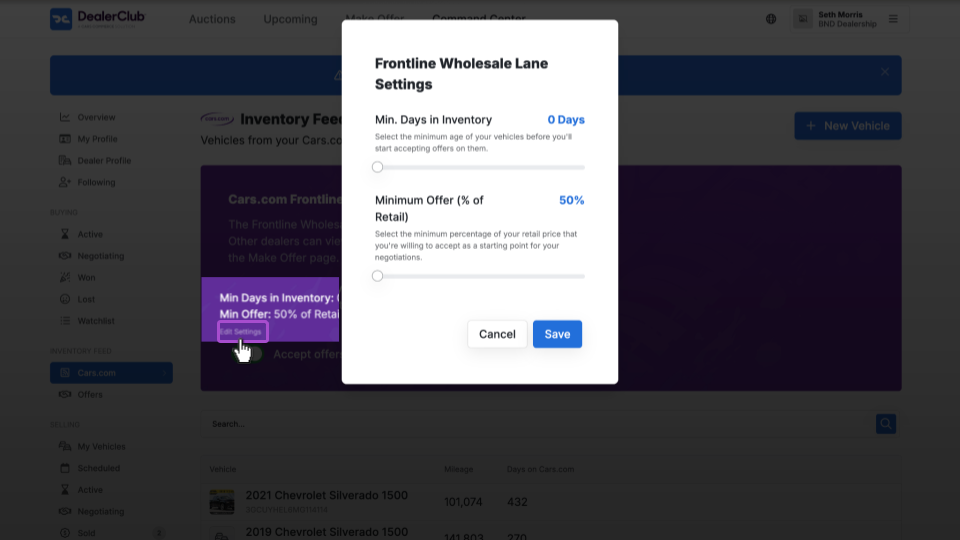
Note: You can also set your minimum days in inventory and minimum offer percentage by clicking Edit Settings.
3 Reviewing Cars.com inventory offers
When a buyer submits an offer on one of your synced Cars.com listings, you can review and respond from the Command Center.
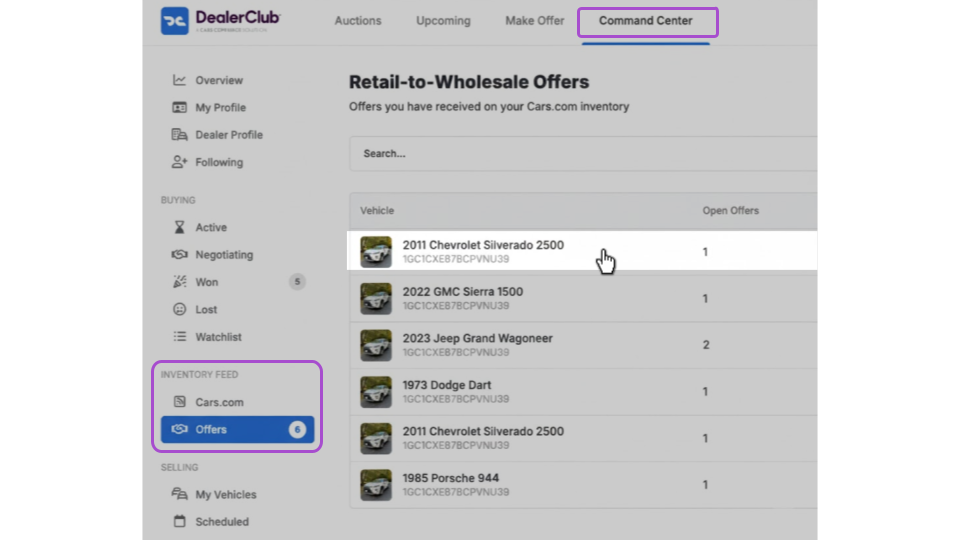
- Click the Command Center tab and select Offers under the Inventory Feed menu.
- Select the vehicle you want to review.
Complete the Guarantees tab before accepting. This step confirms title status, vehicle condition, and any required disclosures — protecting both you and the buyer.
Once guarantees are complete, you’ll have three options:
- Accept Offer: Agree to the buyer’s price and move forward with the sale
- Counter Offer: Propose a different price to the buyer
- Decline: Remove this offer from consideration
You can also communicate directly with the buyer by typing a message in the comment field and selecting Comment. This is useful for answering questions or negotiating terms before making a decision.
Note: Offers expire 24 hours after submission. Respond promptly to avoid missing opportunities.
4What happens after accepting the offer?
Once you accept an offer, the transaction moves into the finalization phase. Here’s what to expect:
- Title transfer: DealerClub acts as your title agent (using the Power of Attorney you provided during verification) to handle title processing efficiently and reduce errors.
- Payment: Payments are processed via secure ACH transfer to the bank account on file. This eliminates the delays and risks associated with check payments.
- Transportation: The buyer will arrange transportation based on the agreed terms. Costs vary depending on the distance between dealerships.
- Buyer protection window: Buyers have 10 days after receiving the vehicle to open a dispute if there’s a significant discrepancy with the condition report. (Over 90% of DealerClub transactions close cleanly with no disputes or title issues.1)
- Dispute resolution: If a dispute is opened, both parties have 3 days to resolve it directly before DealerClub steps in to mediate.
1 Lifetime Activity Report, September 2025


