How to set up and remove salesperson profiles
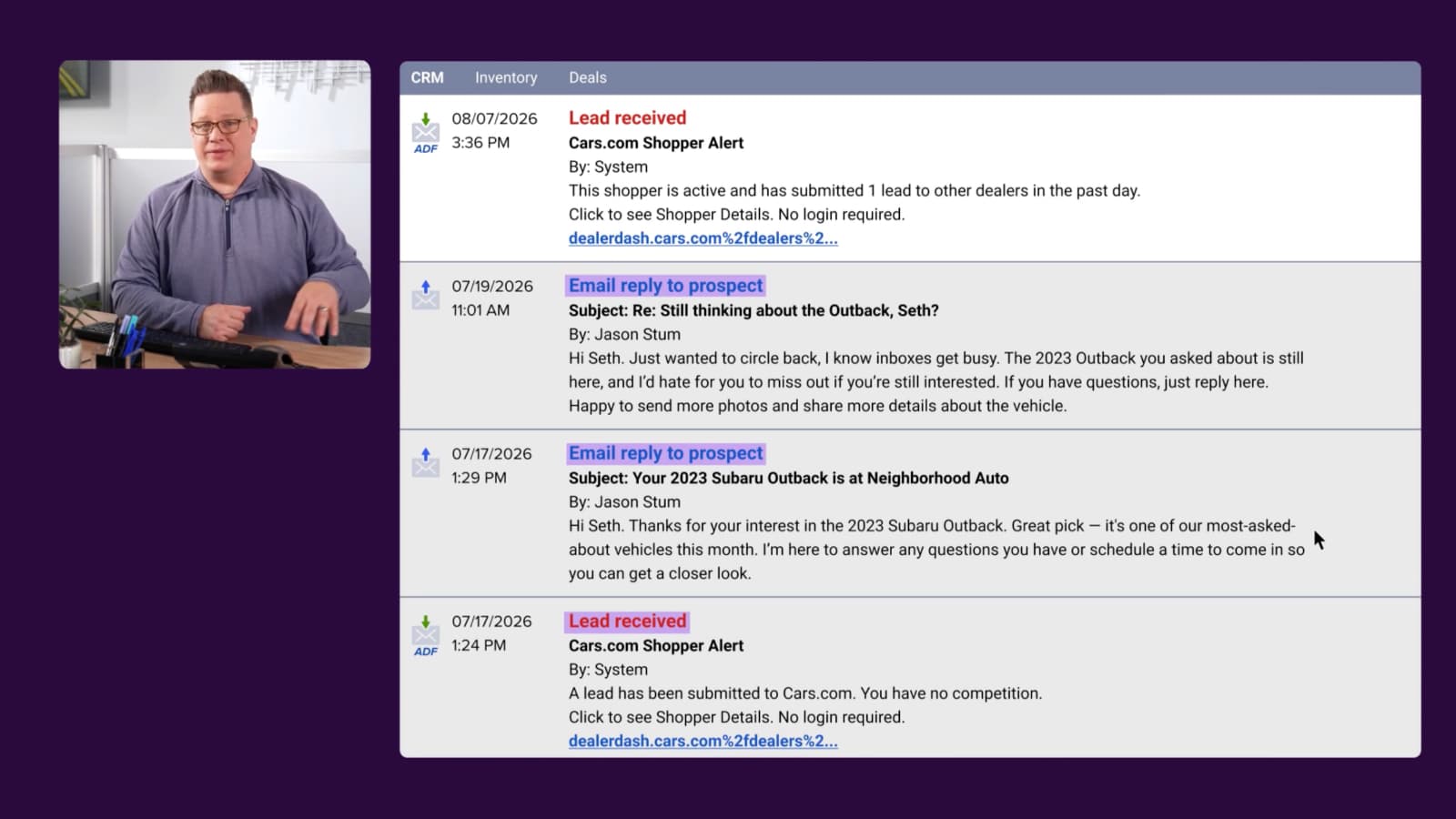
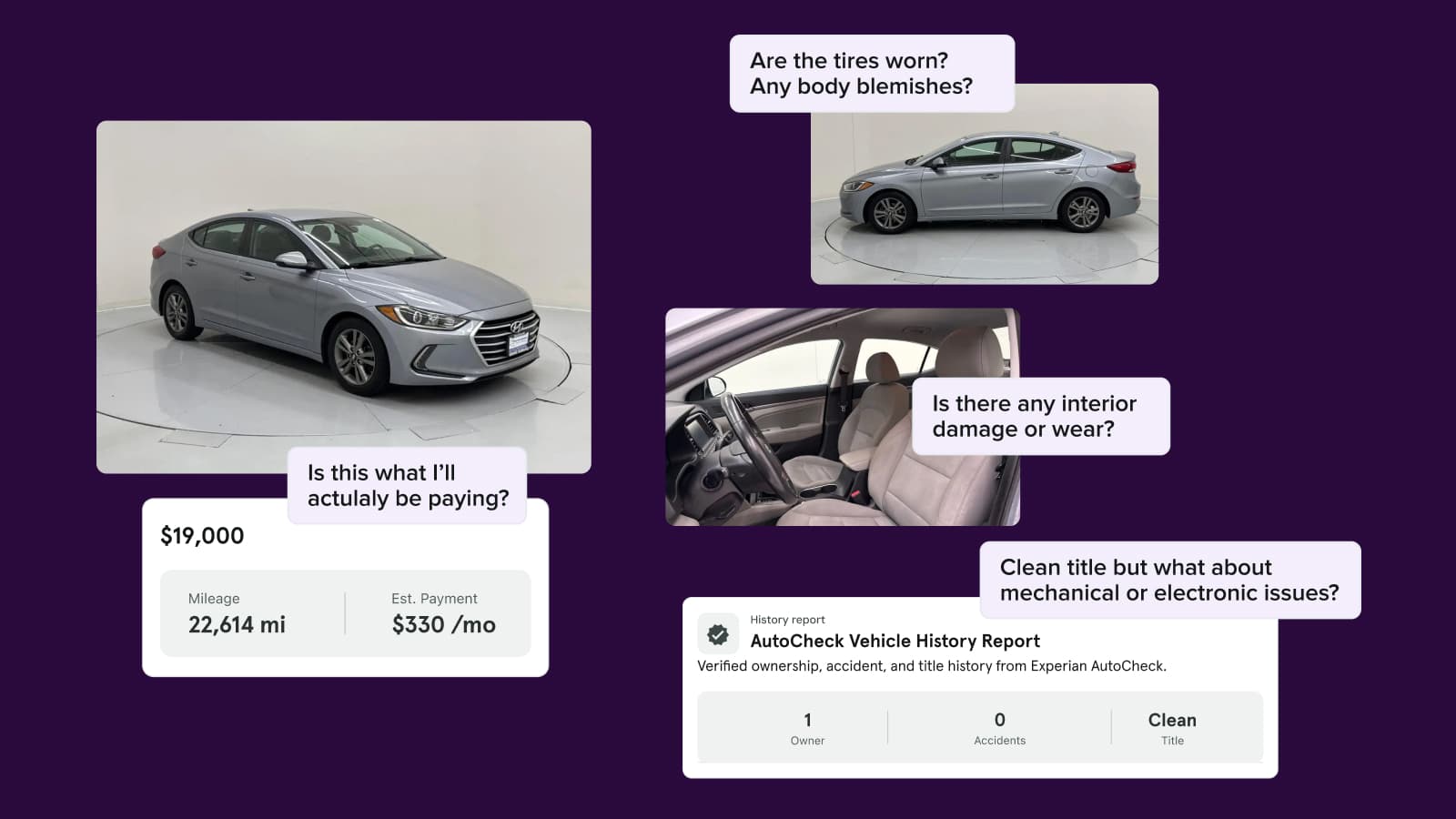
Salesperson profiles help build trust with in-market shoppers by showcasing the people behind your dealership. Available with Cars.com Premium and Premium+ Marketplace subscriptions, these profiles appear on your Vehicle Detail Pages (VDPs) and, if applicable, your Dealer Inspire website — giving shoppers direct, personalized ways to connect with your sales team.
In this article, you’ll learn how to create, edit, and delete salesperson profiles through the Dealer Panel, and how to optimize them for shopper engagement.
Note: Only Admin users can create and manage employee profiles. We recommend starting with your own Admin profile before adding others.
To get started
Go to the Cars.com Hub. Click Cars.com, then Reputation.
1 Create a profile
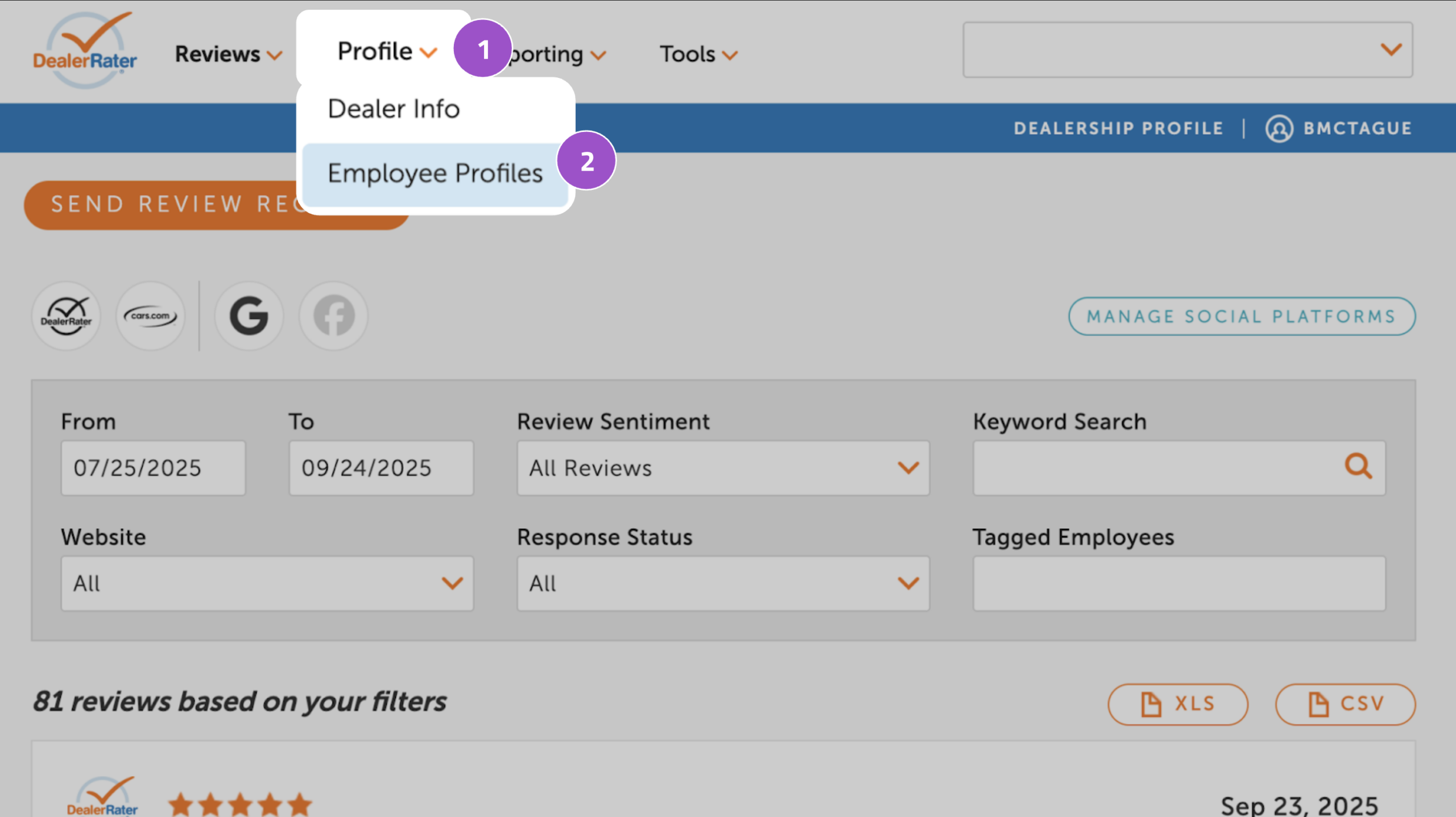
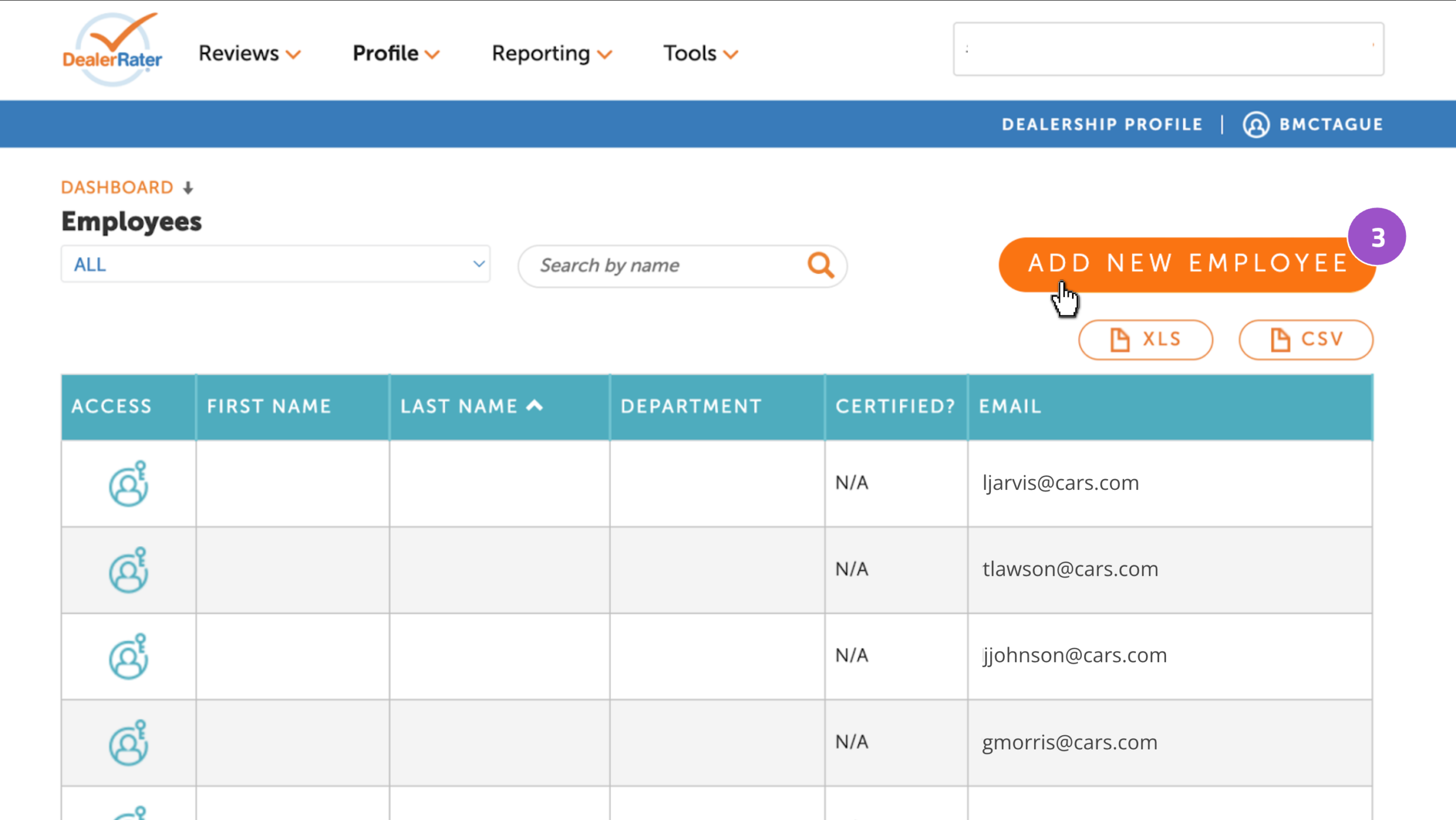
- Click Profile
- Click Employee Profiles
- Click Add New Employee
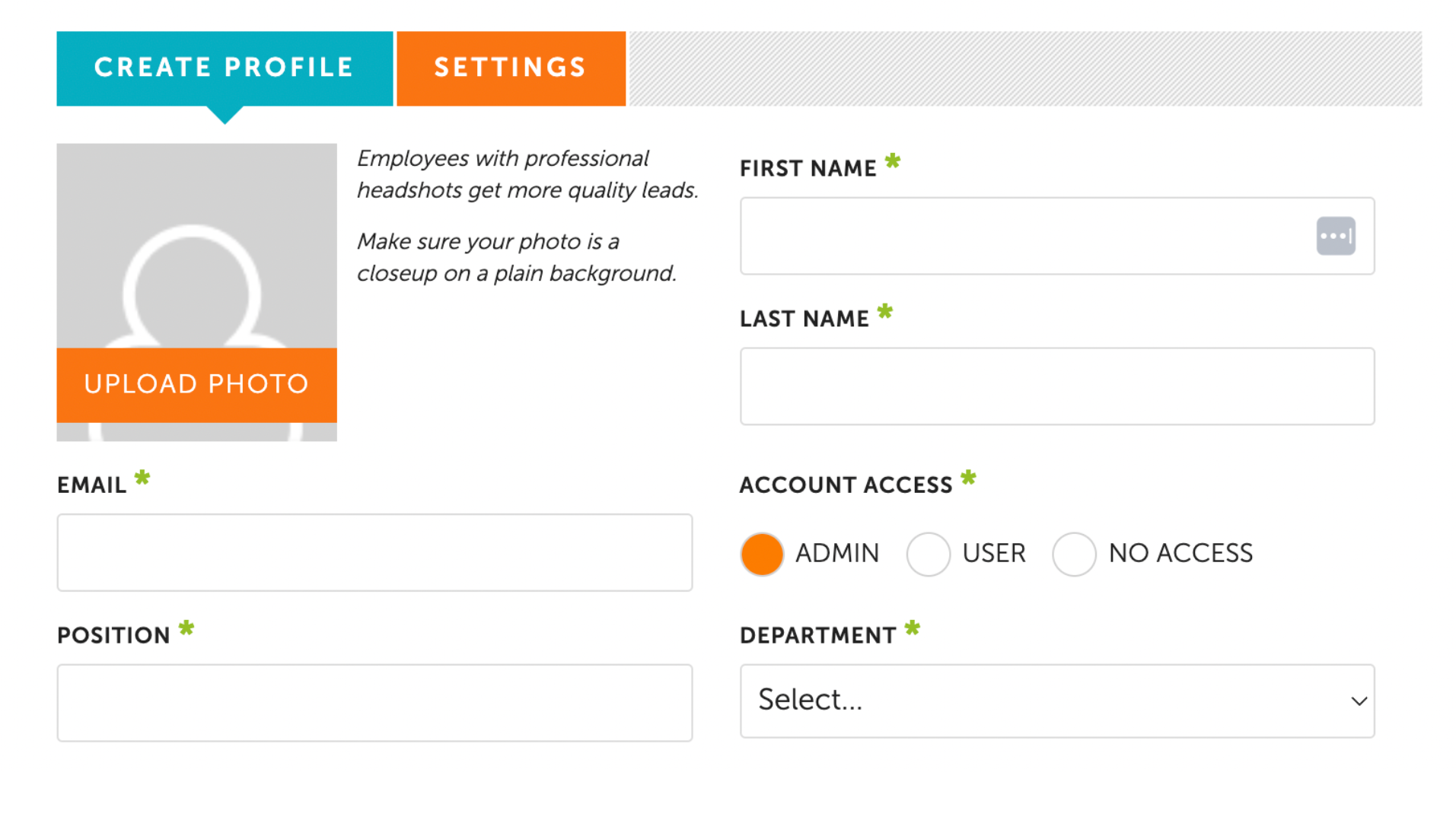
In the Create Profile tab, complete the required fields:
- First Name
- Last Name
- Dealership Email
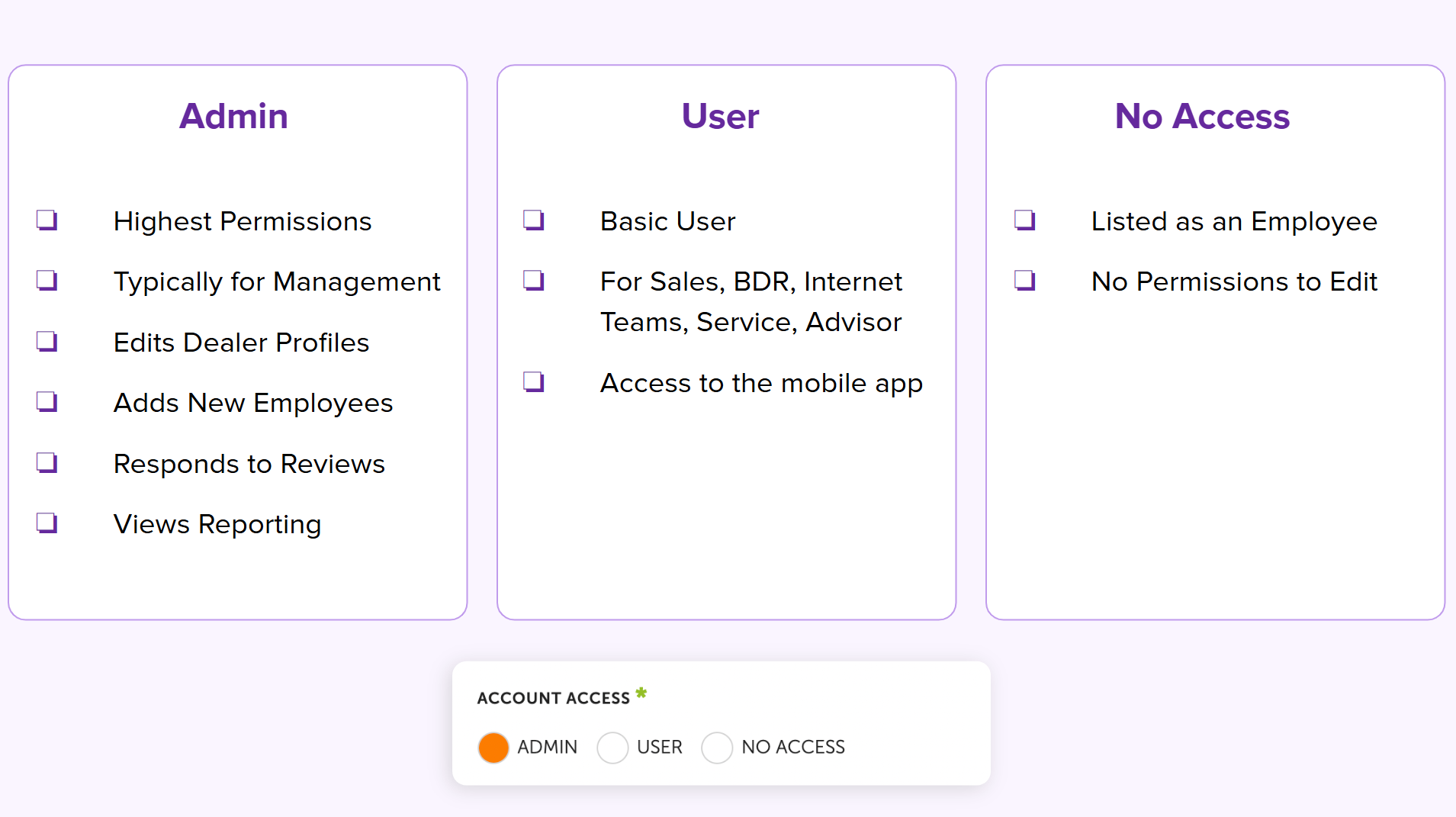
- Access Level (see access chart)
- Position
- Department
2 Assign a user type
Choose the appropriate access level or user type based on the employee’s role. Reference the access level chart if you’re unsure which level to assign.
3 Add a profile photo
Uploading a profile picture to provide customers a face to the name. This will be displayed on your dealership’s Cars.com VDPs, and Dealer Inspire website VDPs (if applicable).
- Select Upload Photo from the profile screen
- Choose an image from your computer
- Click Open
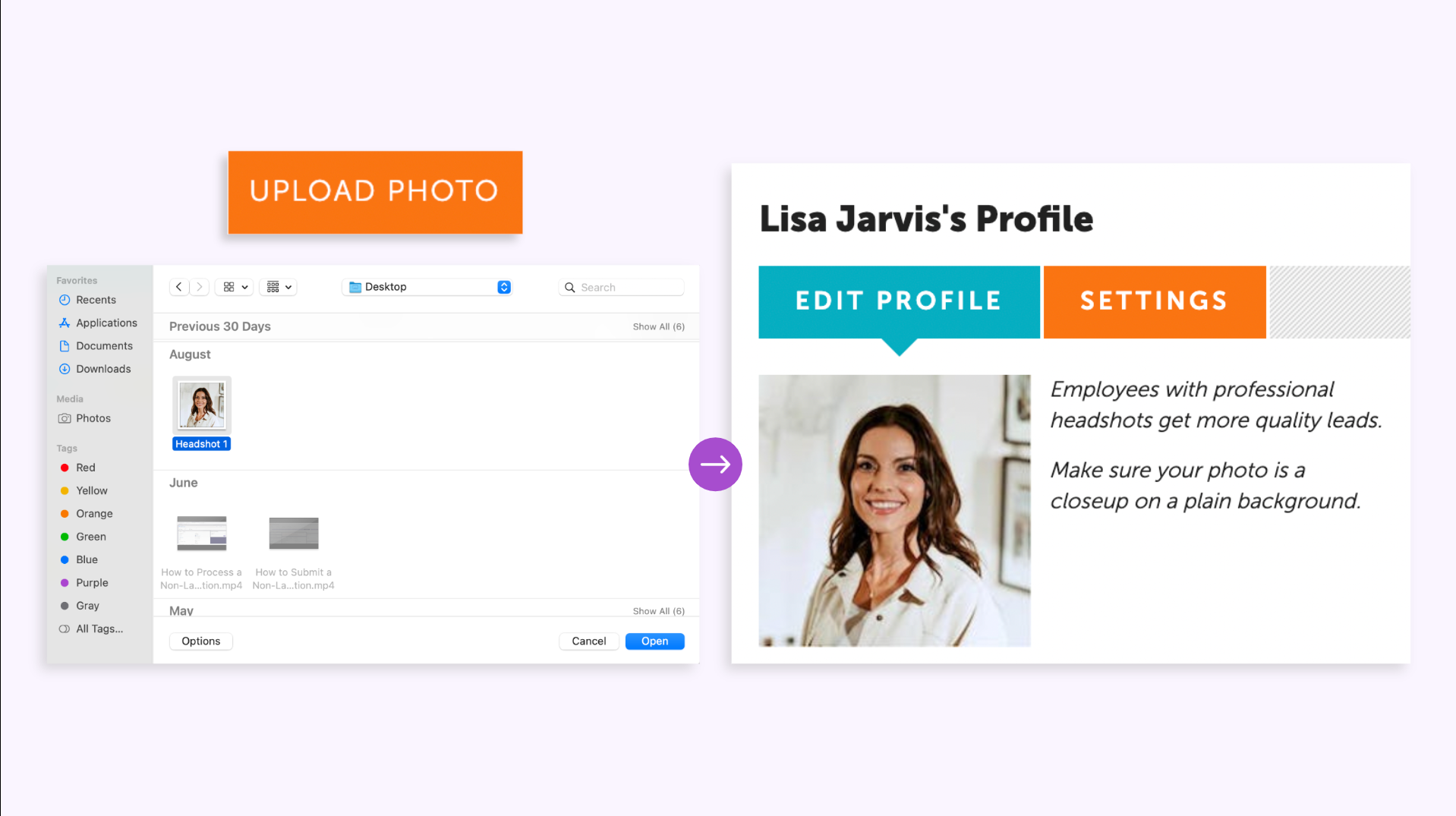
Note: Use a photo that’s well lit, professionally dressed, and has a clean background.
4 Add employee details
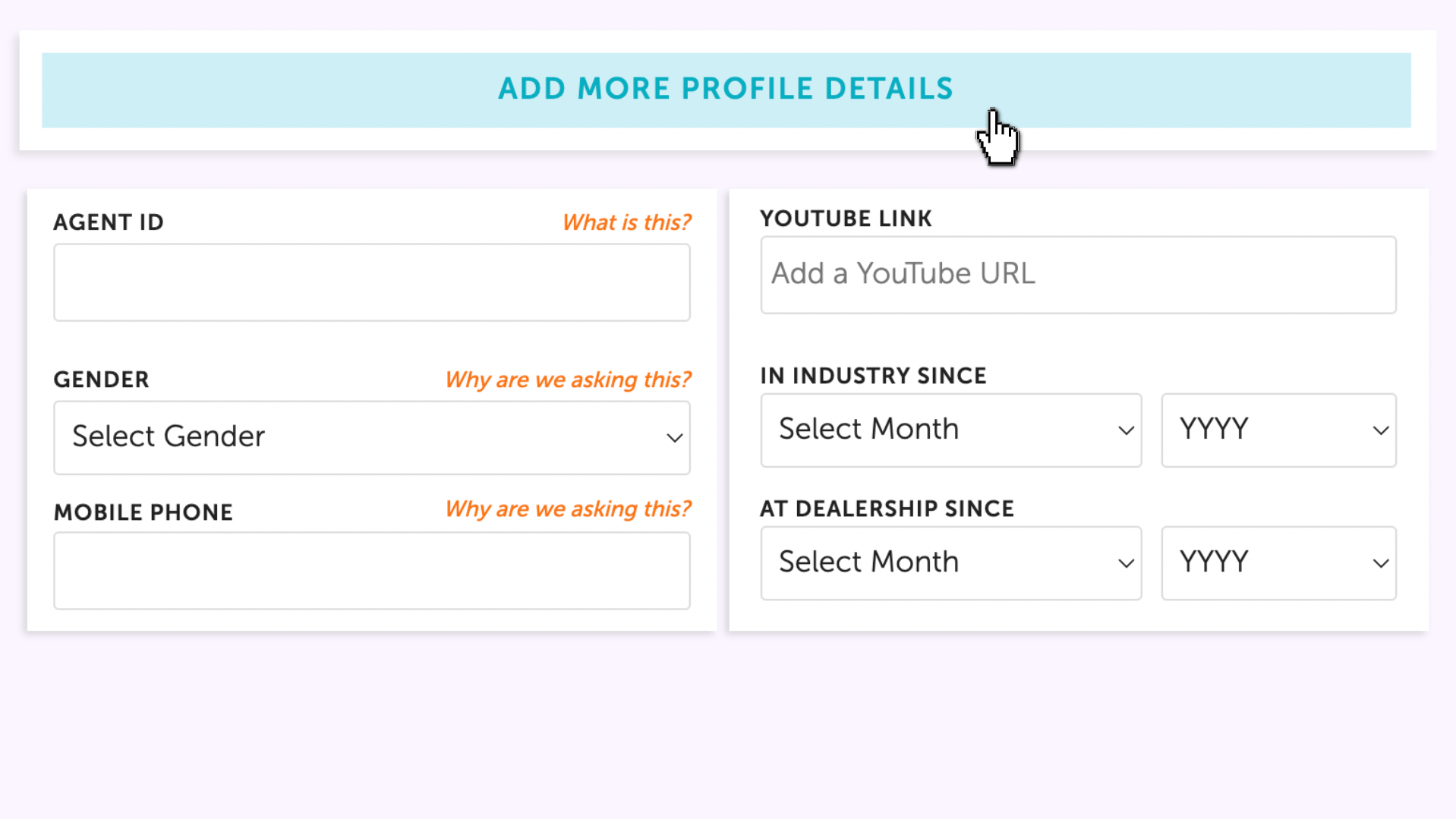
Click Add More Profile Details to complete the profile with personalized info that builds credibility:
- Agent ID
- Gender
- Mobile Phone Number
- YouTube Link (e.g., a quick welcome video)
- Years of experience in the industry or at your dealership
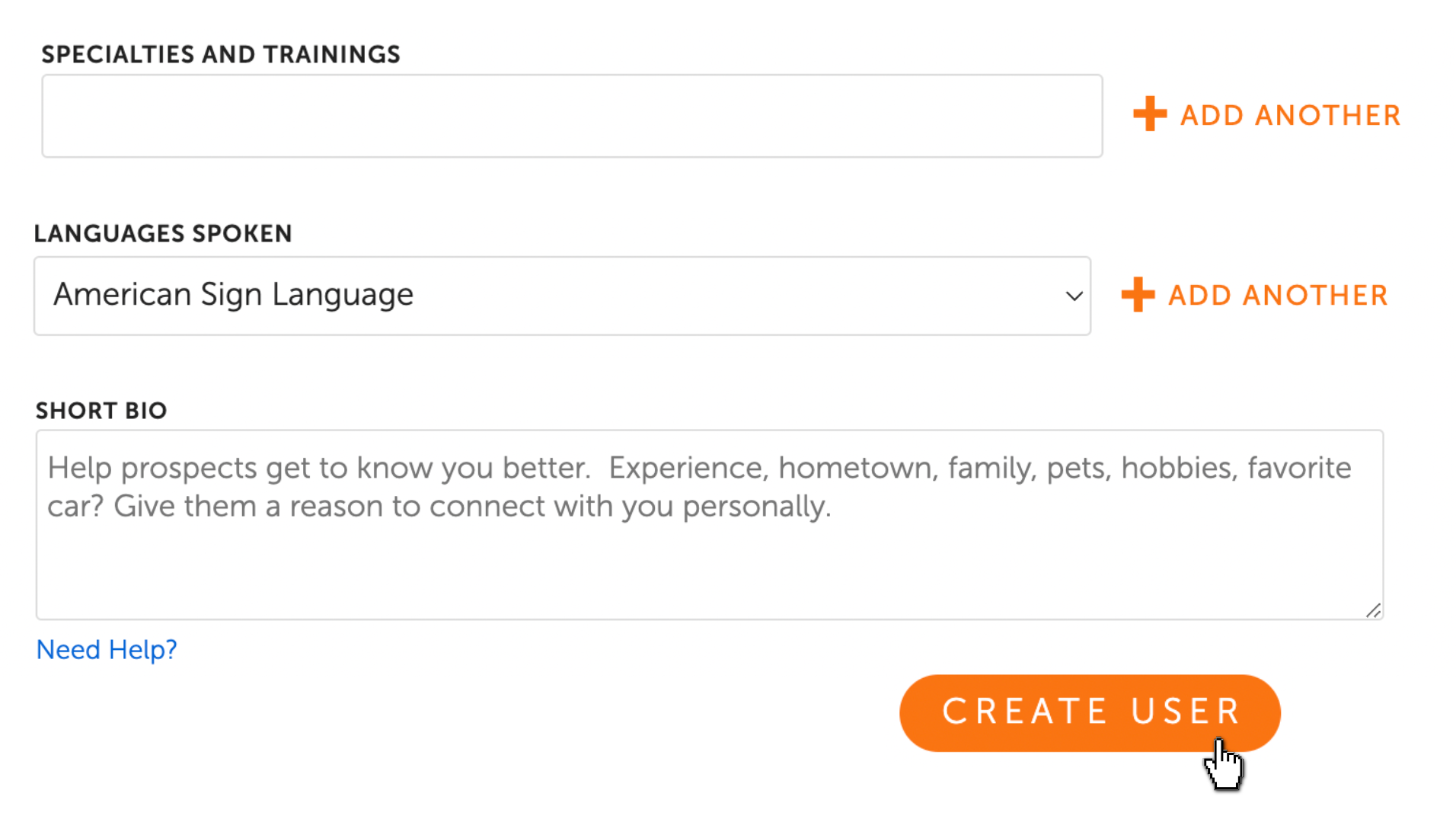
- Certifications, specialties, or training
- Additional languages spoken
- Short written bio
These details help build trust and can directly impact a shopper’s decision to engage.
When finished, click Create User to publish the profile.
5 Adjust notification settings
After creating the user, go to the Settings tab in their profile to:
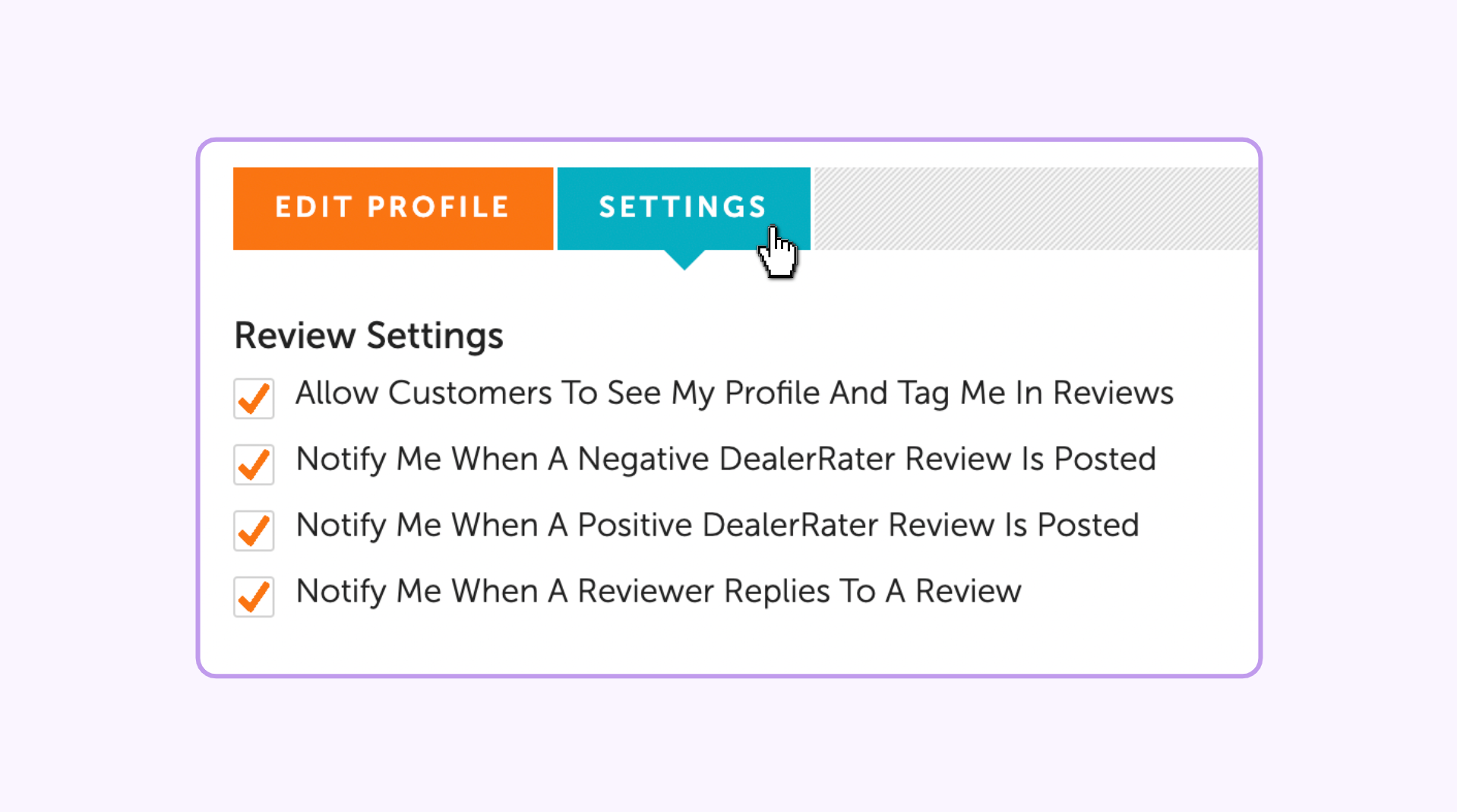
- Turn profile visibility on/off
- Enable tagging on Cars.com
- Select which notifications the salesperson receives (e.g., new lead alerts)
6 Promote your profile
Once the profile is live, share it to build visibility and trust:
- Bookmark the profile for easy access
- Add it to email signatures and social media bios
- Generate a QR code for use in printed materials
- Add the profile link to LinkedIn or digital business cards
7 Deleting a Profile
To remove an employee profile:
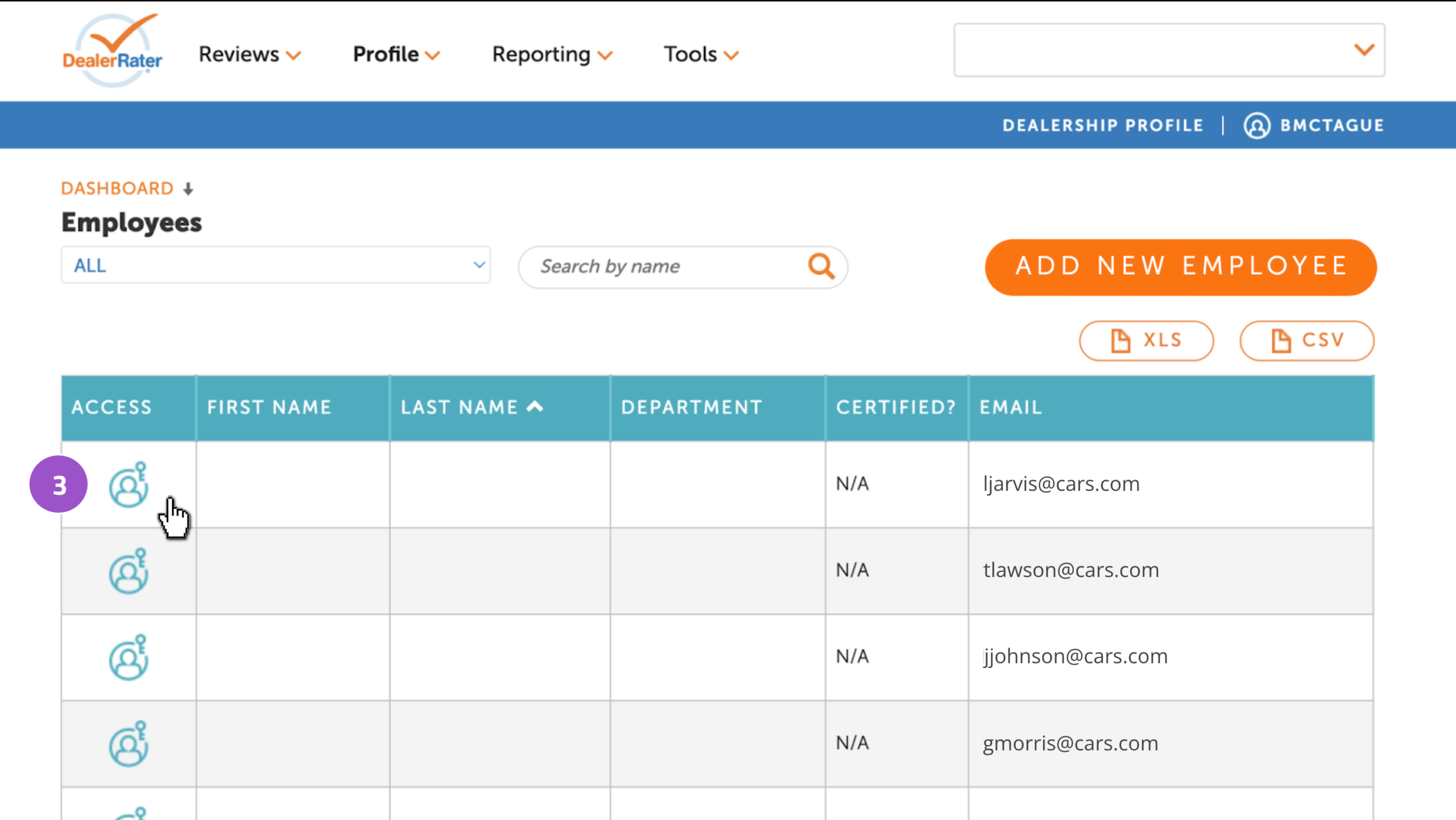
- Go to Profile
- Click Employee Profiles
- Click the name of the employee you wish to delete
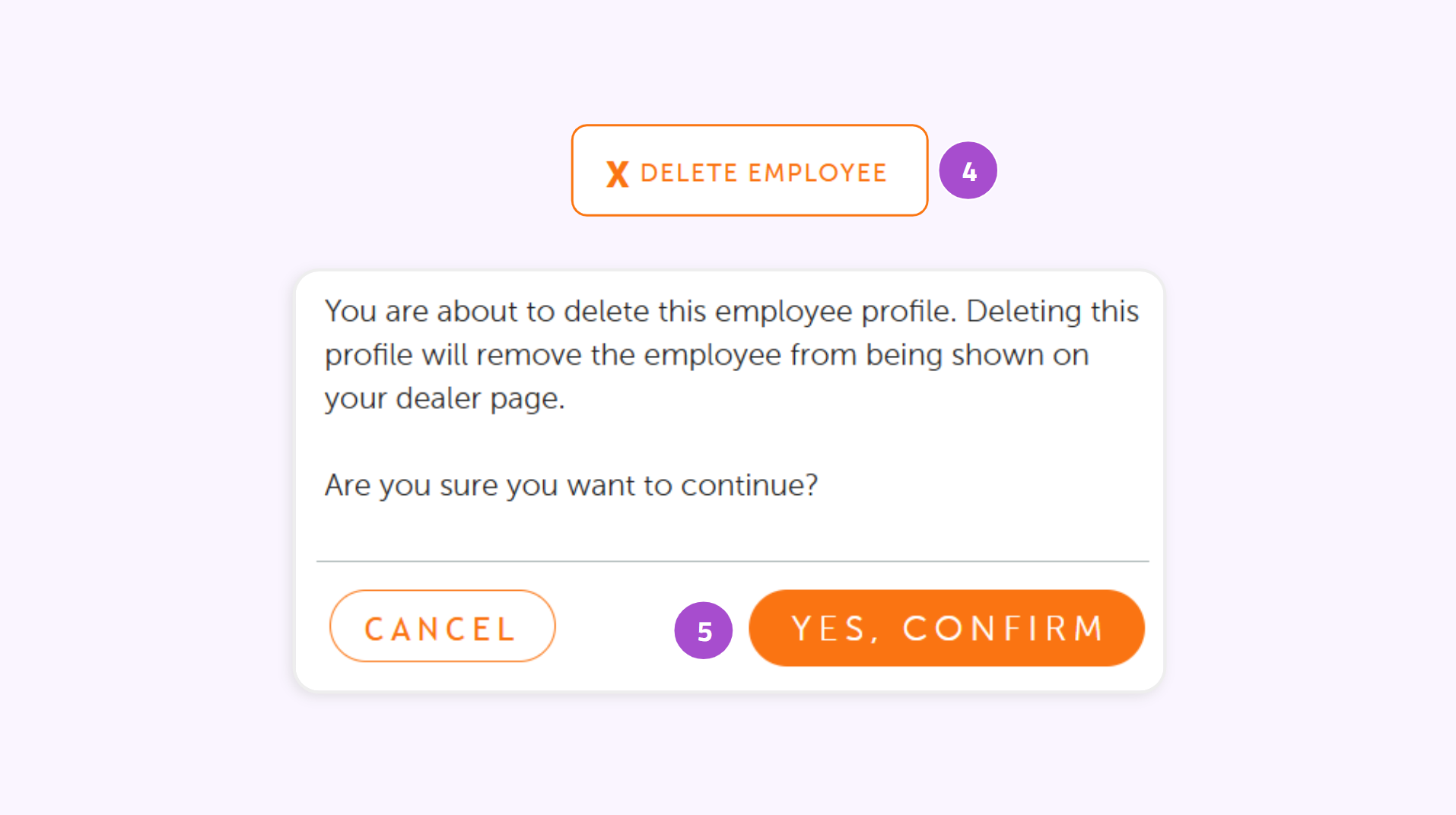
- Click Delete Employee (bottom left corner)
- Confirm by clicking Yes, confirm
Within the employee’s profile, scroll to the bottom of the screen. Click Delete Employee in the bottom left corner. Confirm your action by clicking Yes, confirm.