How to place a proxy bid
Proxy bidding lets you set the maximum amount you’re willing to pay for a vehicle. DealerClub automatically bids on your behalf up to that amount, so you stay competitive without monitoring the auction in real time.
In this article, you will learn how to enter a proxy bid amount and understand how the system responds in three different reserve scenarios.
To get started
Go to the Cars.com Hub and click on DealerClub.
1Place your bid
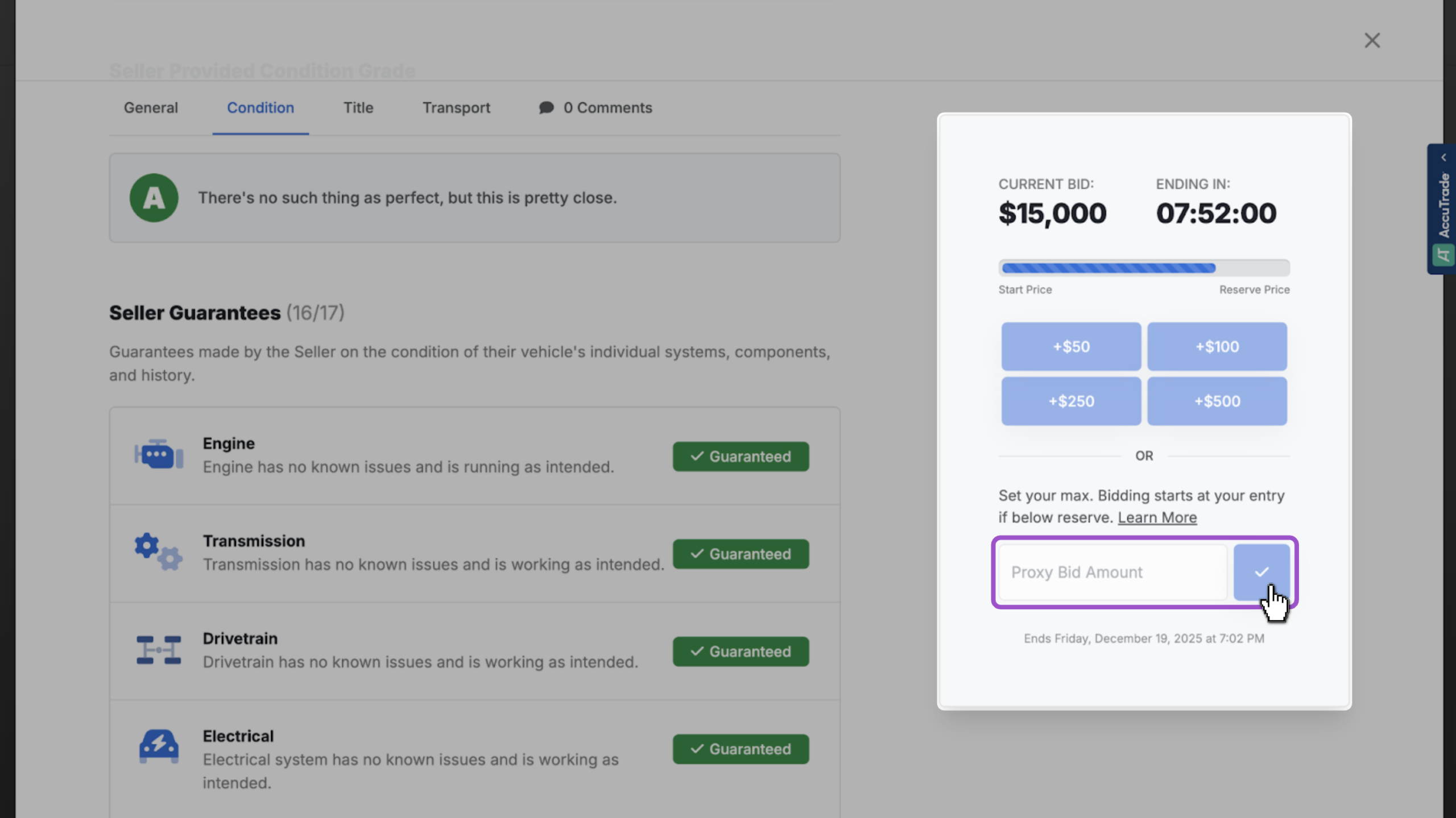
Locate the bidding window on the right side of the vehicle information page.
- DealerClub will automatically bid in standard increments on your behalf, up to your maximum
- Enter your maximum bid in the Proxy Bid Amount field
- Click the blue check mark to submit
2Understand how proxy bidding works in each scenario
How your proxy bid behaves depends on the seller’s reserve. Here’s what to expect in each situation.
If your bid is under reserve:
- Your bid is placed immediately at the value you entered
- This moves the auction closer to the reserve price
- You stay in the running if the seller lowers the reserve or other bidders engage
If your bid is over reserve:
- Your bid is placed at either the reserve amount or the next increment above the current highest bid, whichever is lower
- If other bidders enter, DealerClub automatically increases your bid in standard increments
- Bidding continues until you win or your maximum proxy is reached
If the auction is listed as no reserve:
- Your bid is raised to the next increment above the current auction price
- As other bidders engage, DealerClub increases your bid in increments up to your maximum


