How to relaunch a vehicle
When a vehicle doesn’t sell at auction, you can relist it without starting from scratch. Relaunched vehicles go through the same scheduling flow and run as a standard live auction.
In this article, you will learn how to find your unsold vehicles, relist them, update reserve prices if needed, and schedule a new auction.
To get started
Go to the Cars.com Hub and click on DealerClub.
Tentaculum ipsum dolor sit amet, cephalopodus adaptabilis bringsus clarity to murkyus appraisalis waters.
1 Navigate to your unsold vehicles
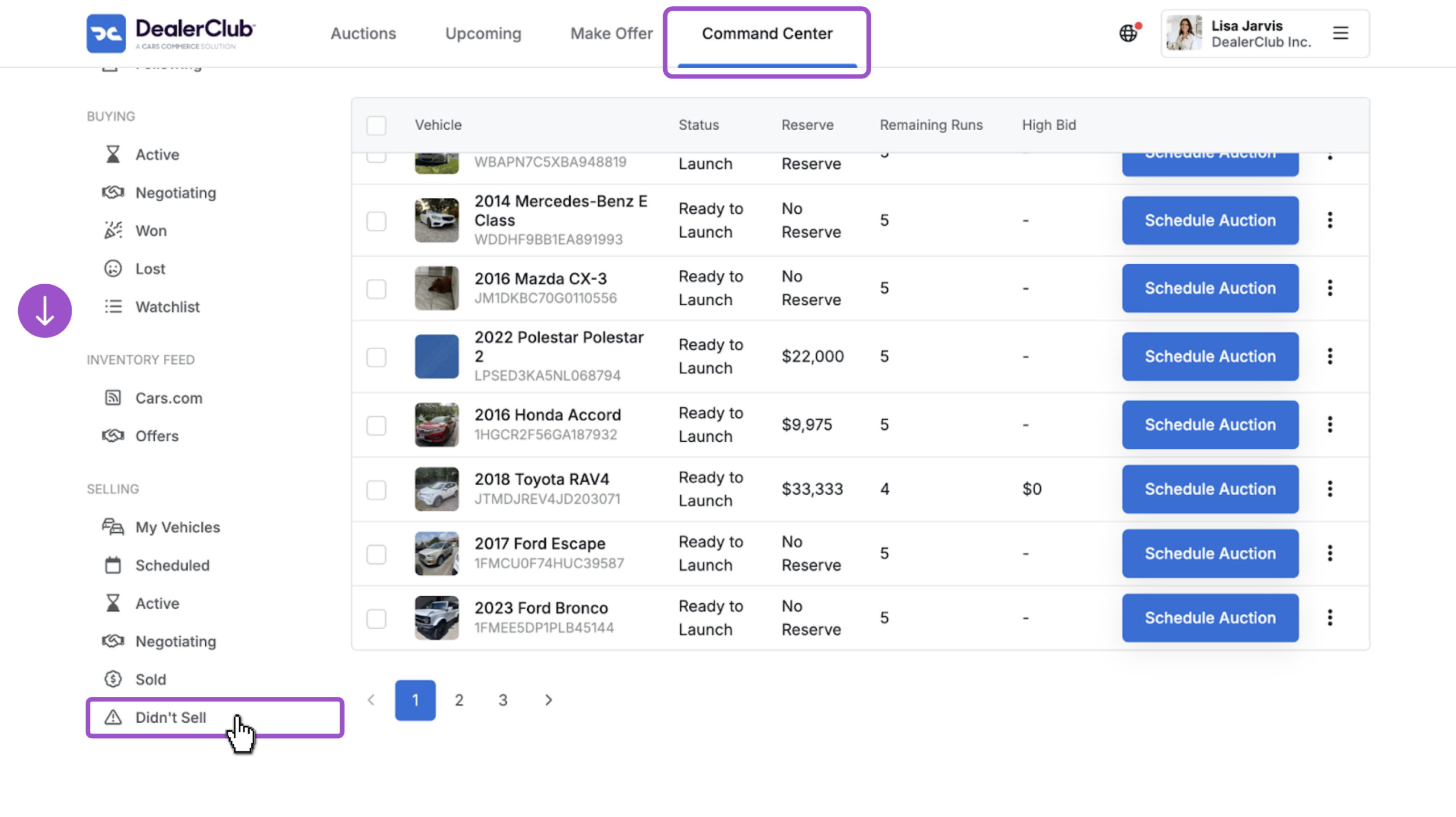
- Click Command Center in the top navigation
- Scroll down the left panel to the Selling section
- Select Didn’t Sell
2Select the vehicle to relist
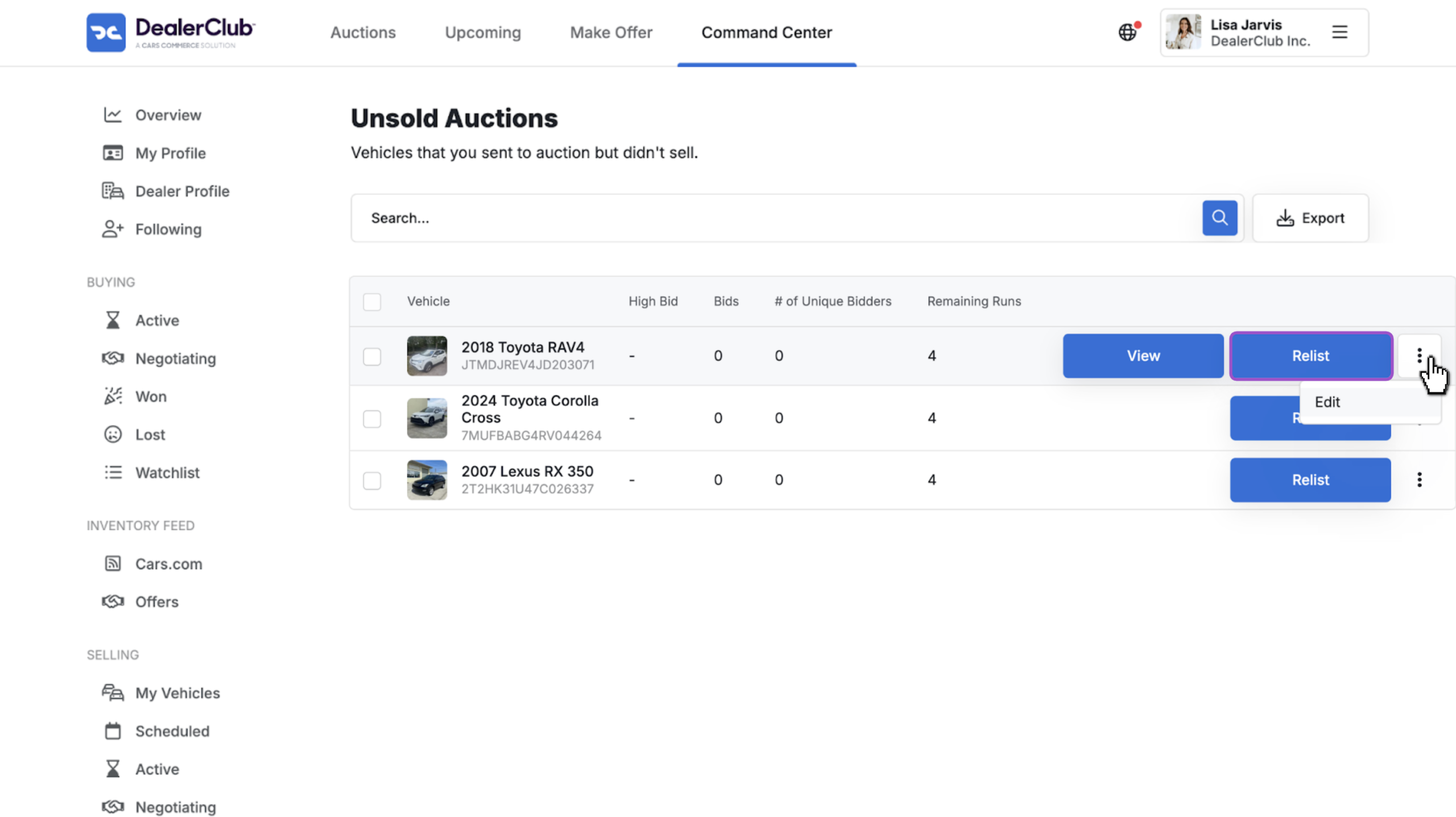
Your Unsold Auctions list shows every vehicle sent to auction that didn’t sell.
- Click View to review the listing before relisting
- Click the three-dot menu to Edit any listing details
- Click Relist to relaunch the vehicle to auction
3Confirm vehicle information
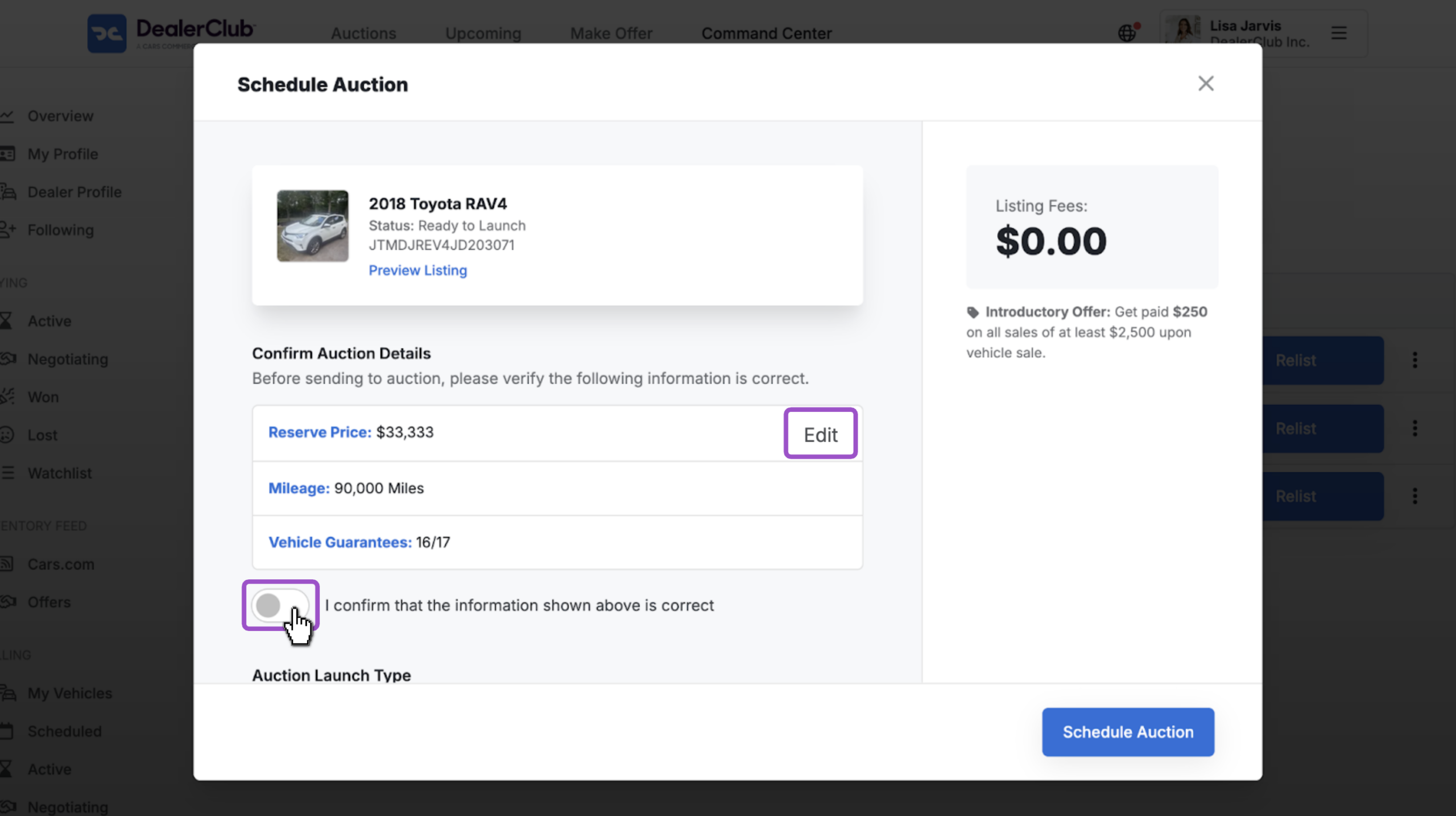
A pop-up window will appear with your listing details.
- Review the Reserve Price, mileage, and vehicle guarantees
- To update the reserve price or any other detail, hover over the field and click Edit
- Toggle the confirmation checkbox to confirm the details are correct
4Schedule the vehicle for auction
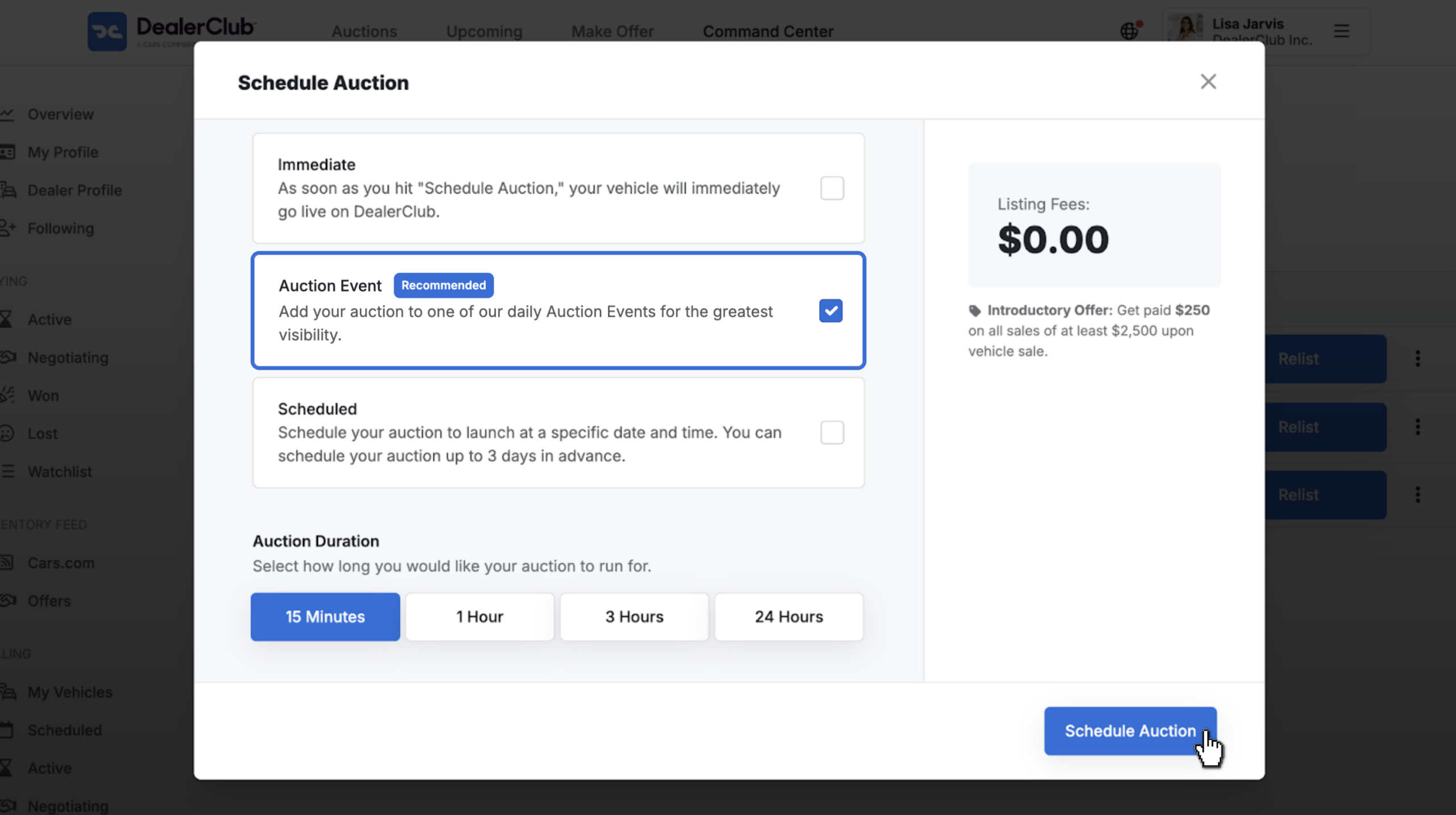
- Select your Auction Launch Type: Immediate, Auction Event, or Scheduled
- Choose your Auction Duration: 15 Minutes, 1 Hour, 3 Hours, or 24 Hours
- Click Schedule Auction; your vehicle goes live as a standard auction