How to opt in to Salesperson Connect
With the Salesperson Connect feature for Cars.com Marketplace and Dealer Inspire clients, you can incentivize your staff and increase leads directly from your VDP on Marketplace and your Dealer Inspire website. Personalize the shopper experience, incentivize top salespeople by featuring them, and improve your dealer brand presence across platforms.
To get started
Go to the Cars.com Hub. Click Cars.com, then Reputation.
Salesperson Connect
As a Cars.com customer, you have access to Salesperson Connect.
- Incentivize and reward top salespeople by featuring them on VDPs (based on their rating)
- Improve dealership brand presence
- Allow shoppers to choose a staff member to work with directly
If you have a Dealer Inspire website package with Marketplace Premium or Premium +, opt in to:
- Add continuity across your marketplace and dealer website experiences
- Feature your salespeople to your VDPs
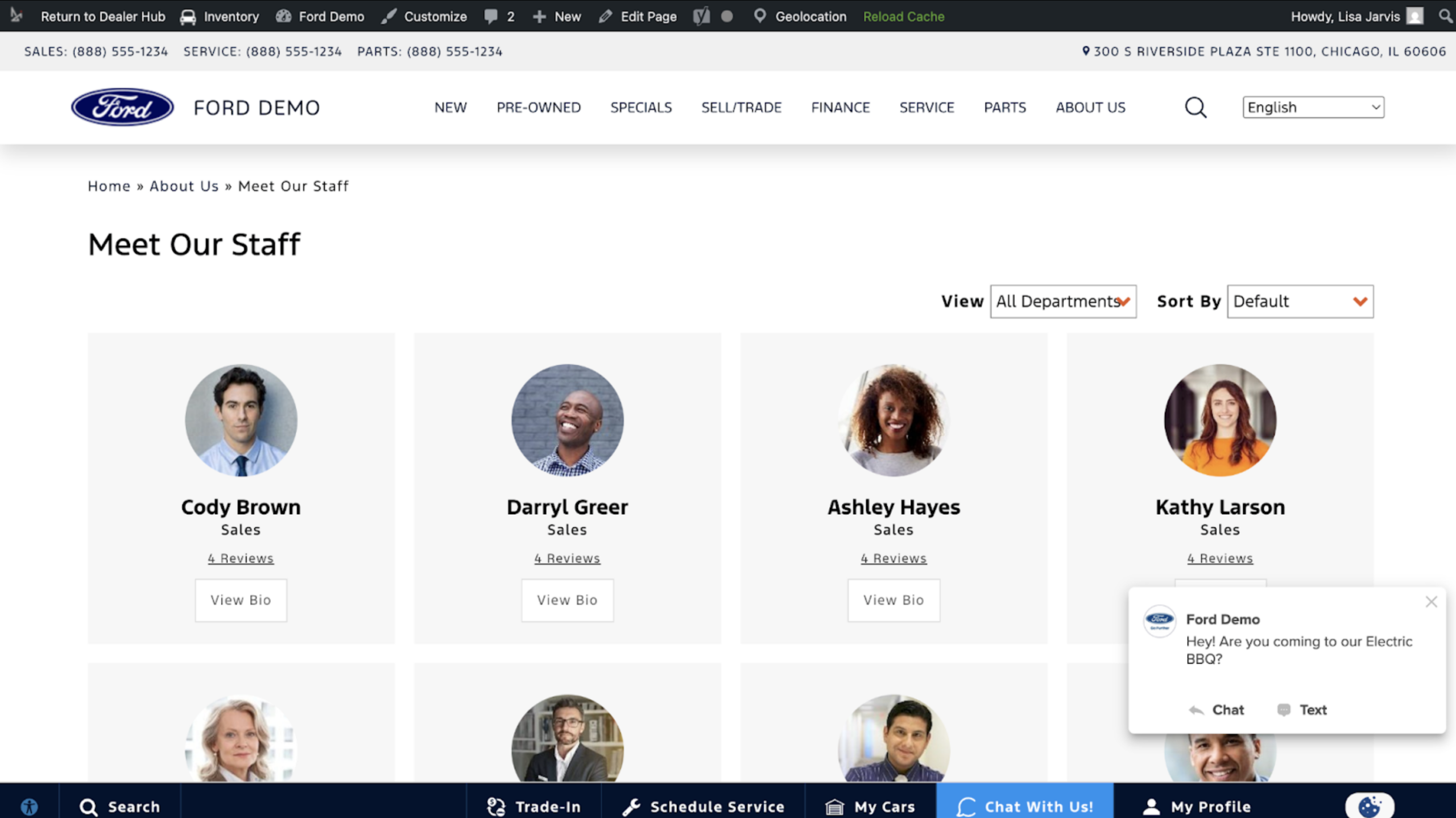
- Display your employee profiles directly over your Meet Your Staff page on your DI website
1 Set up your profiles
To feature salespeople on your VDP, create your salesperson profiles.
- See our article on how to set up Salesperson profiles
- Only Sales or Internet departments must be selected to appear on VDPs
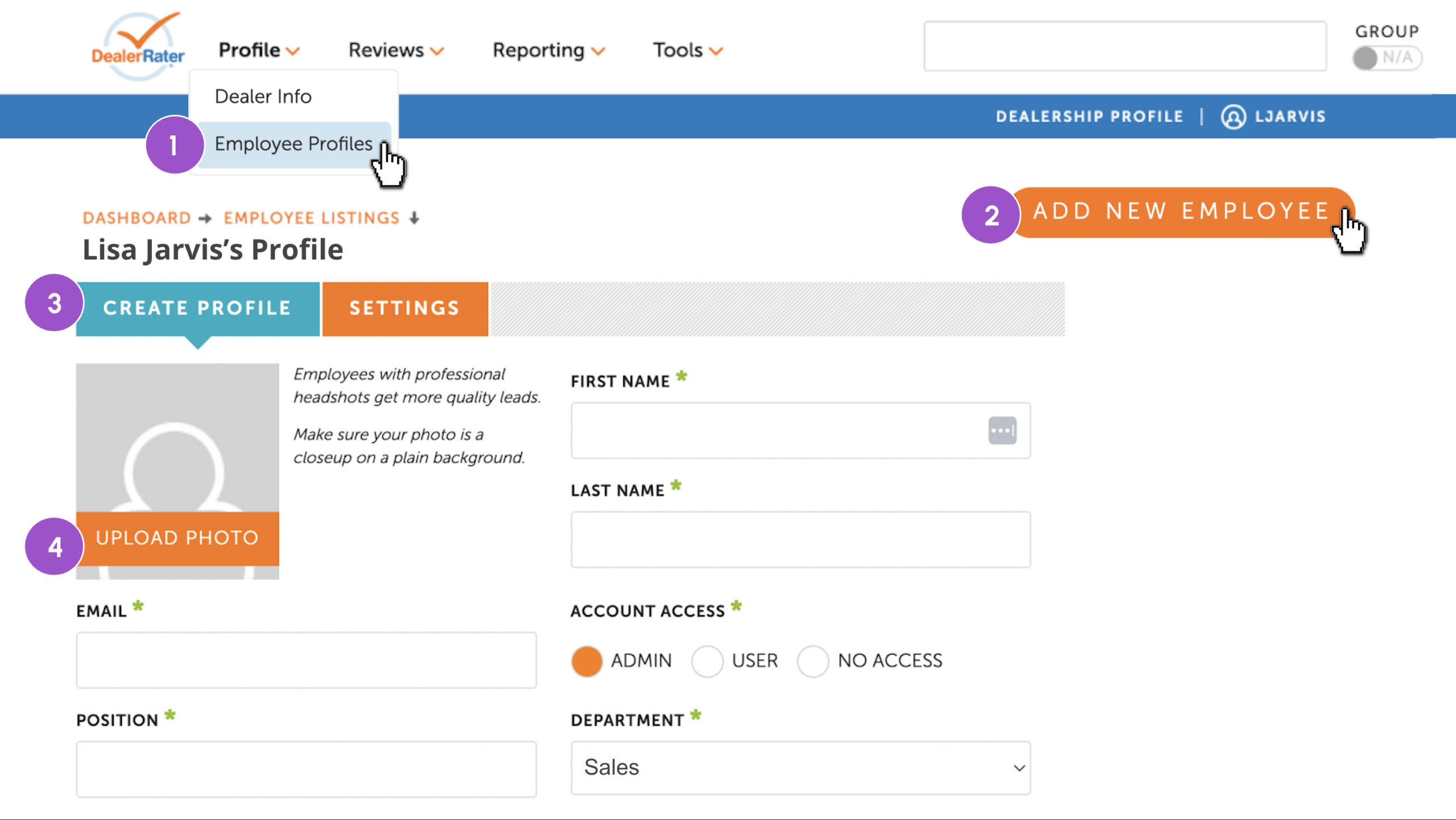
To create your salesperson profiles:
- Navigate to Employee Profiles under Profile
- Click Add New Employee
- Fill out the fields
- Upload a profile photo
2 Adjust your settings
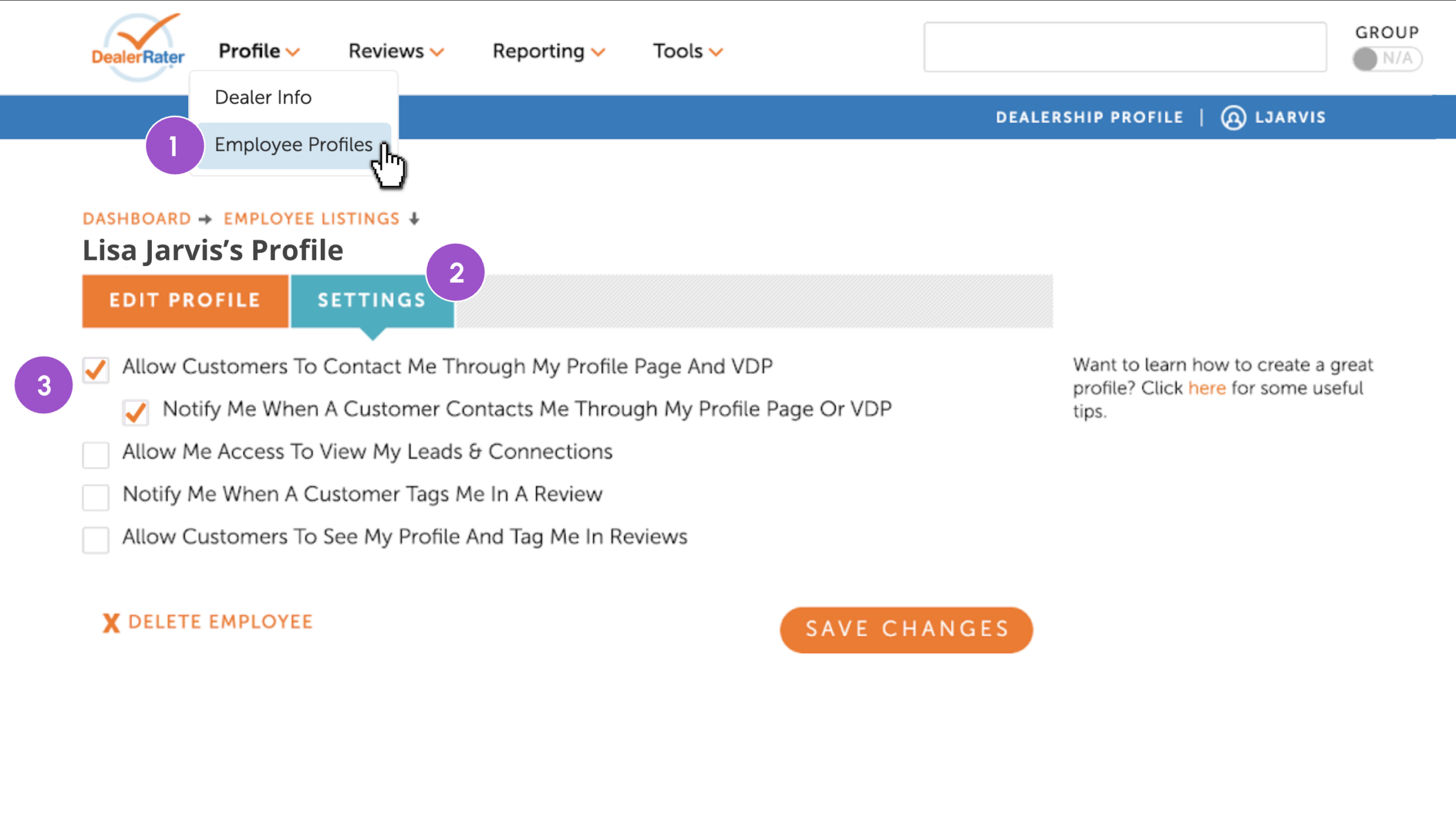
For an employee profile to display on a VDP, enable the notification settings.
- Navigate to Employee Profiles under Profile
- Click into the employee profile to update
- Click into the employee profile to update
- Click the Settings tab
- Check the following settings:
- Allow customers to tag me in reviews
- Allow customers to contact me through profile or VDP
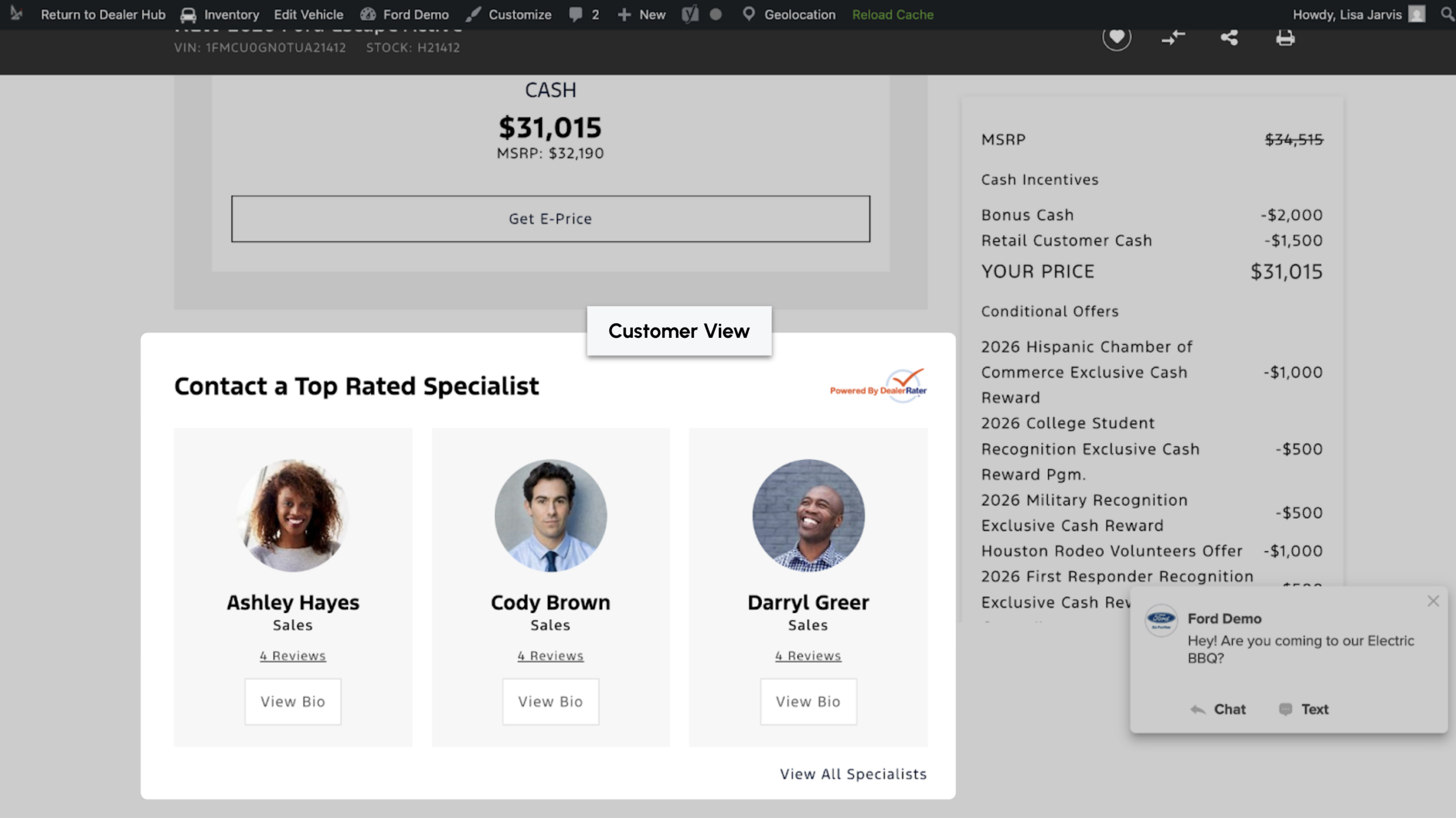
By opting in to the Salesperson Connect features, when a shopper views a VDP on your Dealer Inspire website, they can view and reach out to a salesperson directly.
In addition to featuring salespeople on your VDPs, you can display employee profiles on your Meet Your Staff page for continuity across your marketplace and dealer website experiences.
Frequently asked questions
What settings are required for a profile to appear on a VDP?
For an Employee Profile to display on a VDP, enable the following settings:
- Allow customers to tag me in reviews.
- Allow customers to contact me through profile or VDP.
- Sales or Internet departments must be selected on the profile.
What determines the sort order of employee profiles on a VDP?
Salesperson Connect leverages the following order logic:
- Reviews higher than 4.0 are factored in or considered
- Employee’s average rating from dealer reviews on the same vehicle as the VDP.
- Certified Employee Badge: Employees with a badge with be prioritized
- Overall employee’s average rating for all dealer reviews
- Recent review volume for the employee
- Lifetime review volume for the employee
How will I be notified of a lead?
You will receive an email notification and an ADF/XML email sent to your CRM, along with an email notification. All leads can be found in Tools > Leads and Connections of your Dealer Panel.
How does the salesperson’s name get assigned to the lead in their CRM?
We send an email to your CRM with ADF/XML code that assigns “primary contact” to the salesperson selected. We use industry standards so it is clear that the consumer has requested to work with that salesperson
Have questions about opting in to Salesperson Connect? Reach out to your Account Executive.