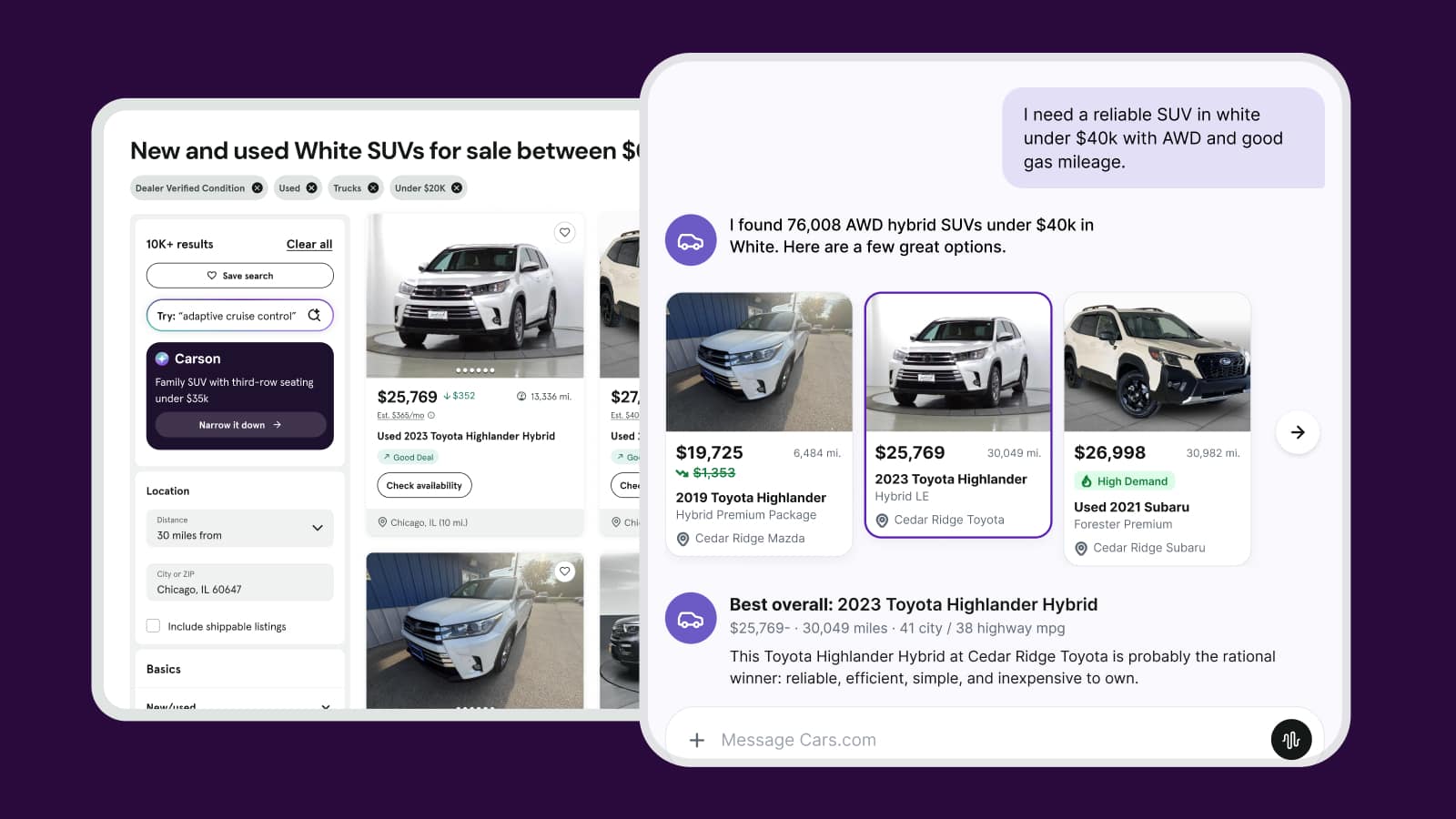
How to edit your dealer module
Available for Premium and Premium+ subscribers, the dealer module gives you a powerful way to tell your story on every Vehicle Detail Page. It replaces the previous Dealer Positions feature with a richer, mobile-first experience that highlights your reputation, team, and service offerings — while blocking competitor ads from appearing on your VDPs.
Think of it as your “why buy from us” showcase, positioned exactly where shoppers are making decisions.
What’s included
The dealer module includes five customizable sections that can be edited from your Admin Dash or Dealer Dash:
- About: Your dealership story and promotional tagline
- Highlights: Key differentiators and “why buy” points
- Reviews: Pulled from your DealerRater profile
- Sales Team: Displays top-rated salespeople (requires Salesperson Connect)
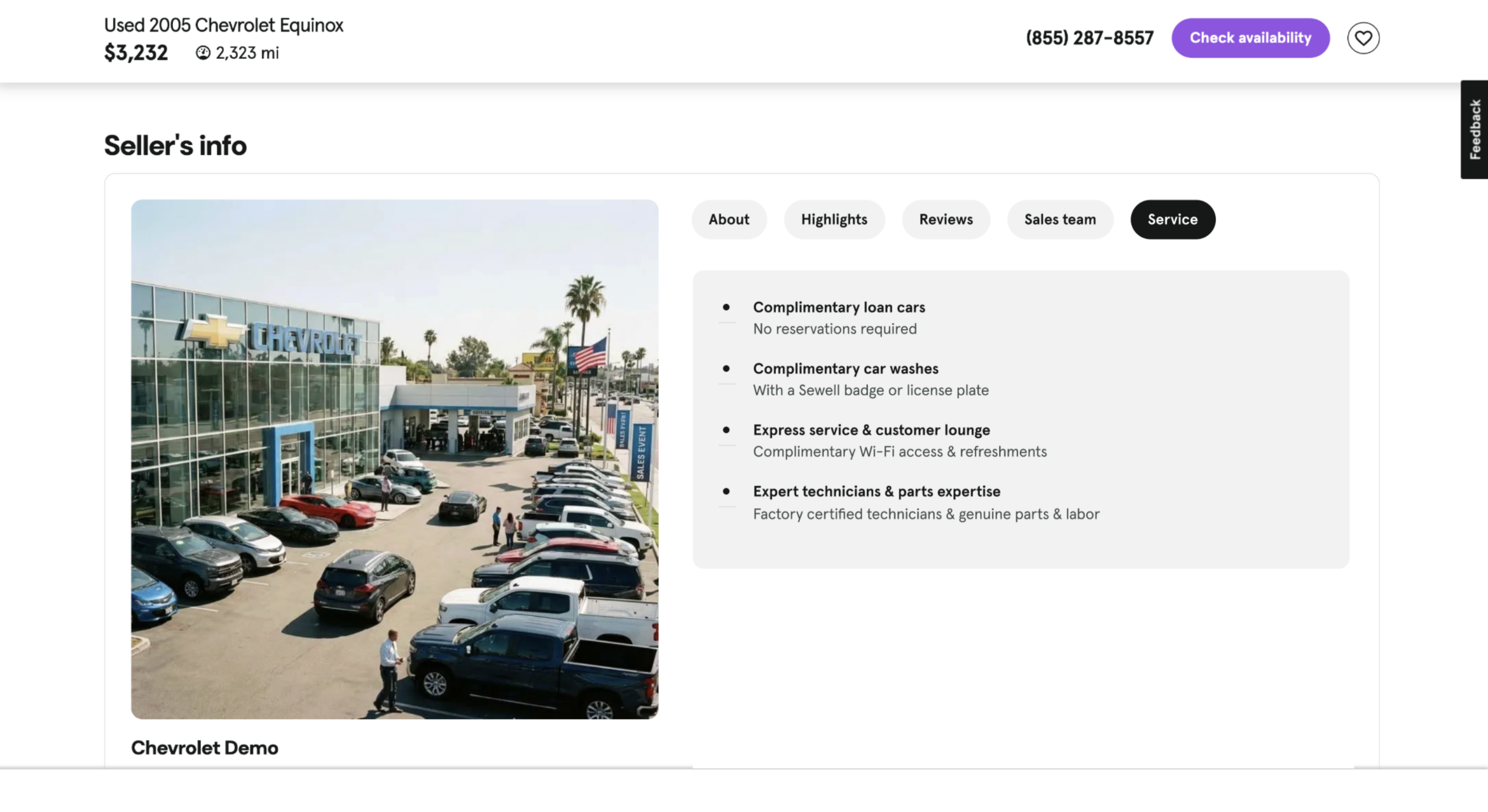
- Service: Overview of your service department, warranties, and pricing
To get started
Go to the Cars.com Hub. Click Cars.com, then Dealer Dash.
1 Edit the About section
Your About section appears prominently on VDPs and sets the tone for your dealership’s value proposition.
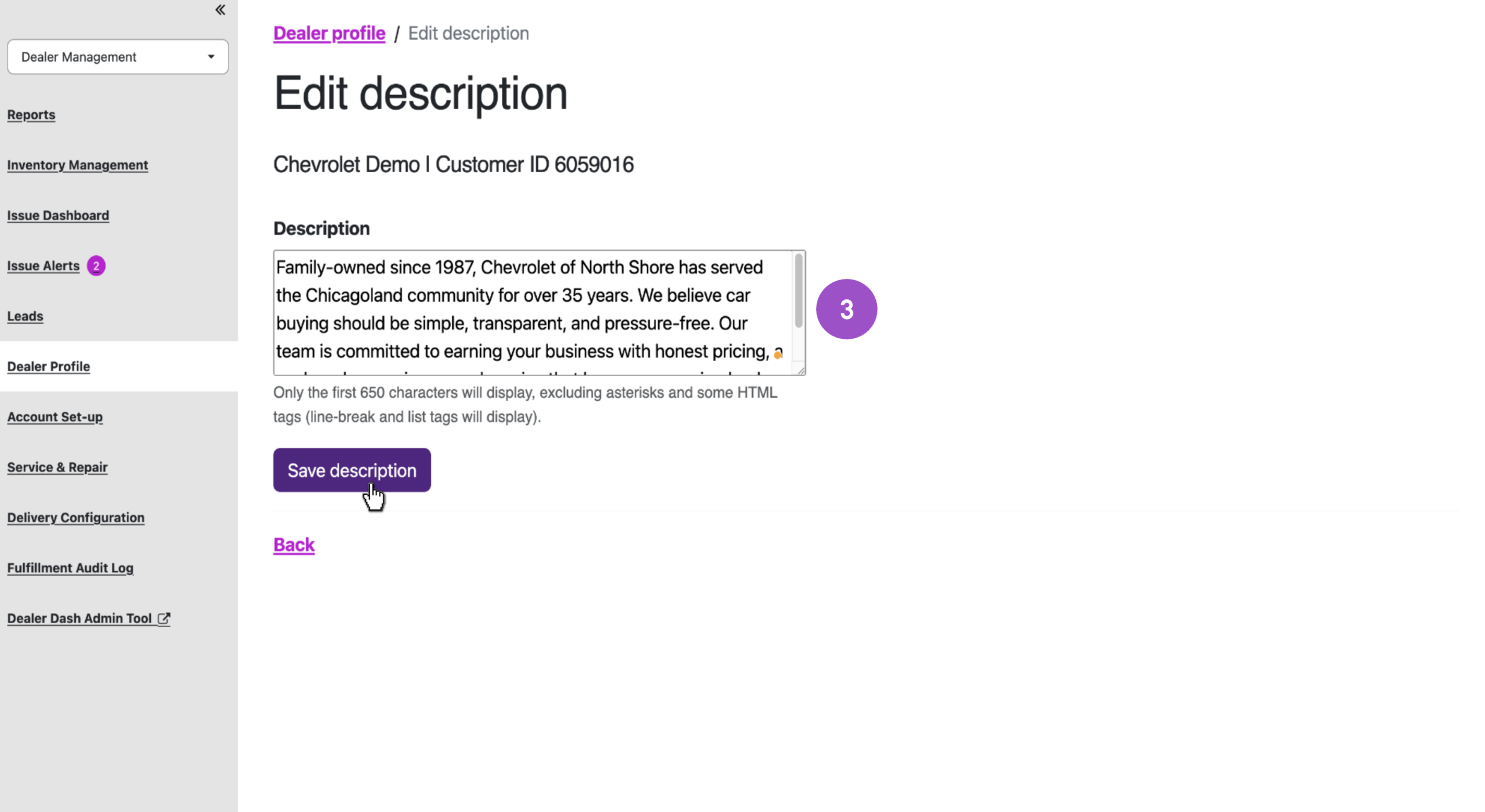
Character limit: 650
From Admin Dash:
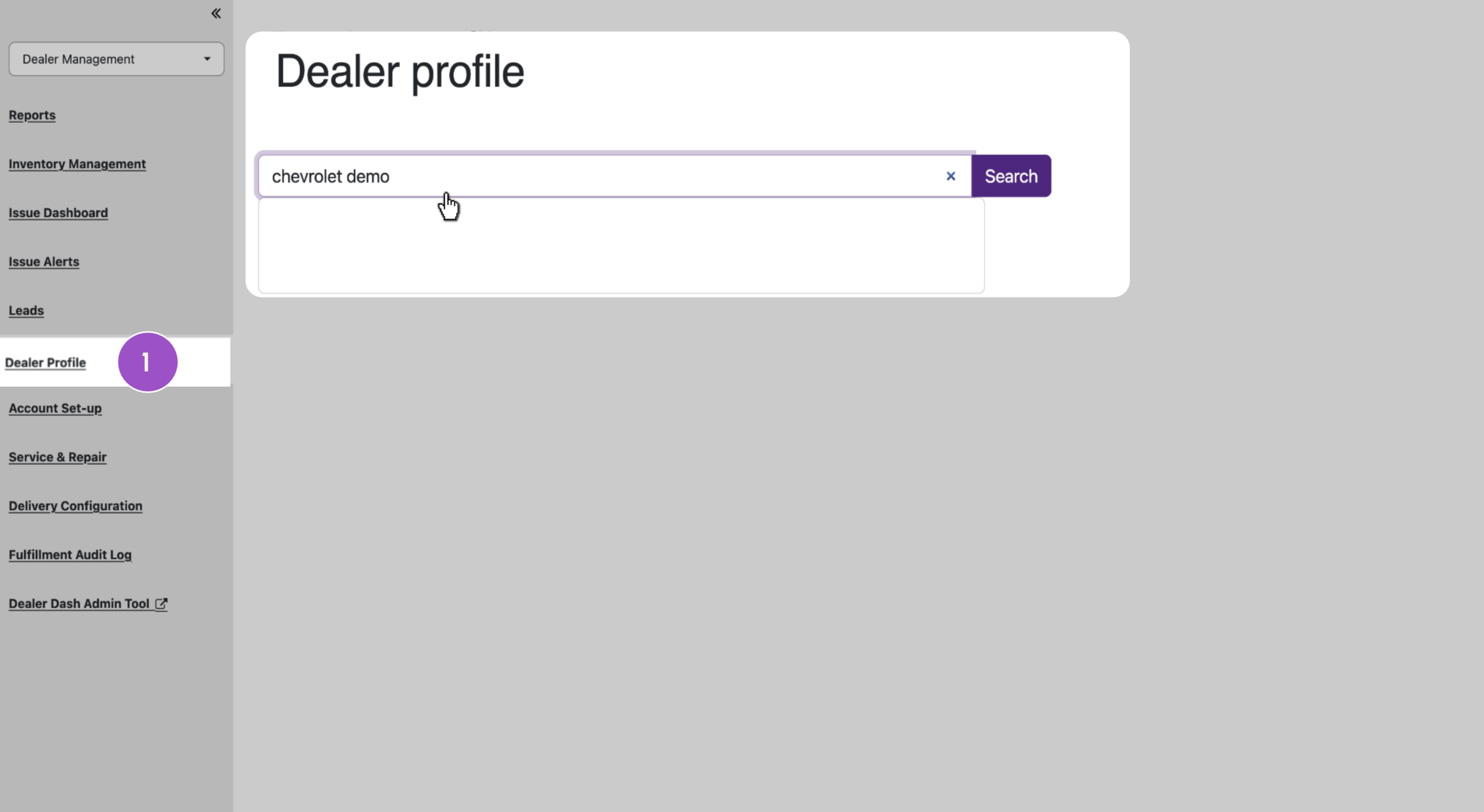
- Go to Dealer Management > Dealer Profile.
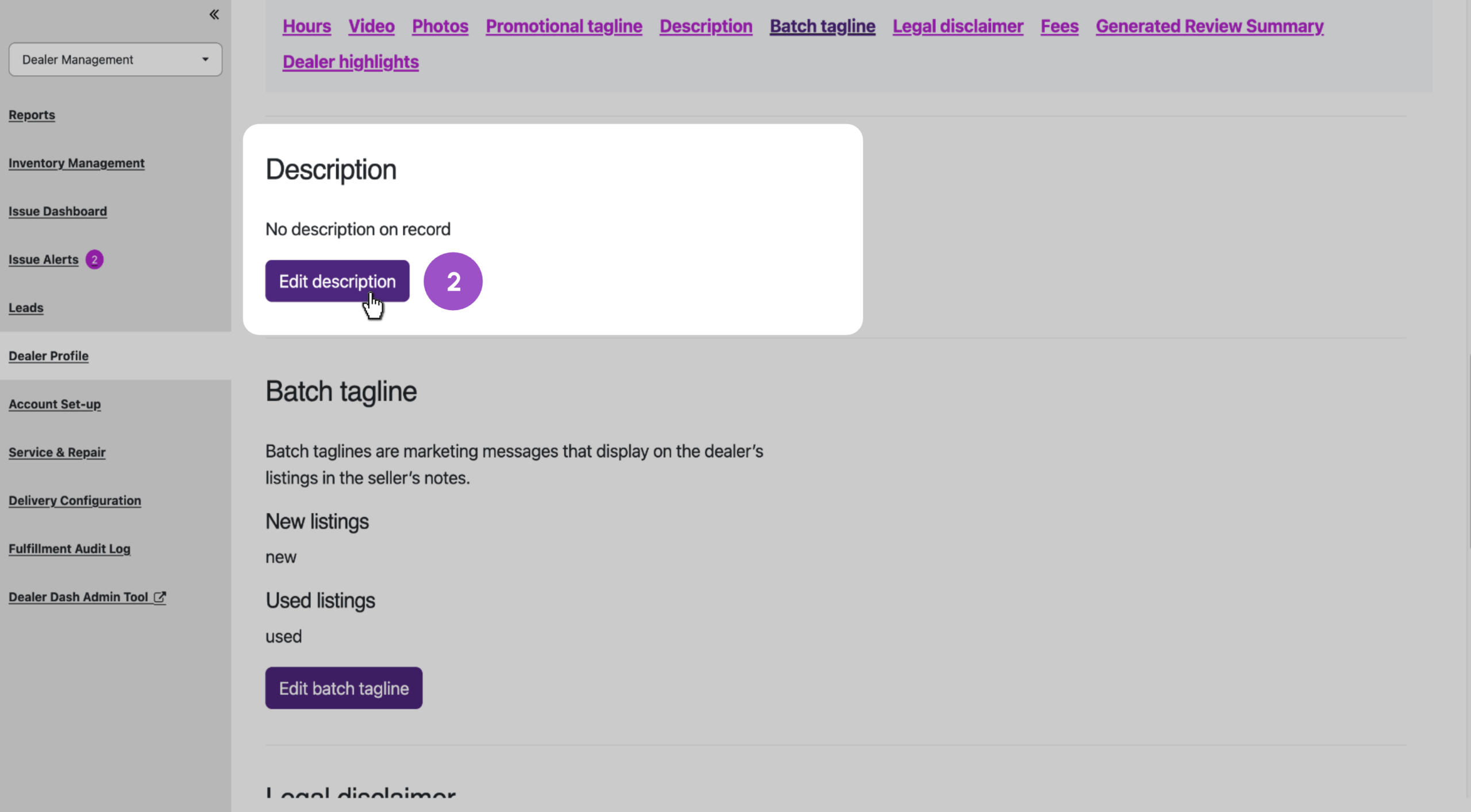
- Scroll to the Description section and click Edit Description.
- Enter your text and click Save.
From Dealer Dash:
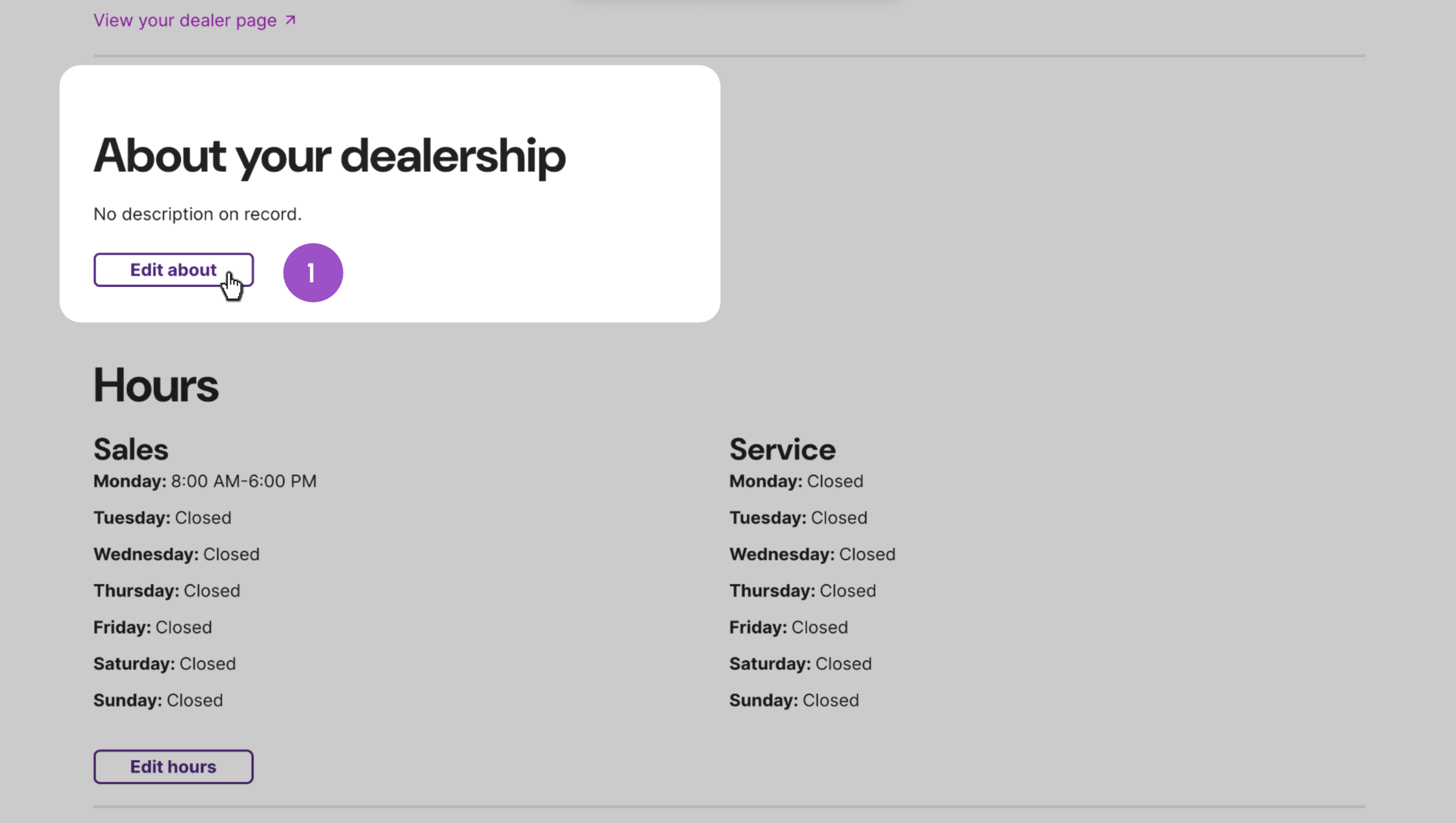
- Scroll down to the About Your Dealership section.
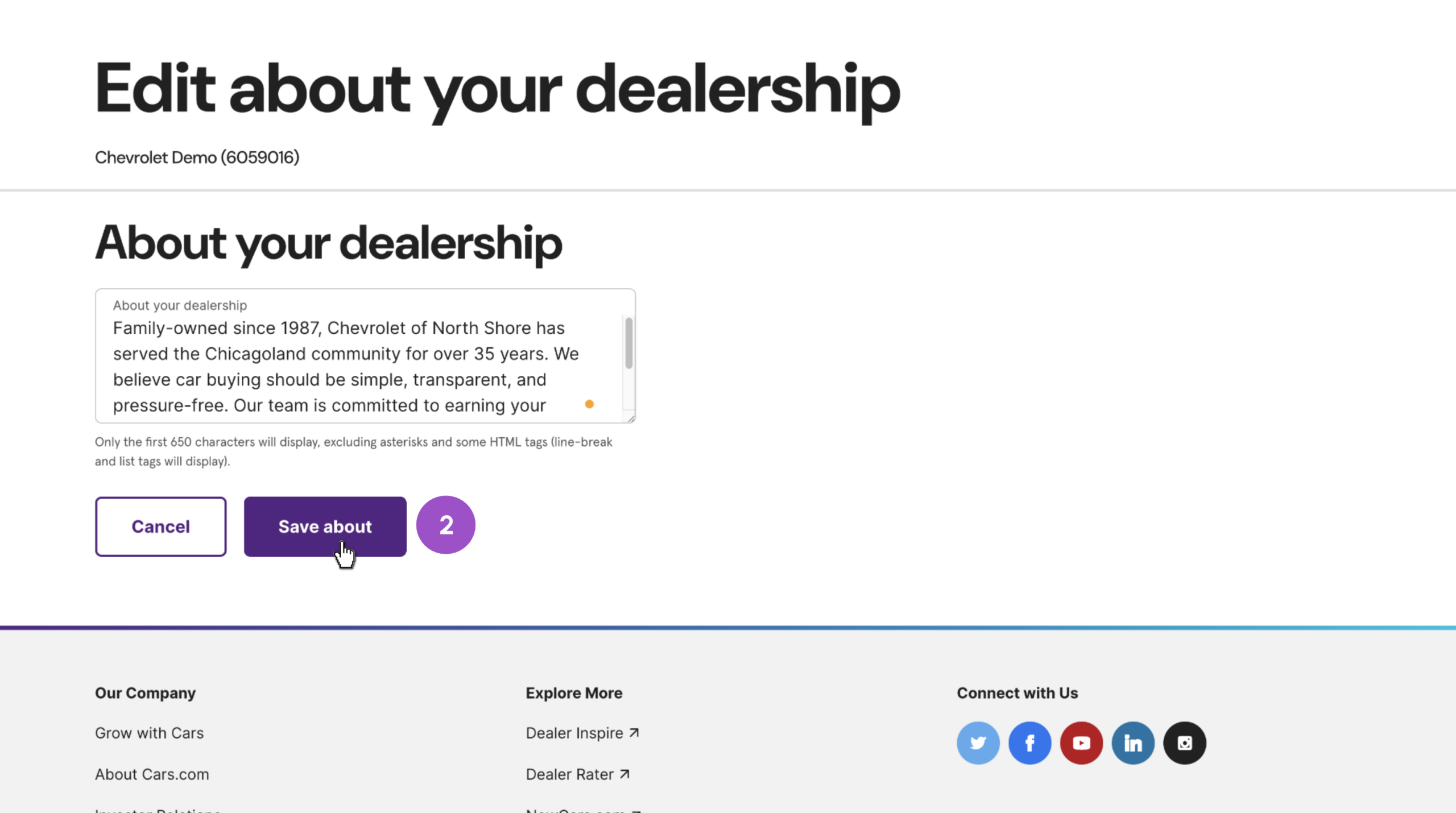
- Click Edit About, enter your text, then clickSave.
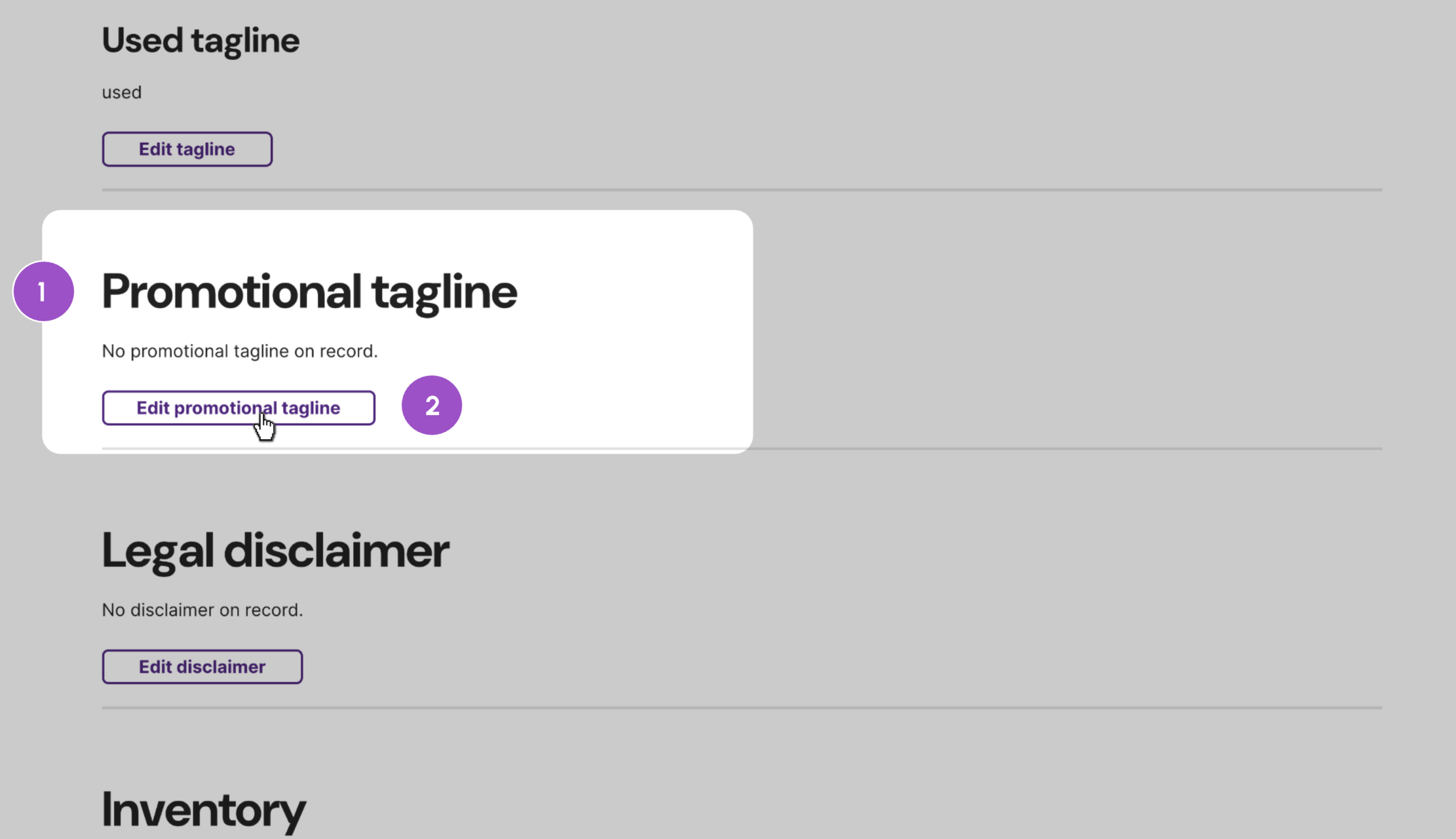
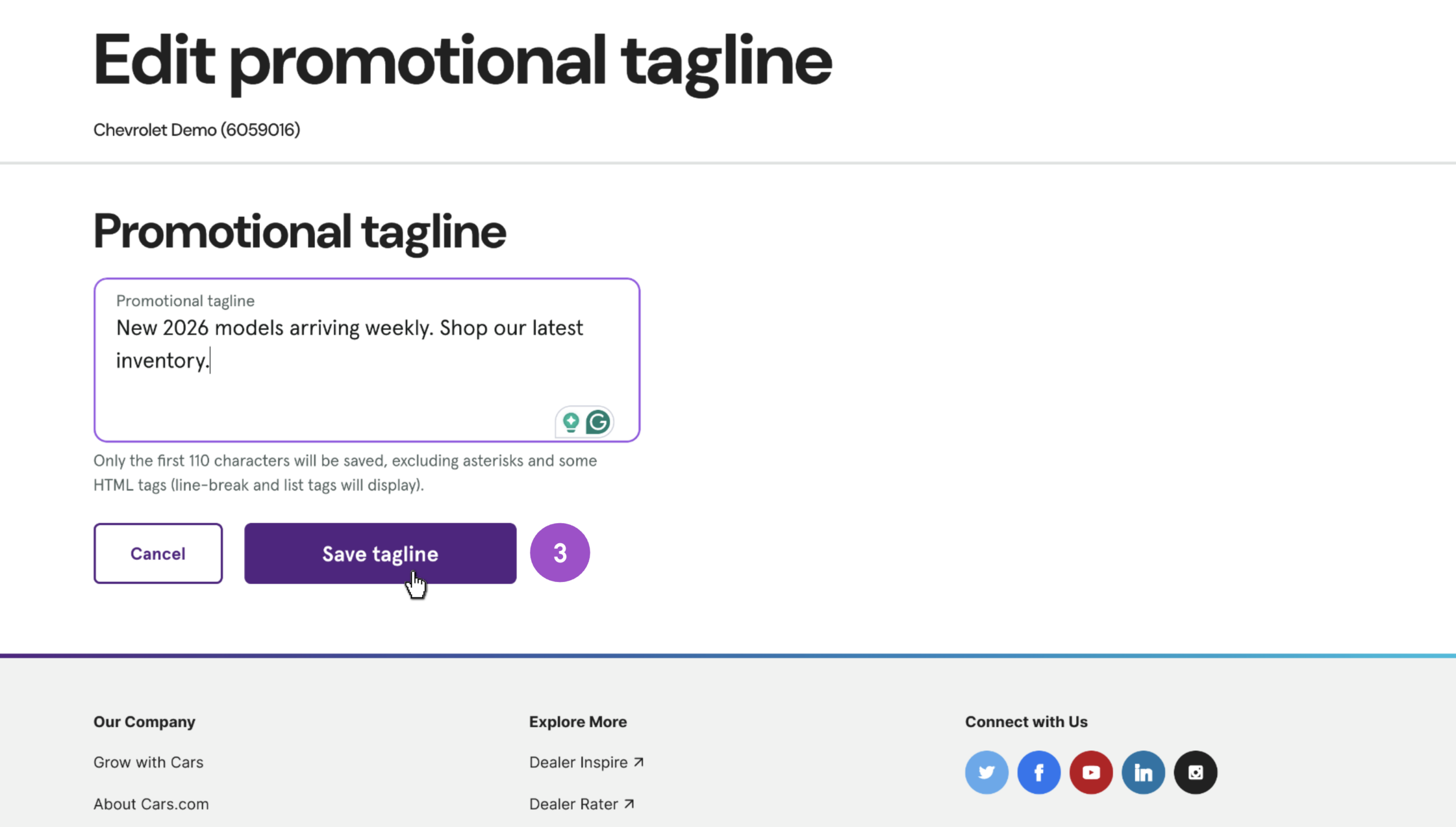
2 Add a promotional tagline
Your tagline appears at the top of the About section. Use it to highlight limited-time offers or your core value proposition.
Character limit: 110
From Admin Dash:
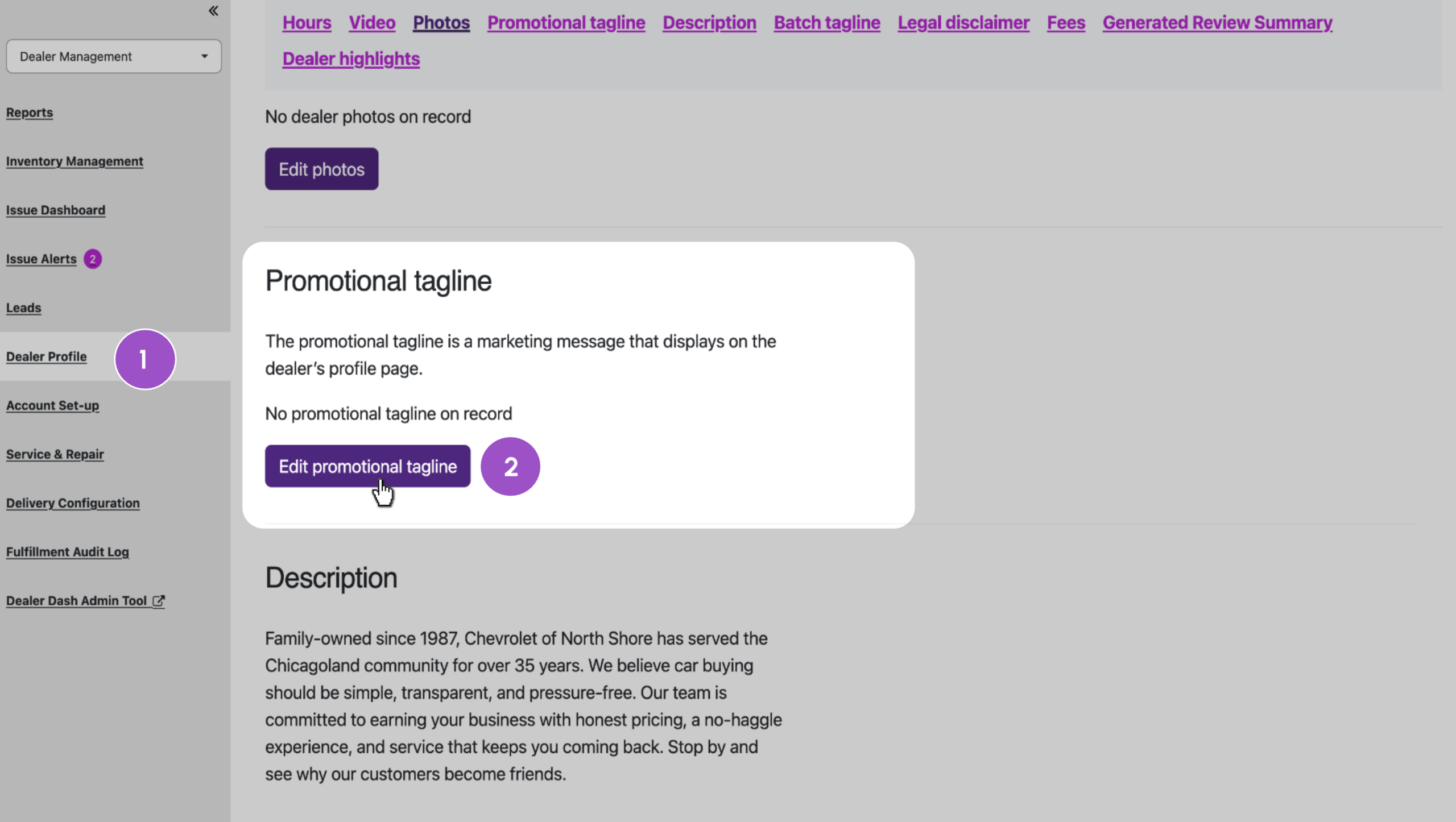
- Go to Dealer Management > Dealer Profile.
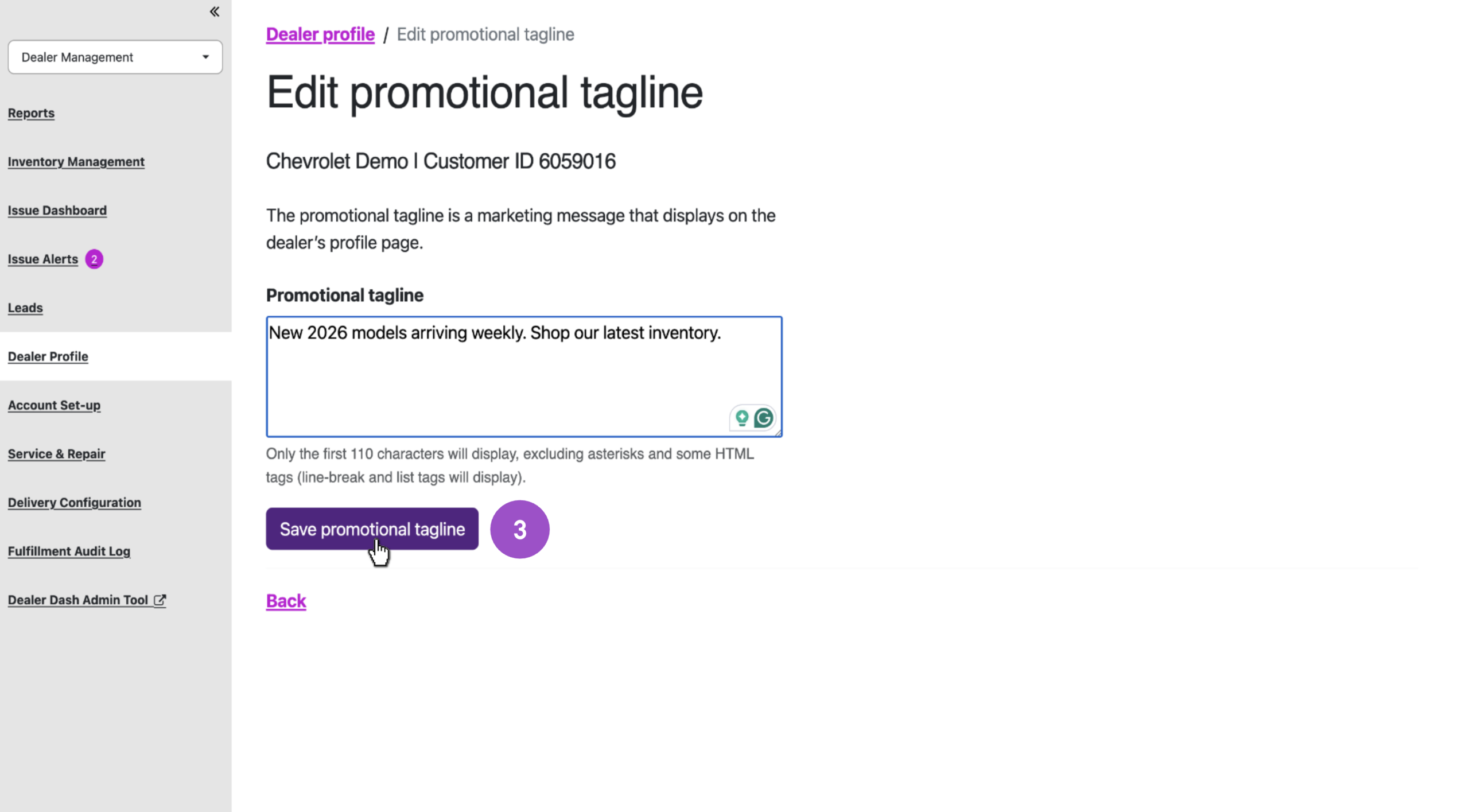
- Scroll to the Promotional Tagline section and click Edit Promotional Tagline.
- Enter your text and click Save.
From Dealer Dash:
- On the main screen, scroll to Promotional Tagline.
- Click Edit Promotional Tagline.
- Enter your text and click Save.
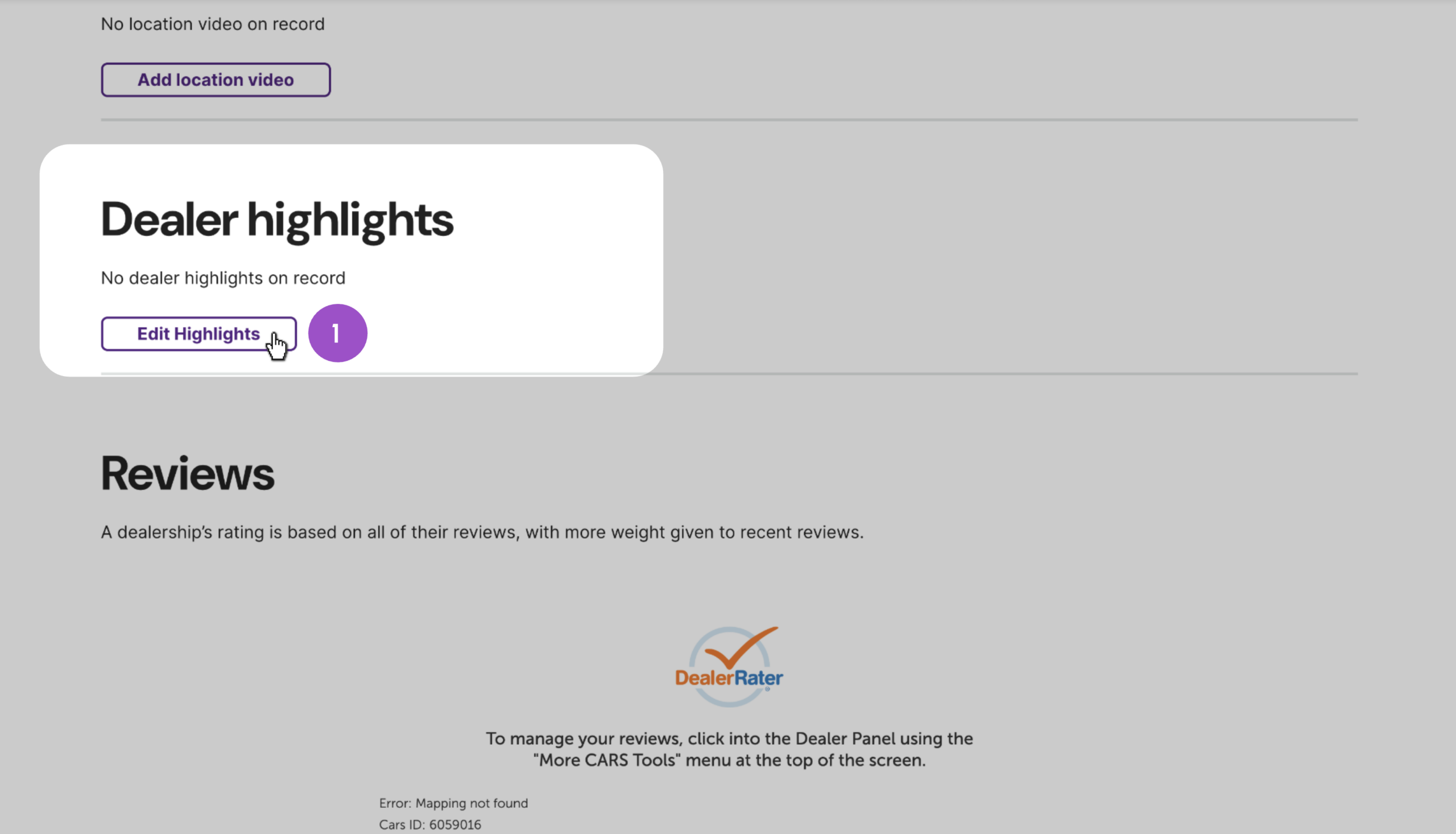
3 Edit the Highlights section
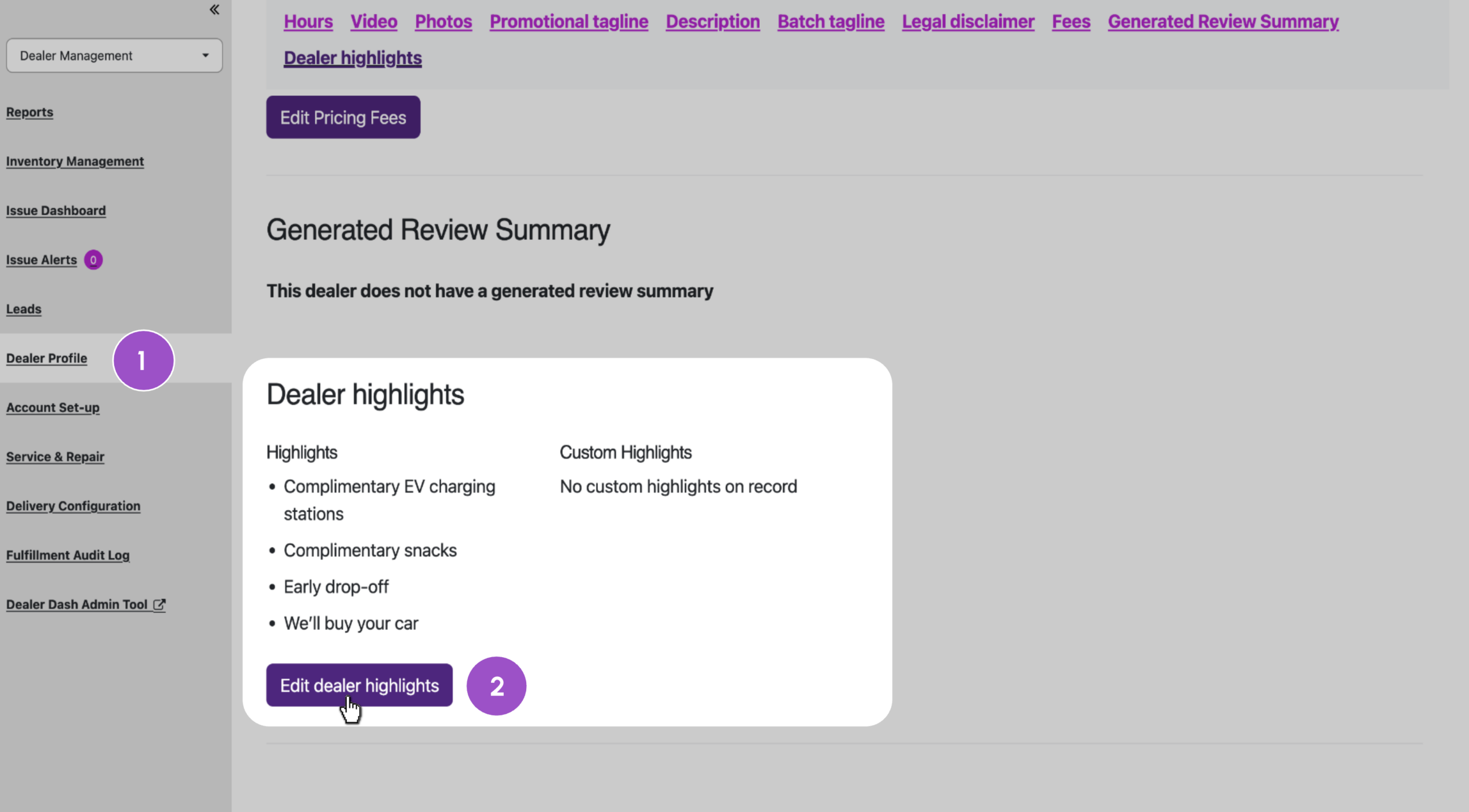
Use this space to spotlight your key selling points (e.g., “Free oil changes for life,” “Family-owned since 1985”).
From Admin Dash:
- Go to Dealer Management > Dealer Profile.
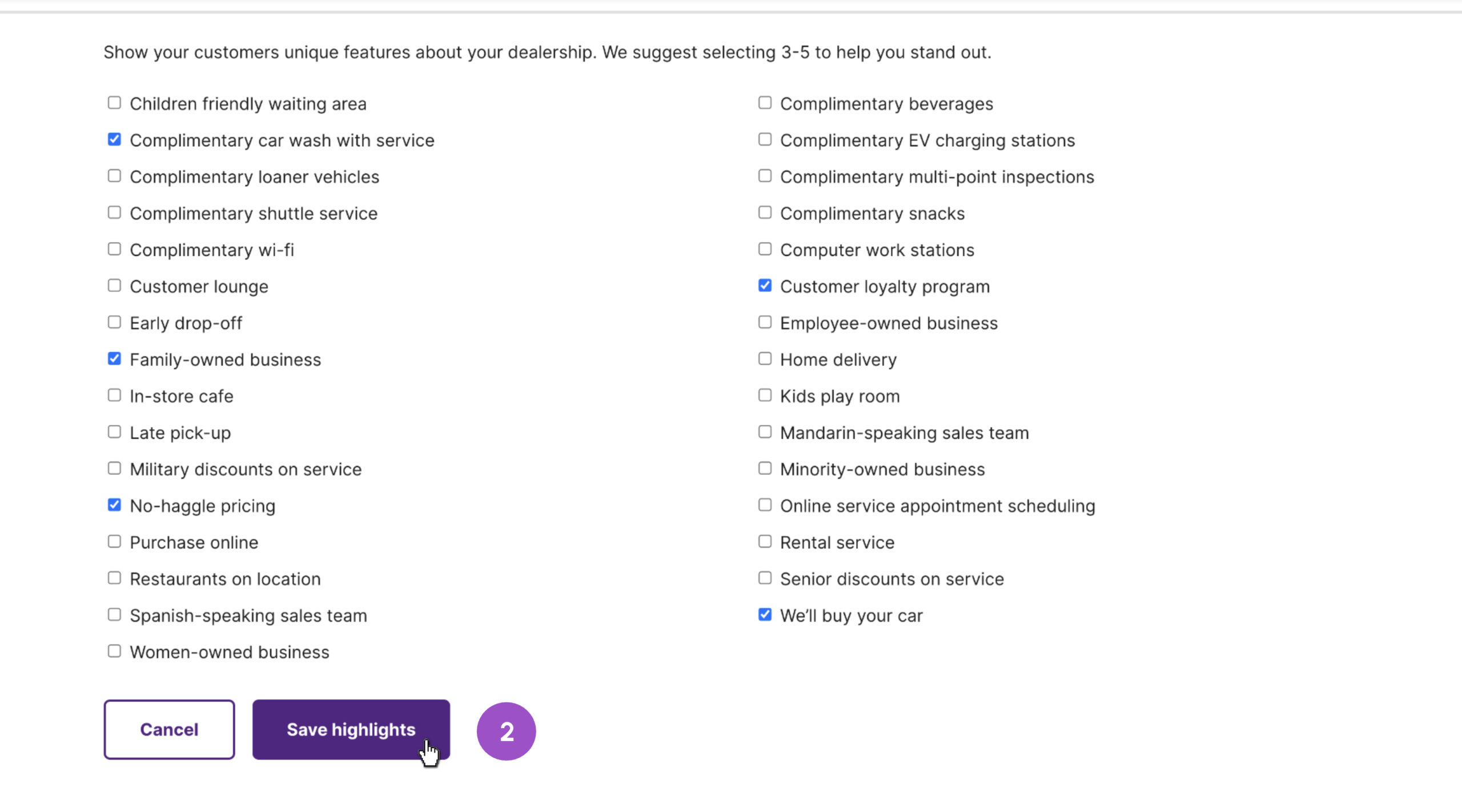
- Scroll to Dealer Highlights and click Edit Dealer Highlights.
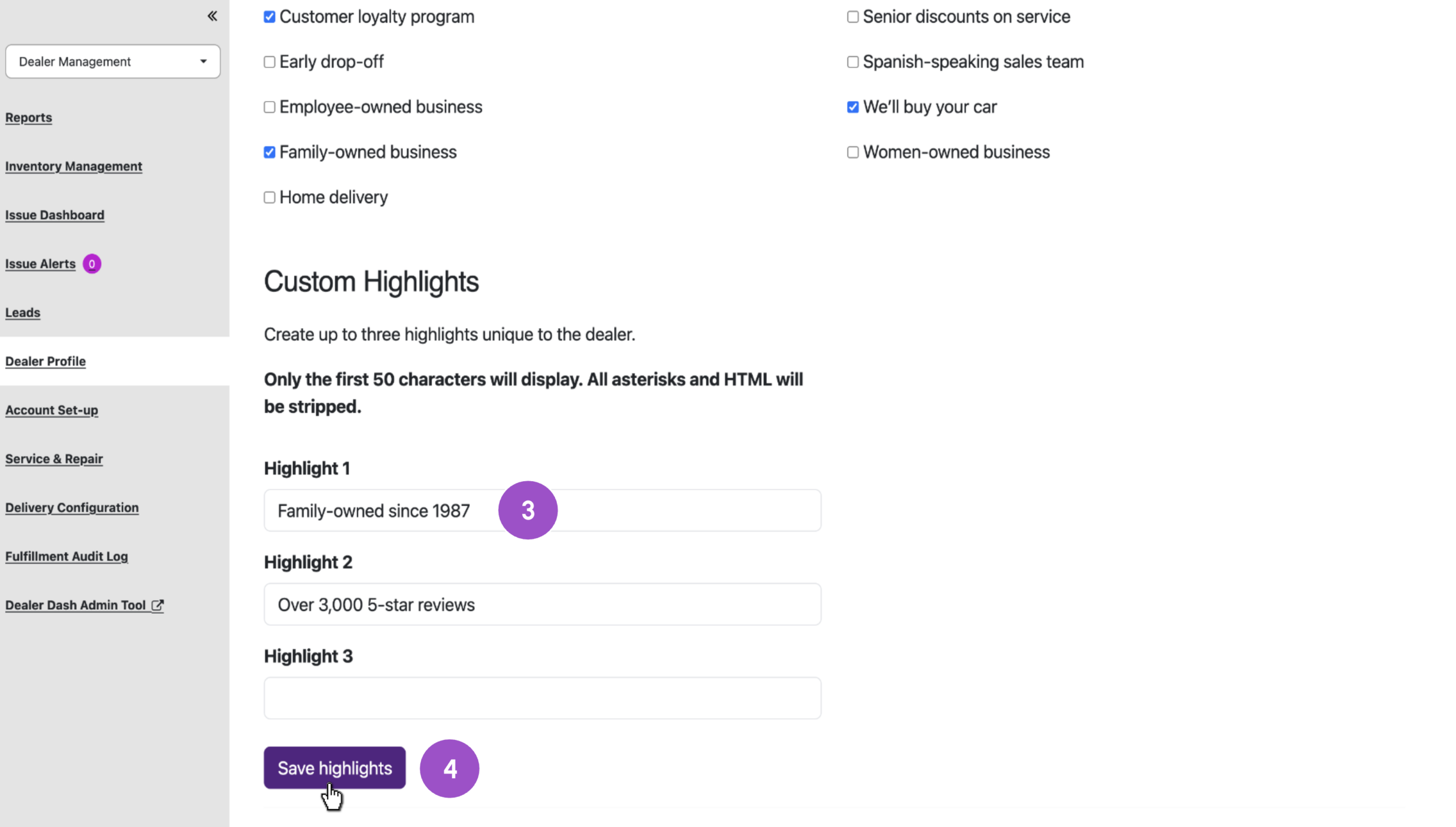
- Select from preset options and add up to three custom highlights (50 characters max per custom highlight).
- Click Save.
From Dealer Dash:
- Scroll to the Dealer Highlights section.
- Click Edit Highlights, select your options, then click Save.
4 Reviews and sales team sections (auto-populated)
These sections pull automatically from your DealerRater Dealer Panel:
- Reviews: Displays verified customer reviews
- Sales Team: Lists your salespeople with individual ratings
Note: The Sales Team tab only appears if Salesperson Connect is enabled in your DealerRater settings.
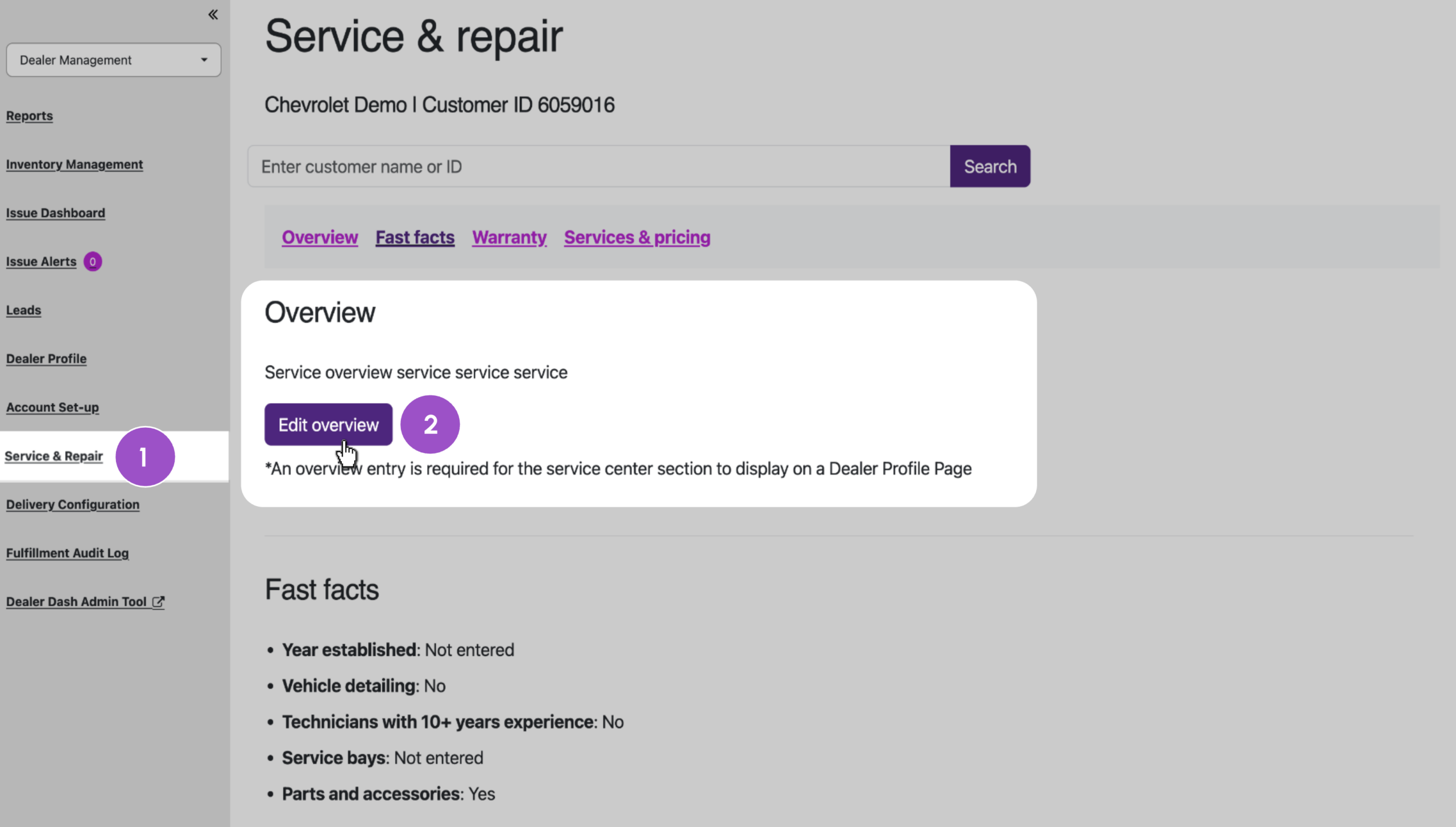
5 Edit the Service section
This section is visible to both sales and service shoppers, making it a great opportunity to engage a wider audience.
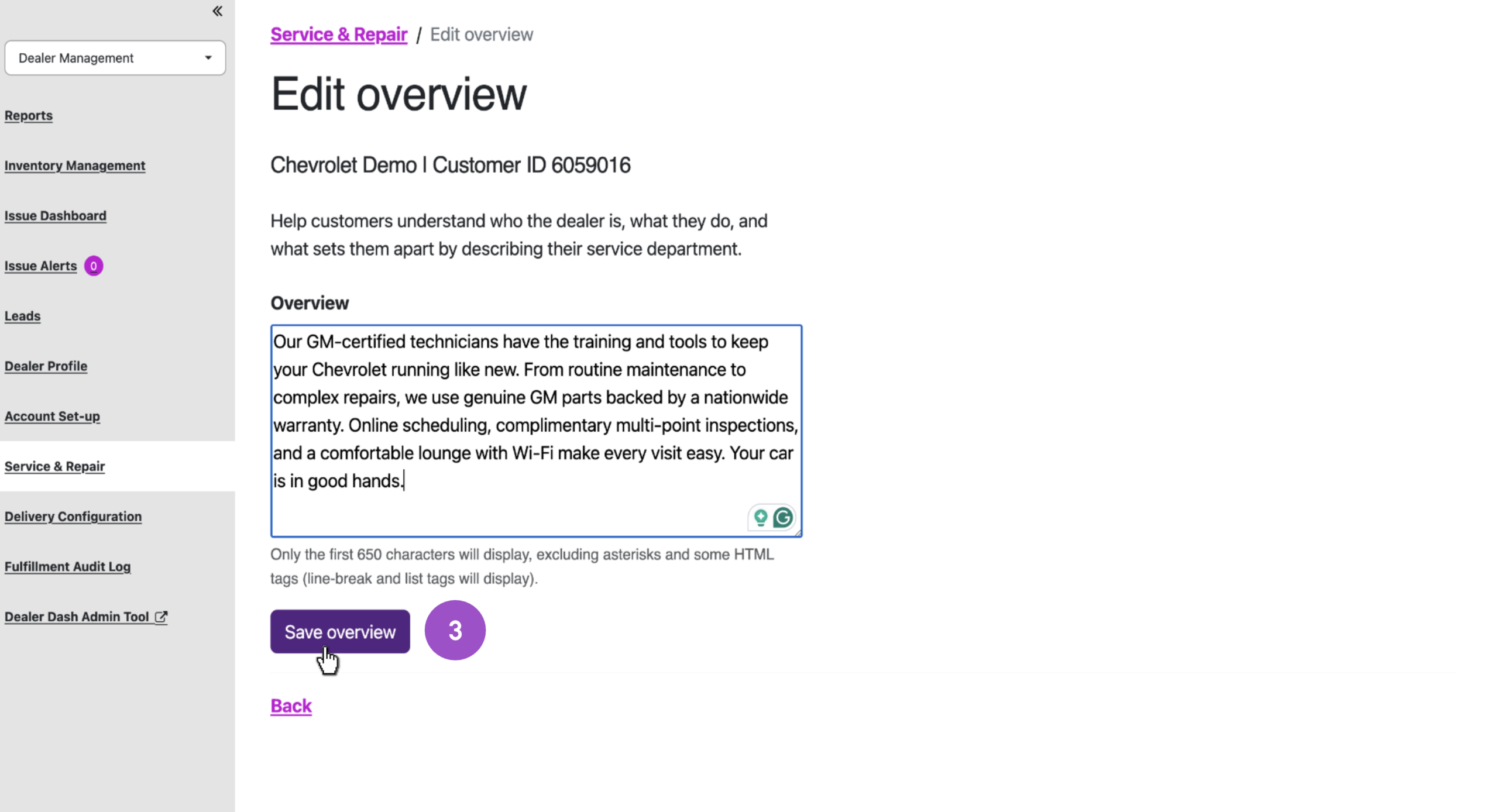
Character limit for overview: 650
From Admin Dash only:
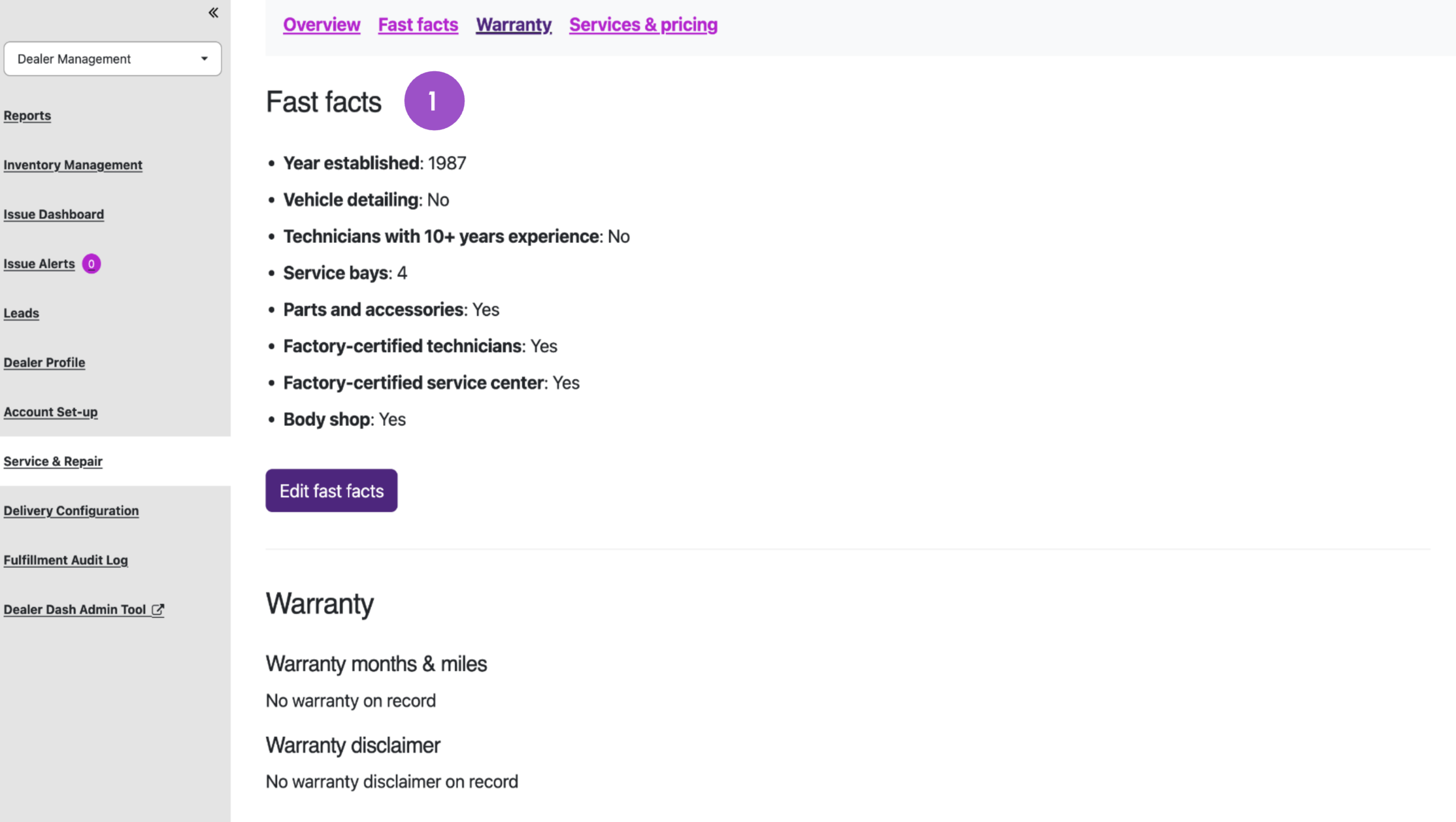
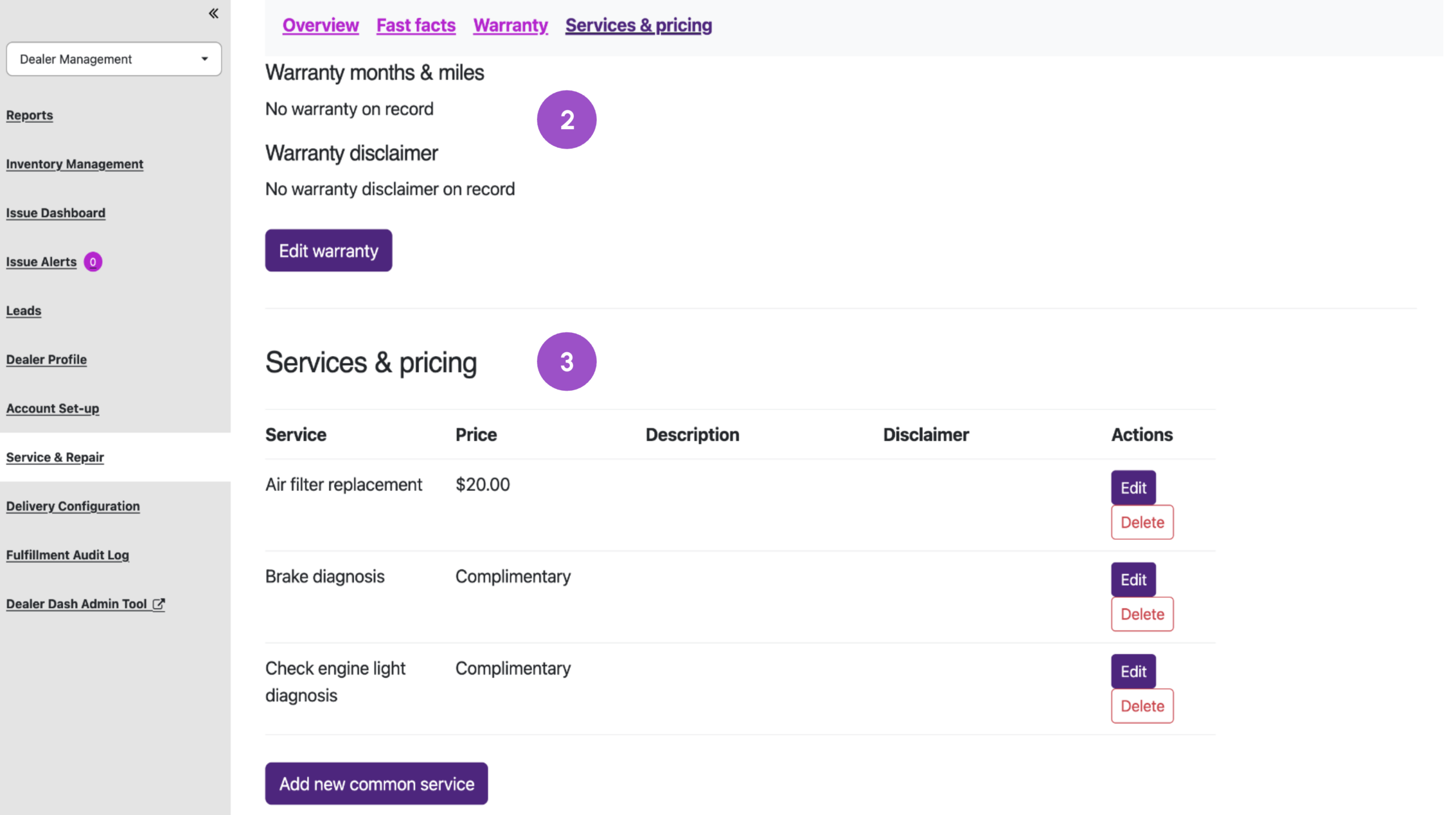
- Go to Dealer Management > Service & Repair.
- Click Edit Overview
- Enter your content, then click Save.
Additional Service content includes:
- Fast Facts: Service offerings, year established, number of bays
- Warranty: Coverage and legal disclaimers
- Services & Pricing: Itemized listings with descriptions
6 View your dealer module on Cars.com
To view your updated content:
- Visit any of your live vehicle listings on Cars.com.
- Scroll down to the Seller’s Info section.
- The About section is visible by default — click the tabs to see Highlights, Reviews, Sales Team, and Service.
FAQs
Which package levels include the customizable dealer module?
Premium and Premium+ packages get the full customizable module. Base packages display a basic “Seller’s info” section only.
How often can I update my dealer module?
As often as you would like. Unlike ad creative, updates made in DealerDash or AdminDash go live within minutes.
Do my other locations appear in the Other Locations section of the About tab?
Only if they’re active Cars.com customers.
Do I still have “VDP protection” with the replacement of Dealer Positions?
Yes, Premium and Premium+ dealers continue to block competing dealership messages from their VDPs.
Where can I showcase my monthly specials?
Use the About section’s promotional tagline or overview paragraph to highlight current offers.