How to appraise vehicles with VIN-dow
Installing the VIN-dow Chrome extension allows you to conduct AccuTrade appraisals on any vehicle listing site, while ensuring accuracy, efficiency, and confidence in your acquisition process. With VIN-dow, you gain deep insight into any vehicle, what it’s worth, where it’s been, and if it’s right for you.
- Appraise quickly: Assess vehicle value in real-time without the need for manual calculations or separate tools.
- Avoid overpaying: VIN-specific data helps you spot every deduction, so you prevent losses and overpaying.
- Make better decisions: Acquire based on real market insights using the most accurate appraisal tool in the industry.
To get started
Go to the Cars.com Hub, and then click on AccuTrade.
1 Install the Chrome Extension
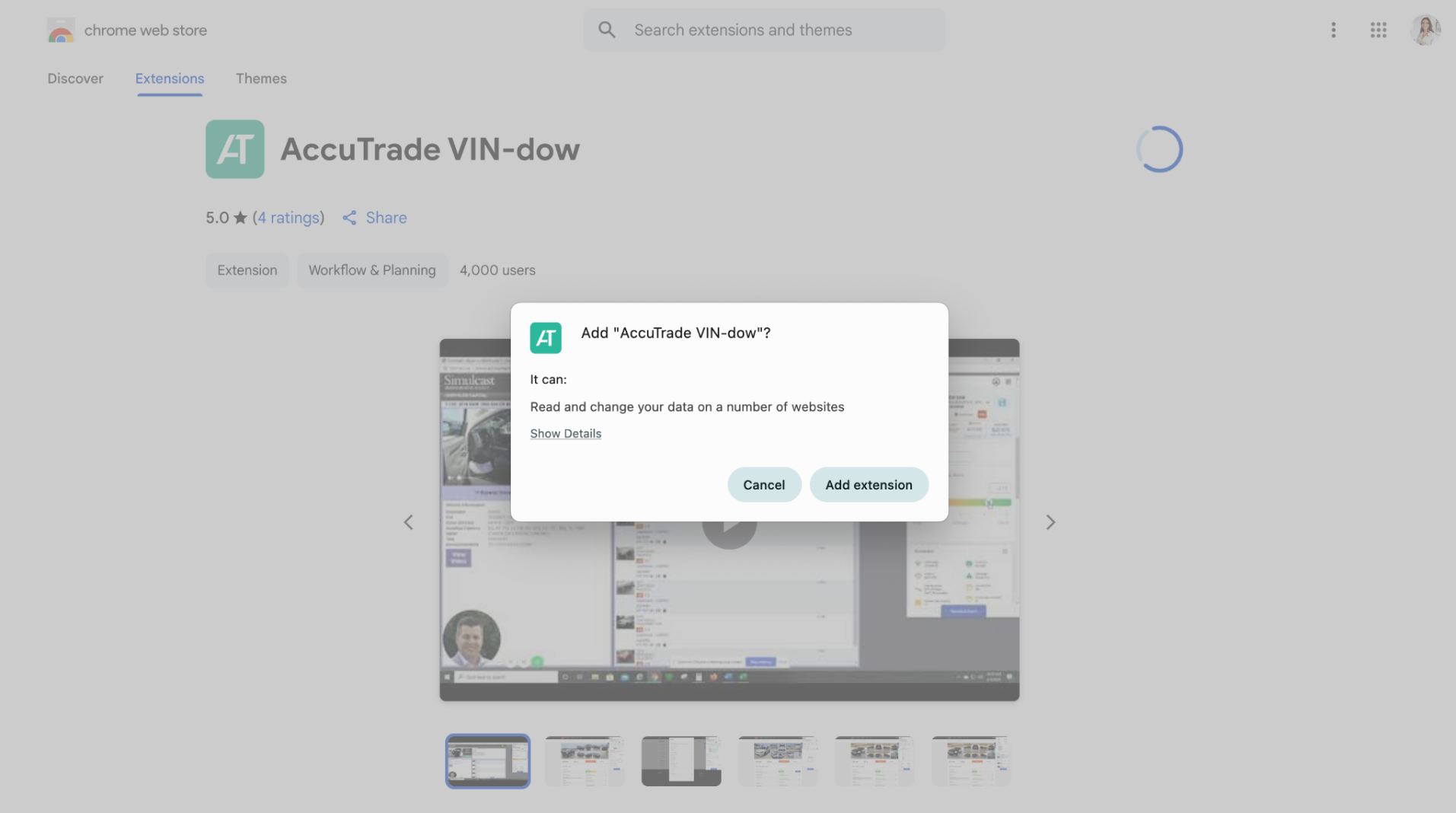
Go to the AccuTrade VIN-dow Extension page in the Chrome Web Store. Click Add to Chrome.
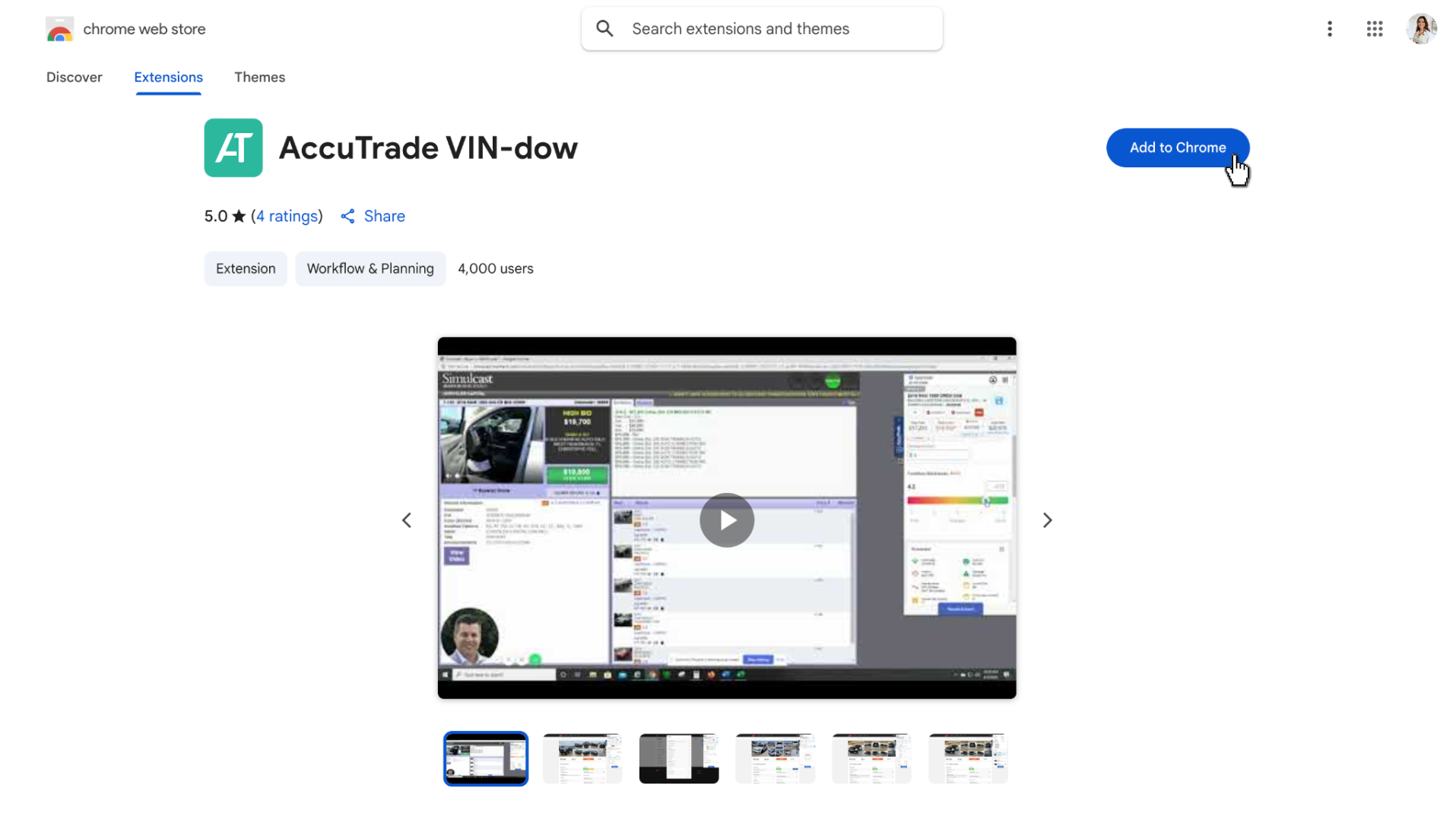
Click Add Extension to confirm.
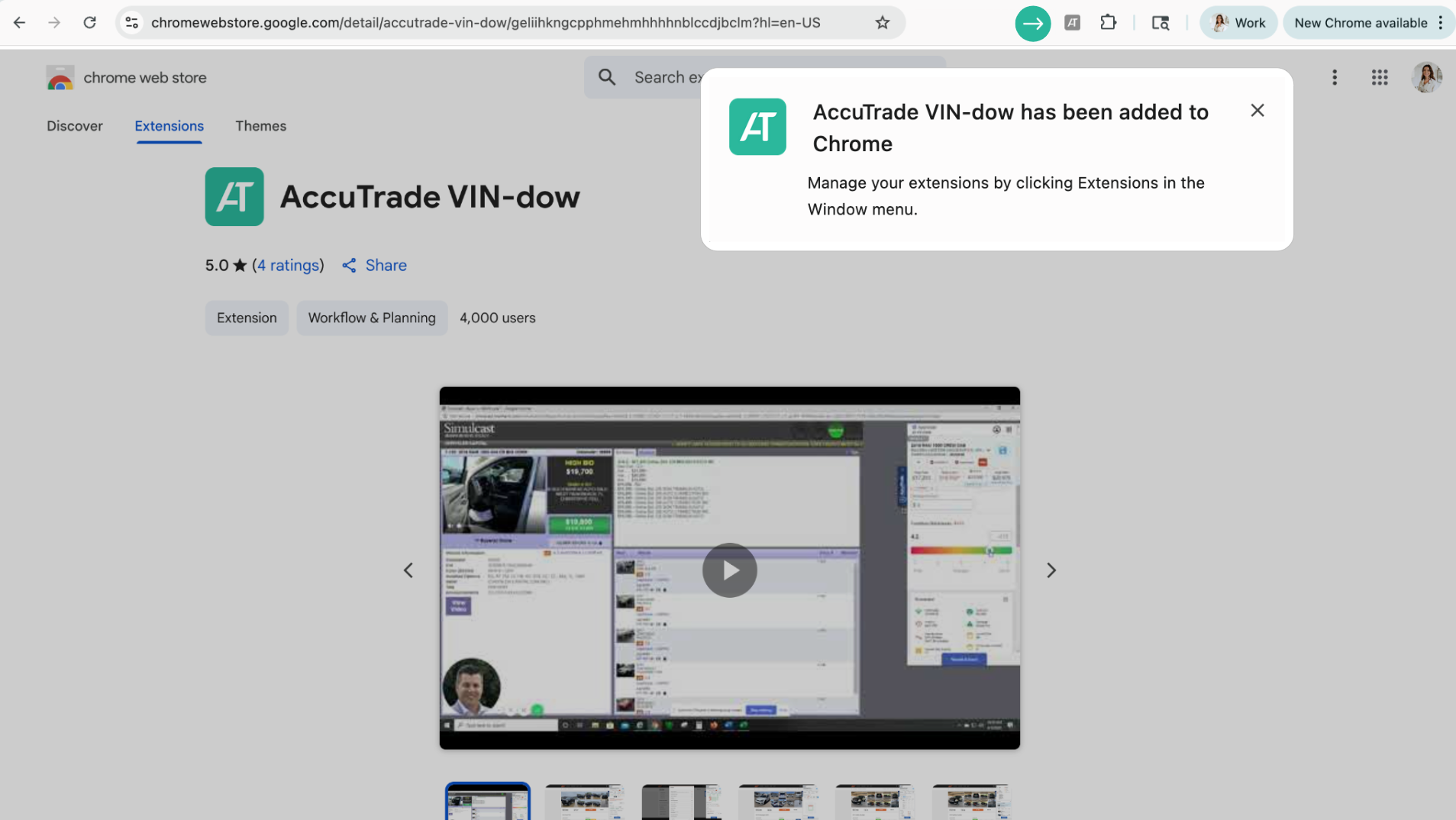
You’ll receive a confirmation message and see the extension added to your toolbar in Chrome.
Note: Though the VIN-dow extension is designed for the Google Chrome browser, it can also be downloaded and used on Microsoft Edge.
2Select a vehicle to appraise
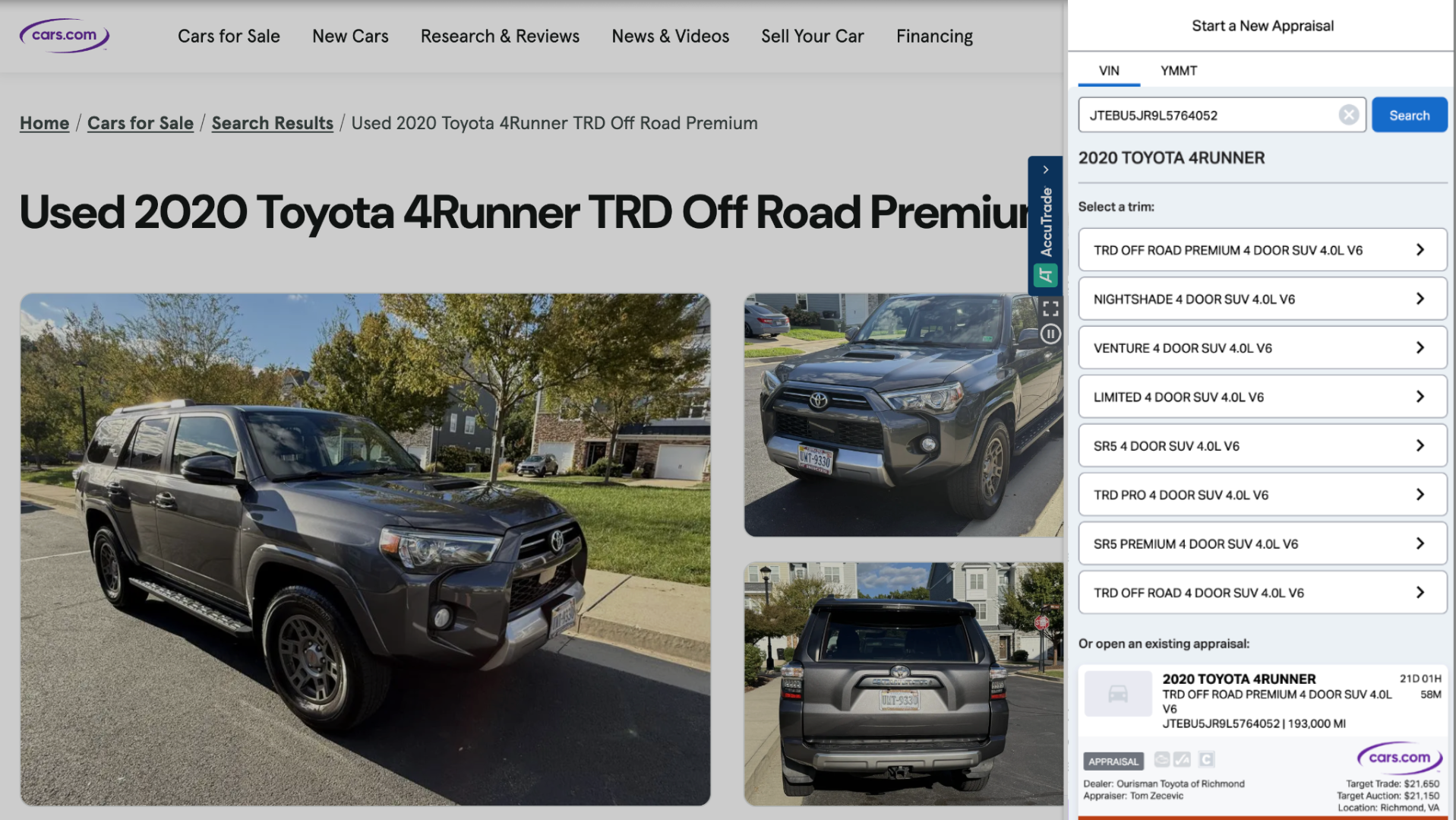
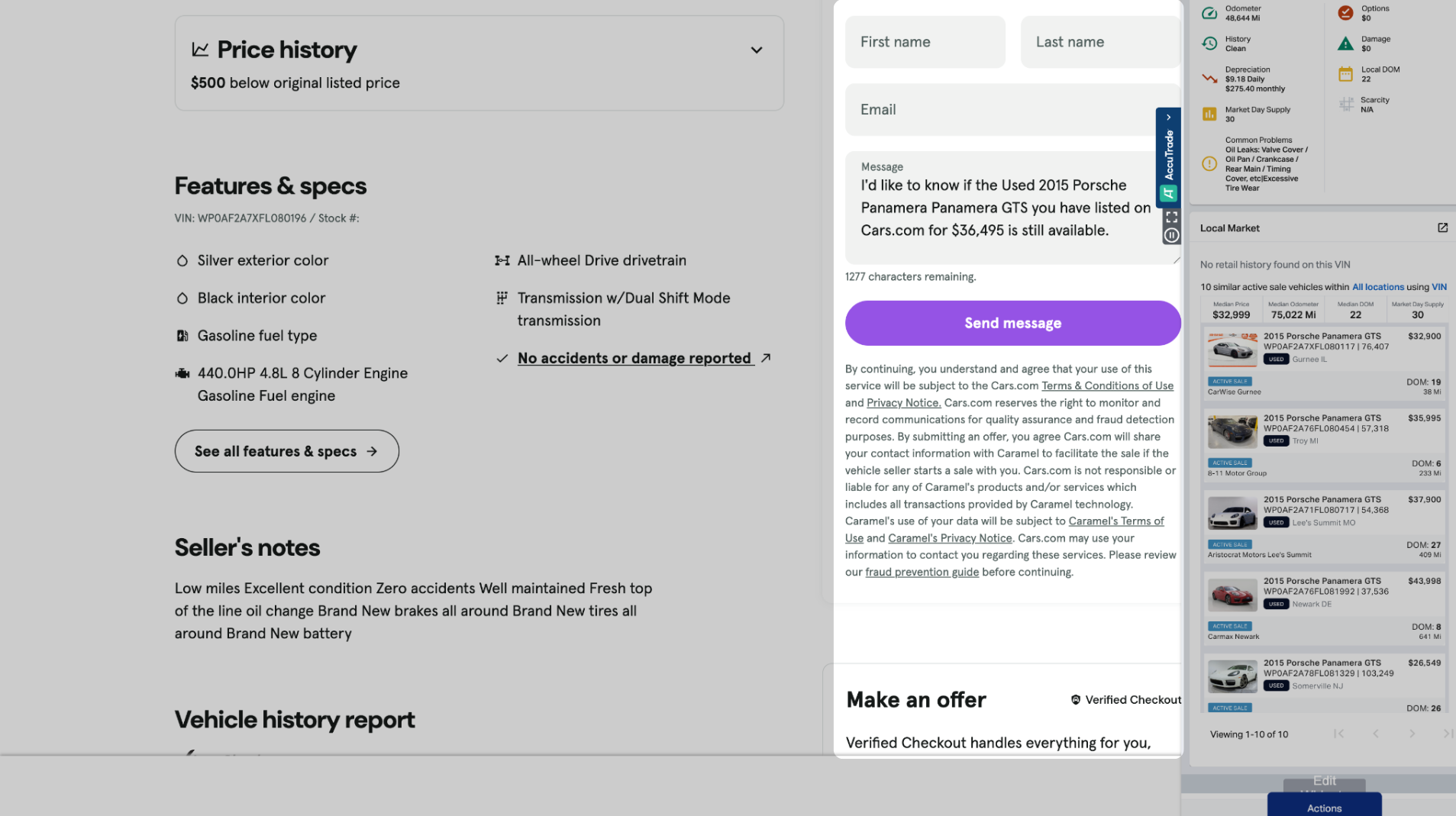
Go to a vehicle listing site, then search for and select the vehicle you would like to appraise. If VIN-dow is available for the site, the extension will turn green, signifying it is active, and a pop-up panel will appear on the right side of your screen. (You may need to log in to your AccuTrade account.)
3 View the appraisal
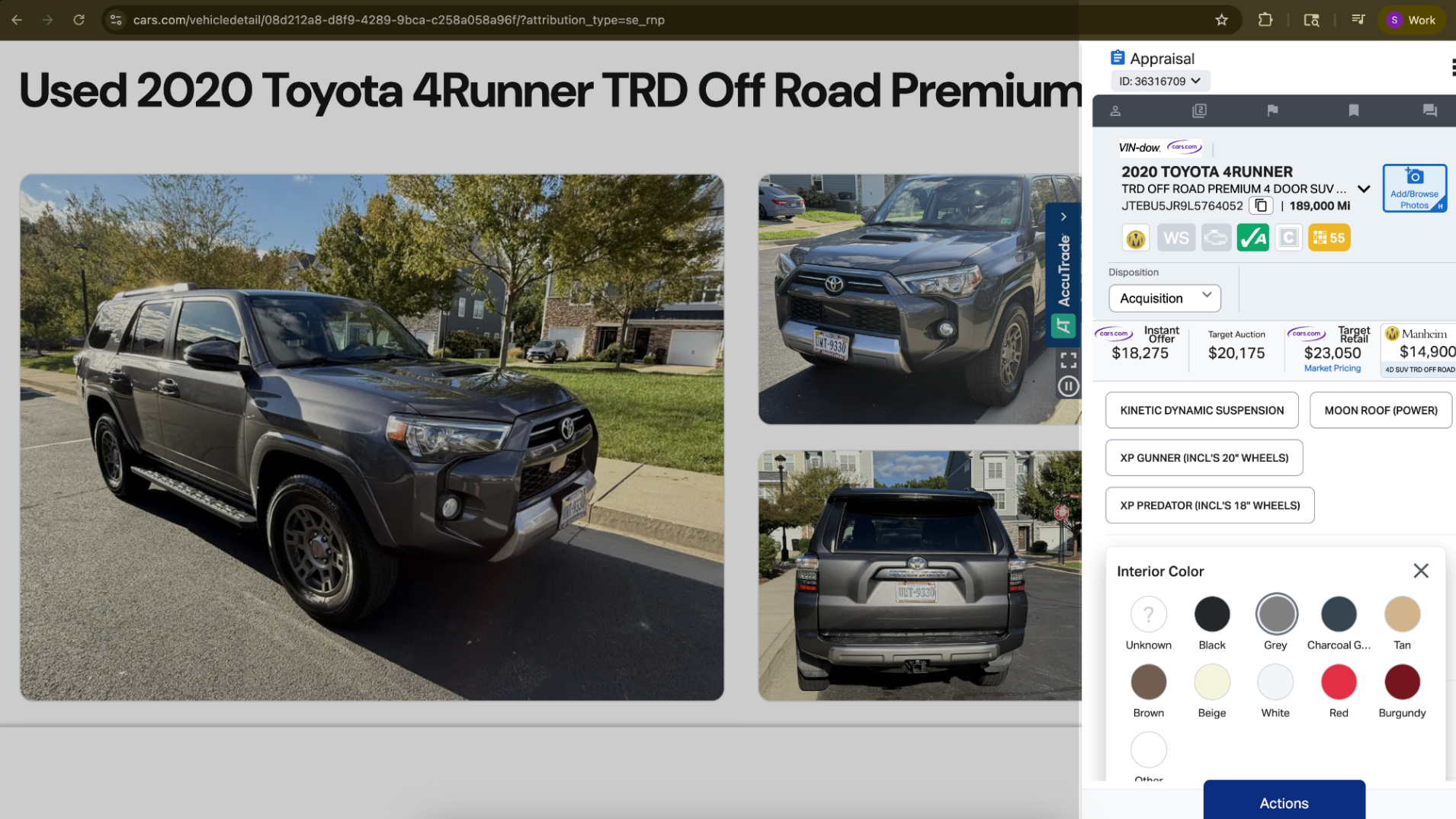
The appraisal will populate in the VIN-dow. Scroll down to view the details. You can also make adjustments to the appraisal information if needed, such as adding colors or additional features.
4 Review insights and take action
Use the data to inform your next move. Review the vehicle’s market position, profit potential, and condition details to determine if it aligns with your inventory strategy. If the numbers work, place a competitive bid or reach out to the seller directly with confidence in your offer.
Troubleshooting the VIN-dow Extension
Some AccuTrade users are having trouble logging into the VIN-dow extension using the Google Chrome browser, due to a recent experimental feature released by Google.
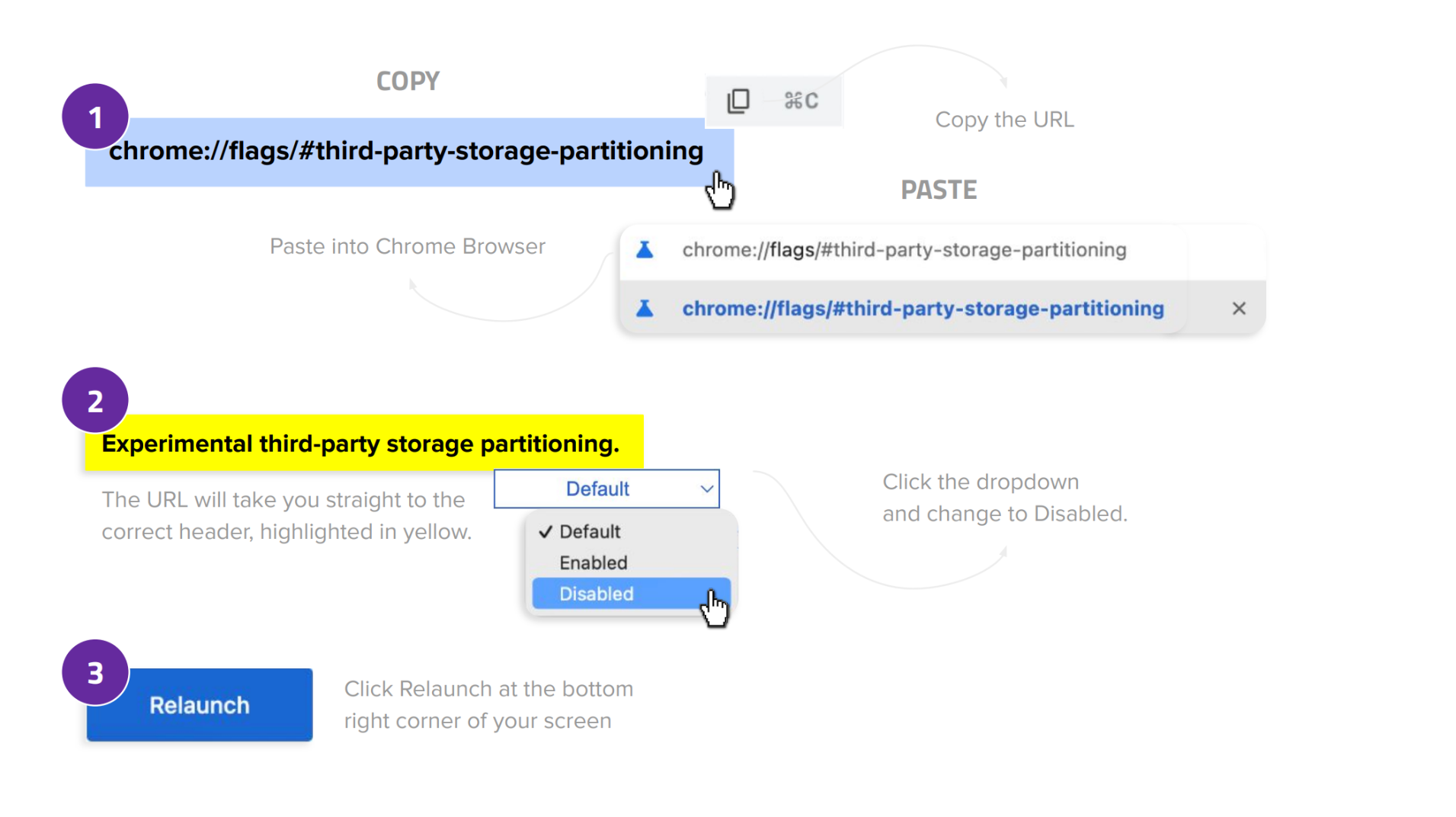
You can work around this issue by following these instructions:
- Copy and Paste the following URL into your Chrome Browser: chrome://flags/#third-party-storage-partitioning.
- Disable the Experimental third-party storage partitioning field.
- Click Relaunch.