How to add shortcode to your website
Shortcode lets you add dynamic content — phone numbers, hours, staff listings, and more — anywhere on your Dealer Inspire website. Instead of hardcoding information that changes, shortcode pulls it directly from your site settings. Update a phone number or address once and every page using that shortcode reflects the change automatically.
In this article, you will learn how to navigate to a page, confirm your page template, and add shortcode so it renders on the front end.
To get started
Go to the Cars.com Hub. Click Dealer Inspire, then Manage Website.
Note: Basic HTML familiarity is helpful, though not required for most of these steps. For advanced customizations, contact support@dealerinspire.com.
Need to knows
- Shortcode works on Default, Full Width, and DIPC page templates
- These templates are available on both Site Builder and Classic sites
- Working on a Site Builder page template instead? Skip to the Site Builder section below
1 Navigate to your page
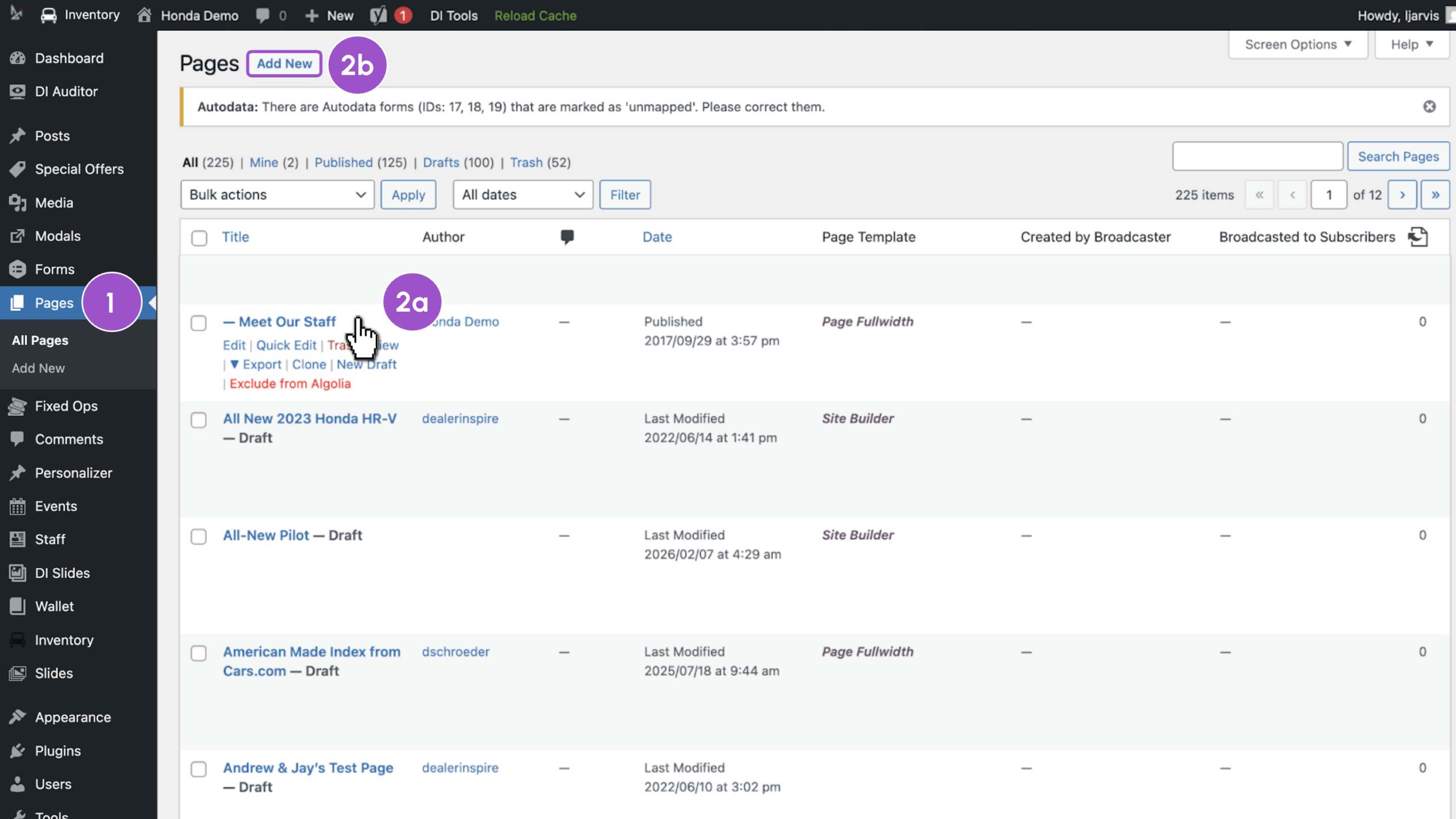
- Click Pages in the left-hand navigation
- Open a page
- Click into an existing page
- Or, click Add New to create a new page
For this example, we’ll click into an existing page.
2 Select or confirm your template
If you’re editing an existing page, confirm the template in the Page Attributes panel on the right. If you’re creating a new page, select your template from the Template dropdown.
Compatible templates include:
- Default
- Full Width
- DI Page Composer (DIPC)
If your page is set to a Site Builder template, see the Site Builder section below.

3 Add your shortcode
All Classic DI shortcodes work on DIPC, Default, and Full Width templates — phone numbers, hours, staff, inventory, specials, and more.
- Locate the Visual / Text toggle in the content box
- Click Text

- Paste your Classic shortcode into the content box
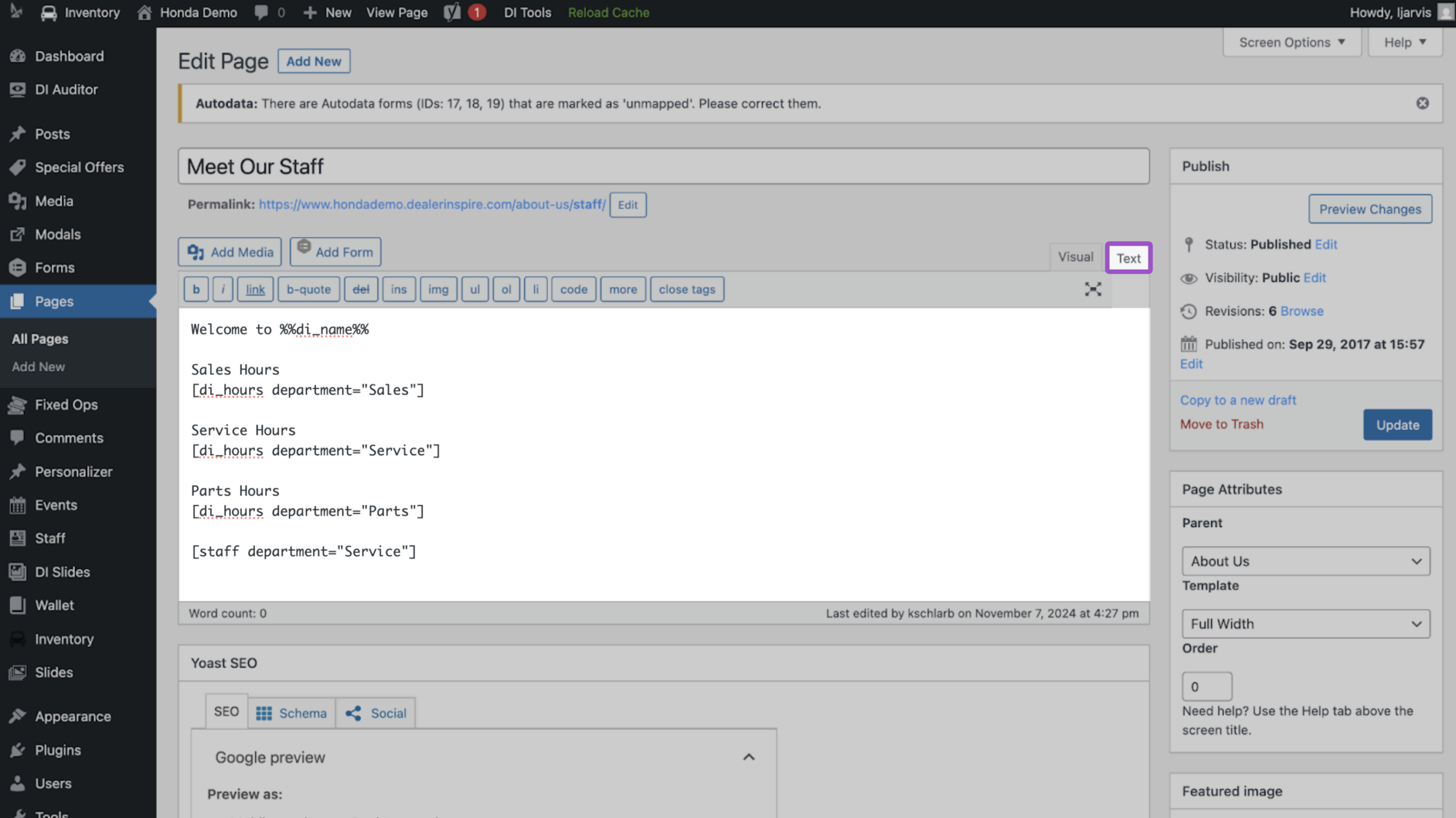
Note: Add a separate shortcode for each piece of content you want to display. Place each one where you want it to appear on the page. See our shortcode reference guide for a full list of available Classic shortcodes.
4Save and publish
- Click Update to publish changes
- Navigate to the front end to confirm shortcode is rendering correctly

Note: Each OEM has different requirements. Some shortcodes or page templates may not be available across all OEM sites. For questions, reach out to support@dealerinspire.com.
Working on a Site Builder page template?
If you’re on a Site Builder page template, shortcode isn’t the recommended approach. Widgets are built specifically for Site Builder and handle most of what shortcode does on other templates, with styling already applied and no code needed.
Widgets are available for things like:
- Hours
- Staff
- Dealer information
- DI Slides
- Specials and coupons
- And more
To add a widget:
- Scroll to the section of the page where you want the content to appear
- Click the + add component button and browse the widget library to find what you need

- Search for a widget to pull in dynamic information from your site

For more help on how to best use the Site Builder page templates see how to create new pages.
FAQ
How do I know which page template I’m on? Check the Template field in the Page Attributes panel on the right side of the page editor.
Can I use Default, Full Width, or DIPC page templates? Yes. Default, Full Width, and DIPC templates are available on both Site Builder and Classic sites. Shortcode works the same way on all three regardless of your site type.
What’s the difference between a Site Builder site and a Site Builder page template? These are two different things. Your site type — Site Builder or Classic — describes the overall setup of your website. Your page template is set per page and controls how that page is built. Default, Full Width, and DIPC page templates work on both site types and support shortcode. Site Builder page templates are only available on Site Builder sites and don’t use shortcode — use the widget library instead.
What if my page doesn’t match the examples in this article? Your page may look different depending on your template. For Default, Full Width, and DIPC templates, find the Text tab in the content box and paste your shortcode. For Site Builder templates, default to adding a component and searching for a widget instead.
What if my shortcode isn’t rendering on the front end? Check that the shortcode is spelled correctly and that the page has been published after saving. If you used Classic shortcode on a Site Builder page template, that may be the cause. Use widgets instead. For further help, reach out to support@dealerinspire.com.
Can I add more than one shortcode to a page? Yes. Paste each shortcode on its own line in the Text tab, placed where you want that content to appear.
What if a shortcode I need isn’t working on my Site Builder page template? Some functionality — like staff, inventory, Fixed Ops, and special offers — uses dedicated widgets on Site Builder page templates instead of shortcode. Check the widget library in Site Builder, or reach out to support@dealerinspire.com for help finding the right component.