How to add a new user
Keeping your team up to date in DealerClub ensures the right people have access to the tools they need to buy, sell, and manage wholesale activity efficiently.
In this article, you’ll learn how to invite a new user, assign their role, and manage team access settings in DealerClub.
To get started
Go to the Cars.com Hub, and click DealerClub.
1 Navigate to Manage Users
After logging in to your DealerClub account:
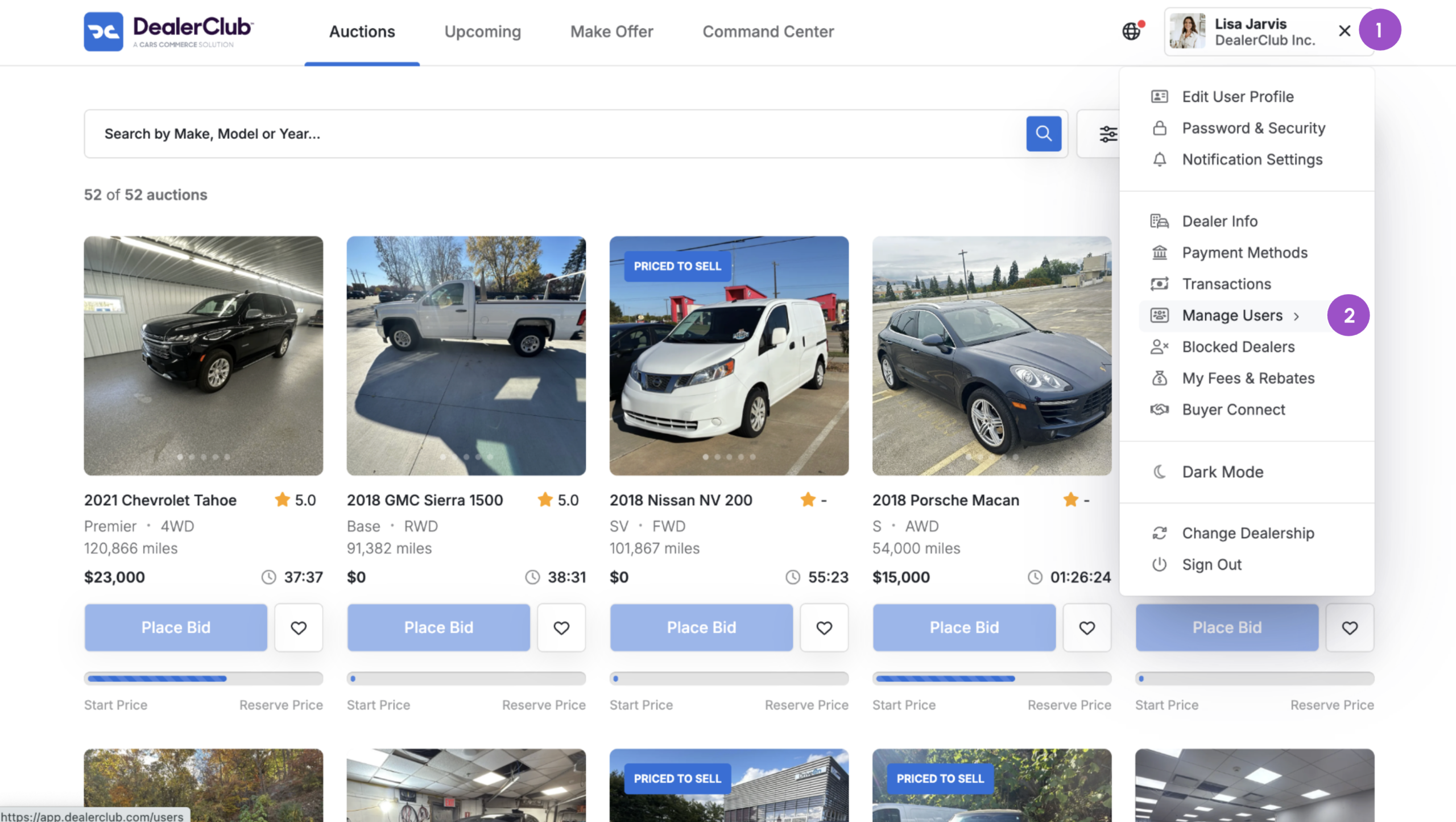
- Click your name in the top right corner of the screen
- Select Manage Users from the dropdown menu
Note: Only users with Admin access can manage team members.
2 Add a new user
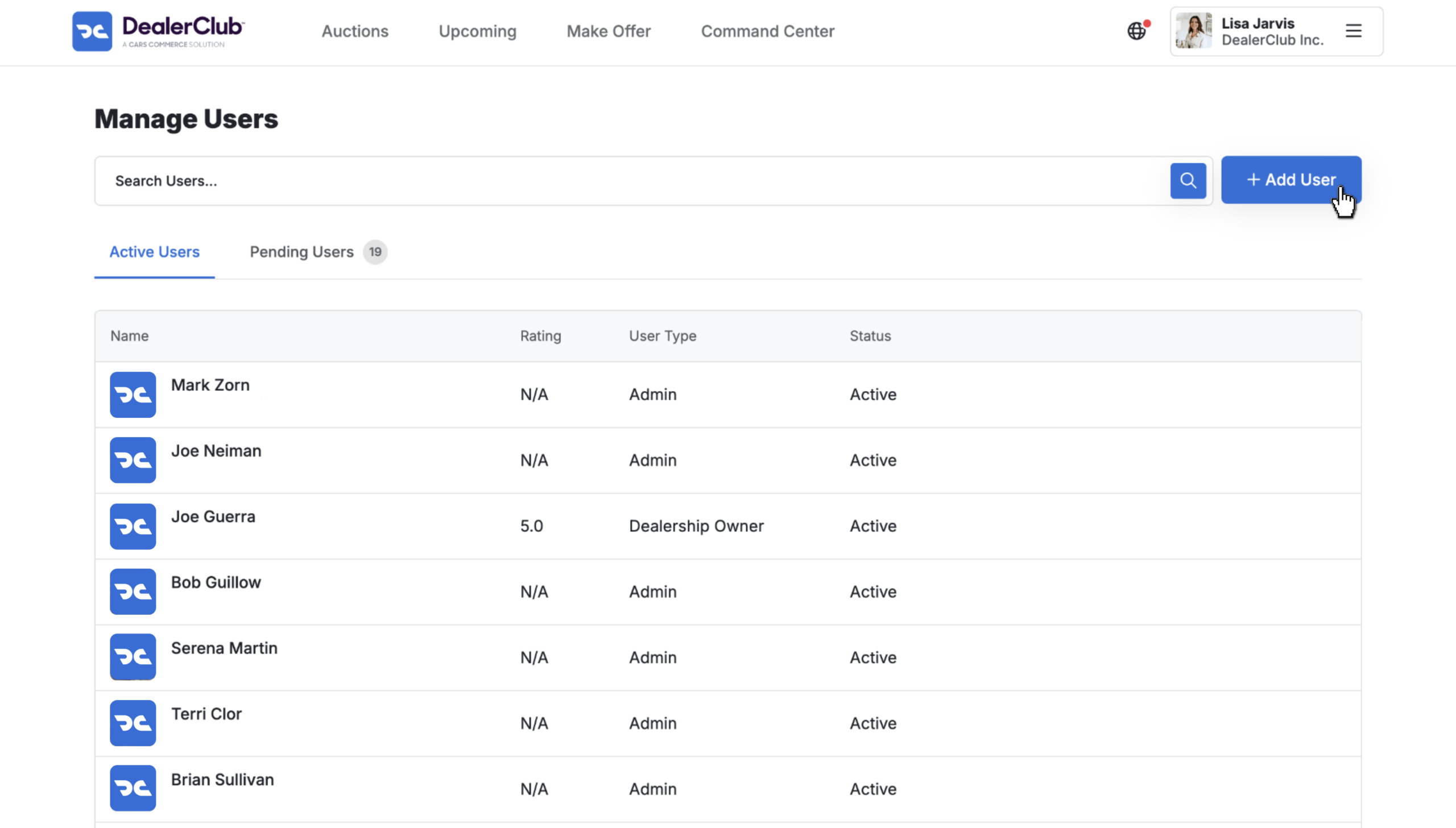
- Click the blue + Add User button
3 Enter user information and assign a role
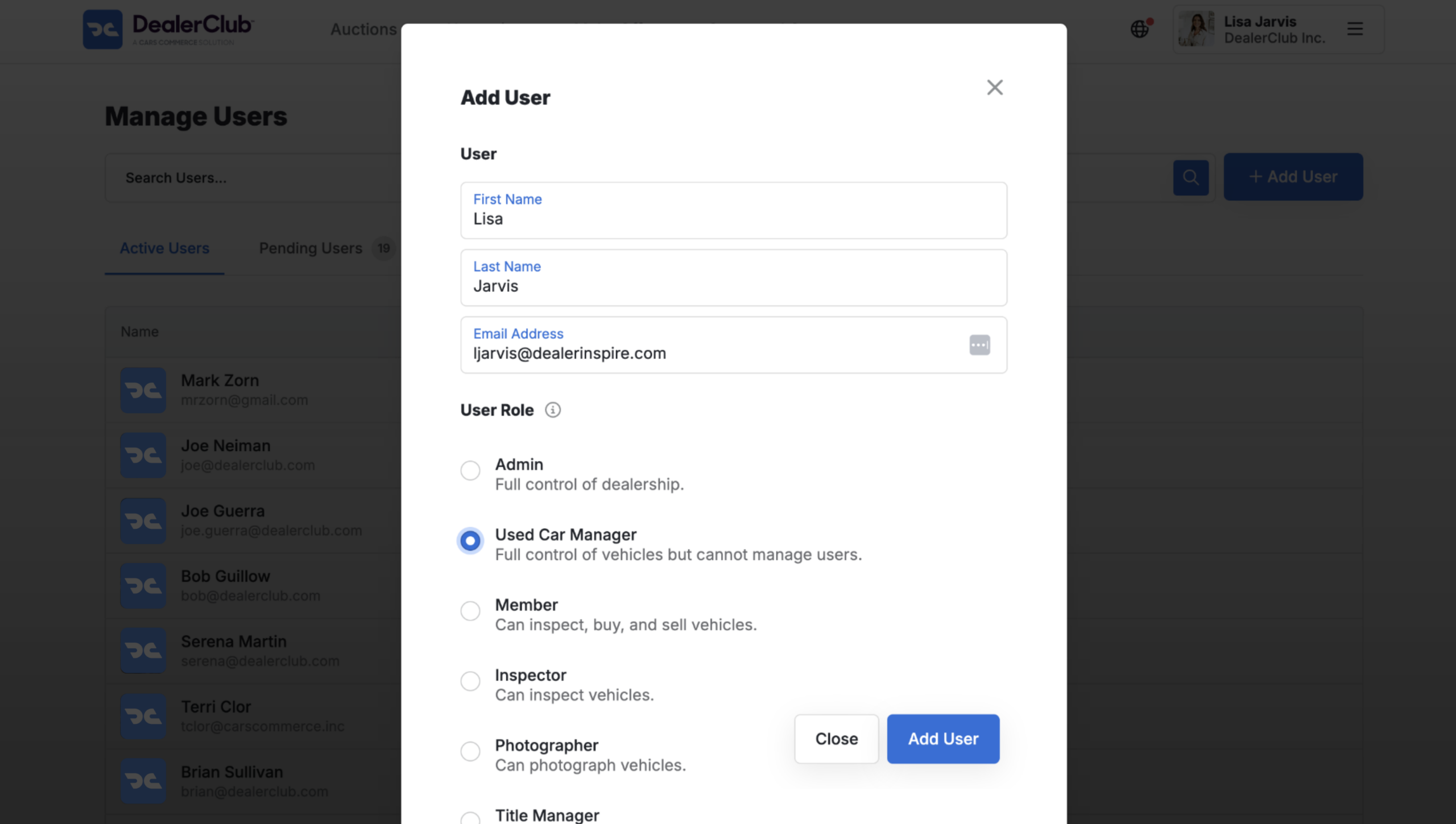
- In the Add User form, enter the following:
- First Name
- Last Name
- Email Address
- First Name
- Select the appropriate User Role. Each role includes a brief description to help you choose the right level of access for each team member
- Click Add User to send the invitation
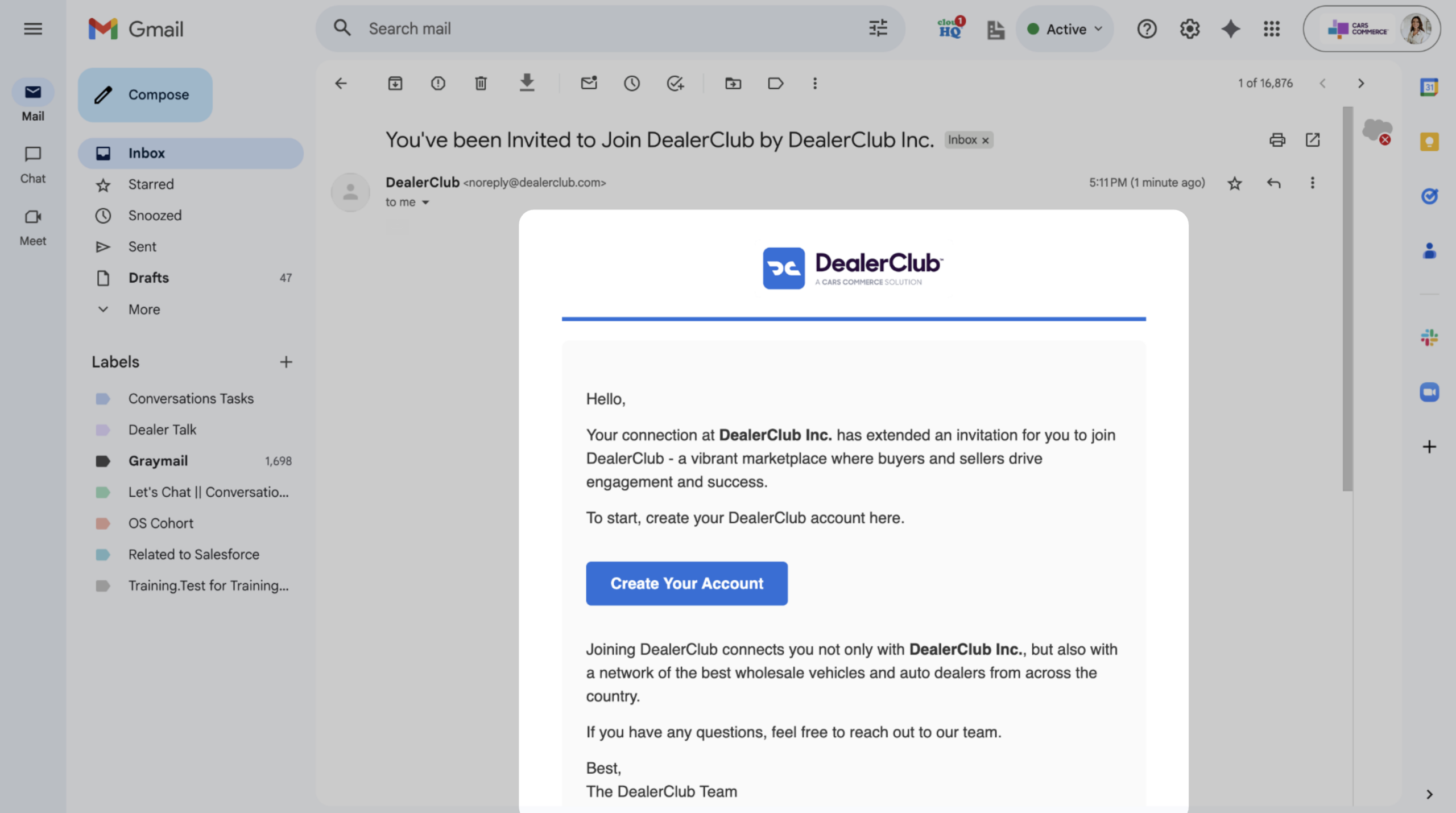
The invited user will receive an email with a link to create their DealerClub profile. Once they complete the prompts, they’ll be added to your team.
4 Manage your team
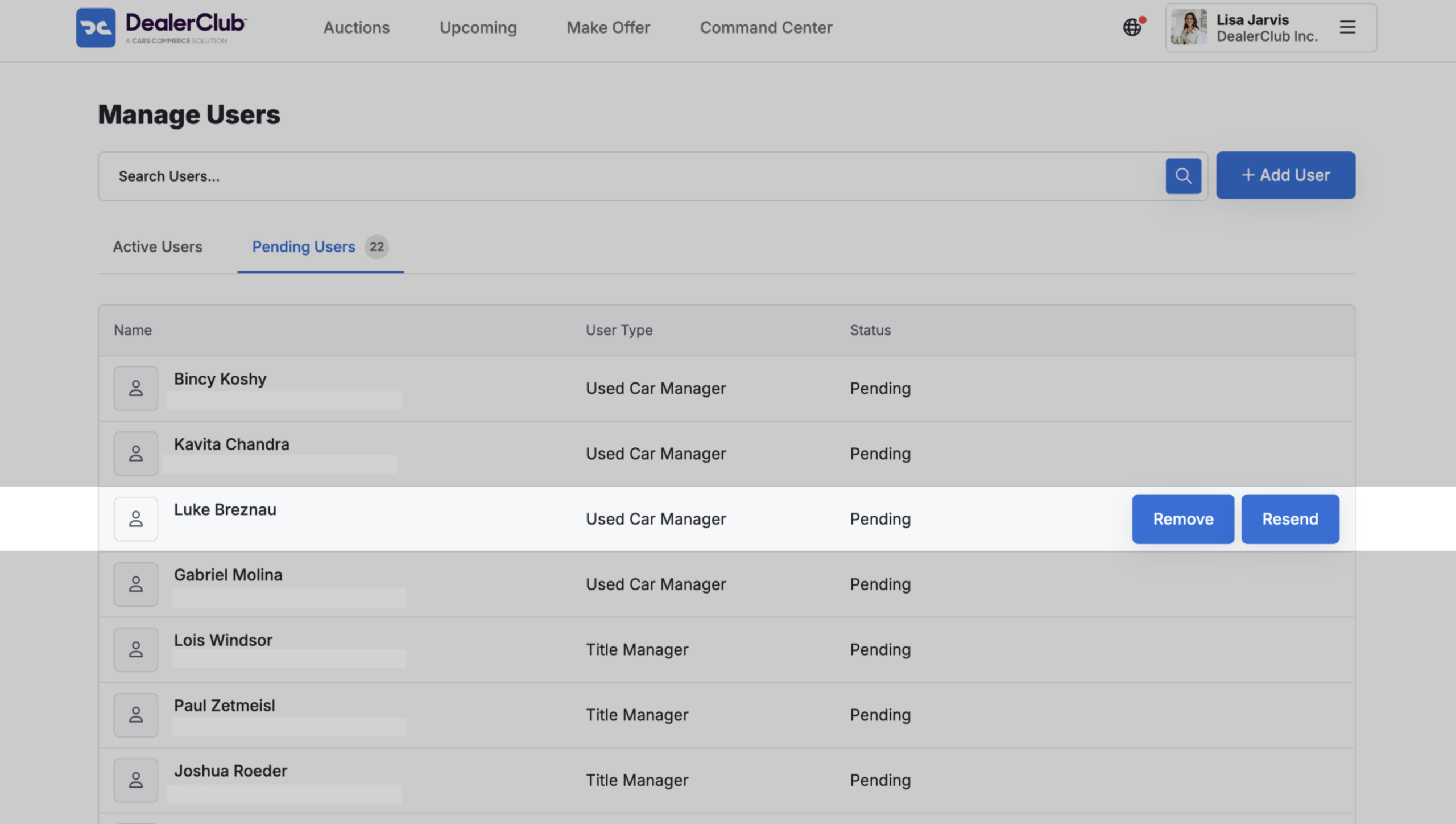
As an Admin, you can monitor and manage both Pending and Active users.
Pending Users
These users have been invited but haven’t accepted yet.
You can:
- Click Resend to resend their invitation
- Click Remove to remove their invitation
Active Users
These are users who have completed their profiles.
You can:
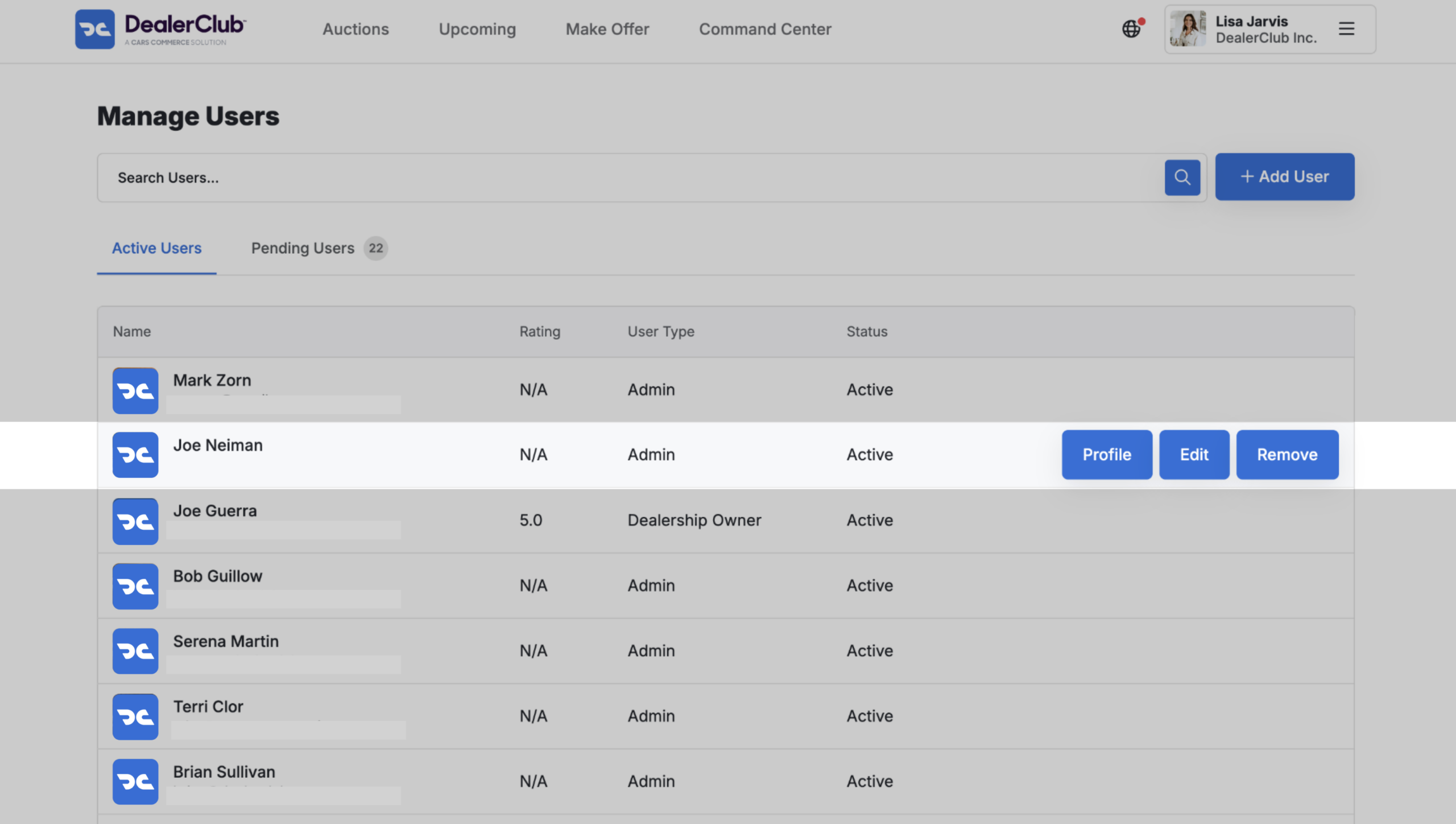
- Click Profile to view their profile info
- Click edit to change their user information or role
- Click Remove to remove them from your team