How to change pricing
In this article, you’ll learn how to use Dealer Dash, part of the Cars.com Hub, to manually manage your Cars.com inventory when immediate updates are needed. This includes locating a vehicle, updating its price, using the Price Lock feature, and adding or removing live listings without waiting for your next inventory feed refresh.
Important before you begin: In most cases, your Inventory Management System (IMS) should be used as your single source of pricing truth. Inventory feeds automatically update your listings on Cars.com, and pricing changes made outside your IMS may be overwritten during the next feed refresh.
Manual price changes in Dealer Dash should be used only in time-sensitive or emergency situations.
To get started
Go to the Cars.com Hub. Click on Cars.com, then Dealer Dash.
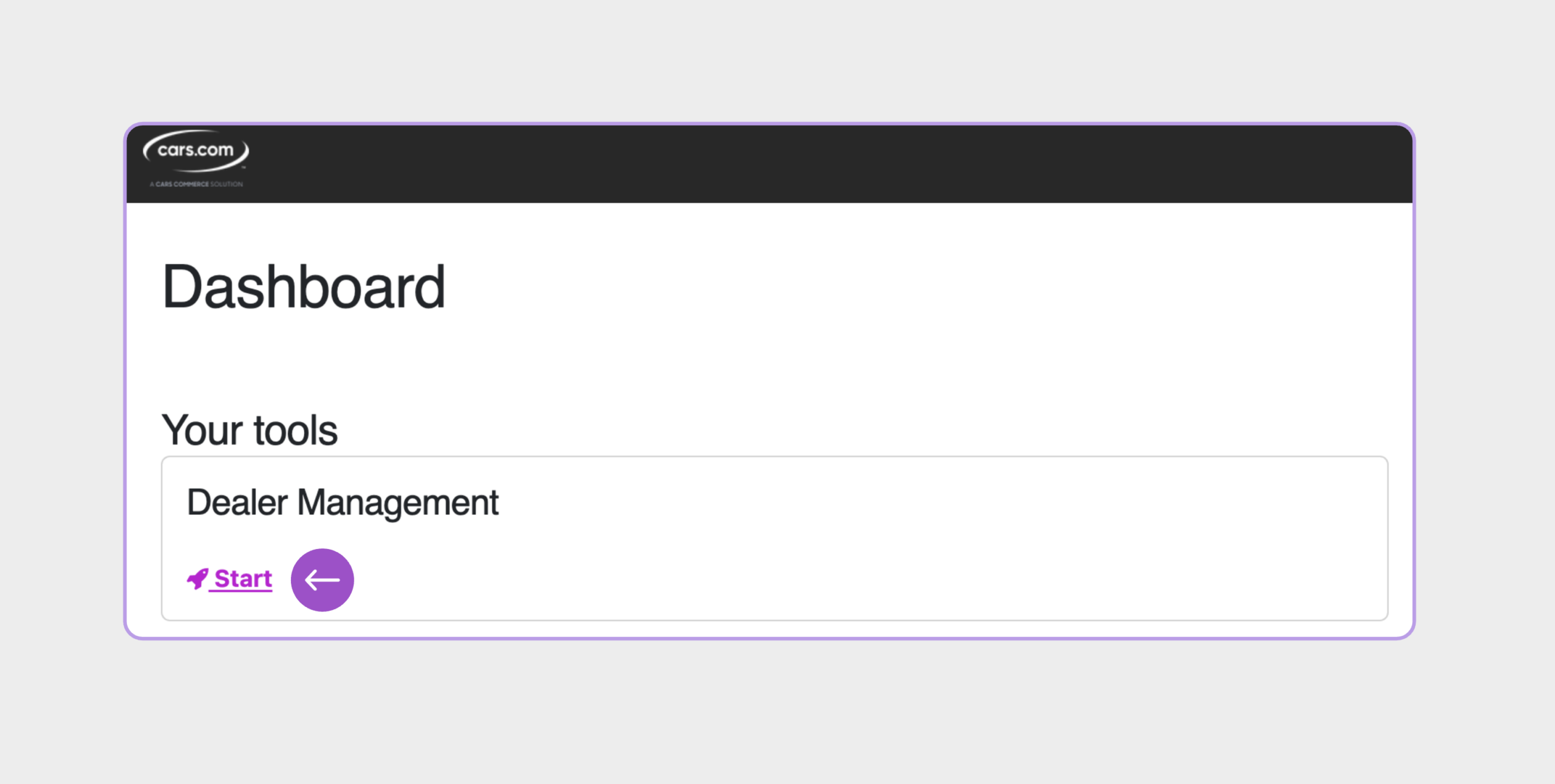
1 Click start in Dealer Management
From the main Dealer Dash navigation, click Start, then select Dealer Management to access dealership tools.
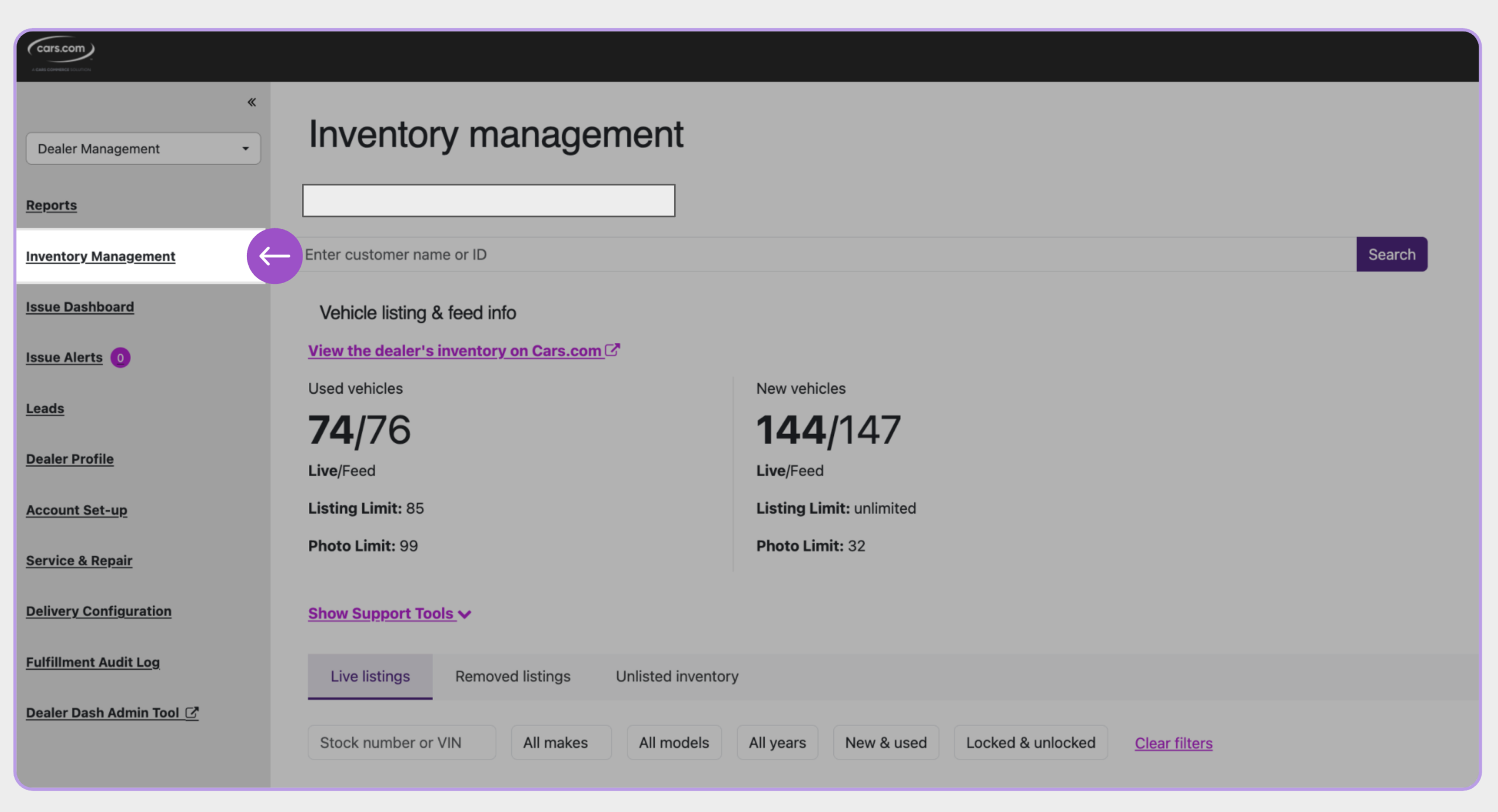
2 Click on Inventory Management
From the Dealer Management menu, select Inventory Management to view your inventory list.
3 Find your vehicle
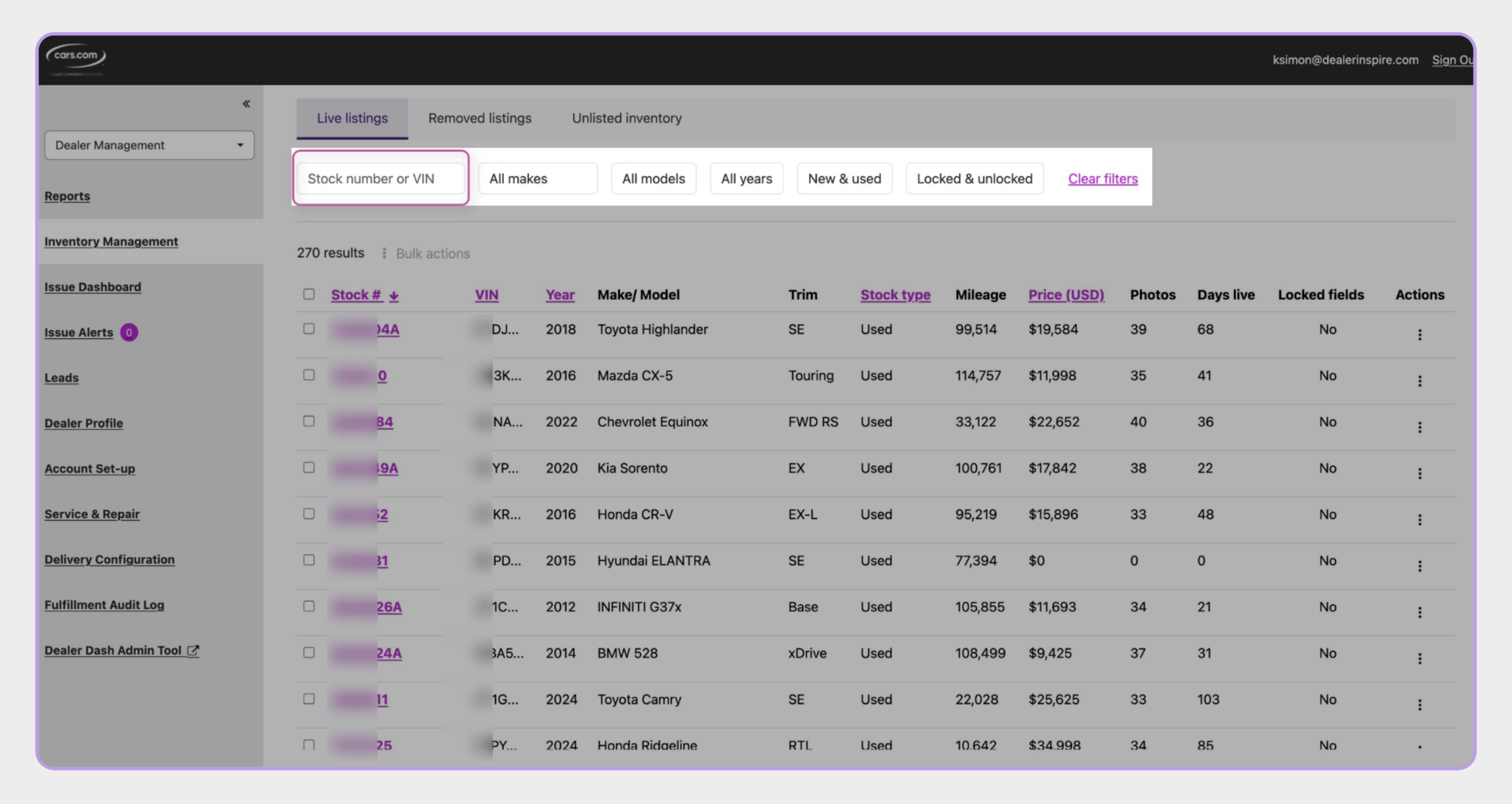
Locate the vehicle you want to update using one of the following methods:
- Enter the VIN or stock number in the search bar
- Use available filters to browse your inventory list
Click the vehicle to open its editable Vehicle Detail Page settings.
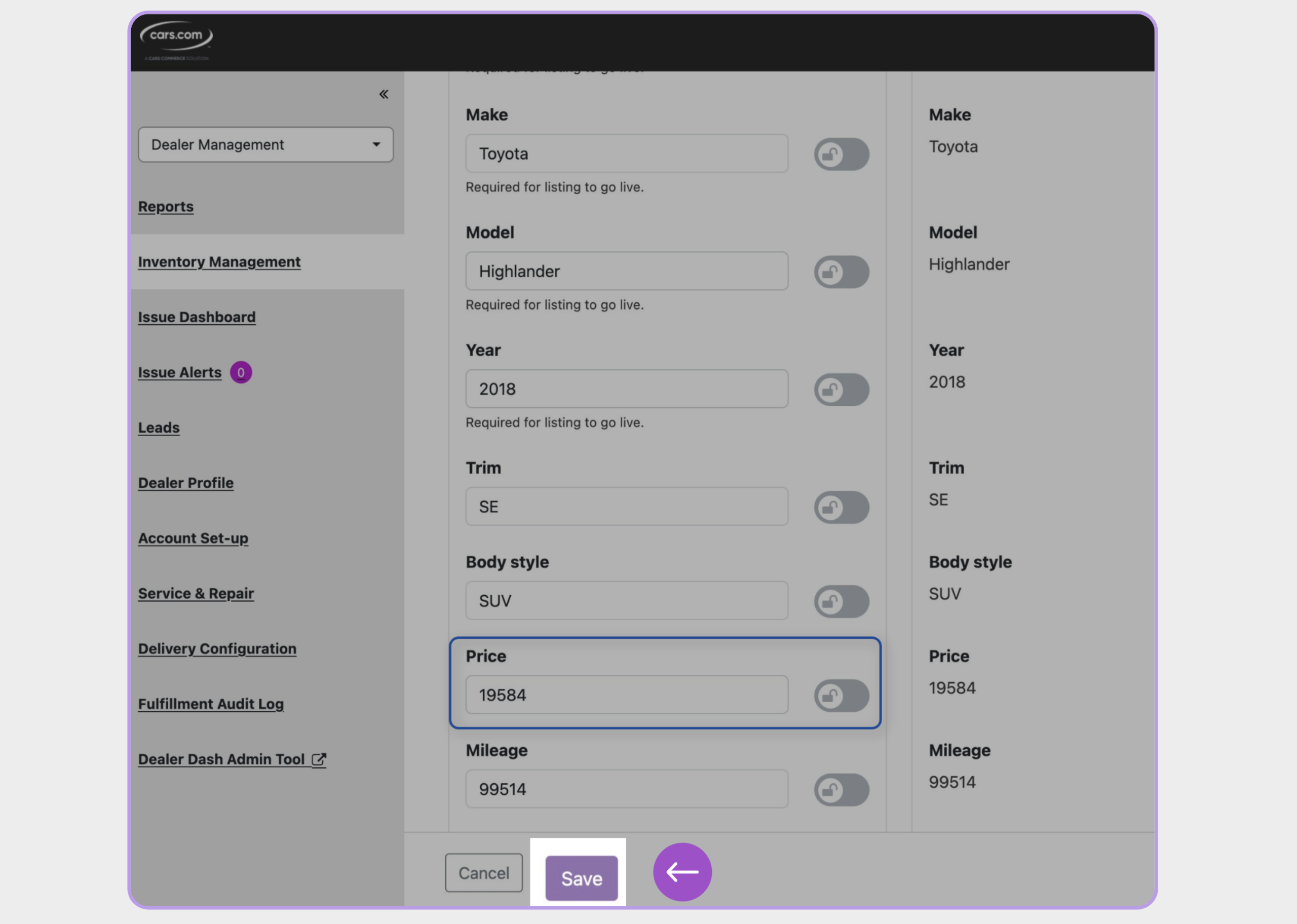
4 Enter the correct price
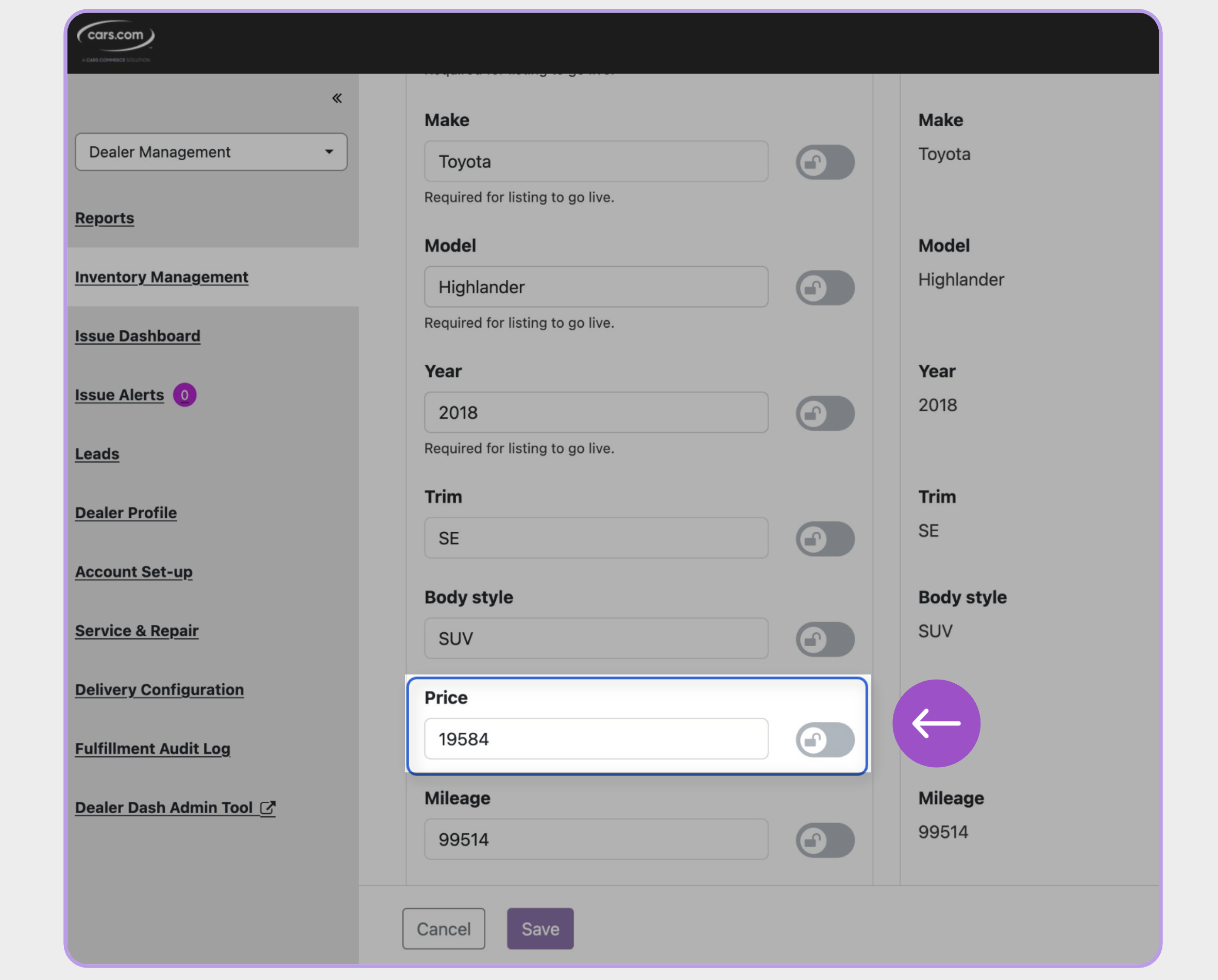
Update the vehicle’s price directly in the Price field.
If needed, you can enable the Price Lock toggle:
- When Price Lock is enabled, the price will not update during future inventory feed refreshes
- This is useful when a temporary manual price must remain in place
When you are ready for pricing to sync with your IMS again, turn off the Price Lock toggle.
5Save your changes
Click Save at the bottom of the page to apply the updated price.
Once processed, the new price will be published to Cars.com. Use the live listing to confirm the update appears correctly.