How to enable or disable financing options on your VDPs
Cars.com allows shoppers to explore financing options directly from your Vehicle Detail Pages (VDPs). With a soft credit pull, buyers can view estimated monthly payments, increasing transparency and helping to generate more qualified leads for your team.
In this article, you’ll learn how to check whether financing is currently active on your listings, how to enable or disable it, and how to manage which vehicle types display the option.
To get started
Go to the Cars.com Hub. Click Cars.com, then Dealer Dash.
1 Checking your current status
Before making changes, confirm whether Instant Financing is currently active on your listings.
Option 1: Check your VDPs
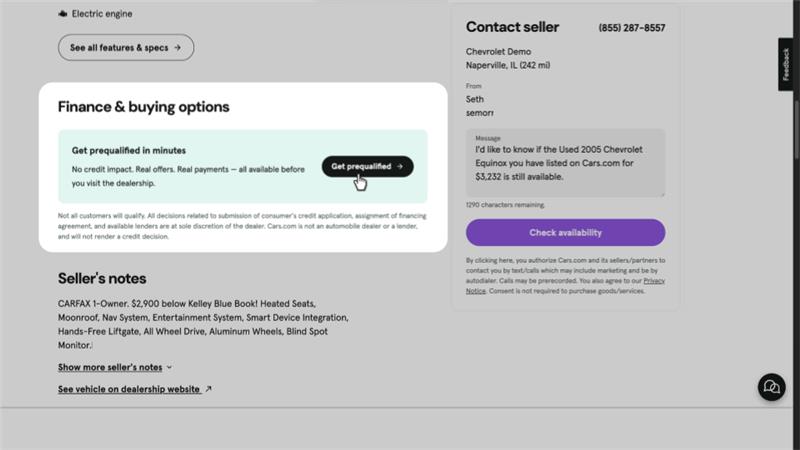
Visit one of your vehicle detail pages on Cars.com. If Instant Financing is enabled, you’ll see a “Get Prequalified” button on the listing.
Option 2: Contact your representative
Your Cars.com representative can confirm your Instant Financing status.
2 How to enable financing on your VDPs
If you’d like to activate the financing option:
Contact your Cars.com representative and provide the following:
- Dealership name and Dealer ID
- CRM routing information (where leads should be sent)
- Integration preference (RouteOne or Dealertrack) — available for Premium and Premium+ subscribers
- Lender preferences (Premium and Premium+ only)
Once setup is complete, the “Get Prequalified” button will appear on your listings, and shopper leads will begin flowing to your CRM and Automatic.
3 How to disable financing on your VDPs
To remove the financing option entirely:
Submit a written opt-out request to your Cars.com representative. Be sure to include:
- Dealership name
- Dealer ID
- A clear confirmation that you wish to disable financing visibility
Once processed, the “Get Prequalified” button will be removed from all listings.
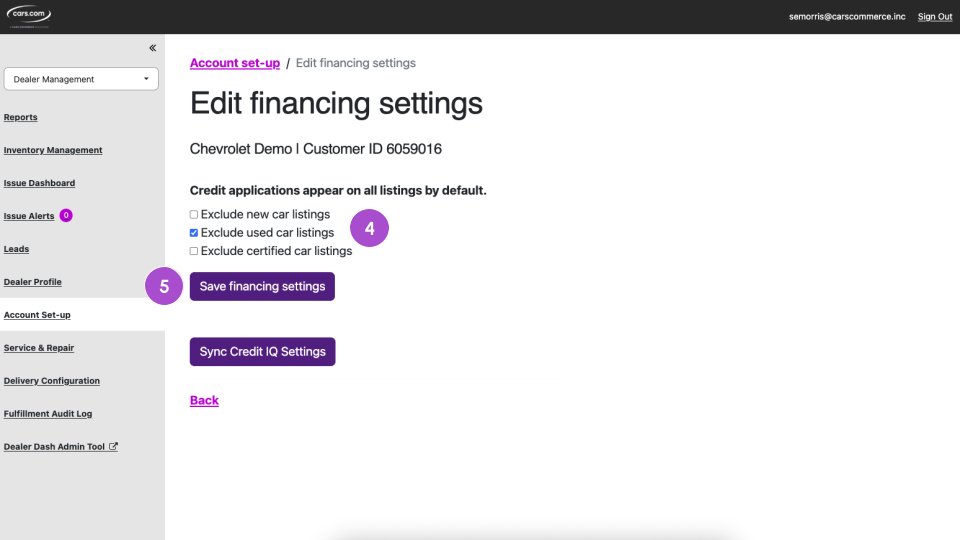
4 How to exclude specific inventory types
By default, financing appears on all eligible vehicles. If you need to hide it from specific inventory types (e.g., new or certified vehicles):
To exclude listings:
- Log in to your Admin Dash, and click Account Set-up
- Click Financing Settings in the top menu
- Select Edit Financing Settings
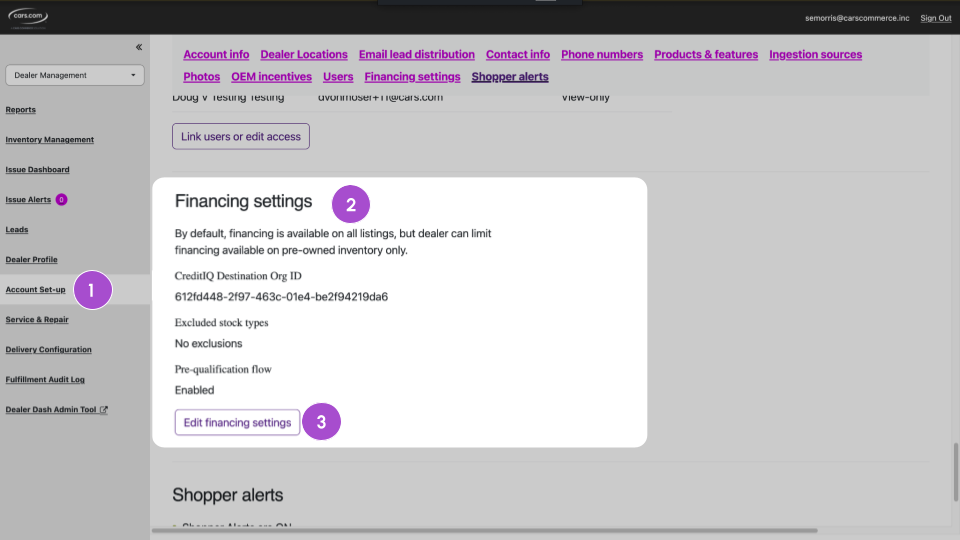
- Check the box next to any inventory types you want to exclude
- Click Save Financing Settings
This is useful for OEM compliance or internal policy enforcement.
5 When financing may not display on a VDP
Even when the feature is enabled, financing may not appear on a listing if:
- The vehicle is not priced
- The vehicle is priced under $500
- The listing type (e.g., new or certified) is excluded via Admin Dash
- The dealership is not opted in
If you’ve confirmed none of the above apply but the option still isn’t appearing, reach out to your Cars.com representative for help.
6 How to contact your representative
To contact your rep:
- Log in to the Cars.com Hub
- Scroll down toward the bottom of the page.
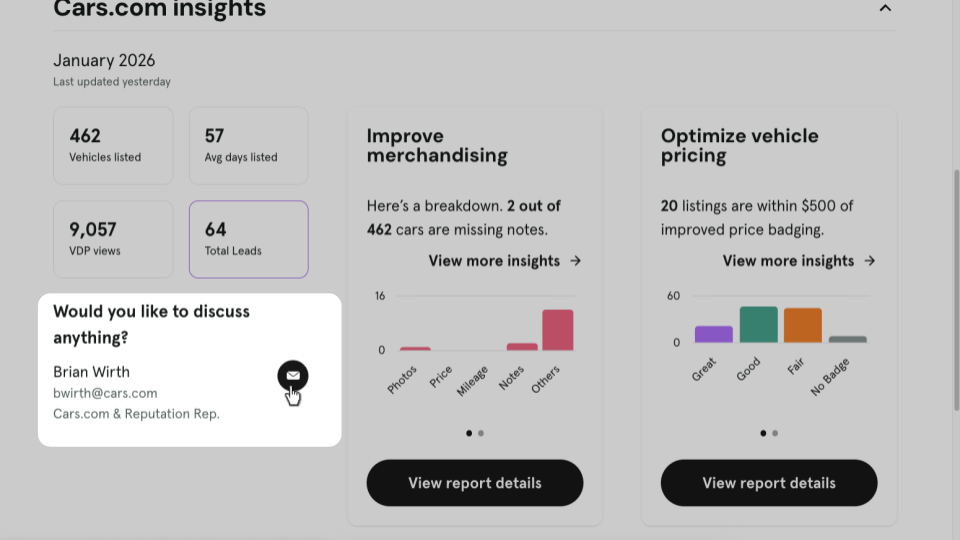
- Click the email icon next to your Rep’s info.