How to verify the condition of your vehicle
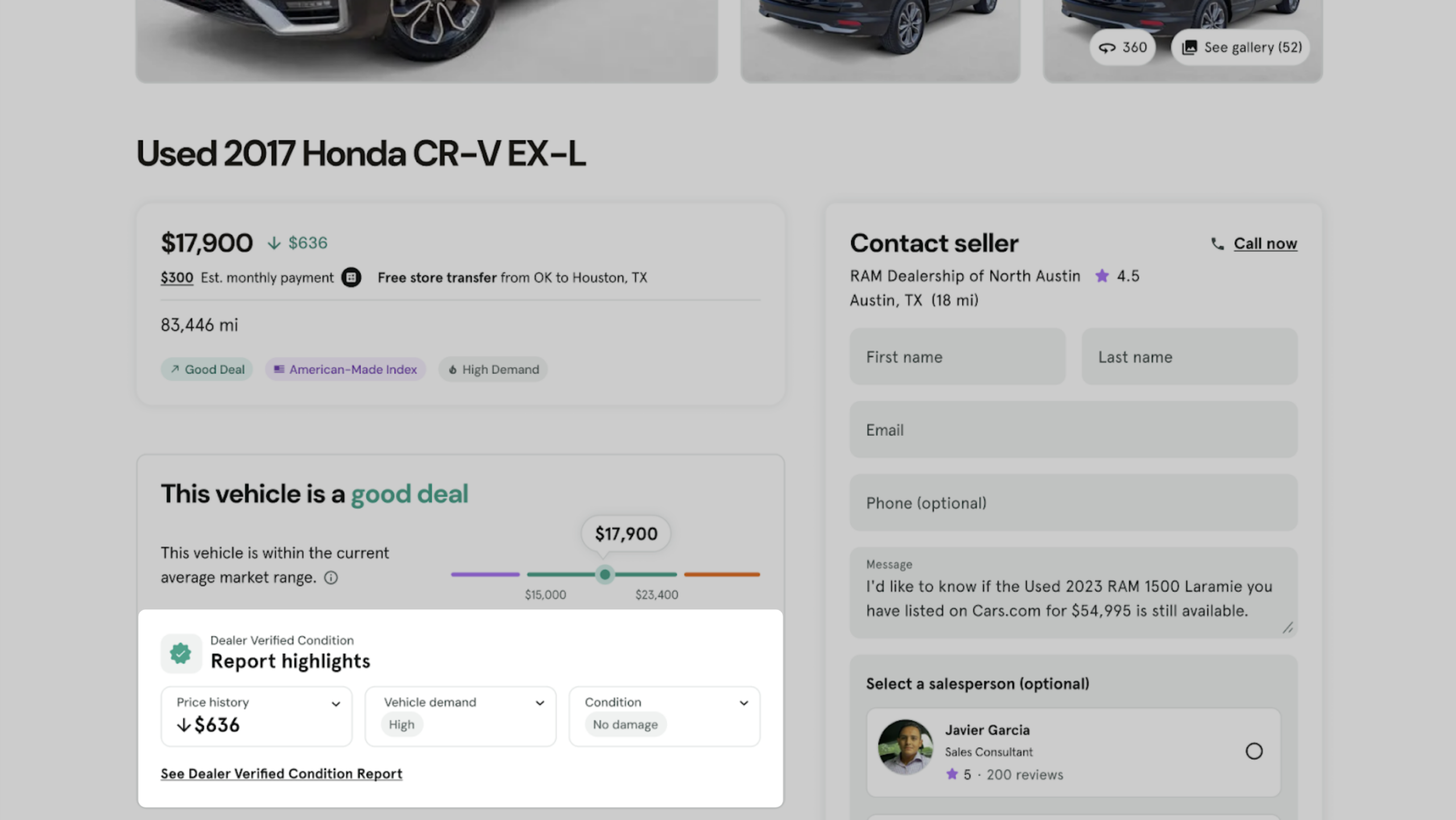
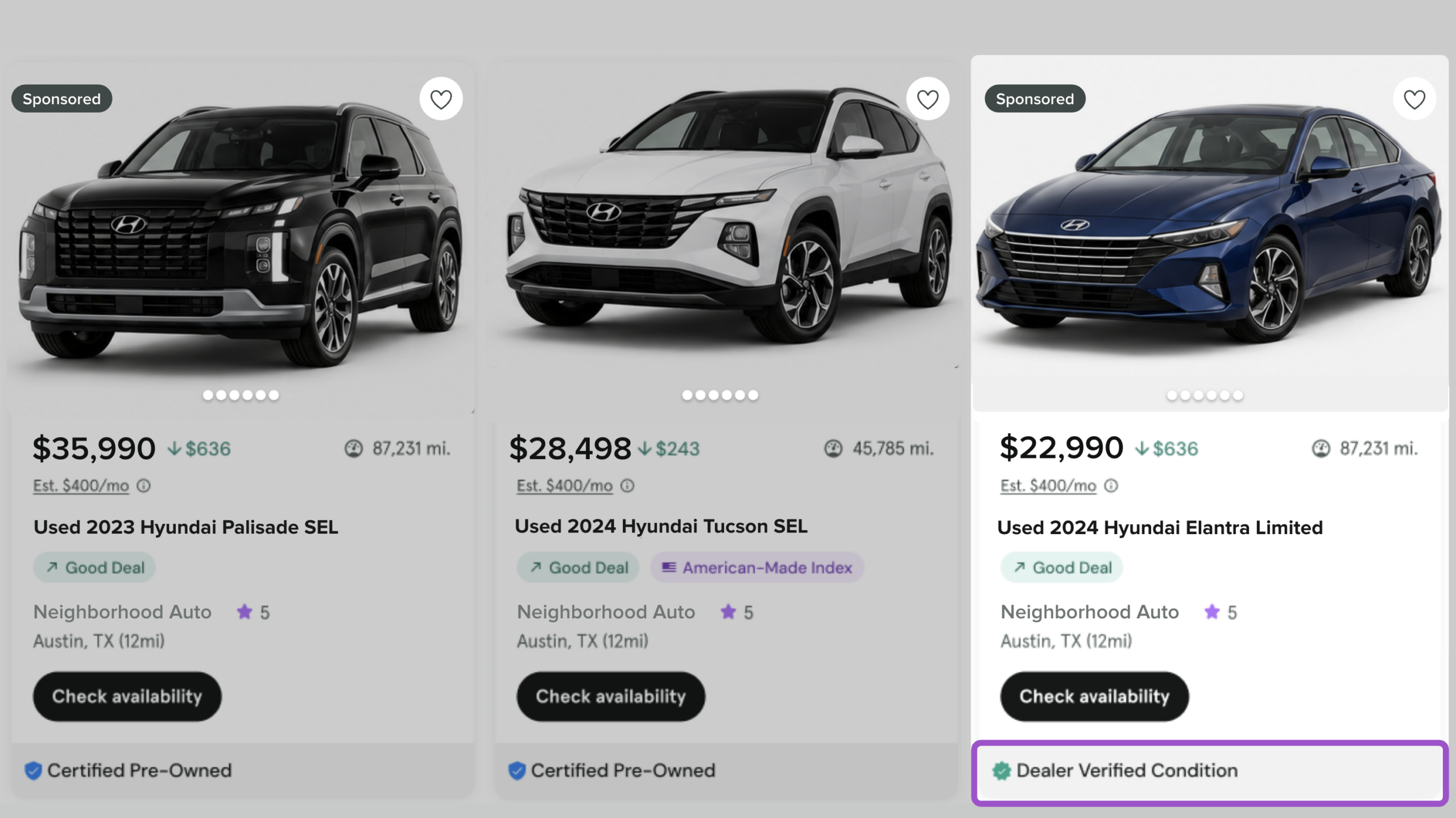
Verifying a vehicle’s condition in AccuTrade earns it a Dealer Verified Condition badge on Cars.com, showing shoppers the inspection data and condition disclosures behind your listing right on the SRP and VDP. That transparency also gives verified vehicles a boost in search ranking.
In this article, you’ll learn how to find a vehicle to verify, confirm its condition details, and publish a verified listing to Cars.com.
Watch how it works
Prefer the written version? Follow the steps below.
To get started
Log in to AccuTrade. Or, go to the Cars.com Hub and click on AccuTrade.
1Find a vehicle to verify
Start the vehicle verification process one of two ways.
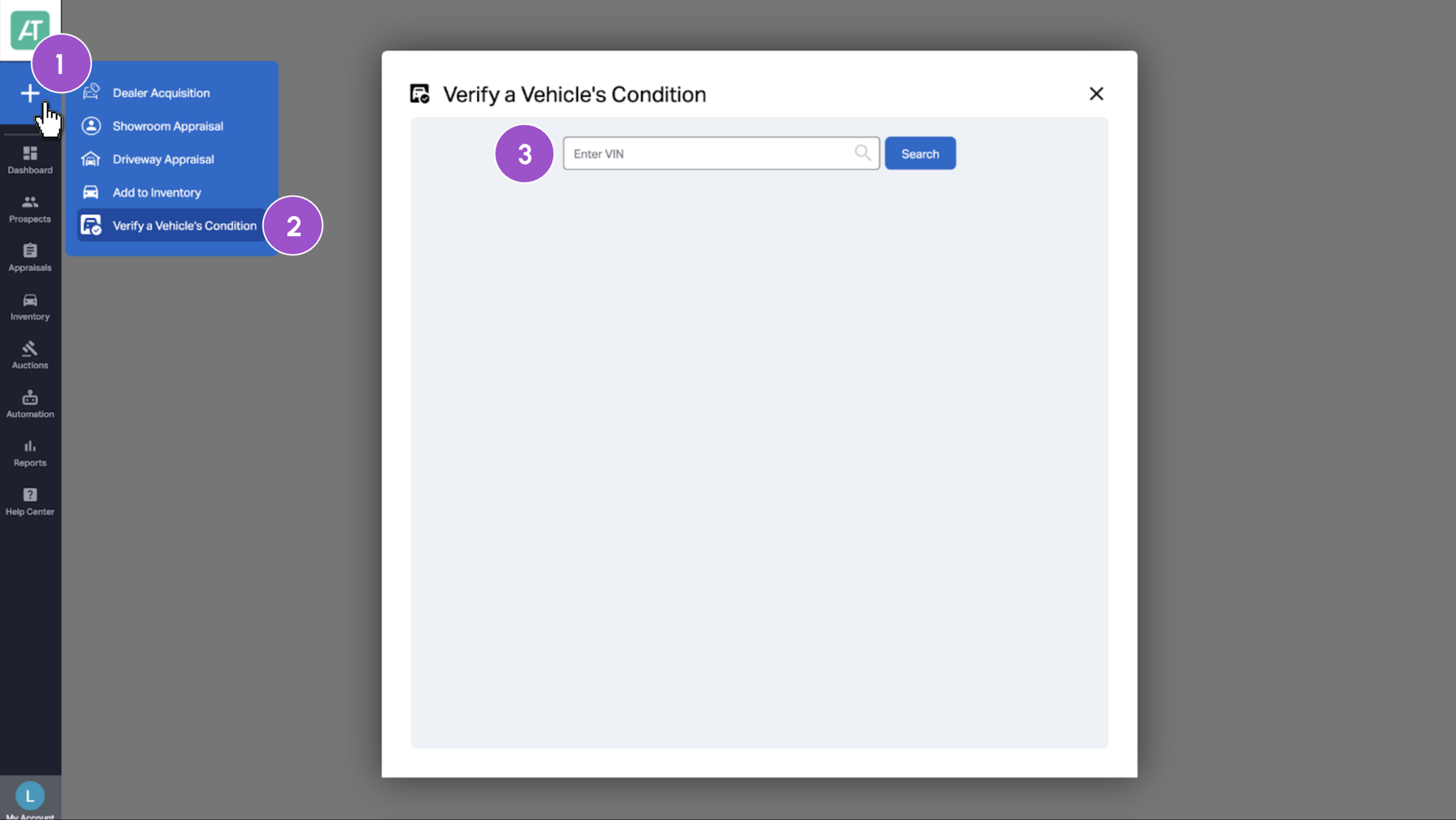
- Click the blue plus sign
- Select Verify a Vehicle’s Condition
- Enter the VIN and hit search
- Or, select Inventory and click into the vehicle to verify from the list.
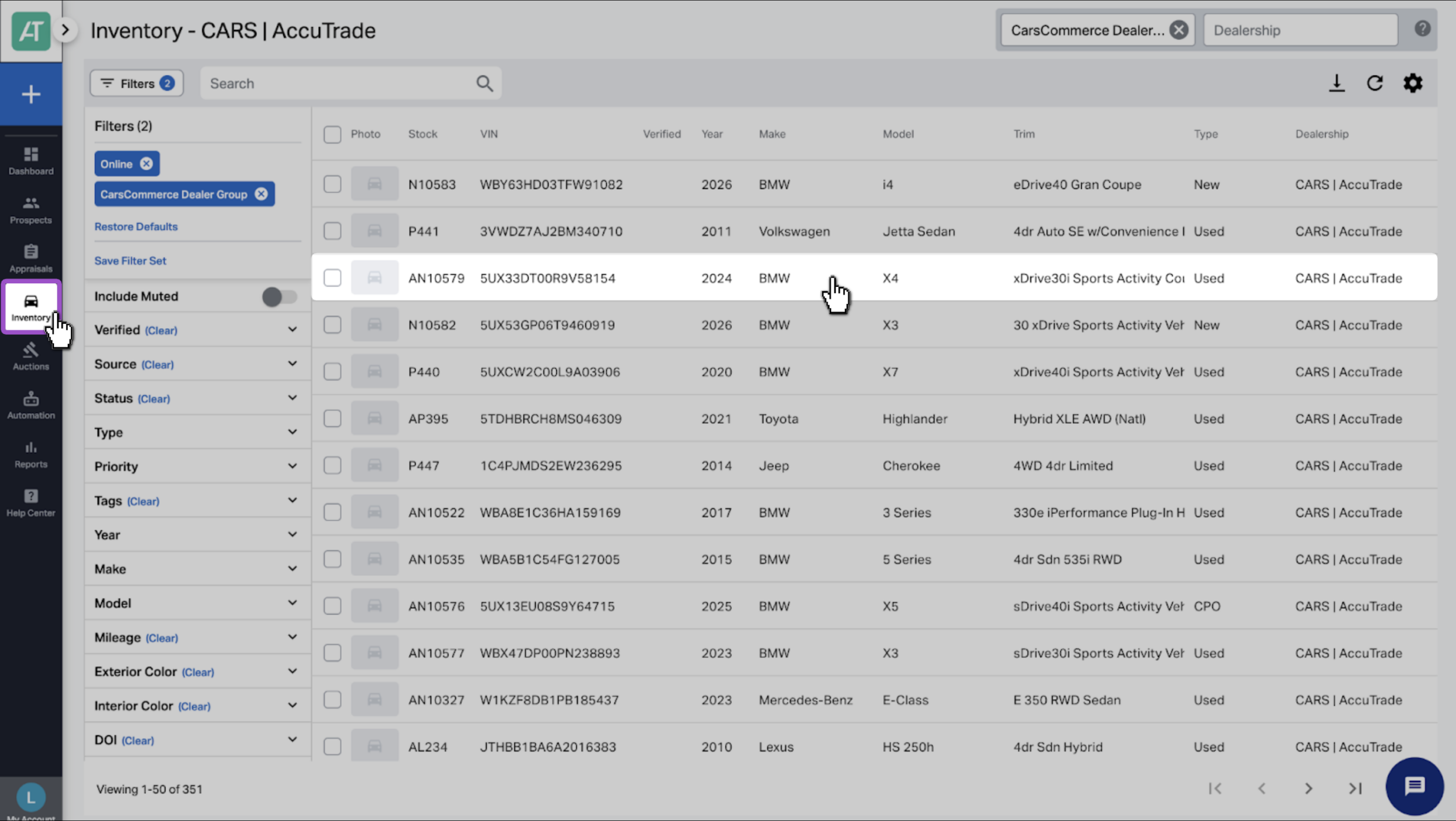
Note: Make sure the syndication is marked Online in order to verify its condition.
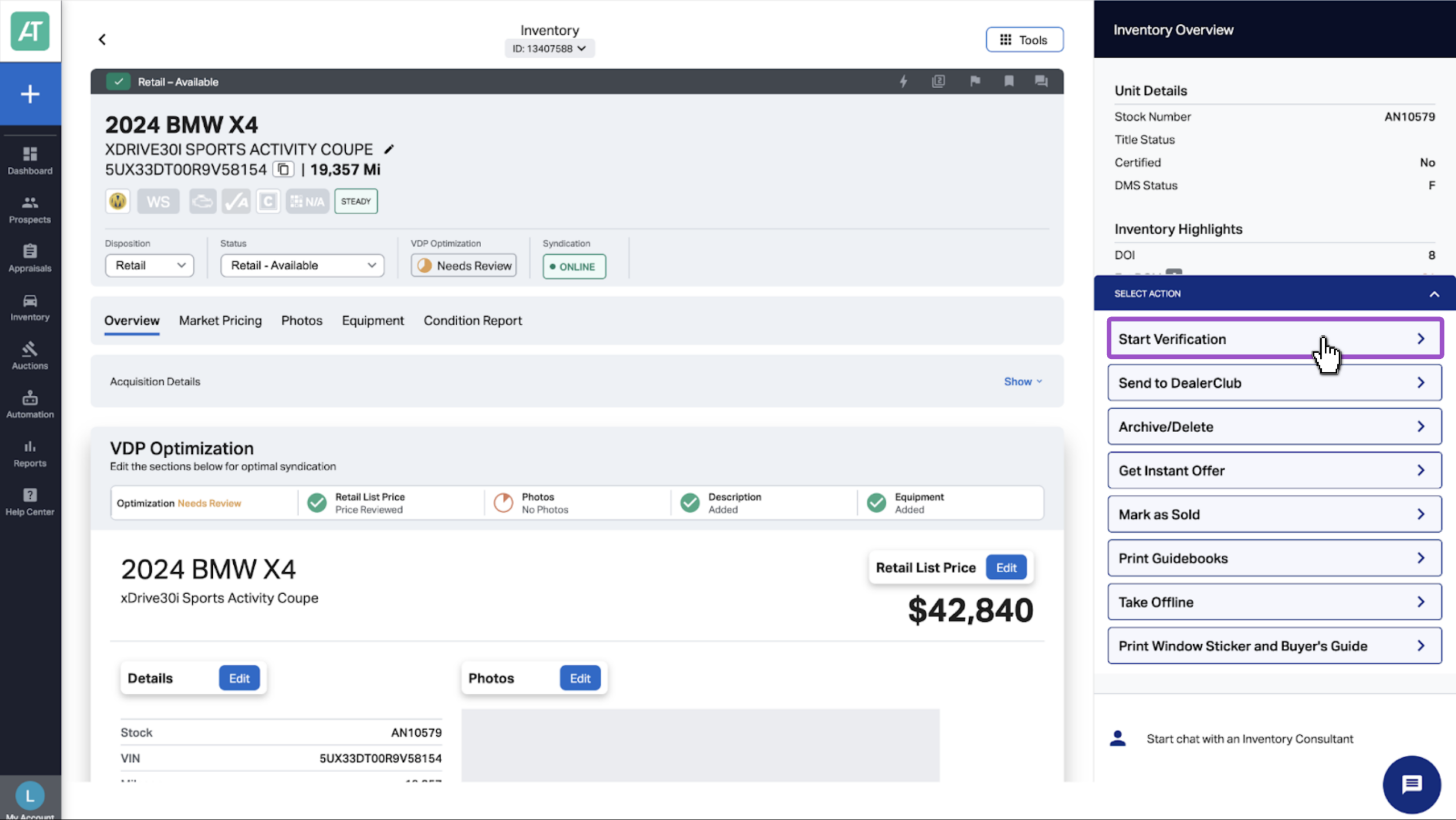
2Start verification
- Click Start Verification from the Select Action menu on the right-hand side.
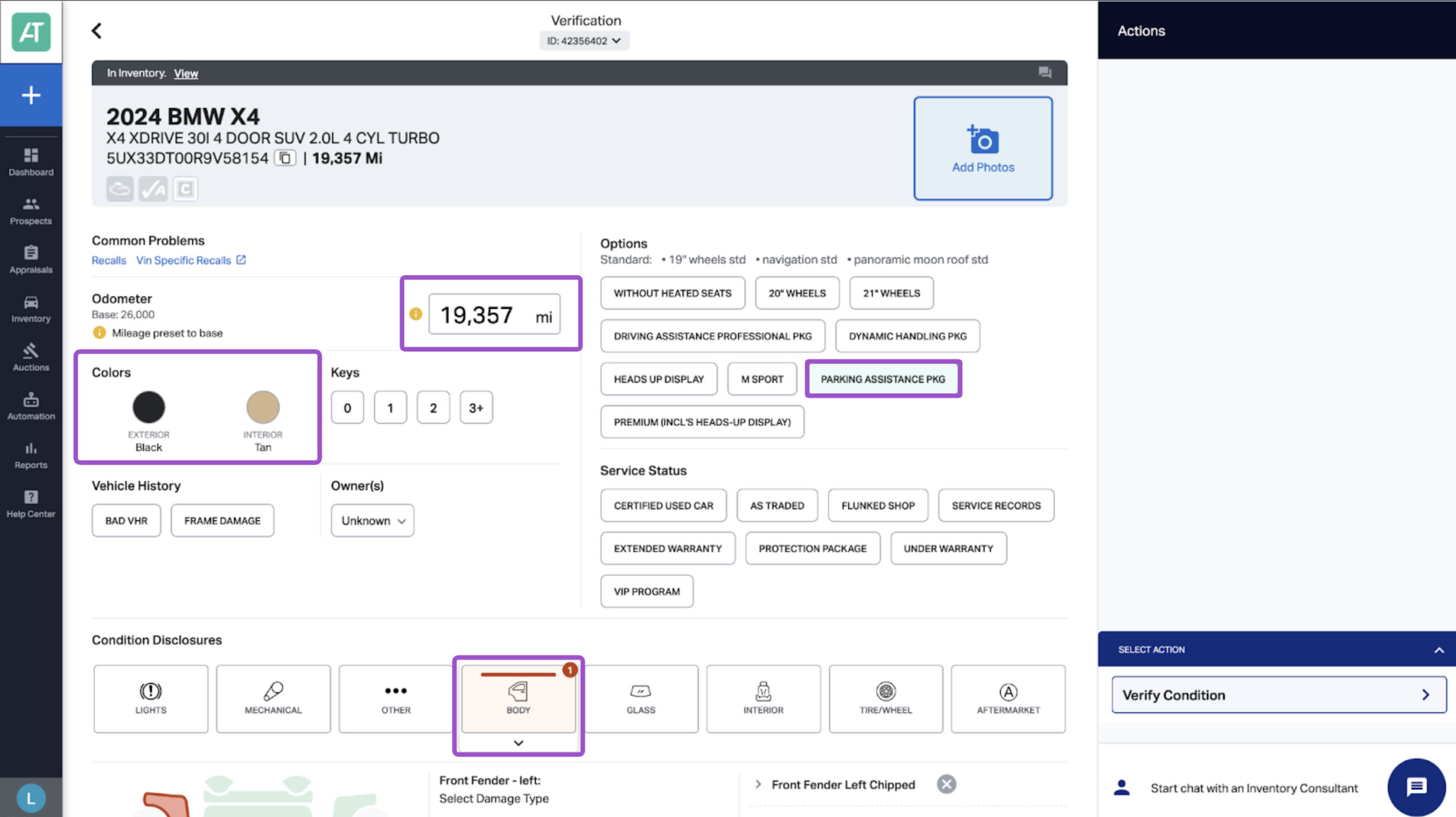
3Make condition disclosures on the vehicle
- Confirm the mileage
- Update the exterior or interior color
- Select any options
- Make any condition disclosures, like chips or tire tread depth
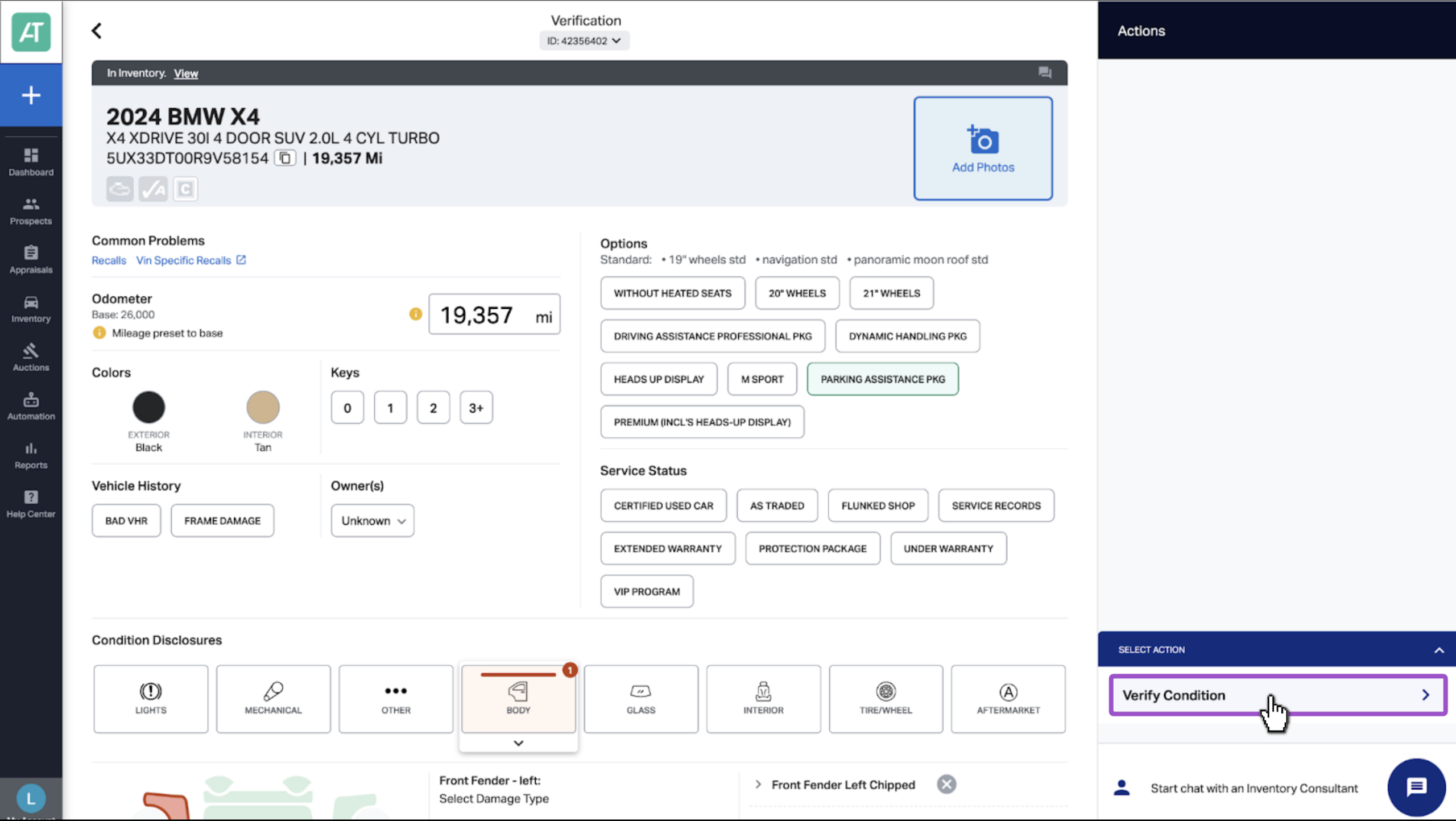
4Verify the condition of the vehicle
- Click Verify Condition under the Select Action menu
5Confirm the vehicle condition
- Check the boxes to confirm the disclosures and vehicle condition is accurate
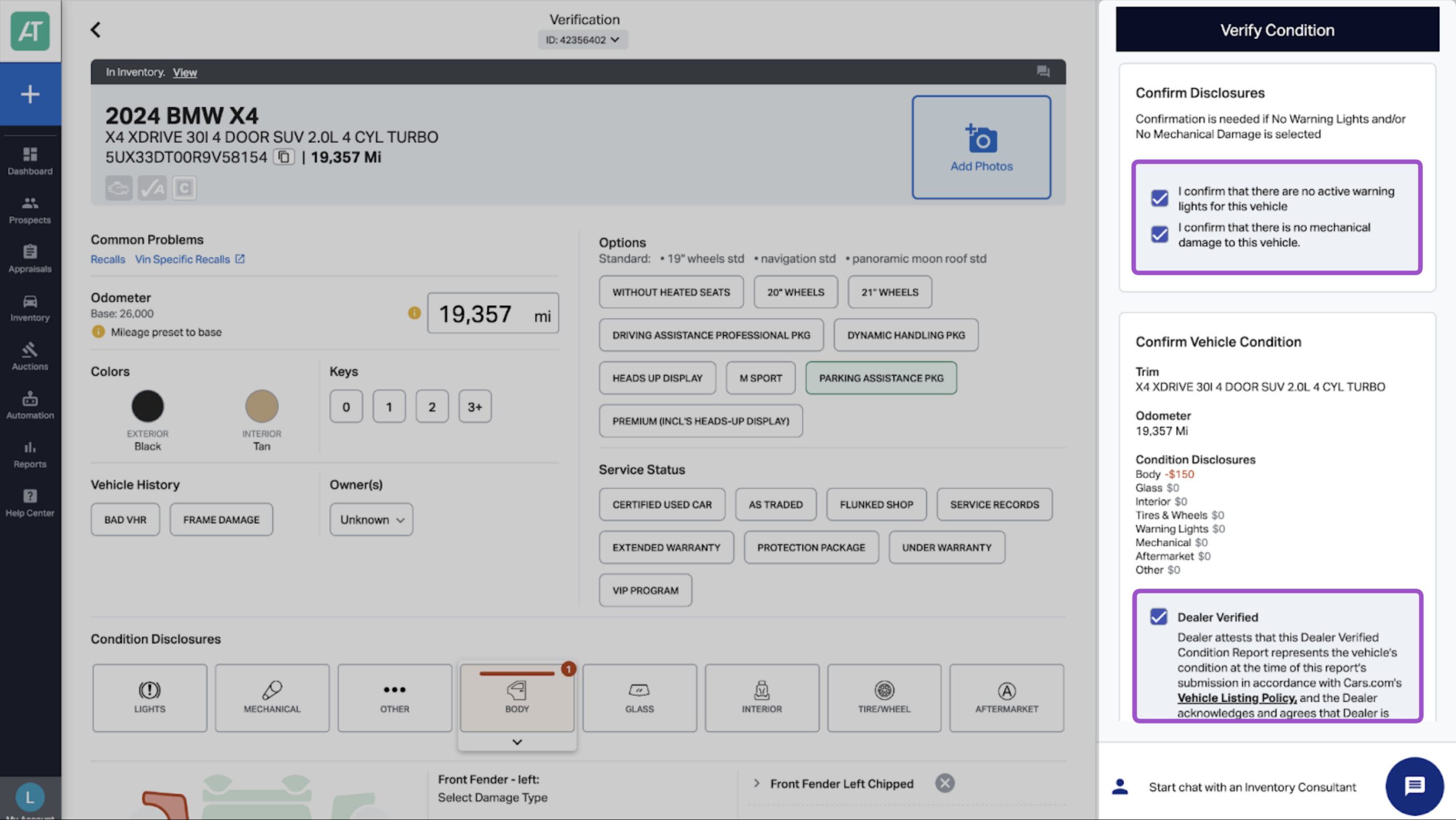
- Scroll and select Confirm Condition to push the dealer verified listing to Cars.com
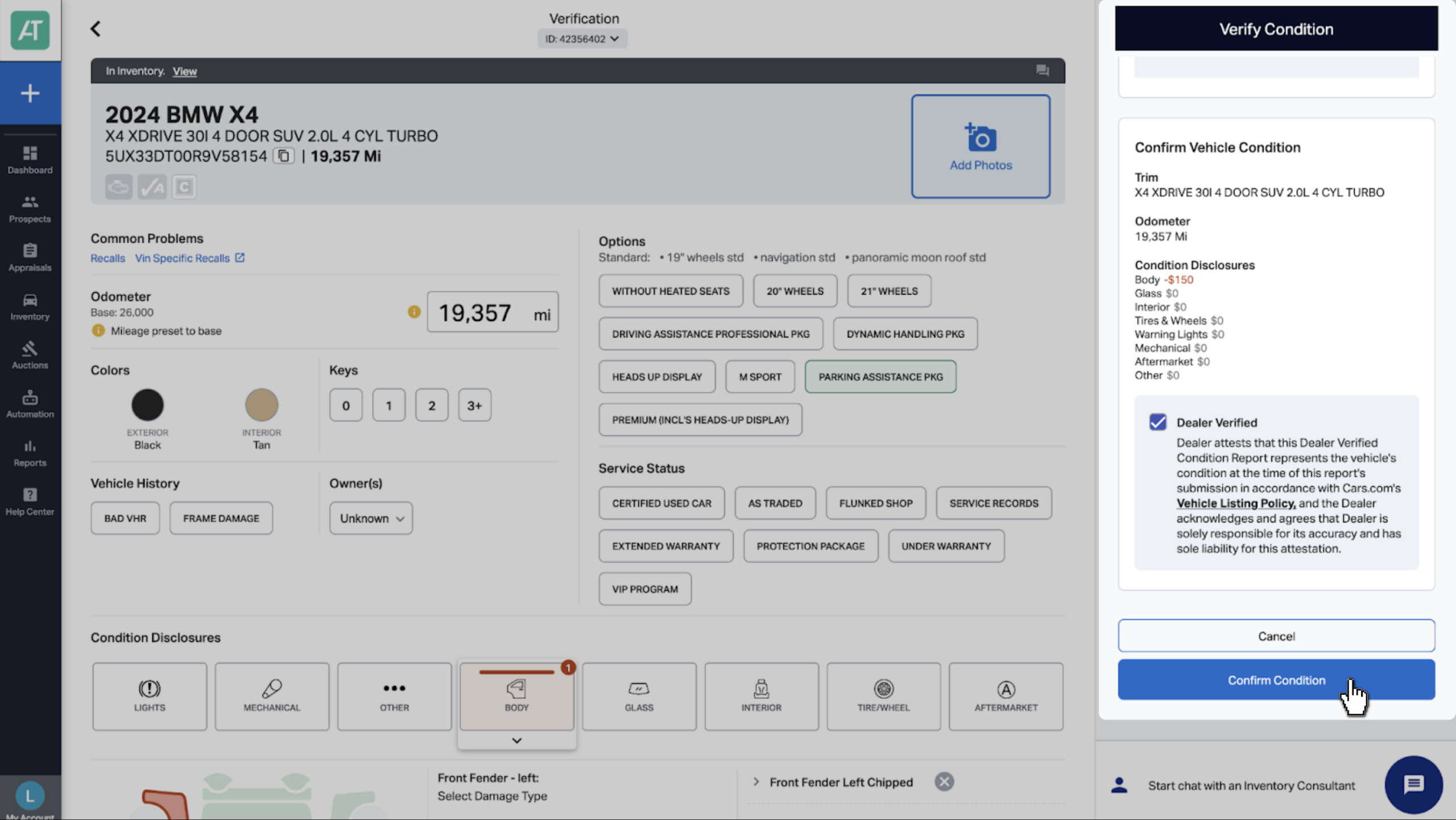
Note: Final confirmation must be completed or approved by a manager role in AccuTrade, including Sales Manager, Acquisition Manager, Used Car Manager, or BDC Manager.
- You’ll receive a successfully verified confirmation message
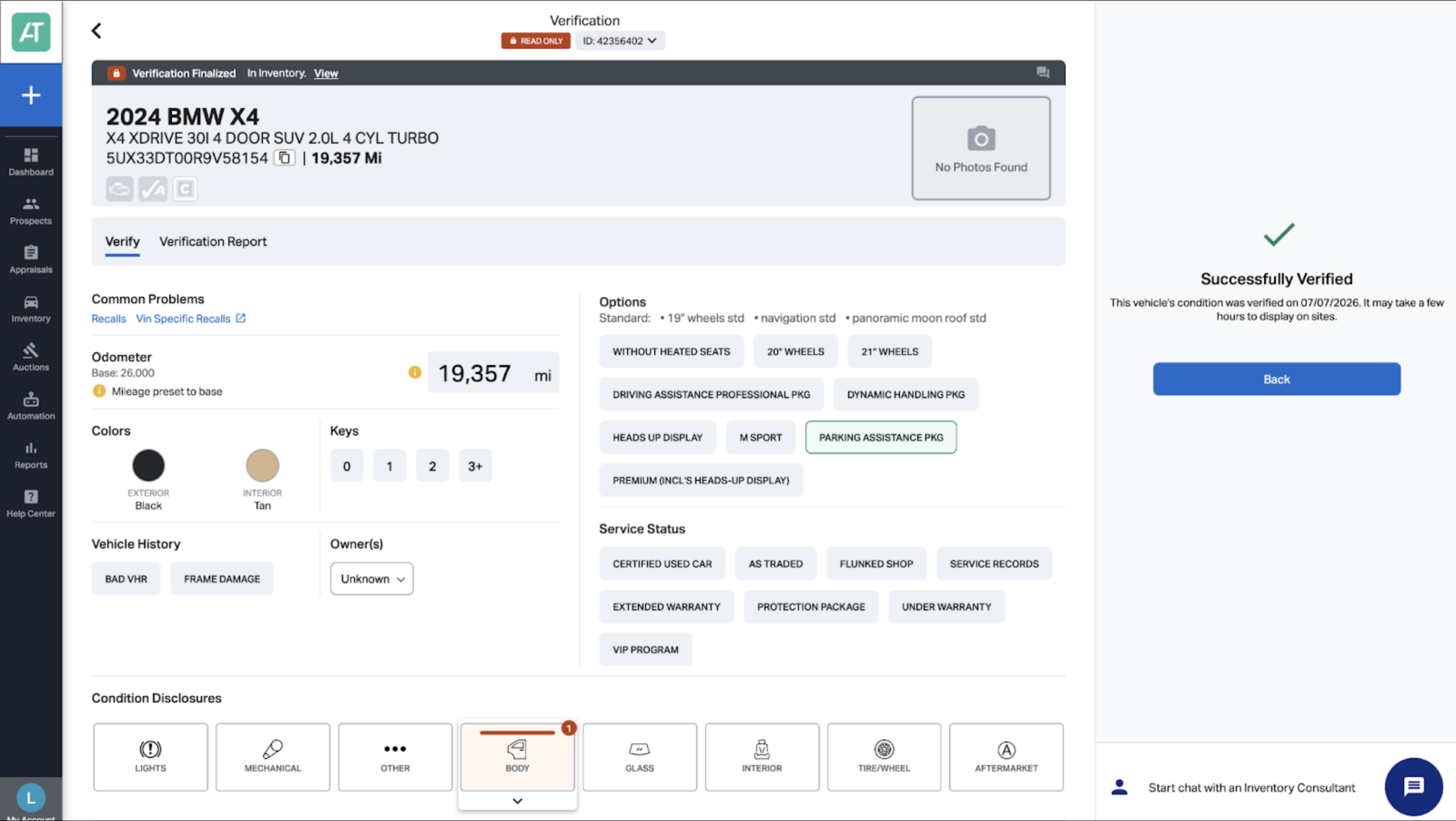
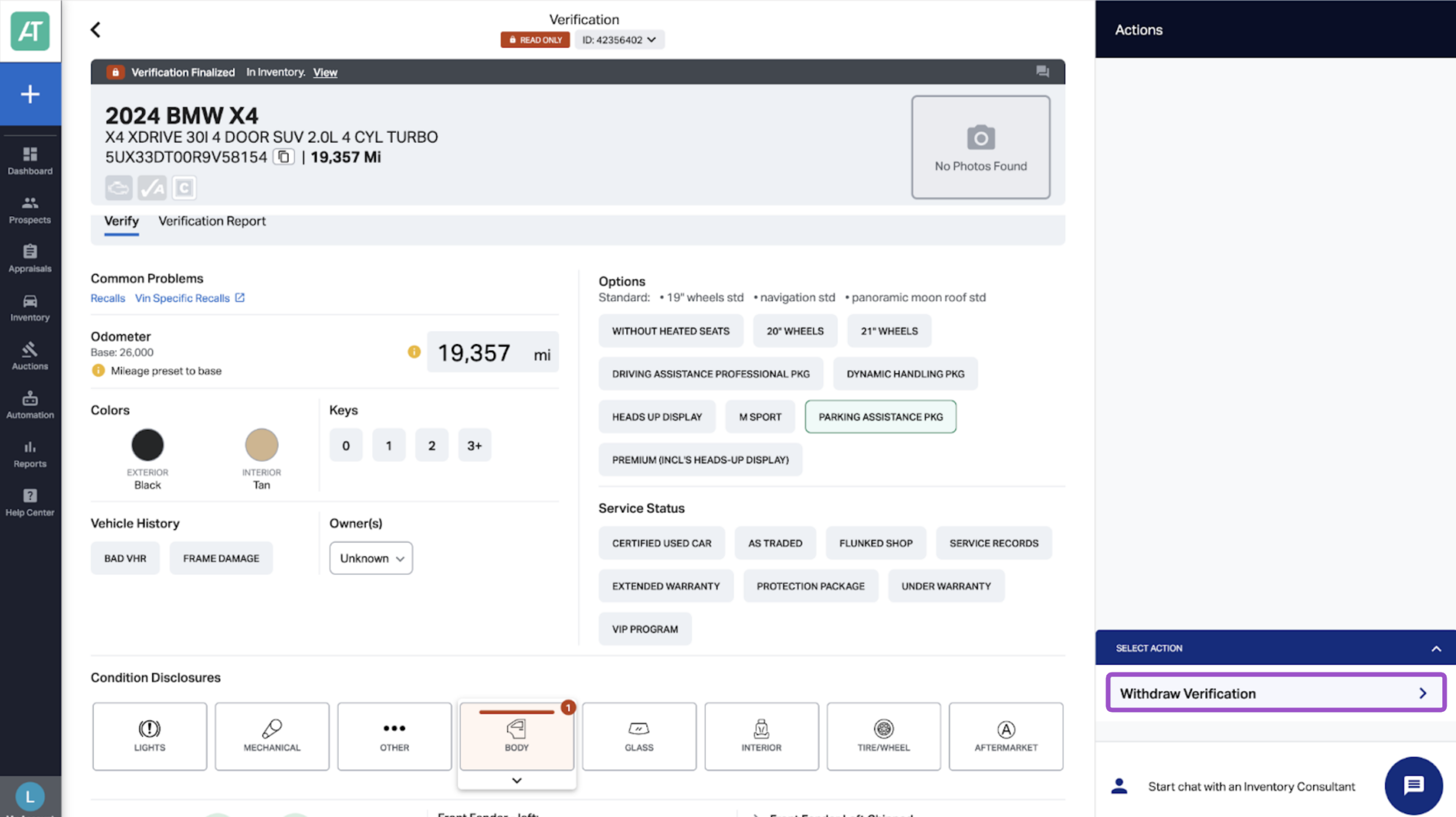
Tip: If, for any reason you need to withdraw the verification, you can do so by clicking back or finding the vehicle in your inventory list by VIN.
- Select Withdraw Verification under the Select Action menu
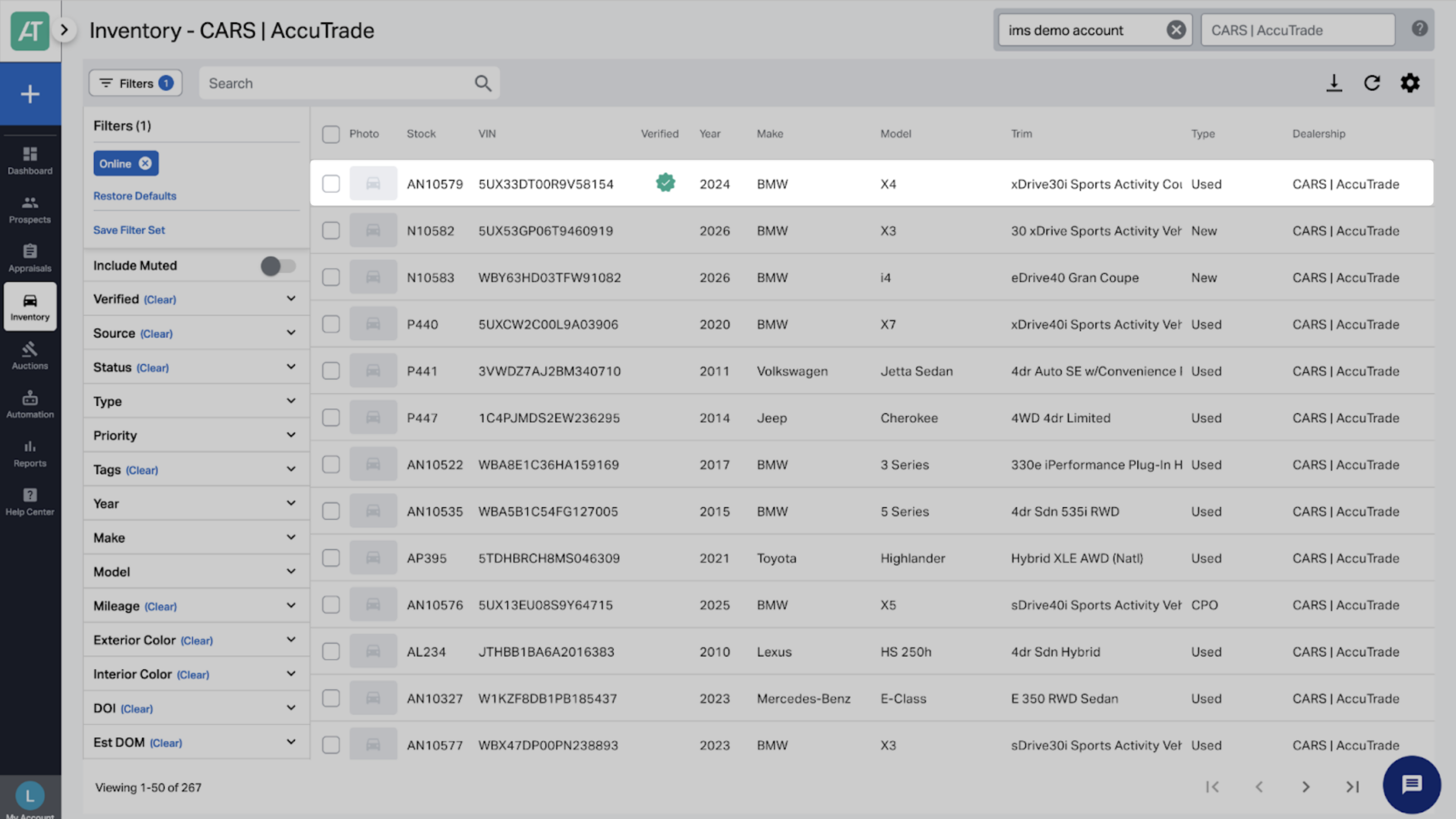
Once vehicles are verified in AccuTrade, they’ll receive a green checkmark in your inventory.
6See it on Cars.com
- Your verified inventory is boosted in search results
- The vehicle will have a Dealer Verified Condition badge attached to it
SRP
VDP