How to comment on a listing
DealerClub allows you to interact directly with sellers on their listings by adding comments. Whether you find a vehicle in Auctions, Upcoming, or Make Offer, you can click into the listing and post a comment. This feature is helpful for clarifying details, and engaging with sellers and bidders.
To get started
Go to the Cars.com Hub, and then click on DealerClub.
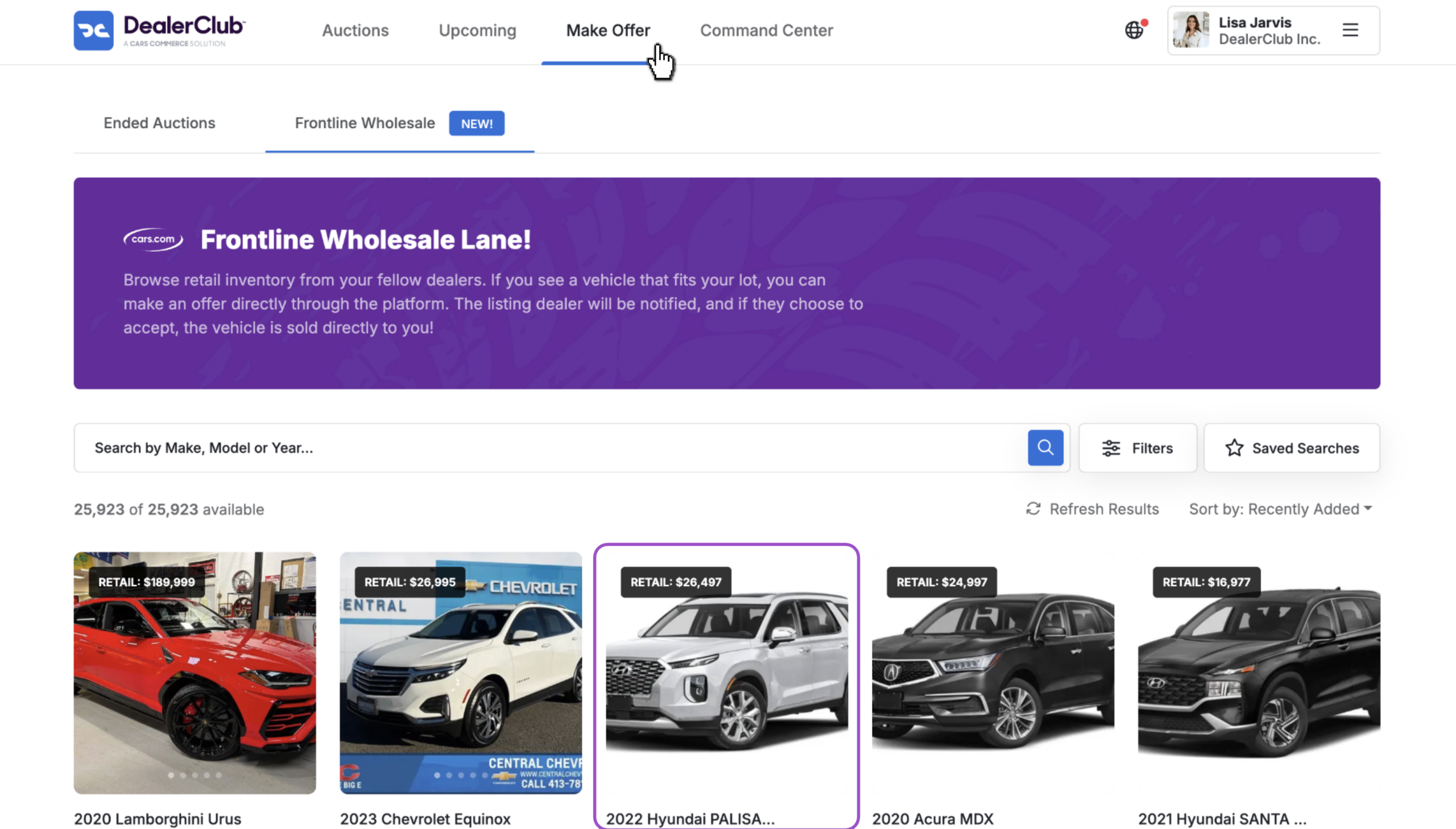
1 Open a vehicle listing
Browse any vehicle in Auctions, Upcoming, or Make Offer.
When you see a vehicle you’re interested in, click the listing to open the full details.
2 Go to the comment section
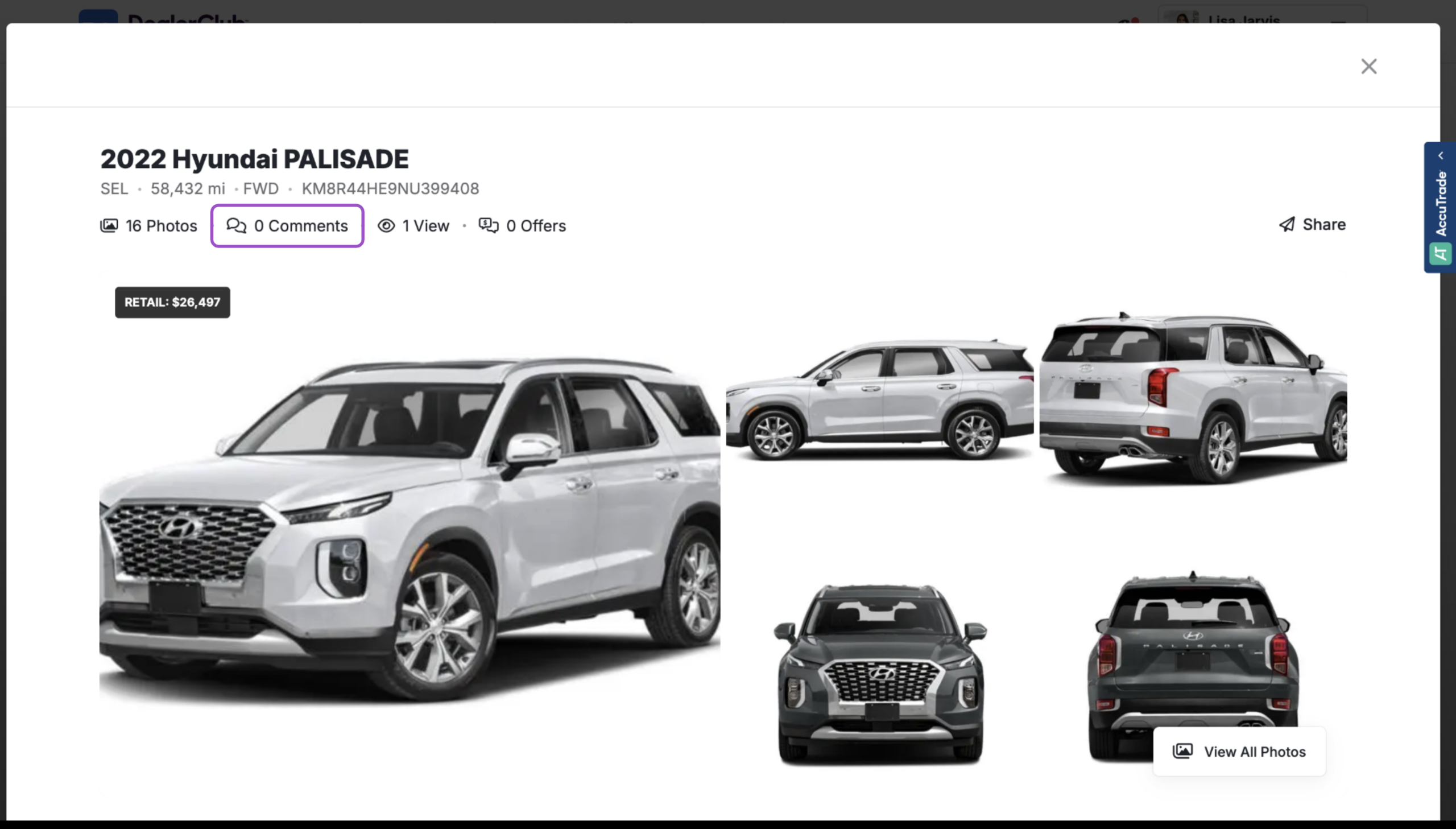
A vehicle details pop-up will appear with all available information.
Either click the Comments tab at the top, or scroll down to the comments section.
3 Post a comment
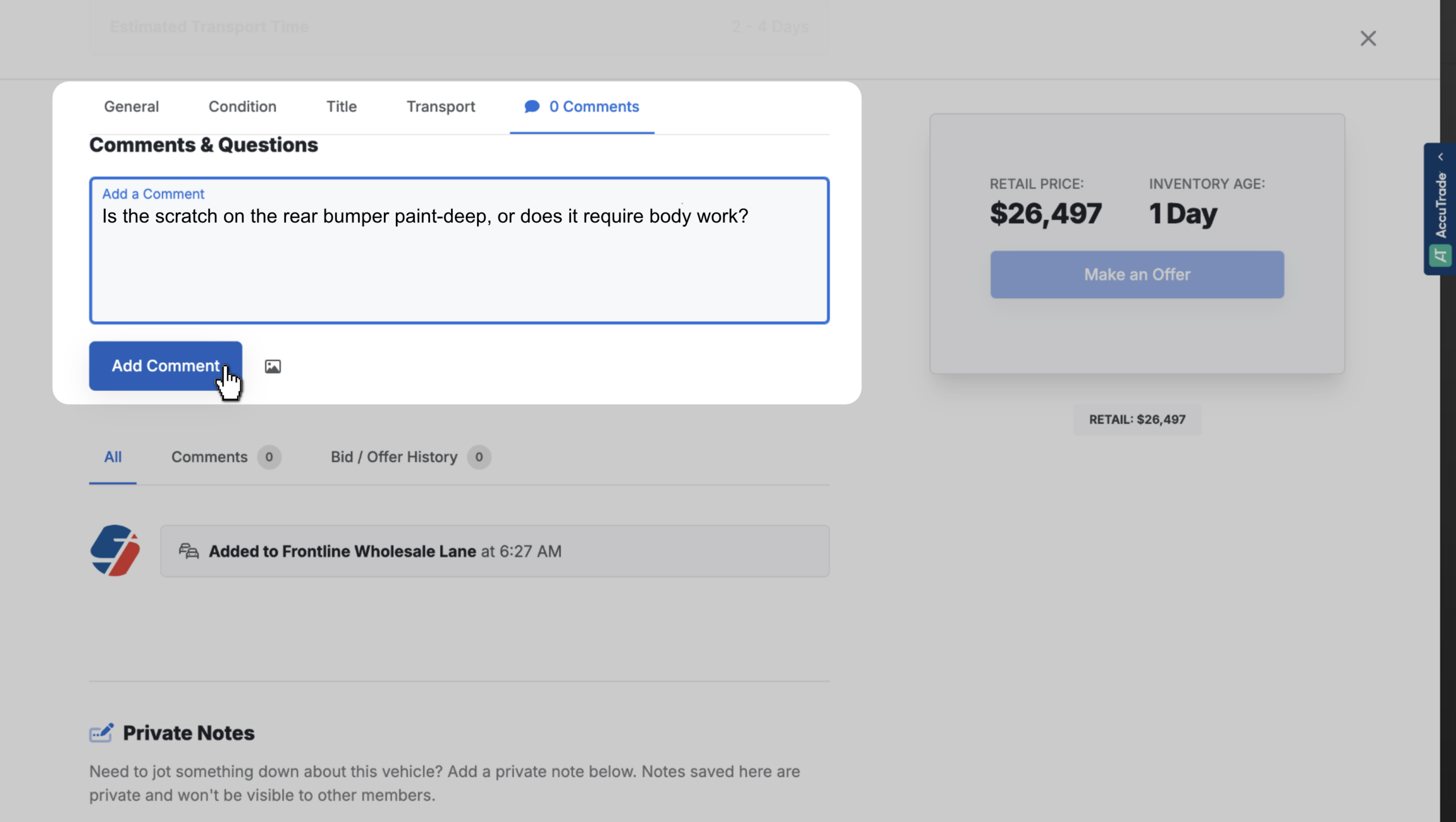
In the comment field, type your message or question to the seller.
Click Add Comment when you’re ready to post.
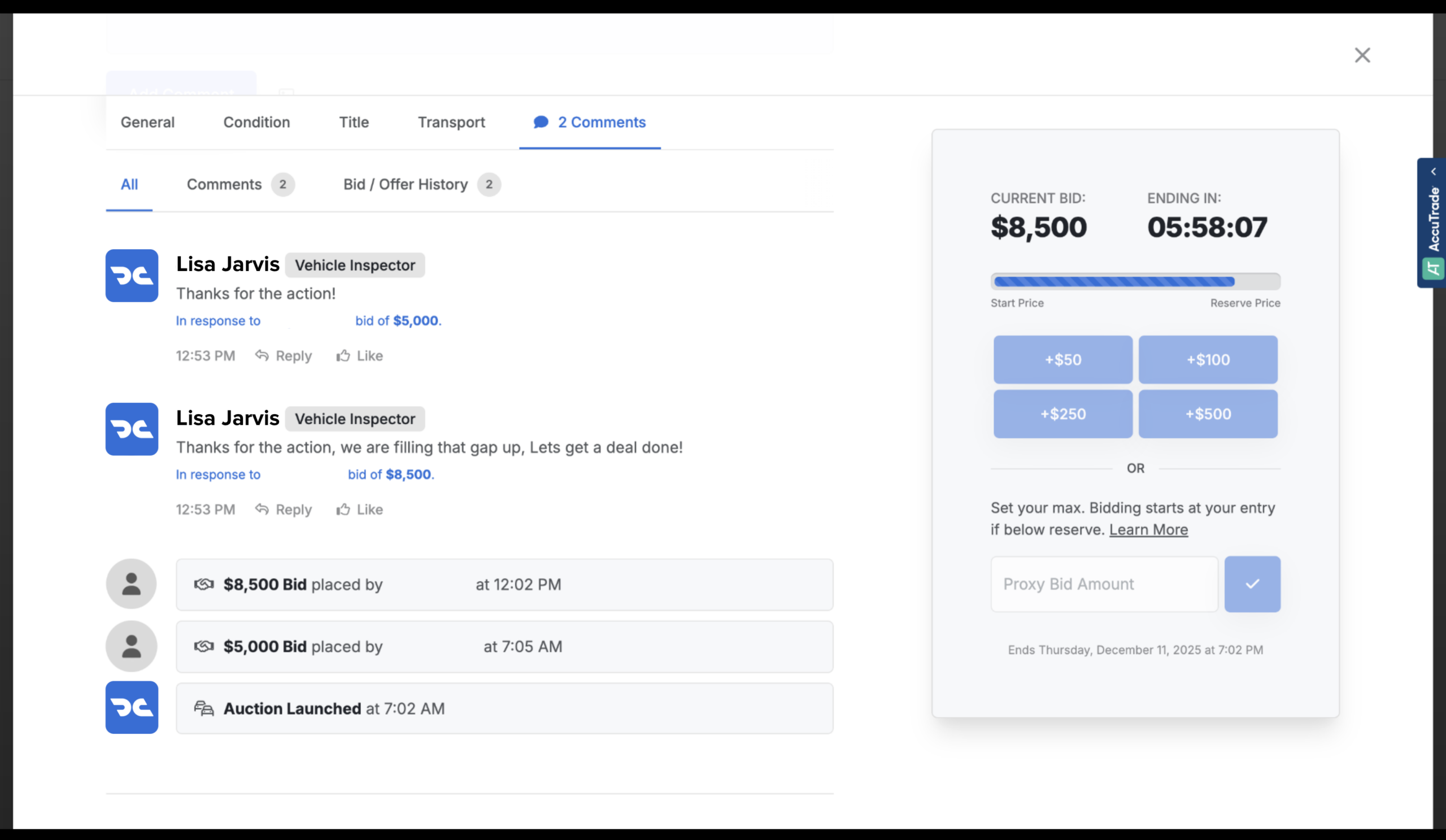
4 View seller responses
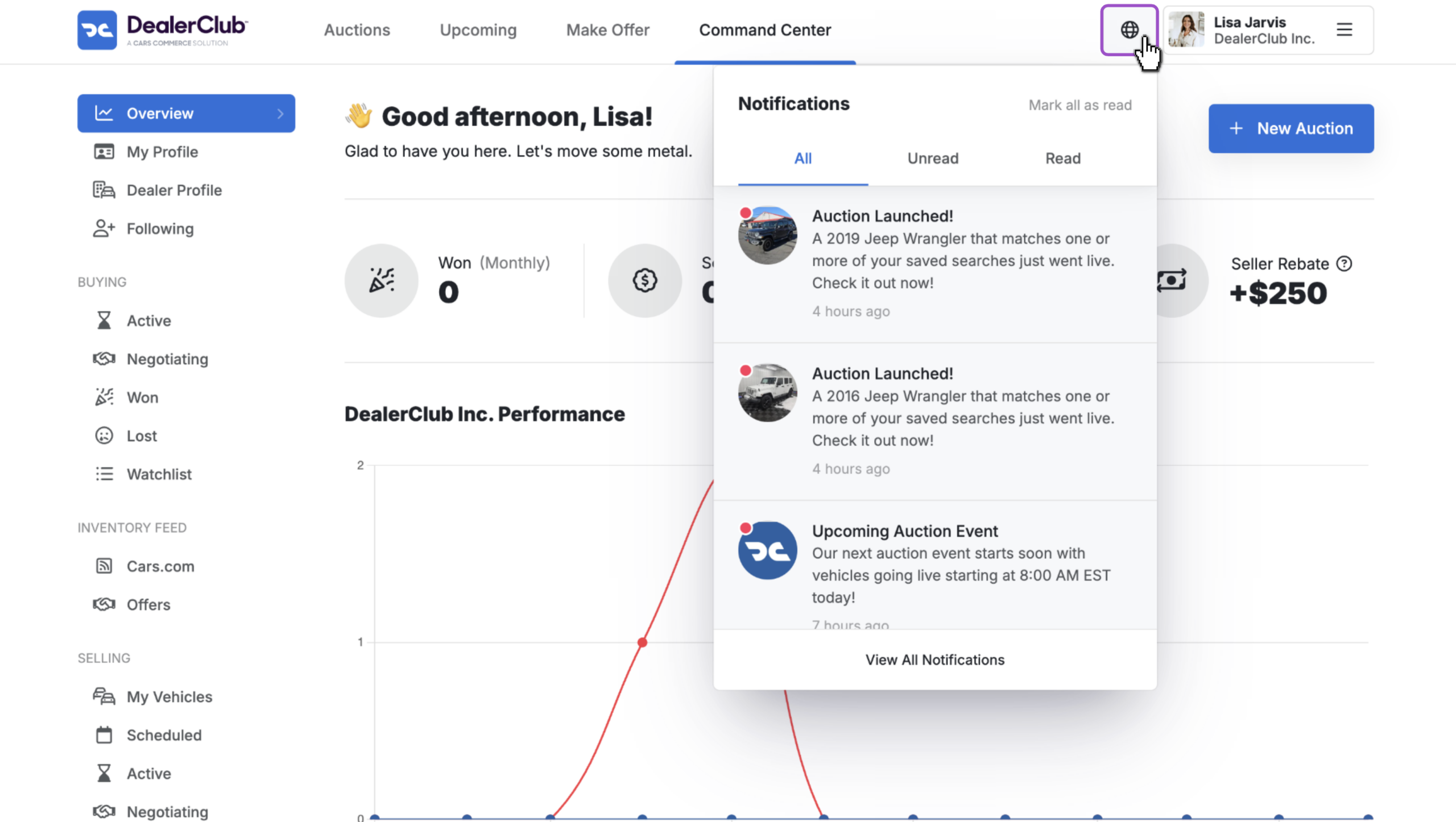
You’ll receive a notification when a seller replies.
To view it:
- Click the notifications icon near your account settings
- Select the new comment notification to jump directly to the response
5 Reply or engage on your own listings
When someone comments on a vehicle you’ve listed, you’ll also be notified.
To respond:
- Click into the vehicle listing
- Scroll to the comment
- Click Reply to continue the conversation
Tip: Sellers often thank bidders or clarify vehicle details in comments. Proactively commenting on your own listings can increase engagement and strengthen your DealerClub reputation.