How to appraise vehicles in the service drive
Your service drive can be your most valuable source of quality used cars if you have the technology-driven process to tap into it. AccuTrade empowers everyone on your team to do just that by making it easy to:
- Complete an appraisal in under five minutes
- Provide an exact offer to the customer at no risk
- Give customers detailed, transparent reports to earn trust
- Appraise vehicles regularly to create acquisition opportunities at scale
To get started
Go to the Cars.com Hub, and then click on AccuTrade.
1 Start the appraisal
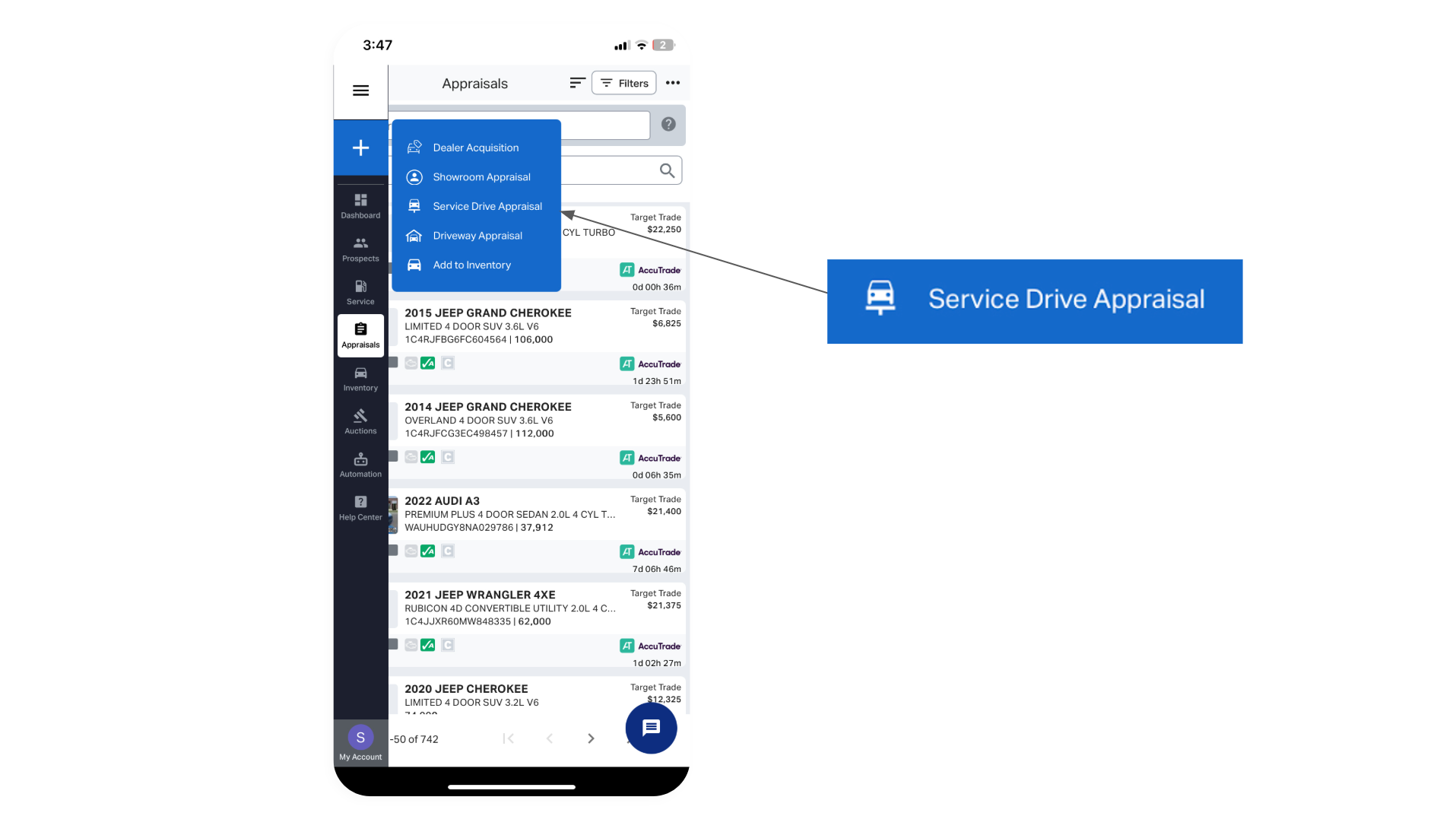
Tap the 3 lines in the top left corner to open the menu options, then tap the plus (+) sign and select Service Drive Appraisal to begin your appraisal.
2 Enter the VIN
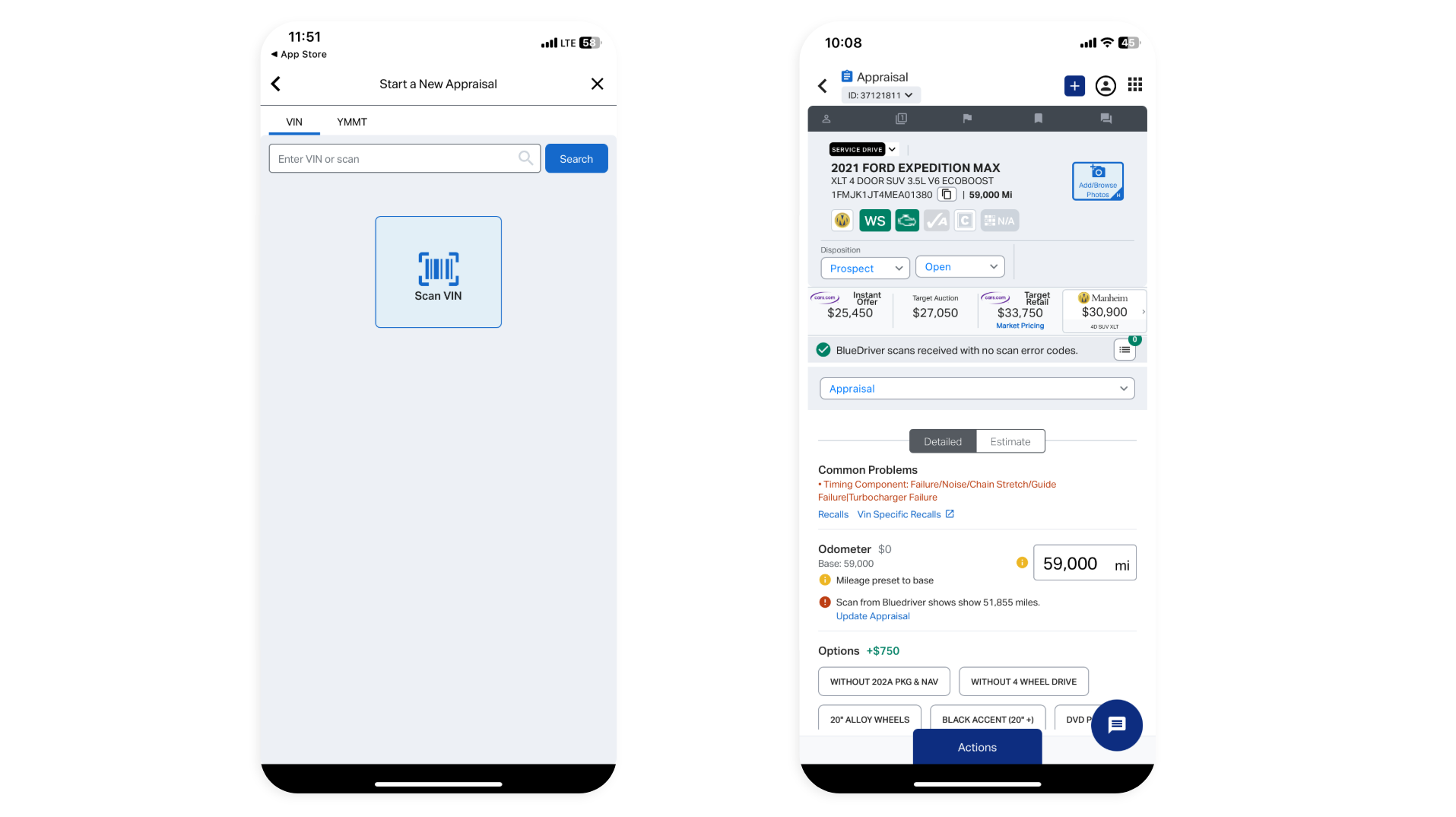
To begin the appraisal, tap Scan VIN or enter the VIN number in the search bar and select Search. Alternatively, you can select the YMMT option to run a less precise appraisal based on the vehicle’s year, make, model, and trim.
After the VIN or vehicle trim is selected, the appraisal report will populate on the screen.
Tip: Hunter Quick Check Drive® integration instantly captures the VIN and tire tread depth of every vehicle that enters your service drive for even faster appraisals.
3 Run the OBD scan
Run the OBD scan to uncover any diagnostic issues:
- With the vehicle running, plug the OBD device into the port under the steering wheel.
Note: You’ll need to have your Bluetooth on. For original BlueDriver devices, you’ll pair via Bluetooth first. For new LE devices, you’ll allow Bluetooth connection in the app. (See How to connect your OBD scanner for more details.) - In the app, Select Actions at the bottom of the screen, then select Start BlueDriver Scan.
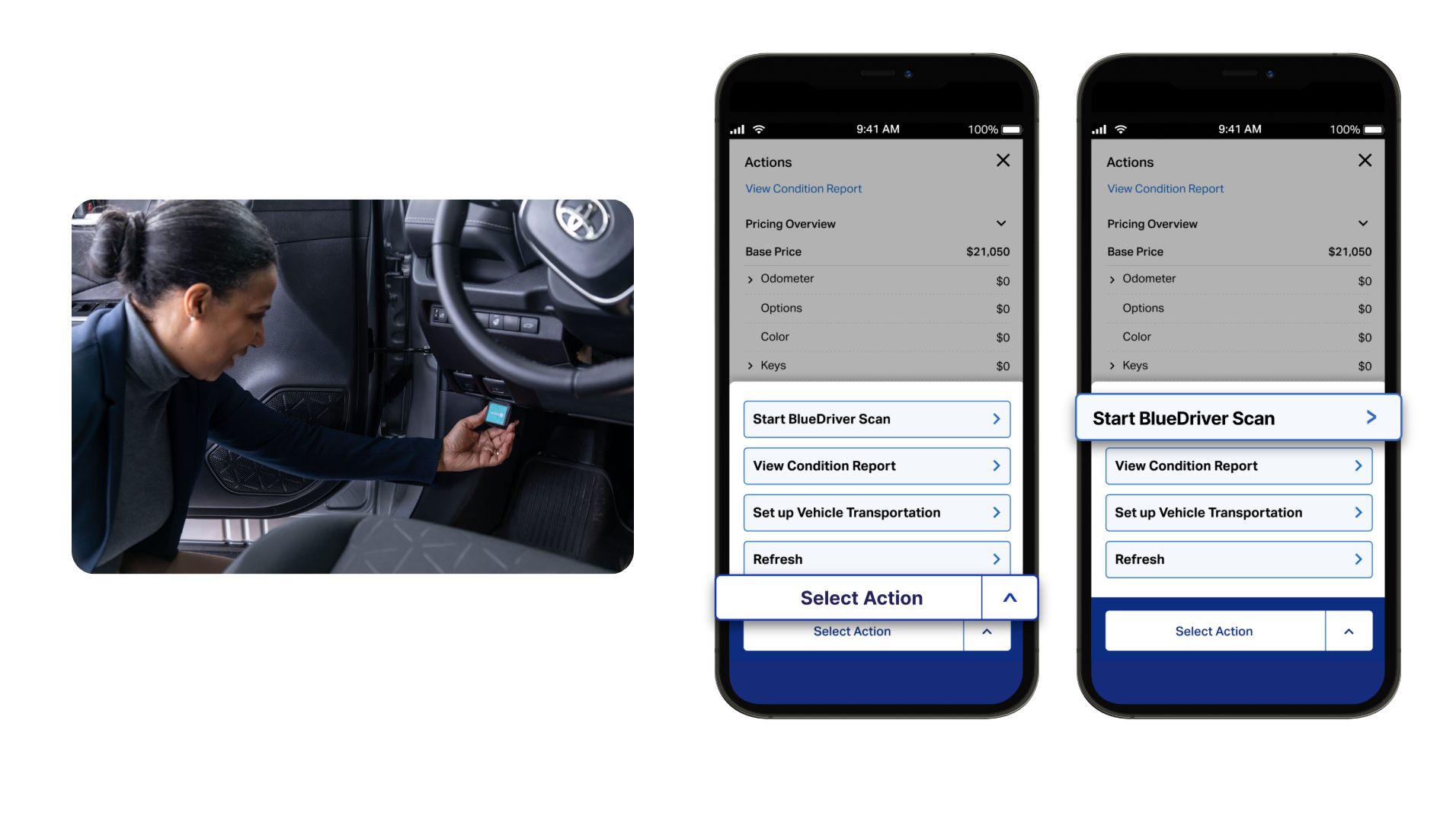
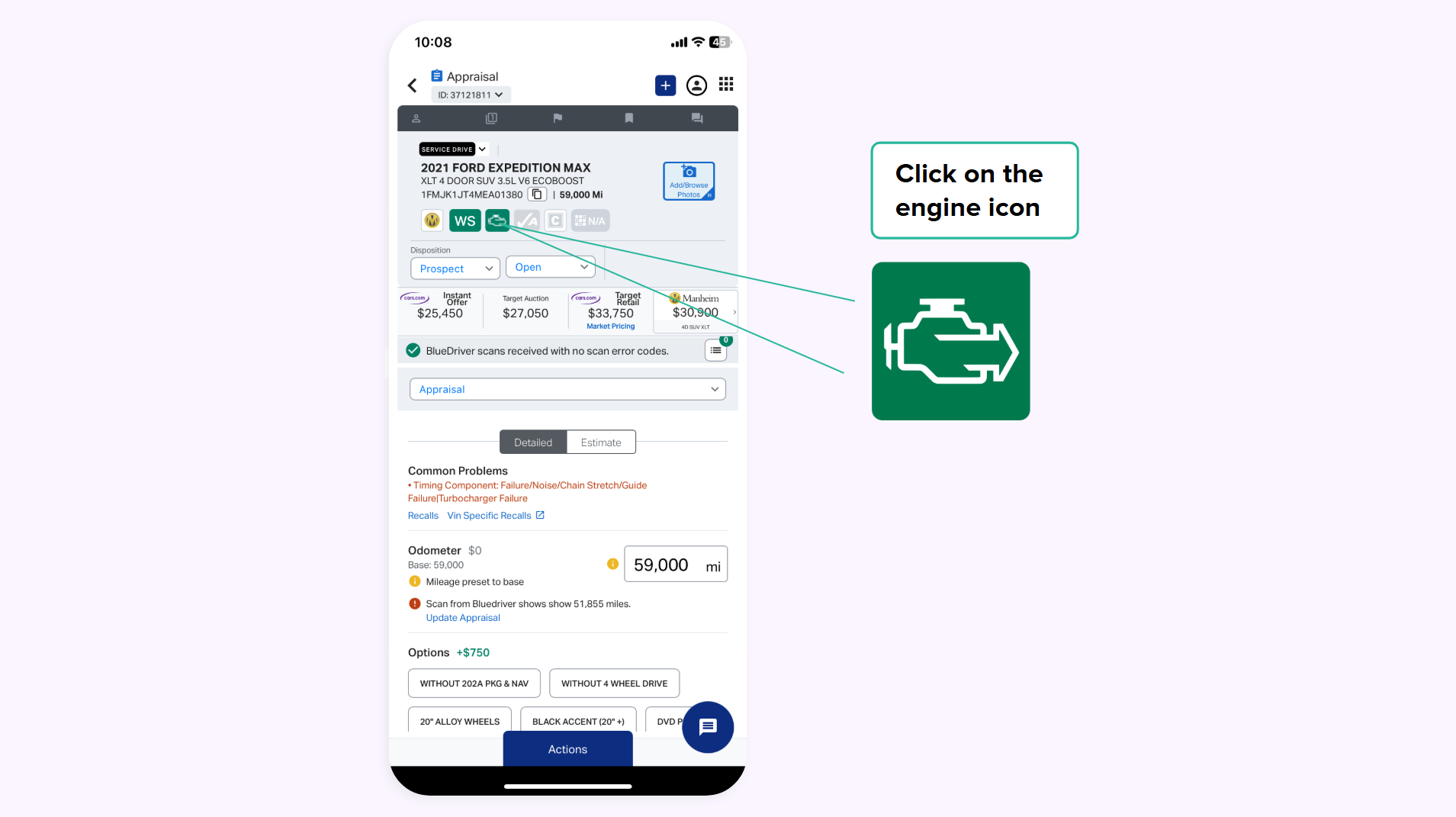
Any disclosures from the OBD scan are automatically deducted from the Instant Offer value. You can reveal the detected codes by selecting the Engine icon after the scan is complete.
4 Complete the appraisal
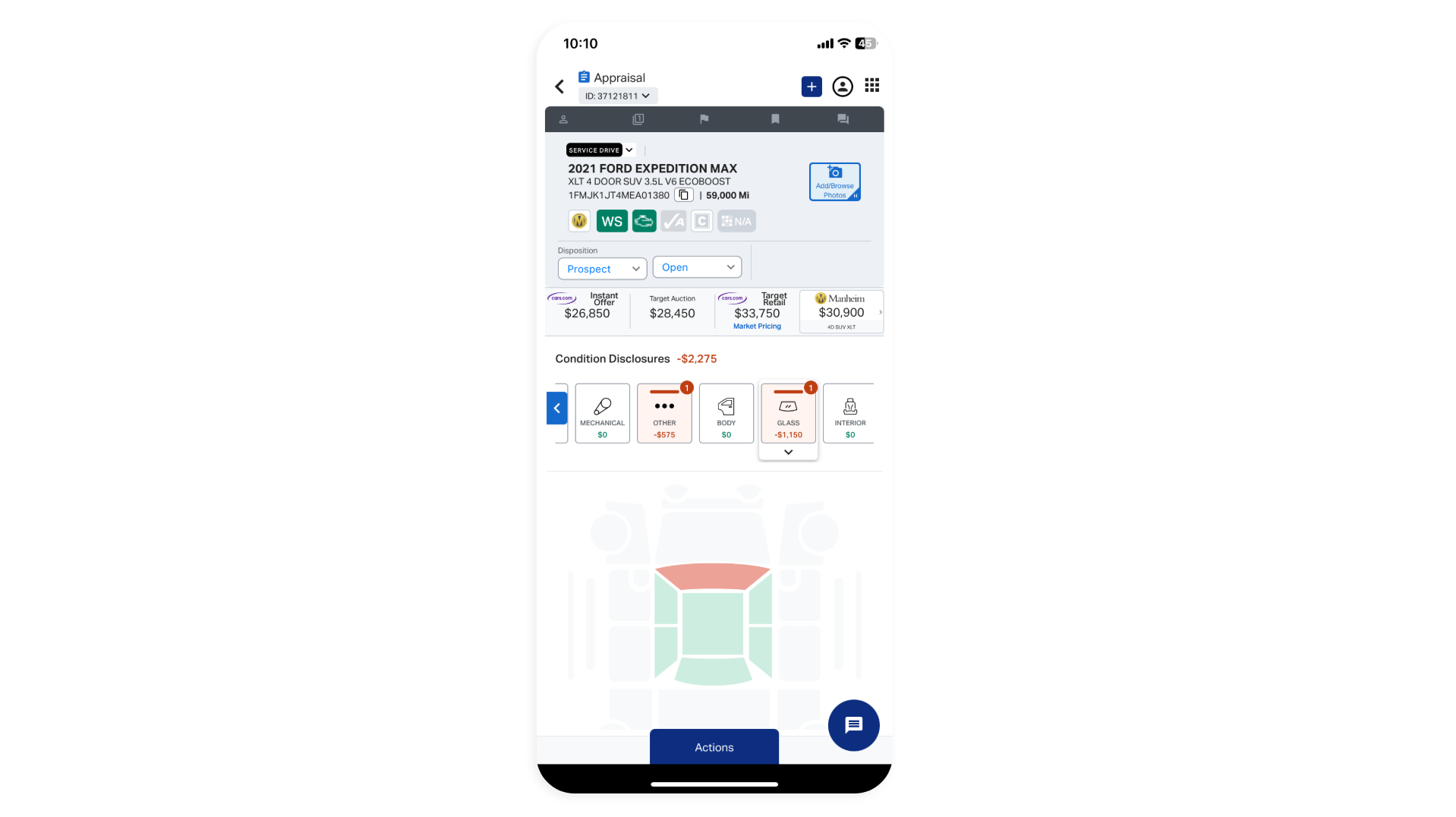
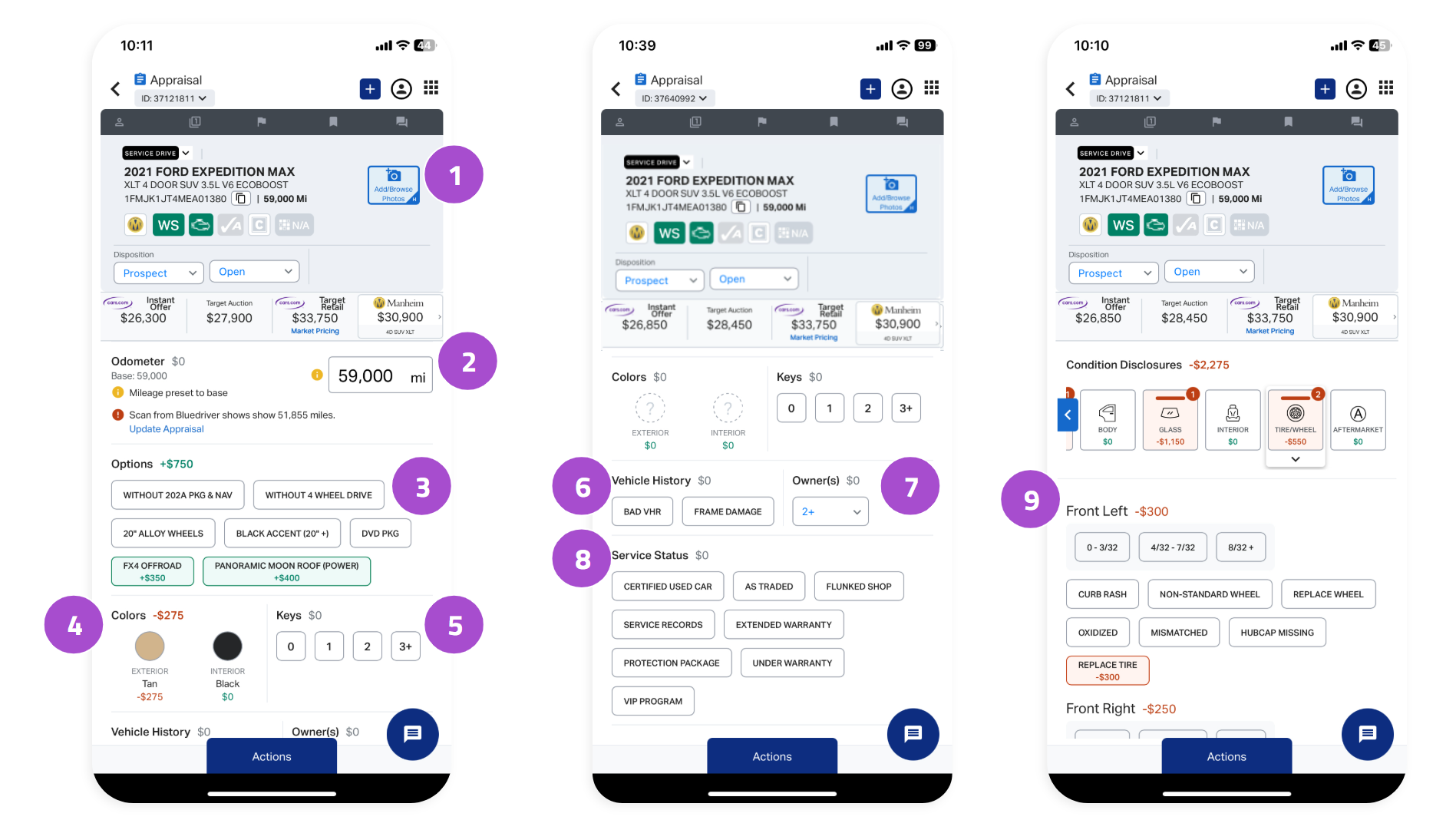
Walk around the vehicle to find any additional value-impacting disclosures to hone in on the right price. For example, if there is body damage, select the Body icon and select the damaged area(s). Any manual adjustments made will update the Instant Offer accordingly.
A complete appraisal should also include:
- 11+ vehicle photos
- Exact mileage on the odometer
- Options
- Exterior and interior colors
- Number of keys
- VHR – CarFax/AutoCheck
- Number of owners
- Service status
- Tire tread depth measurement
Review each section and confirm, add details, or adjust to ensure maximum appraisal accuracy.
5 (Optional) Modify the Instant Offer
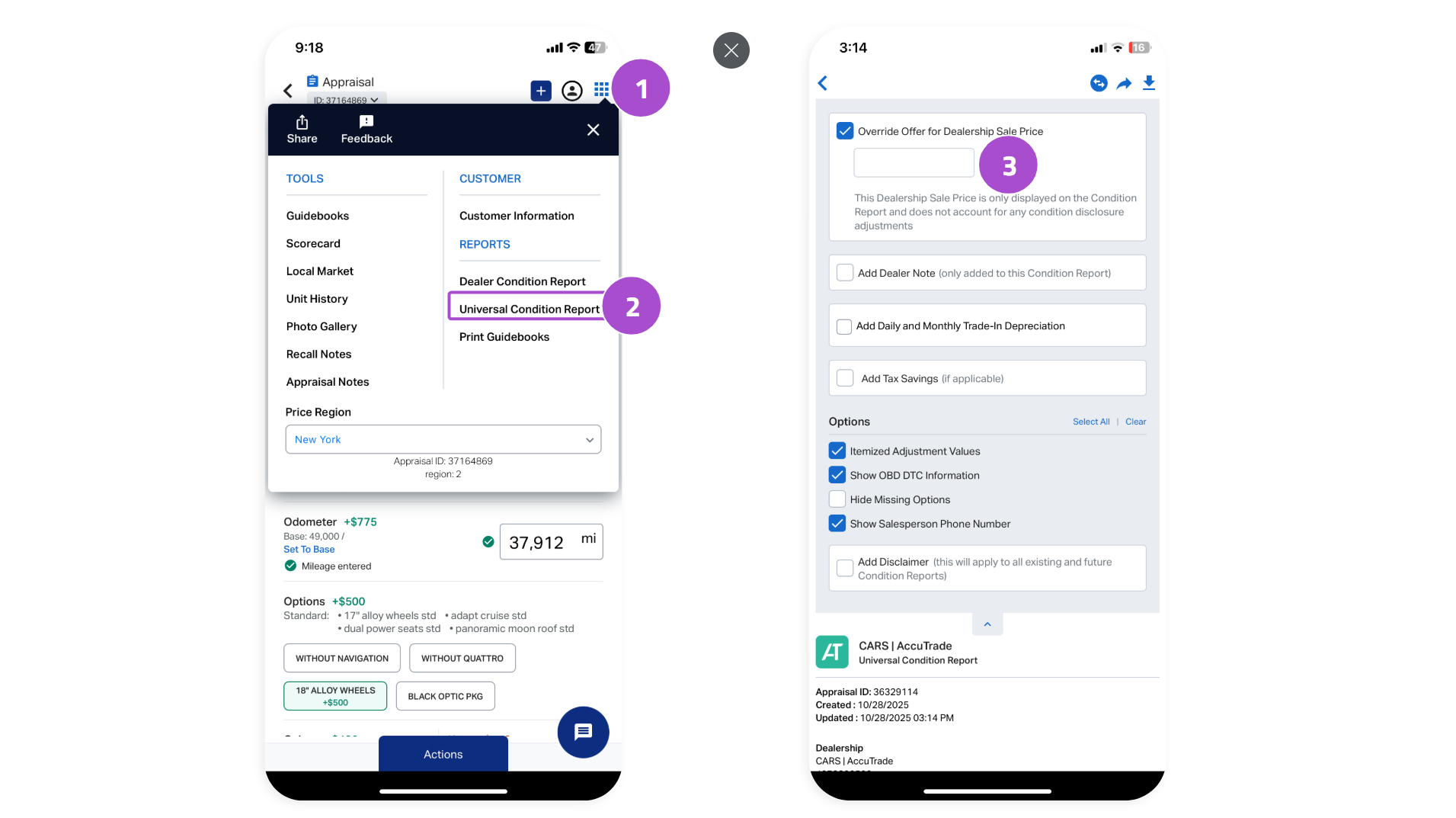
You can modify the Instant Offer price to make a more competitive offer to the customer. Note, however, that AccuTrade will only honor the Instant Offer price before any dealer adjustments.
To modify the Instant Offer:
- Tap the square of dots in the top-right corner.
- Select Universal Condition Report.
- Select Override Value, then enter the modified price.
(Note that the modified value is only displayed in the Condition Report.)
6 Walk the customer through the appraisal and offer
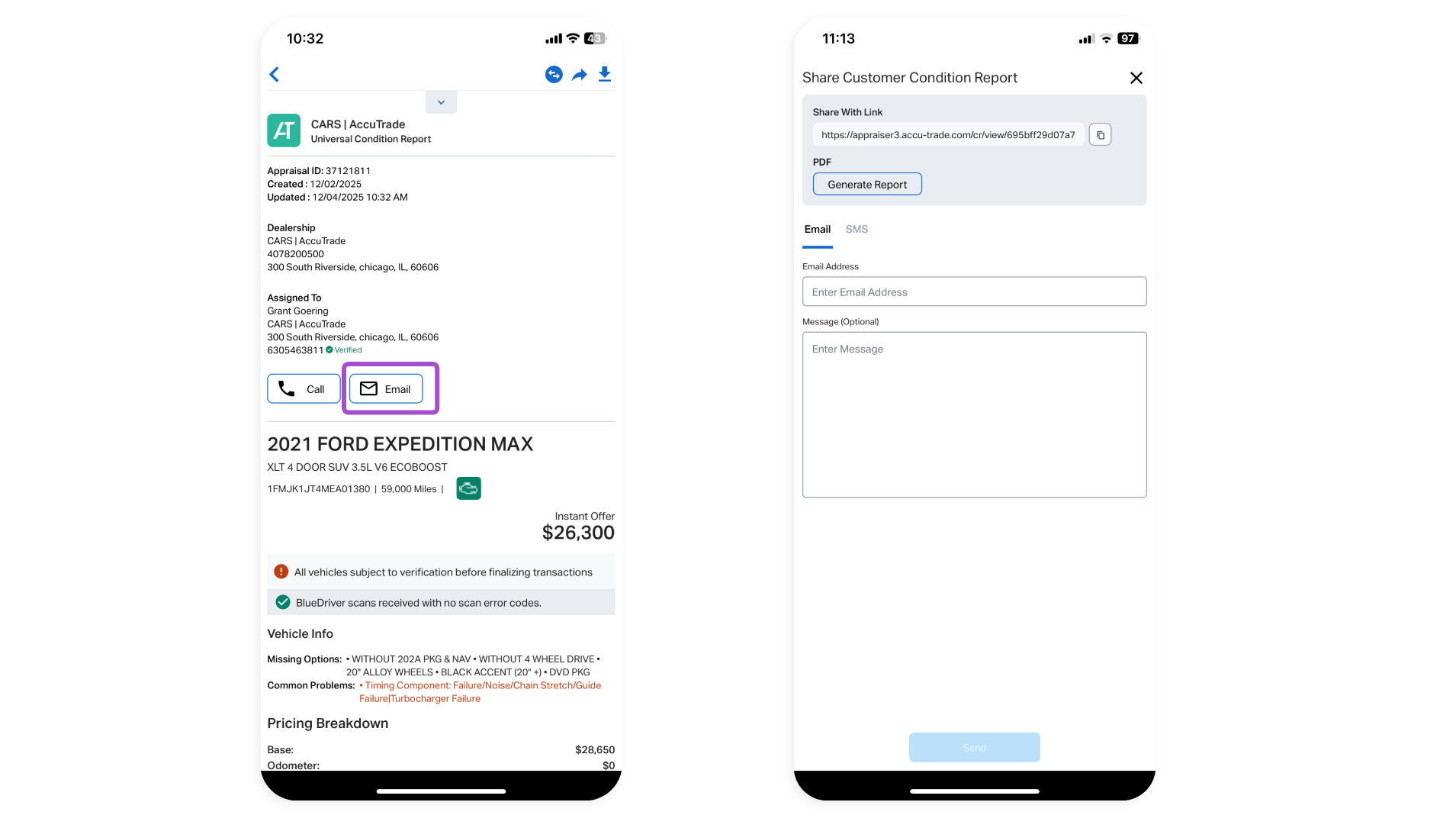
Present the Universal Condition Report to the customer and walk them through the details.
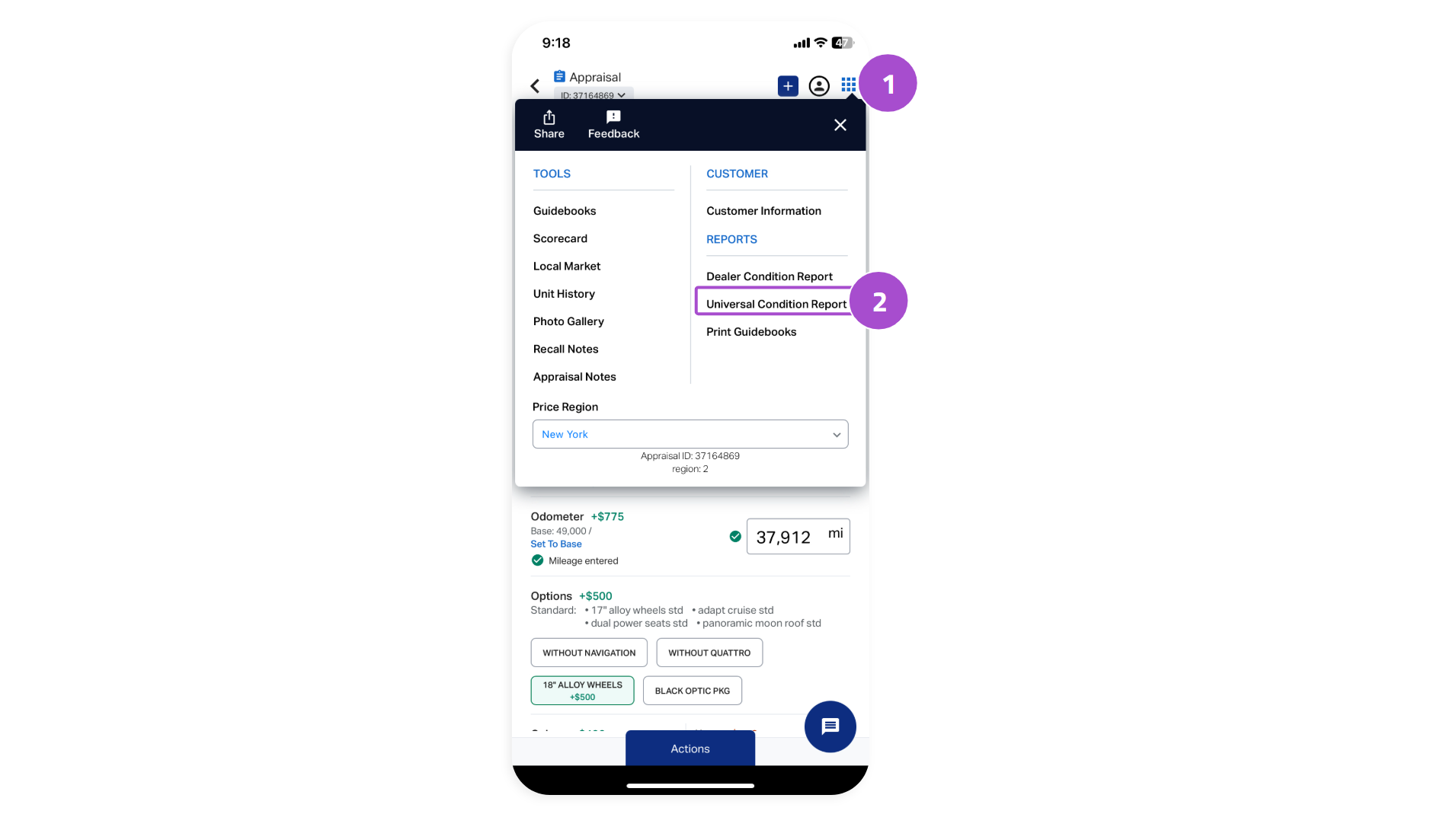
To pull up the Universal Condition Report:
- Tap the square of dots in the top-right corner.
- Select Universal Condition Report.
Showing the customer the “why” behind the price reduces confusion and builds trust, making you more likely to close the deal.
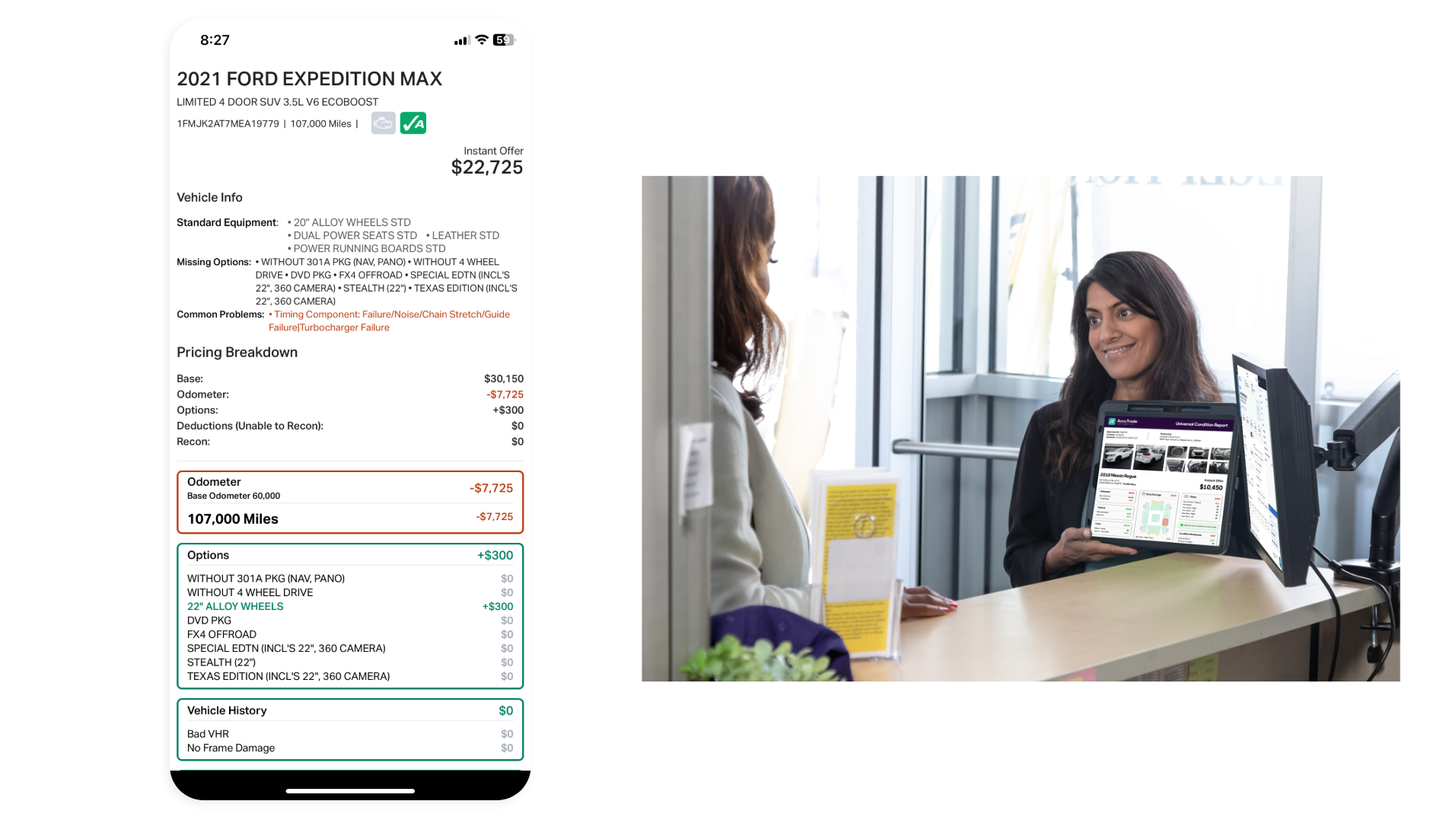
You can also email/text the report or generate a print-ready PDF copy for the customer by selecting Email.
7 Manage your service drive prospects
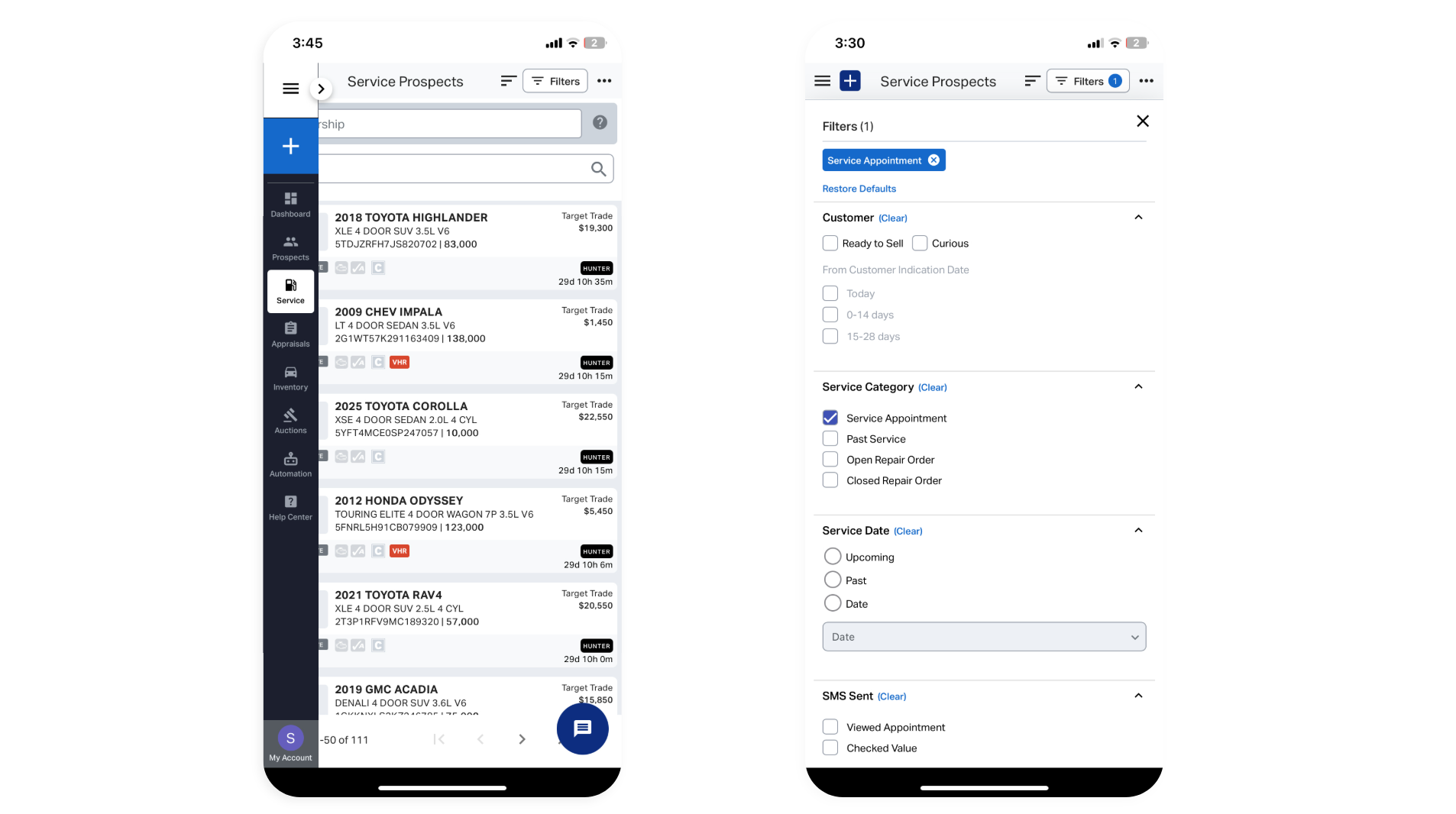
AccuTrade allows you to actively manage your service prospects, making it easy to find the inventory you want to acquire and engage with customers before and after their service visits.
To manage your service prospects:
- Select the Service tab.
- Select Filters to view customers by disposition, service category, and date.
Tip: Enhance your outreach by including details about a potential upgrade, such as the monthly payment amount for a new model with trade-in value applied.